Introduction
The Loop Kodi addon is one of the most popular free sports streaming addons available on Kodi right now — and if you’re a sports fan who’s tired of paying for expensive TV packages, this is exactly what you’ve been looking for.
The Loop Kodi gives you access to live football, cricket, UFC, boxing, basketball, rugby, darts, motorsport, and much more — all for free, all inside Kodi. It even includes a daily schedule so you always know what matches are on today and when they start.
In this guide I’ll walk you through exactly how to install The Loop Kodi addon from its official repository — step by step, screenshot by screenshot. I’ll also cover what to do when it stops working, because honestly — it does sometimes, and most guides never tell you how to fix it.
Let’s get into it.
What Is The Loop Kodi Addon?
The Loop is a dedicated sports and live TV addon for Kodi. Unlike general streaming addons that try to cover everything, The Loop is built specifically around live sports — making it one of the most organized and useful free sports addons available.
It has its own dedicated Loop Repository — separate from SlyGuy or vStream. The addon pulls live sports streams from multiple free streaming sources and organizes them into clean, easy-to-navigate categories inside Kodi.
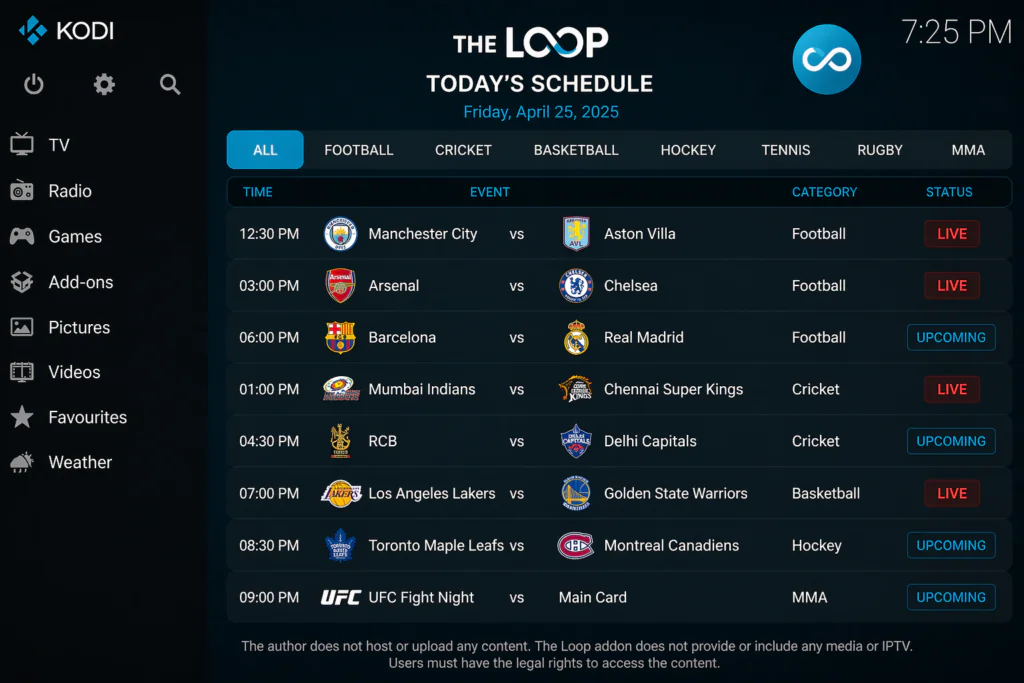
The addon updates its stream list daily, so you always get fresh links for whatever is happening in sport today. It also includes a Today’s Schedule section — something most sports addons don’t have — so you can plan what you’re going to watch before you even open the streams.
What Sports Can You Watch?
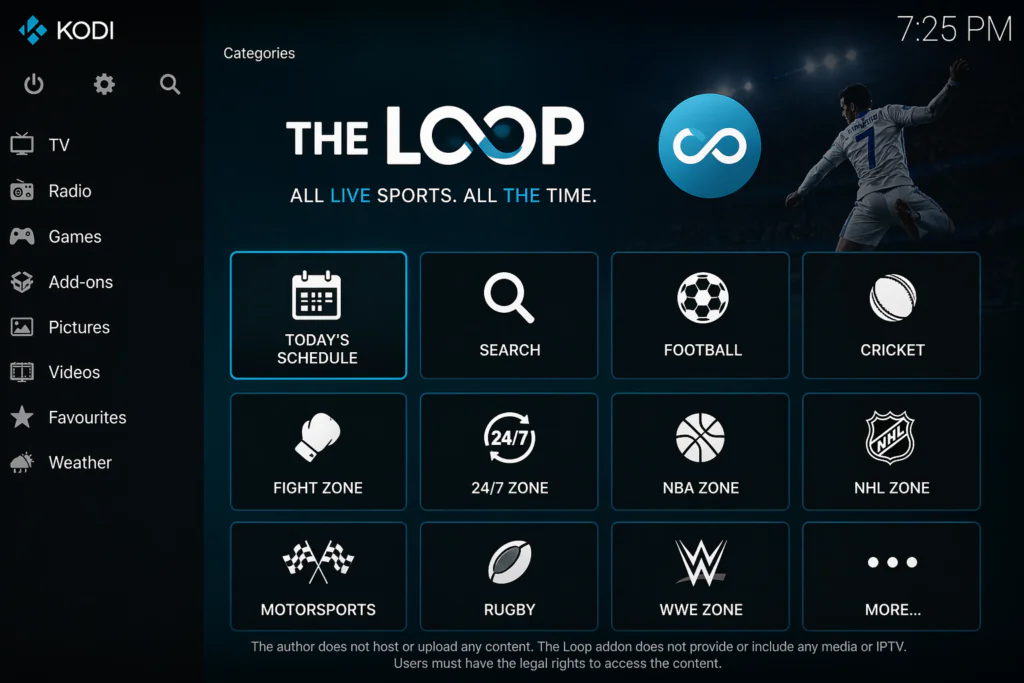
The Loop Kodi addon covers an impressive range of sports. Here’s what’s available:
Live sports categories:
- Football — today’s matches from leagues around the world
- Cricket — international and domestic cricket
- Rugby — union and league
- Golf — majors and tour events
- Darts — PDC and BDO events
- Boxing and MMA — live fight cards including UFC
- NBA — live basketball games
- NFL — American football
- MLB — baseball
- NHL — ice hockey
- NASCAR and Formula 1 — motorsport
- And many more through the Find My Game and Fan Zone sections
Additional sections:
- Today’s Schedule — full list of live events happening today
- 24/7 Zone — channels running around the clock
- Auto Zone — motorsport focused streams
- Fight Zone — boxing, MMA, wrestling
- Soap Zone — live TV entertainment channels
- Search — find specific games or events by name
The breadth of sports coverage is genuinely impressive for a completely free addon. Whether you follow Premier League football or niche sports like darts, The Loop Kodi has something for you.
Features of The Loop Kodi Addon
Here’s a quick summary of what makes this addon worth installing:
- Live sports from dozens of categories — football, cricket, MMA, NBA, NFL, and more
- Daily schedule — see all live events happening today in one place
- Find My Game — search for specific matches or events
- 24/7 Zone — channels running continuously with no fixed schedule
- Multiple stream links per event — if one fails, try another
- Live TV section — news, entertainment, and sports channels
- EPG support — connect with PVR IPTV Simple Client for a TV guide view
- Free — no subscription or account required
- Works on Android TV boxes, Fire Stick, Windows, Mac, and Raspberry Pi
- Compatible with Kodi 20 Nexus and Kodi 21 Omega
Is The Loop Kodi Safe and Legal?
Let me be straight with you here — because most guides either scare you unnecessarily or completely ignore this question.
The Loop Kodi addon itself is safe to install. The repository has been scanned multiple times and contains no malware or harmful code. It’s been used by millions of Kodi users for years without any security issues.
The legal question is more nuanced. The Loop pulls sports streams from free streaming websites. Some of those streams are licensed and legal. Others may be broadcasting copyrighted sports events without authorization.
If you’re watching a game that’s normally behind a paywall in your country, there’s a chance the stream isn’t officially licensed. The responsibility for what you watch sits with you as the end user.
For general online privacy while streaming, a VPN is a sensible precaution — not because you’re doing anything wrong, but because it keeps your connection private. The EFF has a straightforward guide on why online privacy matters at eff.org/issues/privacy.
Before you start, make sure you have Kodi installed. Download it for free from the official Kodi website at kodi.tv.
Requirements Before You Start
Make sure you have these ready:
- Kodi 20 (Nexus) or Kodi 21 (Omega) installed on your device
- A stable internet connection — at least 10 Mbps for smooth sports streaming
- Unknown Sources enabled in Kodi settings — I’ll show you how
- A compatible device — Android TV box, Fire Stick, Windows PC, Mac, or Raspberry Pi
If this is your first time installing a Kodi addon, read this guide on how to install Kodi addons before continuing.
Step-by-Step Installation Guide for The Loop Kodi Addon
Follow each step carefully. The whole process takes under 10 minutes.
Step 1: Enable Unknown Sources in Kodi
- Open Kodi on your device
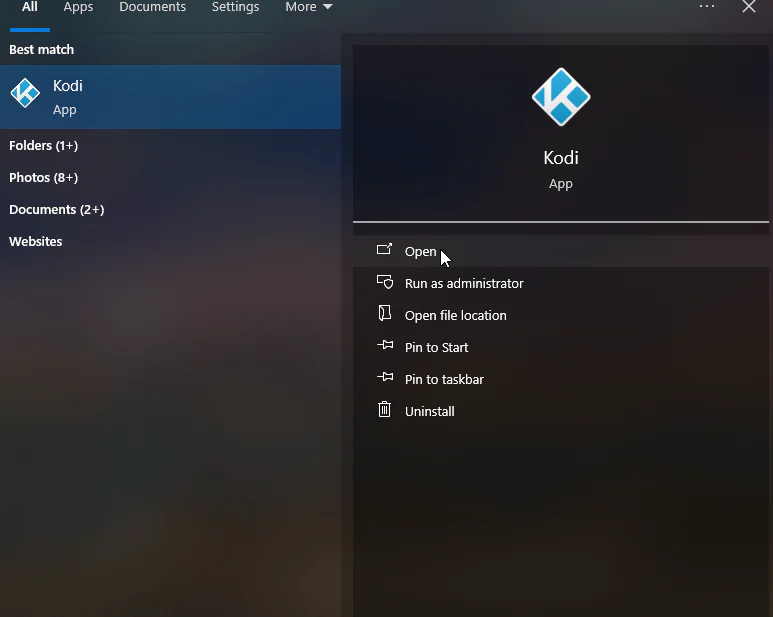
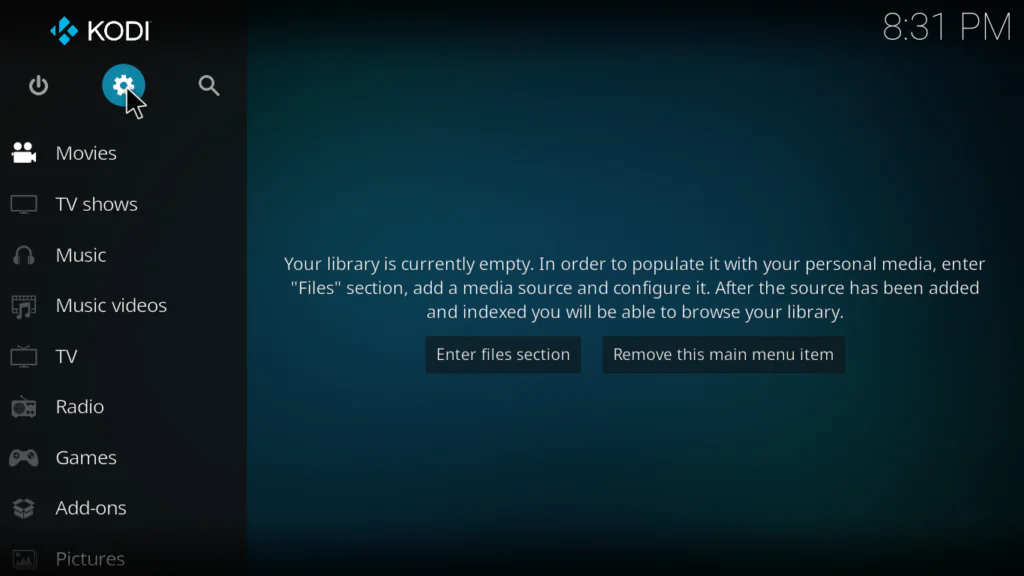
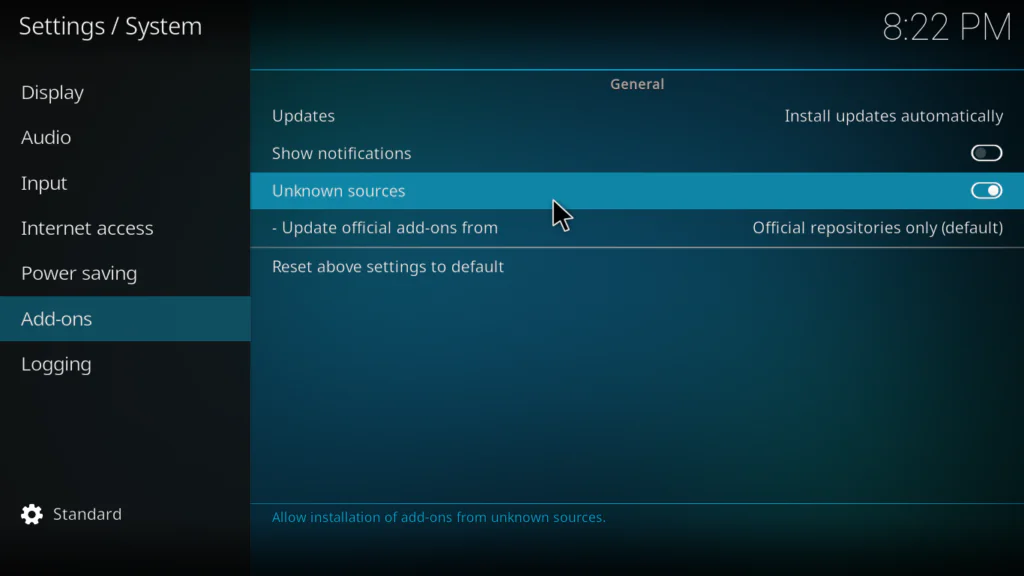
- Click the gear icon at the top left to open Settings
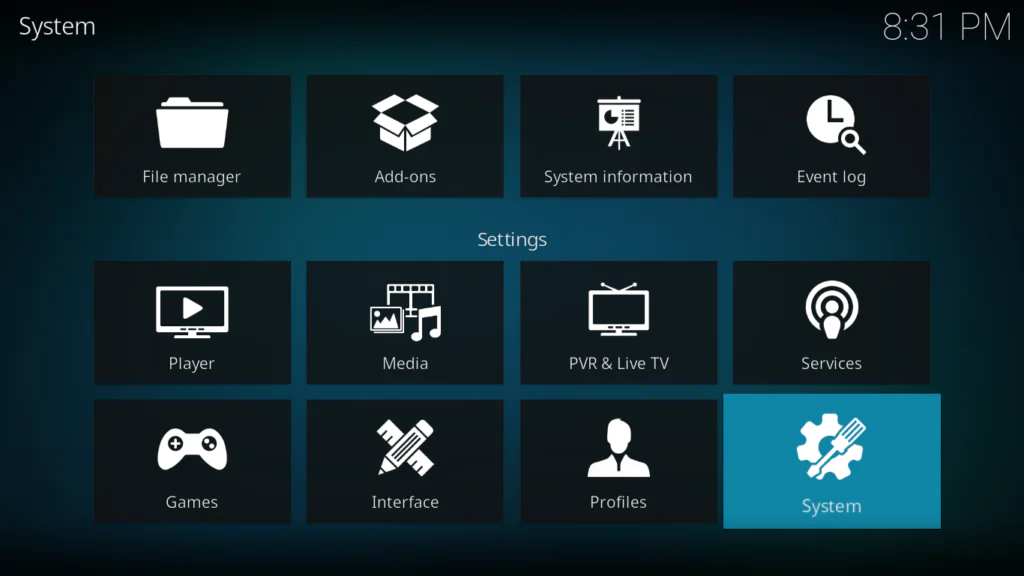
- Click System
- Select Add-ons from the left menu
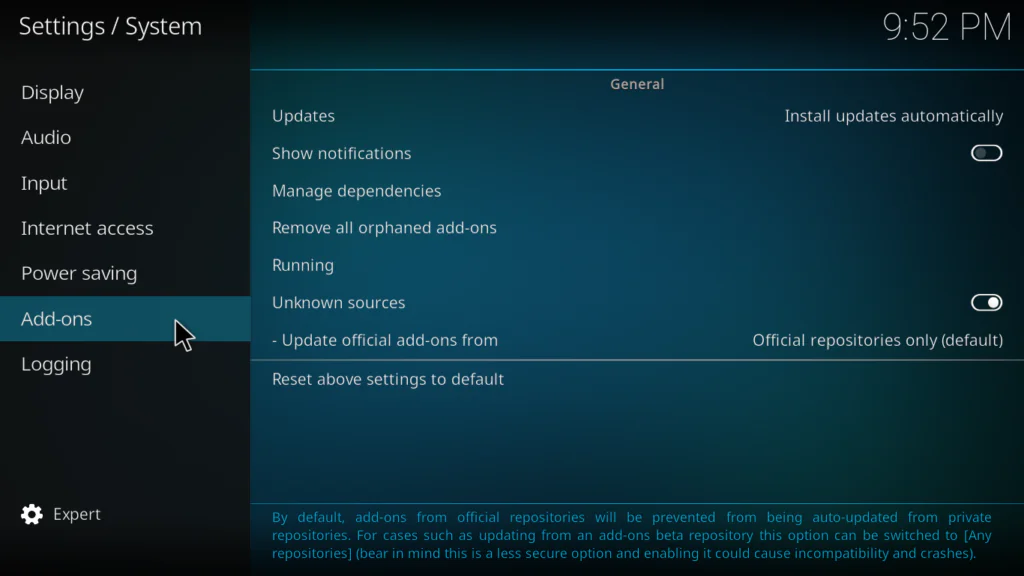
- Toggle Unknown Sources to ON
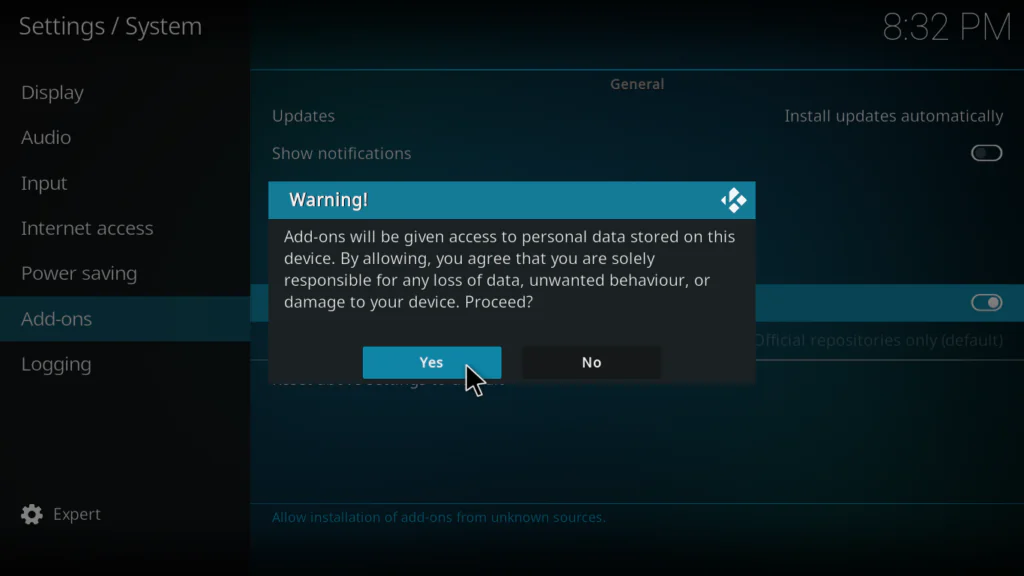
- Click Yes on the warning popup
Step 2: Add The Loop Repository in File Manager
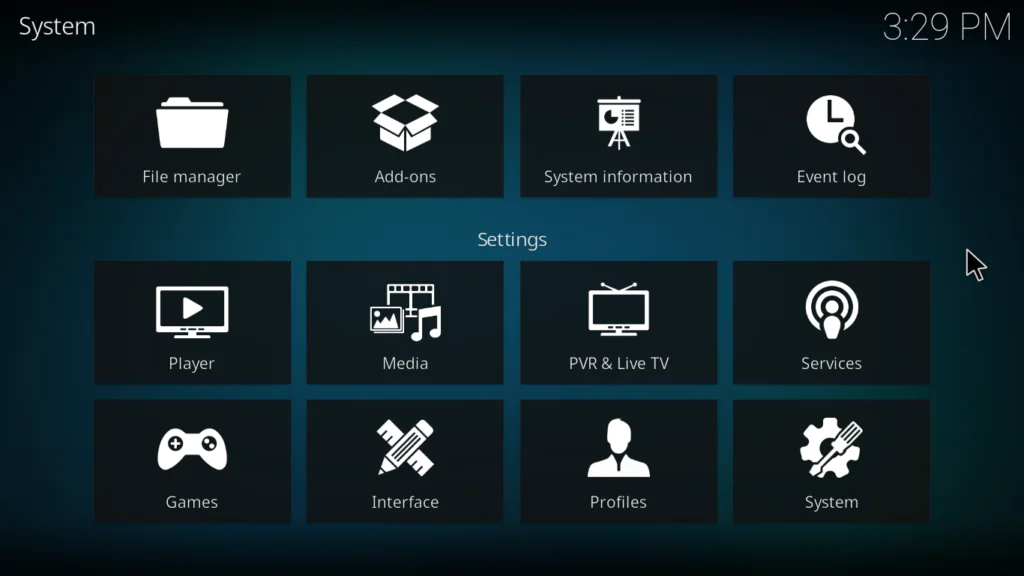
- Go back to the main Settings screen
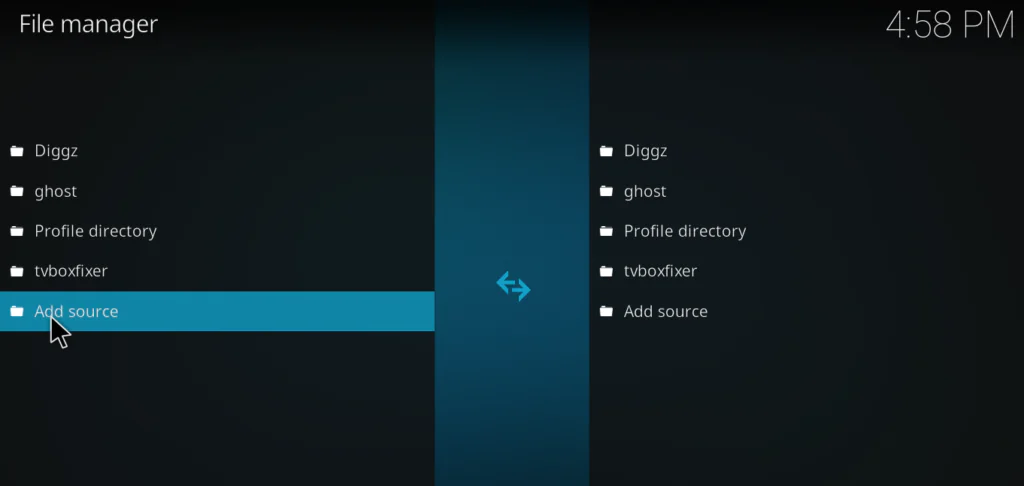
- Click File Manager
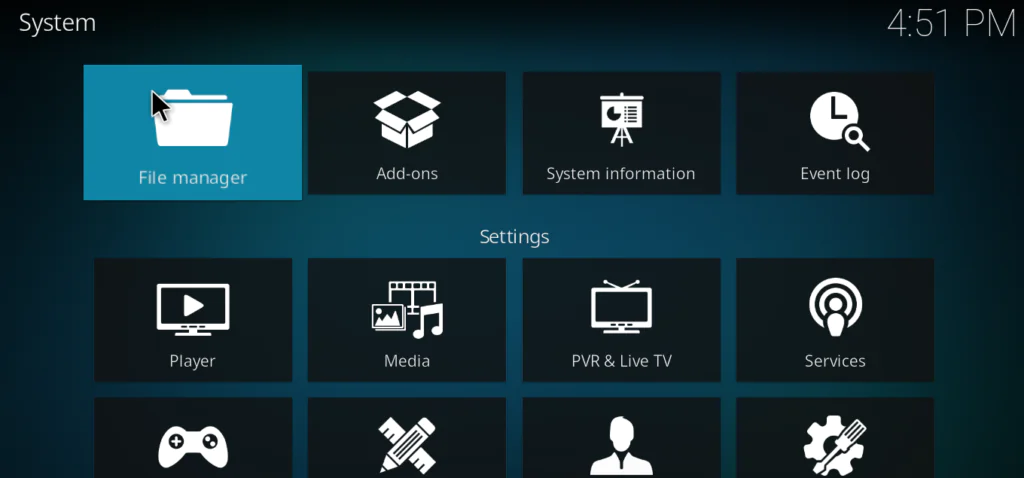
- Double-click Add Source on the left panel
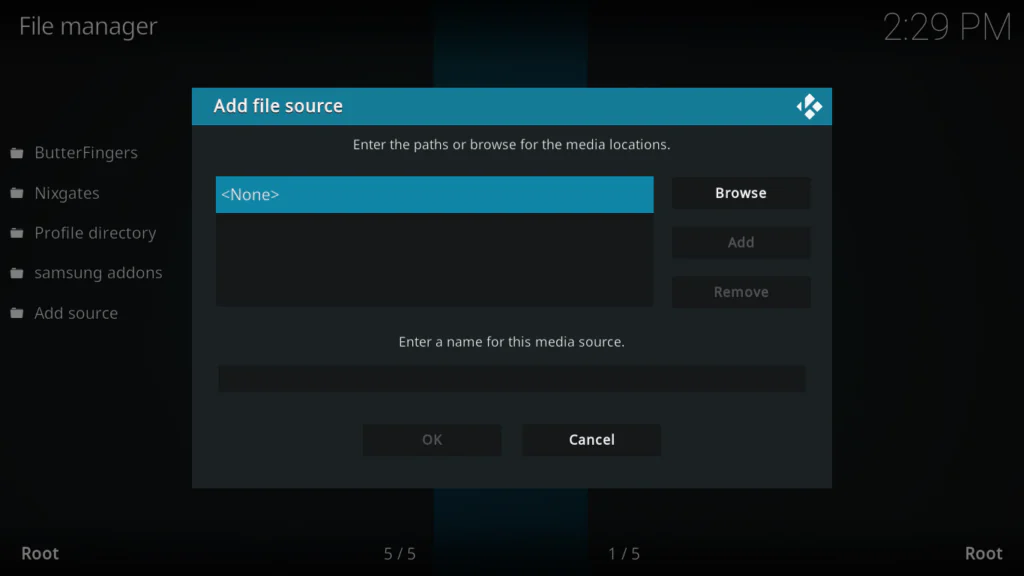
- Click where it says None
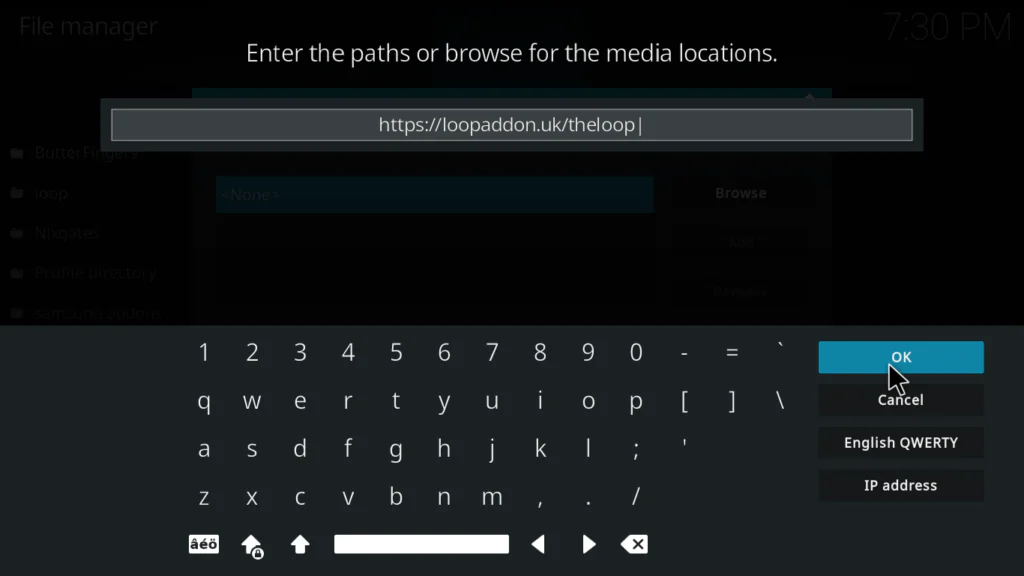
- Type this URL exactly: https://loopaddon.uk/theloop
- In the name field below, type: loop
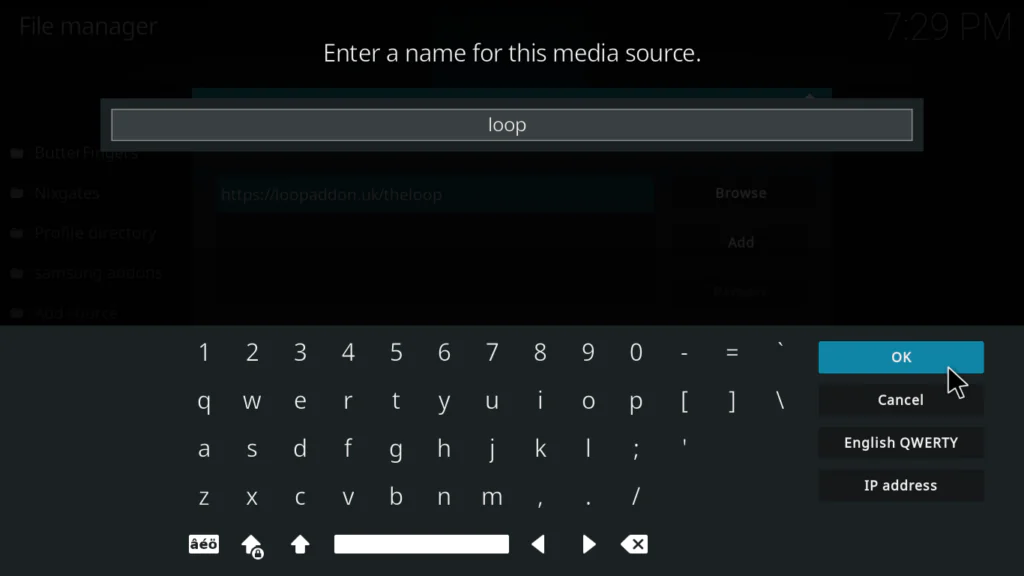
- Click OK to confirm
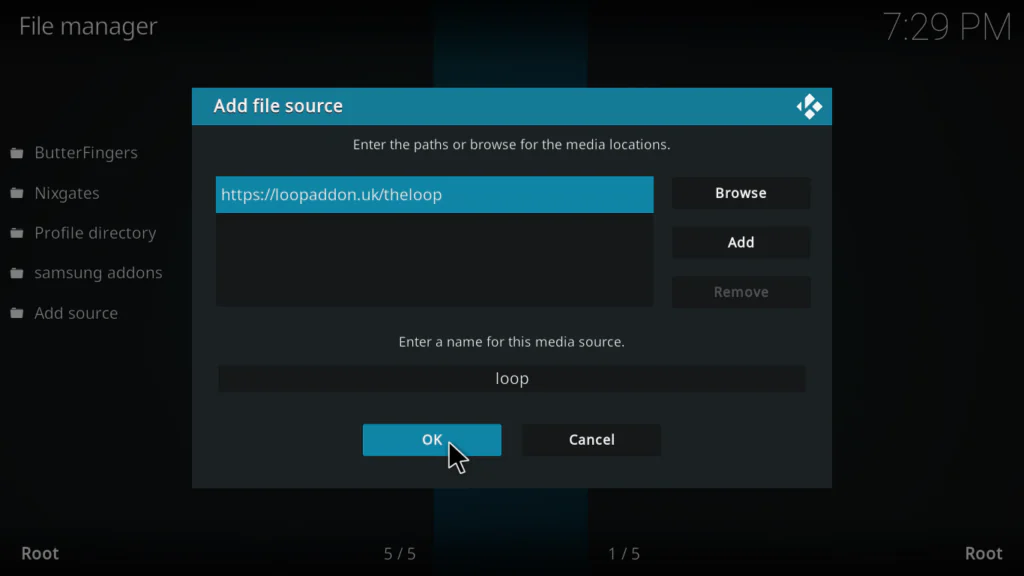
Important: Type the URL exactly as shown. This is The Loop’s own repository — different from SlyGuy or vStream. One wrong character will break the installation.
Tip: If https://loopaddon.uk/theloop doesn’t respond, try the alternative: https://loopaddon.uk/loop — both point to the same repository.
Step 3: Install The Loop Repository Zip File
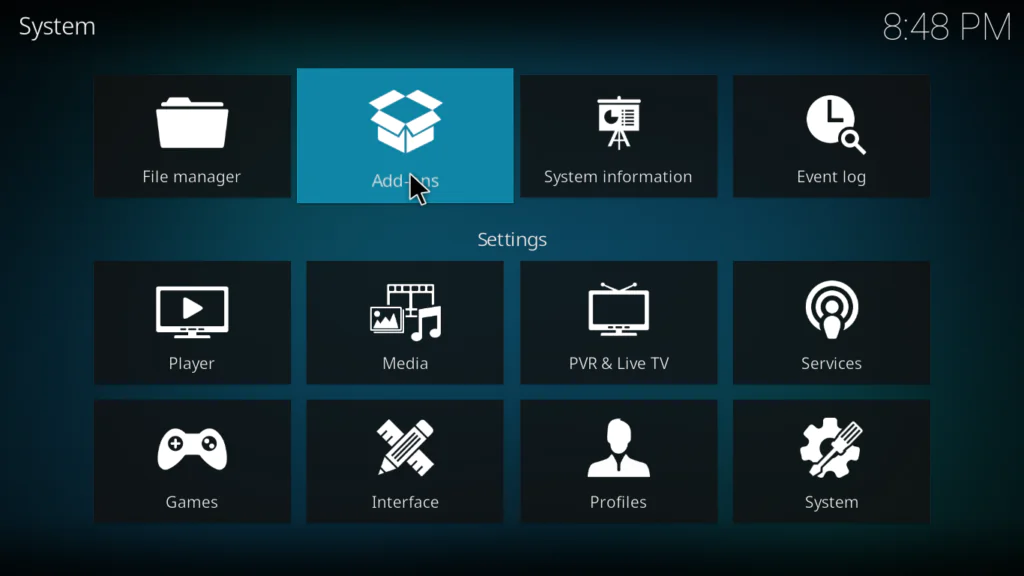
- Go back to the Kodi system screen
- Click Add-ons
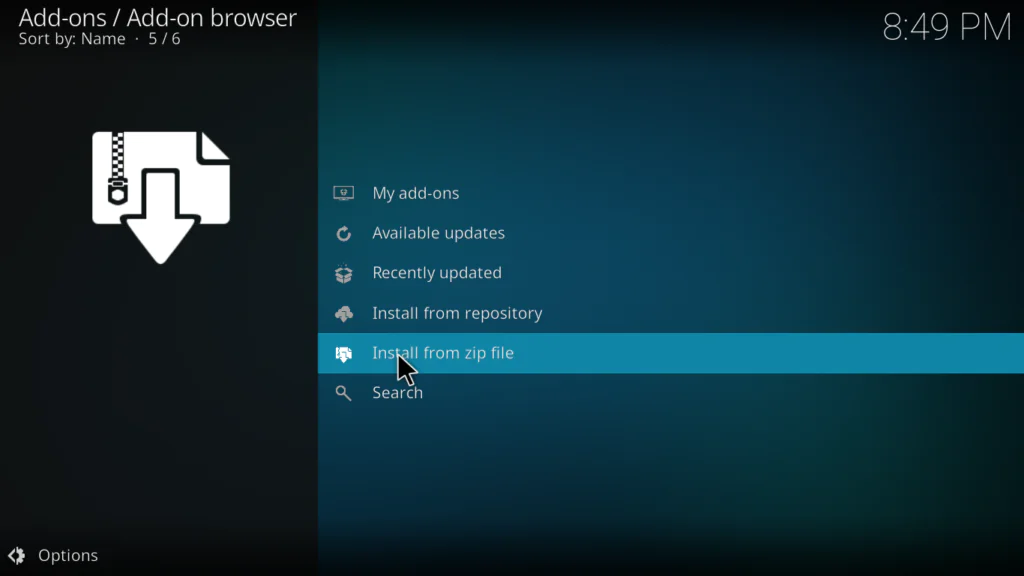
- Select Install from zip file
- Find and click loop from the file browser
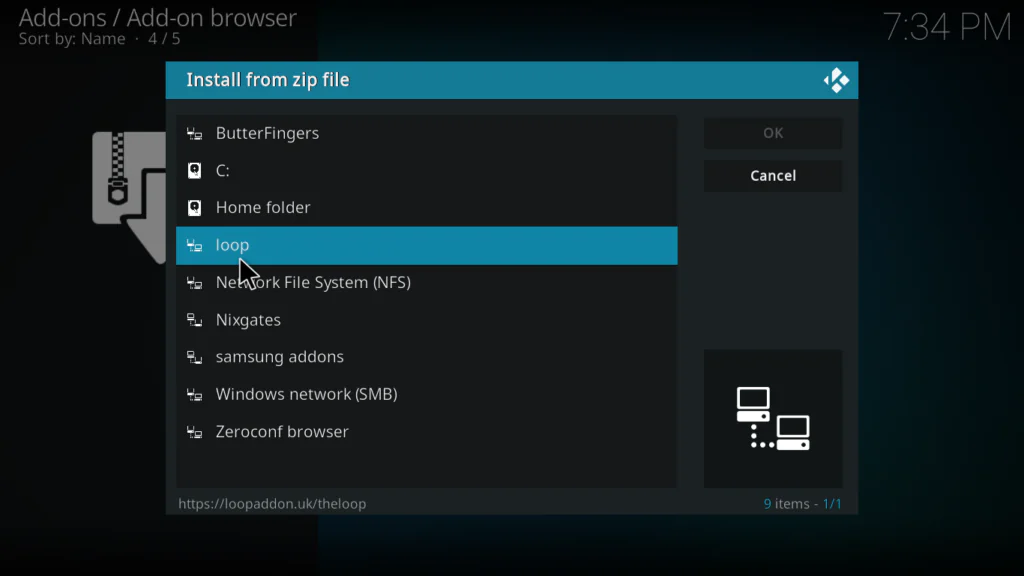
- Select the repository zip file from the list
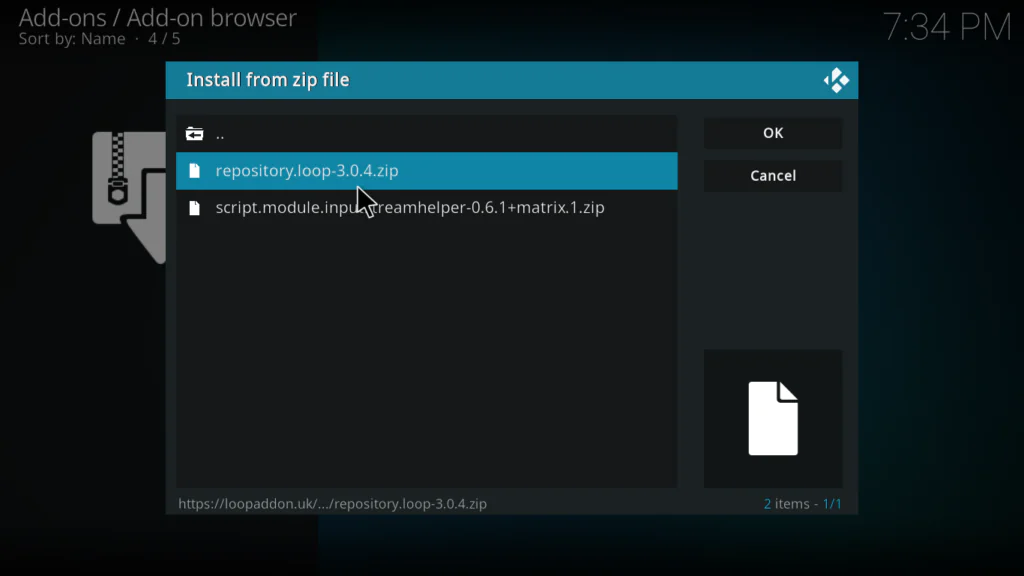
- Wait for the Repo Installed notification in the top right corner
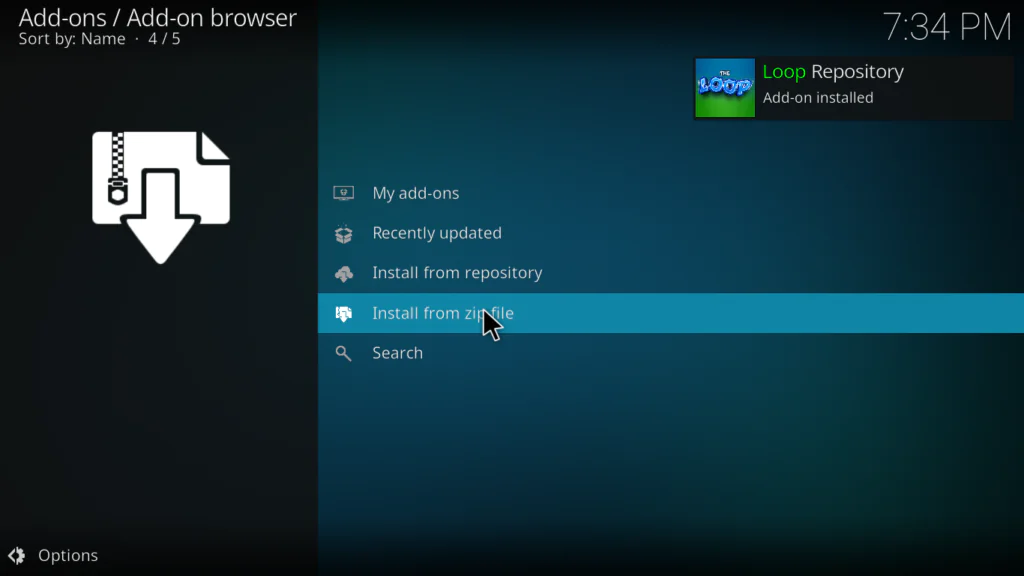
Step 4: Install The Loop Addon from the Repository
- Still in the Package Installer, click Install from repository
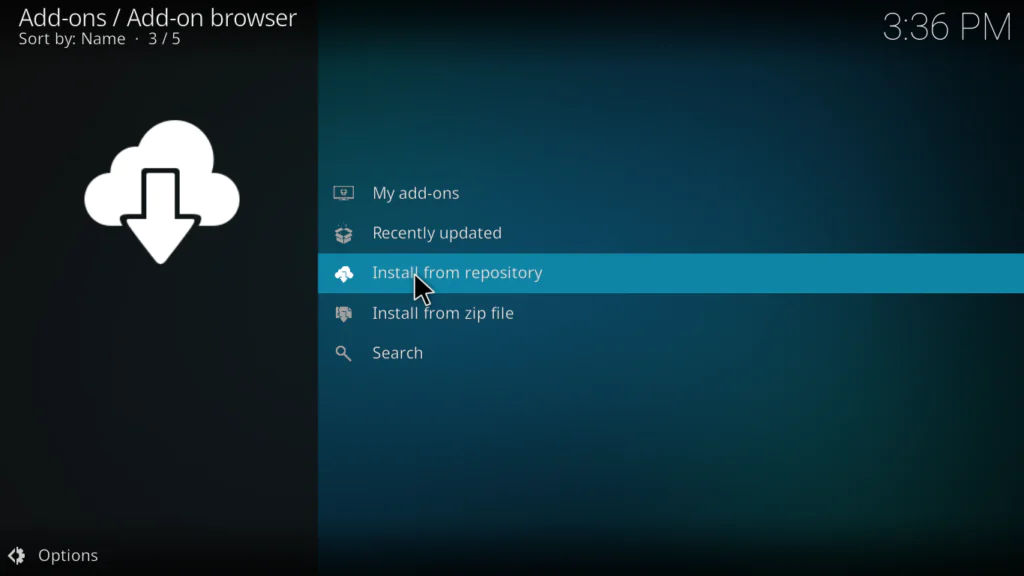
- Find and click Loop Repository from the list
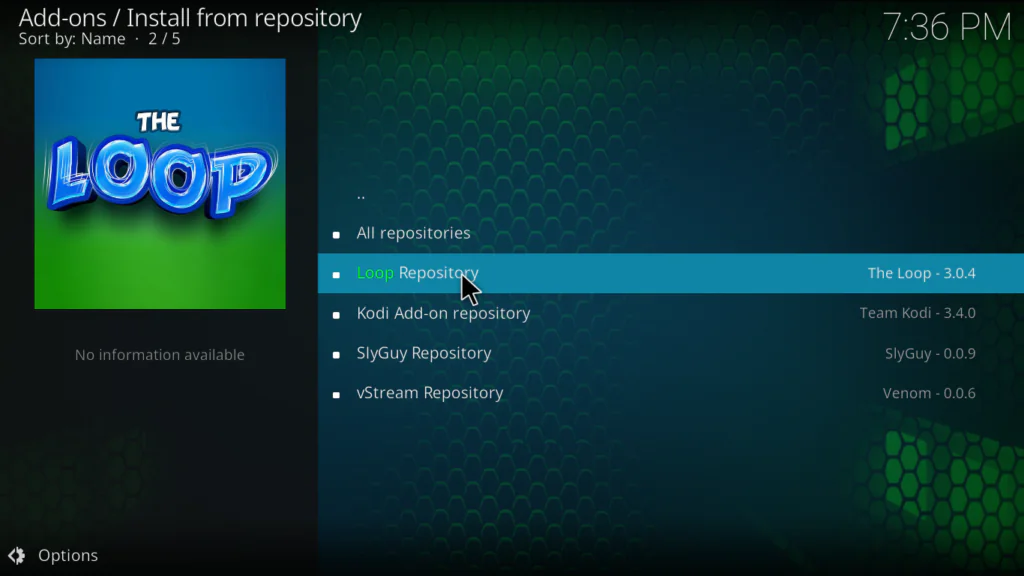
- Click Video Add-ons
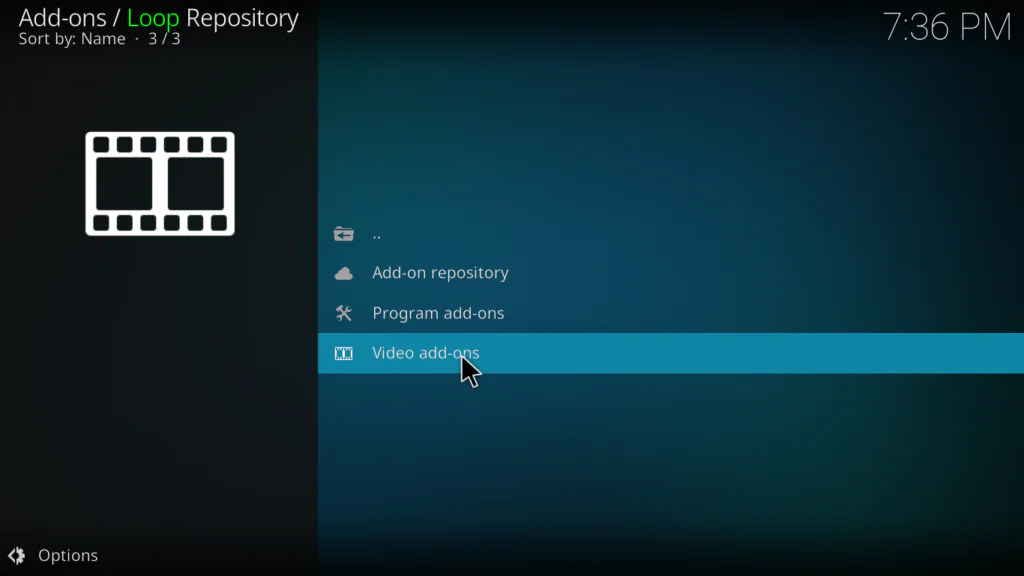
- Find The Loop in the list and click on it
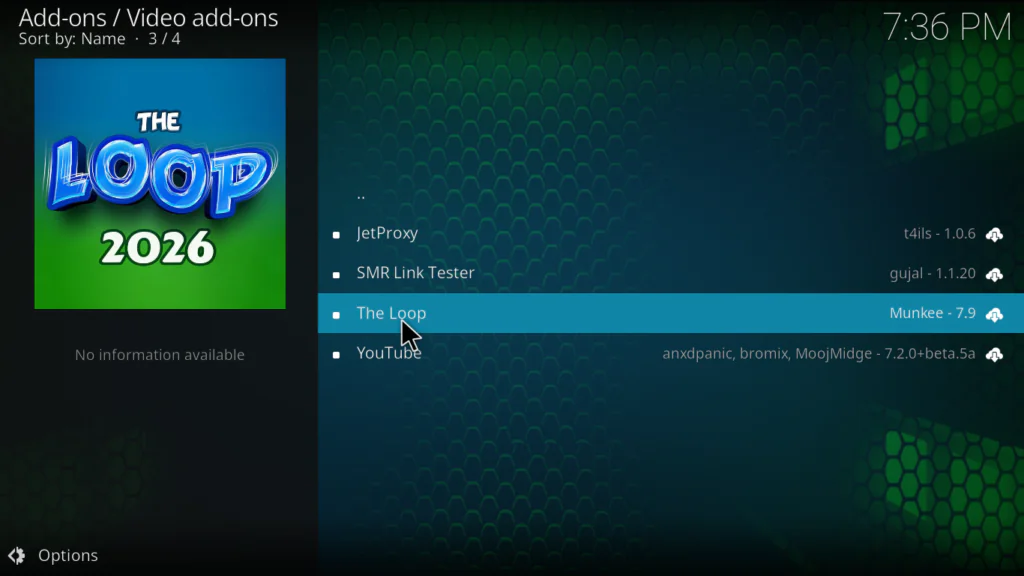
- Click Install
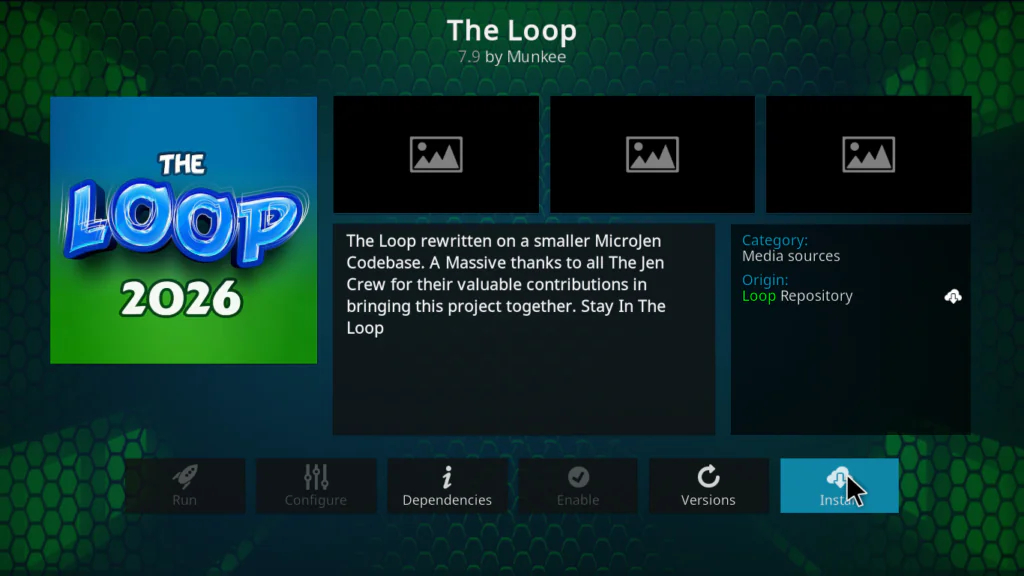
- If prompted to install dependencies, click OK
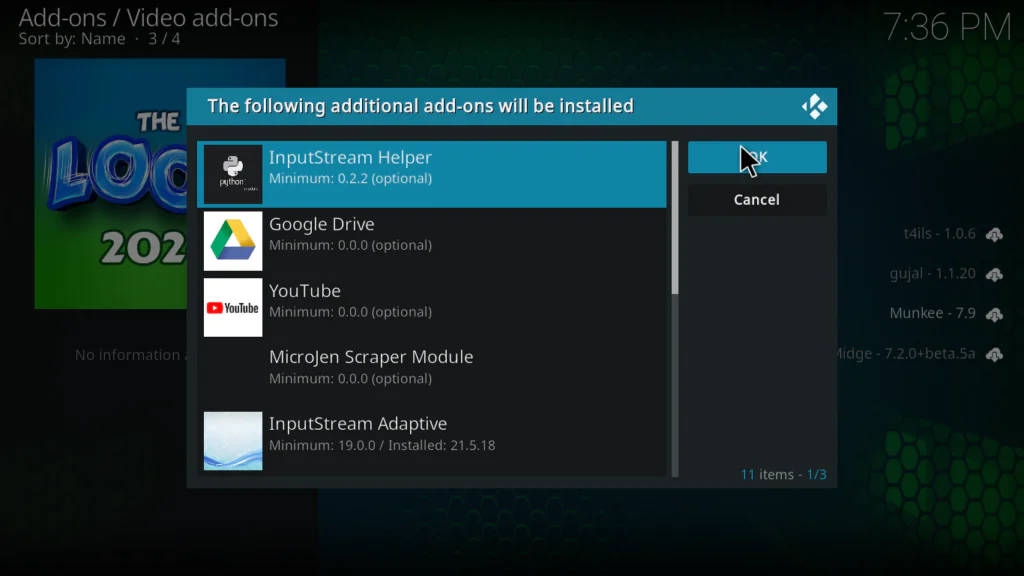
- Wait for the Add-on installed notification
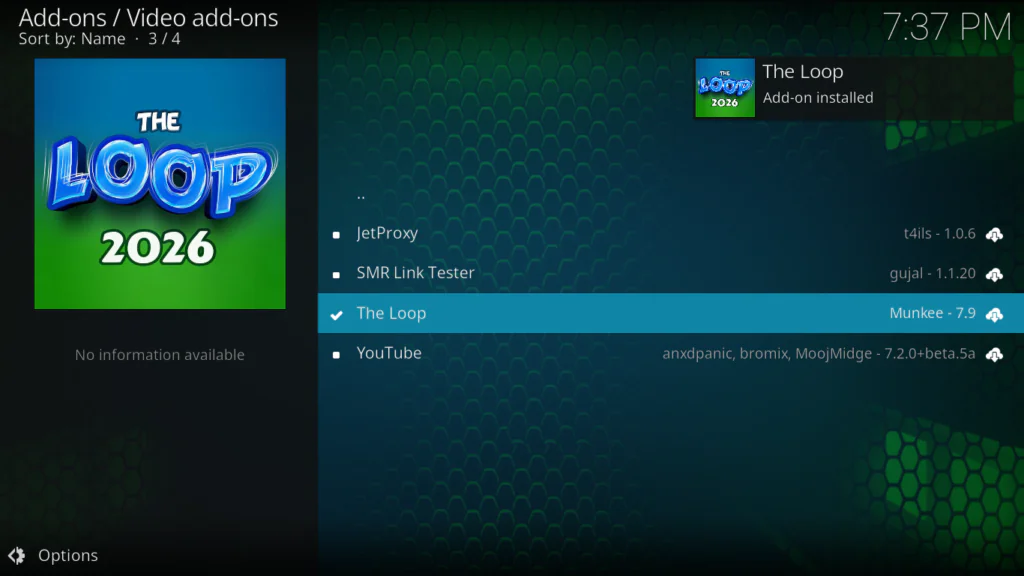
Step 5: Open The Loop and Start Watching
- Go back to the Kodi home screen
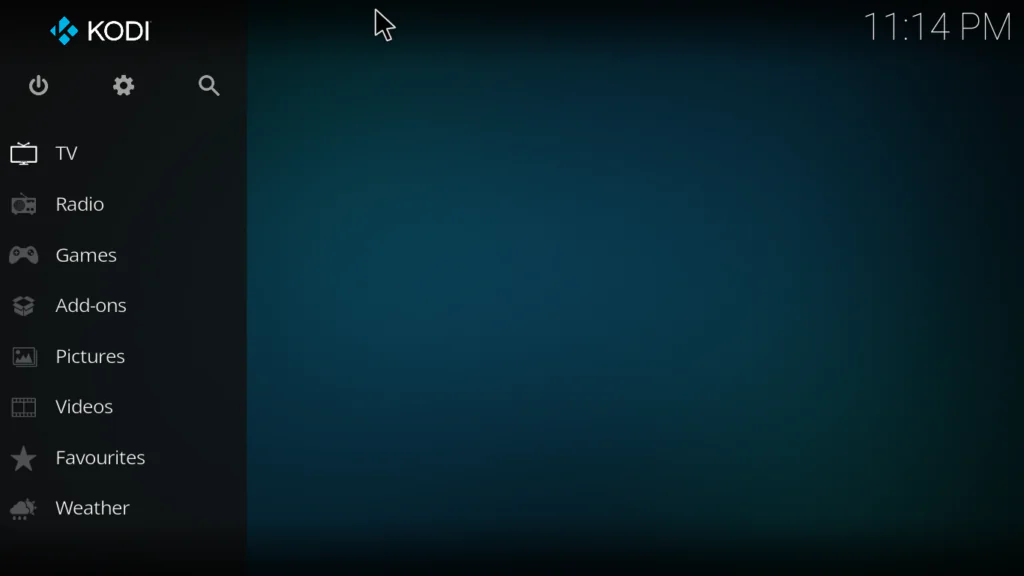
- Click Add-ons
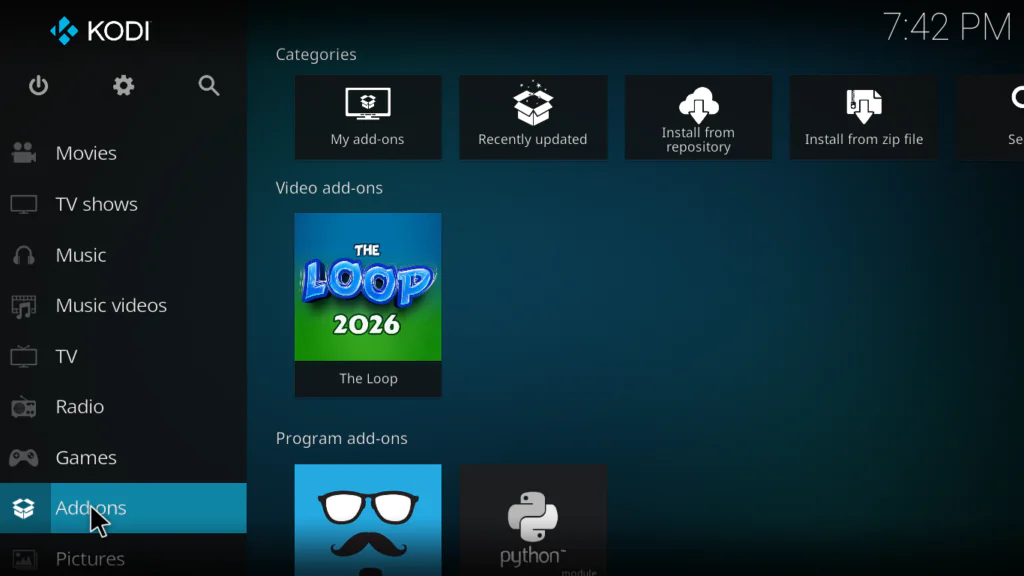
- Find The Loop and click on it
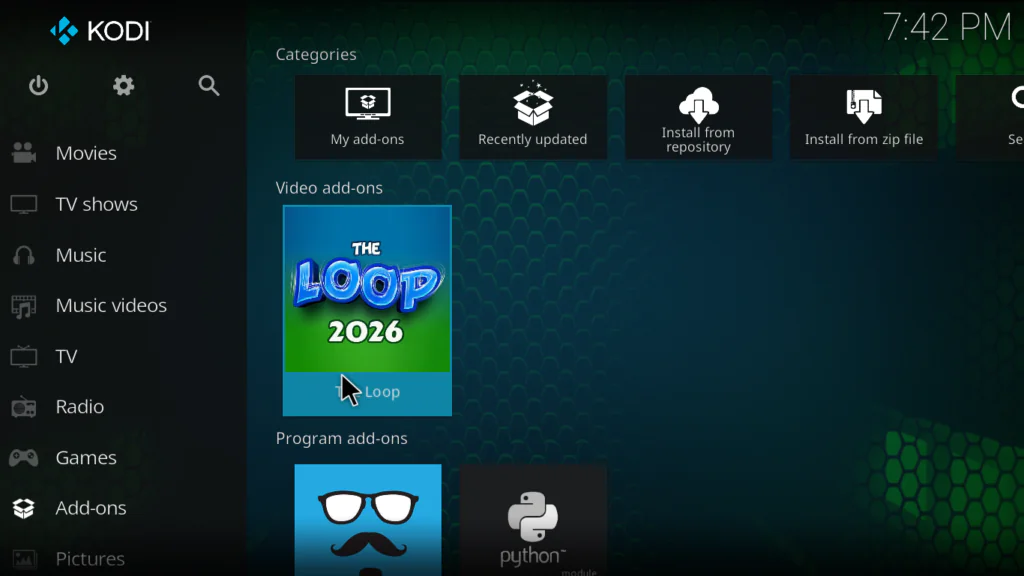
- The addon will open showing all sports categories
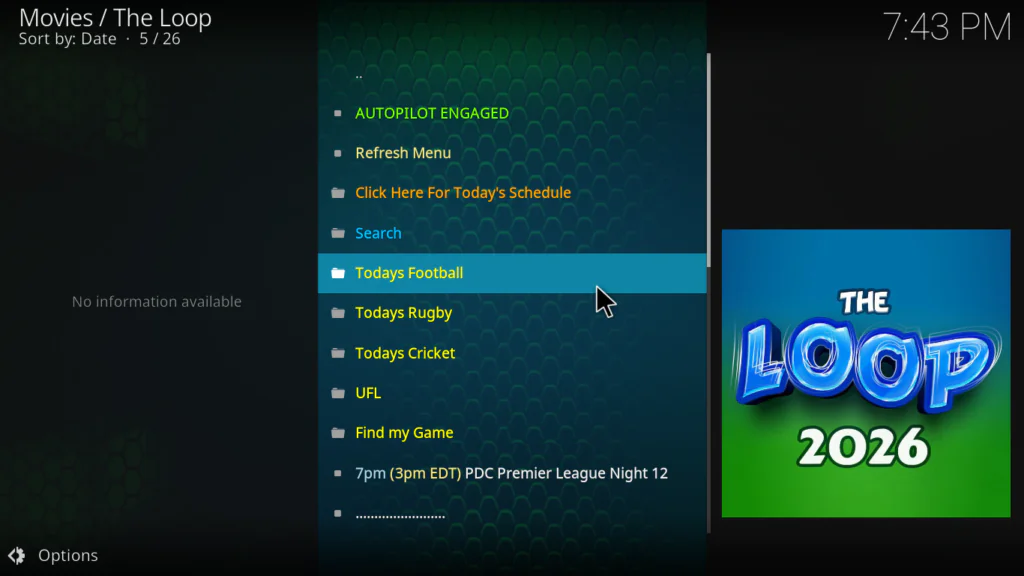
That’s it. You now have free access to live sports inside Kodi.
How to Use The Loop Kodi After Installing
Here’s how to get the most out of The Loop Kodi addon every day:
- Start with Today’s Schedule — it shows every live sports event available right now and coming up today. This is the fastest way to find something to watch
- Use Find My Game if you’re looking for a specific match — type the team or player name and it searches across all categories
- Browse by sport category if you prefer — Football, Cricket, Fight Zone etc. are organized separately
- When you click an event, you’ll see multiple stream links — always try the top link first, but if it buffers or fails, just go back and pick another
- The 24/7 Zone is great for background watching — channels running continuously without a schedule
- If you use PVR IPTV Simple Client, you can integrate The Loop’s channels into Kodi’s Live TV section for an EPG guide experience
The Loop Kodi Not Working — Real Fixes
This is the section most guides skip — and it’s the most important one if you’re having problems.
The Loop Kodi can stop working for several reasons. Here’s how to fix each one:
Streams not loading or spinning forever
This is the most common issue. Try a different stream link first — The Loop usually offers multiple links per event. If all links fail, the event may not have started yet. Check Today’s Schedule to confirm the start time.
The Loop addon itself won’t open
This usually means the addon needs updating. Go to Add-ons → My Add-ons → Video Add-ons → The Loop → click Update. If no update is available, uninstall and reinstall from the Loop Repository.
Repository not found or failed to install
Double check the URL — it must be exactly: https://loopaddon.uk/theloop — no extra spaces or trailing slashes. If the URL gives a connection error, the repository server may be temporarily down. Wait a few hours and try again.
Addon installed but no streams appear
Clear Kodi’s cache first. Go to Settings → File Manager → Profile Directory and clear the addon data cache. Restart Kodi and try again. If the issue persists, the ResolveURL dependency may need updating — go to Add-ons → My Add-ons → Services → ResolveURL → Update.
Addon was working before but suddenly stopped
This happens occasionally with The Loop — it’s one of the known downsides of free sports addons. Check the Loop Repository for an update. If no update is available and streams are failing site-wide, the underlying streaming sources may be temporarily down. This usually resolves itself within 24 to 48 hours.
Best Alternatives to The Loop Kodi
The Loop is great — but it’s always smart to have a backup. Here are three reliable alternatives:
1. Pluto TV Kodi Addon Free, legal, and includes a dedicated sports section with live sports channels. Not as comprehensive as The Loop for live events, but completely reliable and never goes down.
2. Plex Live Kodi Addon The Plex Live addon includes sports channels in its 300+ channel lineup. Less focused on live events specifically, but useful as a general sports TV fallback.
3. Roku Channel Kodi Addon The Roku Channel addon includes several 24/7 sports channels and occasional live events. Ad-free inside Kodi and very reliable.
My Final Verdict on The Loop Kodi
The Loop Kodi addon is genuinely one of the best free sports addons available on Kodi right now. The Today’s Schedule feature alone makes it more useful than most competitors — knowing exactly what’s live and when without having to guess is a huge time saver.
The stream quality is solid when the addon is working properly — multiple links per event means you rarely end up with nothing to watch. Coverage across football, cricket, MMA, basketball, motorsport, and more is hard to beat for a completely free addon.
The honest downside: it does break occasionally. A comment from April 2026 on a major Kodi site noted it was down briefly before coming back. If you’re planning to watch a specific big game, have a backup option ready — one of the alternatives above will cover you.
Overall — install it, use it for the daily schedule and live sports, and keep one backup addon on standby. That’s the smart way to use The Loop Kodi.
Want to explore more great addons? Check out the full list of the best Kodi addons for 2026.
FAQs
Is The Loop Kodi addon free?
Yes — completely free. No subscription, no account, and no payment required.
What is The Loop Kodi repository URL?
The official URL is https://loopaddon.uk/theloop — type it exactly as shown when adding the source in File Manager.
Does The Loop Kodi work on Fire Stick?
Yes. As long as Kodi is installed on your Fire Stick, The Loop addon works perfectly. Follow the same steps in this guide.
Why is The Loop Kodi not working?
The most common causes are broken stream links, an outdated addon version, or a temporarily down repository. Check the troubleshooting section above for specific fixes for each issue.
Does The Loop Kodi work on Kodi 21 Omega?
Yes — The Loop is compatible with Kodi 20 Nexus and Kodi 21 Omega, the two current versions as of 2026.
It’s missing from the published article — it didn’t make it in when you pasted. Here’s the conclusion to add right after the FAQs section:
Conclusion
The Loop Kodi addon is genuinely one of the best free sports addons you can install on Kodi in 2026.
Live football, cricket, UFC, NBA, NFL, motorsport, darts — all in one place, all for free, with a daily schedule that tells you exactly what’s on and when. That’s hard to beat.
Yes, it breaks occasionally. Every free sports addon does. But with multiple stream links per event and a solid troubleshooting section above, you’ll spend more time watching and less time frustrated.
Follow the 5 steps in this guide and you’ll be watching live sports inside Kodi in under 10 minutes.
Got questions or hit a problem during installation? Drop a comment below — I reply to every single one.