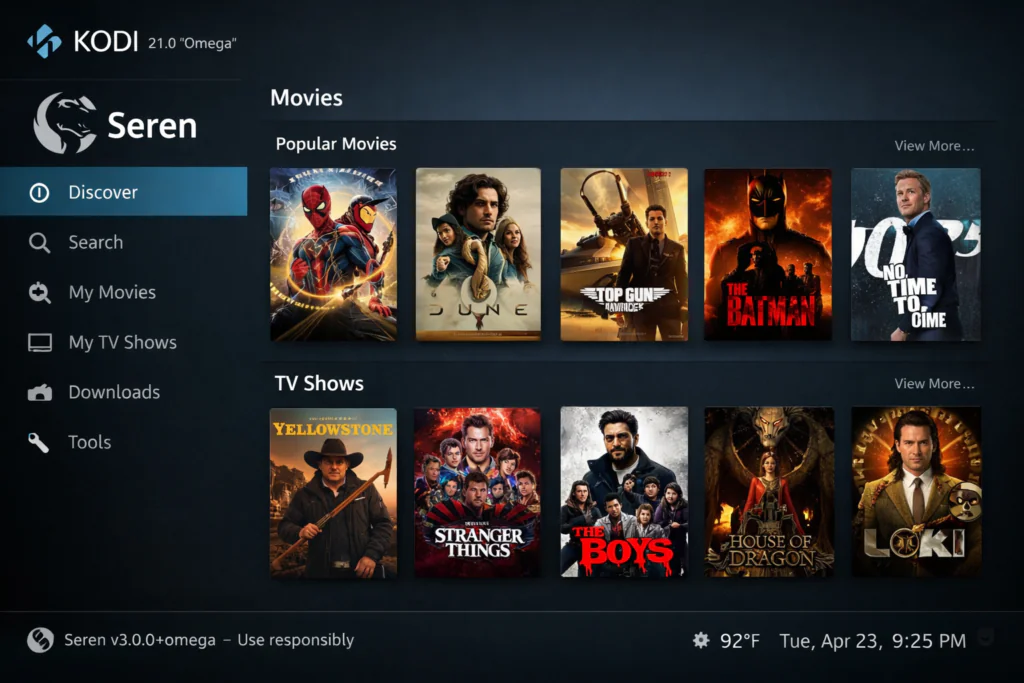
The Seren addon has one of the strongest reputations in the Kodi world, and it earns it. If you want fast, high-quality streams without sitting through a list of dead links — Seren is the addon that delivers that.
This guide covers everything: how to install the Seren addon from scratch, how to connect Real Debrid or Premiumize, how to set up provider packages, Trakt integration, and what to do when things go wrong. Whether you’re setting up Seren for the first time or fixing a broken install, you’re in the right place.
What Is the Seren Addon?
Seren is a premium Kodi video addon built around speed and quality. Unlike general scrapers that pull from dozens of low-quality public sources, Seren connects to your Real Debrid or Premiumize account and pulls cached torrent links — which means results come back in seconds and streams load at 1080p or 4K without buffering.
It’s been one of the consistently recommended addons in the Kodi community for years and continues to receive active updates in 2026. You can find it listed in our best Kodi addons for 2026 guide alongside the other options worth your time.
Key things Seren does well: fast scraping (5–10 seconds typical), premium stream quality as the default rather than the exception, Trakt.tv sync for watch history across devices, and a clean interface that doesn’t get in the way.
The tradeoff: it works best with a premium debrid account. Without Real Debrid or Premiumize, source coverage drops significantly. A Real Debrid subscription runs around €3–4 per month — cheap for what it delivers.
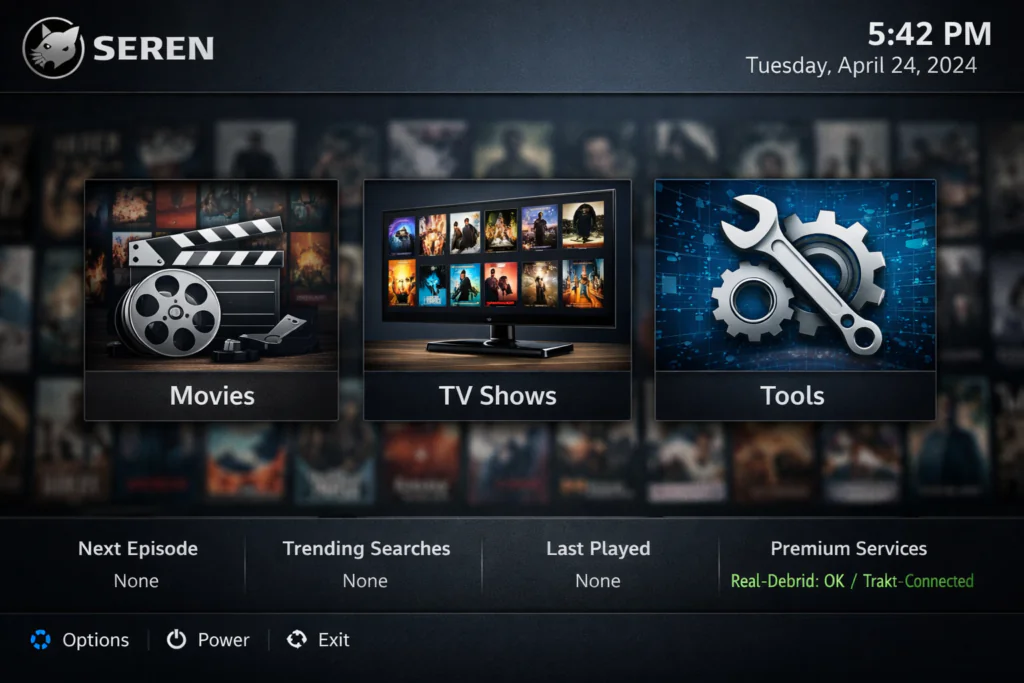
What You Need Before Installing
Before starting, confirm you have:
Kodi 20 (Nexus) or Kodi 21 (Omega) installed. If you’re running an older version, update first — Seren’s dependencies won’t install correctly on Kodi 18 or 19. Our Kodi install guide for Firestick covers the current method if you’re starting from scratch.
A Real Debrid or Premiumize account. Sign up at real-debrid.com registration takes two minutes and a subscription is available from €3/month. Premiumize is available at premiumize.me if you prefer that service.
Stable internet connection. 10 Mbps minimum for 1080p, 25 Mbps for 4K. If your Android TV box has an Ethernet port, use it — wired connections eliminate a lot of buffering issues.
How to Install the Seren Addon on Kodi (Step-by-Step)
The Seren addon installs through the Nixgates repository. The full process takes about five minutes.
Step 1 — Enable Unknown Sources
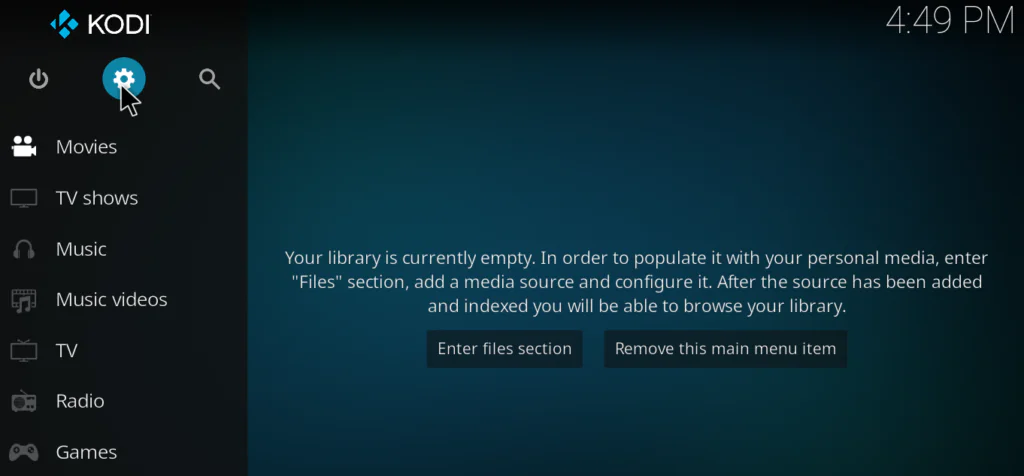
Open Kodi and select the gear icon to open Settings.
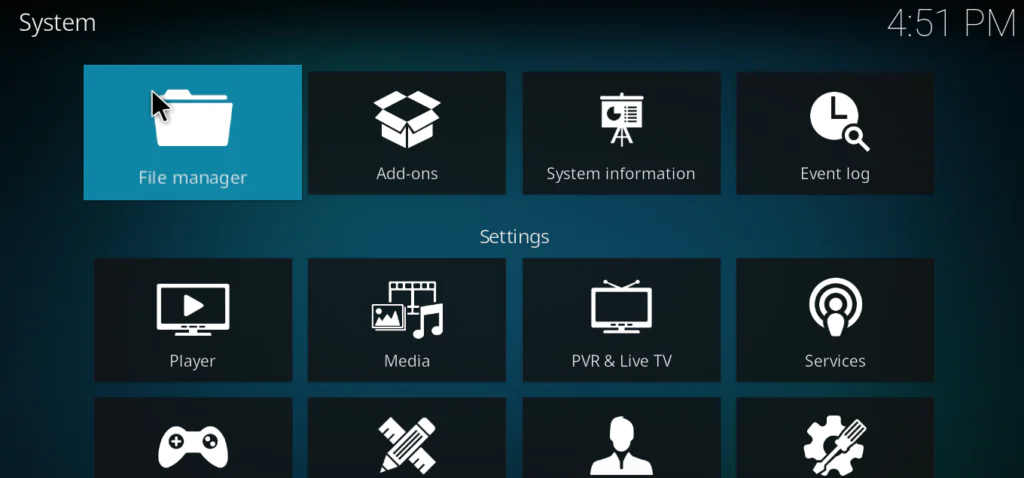
Select System from the settings menu.
Go to Add-ons and toggle Unknown Sources to ON.
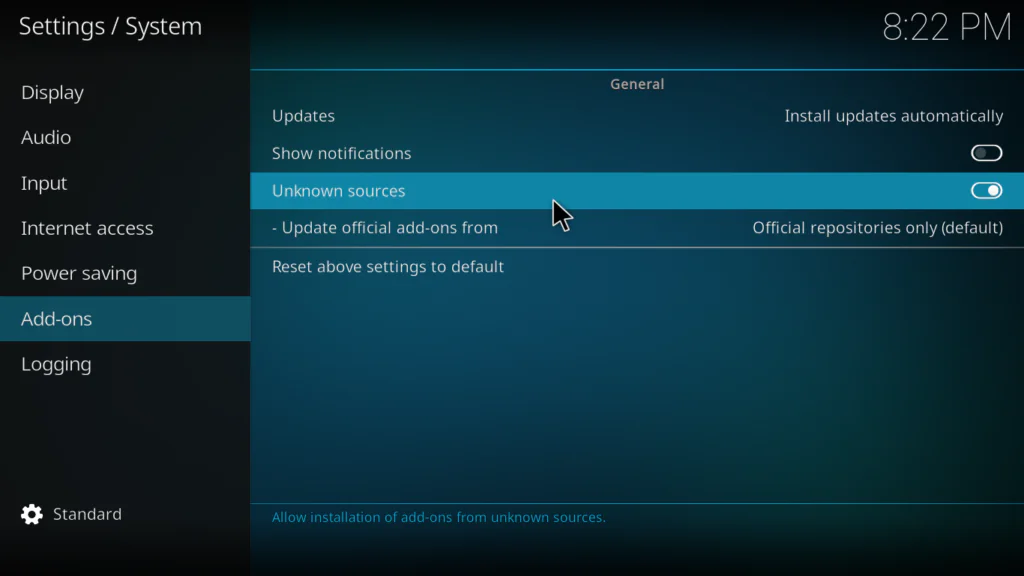
Accept the warning that appears. Kodi is letting you know that third-party addons can access your data — this is standard for any non-official install. Click Yes to proceed.
Step 2 — Add the Nixgates Source
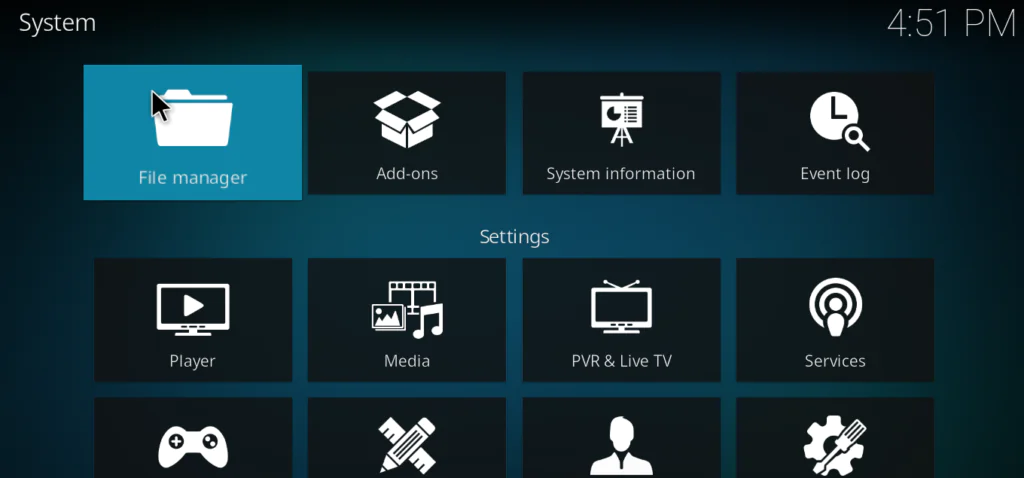
Go back to the main Settings page and open File Manager.
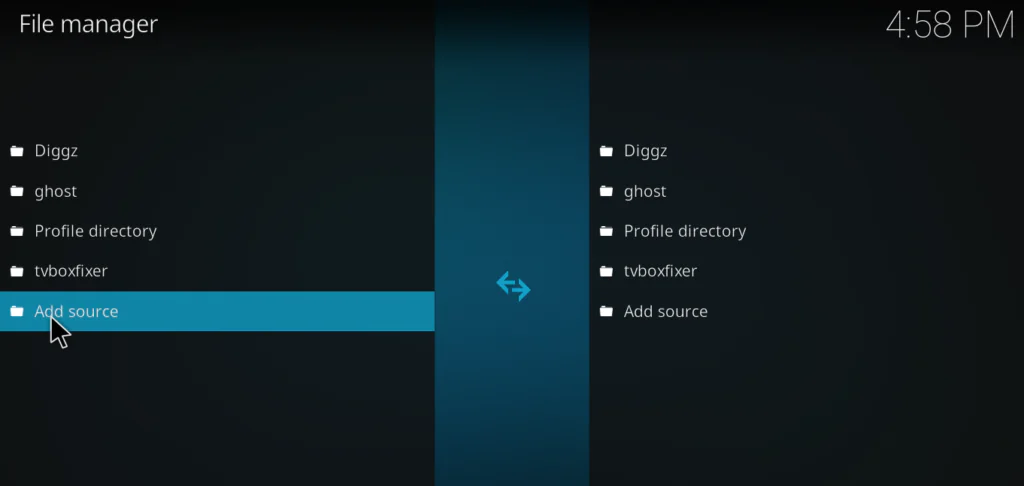
Select Add Source.
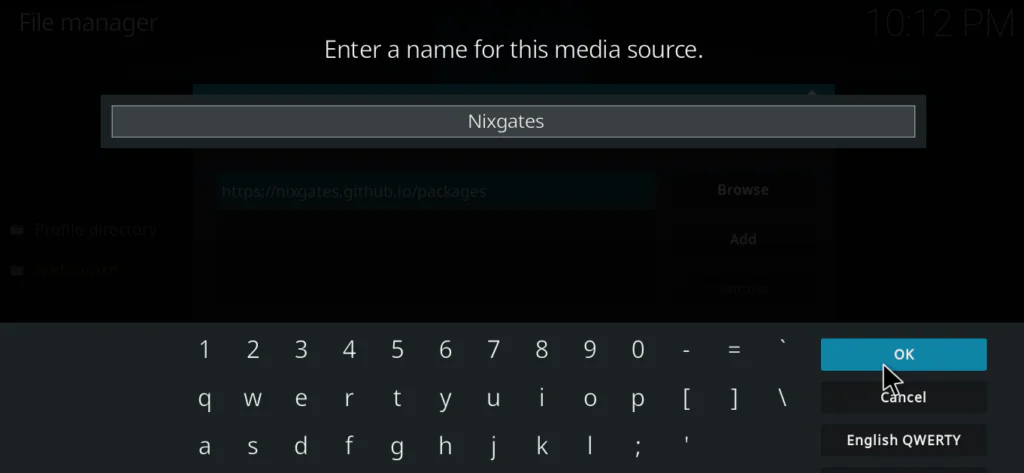
Click the field that says None and enter the following URL exactly:
If the main URL isn’t working, use the alternative:
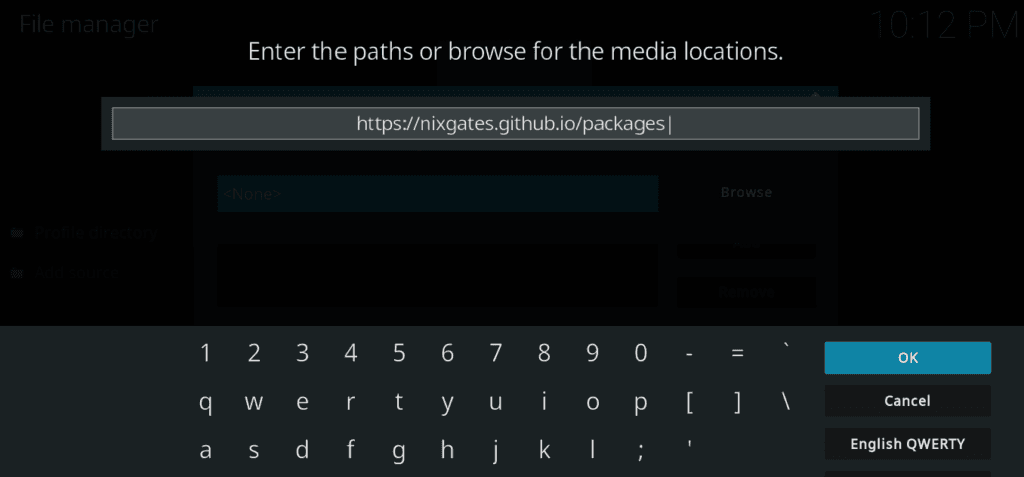
Name the source Nixgates and click OK.
Step 3 — Install the Nixgates Repository
Go to Add-ons → Install from ZIP file.
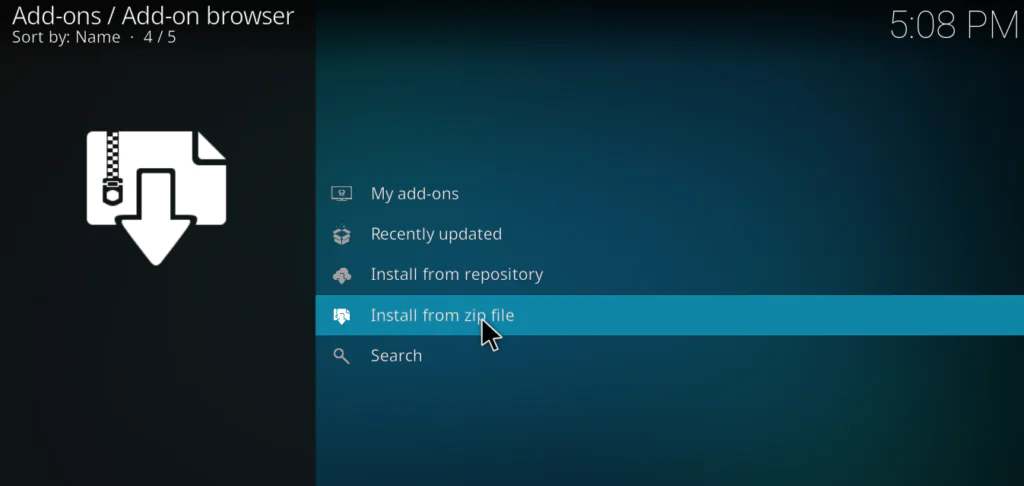
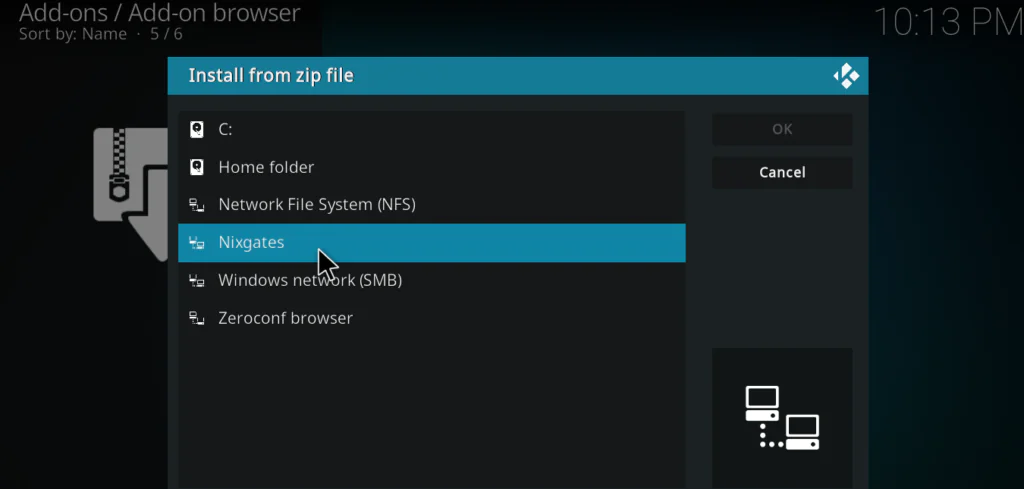
Select the Nixgates source you just added.
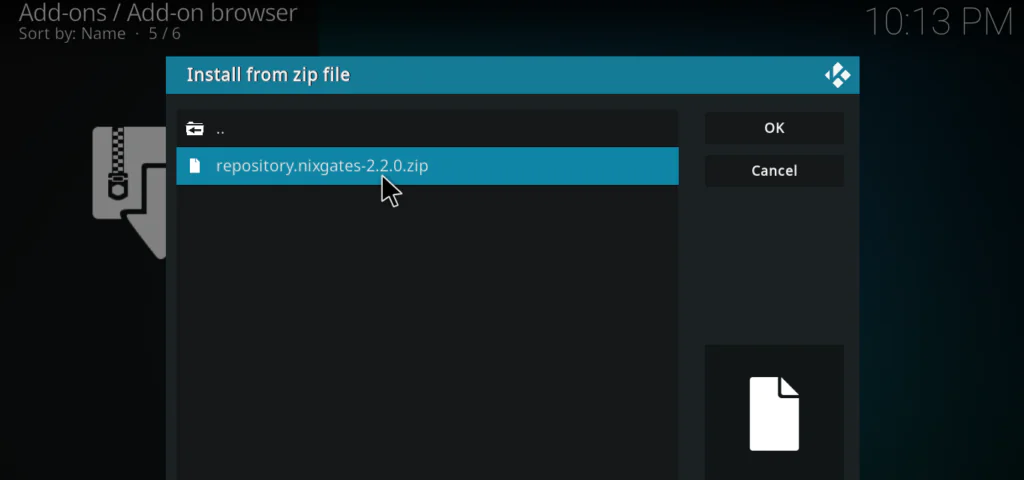
Select the file named nixgates.repository.zip and wait for the confirmation notification.
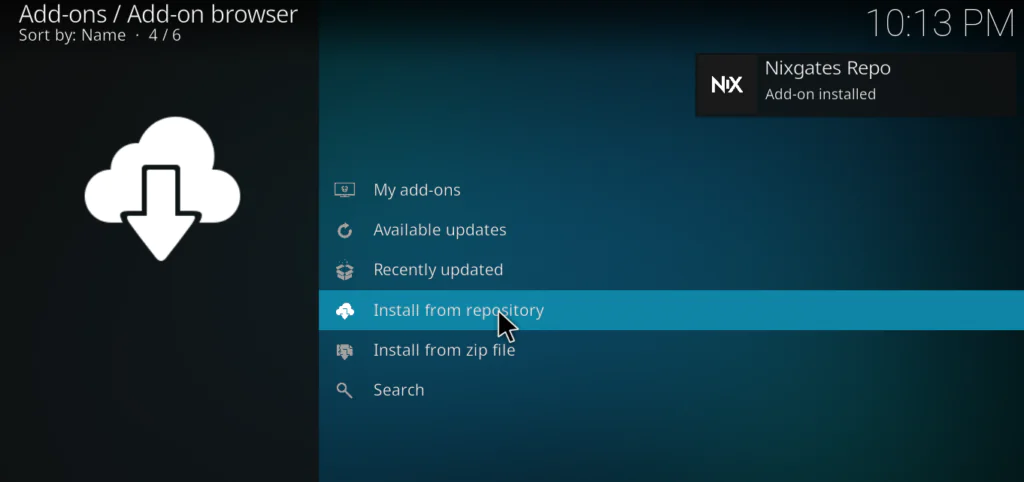
Step 4 — Install the Seren Addon
Go to Add-ons → Install from repository → Nixgates Repository → Video Add-ons → Seren.
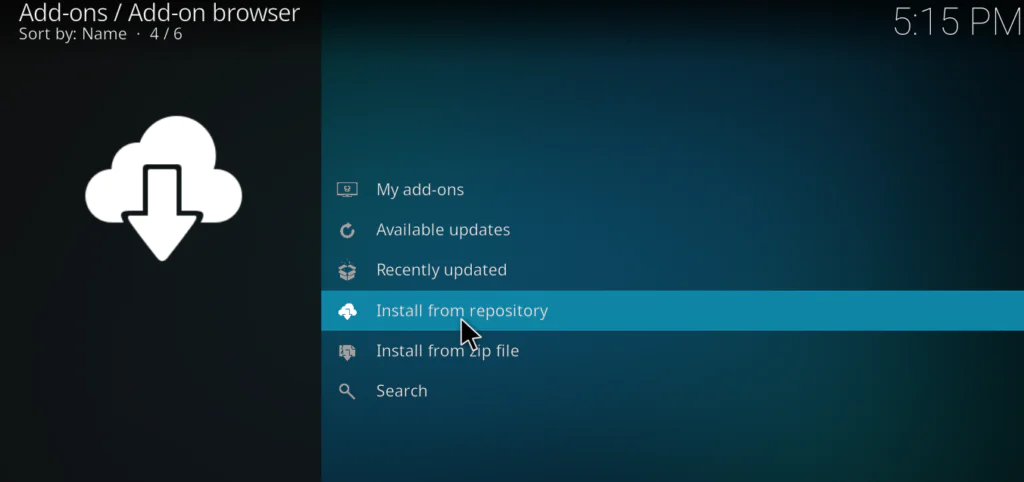
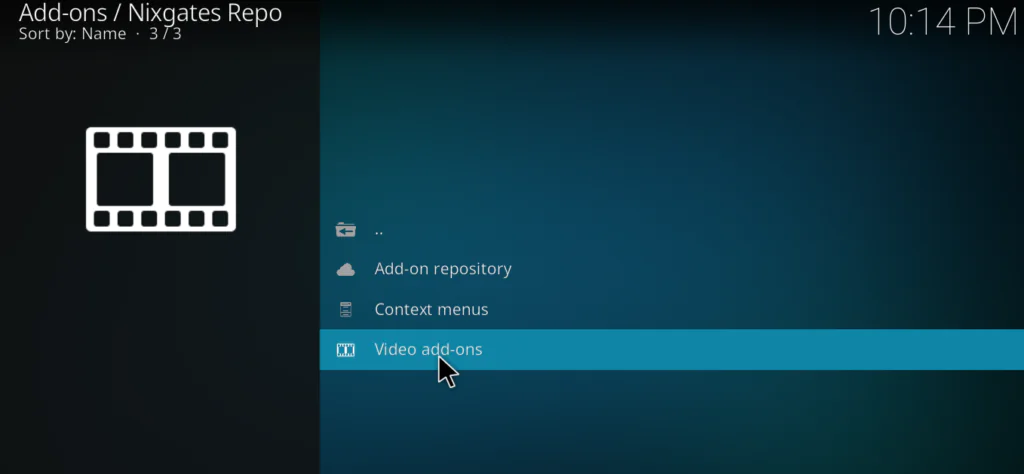
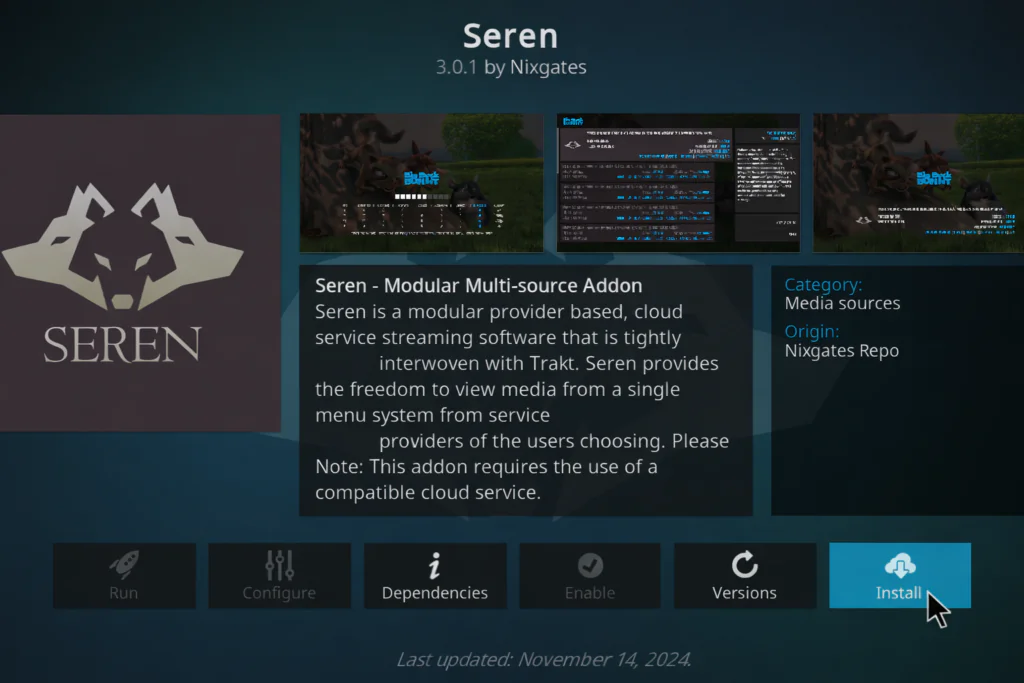
Click Install and wait for all dependencies to finish. You’ll see “Seren Add-on installed” in the corner when it’s done.
How to Set Up Seren with Real Debrid or Premiumize
Installation alone isn’t enough — Seren needs a premium debrid account connected before it can pull quality streams.
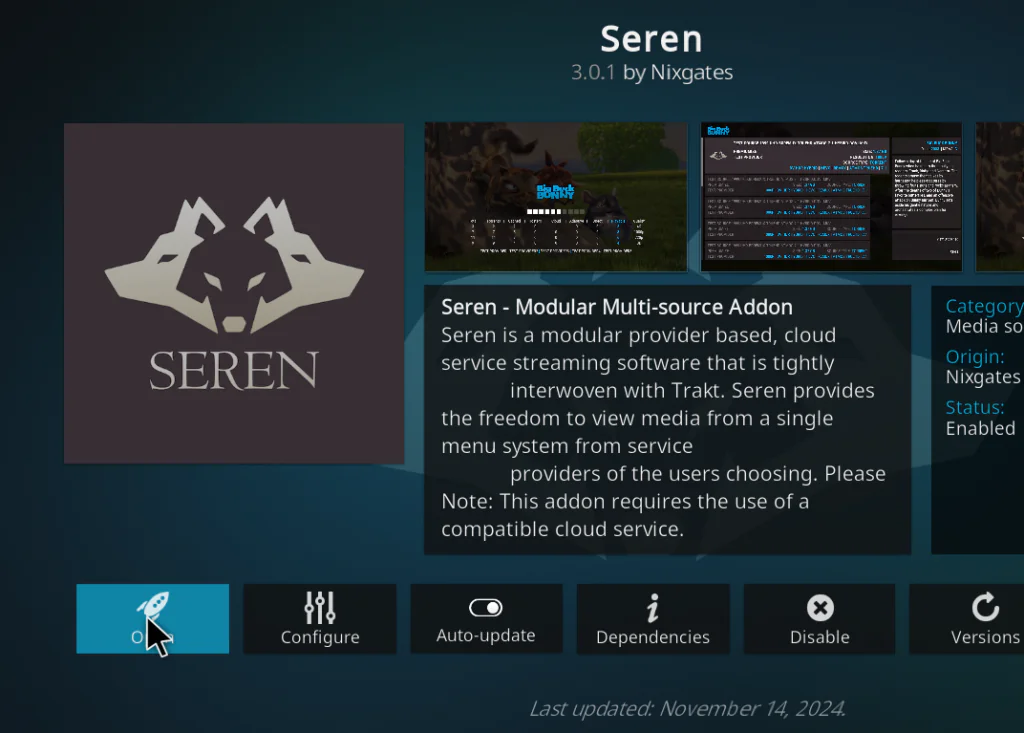
Launch Seren from your Add-ons menu and select Tools.
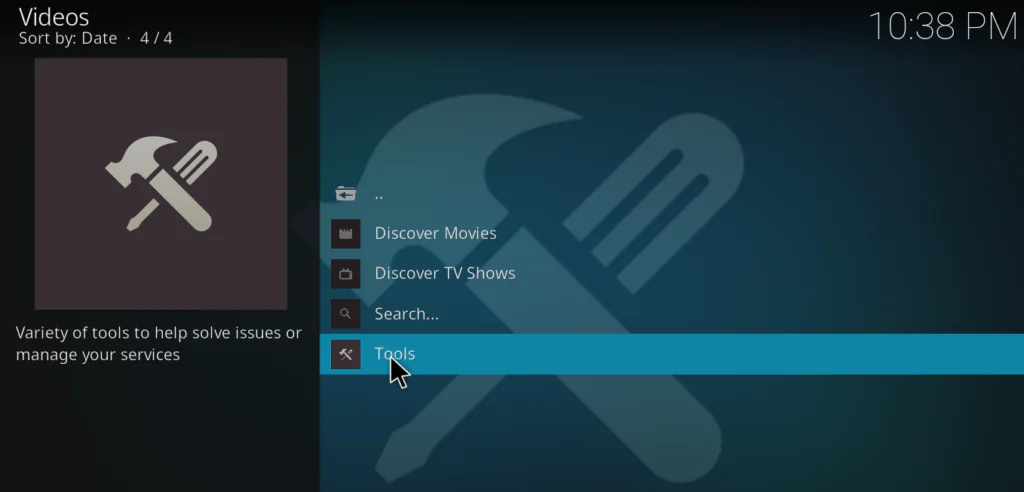
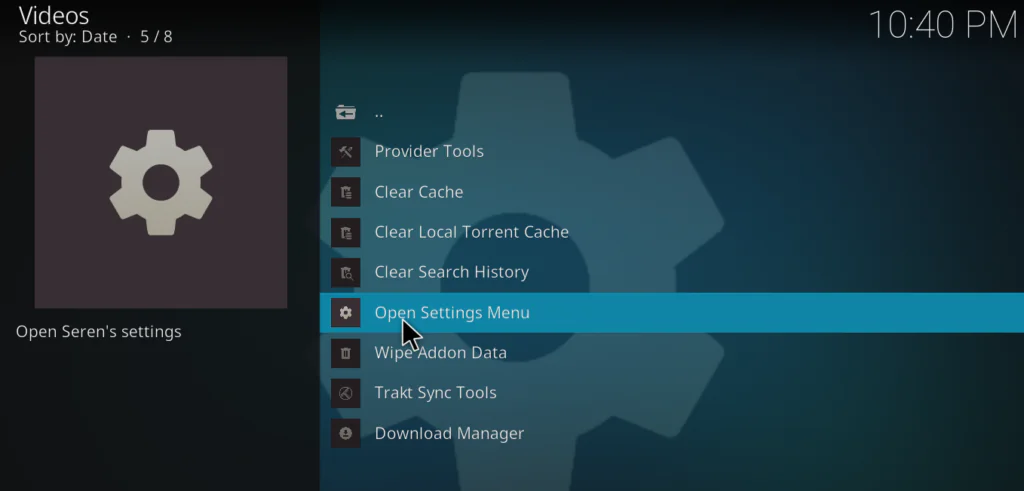
Select Open Settings Menu.
Go to Accounts. Enable your service — toggle on Real Debrid if that’s what you’re using, or Premiumize if you chose that instead.
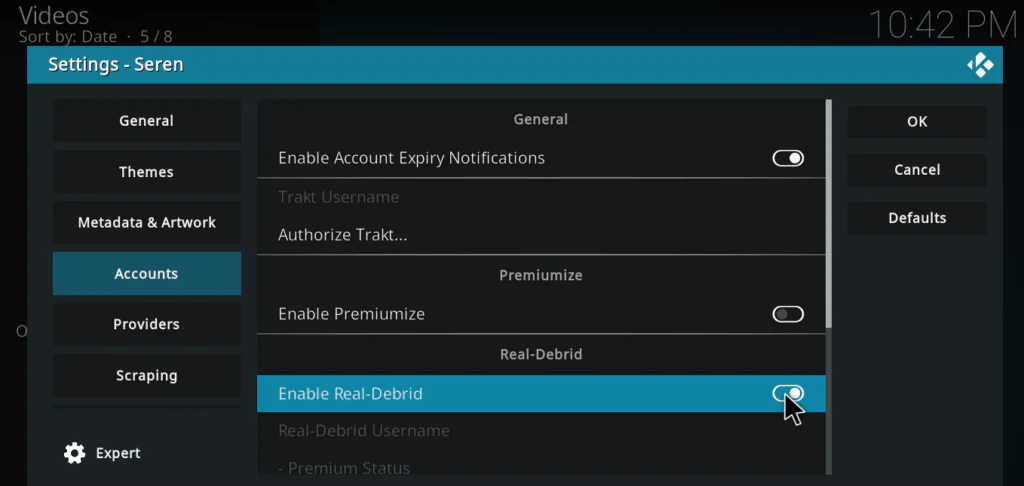
Select Authorize Real Debrid (or Authorize Premiumize). Seren will display a short code and a URL.
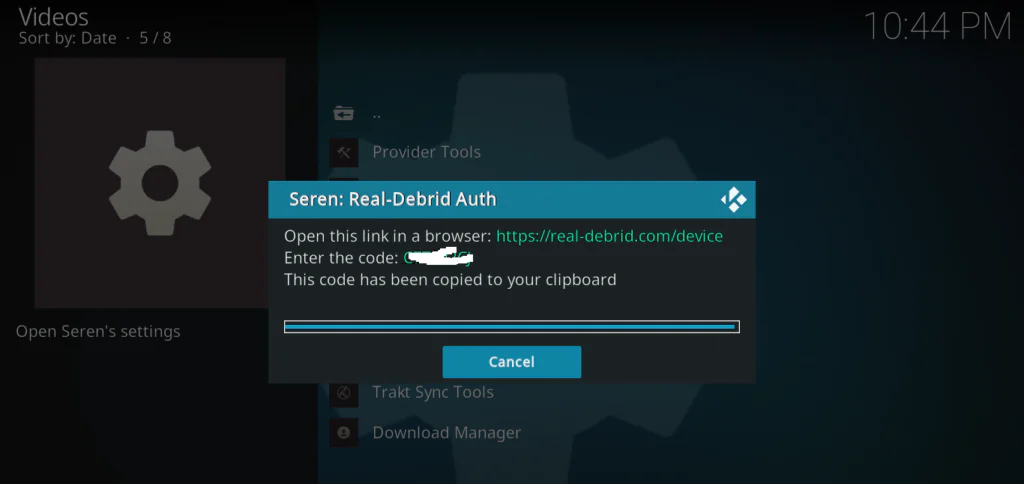
Open that URL on your phone or computer — for Real Debrid it’s real-debrid.com/device, for Premiumize it’s premiumize.me/device . Enter the code shown in Seren and click Authorize.
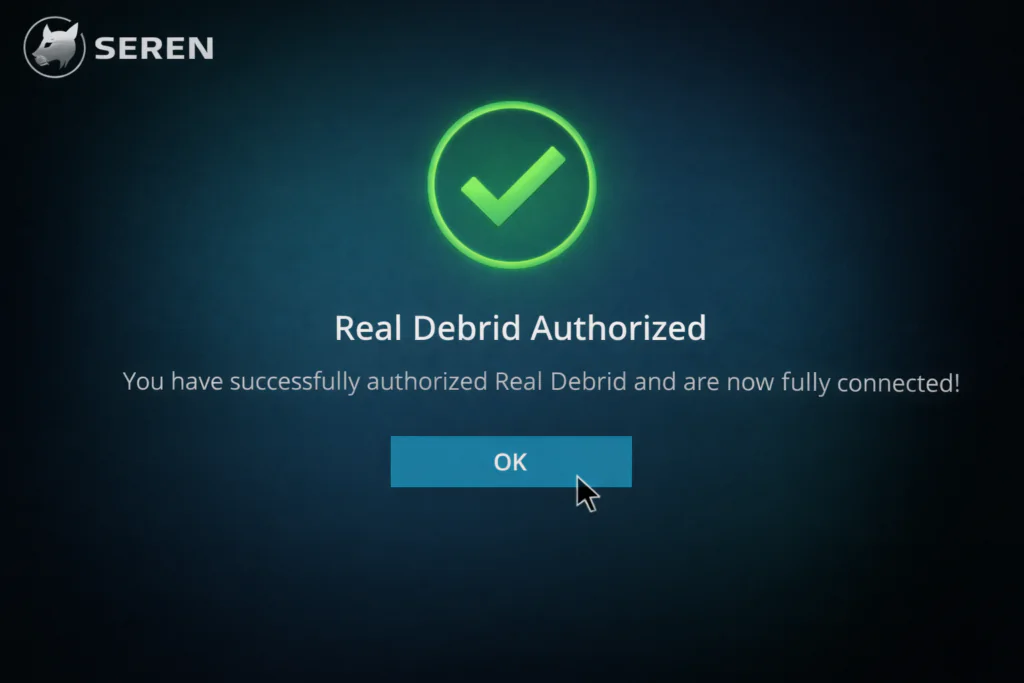
Back in Kodi, Seren will confirm the authorisation. Your debrid account is now connected.
Install the Provider Package (a4kScrapers)
Seren needs a provider package installed to scrape streaming sources. Without it, you’ll get no results even with Real Debrid connected.
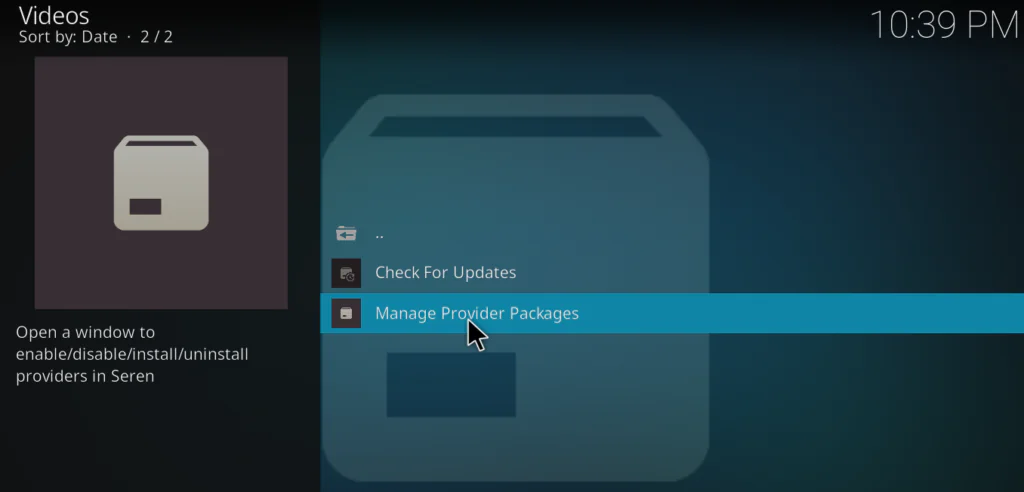
From the Seren home screen go to Tools → Provider Tools → Manage Provider Packages → Install Package → Web Location.
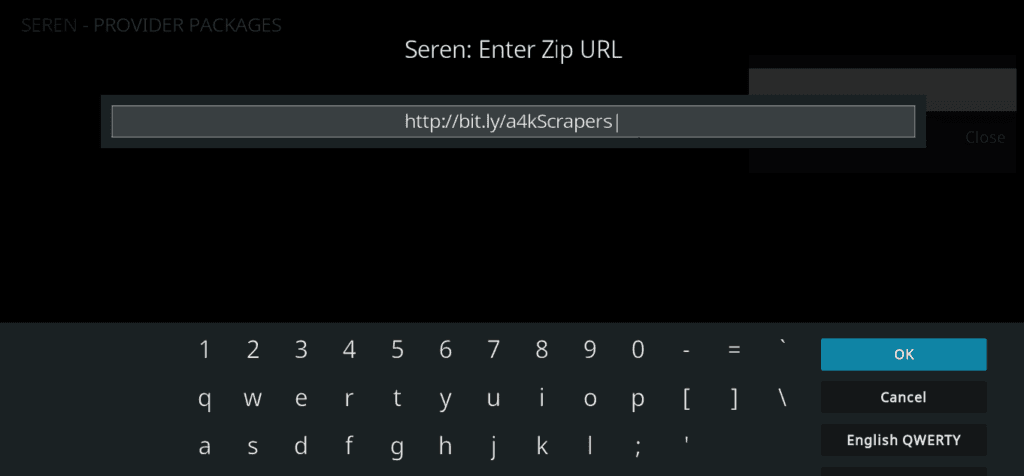
Enter this URL exactly:
http://bit.ly/a4kScrapers
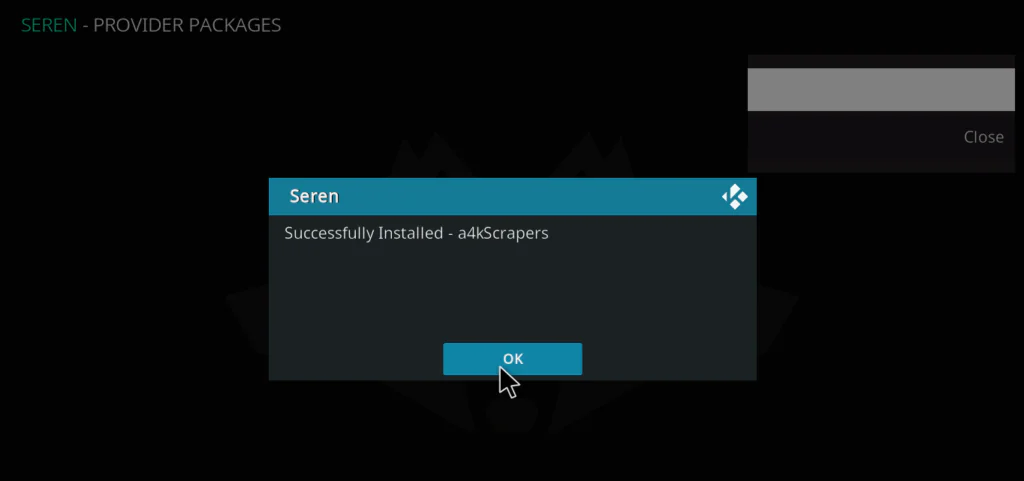
Click Install and wait for the confirmation. The a4kScrapers package is now active and Seren will use it to find streams.
Set Up Trakt Integration (Optional but Recommended)
Trakt.tv syncs your watch history, watchlists, and ratings across every device and app you use. Connecting it to Seren takes two minutes and makes the experience significantly better.
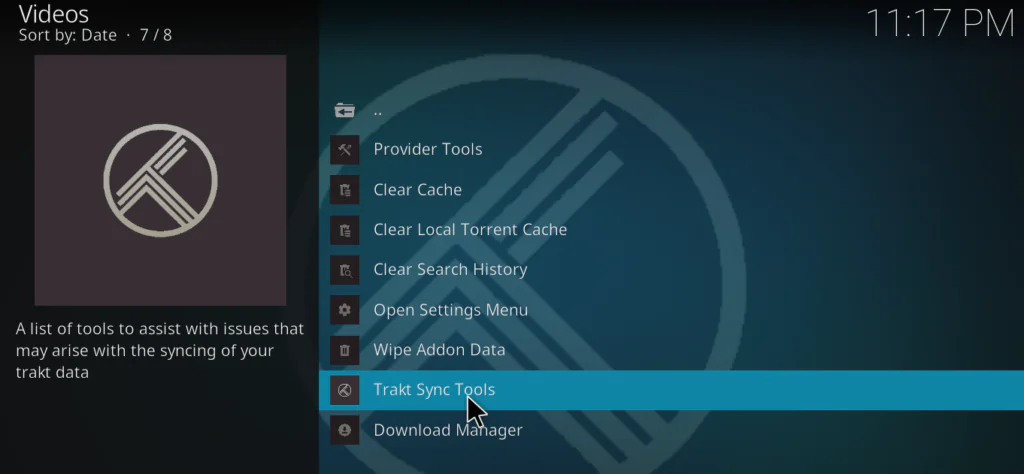
From Seren’s home screen go to Tools → Trakt Sync Tools. Select Yes when prompted.
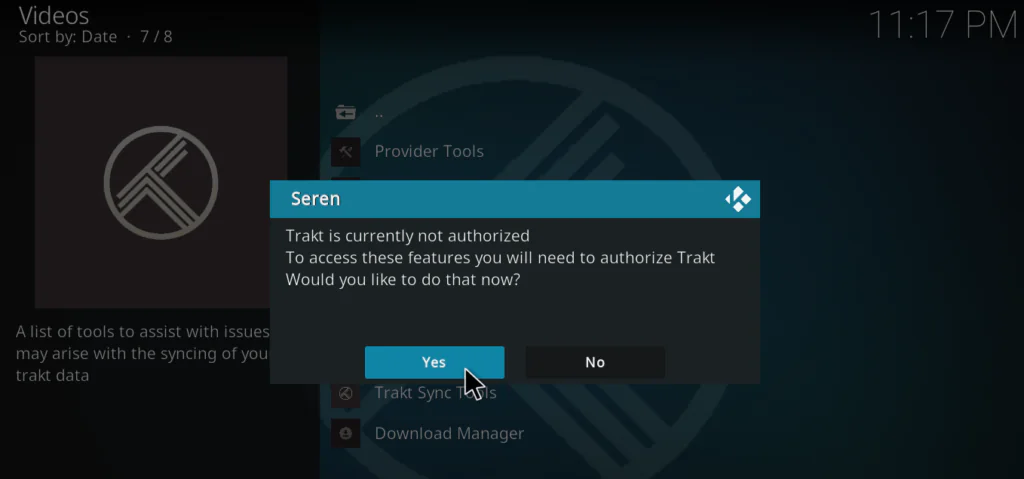
Seren will show you an authorisation code. Open trakt.tv/activate on your phone or computer and enter the code.
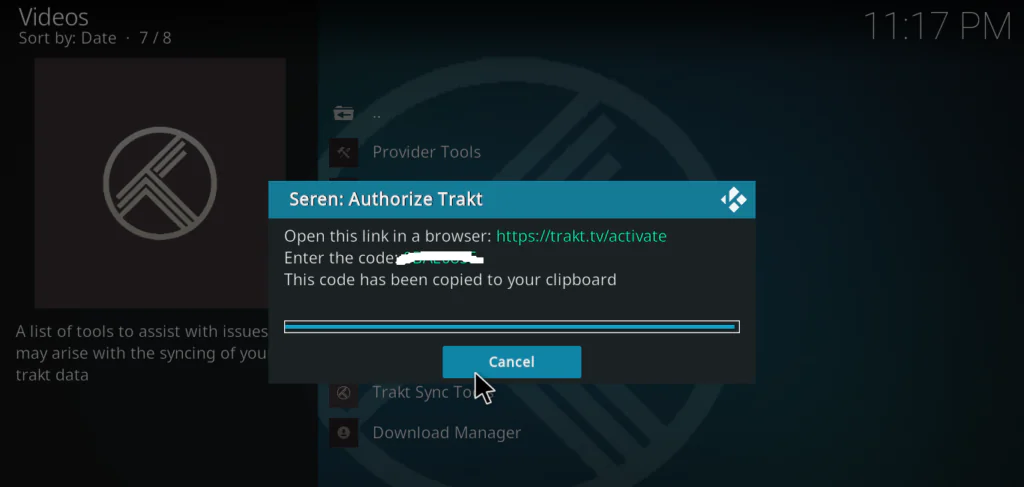
Click OK in Seren once the authorisation completes. Your Trakt account is now synced — watch history, progress, and recommendations will all appear inside Seren.
Best Settings for Seren
A few changes that make a real difference to everyday use.
Source Select vs Auto-Play: Go to Open Settings Menu → Playback and switch from Auto-play to Source Select. This lets you choose which stream to play rather than letting Seren pick automatically — useful when you want to control quality or skip a slow source.
Minimum Sources: Go to Scraping → Minimum Sources and set it to 20. The higher the number, the more sources Seren scrapes before presenting results. 20 is a good balance between speed and variety.
Preferred Cloud Location: Under Scraping, set Preferred Cloud Location to whichever debrid service you authorised. This tells Seren to prioritise cached links from your account.
Enable Caching: Under Playback, enable Use Cache. This speeds up repeat searches on content you’ve already looked up.
Smart Play: Seren’s Smart Play feature automatically queues the next episode of a TV series. Enable it under Settings → Playback → Smart Play — useful for binge-watching without having to navigate back to the episode list each time.
How to Fix Seren Not Working in 2026
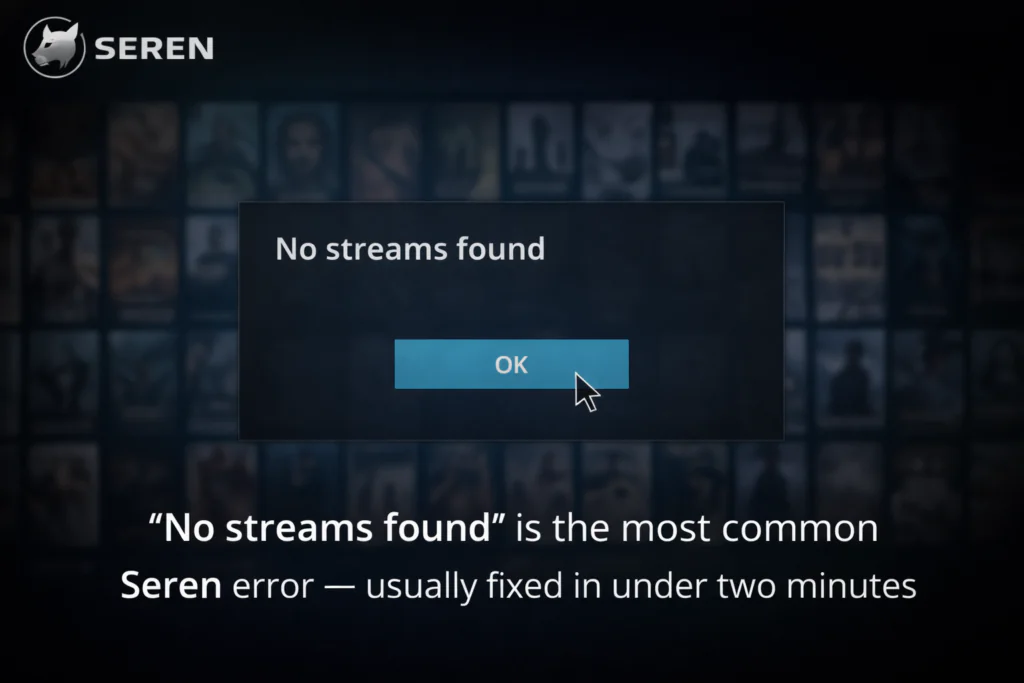
No streams found
First check that your Real Debrid or Premiumize subscription is still active — an expired account is the most common cause. Re-authorise in Seren Settings → Accounts. If the account is fine, uninstall and reinstall your provider package under Provider Tools. That clears out any stale scraper data and usually fixes it immediately.
Seren not loading or freezing at startup
Go to Tools → Clear All Cache inside Seren. If that doesn’t fix it, the issue is usually a broken dependency after a Kodi update. Uninstall Seren completely, then reinstall fresh from the Nixgates repo — takes five minutes and resolves it almost every time. For general addon loading problems across your Kodi setup, our The Crew addon guide has a troubleshooting section that covers common dependency fixes.
Buffering mid-stream
Seren itself rarely causes buffering — the issue is almost always Kodi’s cache settings or your connection. Switch from Wi-Fi to Ethernet if your box has the port. If you’re on an Android TV box that’s running slow generally, our TV box speed and lag guide covers the cache and RAM fixes that directly apply here.
For the best Seren experience, I highly recommend running it through a VPN — here is how to set up a VPN on your Android TV box step by step.
Errors after a Kodi update
Updates break addon dependencies occasionally. The fix: uninstall Seren, clear the Kodi addon data folder, then reinstall from the Nixgates repo. Your Real Debrid authorisation won’t be affected — you’ll just need to re-authorise once after the fresh install.
Seren vs The Crew — Which Should You Use?
This is the most common question from people building out their Kodi setup.
Seren wins on every performance metric — faster scraping, higher quality streams, more consistent results. If you’re willing to pay €3–4/month for Real Debrid, Seren is the better choice.
The Crew wins on accessibility. It requires no premium account, no provider package setup, and works immediately after install. Stream quality is more variable and results are slower, but for someone who wants zero ongoing cost and minimal configuration, it’s genuinely good. Our full guide to The Crew Kodi addon covers the setup and current status.
Many users who build a serious Kodi setup run both — Seren as the primary addon for anything they care about watching at quality, and The Crew as a backup for casual browsing or when a title isn’t cached on Real Debrid. There’s no reason to choose only one.
Seren is one of the top addons on our best working Kodi addons 2026 list — check it out if you want to see everything else that is working right now.
FAQ
Is the Seren addon safe to install? Yes. Seren has been in active development for years and the Nixgates repository is well-established in the Kodi community. Always install from the official Nixgates URL to avoid modified versions. For context on what makes a Kodi addon safe vs risky, our Is Kodi Legal guide covers the full picture.
Do I need Real Debrid for Seren? Technically no, but practically yes. Without a debrid service, Seren’s source coverage is too limited to be reliable. Real Debrid at real-debrid.com costs around €3/month. Premiumize at premiumize.me is an alternative at a higher price point with broader file support.
What is the Nixgates repo URL for Seren? The primary URL is https://nixgates.github.io/packages. The alternative if that’s unavailable is https://bbviking.github.io/. Use the primary first.
Why is Seren not finding streams? The most common causes are: expired debrid account, missing or outdated provider package, or a broken dependency after a Kodi update. Start by re-authorising Real Debrid and reinstalling the a4kScrapers package — that fixes it the majority of the time.
Can I use Seren on an Android TV box? Yes. Seren runs well on Amlogic, Rockchip, and Allwinner-based Android TV boxes. If your box has low RAM (1–2GB), source loading may be slightly slower but the addon will work. For X96 Mini and similar budget boxes, check our X96 Mini app install guide to make sure Kodi is correctly sideloaded first.
What is the a4kScrapers provider package? It’s an external scraper package that tells Seren where to find streaming sources. Without it, Seren can’t pull results even with Real Debrid connected. Install it via Tools → Provider Tools → Install Package → Web Location → http://bit.ly/a4kScrapers.
Does Seren work without Trakt? Yes — Trakt is optional. Seren works without it, you just won’t have watch history sync or personalised recommendations. Trakt is free to sign up at trakt.tv.