Introduction
Did you know you can watch The Roku Channel — completely free and without a single ad — directly inside Kodi?
Most people don’t know this. They either use the official Roku app on their TV and sit through endless commercials, or they don’t use Roku content at all. But there’s a third option that most guides never talk about — the Roku Channel Kodi addon.
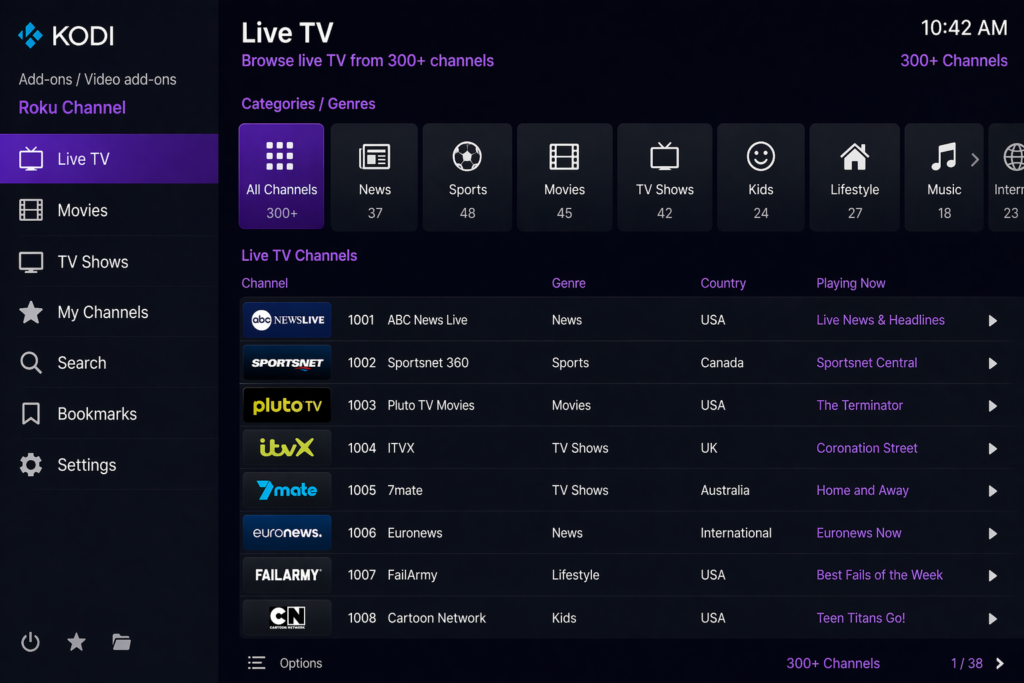
It gives you access to everything The Roku Channel offers — over 300 live TV channels, thousands of free movies, TV shows, news, sports, kids content, and more — all inside Kodi, and without ads interrupting every 5 minutes.
No Roku device needed. No subscription. No credit card. And yes — no ads.
In this guide I’ll walk you through exactly how to install the Roku Channel Kodi addon from the SlyGuy Repository, step by step. It works on any device that runs Kodi — Android TV boxes, Fire Stick, Windows, Mac, and more.
Let’s get started.
What Is the Roku Channel Kodi Addon?
The Roku Channel is one of the most popular free streaming platforms in the world. It’s built into every Roku device, available as an app on smart TVs, and accessible through a regular web browser. It offers a massive library of free content — all legally licensed and ad-supported.
The Roku Channel Kodi addon takes all of that content and brings it directly inside Kodi. You don’t need a Roku device, you don’t need an account, and you don’t need to pay anything.
The addon is part of the SlyGuy Repository — one of the most trusted and well-maintained third-party Kodi repositories available. The same repo that hosts the Plex Live addon, Samsung TV Plus, and many other popular legal streaming addons.
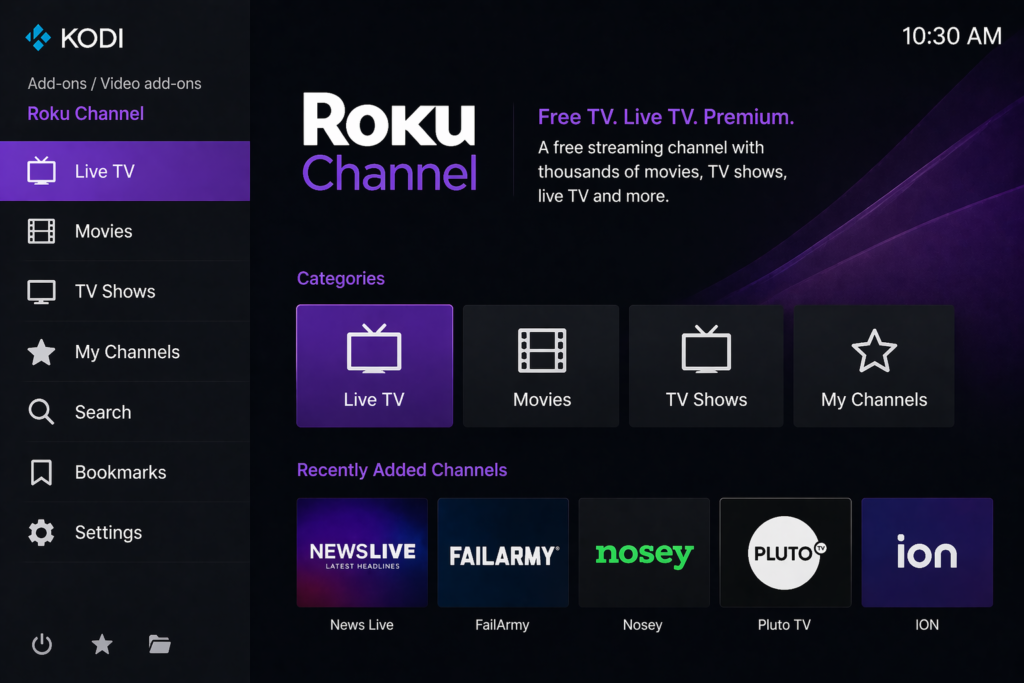
Once installed, you get a clean, organized interface inside Kodi with categories for Live TV, Movies, TV Shows, My Channels, Search, Bookmarks, and Settings — all pulling content directly from The Roku Channel.
What Can You Watch? Content and Categories
This is one of the most content-rich free addons available on Kodi right now.
Here’s what you get:
Live TV — over 300 free live channels across dozens of genres including:
- News
- Sports
- Entertainment
- Action
- Comedy
- Anime
- Adventures
- Animals
- Animated
- Kids and Family
- Lifestyle
- and many more
Movies and TV Shows — thousands of free on-demand titles across all genres, updated regularly as Roku adds new content.
The live channel selection is genuinely impressive. Whether you want to catch up on live news, watch a sports channel, or just browse something to have on in the background — there’s always something available.
The Biggest Reason to Use This Addon — It’s Ad-Free
This is the detail that almost every other guide misses — and it’s the most important thing to know.
When you watch The Roku Channel through the official app on your TV or browser, you get ads. A lot of ads. It’s an ad-supported platform, so commercial breaks are built into almost every stream.
The Roku Channel Kodi addon changes that completely.
Because Kodi plays the streams differently from the official app, most of the ads are stripped out automatically. You get the same free content — but without the constant commercial interruptions.
This alone makes it worth installing even if you already have access to The Roku Channel through another device.
Features of the Roku Channel Kodi Addon
Here’s what the addon includes:
- Over 300 free live TV channels across dozens of categories
- Thousands of free on-demand movies and TV shows
- No subscription, no account, no credit card required
- Ad-free or significantly reduced ads compared to the official Roku app
- Clean interface with Live TV, Movies, TV Shows, My Channels, Search, and Bookmarks
- Built-in search to find content quickly
- Bookmark favourite channels for instant access
- Hosted in the trusted SlyGuy Repository — regularly updated and maintained
- Compatible with Kodi 20 Nexus and Kodi 21 Omega
- Works on Android TV boxes, Fire Stick, Windows, Mac, Linux, and Raspberry Pi
The combination of live TV plus on-demand movies and shows in one addon is something most free Kodi addons don’t offer. That makes this one genuinely stand out.
Is the Roku Channel Kodi Addon Safe and Legal?
This is a fair question and I want to answer it honestly.
The Roku Channel itself is a 100% legal, officially licensed streaming service. All the content it provides is properly licensed, and Roku earns money through advertising. There is nothing illegal about the content itself.
The SlyGuy Repository is one of the most respected third-party Kodi repositories in the community. It focuses on legal streaming services and is regularly maintained by its developer.
However — and this is worth mentioning honestly — because the addon accesses Roku’s streams in a way that bypasses the official app, it operates in a slightly grey area regarding Roku’s terms of service. The content is legal. The method of access is unofficial. This is similar to most third-party Kodi addons that pull from legal platforms.
With that said, millions of people use this addon without any issues.
A few things to keep in mind:
- Always use the official SlyGuy repo URL — https://slyguy.uk — not random URLs from unknown websites
- Avoid modified or unofficial versions of the addon
- A VPN is a good idea for general privacy while streaming online, regardless of what you’re watching
Before you start, make sure you have Kodi installed on your device. Download it for free from the official Kodi website at kodi.tv — always use the official source to avoid fake versions.
Requirements Before You Start
Make sure you have everything ready before starting:
- Kodi 20 (Nexus) or Kodi 21 (Omega) — recommended for 2026
- A stable internet connection — at least 5 Mbps for live TV, 10 Mbps for HD on-demand
- Unknown Sources enabled in Kodi — I’ll show you exactly how below
- A compatible device — Android TV box, Fire Stick, Windows PC, Mac, Linux, or Raspberry Pi
- No Roku device or account needed — this works completely independently
If you’ve never installed a Kodi addon before, check out this beginner guide on how to install Kodi addons first.
Step-by-Step Installation Guide for the Roku Channel Kodi Addon
Follow each step carefully. This works on any device that runs Kodi.
Step 1: Enable Unknown Sources in Kodi
This setting allows Kodi to install addons from outside its official repository. You only need to do this once.
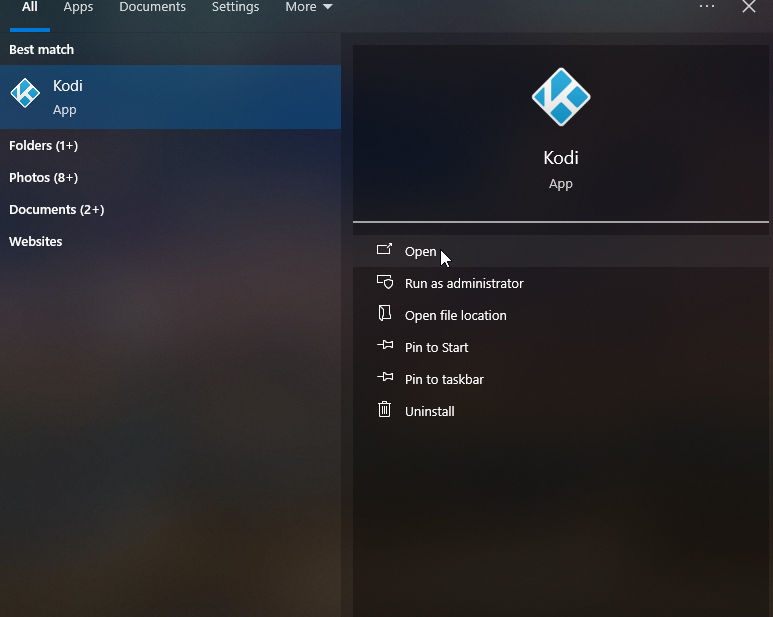
- Open Kodi on your device
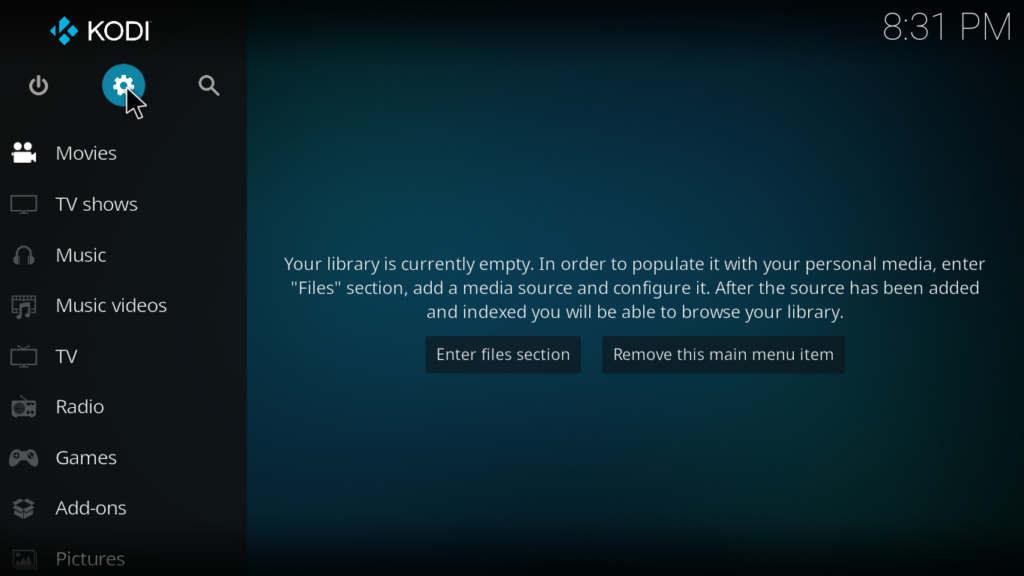
- Click the gear icon at the top left of the home screen to open Settings
- Click System
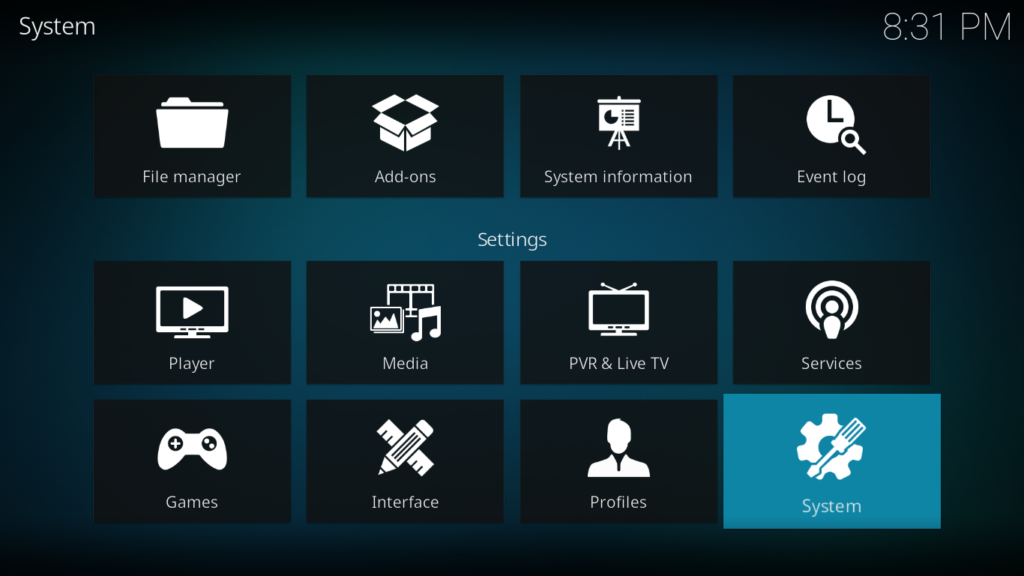
- Select Add-ons from the left menu
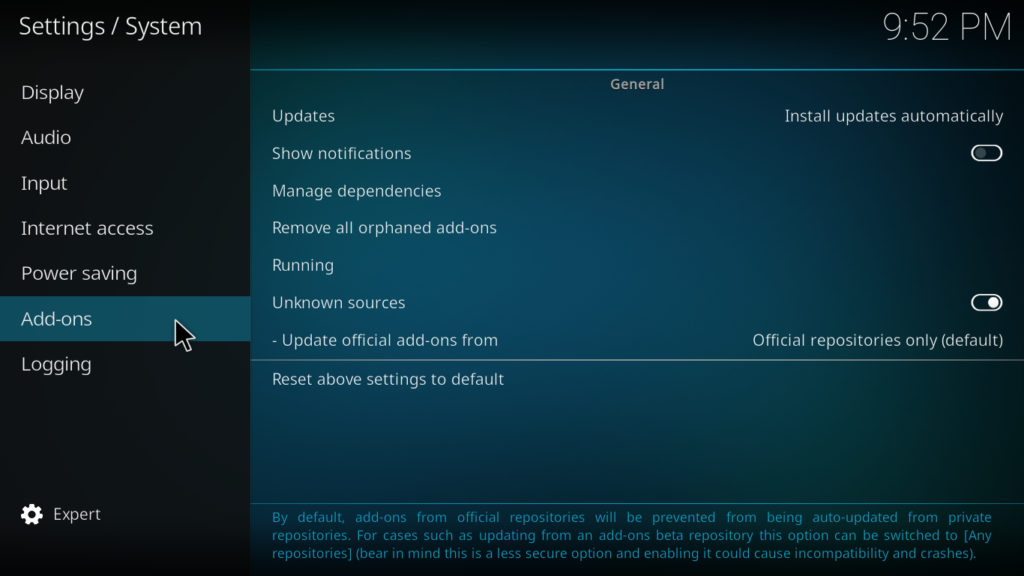
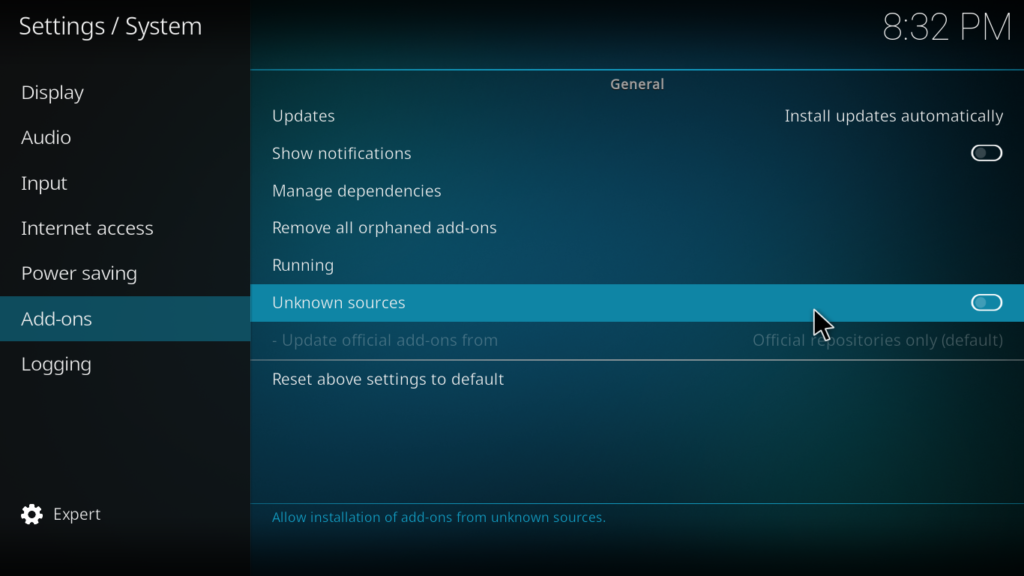
- Find Unknown Sources and toggle it to ON
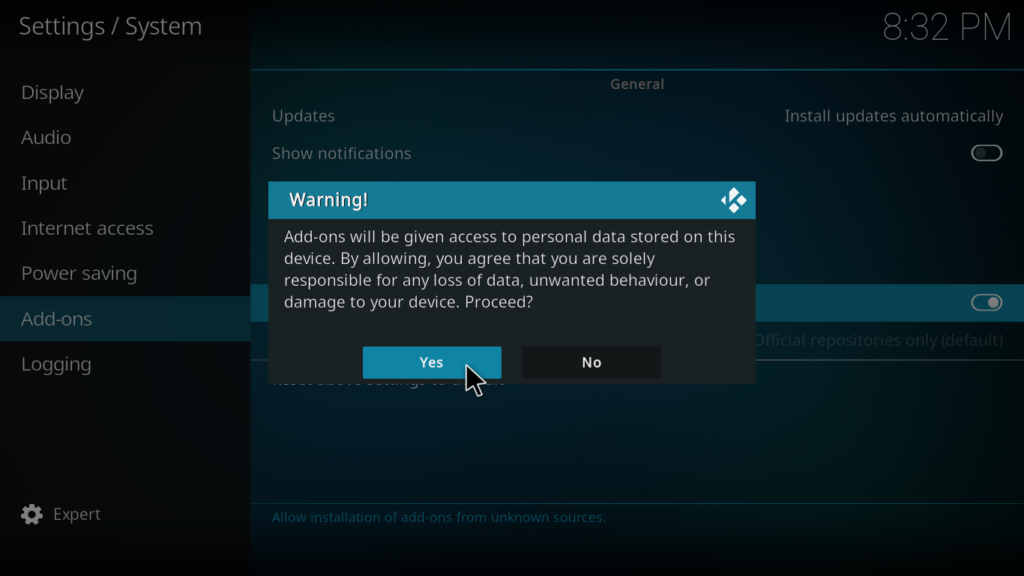
- A warning popup will appear — click Yes to confirm
Important: Only enable this for trusted repositories like SlyGuy. Never install addons from sources you don’t recognise.
Step 2: Open File Manager
Now we add the SlyGuy Repository as a source inside Kodi.
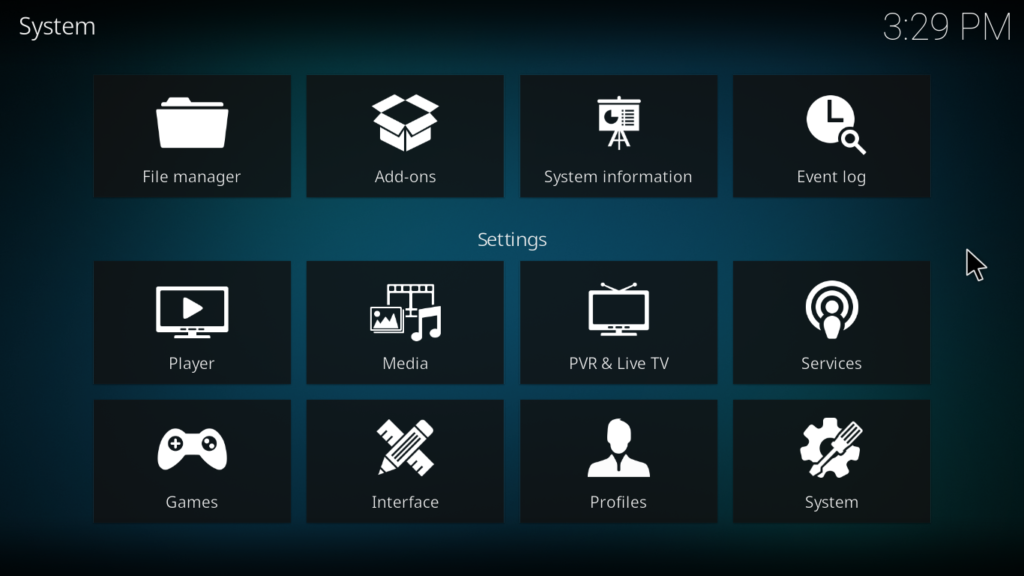
- Click the back arrow to return to the main Settings screen
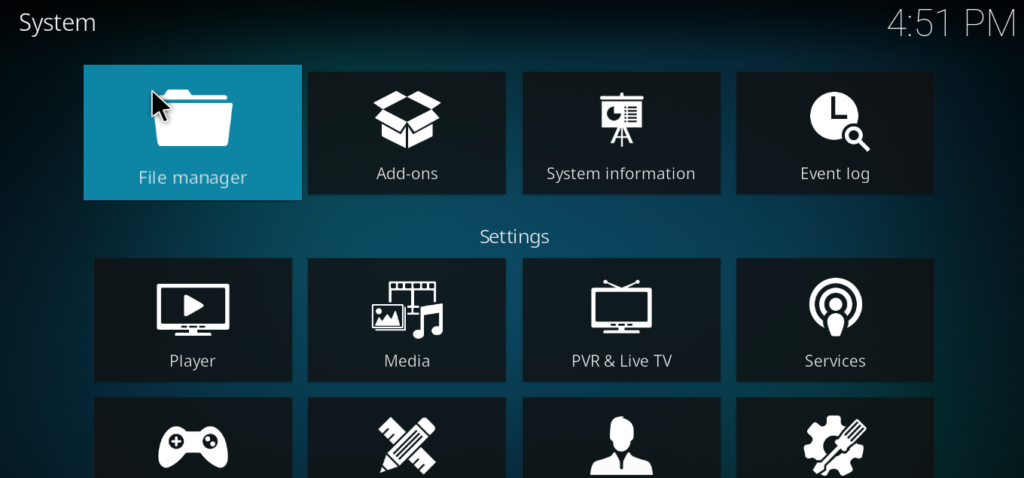
- Click File Manager
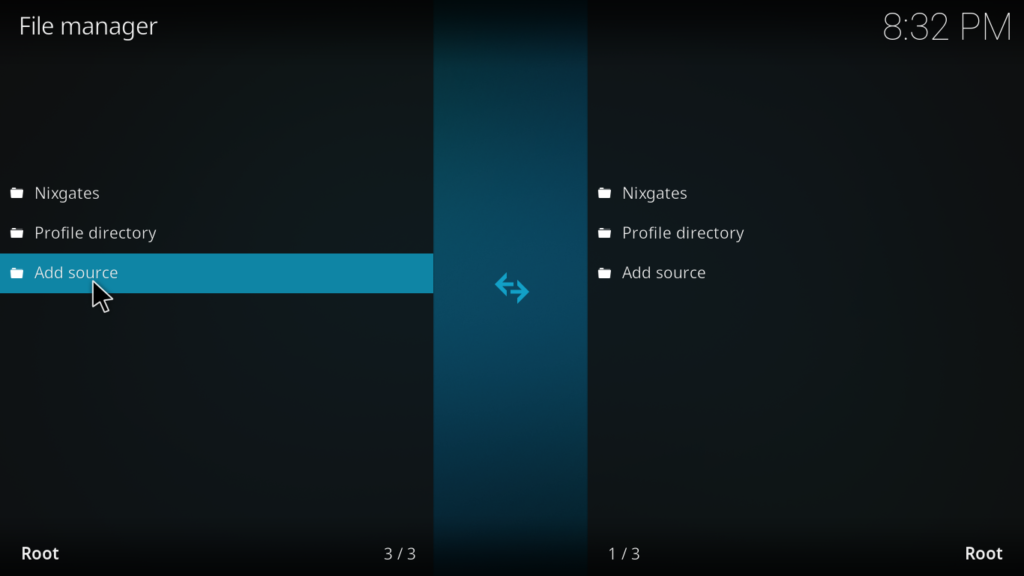
- You will see two panels on screen — double-click Add Source on the left side
Step 3: Enter the SlyGuy Repository URL
This step is critical — the URL must be typed exactly as shown below.
- A dialog box will open — click where it says None
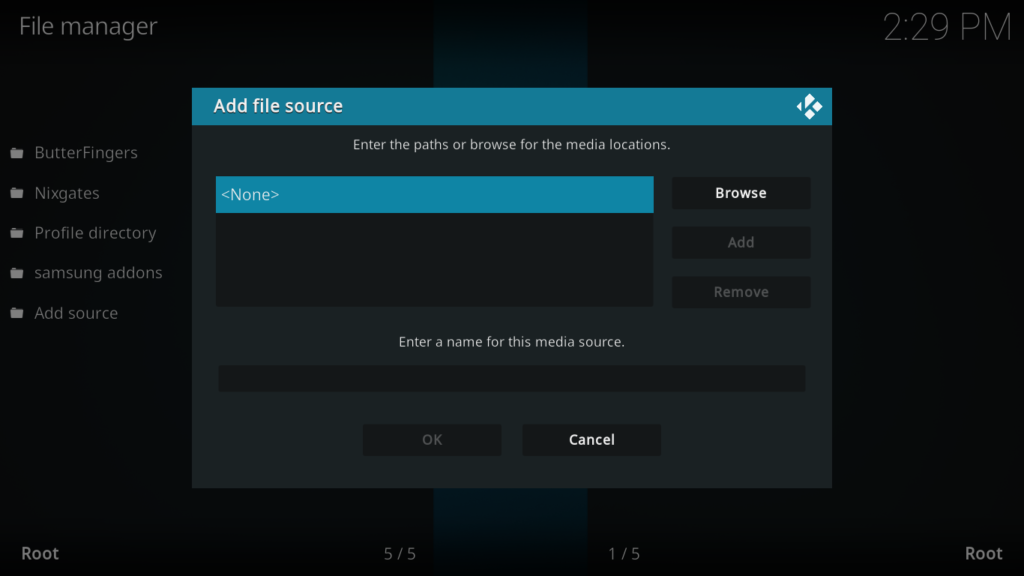
- Type this URL exactly: https://slyguy.uk
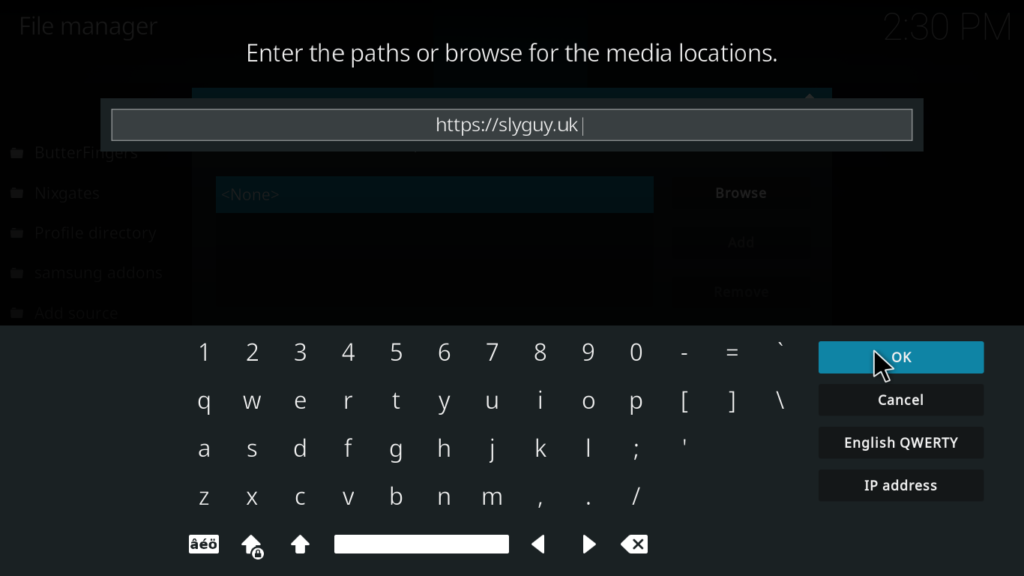
- In the name field below, type: slyguy
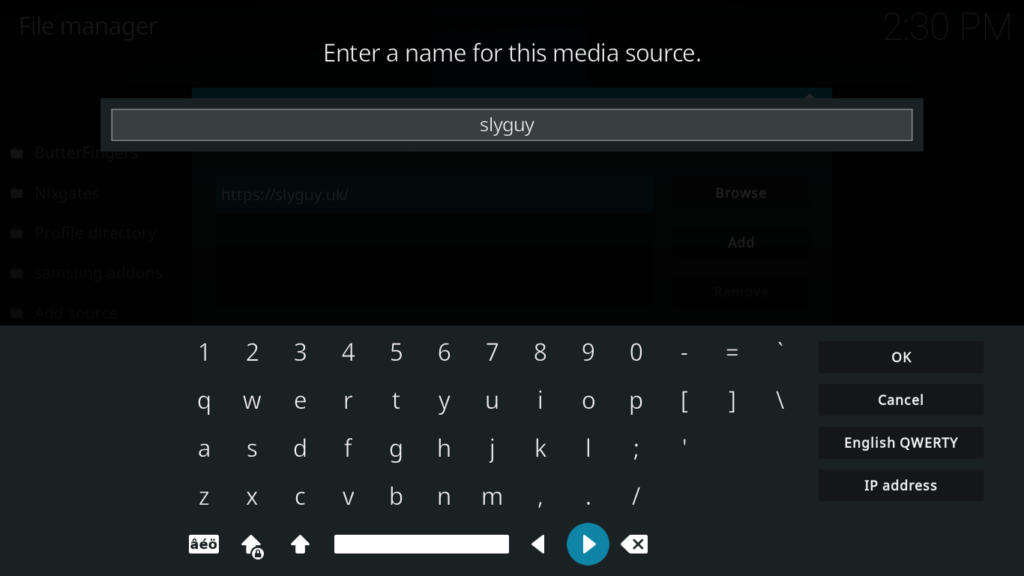
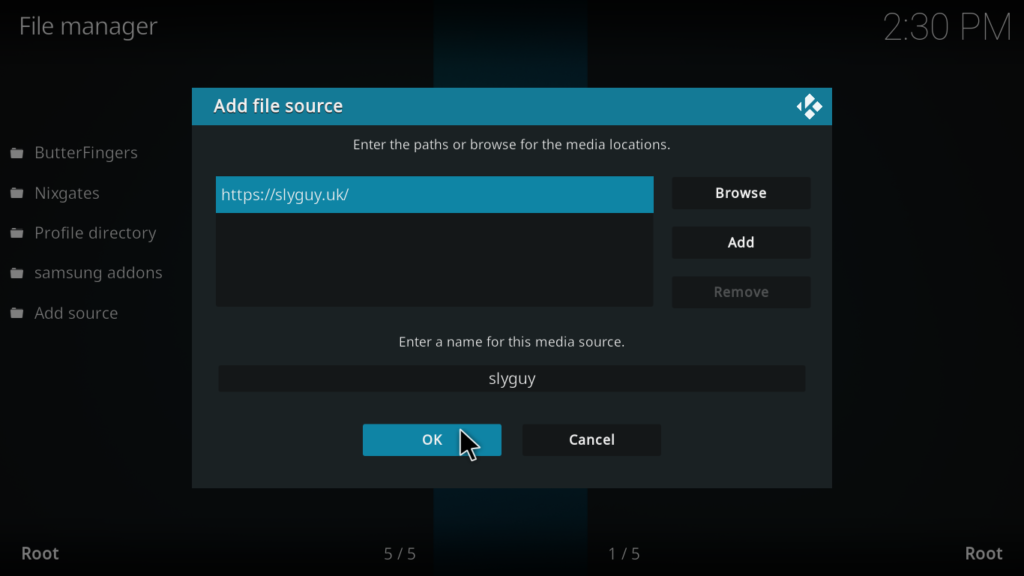
- Click OK to confirm
Tip: If https://slyguy.uk doesn’t work, try the alternative URL: https://k.slyguy.xyz — both lead to the same repository.
Step 4: Install the SlyGuy Repository Zip File
Now we install the repository itself inside Kodi.
- Go back to the Kodi home screen
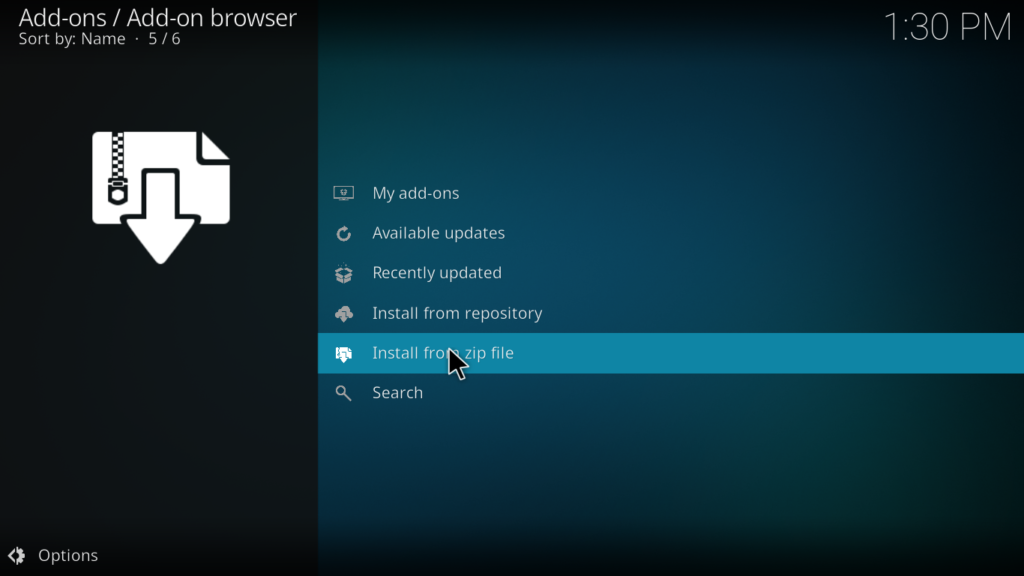
- Click Add-ons
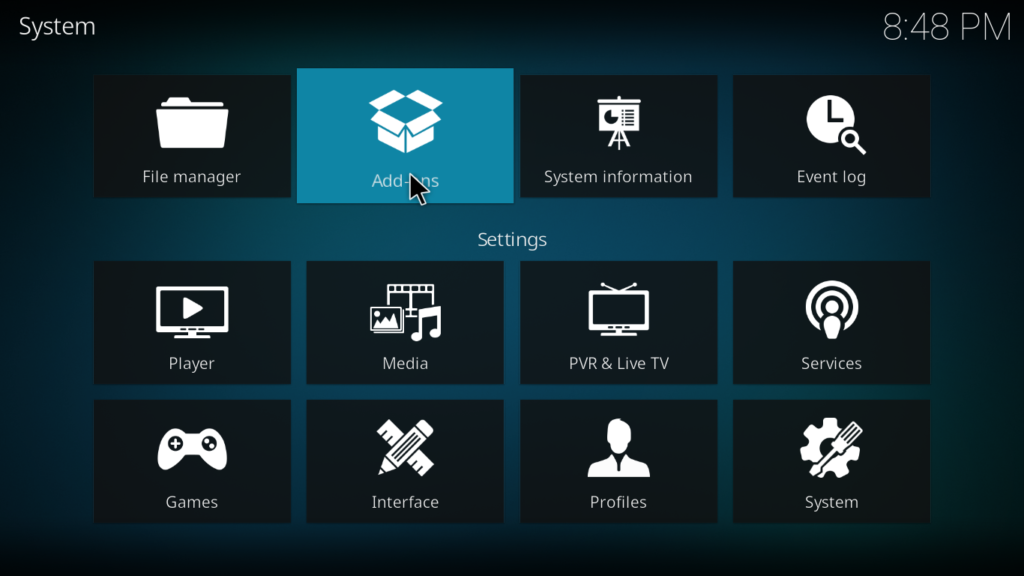
- Select Install from zip file
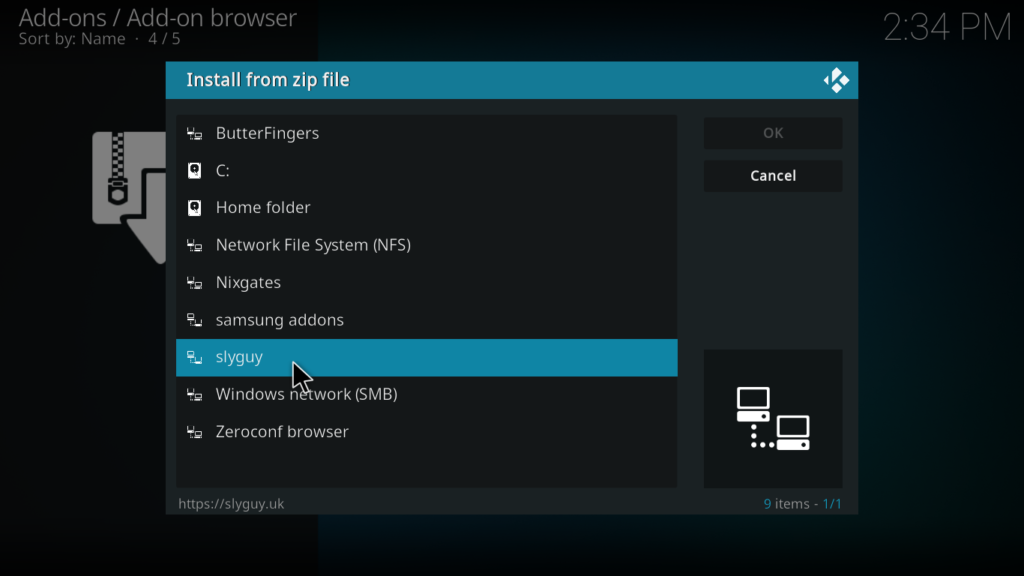
- A file browser will open — find and click slyguy
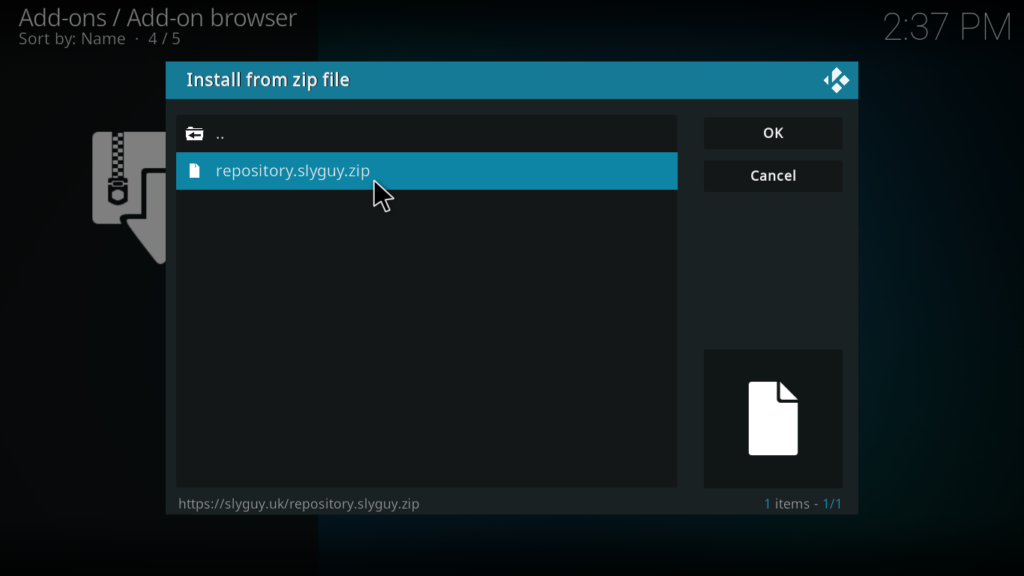
- Click repository.slyguy.zip from the list
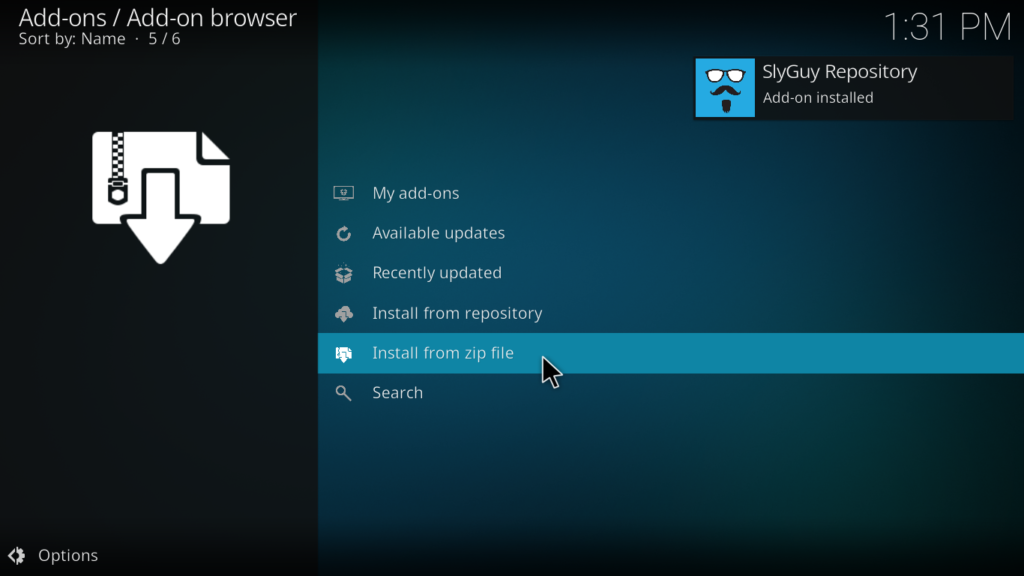
- Wait a few seconds for the Repo Installed notification to appear in the top right corner
Step 5: Install the Roku Channel Addon from the Repository
Now we install the actual Roku addon.
- Still in the Package Installer, click Install from repository
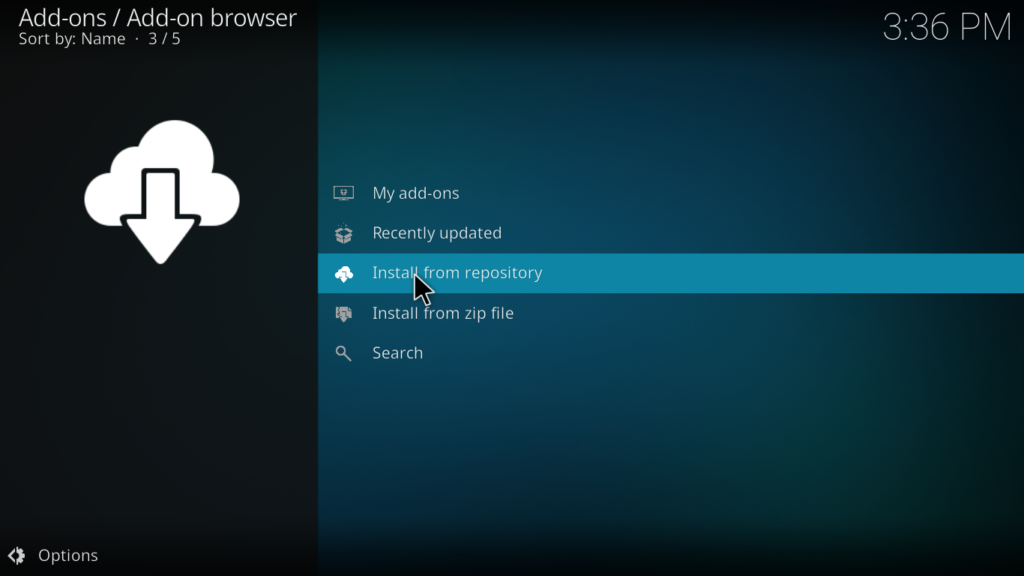
- Find and click SlyGuy Repository from the list
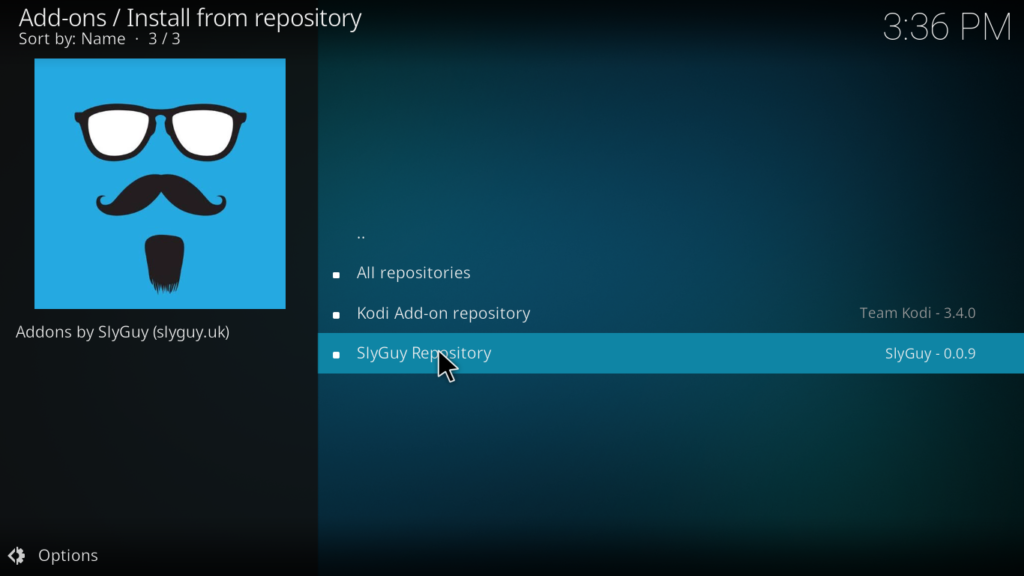
- Click Video Add-ons
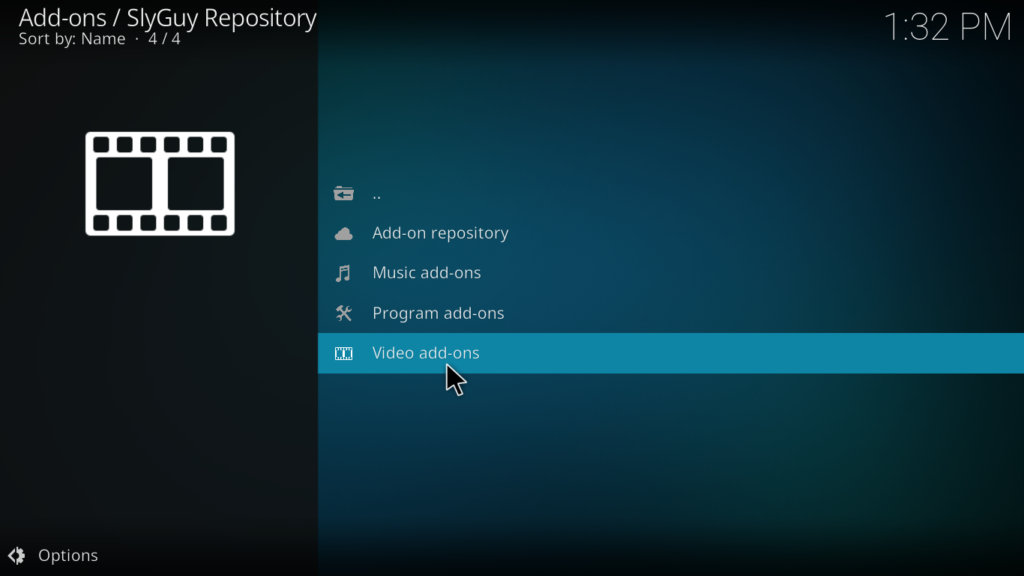
- Scroll down and find Roku in the list — it may also appear as Roku Channel and click on it
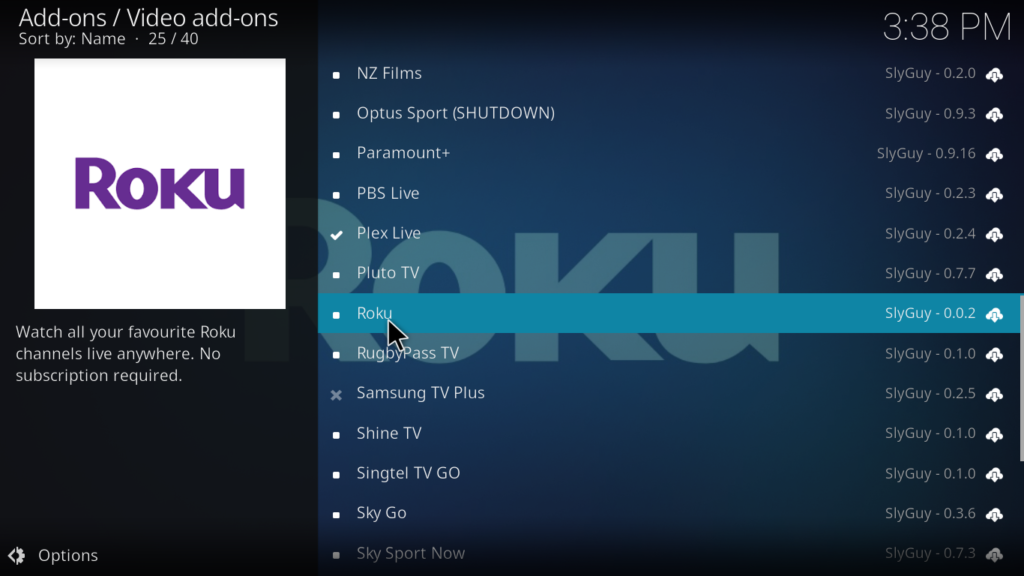
- Click Install
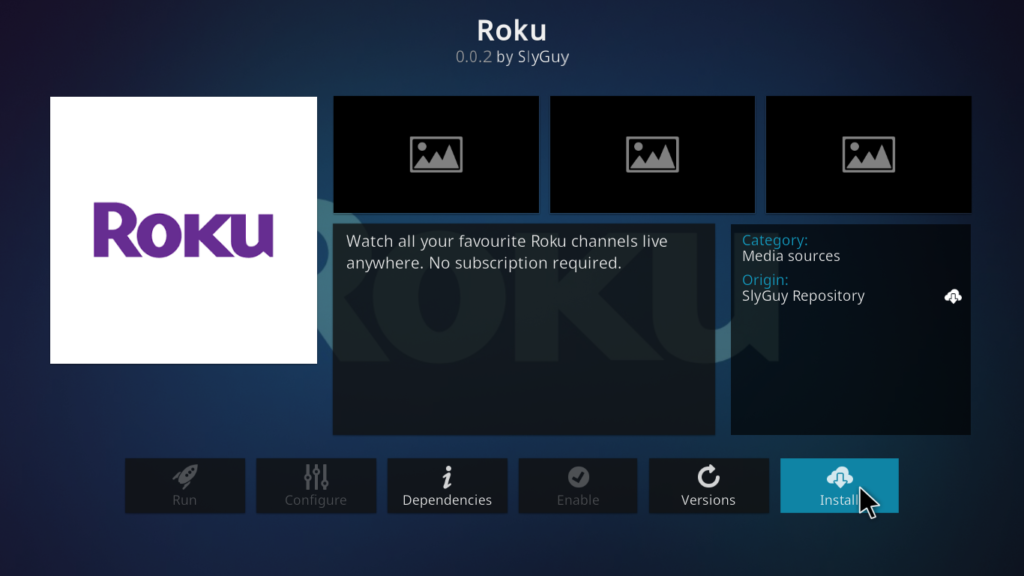
- Wait for the Add-on installed notification to appear in the top right corner
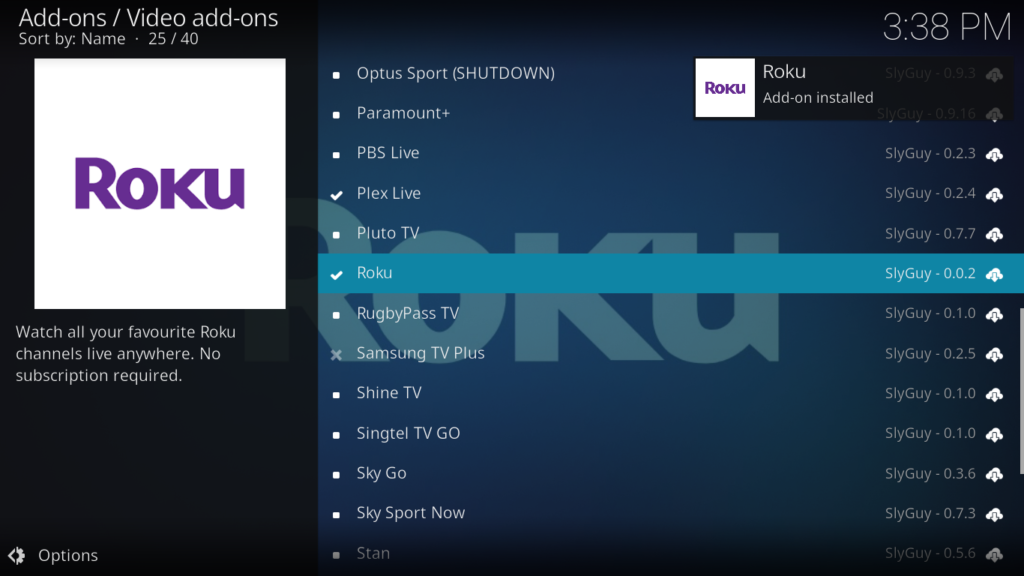
Step 6: Launch the Roku Channel Addon
- Go back to the Kodi home screen
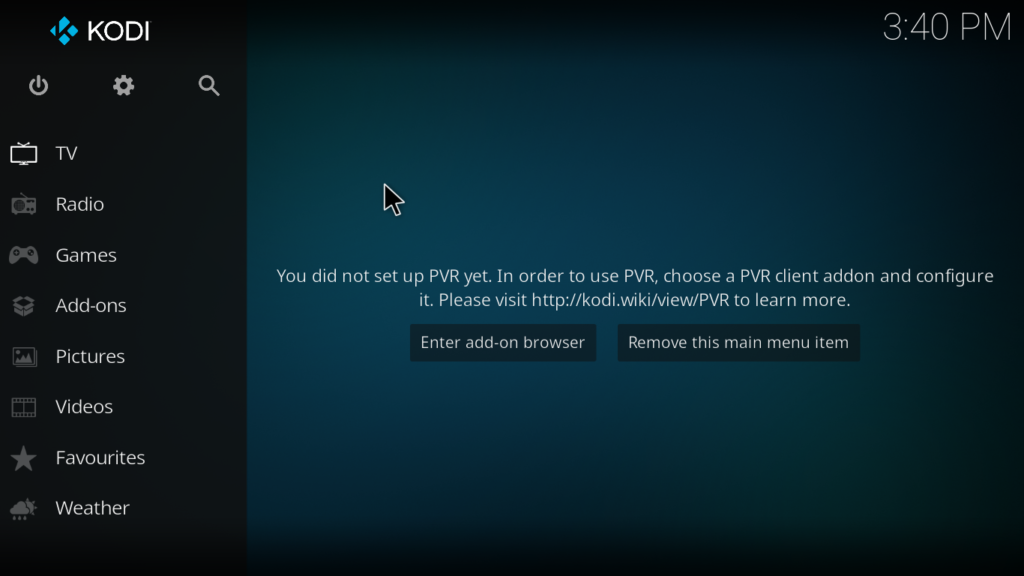
- Click Add-ons
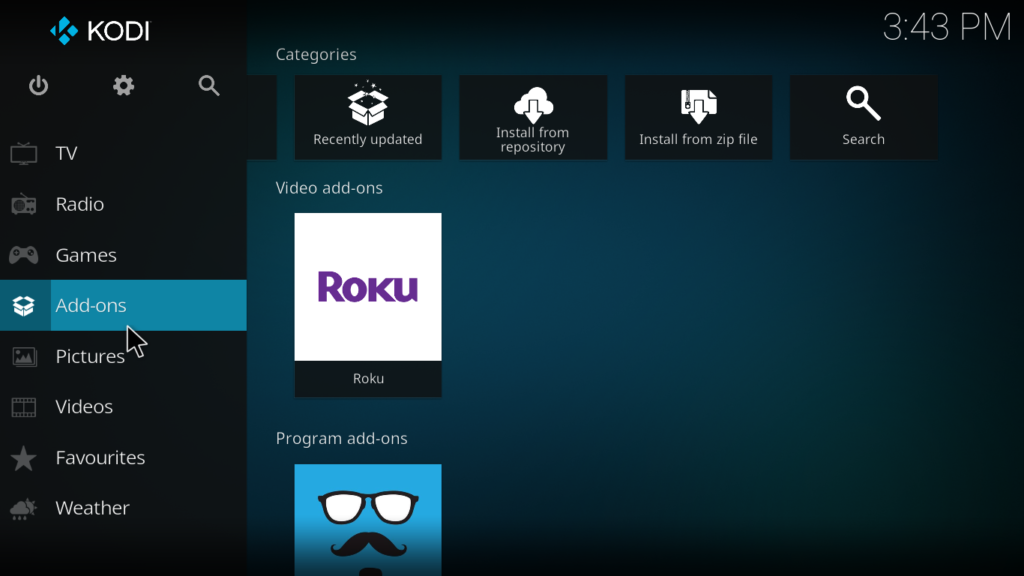
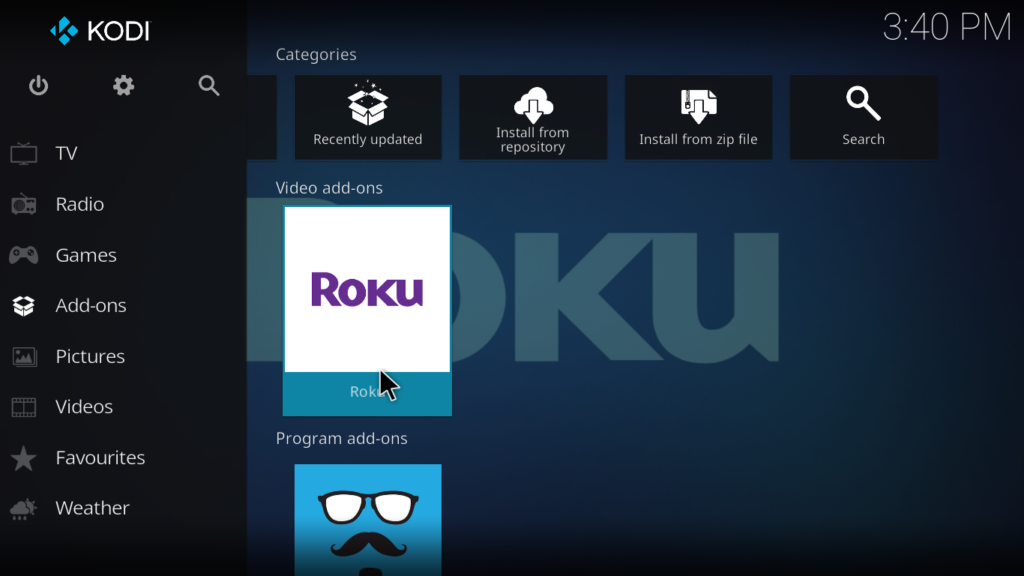
- Find Roku and click on it
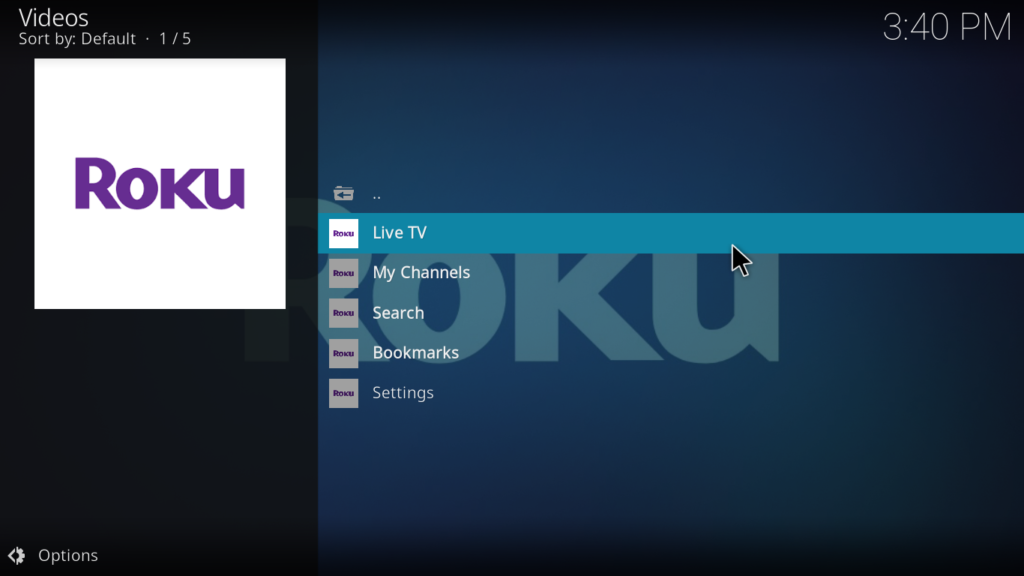
- The addon will open and display the main menu — Live TV, Movies, TV Shows, My Channels, Search, Bookmarks, Settings
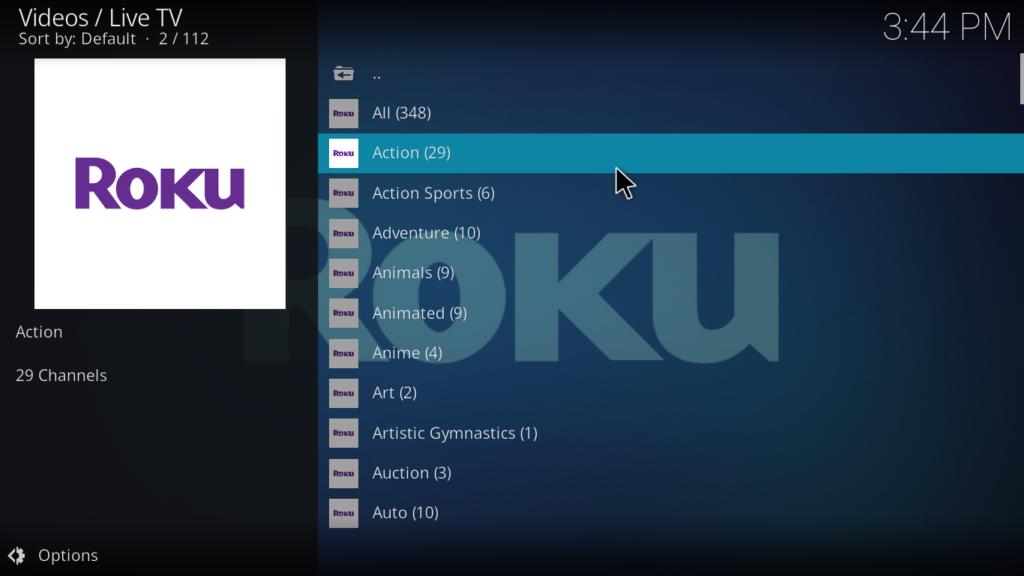
- Click Live TV to start browsing channels or Movies to browse on-demand content
That’s it. You now have free, ad-free access to The Roku Channel directly inside Kodi.
How to Use the Roku Channel Kodi Addon After Installing
Here’s a quick rundown of everything available inside the addon:
- Live TV — browse all 300+ live channels organized by genre and category
- Movies — thousands of free on-demand films across all genres
- TV Shows — free series and episodes available on demand
- My Channels — your recently watched channels for quick access
- Search — find any channel, movie, or show by name without scrolling
- Bookmarks — save your favourite channels and content for instant access
- Settings — adjust video quality, country settings, and other preferences
One thing that sets this addon apart from most free live TV addons is having movies and TV shows alongside live channels — all in one place. Most people install multiple addons to get this combination. With Roku, it’s all included.
My Personal Experience with the Roku Channel Kodi Addon
I’ve installed and tested a lot of free Kodi addons over the years. Most of them look promising at first and then disappoint — broken links, terrible stream quality, or they stop working within a few weeks.
The Roku Channel addon is different. It’s one of the most reliable free addons I’ve used.
What I liked most: The sheer volume of content. I’m not just talking about 20 or 30 channels like most free addons — this one has over 300 live channels plus thousands of movies and TV shows. I spent about an hour just browsing categories and kept finding things I hadn’t seen before. The streams loaded fast and the quality on a 25 Mbps connection was genuinely sharp.
The ad-free experience also surprised me. I tested it side by side against the official Roku app on a smart TV — the Kodi addon had no ad breaks at all during live TV. That alone makes it worth the 10 minutes it takes to set up.
What I didn’t like: The on-demand movie selection leans heavily toward older and lesser-known titles. If you’re hoping to find the latest blockbusters, you won’t find them here — this is free, legally licensed content after all. Also, some content is US-focused, so viewers outside the US may find a smaller selection without a VPN.
Who should install this: Honestly, anyone who uses Kodi and wants free content. It’s one of the first addons I recommend alongside the best Kodi addons available right now — whether you’re a complete beginner or a long-time Kodi user.
Tips to Get the Best Streaming Experience
A few things that genuinely improve your experience:
- Use a wired Ethernet connection instead of Wi-Fi — especially for live TV, it makes a huge difference in stability
- If a live stream buffers, try reducing the video quality in the addon Settings — this almost always fixes it on slower connections
- Use a VPN to access US-focused content if you’re outside the US, and to keep your streaming private. For a clear explanation of why privacy matters online, check out this guide by the EFF at eff.org/issues/privacy
- Use the Search feature instead of browsing — with 300+ channels and thousands of titles, search saves a lot of time
- Bookmark your favourite channels the first time you use them — you’ll thank yourself later
- Keep the SlyGuy Repository updated to make sure you always have the latest version of the addon — Kodi usually handles this automatically
If you run into other Kodi problems that aren’t related to this addon, this Kodi not working fix guide covers the most common issues.
Pros and Cons of the Roku Channel Kodi Addon
Pros:
- Massive content library — 300+ live channels plus thousands of movies and TV shows
- Completely free with no account or subscription required
- Ad-free or significantly reduced ads compared to the official Roku app
- Live TV and on-demand content in one single addon
- Hosted on the trusted and regularly updated SlyGuy Repository
- Clean, easy-to-navigate interface with Search and Bookmarks
- Works on Kodi 20 and 21 on all major devices
- No Roku device needed
Cons:
- On-demand titles lean toward older and lesser-known content — no new releases
- Some content is US-focused — VPN recommended for full access outside the US
- Not an official Kodi addon — depends on SlyGuy Repository staying active
- Operates in a grey area regarding Roku’s terms of service — see the legal section above
- Requires enabling Unknown Sources — a minor extra step for first-time users
Troubleshooting Common Problems
The addon isn’t loading after installation
Go back and check the SlyGuy repo URL. It must be exactly: https://slyguy.uk with no extra spaces or typos. If it still fails, try the alternative: https://k.slyguy.xyz and reinstall the repository zip file.
Live streams are buffering constantly
Try lowering the video quality in the addon’s Settings menu. Also switch from Wi-Fi to a wired Ethernet connection if possible — this is the single most effective fix for buffering on live TV.
The Roku addon installed but won’t open
Restart Kodi completely and try again. If it still won’t open, go to Add-ons, find the Roku addon, click on it, and select Update to make sure you have the latest version.
Some channels or content won’t play
This is usually a geo-restriction issue — certain content is only available in the US. Using a VPN set to a US server will resolve this in most cases. Also make sure your SlyGuy Repository is up to date.
The addon disappeared after a Kodi update
This can happen after major Kodi version updates. Simply reinstall the addon from the SlyGuy Repository following Steps 4 and 5 in this guide — you won’t need to add the repo source again.
FAQs
Do I need a Roku device to use the Roku Channel Kodi addon?
No — not at all. That’s one of the best things about this addon. It works completely independently on any device that runs Kodi, including Android TV boxes, Fire Stick, Windows PCs, and more. No Roku hardware needed.
Is the Roku Channel Kodi addon really ad-free?
Yes — in most cases. Unlike the official Roku app which runs frequent commercial breaks, the Kodi addon strips out the majority of ads. Some users report occasional brief ads on certain streams, but it’s significantly less than the official app.
Where does the Roku Channel Kodi addon come from?
It’s hosted in the SlyGuy Repository — one of the most trusted third-party Kodi repositories available. The official repo URL is https://slyguy.uk.
Does the Roku Channel Kodi addon work on Amazon Fire Stick?
Yes. As long as Kodi is installed on your Fire Stick, the addon works perfectly. Make sure you also enable Apps from Unknown Sources in your Fire OS settings before starting.
Does the Roku Channel Kodi addon work on Kodi 21 Omega?
Yes. The addon is fully compatible with both Kodi 20 Nexus and Kodi 21 Omega — the two most current Kodi versions as of 2026.
Is a Plex account or any other account needed?
No account of any kind is required. Just install the addon and start watching — no sign-in, no registration.
Conclusion
If you’re looking for one free Kodi addon that gives you live TV, movies, and TV shows — all in one place, all for free, and without the constant ad breaks — the Roku Channel Kodi addon is genuinely one of the best options available in 2026.
Over 300 live channels. Thousands of on-demand titles. No subscription. No account. And no ads.
It takes less than 10 minutes to set up by following the six steps in this guide — and once it’s installed, you’ll wonder why you didn’t do it sooner.
Got questions or ran into a problem during installation? Drop a comment below — I reply to every single one.


