Introduction
Kodi is one of the best free media players out there — and yes, it works great on Firestick. 🎬 This guide shows you exactly how to install it in just a few steps. No tech skills needed!
Is Kodi Legal on Firestick?
Yes, Kodi itself is 100% legal. It’s open-source software made for organizing and playing your own media files. Just make sure you only use legal add-ons and content.
What You’ll Need
Before you start, make sure you have:
- An Amazon Firestick (any model): Buy an Amazon Fire TV Stick
- A stable Wi-Fi connection
- A free Amazon account
- About 5 minutes of your time
How to Install Kodi on Firestick (Step by Step)
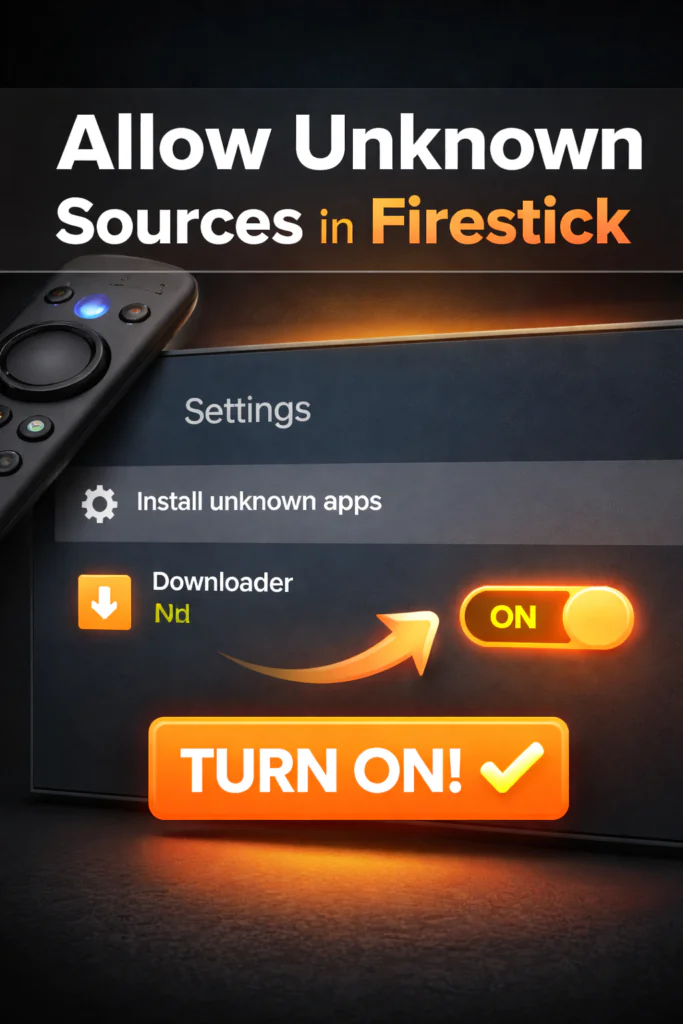
Step 1 — Allow Unknown Sources
- Go to Settings on your Firestick
- Select My Fire TV → Developer Options
- Turn on Install Unknown Apps
Step 2 — Download the Downloader App
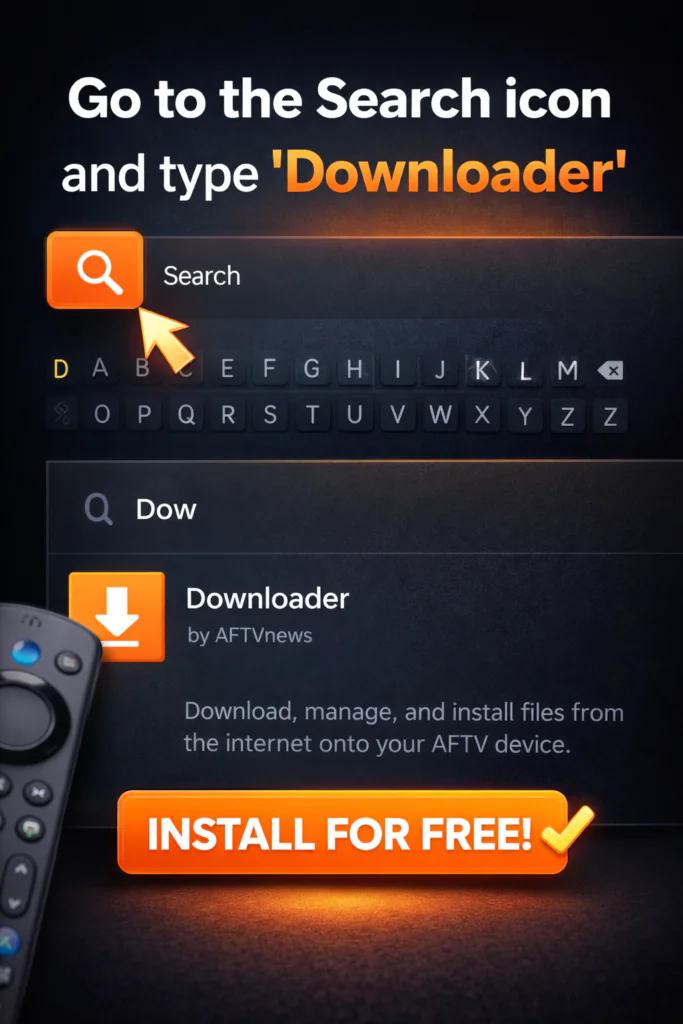
- Go to the Search icon on your Firestick home screen
- Type “Downloader” and open the app (orange icon)
- Install it — it’s free
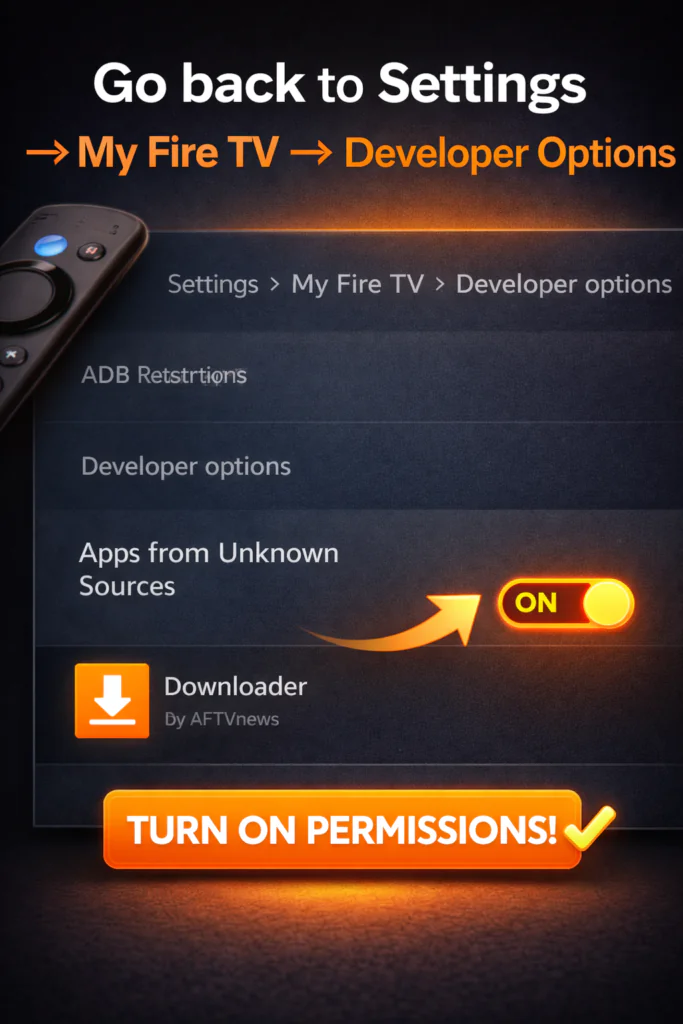
Step 3 — Enable Downloader Permissions
- Go back to Settings → My Fire TV → Developer Options
- Find Downloader and turn on permissions
Step 4 — Download Kodi
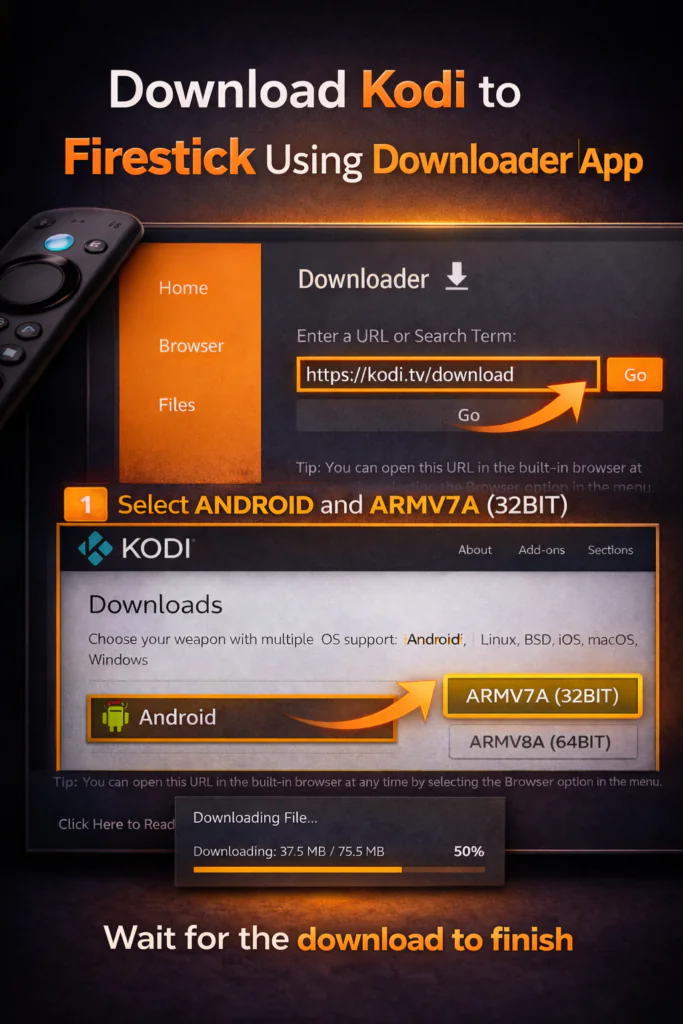
- Open the Downloader app
- In the URL box, type:
https://kodi.tv/download - Select Android → choose the ARM 32-bit version
- Wait for the download to finish
Step 5 — Install Kodi
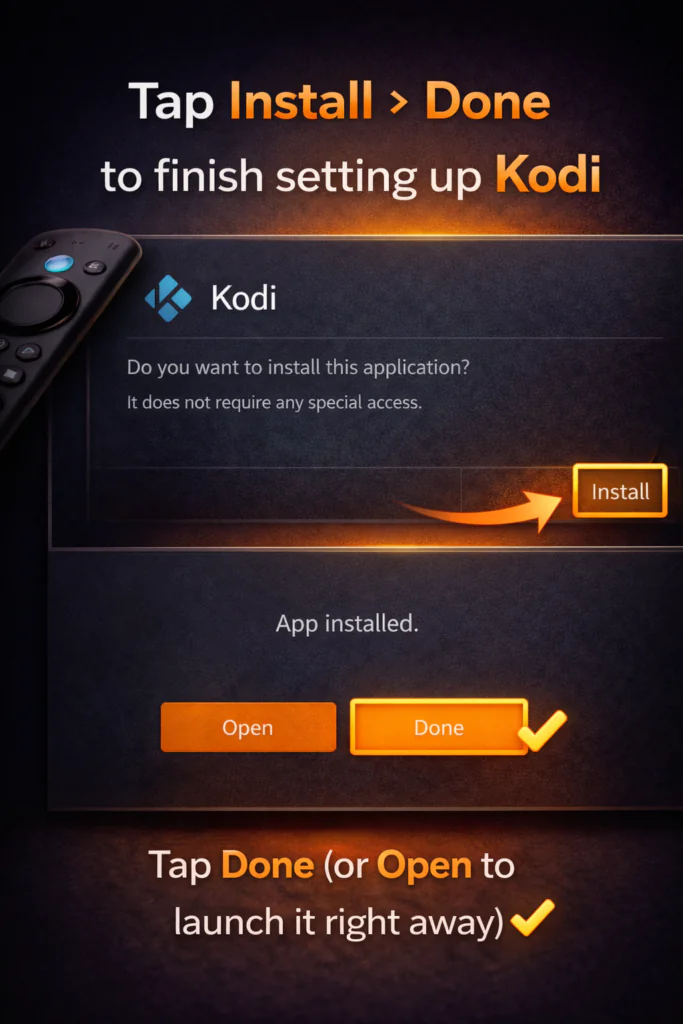
- Once downloaded, tap Install
- Wait a few seconds
- Tap Done (or Open to launch it right away) ✅
Common Problems & Quick Fixes
- “App not installed” error → Make sure unknown sources are enabled in Developer Options
- Kodi is slow or freezing → Clear the cache: go to Settings → Applications → Kodi → Clear Cache. For more fixes, see our guide on how to speed up your Android TV box.
- Can’t find the Downloader app → Search the Amazon App Store directly, or use the exact name “Downloader by AFTVnews”
- Download link not working → Double-check the URL — make sure there are no typos
Quick Tips 💡
- Always download Kodi from the official website (kodi.tv) — avoid third-party sources
- Use a VPN if you want extra privacy while streaming
- Keep Kodi updated for the best performance
Conclusion
That’s all there is to it! Installing Kodi on Firestick takes less than 5 minutes and it’s completely free. Enjoy your media the way you want. 🙌
FAQ
Q: Is Kodi safe to install on Firestick?
Yes! Kodi is safe as long as you download it from the official kodi.tv website.
Q: Do I need to pay for Kodi?
No. Kodi is completely free and open-source.
Q: Will installing Kodi void my Firestick warranty?
No, installing Kodi does not void your warranty. It’s just a regular app installation.