Quick Fix Summary
Sport HD not working right now? Try these fast fixes first before reading the full guide:
- Clear your Kodi cache
- Update the Sport HD addon to the latest version
- Turn on a VPN (ExpressVPN or NordVPN recommended)
- Check if the Sport HD servers are temporarily down
- Reinstall the addon from scratch
- Switch to an alternative sports addon temporarily
If none of those quick fixes solved it, keep reading — I’ll walk you through every possible cause and fix step by step.
Introduction
Sport HD not working is one of the most frustrating Kodi problems — especially right before a big match. Maybe you’re getting a “No Stream Available” error. Maybe the addon loads but every stream buffers or dies instantly. Maybe it just spins forever and does absolutely nothing.
I’ve been there. It’s frustrating — especially when you’re 10 minutes away from kickoff.
The good news is that Sport HD not working is almost always fixable. In this 2026 guide, I’ll break down every possible reason why Sport HD fails and give you exact, step-by-step instructions to get it working again. No guesswork, no vague advice — just the fixes that actually work.
Why Is Sport HD Not Working in 2026?
Before jumping into fixes, it helps to understand what’s actually going wrong. Sport HD problems almost always come from one of these five root causes.
1. The servers are temporarily down.
Sport HD relies on external streaming servers and scrapers. When those servers go down — even briefly — you’ll get errors like “No Stream Available” or “Playback Failed.” This happens with every free Kodi addon, and there’s usually nothing you can do except wait or switch to a backup addon.
2. Your addon version is outdated.
Kodi addons like Sport HD are updated frequently. If you’re running an old version, the scrapers and link resolvers inside it no longer match the current servers. This is one of the most common reasons Sport HD stops working seemingly out of nowhere.
3. Cached data is corrupted.
Kodi stores temporary data (cache) to speed things up. Over time, this cache can become bloated or corrupted, causing playback errors and freezing even when the addon itself is fine.
4. Your ISP is blocking the streams.
Internet Service Providers in many countries actively block streaming sources that services like Sport HD tap into. If streams worked before but suddenly stopped — especially without any addon update — ISP-level blocking is likely the cause. A VPN fixes this instantly.
5. Your internet connection is the bottleneck.
HD sports streams require a stable connection of at least 10–25 Mbps. If your speed drops or your Wi-Fi signal is weak, streams will buffer, stall, or refuse to load entirely.
Knowing the cause helps you apply the right fix first. Now let’s get into it.
Fix 1: Clear Your Kodi Cache
Clearing the Kodi cache is the first thing I do whenever any addon stops working — including Sport HD. It’s quick, safe, and fixes the problem more often than you’d expect.
There are two ways to do this: manually through Kodi settings, or by using the popular Kodi maintenance addon called Indigo.
Method A: Clear Cache Manually via Kodi Settings
Step 1: Open Kodi
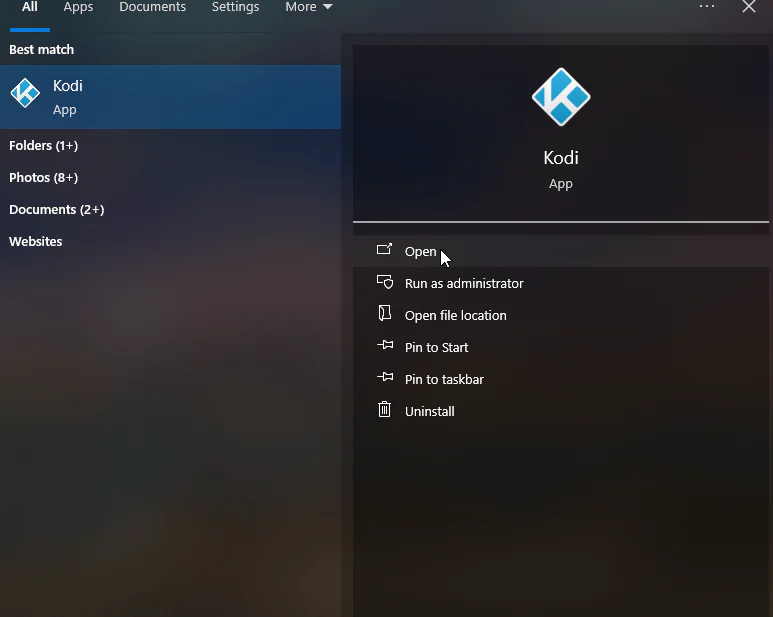
Step 2 : go to the Settings gear icon on the home screen.
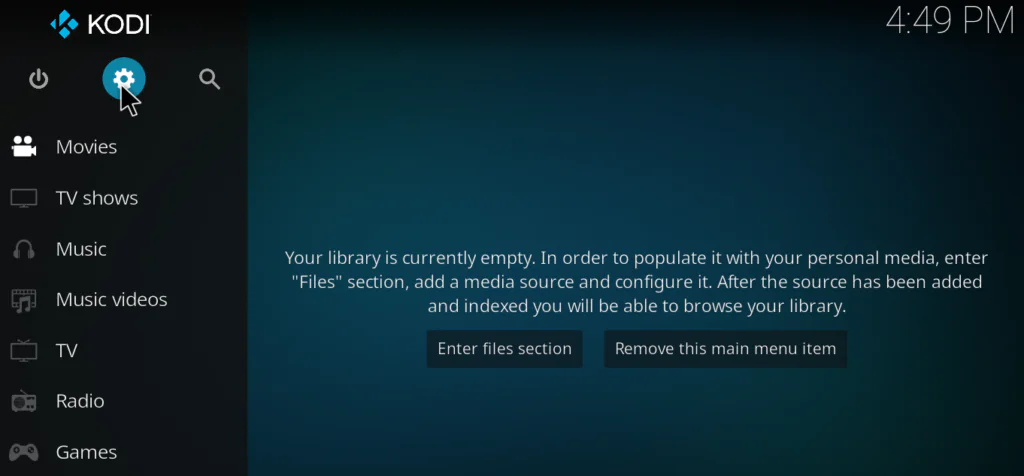
Step 3: Click on File Manager.
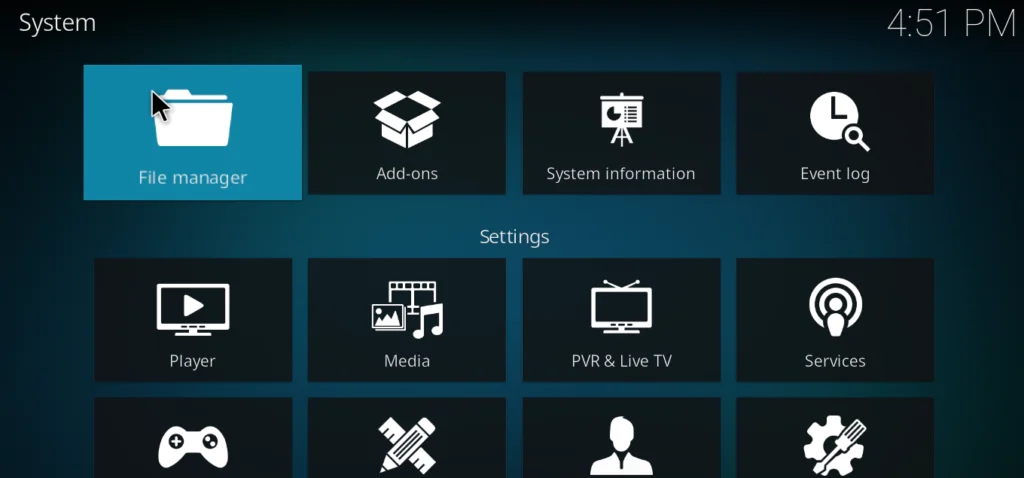
Step 3: Click on Profile Directory.
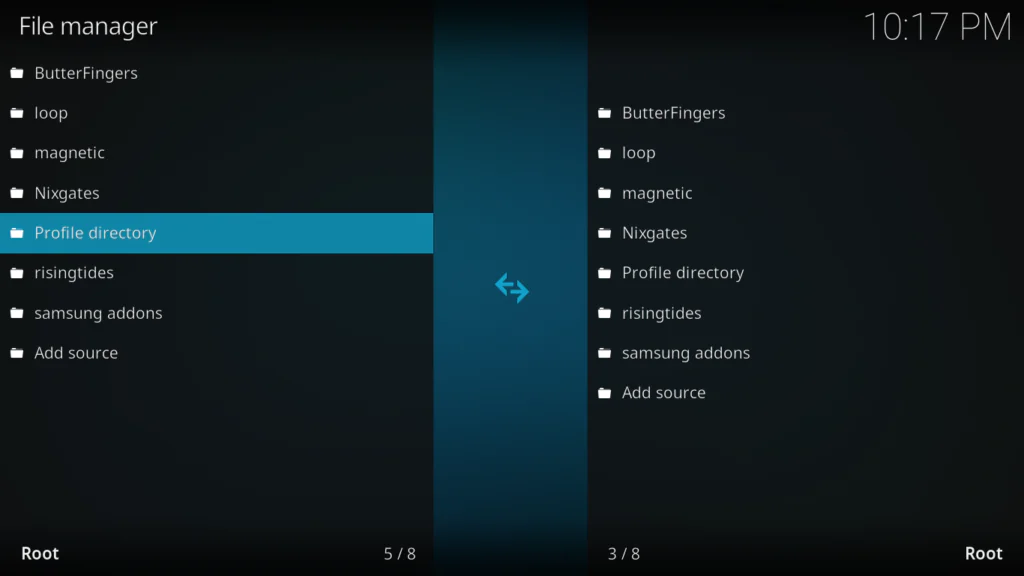
Step 4: Navigate to the Database folder. You can delete thumbnail and texture cache files from here, though this method is limited in what it removes.
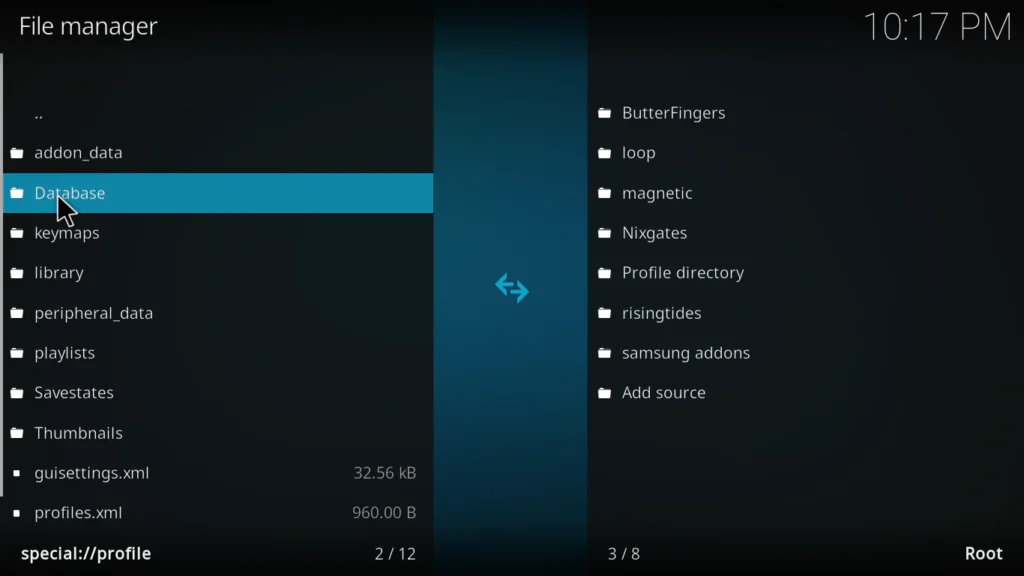
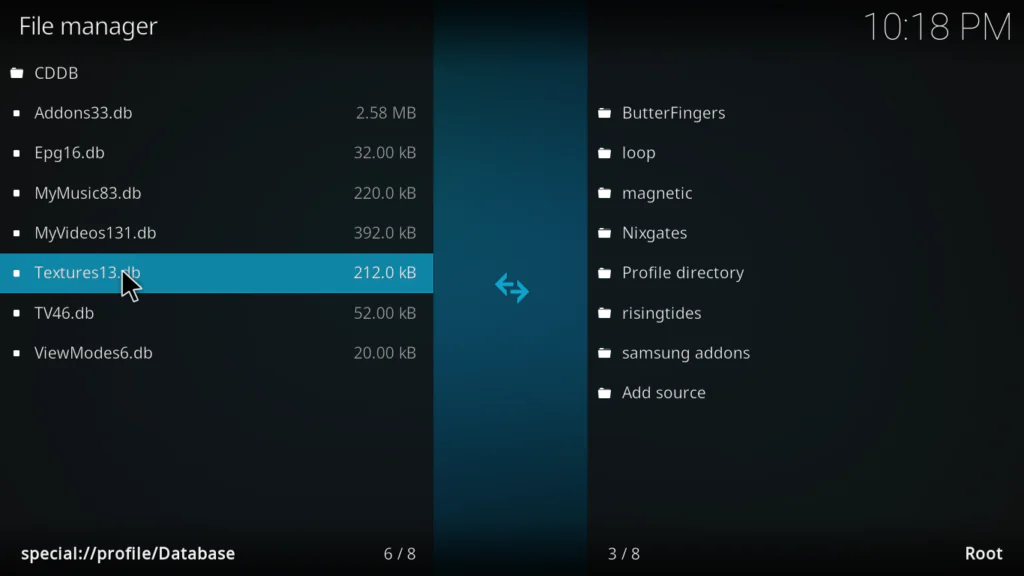
For a more thorough clean, Method B below is what I actually recommend.
Fix 2: Update the Sport HD Addon
Running an outdated version of Sport HD is one of the top reasons streams stop working. Addon developers push updates constantly to keep pace with server changes, and if you’re running an old build, those scrapers simply won’t find valid streams anymore.
Here’s how to update it.
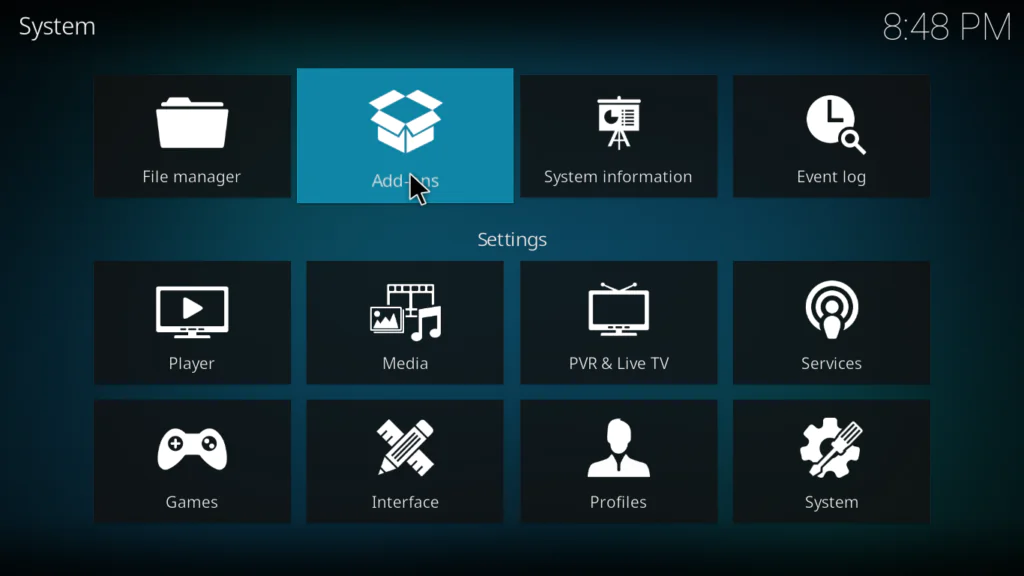
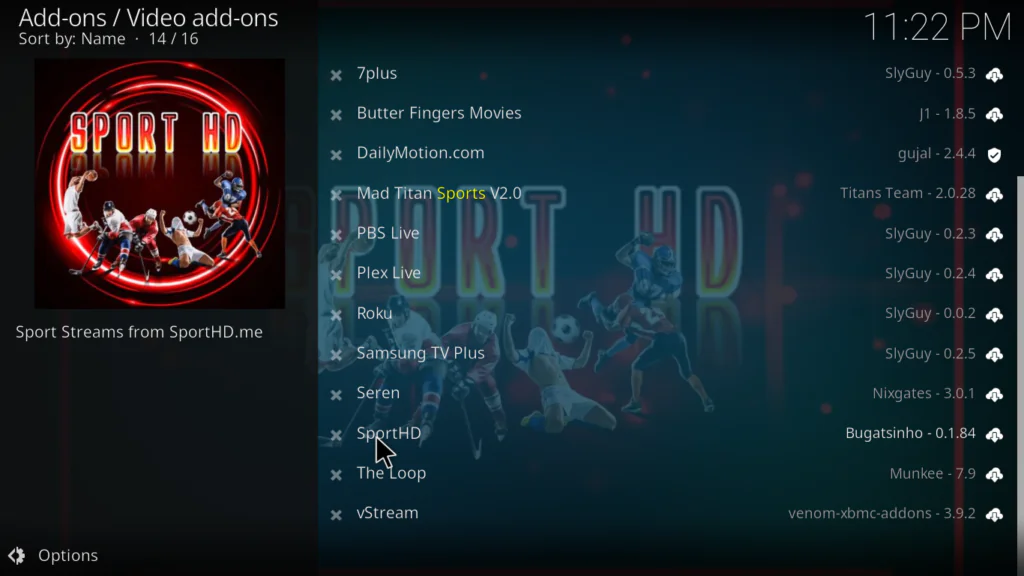
Step 1: Open Kodi and go to Add-ons
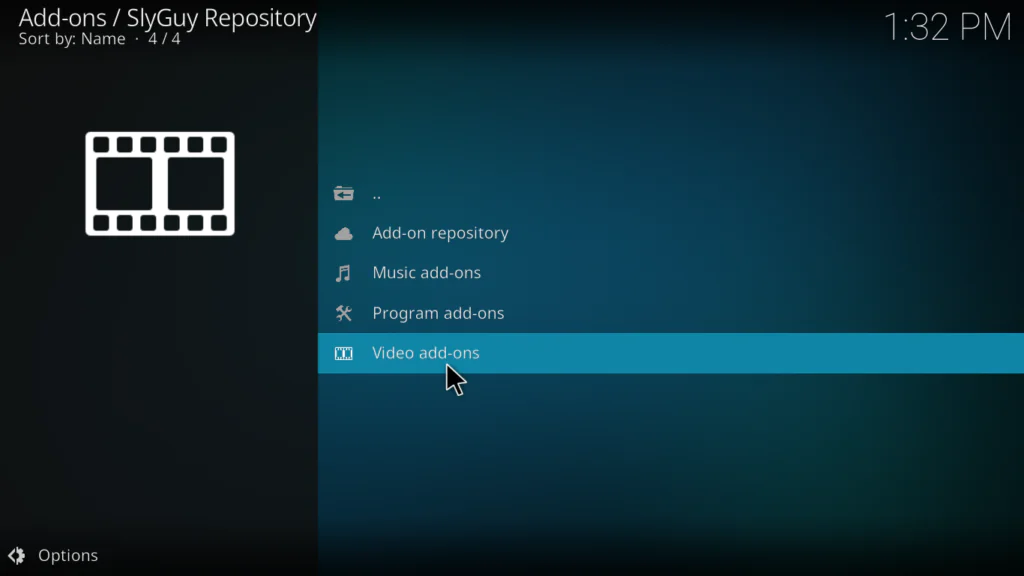
Step 2: Navigate to Video Add-ons.
Step 3: Find Sport HD in the list and right-click on it (or long-press on Android TV).
Step4: Select Information from the menu that appears. If an update is available, you’ll see an Update button at the bottom. Click it.
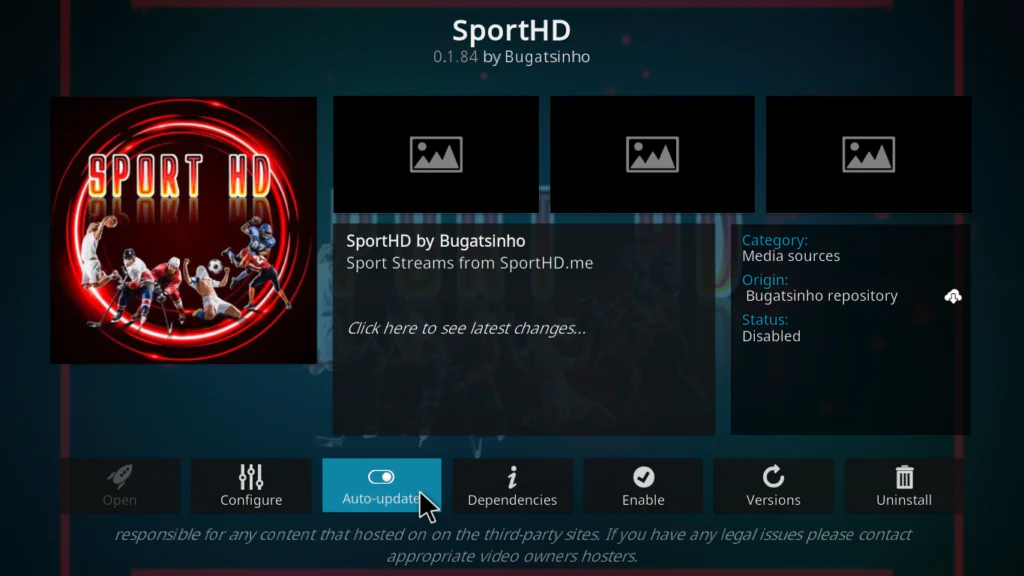
Step 5: Wait for the update to complete, then restart Kodi and test the addon.
If no update is showing, it could mean the repository where Sport HD is hosted has also gone offline. In that case, you’ll need to reinstall the addon from scratch — which is exactly what the next fix covers.
Fix 3: Reinstall Sport HD from Scratch
If updating didn’t work — or if the addon is clearly broken and behaving erratically — a clean reinstall is your best option. This wipes all old files and gives you a fresh, working installation with no leftover corrupted data.
Step 1: Go to Add-ons
Step2: My Add-ons
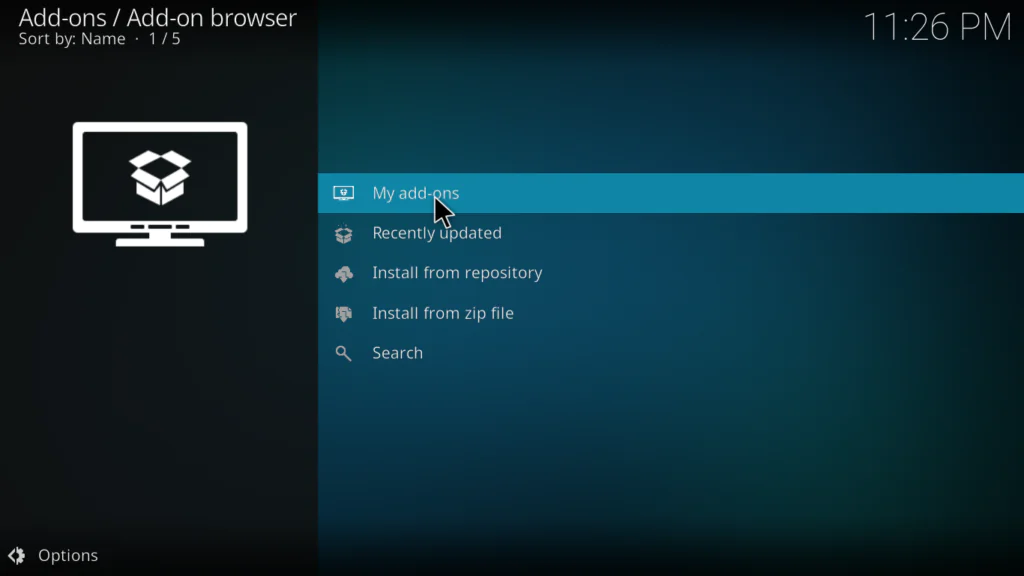
Step 3 : Video Add-ons.
Step 4: click on Sport HD and choose Uninstall. Confirm when prompted.
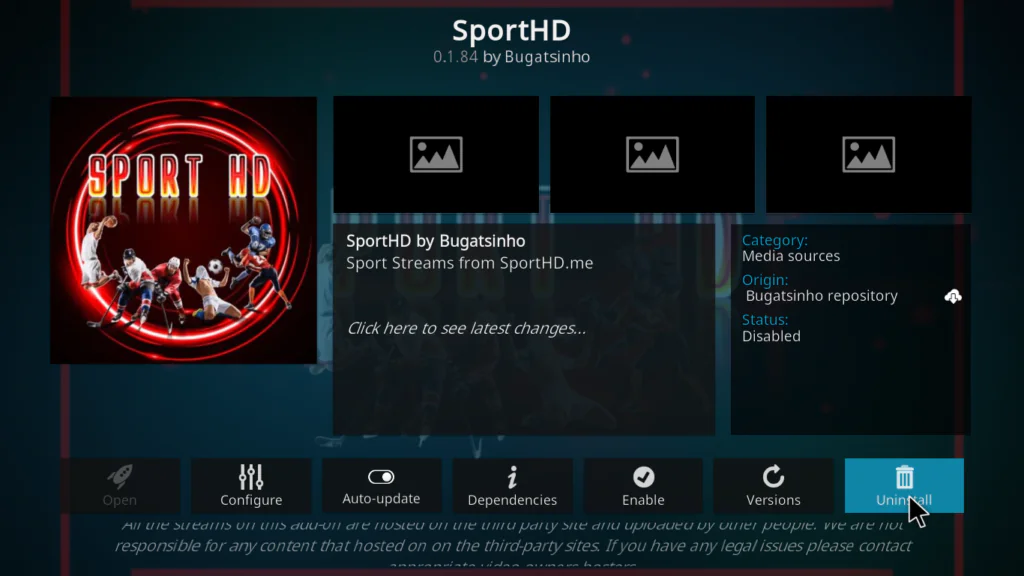
Step 5: Once uninstalled, go back to Add-ons and click on the Add-on Browser (the open box icon).
Step 6: Select Install from Repository.
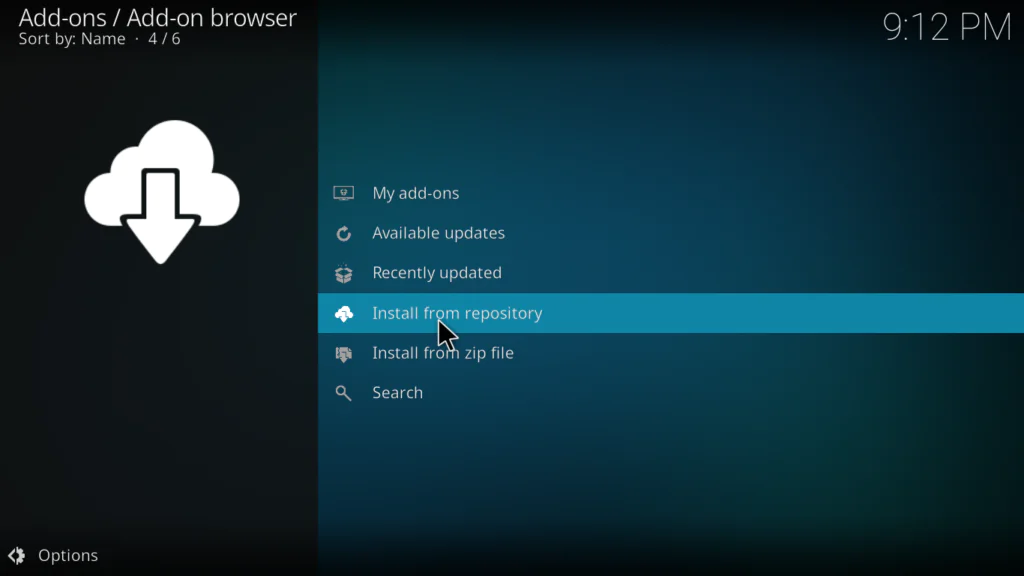
Step 7: Navigate to the repository where Sport HD is hosted. If you’re not sure which one to use in 2026, check our how to install Kodi addons guide for the current working source.
Step 8: Find Sport HD, click on it, and select Install.
Step 9: Wait for the “Add-on installed” notification, then restart Kodi.
After reinstalling, open Sport HD and try loading a stream. Nine times out of ten, this clears up persistent issues that a simple update alone couldn’t fix.
Fix 4: Use a VPN to Bypass ISP Blocking
This one surprises a lot of people, but ISP blocking is one of the most common — and least obvious — reasons Sport HD stops working.
Here’s what happens: your Internet Service Provider can see the type of connections your device is making. If they detect traffic going to servers they’ve been instructed to block — which happens frequently in countries like the UK, Australia, and across much of Europe — they simply drop those connections. From your side, it just looks like Sport HD isn’t working. No error that explains why, no warning. It just fails.
A VPN encrypts your traffic and routes it through a server in a different location, making it impossible for your ISP to see or block what you’re streaming. It’s the single most effective fix when Sport HD worked fine before but has suddenly stopped for no obvious reason.
How to Set Up a VPN with Kodi
Step 1: Subscribe to a reliable VPN. For Kodi and live sports streaming, ExpressVPN and NordVPN are the two I recommend in 2026. Both are fast, have large server networks, and work consistently with Kodi across all major devices.
Step 2: Download and install the VPN app on your streaming device — whether that’s an Android TV box, Fire Stick, or Windows PC.
Step 3: Open the VPN app and connect to a server. For Sport HD, start with a server in the United States or Netherlands — these tend to deliver the best results for sports streams.
Step 4: Once connected, open Kodi and launch Sport HD.
If streams suddenly start working after you enable the VPN, ISP blocking was your problem. Keep the VPN running while streaming to maintain a stable, unblocked connection going forward.
As a bonus, a VPN also helps with buffering in many cases, since it bypasses ISP throttling on streaming traffic — something a lot of providers do quietly in the background without telling you.
Fix 5: Check Your Internet Connection
It sounds obvious, but a weak or inconsistent internet connection causes more Kodi buffering and Sport HD errors than most people realize. HD sports streams are demanding — especially when the source server is already under load from thousands of simultaneous viewers during a live match.
Here’s what to check and fix.
Run a speed test using Fast.com or Speedtest.net directly on your streaming device. You need at least 10 Mbps for stable HD streaming, but 25 Mbps or more is recommended if Sport HD is your main platform for live sports.
If your speed looks fine but streams still stall, the issue might be your Wi-Fi signal strength rather than your actual internet plan. Android TV boxes placed far from the router — or separated by thick walls — often get inconsistent signal even when the speed test number looks acceptable.
Try these connection improvements:
Move your TV box closer to your router if possible — even a few feet can make a real difference. Switch from Wi-Fi to a wired Ethernet connection, which eliminates wireless interference entirely and is the gold standard for stable streaming. Restart your router by unplugging it for 30 seconds to clear any temporary network issues. If you’re on a shared network in an apartment building or office, congestion during peak hours can throttle your effective speed even with a fast plan.
If your connection checks out fine and Sport HD is still not working, the issue is almost certainly with the addon itself — not your network.
Fix 6: Try Alternative Sports Addons
Sometimes Sport HD’s servers go completely offline for hours — or even days — and there’s genuinely nothing you can do but wait. In those situations, having a backup addon ready saves your matchday.
Here are the best Sport HD alternatives that are working in 2026.
Rising Tides is a reliable sports-focused addon with a wide range of live sports channels and tends to stay up even when other addons are down.
SportsDevil is a long-standing Kodi addon that pulls streams from multiple sources and is generally more resilient to server outages than most.
Futebol ao Vivo is particularly strong for football (soccer) fans and often has working streams when Sport HD is struggling.
cCloud TV offers a large collection of live TV channels including sports, making it a solid all-purpose backup.
For a full breakdown of what’s actually working right now, check out our best Kodi addons 2026 roundup — I keep it updated throughout the year as addons come and go.
If you’re hitting persistent issues across multiple addons and not just Sport HD, that’s a sign the problem is deeper in your Kodi setup. In that case, our Kodi not working fix guide will walk you through a full diagnostic from the ground up.
Common Errors & Solutions
Here’s a quick reference for the specific Sport HD error messages you might be seeing.
“No Stream Available”
This is the most common Sport HD error. It means the addon couldn’t find a working stream for what you clicked. The cause is usually server downtime, an outdated addon version, or ISP blocking.
Fix: Update or reinstall the addon, enable your VPN, and try again after a few minutes.
“Playback Failed”
This error appears when Kodi finds a stream link but can’t actually play it back. It’s usually caused by an incompatible stream format or a broken link from Sport HD’s scrapers.
Fix: Press back and try a different stream from the list. If all links fail, clear your cache and try again with a VPN enabled.
“Check the Log for More Information”
This is Kodi’s generic error when something goes wrong internally. It’s often triggered by an addon that’s out of date or missing dependencies.
Fix: Go to the addon’s Information panel and check the Dependencies tab. Make sure everything is installed and up to date, then reinstall Sport HD.
Sport HD Buffering Constantly
Constant buffering almost always points to a slow connection or ISP throttling of streaming traffic.
Fix: Run a speed test, switch to Ethernet if possible, and enable a VPN to bypass throttling.
Sport HD Loads But No Channels Appear
If the addon opens but the channel list is empty, the repository it connects to is likely offline.
Fix: Reinstall Sport HD from an updated source, or switch to an alternative addon while you wait for the repo to come back online.
FAQ
Why did Sport HD suddenly stop working today?
Most sudden Sport HD outages are caused by server downtime on the addon’s backend. These are usually temporary and resolve within a few hours. If it’s been more than a day, try reinstalling the addon or enabling a VPN to rule out ISP blocking on your end.
Is Sport HD legal to use?
Sport HD is a third-party Kodi addon that streams content from unofficial sources. The legality of using it varies by country. I always recommend using a VPN when running any third-party Kodi addon to protect your privacy and avoid ISP-level monitoring of your traffic.
Why does Sport HD work on my phone but not my TV box?
This usually points to a cache or network issue specific to your TV box. Clear the Kodi cache on the TV box, make sure the addon is updated to the same version as your phone, and check that both devices are running through the same VPN if applicable.
How do I fix Sport HD buffering during live matches?
Switch from Wi-Fi to a wired Ethernet connection if possible. Enable a VPN to bypass ISP throttling. You can also increase Kodi’s cache size in the player settings to pre-buffer more of the stream before playback starts — this helps a lot with choppy live sports.
What’s the best VPN for Sport HD on Kodi in 2026?
ExpressVPN and NordVPN are consistently the top performers for Kodi streaming in 2026. Both offer dedicated apps for Android TV, Fire Stick, and Windows — the three most common platforms for running Kodi — and are fast enough to handle HD sports streams without adding noticeable lag.
Conclusion
Sport HD not working is annoying, but it’s almost never a permanent problem. In most cases, it comes down to one of five things: server downtime, an outdated addon, corrupted cache, ISP blocking, or a connection issue. Work through the fixes in this guide one by one, and you’ll almost certainly find the one that gets your streams back up.
To recap the fixes that work best in 2026:
Start by clearing your Kodi cache — it’s the fastest and most overlooked fix. Check if Sport HD needs an update. If that doesn’t work, do a full clean reinstall. Enable a VPN, especially if you’re in a country where ISP blocking is common. And if Sport HD is just down for the count, keep a backup addon ready to go.
Got a specific error that’s not covered here? Drop it in the comments below and I’ll help you work through it.
Related Guides:
- Best Kodi Addons 2026 — What’s Actually Working Right Now
- Best VPN for Kodi in 2026 — Fast, Safe, and Tested


