If you’re trying to figure out how to install Google Play on smart TV, you’re in the right place.
I get this question all the time. The short answer is: it depends on your TV’s operating system. Some TVs have Google Play built right in, others need a workaround, and some simply can’t run it natively.
This guide covers everything you need to know about how to install Google Play on smart TV — no matter which device you own. No tech experience needed. Just follow the steps.
Not sure what kind of box you have? Read our smart TV box guide first
Does Your Smart TV Support Google Play? (Before You Install)
Before you start, it’s worth knowing what operating system your TV runs.
This single detail determines which method you need — and whether learning how to install Google Play on smart TV is even possible on your device.
Here is a quick compatibility breakdown:
| TV / Platform | Google Play Support | Method to Use |
|---|---|---|
| Google TV (TCL, Hisense, Sony Bravia) | Pre-installed | Method 1 |
| Android TV (Nvidia Shield, older Sony) | Pre-installed | Method 2 |
| Amazon Fire TV / Fire TV Stick | Sideload only | Method 3 |
| Android TV Box (X96, H96, MXQ) | ADB install | Method 4 |
| Samsung Tizen | Not supported | Method 5 |
| LG webOS | Not supported | Method 5 |
| Roku | Not supported | Method 5 |
How to check your TV’s operating system: Press the Home button on your remote, go to Settings, then About or Device Info. If it says Android or Google TV, you are in good shape.
Method 1 — How to Install Google Play on Google TV
Google TV is the latest version of Google’s smart TV platform. It comes pre-installed on newer TCL, Hisense, and Sony Bravia XR televisions.
If your TV runs Google TV, the Play Store is already there. You just need to know where to find it.
Step 1: Turn On Your TV and Sign In
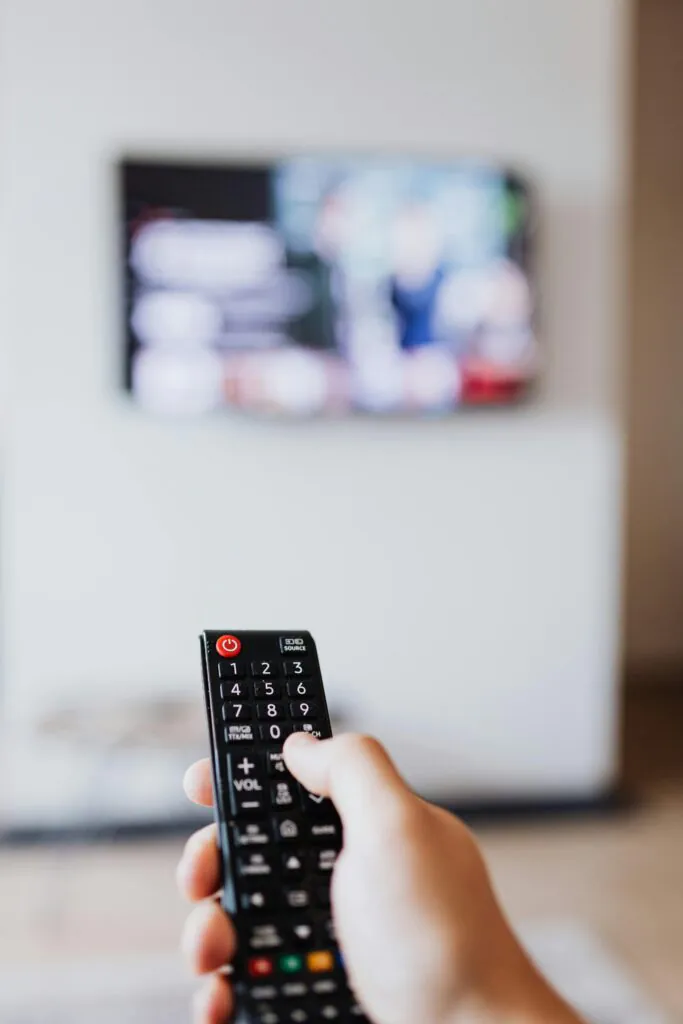
Press the Home button on your remote to go to the Google TV home screen.
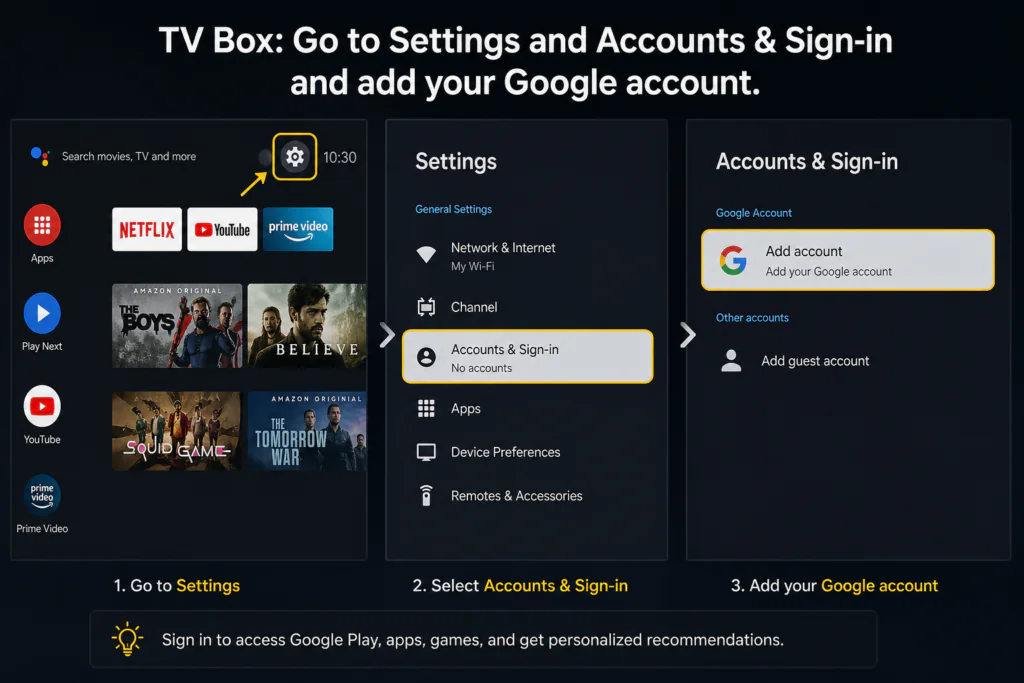
If you haven’t added your Google account yet, go to Settings, then Accounts and Sign-in, and add your Gmail account. This takes about two minutes.
Step 2: Go to the Apps Tab
Look at the top navigation bar on your home screen. You will see tabs: For You, Movies, Shows, Apps, and Library.
Click on the Apps tab.
Step 3: Search for Your App
Click the magnifying glass icon at the top right of the screen.
Type the name of the app you want using the on-screen keyboard. You can also press the microphone button on your remote and speak the app name out loud.
Step 4: Select and Install
The search results will show matching apps from the Google Play Store.
Select the app you want and press Install. The download starts automatically and takes under a minute for most apps.
Step 5: Open the App
Once installed, your new app appears under Apps, then Your Apps and Channels on the home screen.
Press the Options button on your remote to pin it to the home screen for faster access.
Pro tip: If an app does not appear in search results, it has not been optimised for TV screens. In that case, use Method 4 below to sideload it manually.
Method 2 — How to Install Google Play on Android TV
Android TV is the older platform that Google TV is built on. You will find it on the Nvidia Shield, older Sony and Philips models, and most budget brands sold between 2018 and 2022.
The Google Play Store is already installed on Android TV. Here is how to access it:
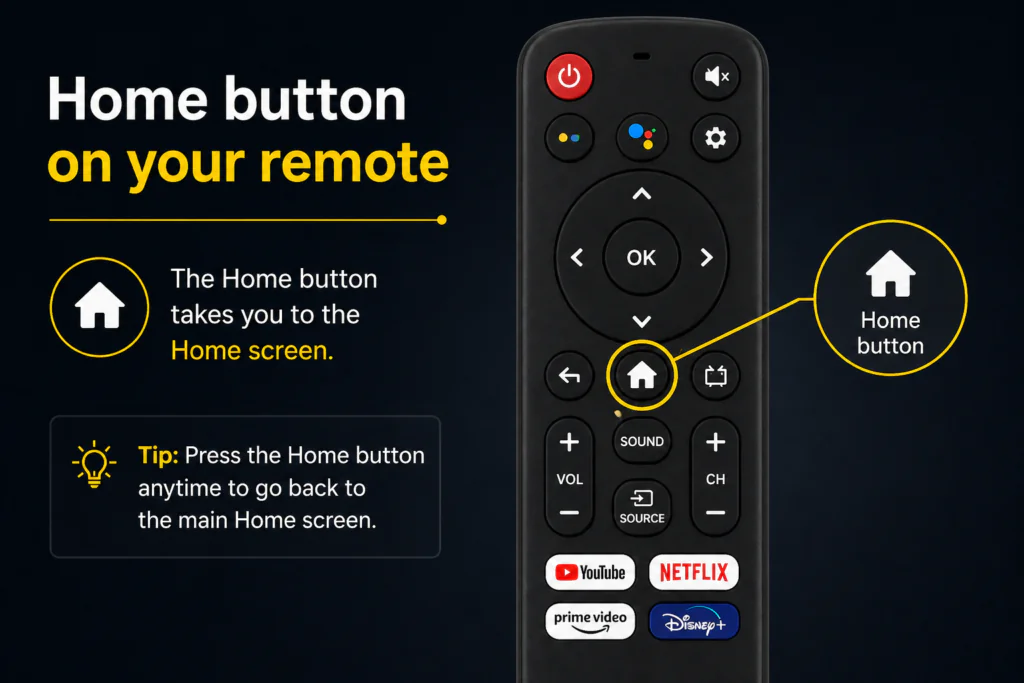
Step 1: Press the Home Button
Go to your Android TV home screen.
Step 2: Find the Play Store Tile
Scroll down on the home screen until you see a row labelled Apps or Featured Apps.
Look for the colourful Play Store icon — it is a triangle made of three colours, exactly like the one on your phone.
Step 3: Search for Your App
Open the Play Store and use the search bar at the top.
You can type with the on-screen keyboard or hold the microphone button on your remote to use voice search.
Step 4: Install and Launch
Select your app from the search results and press Install. Most apps are ready in under 60 seconds.
Find your newly installed app under Apps, then See All Installed Apps.
Method 3 — How to Install Google Play on Fire TV (Sideload via Downloader)
Amazon’s Fire TV does not include the Google Play Store natively. But you can sideload it — meaning you install the APK file manually, bypassing the Amazon App Store completely.
This is the most popular method for Fire TV Stick users, and it works on every Fire TV generation including the Fire TV Cube.
What you will need:
- A Fire TV Stick or Fire TV Cube (any generation)
- The Downloader app (free on the Amazon App Store)
- A stable Wi-Fi connection
Step 1: Enable Apps from Unknown Sources
Go to Settings, then My Fire TV, then Developer Options.
Turn on Apps from Unknown Sources. This allows your Fire TV to install apps that do not come from the Amazon store.
Step 2: Install the Downloader App
From your Fire TV home screen, go to Find, then Search, and type Downloader.
Install the free Downloader app by AFTVnews. This is the tool you will use to download APK files directly to your Fire TV device.
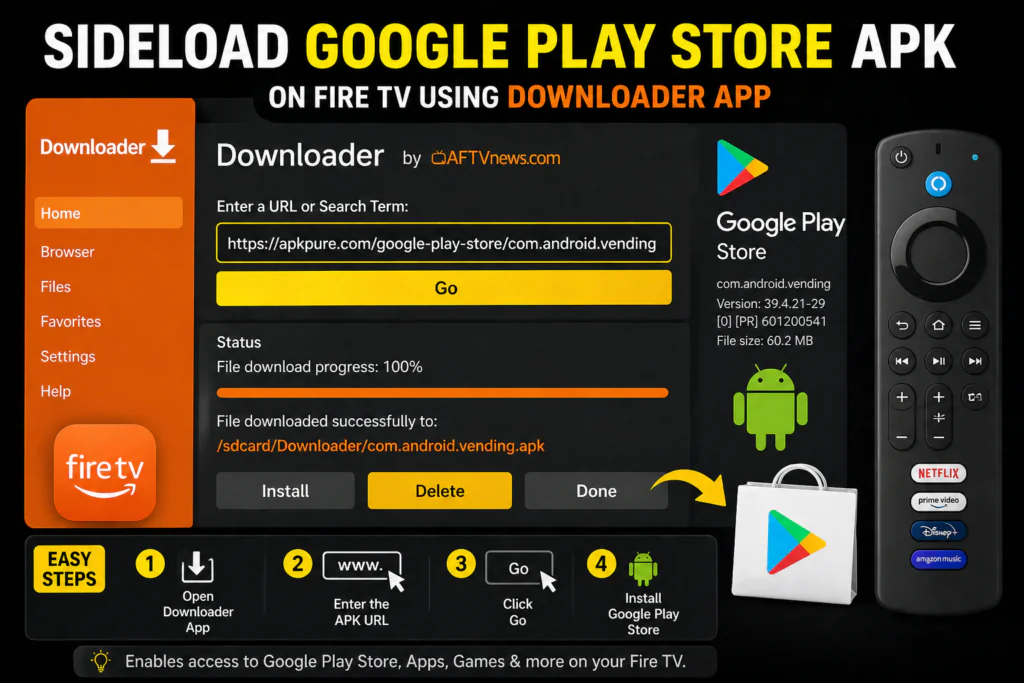
Step 3: Open Downloader and Enter the APK URL
Open Downloader. In the URL bar, type the download link for the Google Play Store APK.
Use APKMirror as your source. Search for Google Play Store and download the latest stable version for ARM devices.
Important: Only download APKs from APKMirror or other trusted sources. Never use random search results for APK files as these can contain malware.
Step 4: Download and Install the APK
Press Go. The file will download to your Fire TV. When it finishes, Downloader will prompt you to install it. Press Install.
Step 5: Install Google Play Services First If Needed
The Google Play Store requires Google Play Services to run. If you get an error after installing the Play Store, you need to install three APKs in this exact order:
- Google Account Manager APK
- Google Play Services APK
- Google Play Store APK
Repeat the Downloader steps above for each one, searching by name on APKMirror.
Step 6: Sign In with Your Google Account
Once installed, open the Google Play Store from your Fire TV app list.
Sign in with your Google account. You now have access to the full Play Store on your Fire TV device.
Method 4 — How to Install Google Play on Android TV Box (ADB Method)
This method works for Android TV boxes like the X96 Max, H96 Pro, MXQ Pro, and similar Amlogic or Rockchip devices that run stock Android but are missing the Play Store.
The ADB — Android Debug Bridge — method lets you push the APK directly from your PC to your TV box over your home Wi-Fi network. No USB cable required.
What you will need:
- Android TV box connected to your Wi-Fi
- A Windows or Mac PC on the same Wi-Fi network
- ADB Tools installed on your PC (free download from the Android developer site: developer.android.com/tools/releases/platform-tools)
- Google Play Store APK and Google Play Services APK downloaded from APKMirror to your PC
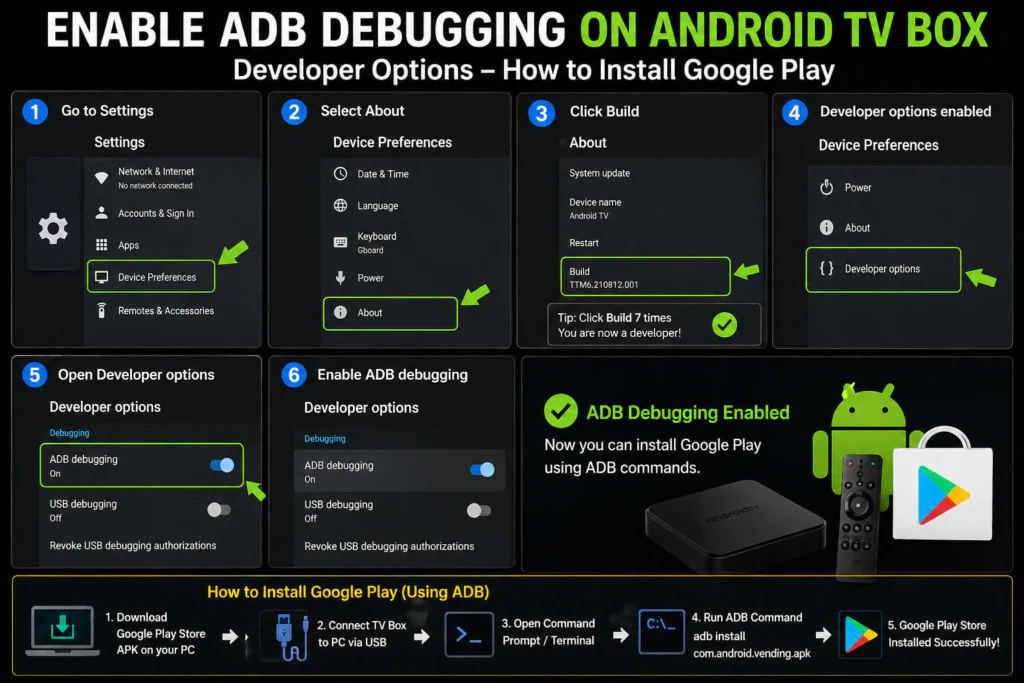
Step 1: Enable Developer Options on Your TV Box
On your Android TV box, go to Settings, then About, then Build Number.
Tap Build Number 7 times quickly until you see the message: You are now a developer.
Then go back to Settings and open Developer Options. Turn on USB Debugging — sometimes labelled ADB Debugging.
Step 2: Find Your TV Box IP Address
Go to Settings, then Network, then Wi-Fi. Tap on your connected Wi-Fi network name.
Write down the IP Address shown. It will look something like 192.168.1.105.
Step 3: Connect ADB from Your PC
Open Command Prompt on Windows or Terminal on Mac.
Type the following command and press Enter:
adb connect 192.168.1.105:5555
Replace 192.168.1.105 with your actual TV box IP address. You will see a confirmation message when the connection is successful.
Step 4: Install the APKs on Your TV Box
In your terminal, navigate to the folder where you saved the APK files.
Type the following command:
adb install GooglePlayStore.apk
Wait for the word Success to appear. Repeat the same command for the Google Play Services APK.
Step 5: Reboot and Sign In
Restart your Android TV box completely.
Open the Play Store from your app list, sign in with your Google account, and you are ready to install any app you want.
Once Google Play is installed, you might also want to convert your Android TV box to Google TV for a better experience
Method 5 — Samsung, LG and Roku: How to Get Google Play on Smart TV Without Any Workaround
Here is the honest truth: you cannot install Google Play on Samsung (Tizen), LG (webOS), or Roku TVs.
These are completely closed platforms. There is no sideload trick, no APK method, and no workaround that works reliably long-term on these TVs.
But there is a better solution that takes less than 5 minutes and costs as little as $29.
The Easiest Fix: A Google TV Streaming Stick
The best way to get Google Play on a Samsung, LG, or Roku TV is to plug a small streaming stick into your TV’s HDMI port.
You keep your existing TV. The stick runs full Google TV — with the complete Google Play Store built in and working perfectly from day one.
Here are the best options available right now:
| Device | Price | Google Play | Best For |
|---|---|---|---|
| Chromecast with Google TV (HD) | ~$29 | Full Google TV | Budget pick — best value |
| Google TV Streamer (4K) | ~$99 | Full Google TV | Best performance in 2026 |
| Amazon Fire TV Stick 4K | ~$49 | Needs sideload (Method 3) | Amazon Prime users |
My recommendation: the Chromecast with Google TV (HD) at $29. It is the cheapest way to get the full Google Play Store on any TV — Samsung, LG, Roku, or anything else.
How to Set It Up in Under 5 Minutes
Step 1: Plug the Chromecast into any HDMI port on your TV.
Step 2: Switch your TV input to the correct HDMI channel using your TV remote.
Step 3: Download the Google Home app on your smartphone and follow the on-screen setup instructions.
Step 4: Sign in with your Google account when prompted.
Step 5: Open the Google Play Store on the Chromecast and install any app you want.
No sideloading. No ADB. No technical knowledge needed whatsoever.
Why This Is Better Than Any Workaround
A streaming stick gives you a clean, stable Google Play experience that will not break after a firmware update.
Sideloaded apps on unsupported TVs often stop working when the TV updates itself. A Chromecast never has this problem because Google Play is native to the device.
It also runs faster than most built-in smart TV systems, receives regular software updates from Google, and supports Google Assistant voice control and Chromecast casting from your phone.
If you are on Samsung, LG, or Roku — this is the only method I recommend without hesitation.
What to Do If Google Play Won’t Install
Even when you follow every step correctly, things can go wrong. Here are the four most common errors and exactly how to fix each one:
Error 1: This App Is Not Available for Your Device
This means the app has not been optimised for TV screens.
Fix: Enable Unknown Sources by going to Settings, then Device Preferences, then Security and Restrictions. Once enabled, download the mobile APK from APKMirror and sideload it using the Downloader app or a USB drive. Many mobile apps work perfectly on a TV screen even if they are not listed in the TV Play Store.
Error 2: PIN Required to Install New Apps
Your Google account has purchase approval or parental controls turned on.
Fix: Open the Google Play Store, go to Settings, then Require Authentication for Purchases, and set it to Never. Or simply enter your Google account password when prompted during installation.
Error 3: Google Play Is Not Available in Your Country
Your account’s country setting does not match your current location.
Fix: Go to Settings, then Apps, then Google Play Store, and select Clear Cache followed by Clear Data. Restart your TV. If the problem continues, change your country setting in Google Play on your phone first, then retry on the TV.
Error 4: Google Play Store Keeps Crashing
This is usually a storage or memory issue, especially on older or budget devices.
Fix: Go to Settings, then Device Preferences, then Storage. Clear the app cache for the Play Store and any recently installed apps. If your storage is full, delete apps you no longer use. Restart the TV and try again.
FAQ — How to Install Google Play on Smart TV
Q1: Can I install Google Play on a Samsung Smart TV?
No. Samsung TVs run Tizen OS, which is not compatible with Google Play. The best solution is to plug a Chromecast with Google TV or a Fire TV Stick into your Samsung TV’s HDMI port to get instant Play Store access.
Q2: Is the Google Play Store free to install?
Yes. The Google Play Store itself is completely free. You only pay for individual apps or subscriptions within the store — exactly the same as on your phone.
Q3: Do I need a Google account to use Google Play on my TV?
Yes. You need a free Google or Gmail account to sign in and install apps. You can create one at accounts.google.com in about two minutes.
Q4: How do I know if my TV already has Google Play installed?
Press the Home button on your remote and look for the Play Store icon on the home screen or apps row. You can also go to Settings, then Apps, and scroll through the list of installed apps to check.
Q5: Will sideloading Google Play void my TV warranty?
Sideloading apps generally does not void the hardware warranty on Android TV boxes or Fire TV devices. However, it can occasionally cause software issues on certain devices. If you are not comfortable with the technical steps, using a dedicated streaming stick is always the safer and easier option.
Final Thoughts on How to Install Google Play on Smart TV
Now you know exactly how to install Google Play on smart TV — no matter what device you are using.
If your TV already runs Google TV or Android TV, the Play Store is already installed and you just need to find it. If you are on Fire TV, the Downloader sideload method gets it done in under 10 minutes. If you have an Android TV box like the X96 or H96, the ADB method is your best route. And if you are on Samsung, LG, or Roku — a Chromecast with Google TV at $29 is the fastest and cleanest solution available.
If your remote is giving you trouble after setting things up, read our Google TV remote not working fixes guide.
Not sure whether your TV runs Android TV or Google TV? Read our Android TV vs Google TV comparison to understand the difference and which platform is worth buying in 2026.


