How to convert Android TV box to Google TV is one of the most searched questions by people who own cheap streaming boxes and want a better experience. In this guide, I’ll show you exactly how to convert your Android TV box to Google TV, step by step.
Millions of people have cheap Android TV boxes sitting at home and want that sleek Google TV interface — the one you see on Chromecast and premium TVs. The good news? You don’t always need to buy a new device.
I’ve tested these methods myself, so I’ll also flag the pitfalls before you waste an hour going down the wrong path.
Many users are also asking which platform is going away — Android TV or Google TV — and the answer is clear: Google TV is replacing Android TV across all new devices.
1. Android TV vs Google TV: What’s the Difference?
Before you start, it helps to understand what you’re actually trying to achieve.
Android TV is Google’s older smart TV platform. It’s built on Android but designed for TV screens. Most cheap boxes — like the X96 Mini, H96 Max, and MXQ Pro — run either Android TV or plain AOSP Android (which is basically Android without any Google TV features at all).
Google TV is the newer version. It launched with the Chromecast with Google TV in 2020. Think of it as Android TV with a much smarter, content-first interface. It shows you recommendations from Netflix, YouTube, Disney+, and more — all in one place.
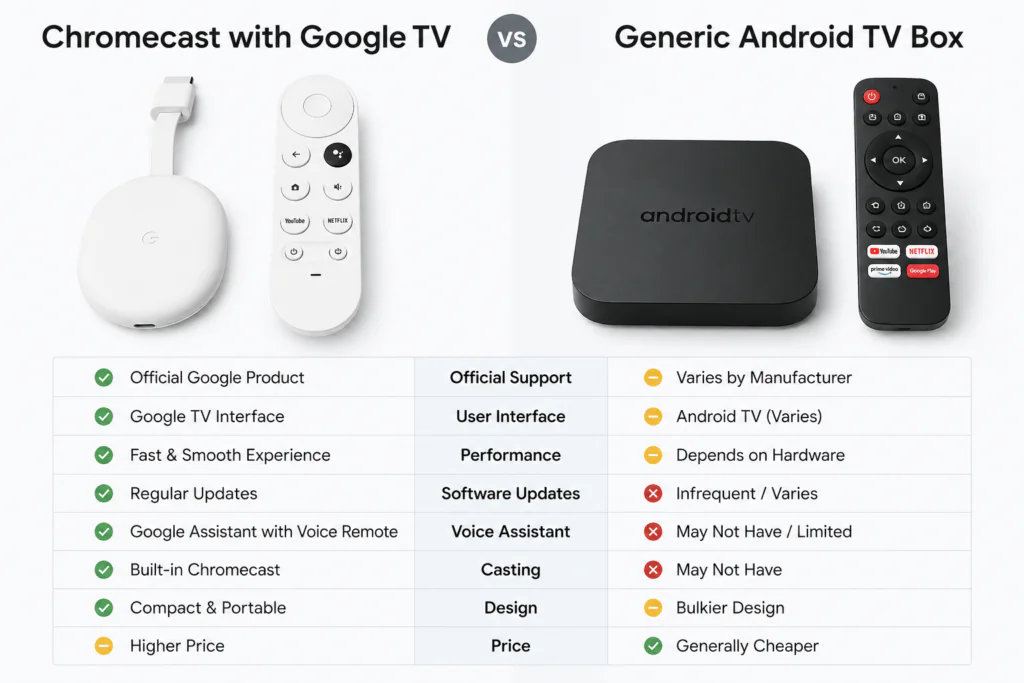
The key difference is this: Google TV requires Google certification (GMS). That’s a licence Google grants to approved manufacturers. Your generic Android box almost certainly doesn’t have it.
But don’t close this tab yet — because there are still ways to get the Google TV experience without buying a new device.
Is Android TV Going Away?
Yes, and it’s already happening.
Google officially started phasing out Android TV in favor of Google TV back in 2022. New certified devices no longer launch with Android TV — they all come with Google TV now. Even older Android TV devices are slowly receiving updates that bring the Google TV interface.
So to answer the question directly: Android TV is going away. Google TV is the future.
If you still own an Android TV box, it won’t stop working tomorrow. But it will stop receiving updates at some point, and new apps are increasingly being optimized for Google TV rather than Android TV.
This is exactly why so many people are now searching for how to convert their Android TV box to Google TV — they see the writing on the wall and want to stay ahead.
2. Can You Really Convert an Android TV Box to Google TV?
Honestly? It depends on what you mean by “convert.”
Here’s the straightforward breakdown:
- Full Google TV OS — Not possible on uncertified boxes. No exceptions.
- Google TV launcher (visual interface) — Possible on many boxes, with some limitations.
- Android TV firmware — Possible on compatible Amlogic-based boxes.
- Google TV-style experience — Absolutely possible using third-party launchers.
So when people search for how to convert an Android TV box to Google TV, most of them actually want the launcher — the look, the feel, and the content recommendations. And that is achievable.
Let me show you how.
3. Method 1: Install the Google TV Launcher APK
This is the most popular method and the one I recommend trying first.
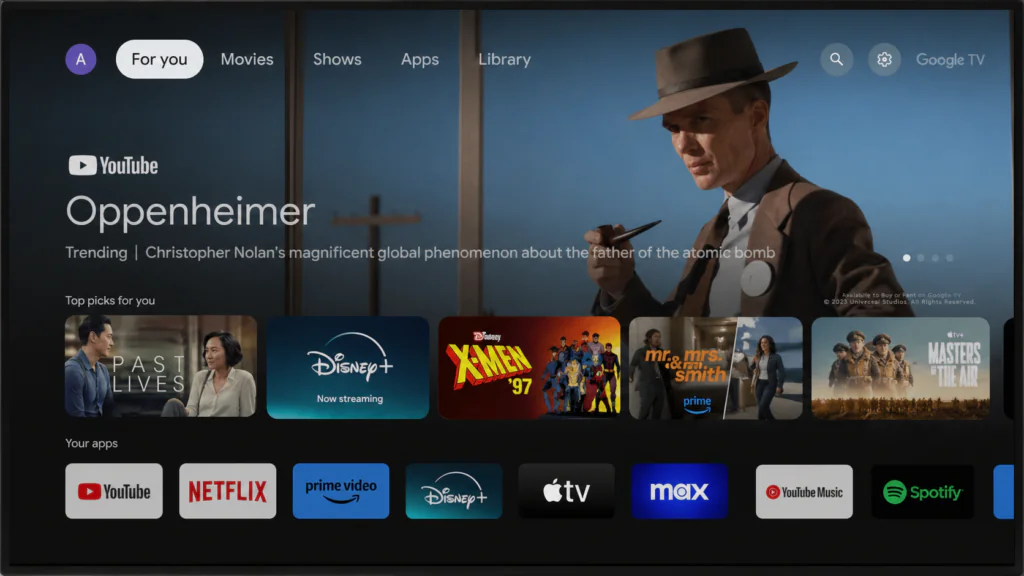
Google released a version of the Google TV home screen that can be sideloaded as an APK on compatible Android devices. It’s not the full OS, but the interface looks and feels identical.
Requirements
- Android TV box running Android 9 or higher
- At least 2GB RAM (1GB may struggle)
- ADB enabled or a file manager installed
- The Google TV launcher APK (see download note below)
Steps
Step 1 — Enable Unknown Sources
Go to Settings > Device Preferences > Security & Restrictions and toggle on “Unknown Sources.” This lets you install apps outside the Play Store.
Step 2 — Enable ADB Debugging
Go to Settings > Device Preferences > About and tap “Build Number” 7 times to unlock Developer Options. Then go to Developer Options and enable USB Debugging and ADB over Network.
Step 3 — Download the APK
Search for “Google TV launcher APK” on APKMirror — one of the safest APK sources. Look for the package named com.google.android.apps.tv.launcherx. Download the version compatible with your Android version.
Warning: Never download APKs from random websites. Stick to APKMirror or APKPure for safety.
Step 4 — Install the APK
Transfer the APK to your box using a USB stick or a file manager app like FX File Explorer. Open the file manager, navigate to the APK, and install it.
Step 5 — Set It as Default Launcher
Press the Home button. A prompt will ask which launcher to use. Select “Google TV” and choose Always.
Step 6 — Sign In to Your Google Account
Follow the on-screen setup. Sign in with your Google account to enable personalised recommendations.
Tip: If recommendations don’t populate, clear the cache of the Google TV app and restart the box.
4. Method 2: Flash Android TV Firmware (Amlogic Boxes)
If your box runs on an Amlogic chipset (S905X, S905X3, S905X4, etc.), you may be able to flash proper Android TV firmware. This is closer to a real conversion than the launcher method.
This is for intermediate users. If you’re new to firmware flashing, read my guide on how to use Amlogic USB Burning Tool first.
Requirements
- Amlogic-based box (check your box specs)
- A compatible Android TV firmware image for your chipset
- Amlogic USB Burning Tool installed on your PC
- USB Type-A to Type-A cable
Steps
Step 1 — Find the Right Firmware
Visit the manufacturer’s website or trusted firmware repositories. Make sure the firmware matches your exact chipset model — flashing the wrong firmware can brick your device.
Step 2 — Install Amlogic USB Burning Tool
Download it from the official Amlogic developer site. Install and open it on your Windows PC.
Step 3 — Load the Firmware
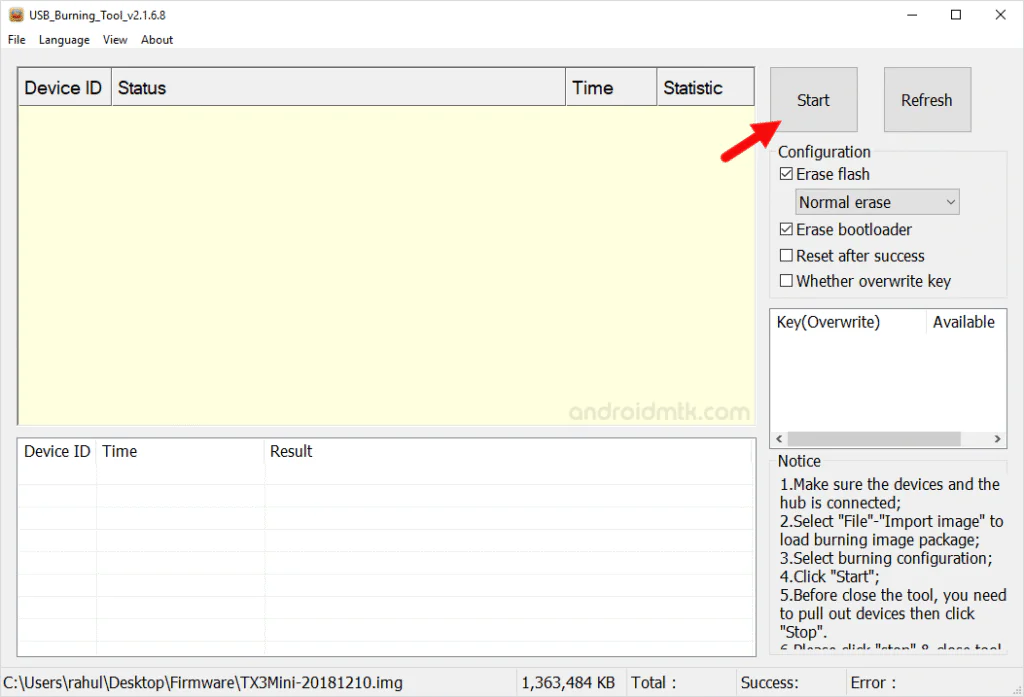
In the Burning Tool, click File > Import Image and select your downloaded firmware file (.img format).
Step 4 — Boot into Recovery Mode
Hold the reset button on your box (usually inside the AV port or a small pinhole) while connecting it to your PC via USB. The Burning Tool should detect the device.
Step 5 — Flash the Firmware
Click Start in the Burning Tool. The process takes 5–10 minutes. Do not disconnect the device during flashing.
Step 6 — Boot and Set Up
Once complete, disconnect and power on your box. It will boot into a fresh Android TV setup.
Warning: This process wipes all data on your device. Back up anything important first.
5. Method 3: Use a Third-Party Google TV-Style Launcher
If the official Google TV launcher doesn’t work on your box, a third-party launcher can give you a very similar experience.
The best options are:
- ATV Launcher Pro — clean, fast, highly customisable
- TV Launcher 4K — Google TV-inspired layout
- FLauncher (open source) — lightweight and reliable
How to Install
- Open the Google Play Store on your box.
- Search for your chosen launcher.
- Install and open it.
- Press the Home button and set it as default.
These launchers won’t give you Google TV’s AI-powered recommendations, but the interface will look clean and modern. For most users, it’s more than enough.
This is also the safest option for very old boxes (Android 7 or 8) that can’t run the Google TV APK.
6. Method 4: Sideload the Chromecast Google TV Launcher
This is a more advanced method. The idea is to extract the launcher APK directly from a Chromecast with Google TV device and install it on your box.
Honestly, unless you own a Chromecast already, this isn’t worth the effort — the result is the same as Method 1. But if you want the exact stock Chromecast launcher, this is how it’s done:
- Root or use ADB on your Chromecast with Google TV.
- Pull the launcher APK using ADB shell commands.
- Transfer it to your Android box.
- Install and set as default.
Note: This APK may not function correctly without proper Google Play Services, which uncertified boxes often have limited versions of. You can learn more about Google Play Services requirements on the official Google support page.
7. Method 5: Upgrade to a Certified Google TV Device
If you’ve tried the above methods and found them limiting, the cleanest solution is to get a device that runs real Google TV with full certification.
The best options that won’t break the bank:
- Chromecast with Google TV (HD) — around $30, official Google hardware. See the official Google TV page for supported devices.
- Mecool KM2 Plus Deluxe — Android TV box with Google certification, great for streaming. Read my full review here.
- Xiaomi Mi Box S (2nd Gen) — affordable, certified, reliable
These devices have all Google Play features, Widevine L1 (for HD Netflix), and receive proper system updates. Learn more about Widevine DRM certification and why it matters for streaming quality.
If you’re serious about the Google TV experience, this is the path I’d genuinely recommend.
8. How to Convert Android TV Box to Google TV: Which Method Is Right for You?
| Method | Cost | Difficulty | Result Quality |
|---|---|---|---|
| Google TV Launcher APK | Free | Easy | Good |
| Flash Android TV Firmware | Free | Advanced | Excellent |
| Third-Party Launcher | Free–$5 | Easy | Decent |
| Sideload Chromecast APK | Free | Advanced | Good |
| Buy Certified Device | $30–$80 | None | Best |
9. Common Issues and Fixes
Google TV launcher crashes on startup This usually means your box doesn’t have enough RAM or an incompatible version of Google Play Services. Try clearing cache: Settings > Apps > Google TV > Clear Cache.
Recommendations not showing up Sign out and sign back into your Google account. Also make sure your Google Play Services are up to date.
APK won’t install (“package not installed” error) Your Android version may be too old. Try a third-party launcher instead (Method 3).
Box stuck on logo after firmware flash This usually means the firmware was wrong for your device. You’ll need to recover using the Burning Tool in “Erase Flash” mode before retrying with the correct firmware.
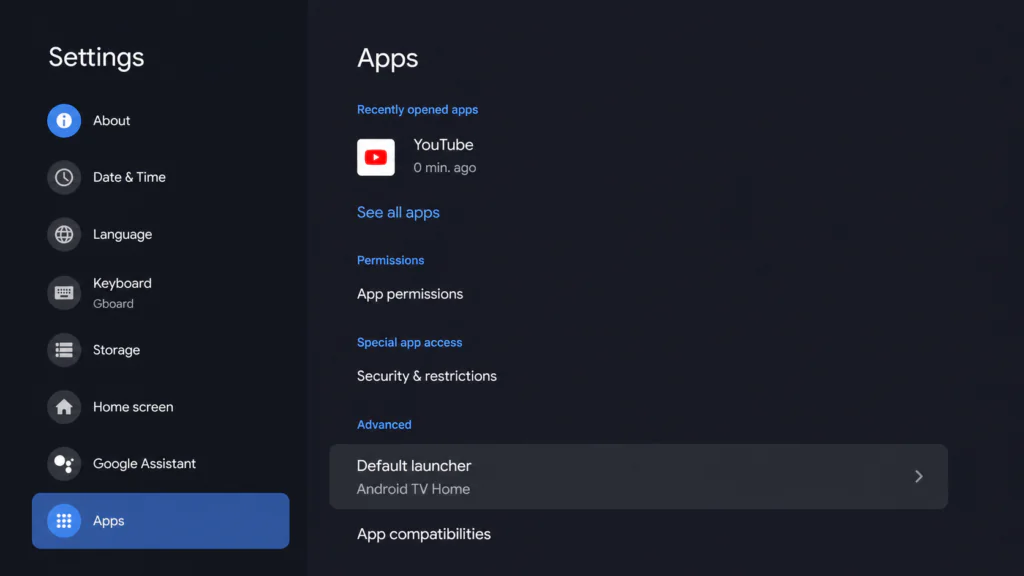
Home button doesn’t open Google TV Go to Settings > Apps > Default Apps and manually set the Google TV launcher as your home app.
10. Frequently Asked Questions
Is Google TV better than Android TV?
Yes, for most users. Google TV has a smarter, more modern interface with personalised recommendations across all your streaming apps. Android TV is functional but feels outdated by comparison.
Can all Android TV boxes run Google TV?
No. Full Google TV requires Google certification. However, the Google TV launcher APK works on most boxes running Android 9 or higher with at least 2GB of RAM.
Is it safe to install the Google TV launcher APK?
Yes, as long as you download from a trusted source like APKMirror. Avoid random download sites that bundle malware with APKs.
Will I get Netflix in HD after installing Google TV launcher?
Not necessarily. HD and 4K Netflix requires Widevine L1 DRM certification, which most cheap Android boxes don’t have. The Google TV launcher doesn’t change this.
Can I revert back to my original launcher? Yes. Go to Settings > Apps > Default Apps and switch back to your original home app. Nothing is permanent with the launcher method.
Does flashing Android TV firmware void the warranty? Almost certainly yes. Generic Android TV boxes typically have very limited warranties, but flashing firmware will void whatever protection exists.
11. Conclusion
So — can you convert an Android TV box to Google TV? The short answer is: sort of.
You can absolutely get the look and feel of Google TV on your existing box using the launcher APK or a third-party launcher. It’s free, quick, and works well on most modern boxes.
If you want a deeper upgrade, flashing Android TV firmware on an Amlogic box is the most complete transformation — but it’s not for beginners.
And if you want the real deal with no compromises, a certified device like the Mecool KM2 Plus Deluxe or Chromecast with Google TV is absolutely worth the investment.
Whatever route you choose, I hope this guide saves you a few hours of frustration. I’ve been down all these paths so you don’t have to hit the same walls I did.
Explore more guides on TVBoxFixer.com:


