Introduction
Are you tired of paying for live TV subscriptions every month?
You’re not alone. Millions of cord-cutters are searching for free, legal alternatives — and Kodi is still one of the best platforms to find them.
The Samsung TV Plus Kodi addon is one of those hidden gems that most people don’t know about. It gives you access to hundreds of free live TV channels — news, sports, entertainment, and more — without spending a single dollar.
In this guide, I’ll walk you through exactly how to install Samsung TV Plus on Kodi, step by step. Even if you’ve never installed a Kodi addon before, you’ll be up and running by the end of this article.
Let’s get into it.
What Is the Samsung TV Plus Kodi Addon?
Samsung TV Plus is a free, ad-supported streaming service originally built into Samsung smart TVs and Galaxy devices. It offers hundreds of live TV channels across categories like news, sports, movies, lifestyle, and kids’ content — all completely free.
The good news? You don’t need a Samsung TV to watch it anymore.
The Samsung TV Plus Kodi addon brings this same free live TV experience directly into your Kodi media player. It works by pulling the official Samsung TV Plus channel streams and organizing them inside Kodi’s familiar interface.
This means you get free live TV on any device that runs Kodi — including Android TV boxes, Fire Stick, Windows PCs, and Raspberry Pi.
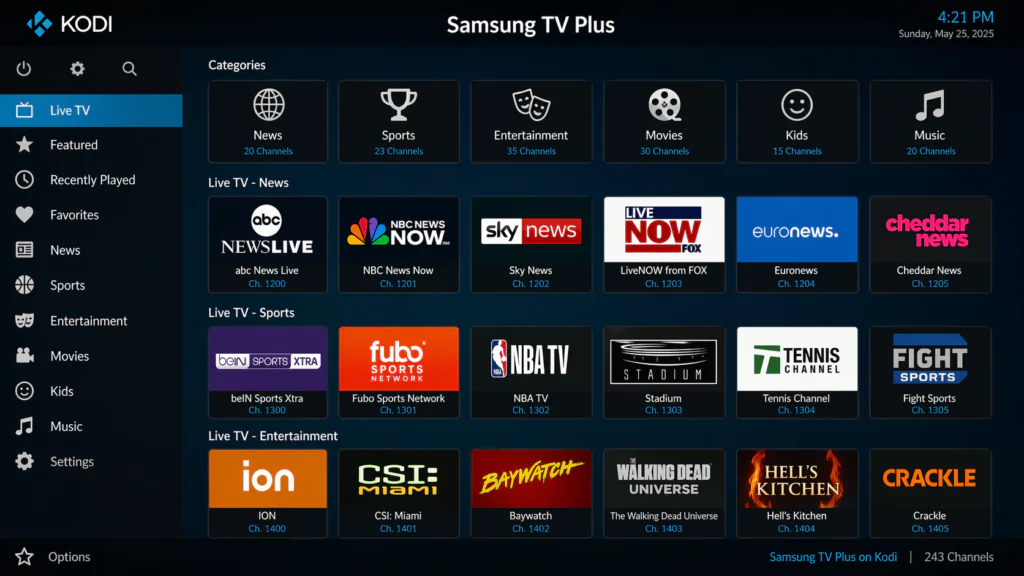
Features of the Samsung TV Plus Kodi Addon
Here’s what makes this addon worth your time:
- Hundreds of free live TV channels across multiple categories
- No subscription or login required — completely free to use
- Ad-supported, just like regular free broadcast TV
- Regularly updated channel list as Samsung adds new content
- Works on most Kodi-supported devices including Android boxes and Fire Stick
- Simple, clean channel browser that’s easy to navigate
- Available in multiple regions including the US, UK, Canada, and parts of Europe
It’s basically a free cable TV replacement built right into Kodi. That’s a big deal.
Is the Samsung TV Plus Kodi Addon Safe and Legal?
Yes — and this is important.
Samsung TV Plus is a 100% legal, free streaming service. The content it provides is officially licensed, and Samsung earns revenue through ads, similar to how regular broadcast TV works. There is no piracy involved.
However, like with any third-party Kodi addon, you should:
- Only install from trusted sources (I’ll show you exactly where below)
- Use a VPN if you care about your privacy while streaming — not because this addon is illegal, but as a general good practice
- Avoid modified or cracked versions of the addon from random websites
For Kodi’s official position on safe addon usage, you can visit the official Kodi website at kodi.tv.
As long as you follow this guide, you’re completely fine.
Requirements Before You Start
Before we jump into the installation, make sure you have these ready:
- Kodi 19 (Matrix) or higher — preferably Kodi 21 (Nexus) for 2026
- A stable internet connection — at least 5 Mbps for smooth live TV
- Unknown Sources enabled in Kodi settings (I’ll show you how)
- A compatible device — Android TV box, Fire Stick, Windows PC, Mac, or Raspberry Pi
- Optionally, a VPN installed on your device for privacy
If you’re new to Kodi or need help setting it up first, check out this guide on how to install Kodi addons before continuing.
Step-by-Step Installation Guide for the Samsung TV Plus Kodi Addon
Alright, here’s the part you’ve been waiting for. Follow each step carefully — I’ll keep it simple.
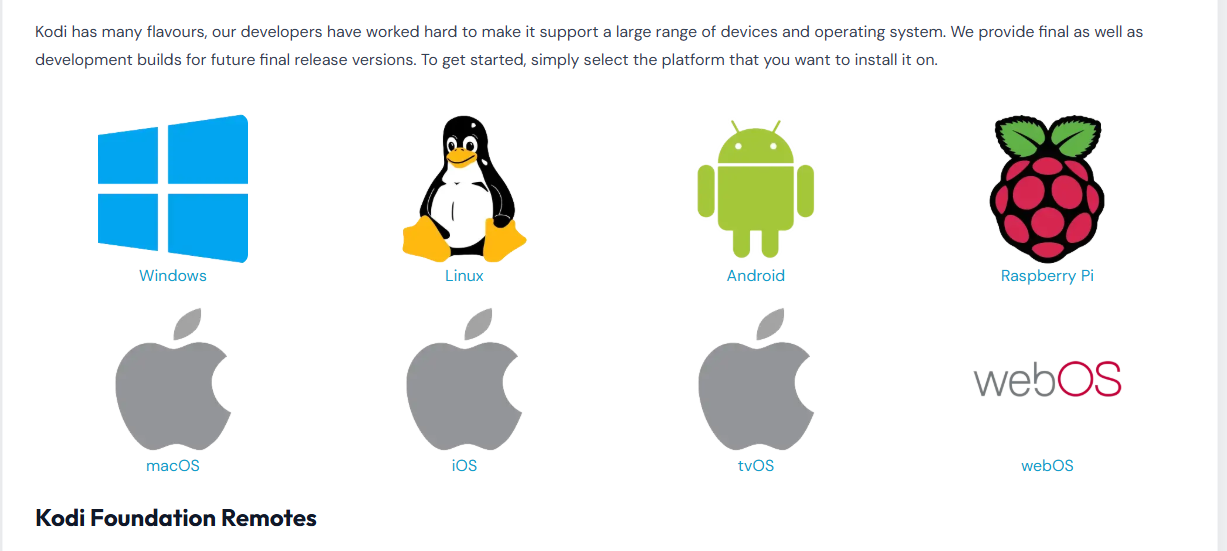
Before anything else, make sure you have Kodi installed on your device. If you don’t have it yet, go ahead and download the latest version from the official Kodi website at kodi.tv — it’s completely free. Always download from the official site to avoid fake or modified versions that could cause problems.
Step 1: Enable Unknown Sources in Kodi
Before you can install any third-party addon, Kodi needs your permission.
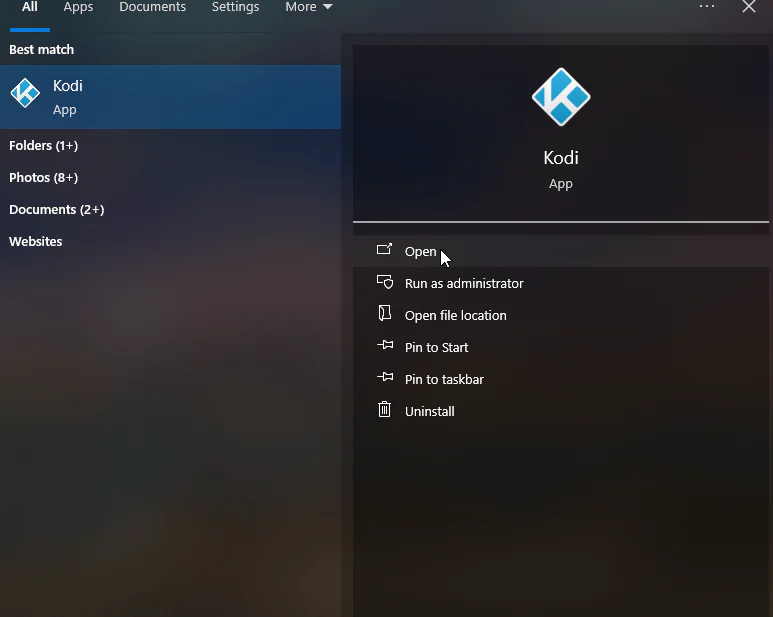
1 . Open Kodi on your device
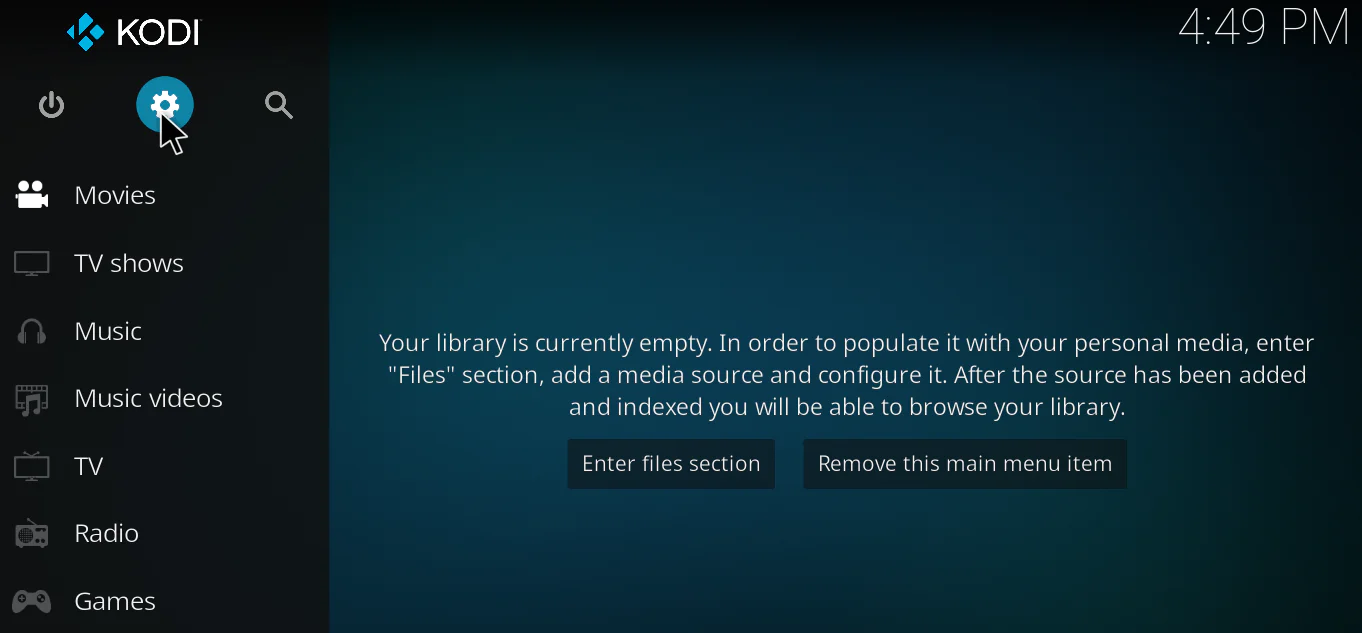
2. Click the gear icon (Settings) on the home screen
3. Go to System
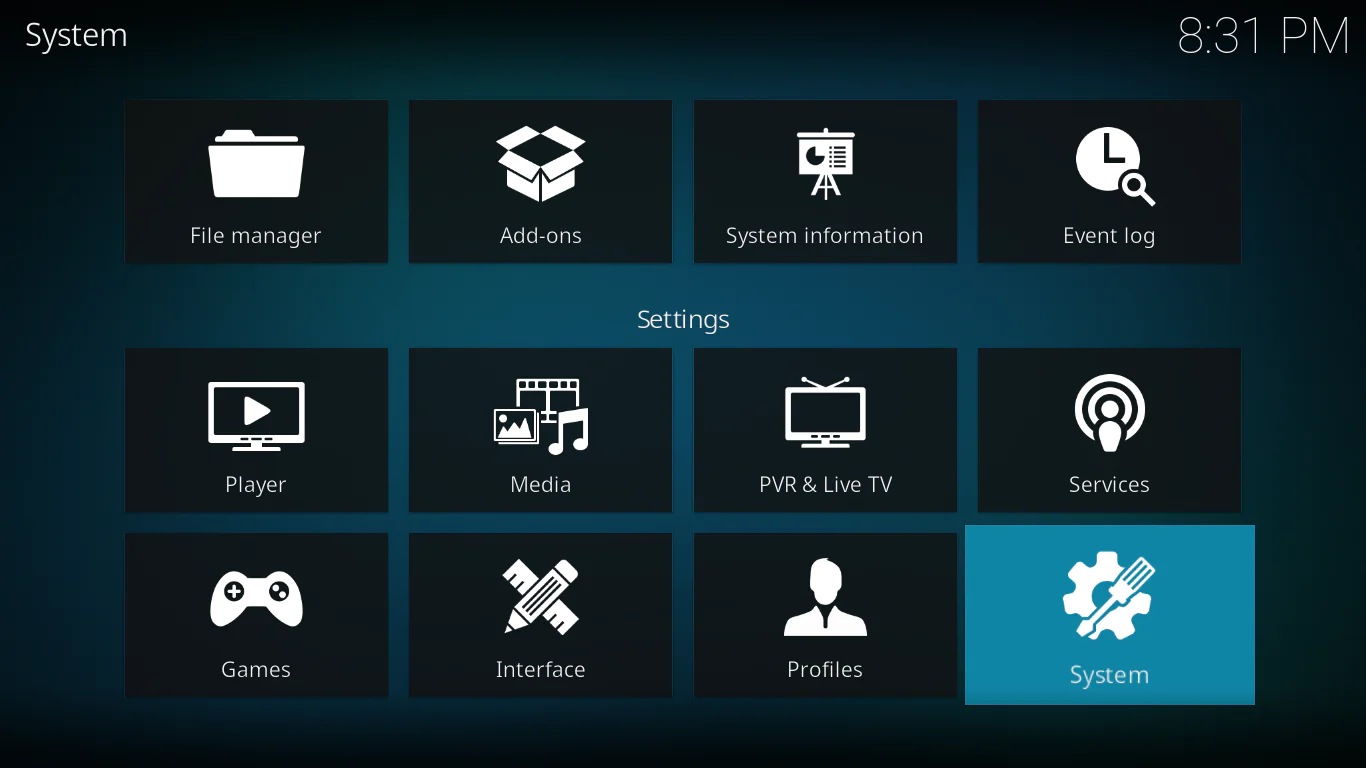
4. Select Add-ons the left menu
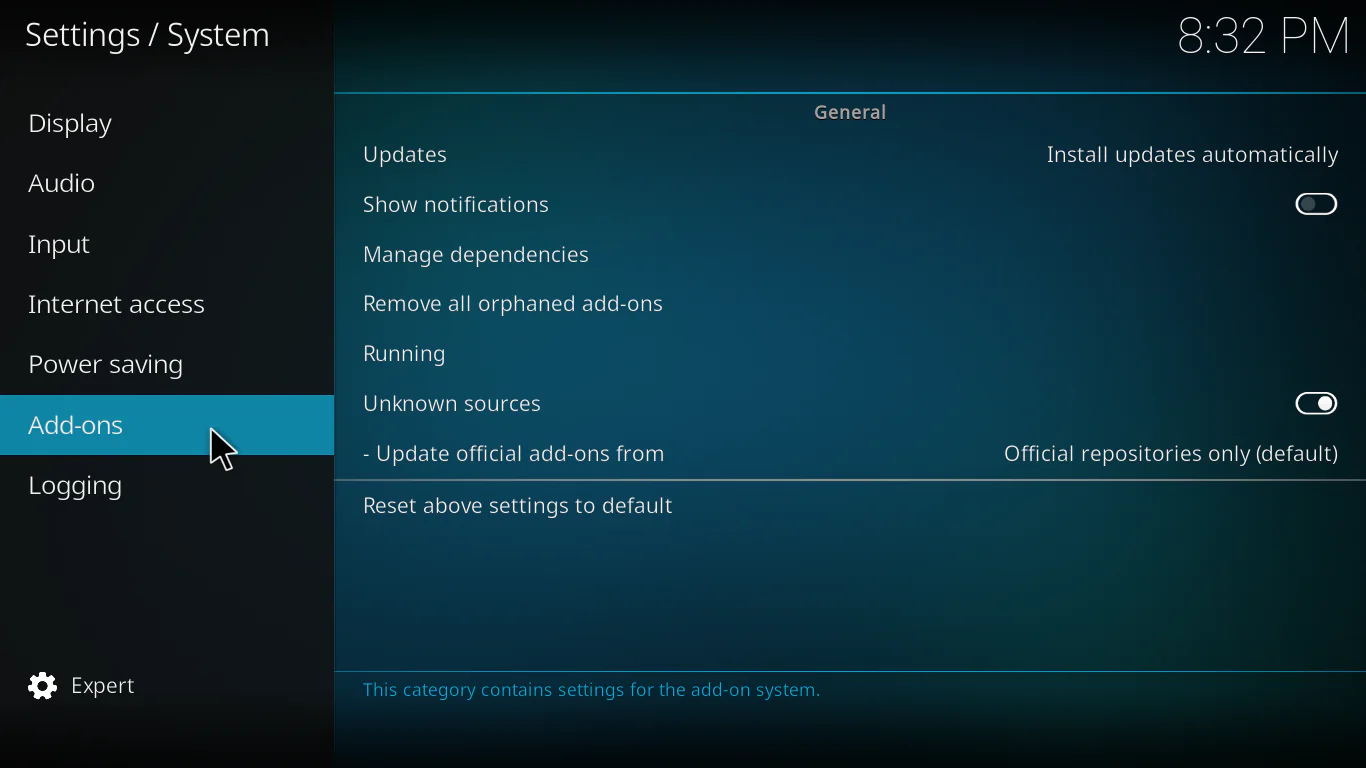
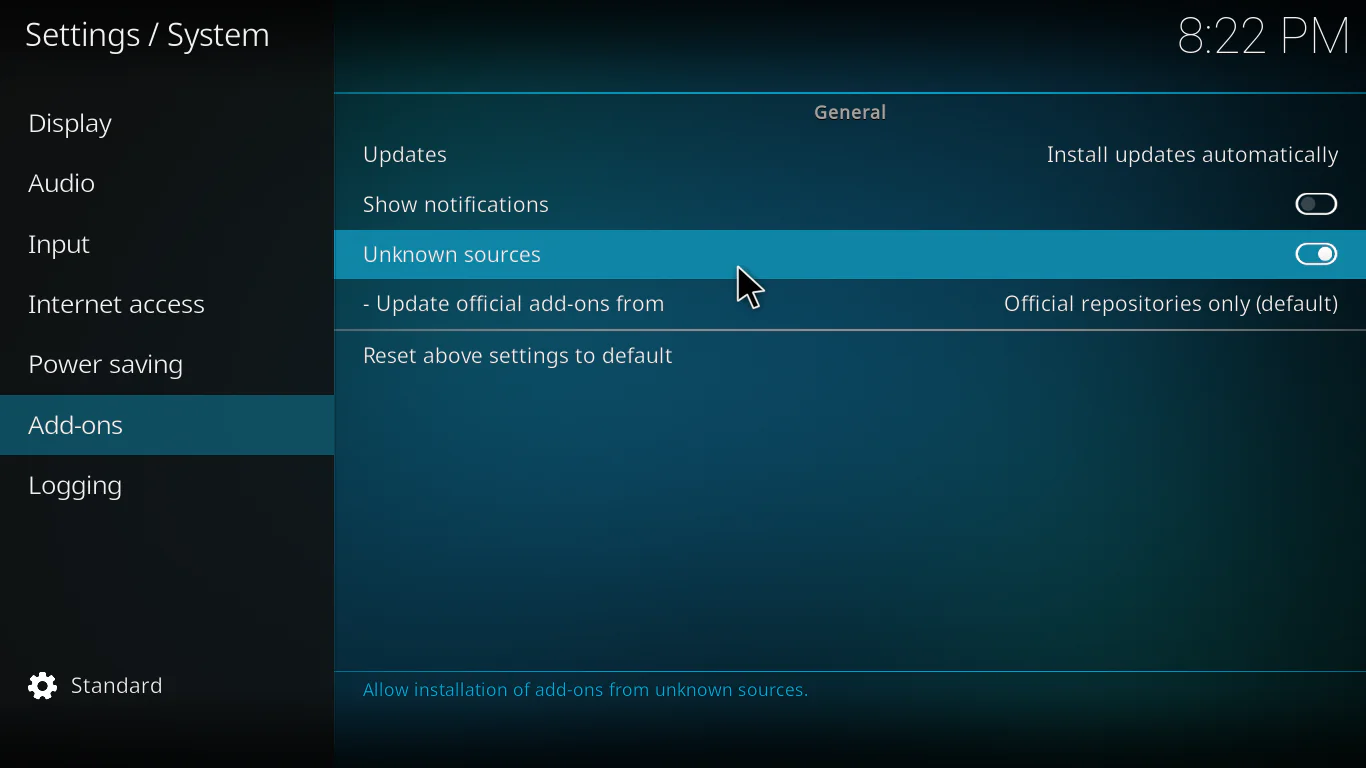
5. Toggle Unknown Sources to ON
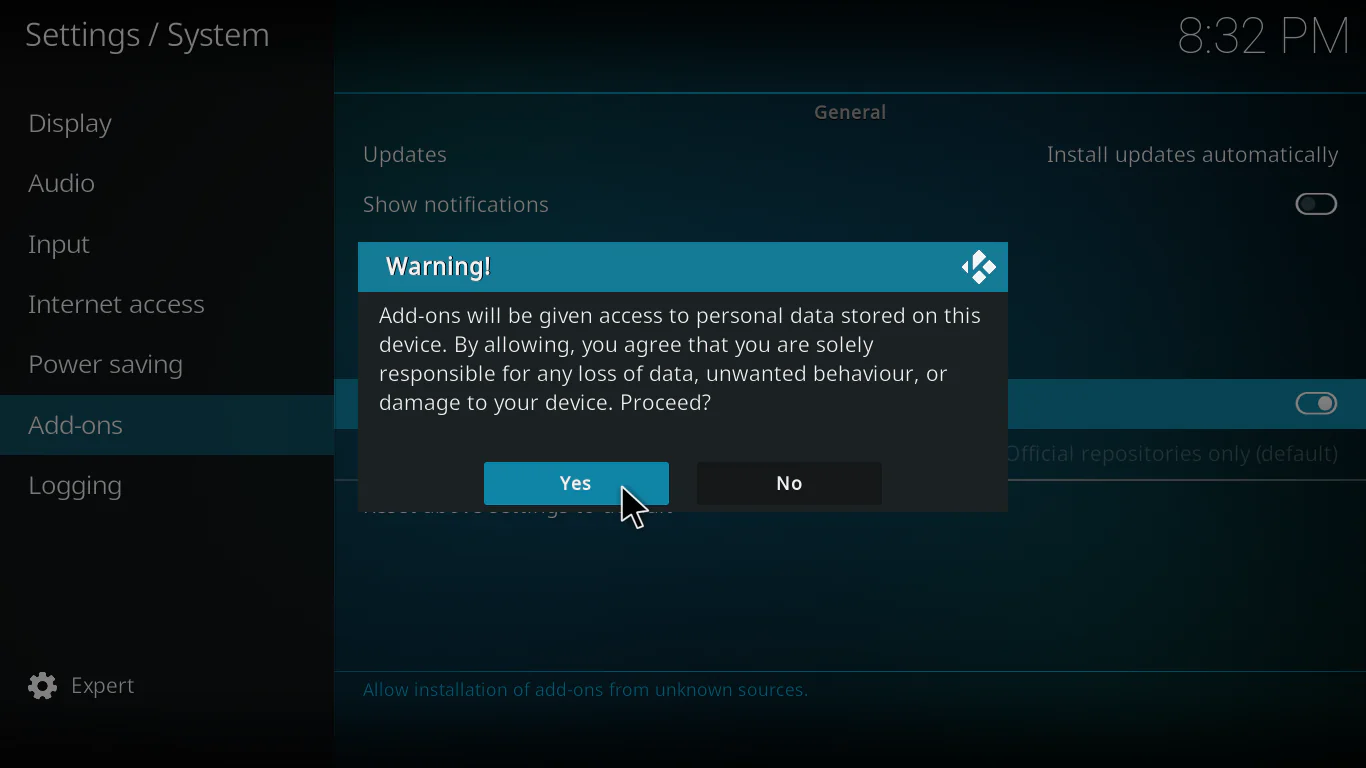
 6. A warning will appear — click Yes to confirm
Note: This setting allows you to install addons from sources outside the official Kodi repository. Only use it with trusted sources like the ones in this guide.
Step 2: Add the Source URL in File Manager
Now we need to tell Kodi where to find the addon repository.
- Go back to the main Settings menu
- Click File Manager
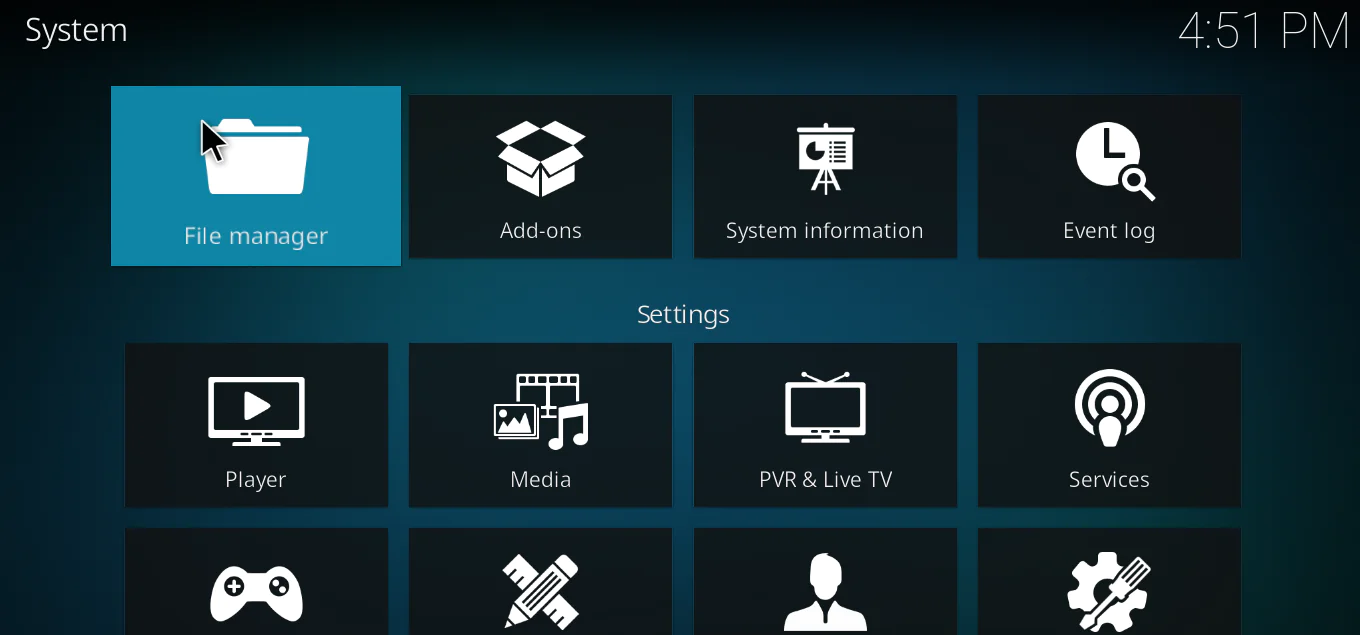
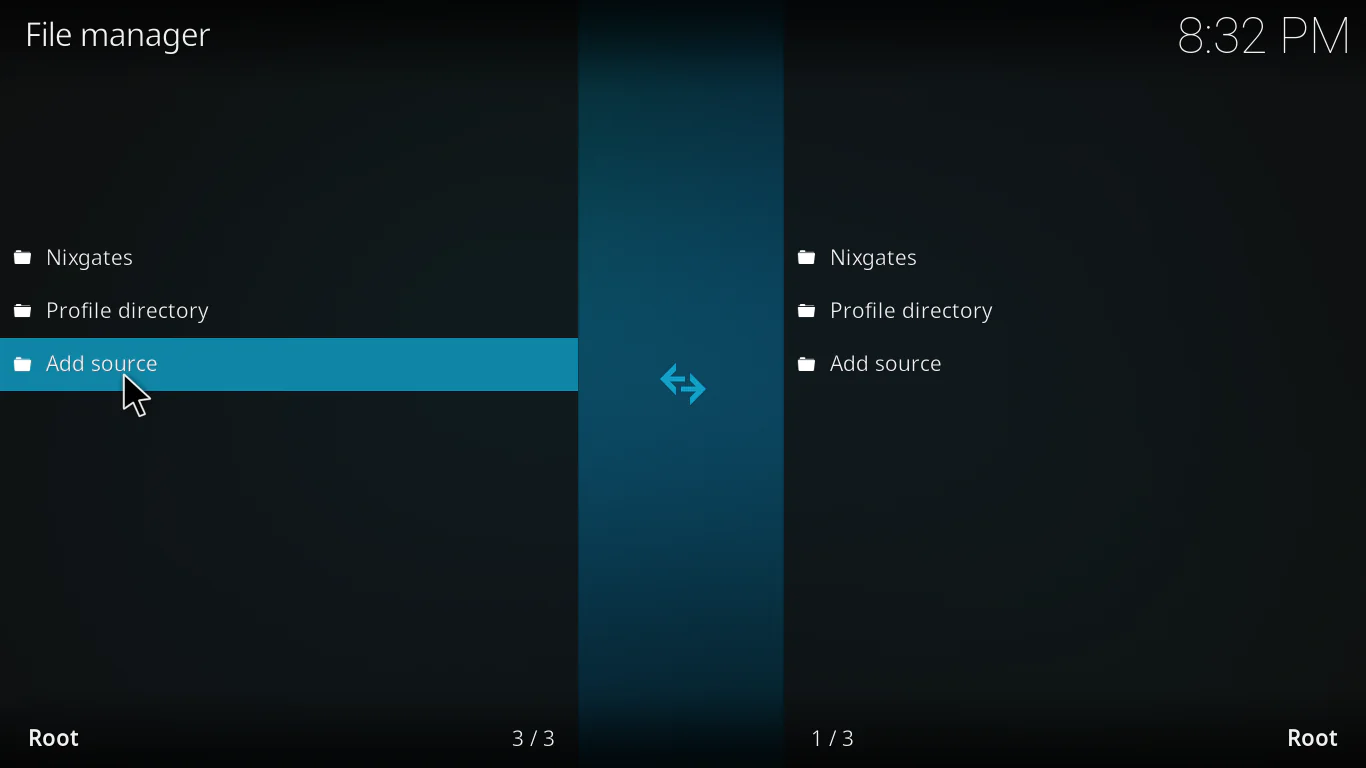
- Double-click Add Source
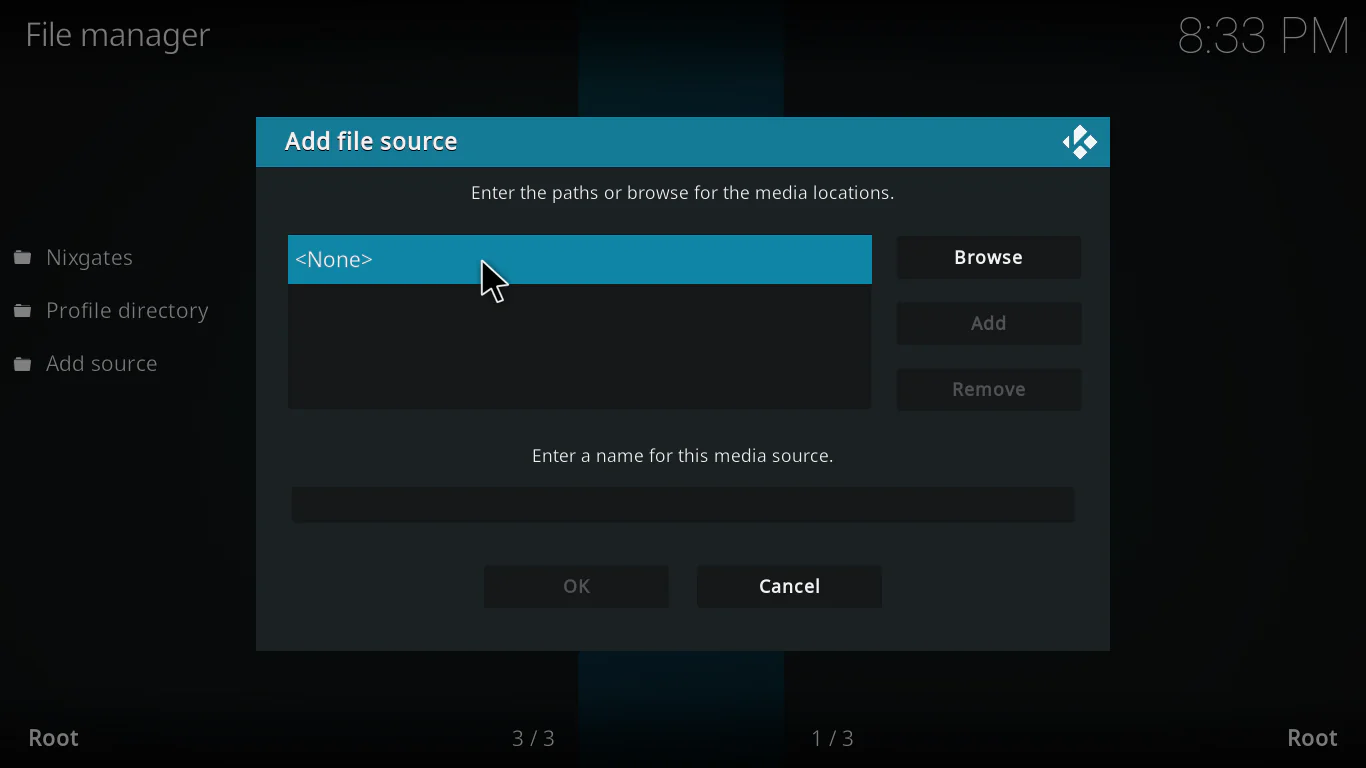
- Click on the field that says None
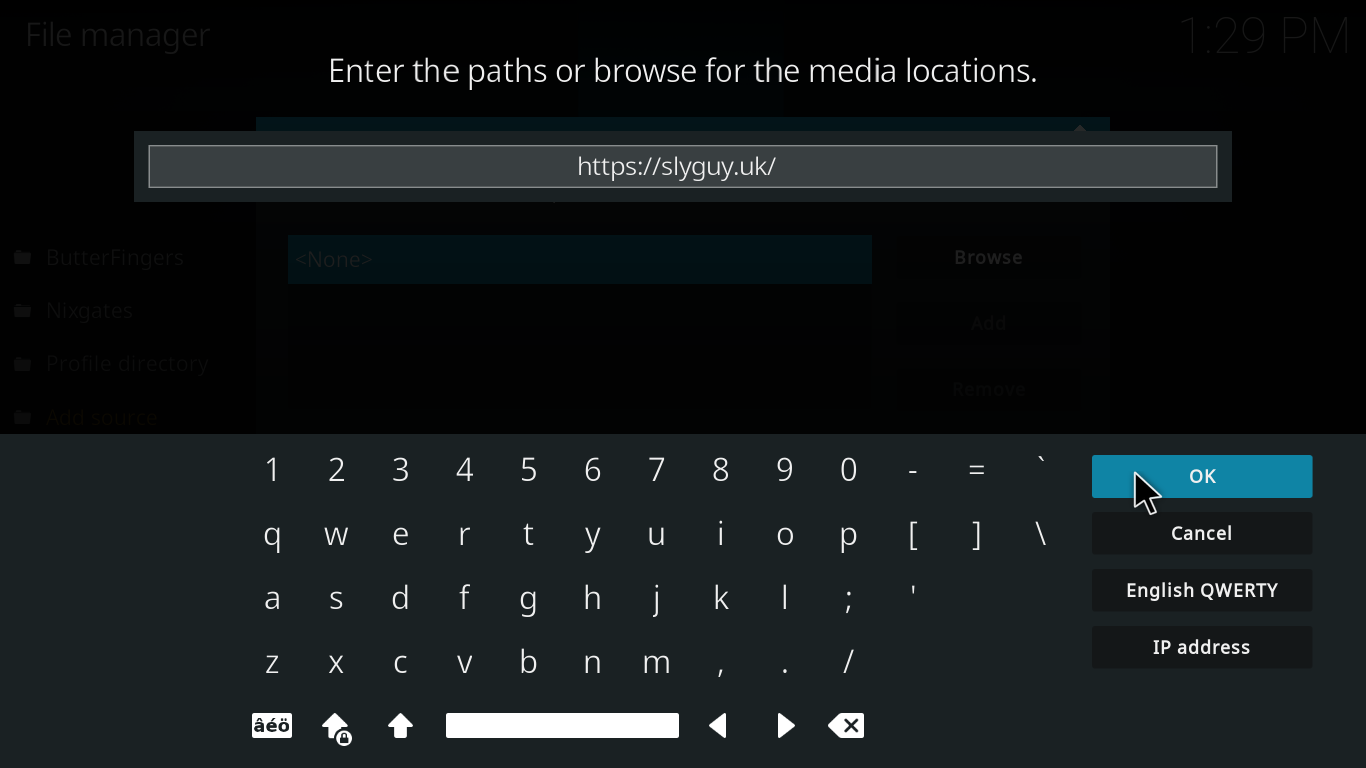
- Type in the repository URL for the addon source : https://slyguy.uk/
- In the name field, type something easy to remember — for example: samsung addons
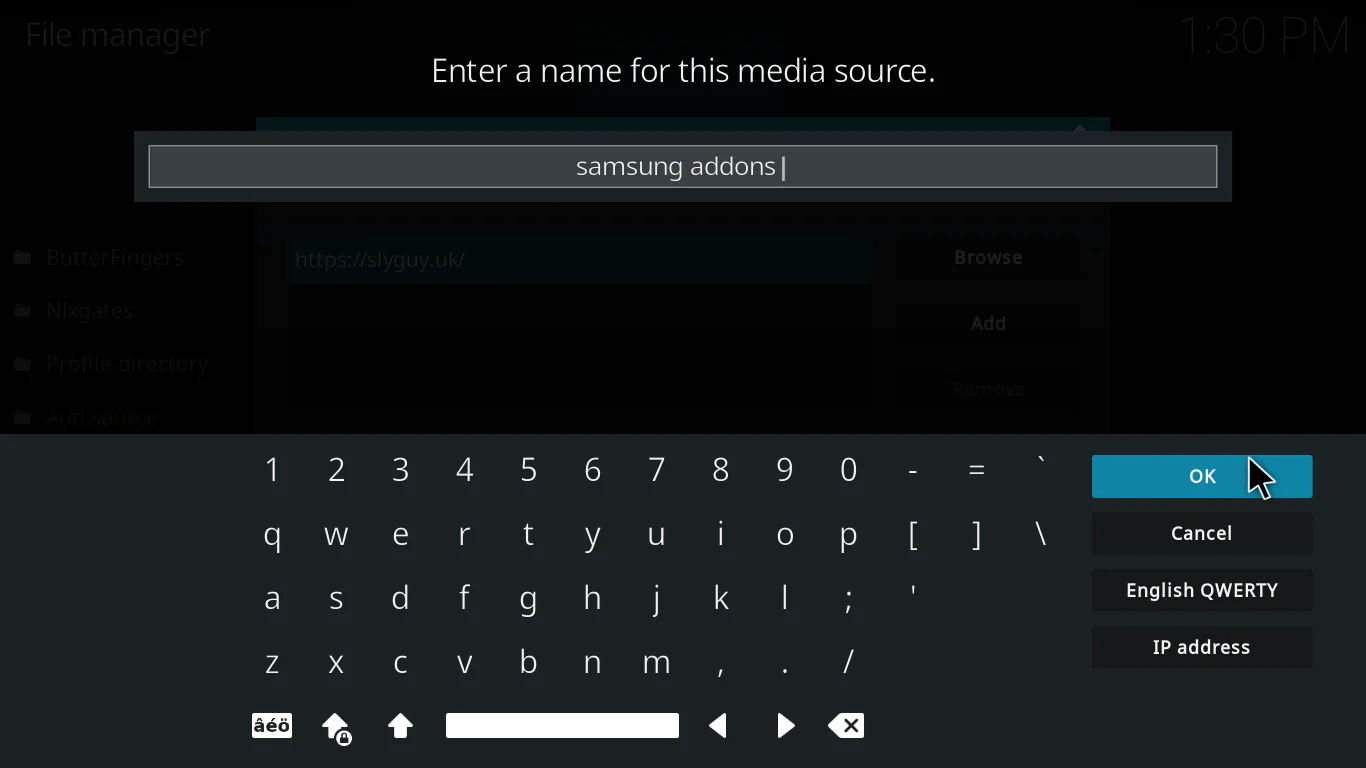
- Click OK
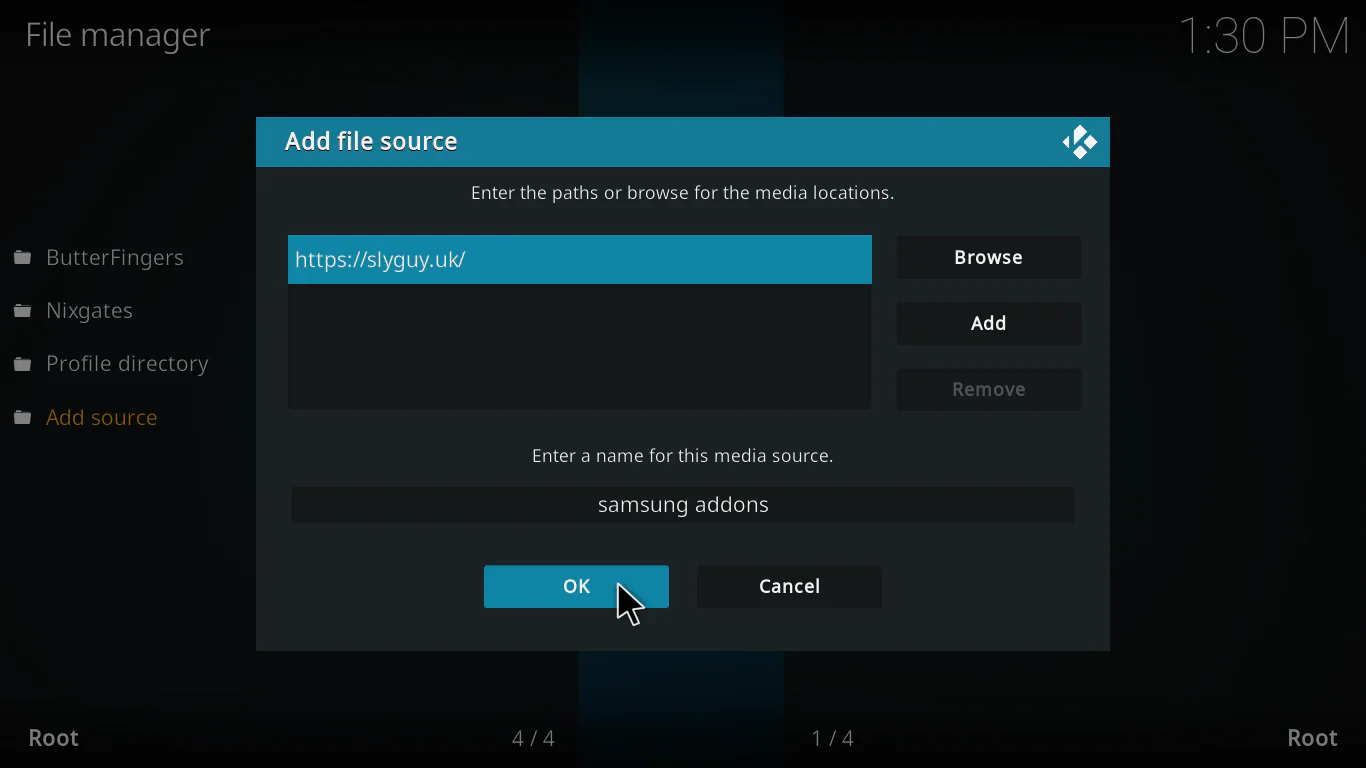
Step 3: Install the Repository Zip File
Now we install the repository that contains the addon.
- Go back to the Kodi home screen
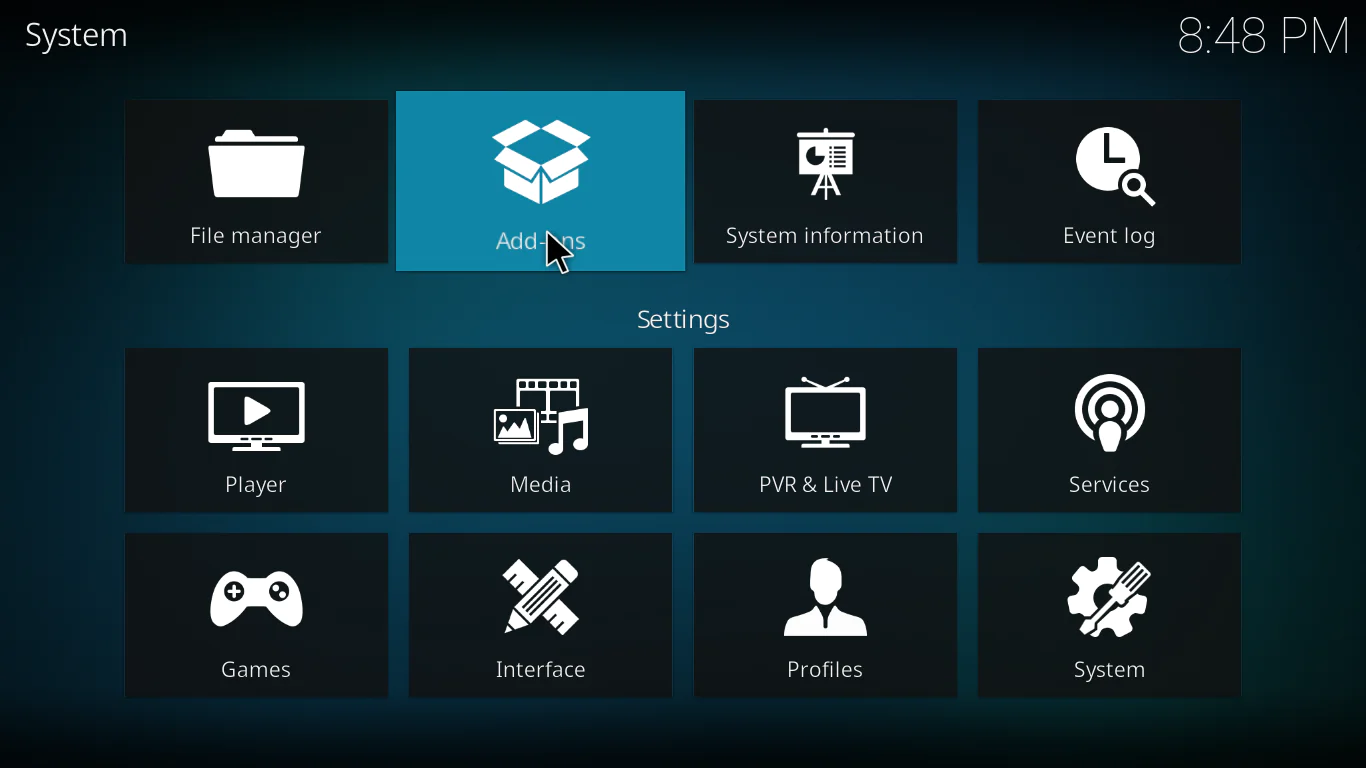
- Click Add-ons
- Select Install from zip file
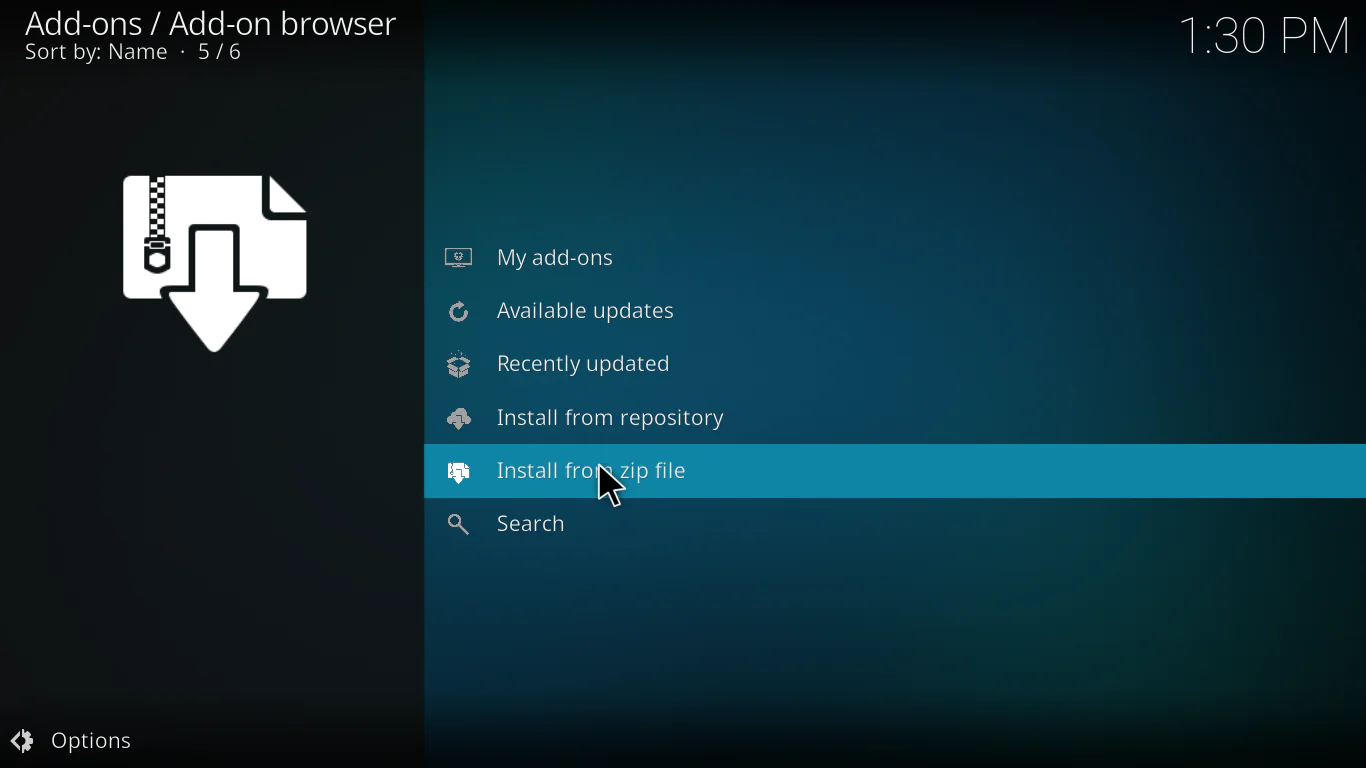
- Select the repository zip file from the list
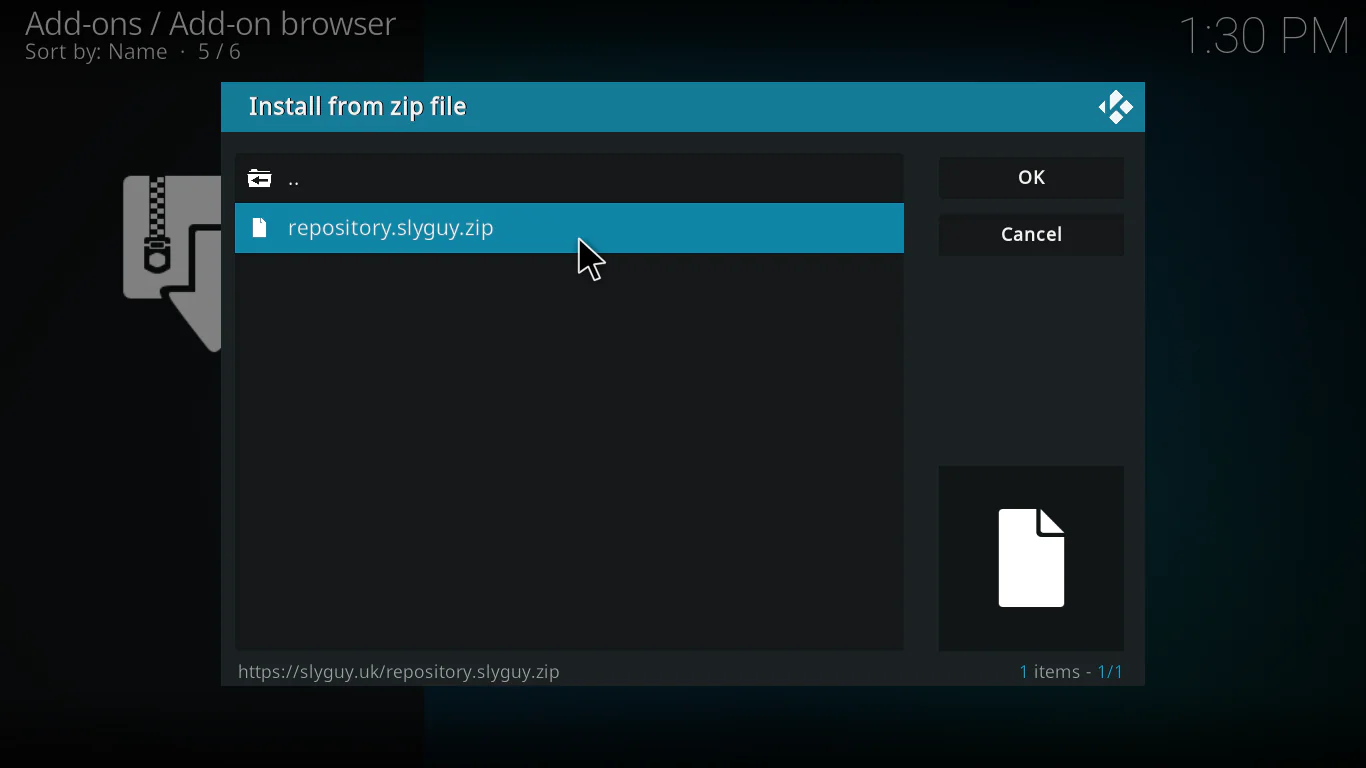
- Wait for the Repository installed notification in the top right corner
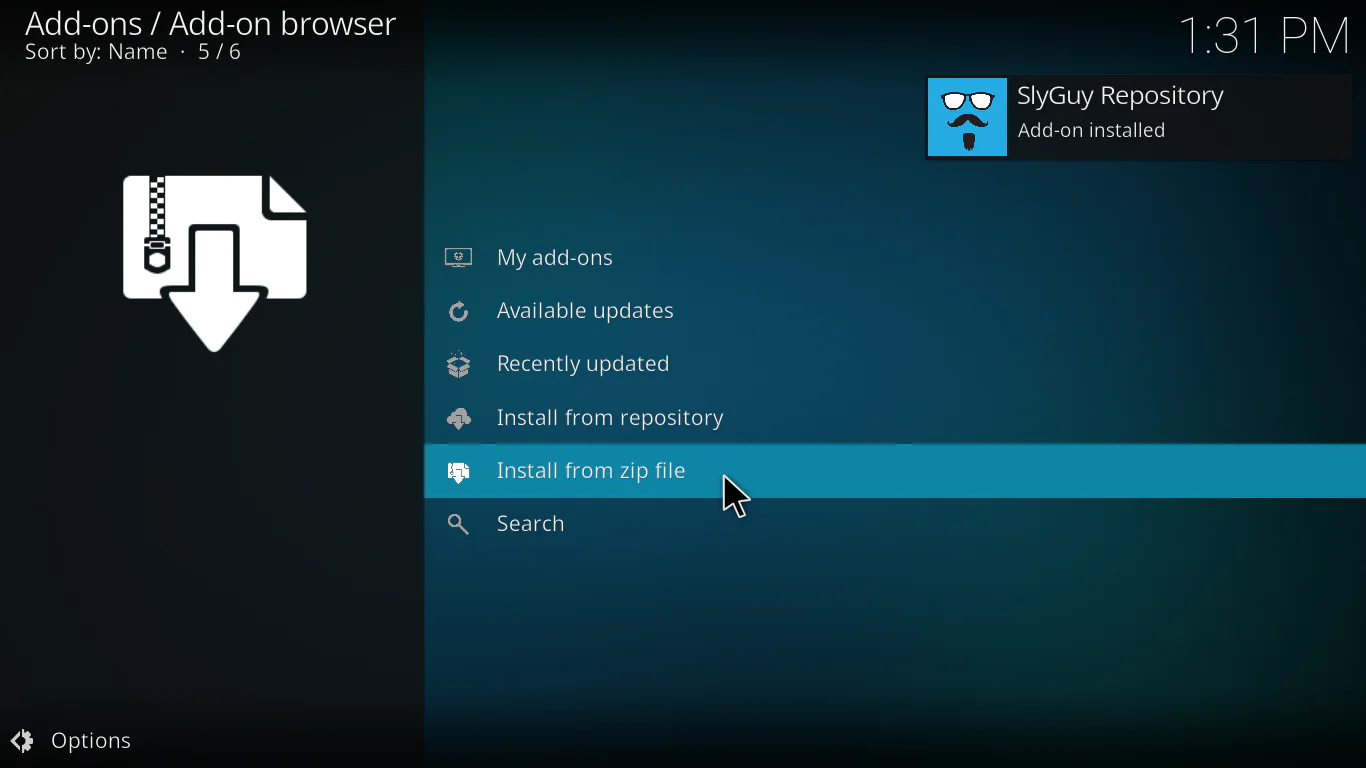
Step 4: Install the Samsung TV Plus Addon from the Repository
Almost there!
- Still in the Package Installer, click Install from repository
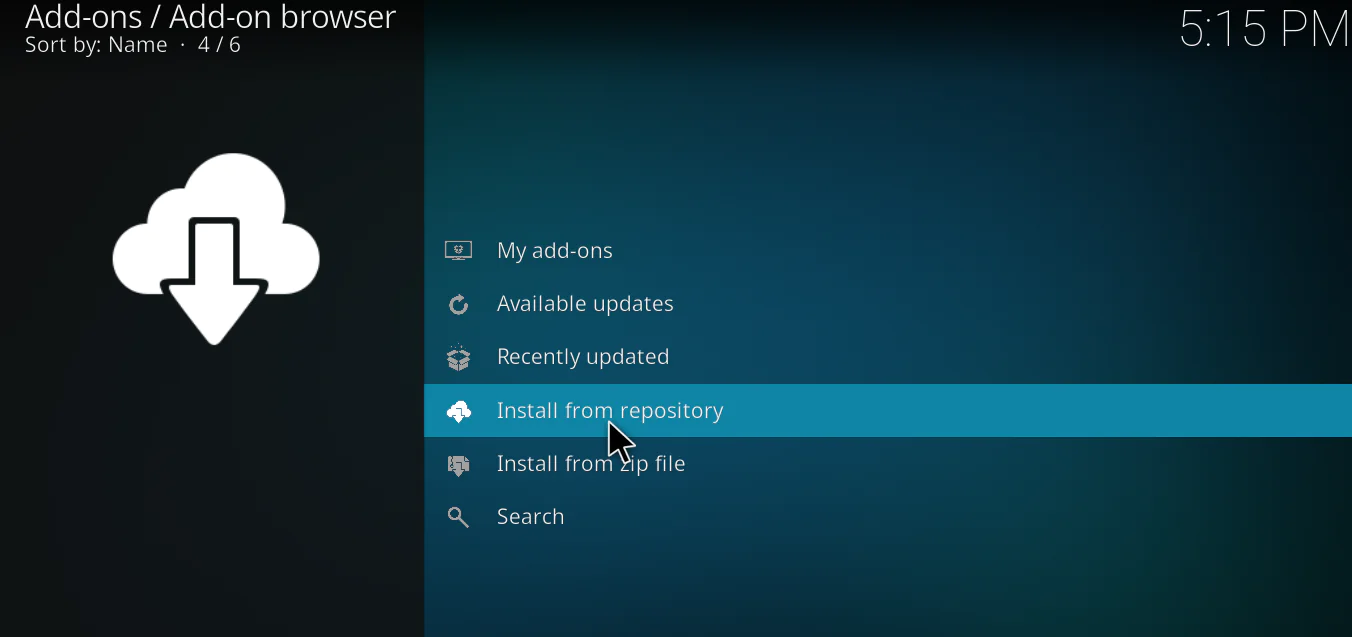
- Find and select the repository you just installed
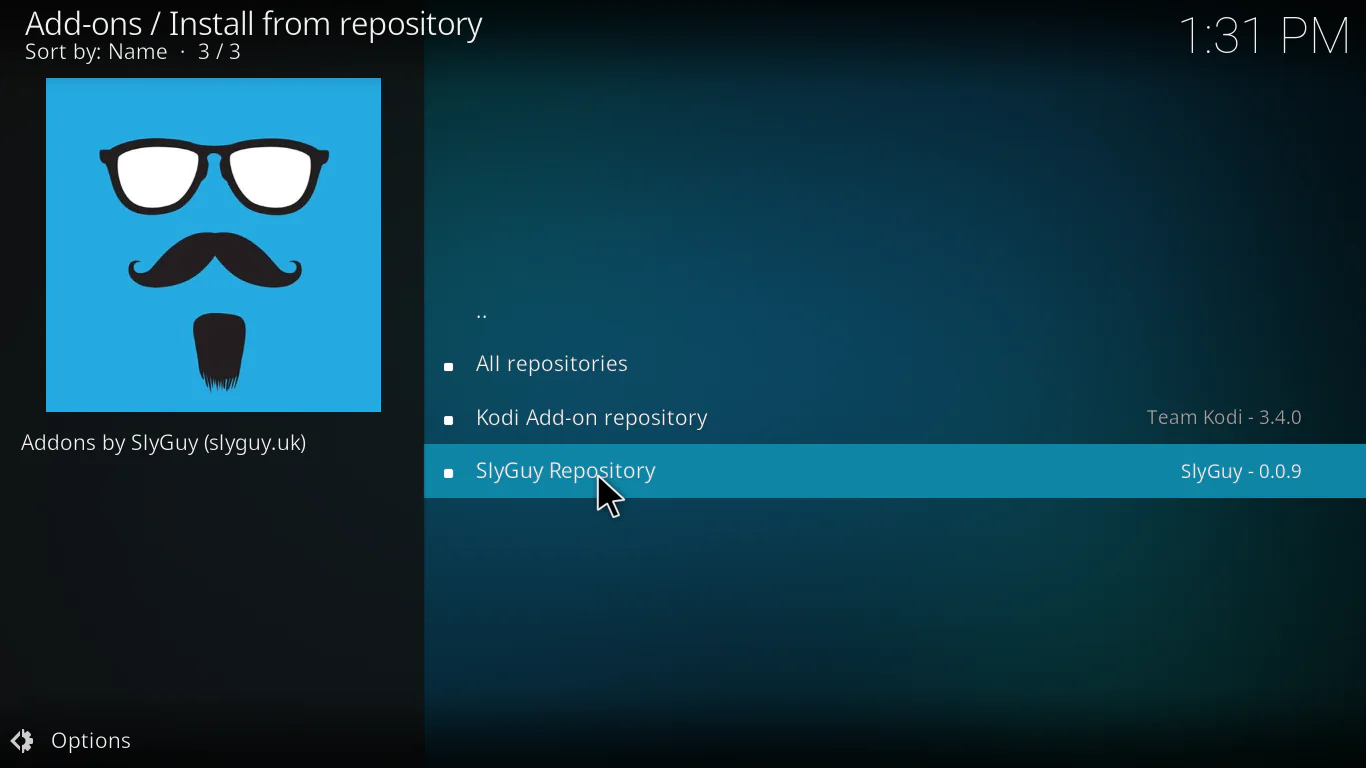
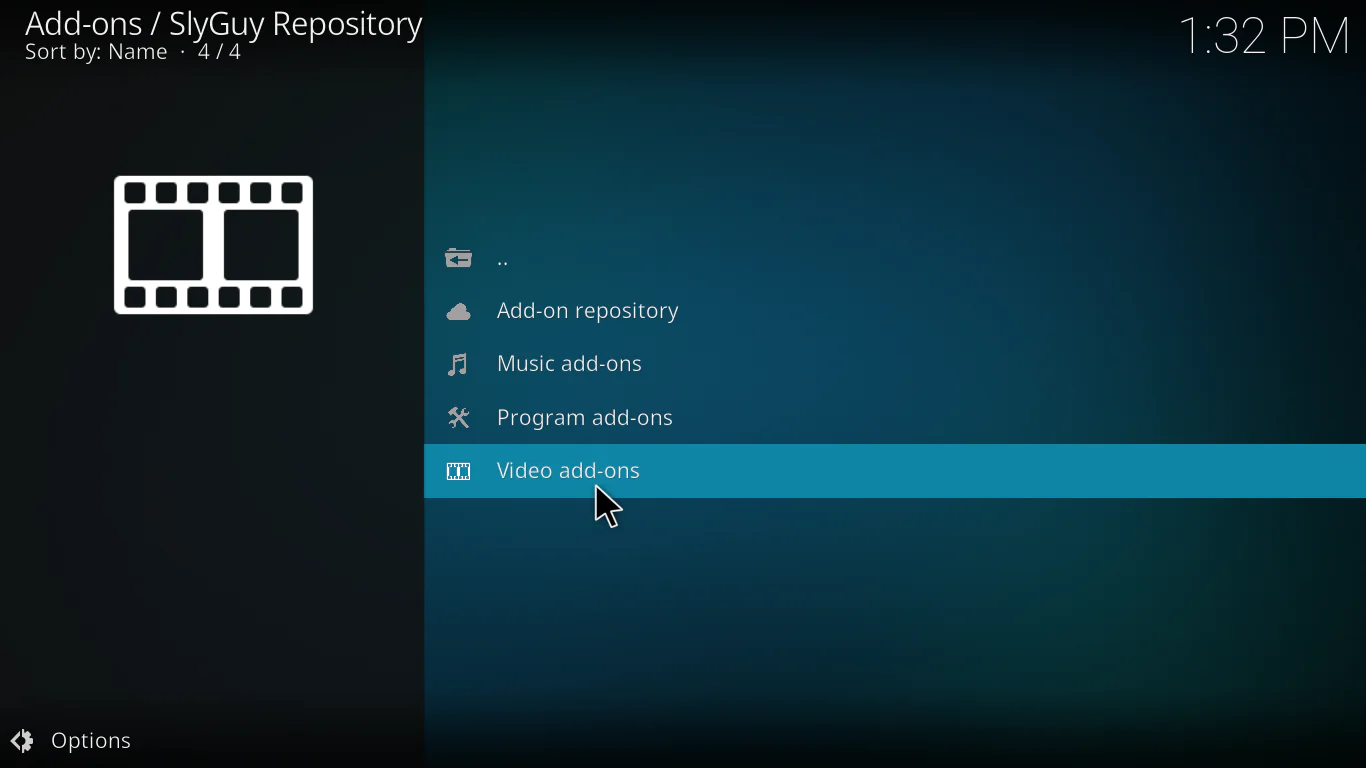
- Click Video add-ons
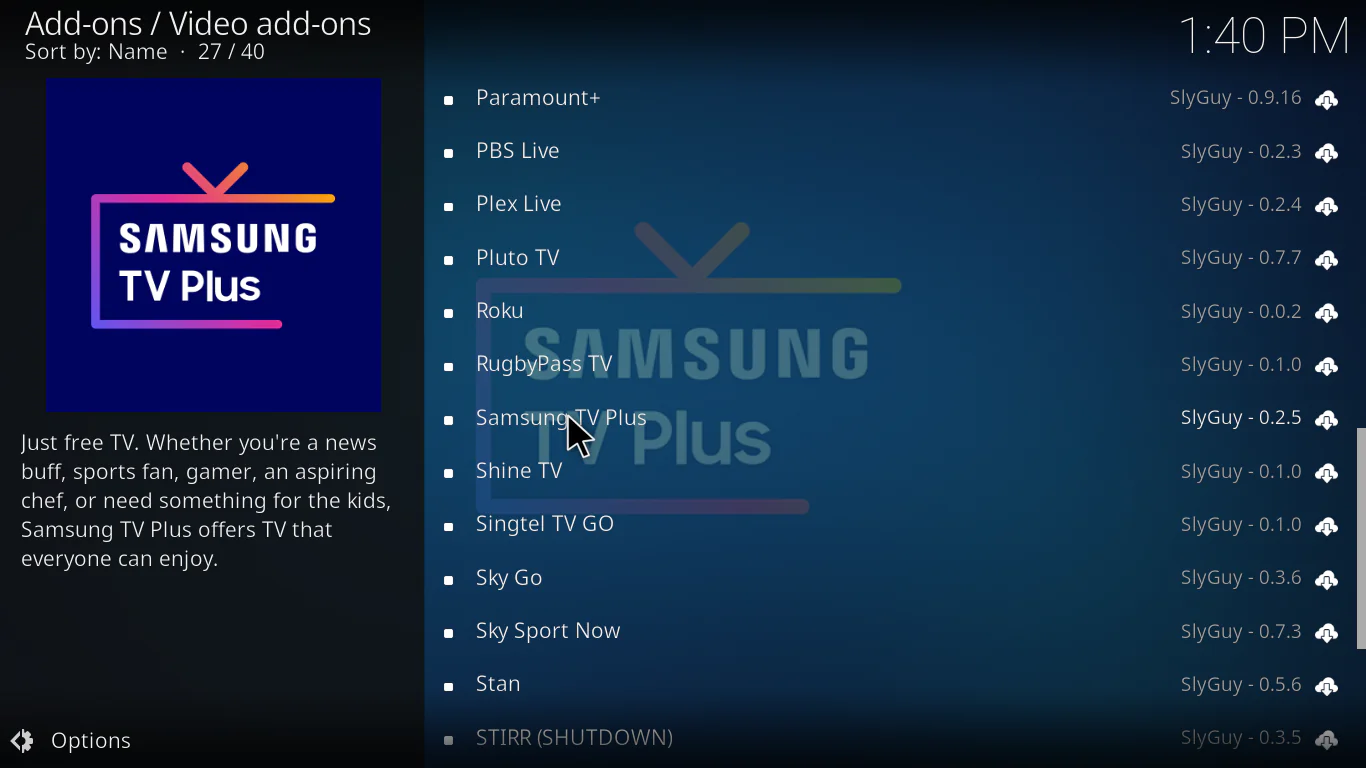
- Find Samsung TV Plus in the list
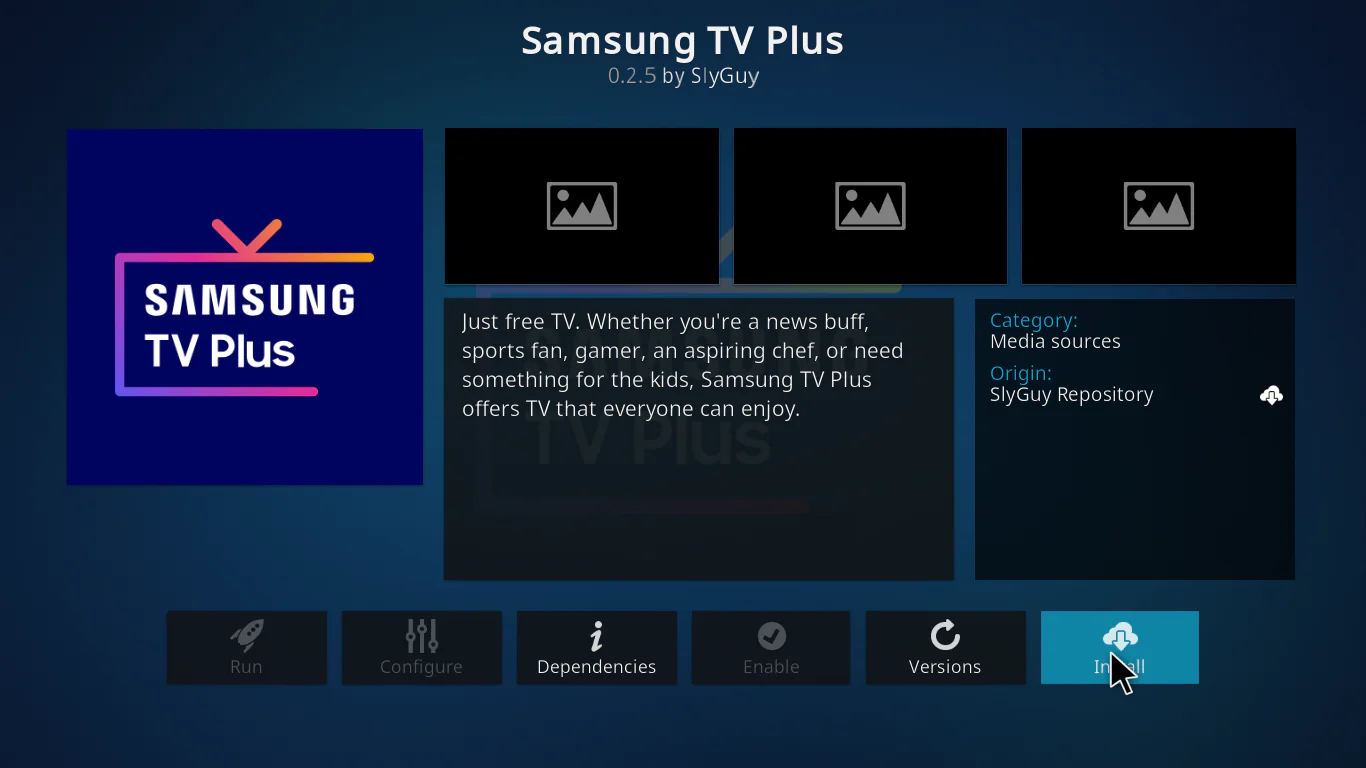
- Click on it, then click Install
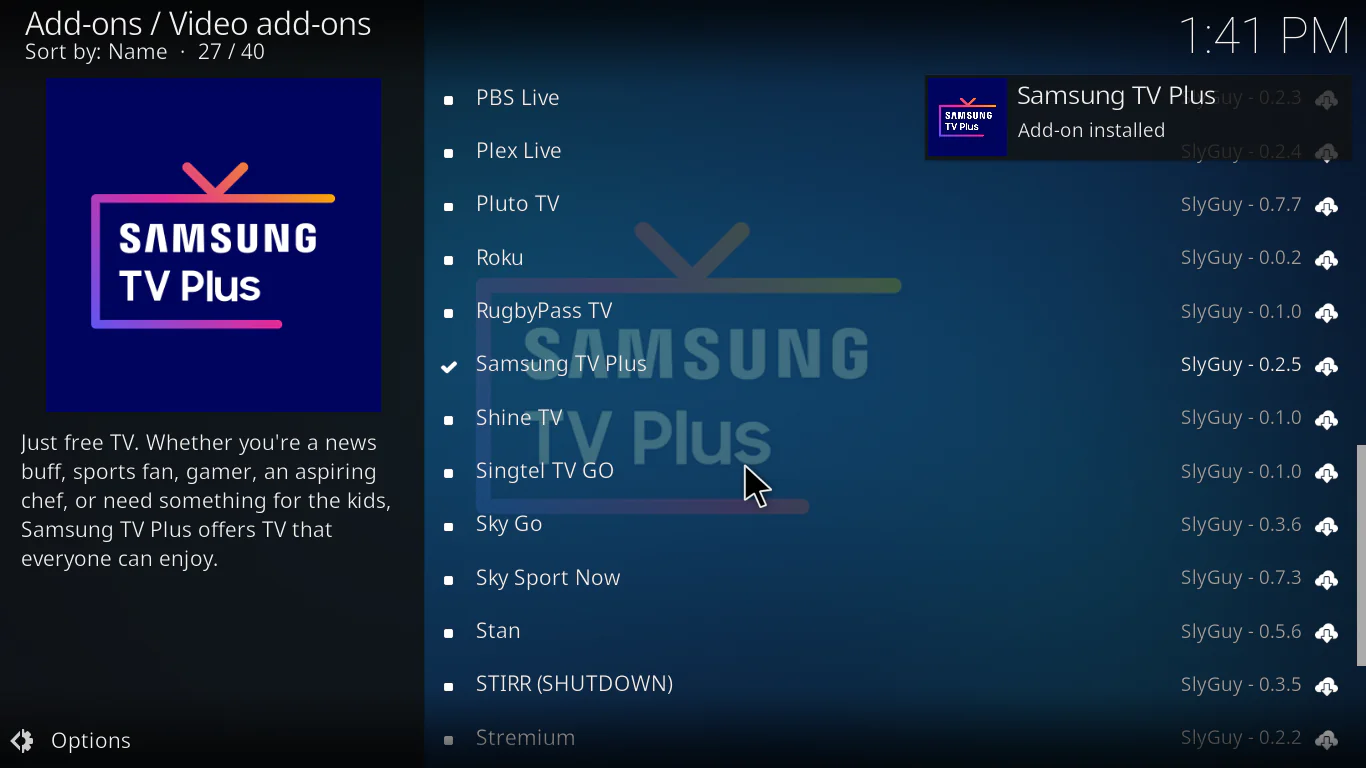
- Wait for the Add-on installed notification
Step 5: Launch the Addon
You’re done installing. Now let’s open it.
- Go to Add-ons from the Kodi home screen, Find Samsung TV Plus and click on it
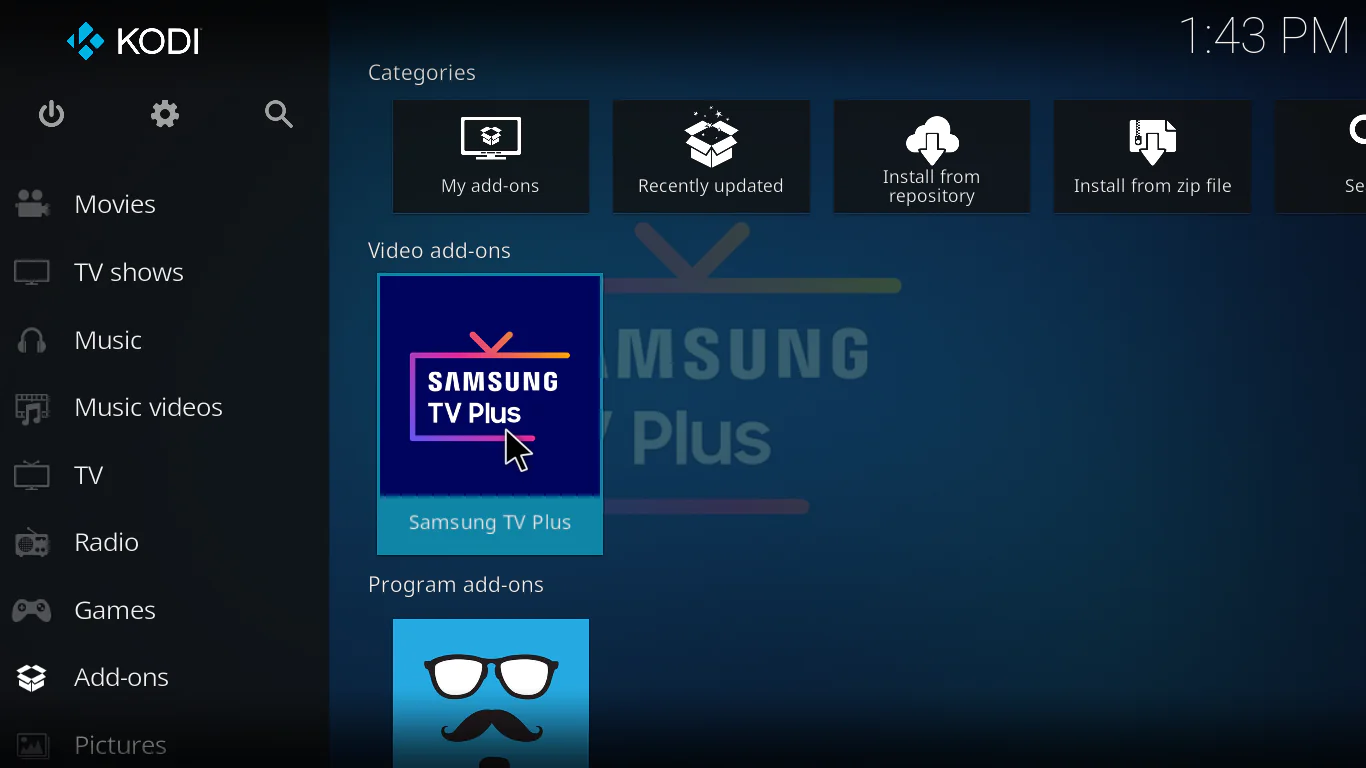
- The addon will load and show you the full channel list
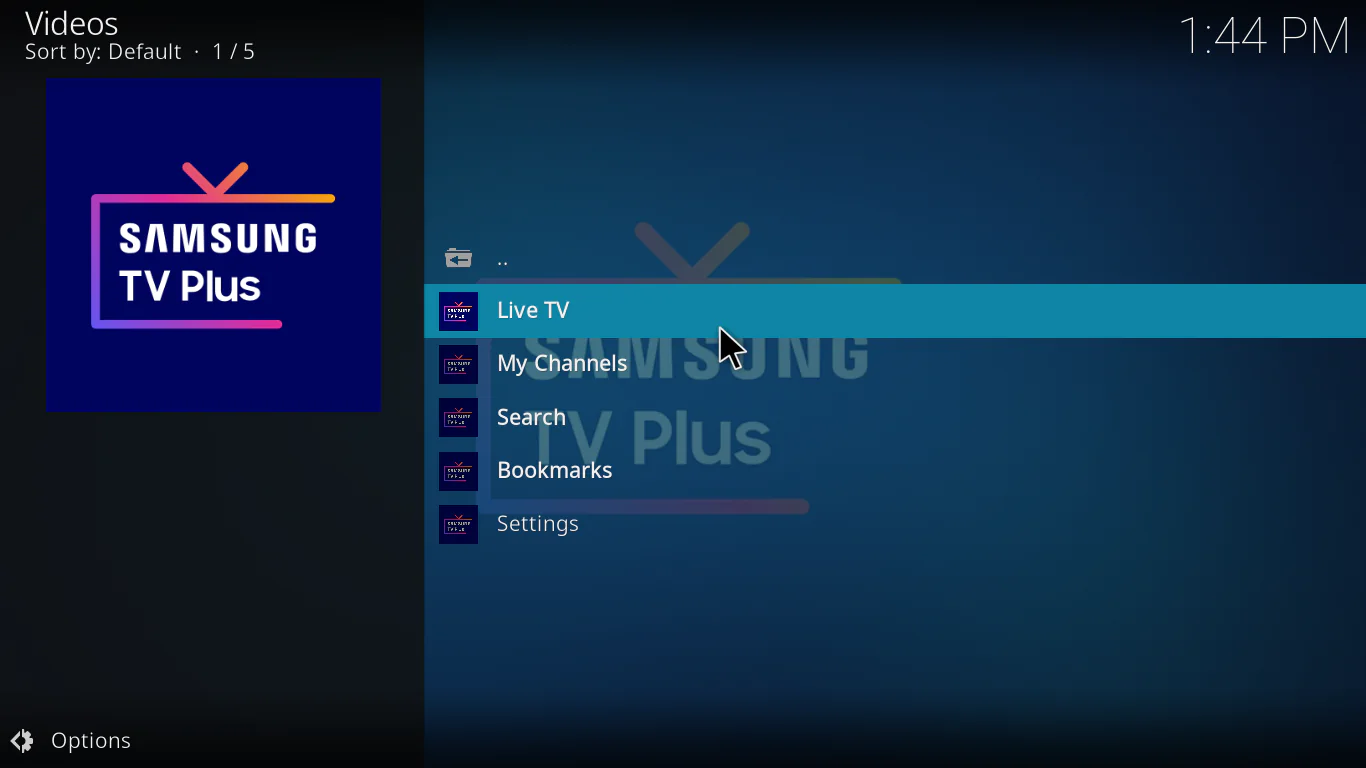
That’s it. You now have free live TV running on Kodi.
How to Use the Samsung TV Plus Kodi Addon After Installing
Using the addon is very straightforward. Here’s a quick overview:
- Browse by category — channels are organized into News, Sports, Entertainment, Kids, Lifestyle, and more
- Click any channel to start streaming immediately — no login needed
- Use the back button to return to the channel list
- If a stream doesn’t load, try another channel first before troubleshooting — occasional hiccups are normal with free live TV
Also, if you want to integrate the channels into Kodi’s PVR and Live TV section for a proper TV guide experience, you can use the IPTV Simple Client addon alongside this one. It takes a few extra steps but the result feels like a real TV interface inside Kodi.
My Personal Experience with Samsung TV Plus on Kodi
I’ve tested a lot of free live TV addons on Kodi over the past year, and I have to say — the Samsung TV Plus Kodi addon genuinely surprised me.
What I liked: The channel variety is impressive for something that costs nothing. I was watching a live Bloomberg news stream within 30 seconds of installing it. Video quality was solid too — no pixelation or major buffering on a standard 20 Mbps connection.
What I didn’t like: Some channels are geo-restricted depending on your location. If you’re outside the US, a chunk of the channel list may not load. This is where a VPN helps — switching to a US server unlocked most of the catalog for me almost instantly.
Who should use this addon: If you’re a beginner looking for a legal, free, and easy-to-use live TV addon for Kodi — this is honestly one of the best places to start. It’s not complicated, it’s not shady, and it actually works.
Tips to Get the Best Streaming Experience
Here are a few things I do personally to get the smoothest streams:
- Use a wired Ethernet connection instead of Wi-Fi whenever possible — it makes a huge difference for live TV
- Lower the stream quality inside the addon settings if you’re on a slower connection
- Use a VPN to bypass geo-restrictions and protect your privacy
- Clear Kodi’s cache regularly if you notice slowdowns — a maintenance addon makes this easy
- Restart the addon if a stream freezes — sometimes it’s just a temporary server hiccup
If you’re having other issues with Kodi in general, this guide on Kodi not working fix covers the most common problems.
Pros and Cons of the Samsung TV Plus Kodi Addon
Pros:
- Completely free and legal to use
- No account or subscription required
- Large selection of live TV channels
- Beginner-friendly installation process
- Works on most Kodi-supported devices
- Regular content updates from Samsung
Cons:
- Geo-restricted content — some channels are US-only
- Ad-supported — expect commercial breaks like regular TV
- Not an official Kodi addon — relies on third-party maintenance
- Channel availability can change without notice
- Requires a reasonably fast internet connection for HD streaming
FAQs
Is the Samsung TV Plus Kodi addon legal?
Yes. Samsung TV Plus is a fully legal, free-to-air streaming service. Accessing its content through a Kodi addon does not involve piracy, as long as you’re using a trusted, unmodified version of the addon.
Can I use Samsung TV Plus on Kodi without a Samsung TV?
Absolutely — that’s the whole point of this addon. You can use it on any device that runs Kodi, including Android TV boxes, Amazon Fire Stick, Windows PCs, and more.
Why are some channels not loading on Kodi?
This is usually caused by geo-restrictions. Samsung TV Plus limits certain channels based on your country. Using a VPN set to a US or UK server often resolves this quickly.
Does the Samsung TV Plus Kodi addon work on Fire Stick?
Yes. As long as you have Kodi installed on your Fire Stick and follow the steps in this guide, the addon will work fine.
Do I need to create an account to use Samsung TV Plus on Kodi?
No account needed. The addon is completely free with no registration required. Just install and start watching.
Conclusion
If you’ve been looking for a free, legal, and beginner-friendly live TV addon for Kodi, the Samsung TV Plus Kodi addon is honestly one of the best options available in 2026.
It’s easy to set up, the channel selection is solid, and it costs you nothing. Whether you want to catch up on news, watch live sports, or just have something on in the background — this addon delivers without a monthly bill.
Follow the five steps in this guide and you’ll be streaming within minutes.
Want to discover more addons like this one? Check out our full list of the best Kodi addons worth installing this year.
Have questions or ran into an issue during installation? Drop a comment below — I read every single one.