Introduction
What if you could watch free live TV from the US, UK, Canada, and Australia — all inside Kodi — without paying a single cent?
That’s exactly what the Plex Live Kodi addon gives you.
Most people know Plex as a way to manage their personal movie and TV collection. But Plex also runs a completely free live TV service with hundreds of channels — and you can access all of it directly inside Kodi using the Plex Live addon.
No subscription. No credit card. No complicated setup.
In this guide, I’ll walk you through every single step of the installation process — from enabling the right Kodi settings to launching your first live channel. Even if you’ve never installed a Kodi addon before, this guide has you covered.
Let’s get into it.
What Is the Plex Live Kodi Addon?
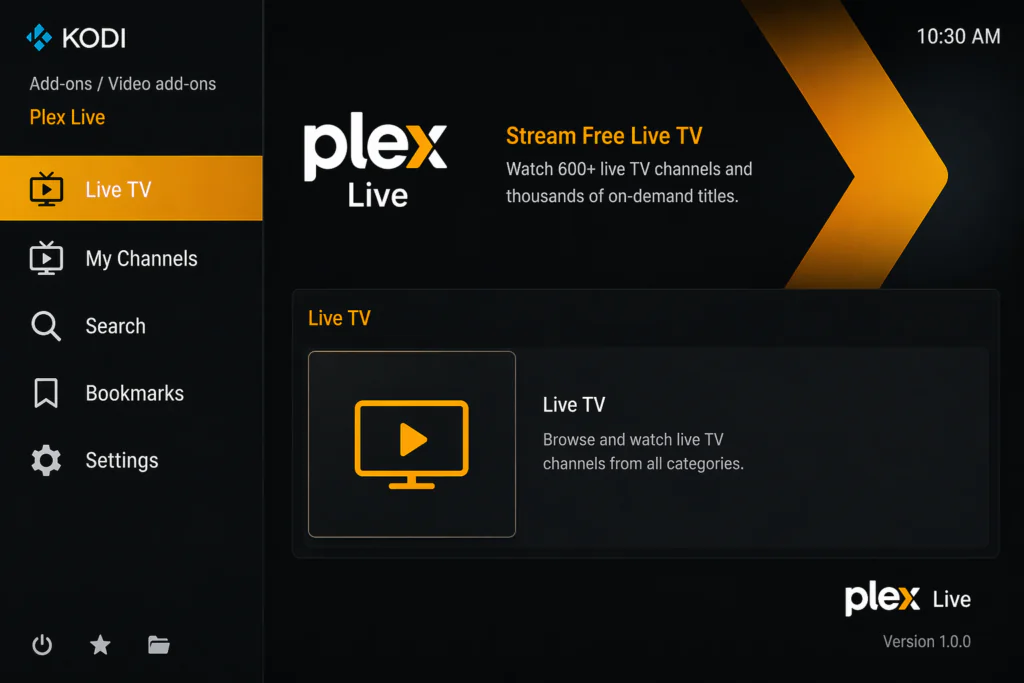
Plex Live is a free, ad-supported streaming service run by Plex — one of the most trusted names in the media player world.
It offers hundreds of live TV channels across multiple categories including news, sports, movies, entertainment, lifestyle, and kids content. All of it is 100% free and officially licensed. Plex makes money through ads, just like regular broadcast TV.
The Plex Live Kodi addon is found inside the SlyGuy Repository — one of the most well-known and trusted third-party Kodi repositories available today. SlyGuy hosts a wide collection of legal streaming addons, and Plex Live is one of its most popular ones.
Once installed, the addon gives you access to Plex Live channels directly inside Kodi — no need to switch apps or open a browser.
What Channels Can You Watch?
This is one of the things I really like about Plex Live — the international coverage.
Channels are available from multiple countries including:
- United States
- Canada
- United Kingdom
- Australia
- New Zealand
- Mexico
- Spain
Categories include live news, sports, movies, entertainment, kids, lifestyle, and more. The exact channel list varies by country, but US users get the largest selection by far.
If you’re outside the US and find that some channels aren’t available in your region, a VPN set to a US server will solve that in seconds.
Features of the Plex Live Kodi Addon
Here’s what you get with this addon:
- Hundreds of free live TV channels from multiple countries
- No subscription, no login, no credit card required
- Clean interface with categories for Live TV, My Channels, Search, and Bookmarks
- Ad-supported streaming — normal commercial breaks like regular TV
- Regular updates through the SlyGuy Repository
- Works on Kodi 20 Nexus and Kodi 21 Omega
- Compatible with Android TV boxes, Fire Stick, Windows, Mac, and Raspberry Pi
- Bookmark your favourite channels for quick access
- Built-in search to find channels quickly
The built-in Bookmarks and Search features are things a lot of free live TV addons don’t have — and they make a real difference when you’re navigating a large channel list.
Is the Plex Live Kodi Addon Safe and Legal?
Yes — completely.
Plex Live TV is an officially licensed, legal streaming service. Every channel you watch through this addon is authorized by Plex. There is no piracy, no grey area, nothing illegal about using it.
The SlyGuy Repository — where this addon is hosted — is also one of the most respected third-party Kodi repositories. It hosts only legal streaming addons and is widely recommended by the Kodi community.
A few things to keep in mind though:
- Always use the official SlyGuy repo URL — https://slyguy.uk — not random URLs you find on other websites
- Avoid any modified versions of the addon from unofficial sources
- Using a VPN while streaming is always a good idea for privacy, even when using fully legal services
For more information about Kodi and how it works officially, you can visit the official Kodi website at kodi.tv.
Before you start, make sure you have Kodi installed on your device. If you haven’t downloaded it yet, get it for free from kodi.tv — always download from the official site to avoid fake or harmful versions.
Requirements Before You Start
Make sure you have these ready before starting:
- Kodi 20 (Nexus) or Kodi 21 (Omega) installed on your device
- A stable internet connection — minimum 5 Mbps for smooth live TV
- Unknown Sources enabled in Kodi settings — I’ll show you exactly how
- A compatible device — Android TV box, Fire Stick, Windows PC, Mac, or Raspberry Pi
- Optionally, a VPN if you want to access geo-restricted channels or protect your privacy
If this is your first time installing a Kodi addon, check out this beginner guide on how to install Kodi addons before you continue.
Step-by-Step Installation Guide for the Plex Live Kodi Addon
Follow these steps carefully. I’ve written each one to be as clear as possible — no technical experience needed.
Step 1: Enable Unknown Sources in Kodi
This step allows Kodi to install addons from outside its official repository. You only need to do this once.
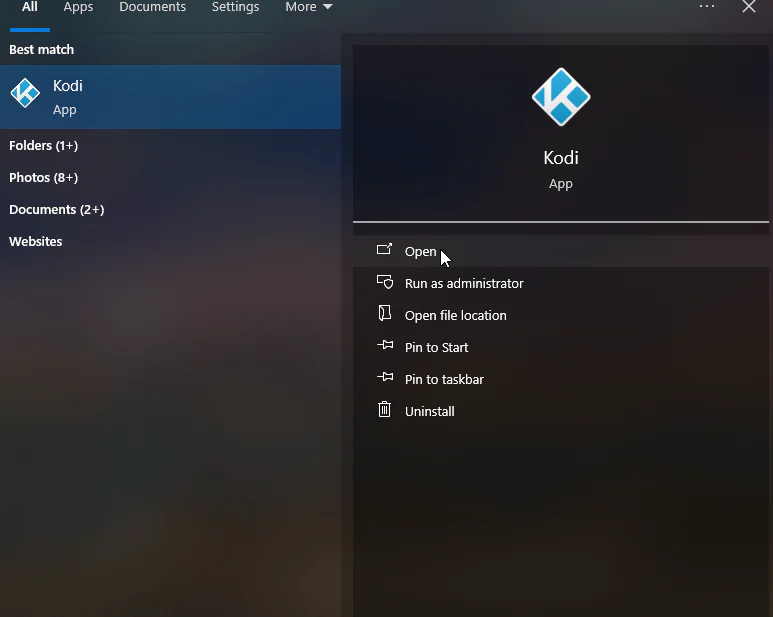
- Open Kodi on your device
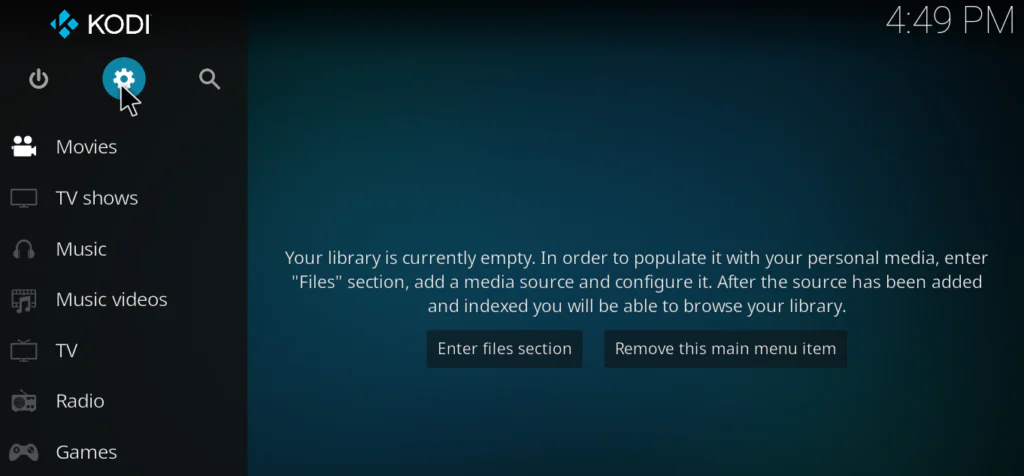
- Click the gear icon at the top left of the home screen to open Settings
- Click System
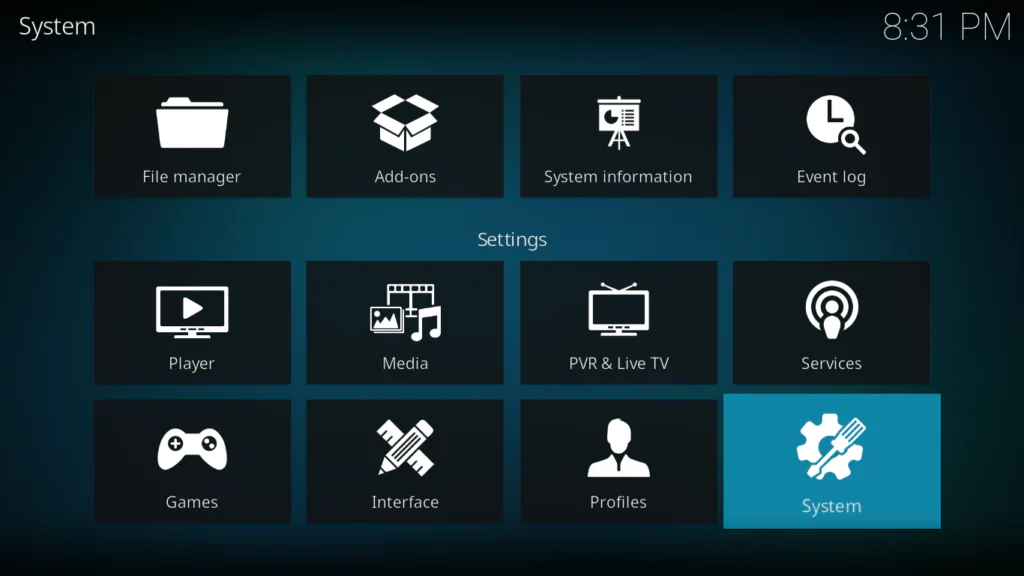
- Select Add-ons from the left-hand menu
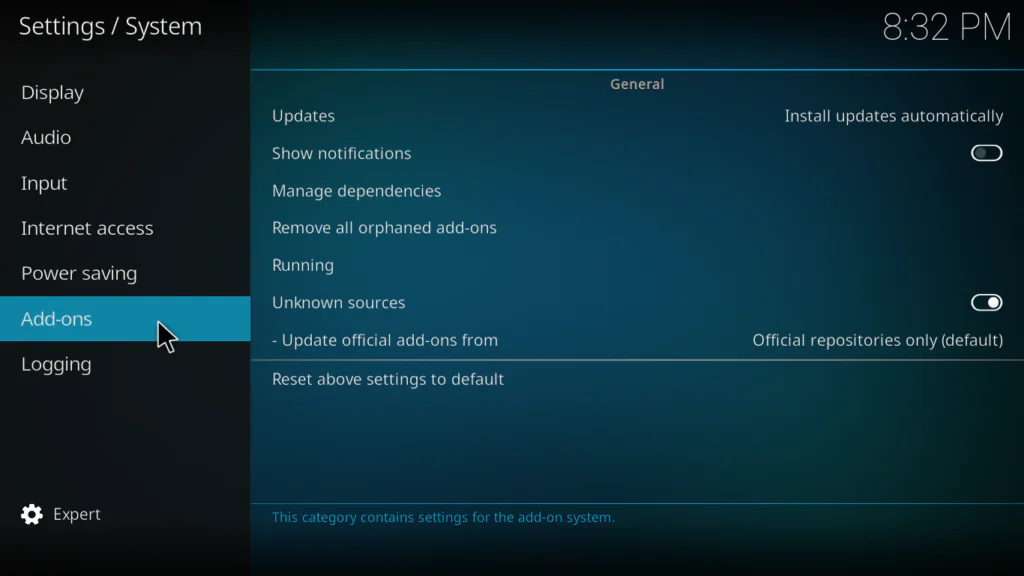
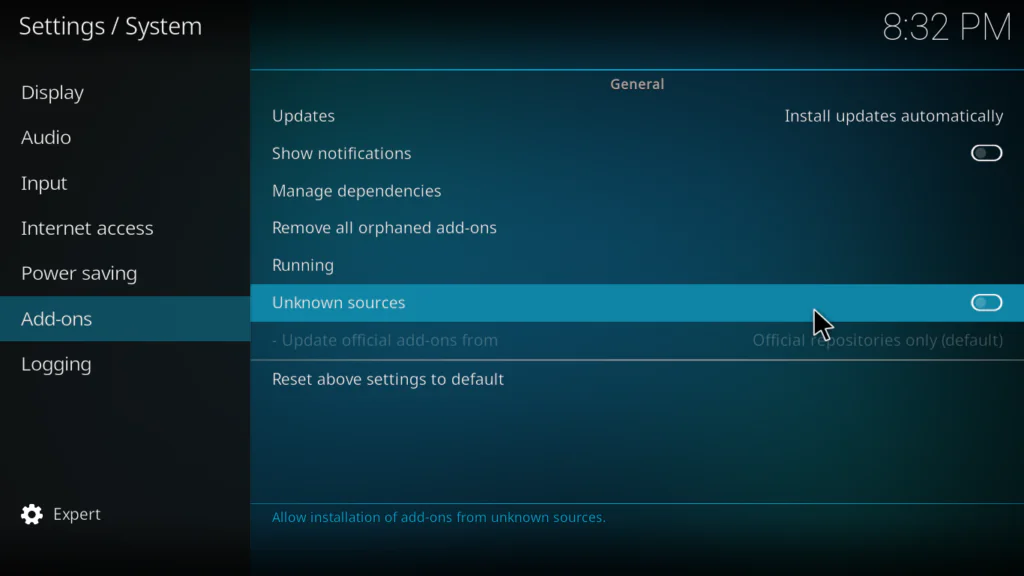
- Find Unknown Sources and toggle it to ON
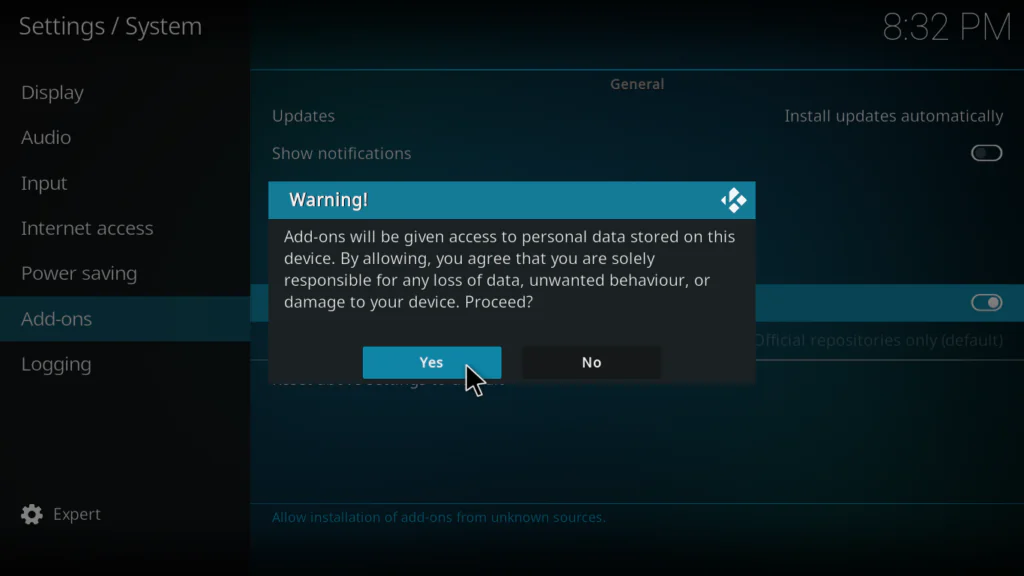
- A warning popup will appear — read it and click Yes to confirm
Step 2: Go to File Manager
Now we need to add the SlyGuy repository as a source so Kodi knows where to find it.
- Click the back arrow to return to the main Settings screen
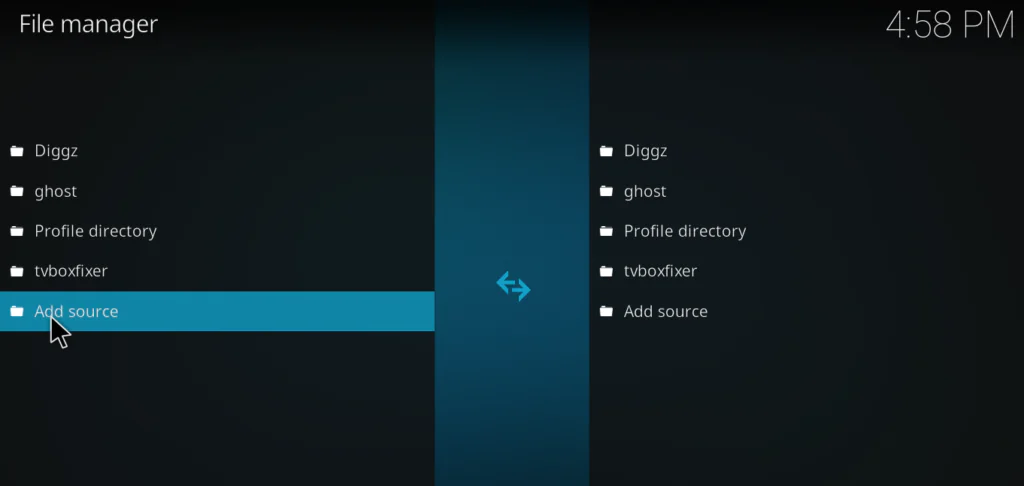
- Click File Manager
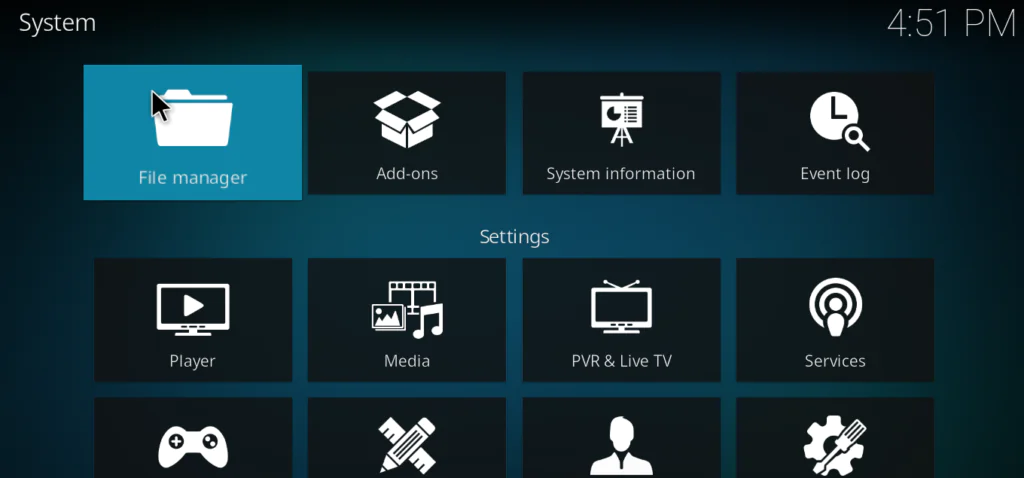
- You will see two panels — look for Add Source on the left side and double-click it
Step 3: Enter the SlyGuy Repository URL
This is the most important step — the URL must be entered exactly as shown.
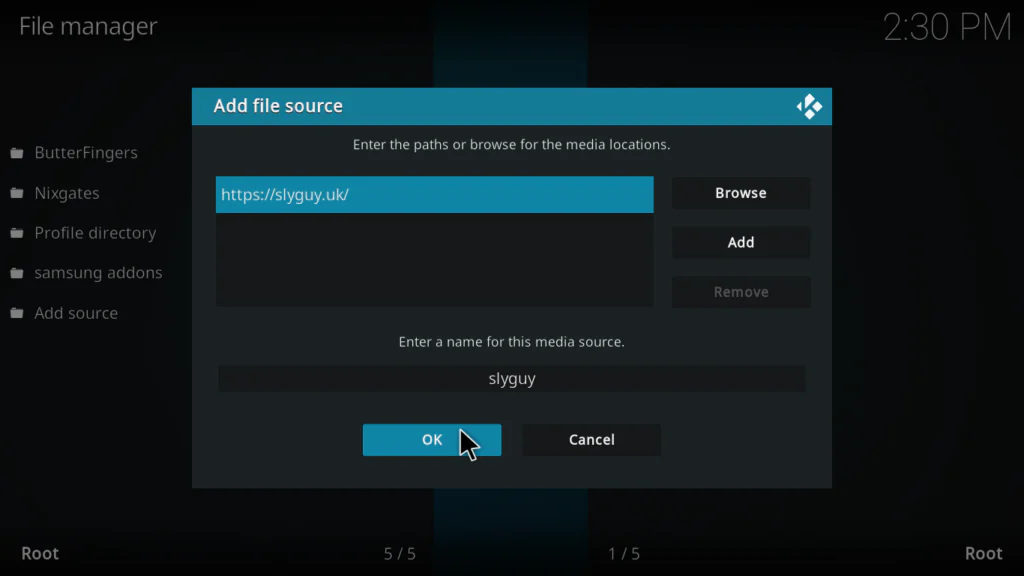
- A dialog box will appear — click where it says None
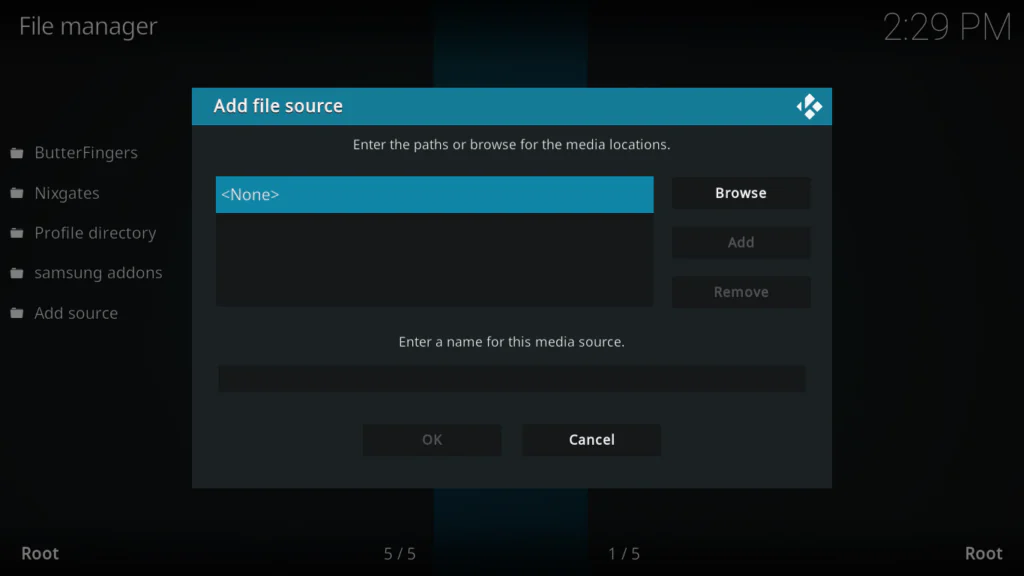
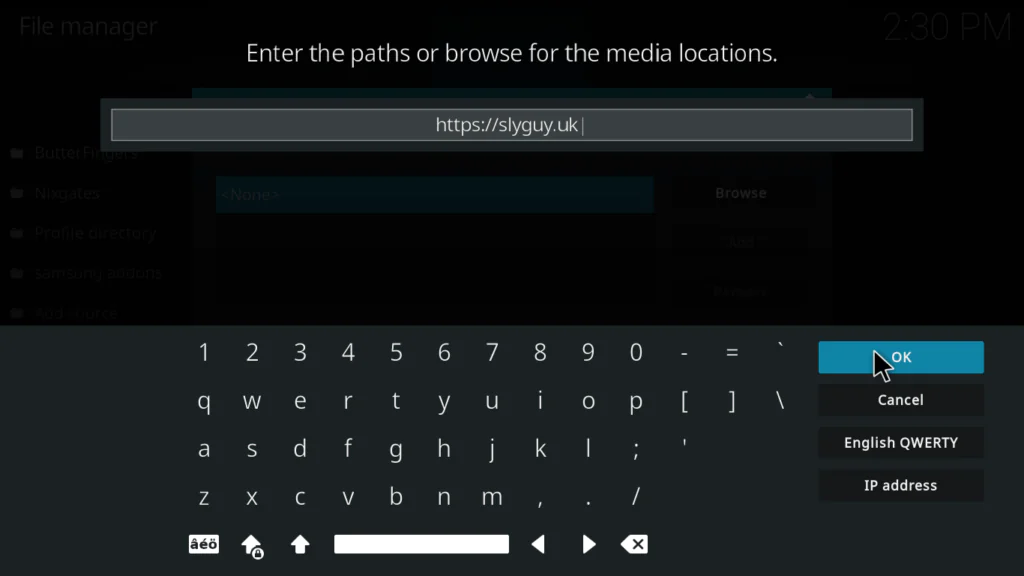
- Type in this URL exactly: https://slyguy.uk
- In the box below that says “Enter a name for this media source”, type: slyguy
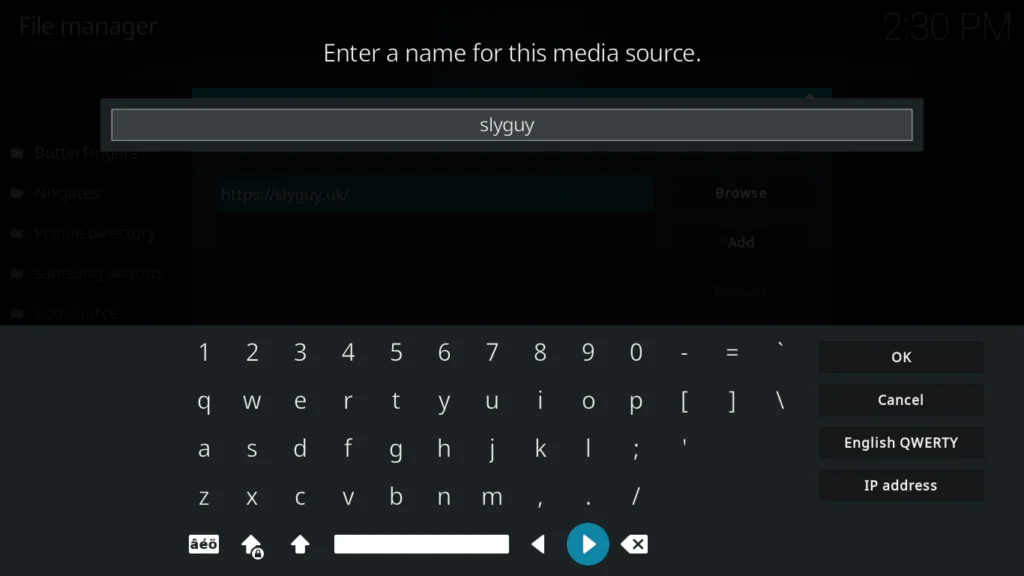
- Click OK to confirm
Tip: If the URL https://slyguy.uk doesn’t work for you, try the alternative URL: https://k.slyguy.xyz — both point to the same repository.
Step 4: Install the SlyGuy Repository Zip File
Now we install the repository itself.
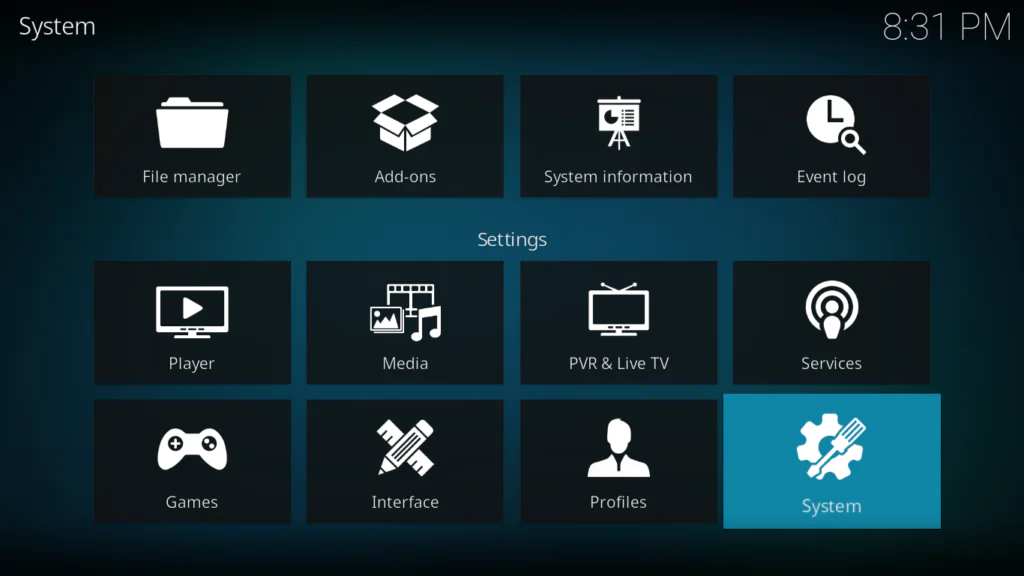
- Go back to the Kodi home screen
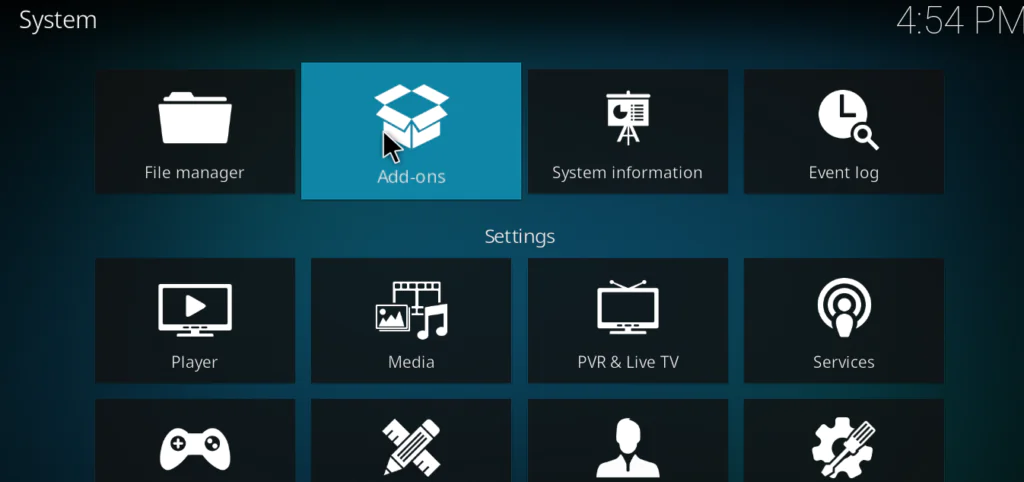
- Click Add-ons
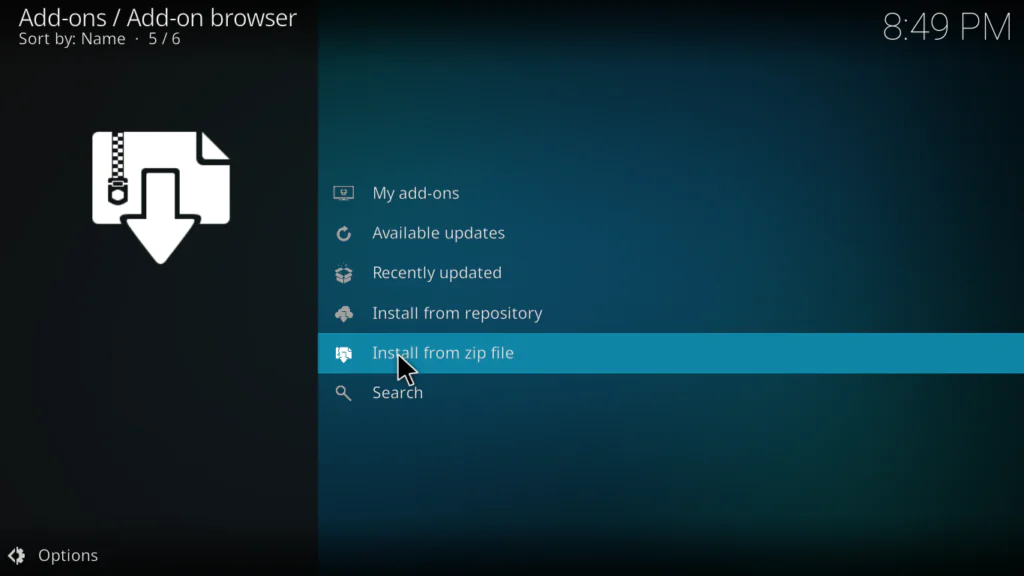
- Select Install from zip file
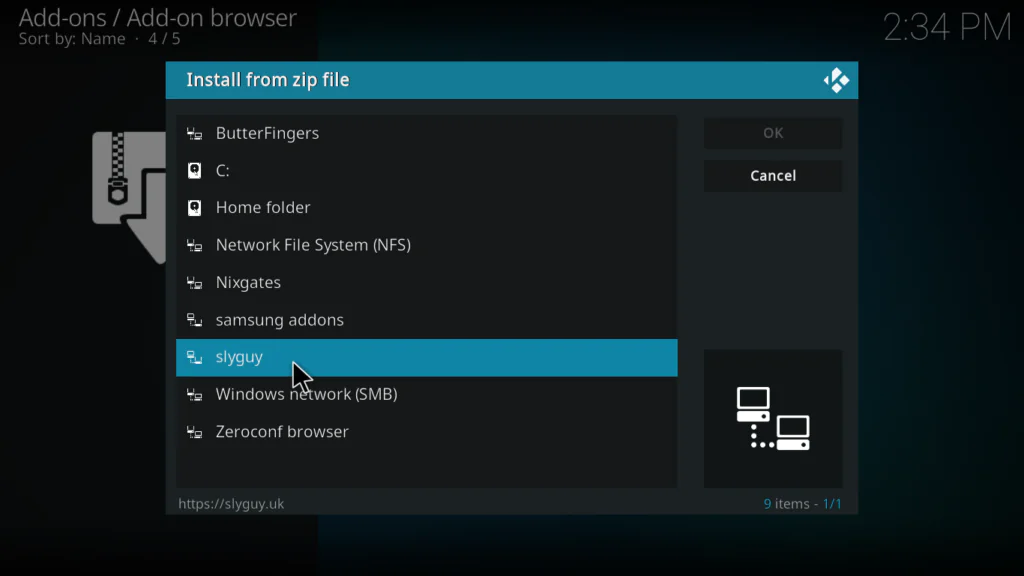
- A file browser will open — find and click slyguy
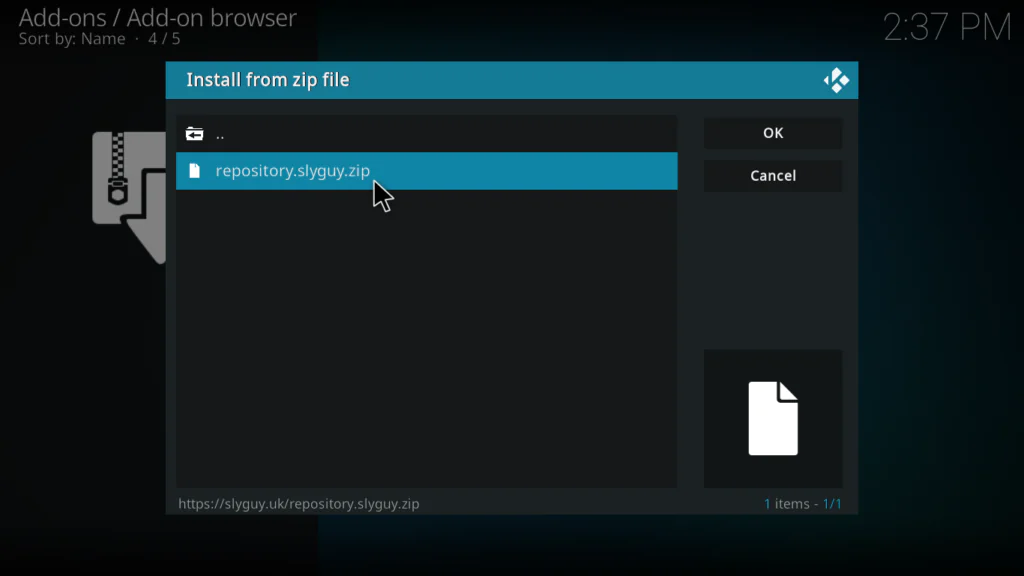
- Click repository.slyguy.zip
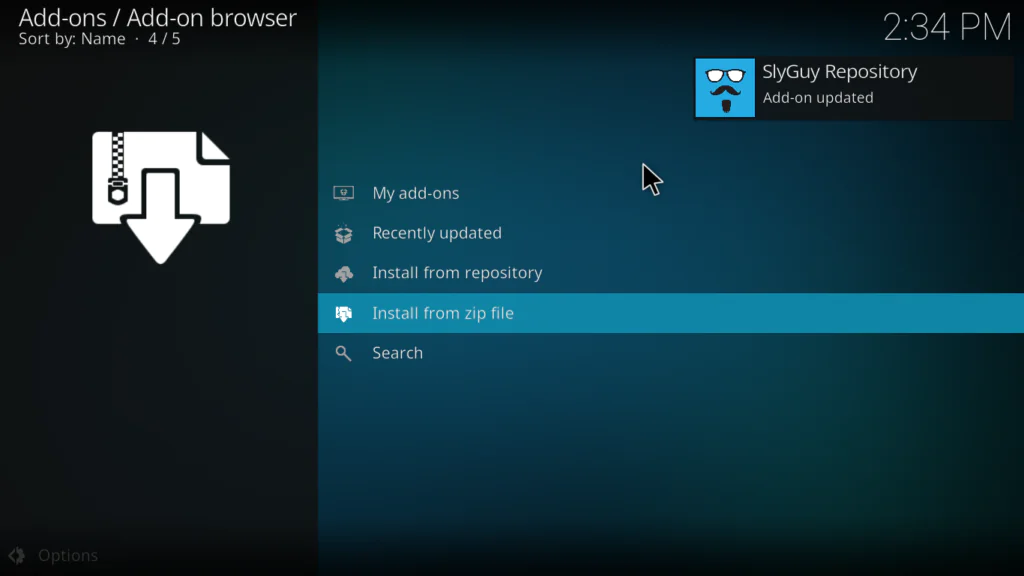
- Wait a few seconds for the notification in the top right corner that says Repo Installed
Step 5: Install Plex Live from the SlyGuy Repository
Now we install the actual Plex Live addon.
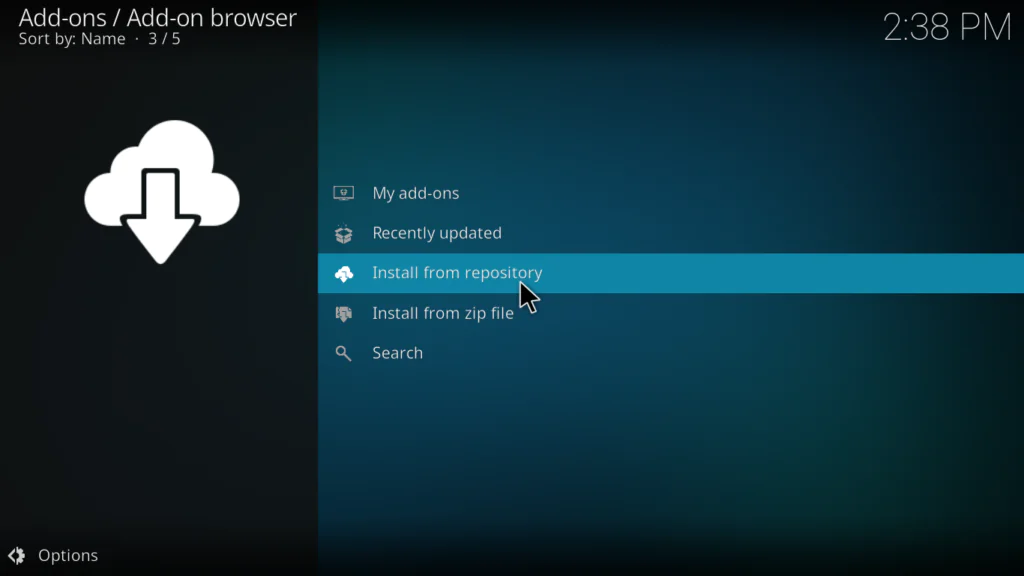
- Still in the Package Installer, click Install from repository
- Find and click SlyGuy Repository from the list
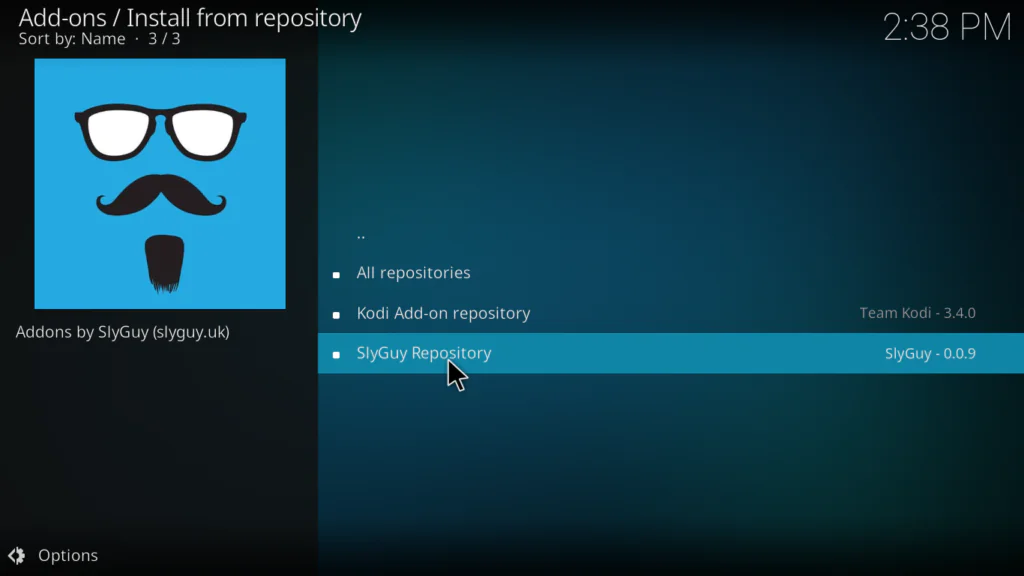
- Click Video Add-ons
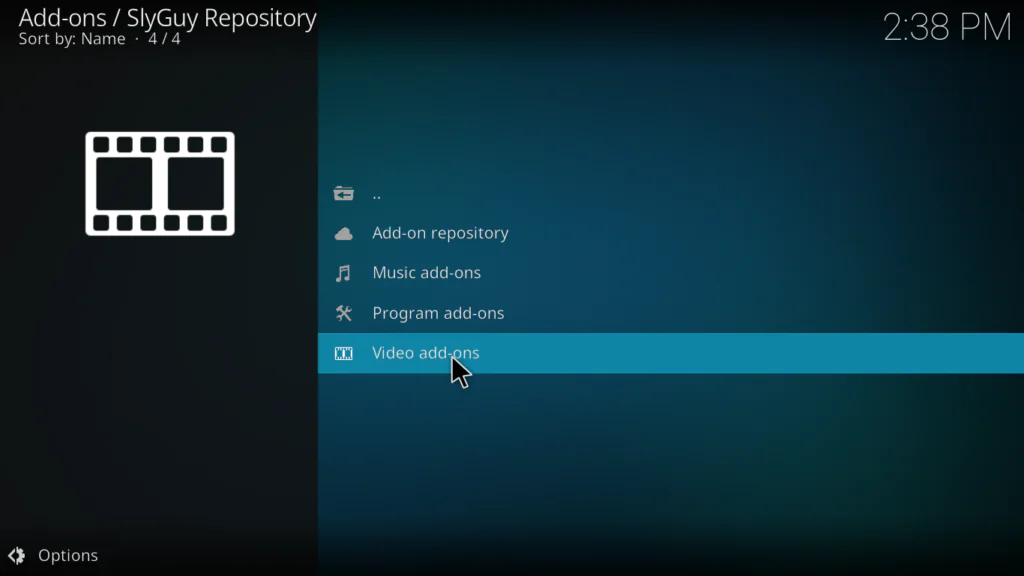
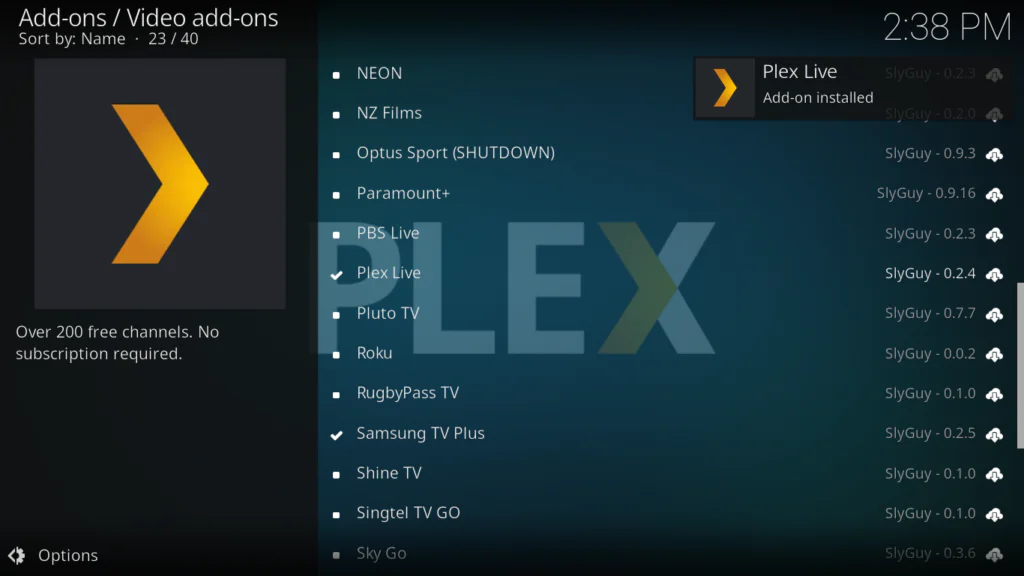
- Scroll down and find Plex Live in the list
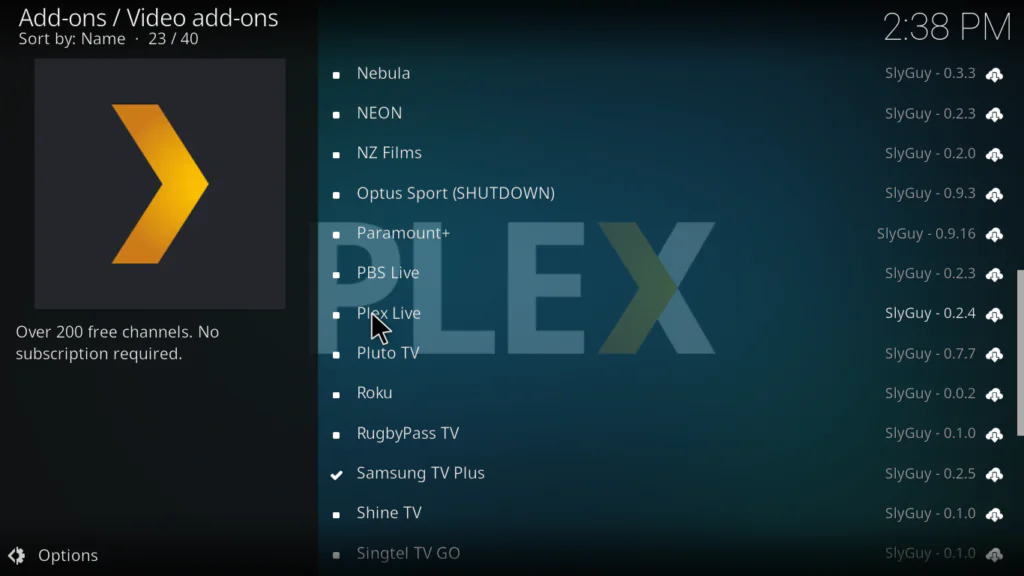
- Click Install
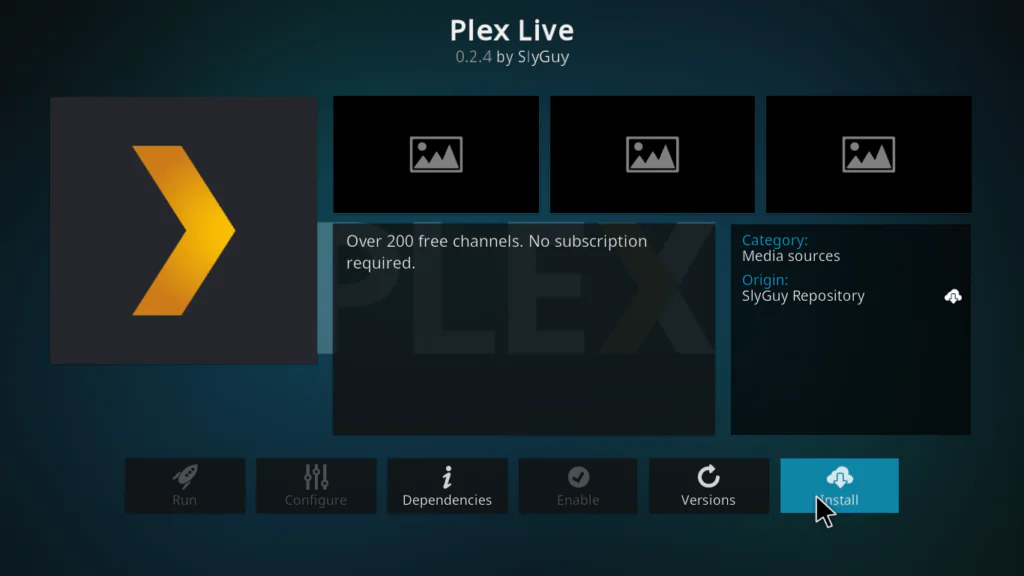
- Wait for the Add-on installed notification to appear in the top right corner
Step 6: Open and Set Up Plex Live
Almost there. Now let’s launch the addon.
- Go back to the Kodi home screen and click add-ons
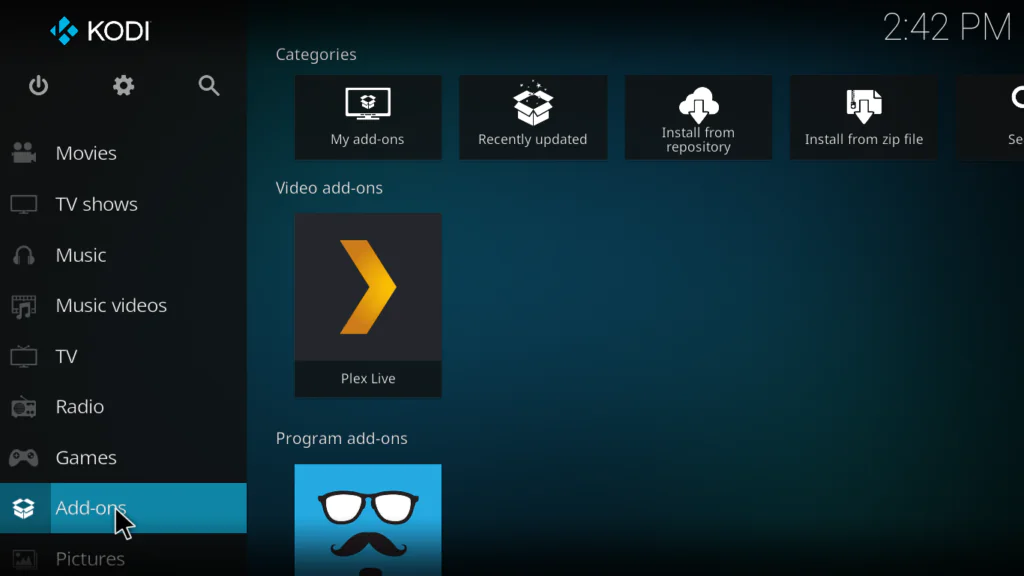
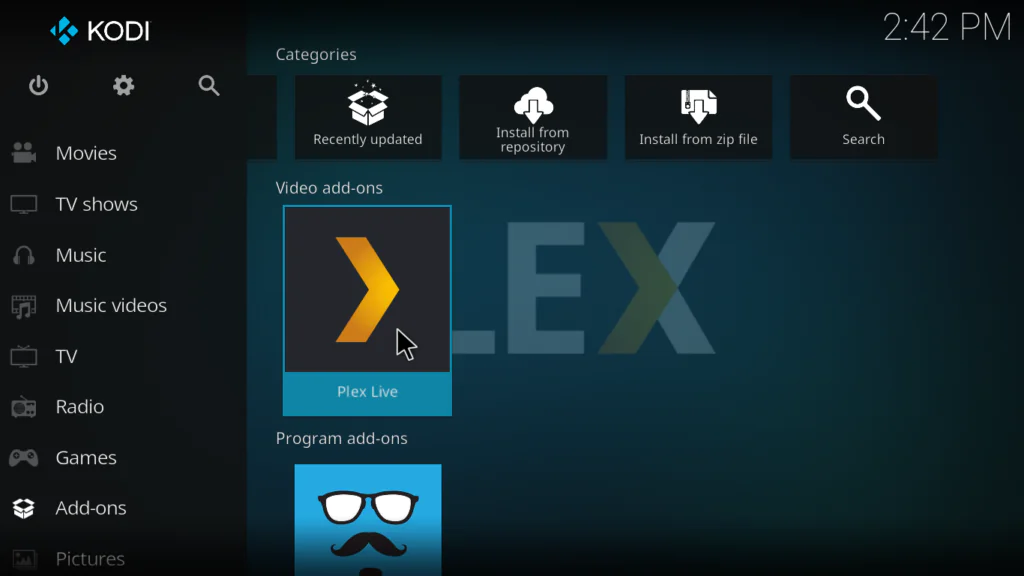
- Find Plex Live and click on it
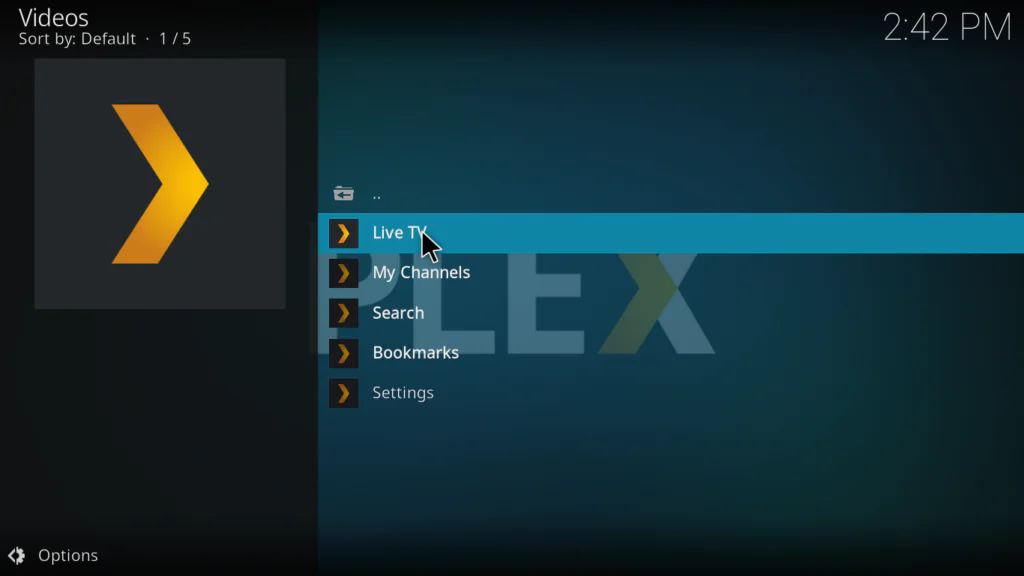
- Click Live TV to browse all available channels
- Select your country or region when prompted
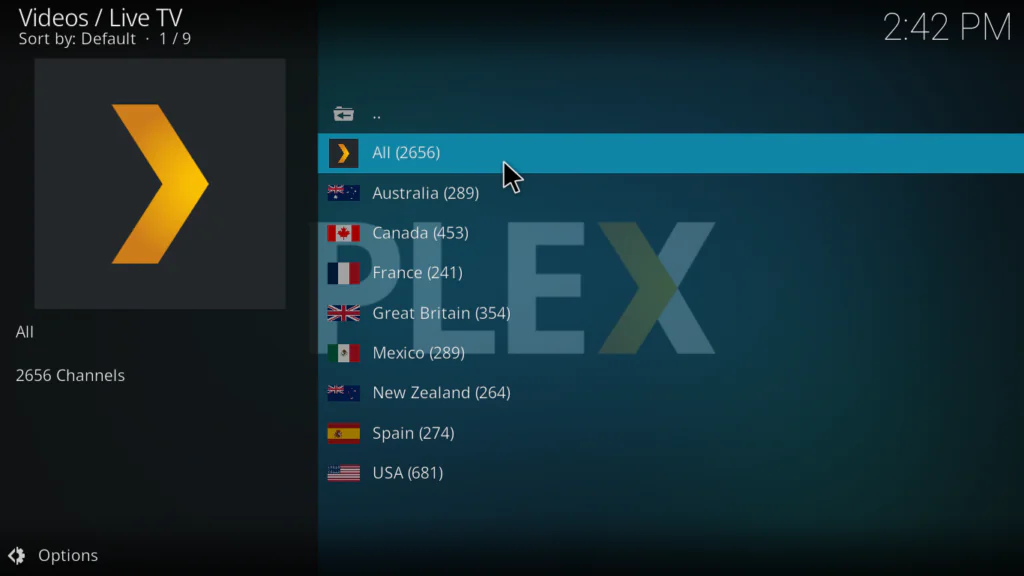
- Click any channel to start streaming
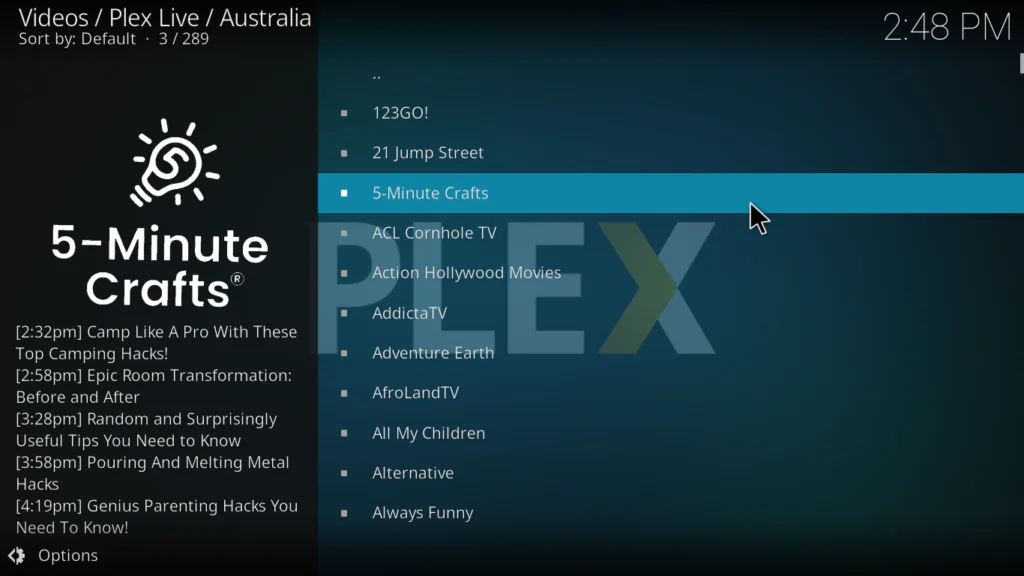
That’s it. You’re now watching free live TV inside Kodi.
How to Use the Plex Live Kodi Addon After Installing
Here’s a quick rundown of how to get the most out of the addon:
- Live TV — browse all available channels organized by country and category
- My Channels — shows channels you’ve watched recently for quick access
- Search — find specific channels by name without scrolling through the full list
- Bookmarks — save your favourite channels so you can get to them instantly
- Settings — change your country, adjust video quality, and configure other options
One thing worth mentioning: you don’t need to sign in with a Plex account to use the basic live TV features. Just open the addon and start watching. However, if you do sign in with a free Plex account, you may unlock additional personalization options.
My Personal Experience with Plex Live on Kodi
I’ve tested a lot of free live TV addons on Kodi — and I mean a lot. Most of them either have outdated links, terrible stream quality, or they disappear after a few weeks.
Plex Live is different.
What I liked most: The streams are genuinely reliable. I tested it on a Kodi 21 setup and went through about 20 different channels — almost all of them loaded within 5 seconds. The video quality was clean and stable on a 20 Mbps connection. No pixelation, no constant buffering.
The Bookmarks feature is something I didn’t expect to care about but ended up using all the time. Once I found my three or four go-to news channels, I bookmarked them and now I get to them in two clicks.
What I didn’t like: The channel selection outside the US is noticeably thinner. I’m in Morocco and found maybe 30-40% of the channels were accessible without a VPN. Once I switched my VPN to a US server, the full catalog opened up.
Who should install this: Honestly, anyone who wants free legal live TV on Kodi. Whether you’re a beginner just getting started with Kodi or someone who’s been using it for years — Plex Live is one of the cleanest, most reliable free options available right now. It’s one of the first addons I recommend to anyone asking about the best Kodi addons.
Tips to Get the Best Streaming Experience
A few things that make a real difference:
- Use a wired Ethernet connection instead of Wi-Fi — live TV benefits massively from a stable connection
- If streams are buffering, go into the addon Settings and reduce the video quality — it helps a lot on slower connections
- Use a VPN to access US channels if you’re outside the US — it also protects your privacy. For a good overview of why this matters, check out this online privacy guide by the EFF at eff.org/issues/privacy
- Bookmark your favourite channels right away — it saves a lot of time later
- Update the SlyGuy Repository regularly — Kodi handles this automatically, but you can trigger it manually from the repo settings
- If the addon feels slow, clear Kodi’s cache using a maintenance addon — it makes everything run smoother
If you run into problems that go beyond this addon — like Kodi crashing or not loading — check out this Kodi not working fix guide for the most common solutions.
Pros and Cons of the Plex Live Kodi Addon
Pros:
- 100% free and completely legal to use
- No account or sign-in required for basic live TV
- Large channel selection across multiple countries — US, UK, Canada, Australia, Mexico, Spain, New Zealand
- Hosted on the trusted SlyGuy Repository — regularly updated and maintained
- Clean interface with useful features like Search and Bookmarks
- Very reliable streams compared to most free live TV addons
- Works on Kodi 20 and 21 on all major devices
Cons:
- Geo-restricted channels — best selection is in the US
- Ad-supported — commercial breaks are normal and expected
- Requires Unknown Sources to be enabled — a minor hurdle for beginners
- Not an official Kodi addon — depends on SlyGuy Repository staying active
- Some channels listed may not stream in all regions without a VPN
Troubleshooting Common Problems
Plex Live not loading after installation?
Go back and double-check the repo URL. It must be exactly: https://slyguy.uk — no extra spaces, no typos. If it still doesn’t work, try the alternative URL: https://k.slyguy.xyz
Streams buffering constantly?
Lower the video quality in the addon Settings. Also try switching from Wi-Fi to a wired connection — this fixes buffering in most cases.
Channels showing as unavailable?
This is usually a geo-restriction issue. Try a VPN set to a US server. Also make sure your SlyGuy Repository is up to date.
Addon installed but not showing up in Video Add-ons?
Restart Kodi completely. If it still doesn’t appear, uninstall and reinstall the addon from the SlyGuy Repository.
FAQs
Is the Plex Live Kodi addon completely free?
Yes. Plex Live TV is a free, ad-supported service. You don’t need a Plex account, a Plex Pass, or any subscription to use it through Kodi.
Where exactly does the Plex Live Kodi addon come from?
It’s hosted in the SlyGuy Repository — one of the most trusted third-party Kodi repositories available. The official repo URL is https://slyguy.uk.
Why can’t I see all Plex Live channels in my country?
Plex Live has geo-restrictions on many channels, especially US-based ones. Using a VPN connected to a US server is the most reliable way to access the full channel list from outside the US.
Does Plex Live work on Kodi 21 Omega?
Yes. The Plex Live addon through SlyGuy is compatible with both Kodi 20 Nexus and Kodi 21 Omega — the two most current versions as of 2026.
Do I need to create a Plex account to use Plex Live on Kodi?
No. You can access the basic Plex Live TV channels without signing in. Creating a free Plex account is optional and unlocks some additional personalization features.
Is the SlyGuy Repository safe to use?
Yes. SlyGuy is one of the most well-known and respected third-party Kodi repositories. It hosts only legal streaming addons and is regularly maintained and updated.
Conclusion
The Plex Live Kodi addon is one of the best free live TV addons you can install on Kodi right now — and it’s not even close.
It’s legal, it’s reliable, the streams actually work, and it’s hosted on one of the most trusted repositories in the Kodi community. Whether you’re in the US looking for a full free TV replacement, or outside the US looking for a solid international streaming option — Plex Live delivers.
Follow the six steps in this guide, and you’ll be watching free live TV on Kodi in under ten minutes.
Got questions or ran into a problem during installation? Drop a comment below — I reply to every one.