If you’ve been searching for a fast, well-built Kodi addon that covers movies and TV shows without making you jump through hoops, learning how to install Quicksilver Kodi is worth your time. It’s one of the addons that keeps coming up in Kodi communities for good reason — clean interface, reliable scraping, and a setup process that doesn’t take long even for complete beginners.
Kodi is a free, open-source media center that works across Android TV boxes, Amazon Fire Stick, Windows, Mac, Raspberry Pi, and most other devices. It plays local media out of the box, but community-built addons are what turn it into a proper streaming platform. Quicksilver is one of those addons.
In this guide I’ll walk you through the complete install Quicksilver Kodi process step by step, cover everything you need to know about the addon itself, and give you my honest take on how it actually performs in real use.
What Is the Quicksilver Kodi Addon?
Quicksilver is a community-developed Kodi video addon that aggregates freely available content from across the web and presents it inside a single, organized interface. Like most modern Kodi addons, it doesn’t store any content itself — it scrapes publicly accessible sources and pulls stream links directly into Kodi so you can browse and play without switching apps.
It’s built with speed in mind. Scraping results load quickly, the interface is lightweight, and navigation feels snappy even on lower-powered devices like older Android TV boxes.
Key features of Quicksilver include:
- Fast scraping engine with short load times
- Wide content library covering Movies, TV Shows, and trending titles
- Multiple stream sources listed per title for reliable fallback options
- Real-Debrid and Trakt support for premium quality and watch syncing
- A clean, well-organized interface that works well for beginners
- Regularly maintained and updated by the development team
- Compatible with most Kodi-supported devices and platforms
Who is Quicksilver best for? It’s a great choice for users who want a straightforward, no-fuss addon that loads fast and covers a broad range of content. If you’ve used older addons that feel slow or cluttered, Quicksilver is a noticeable step up in both speed and interface quality.
Is Quicksilver Kodi Addon Safe and Legal?
Kodi is completely legal software. It’s an open-source media player maintained by the XBMC Foundation and downloaded by millions of users worldwide. Installing Kodi and exploring its addon ecosystem is entirely within the law.
Quicksilver, as a community addon, aggregates links to freely available online media. As with any streaming tool that connects to the web, using it responsibly and in line with your local regulations is important. Always make sure the content you access is freely and legally available in your region.
On the privacy side, using a trusted VPN alongside any streaming activity is a sensible practice. A VPN like NordVPN or Surfshark encrypts your internet connection, keeps your personal data protected on shared networks, and maintains your online privacy regardless of what you’re doing online.
This article is written for educational purposes only.
What You Need Before You Start
Run through this quick checklist before beginning the installation:
- Kodi 19 (Matrix) or higher — Kodi 20 Nexus or Kodi 21 Omega are strongly recommended
- Unknown Sources enabled in Kodi settings — covered in the next section
- A stable internet connection — 10 Mbps minimum, 25 Mbps or more for consistent HD playback
- Optional: A Real-Debrid account for premium stream quality
- Optional: A Trakt account for watch history and progress syncing
- Optional: A VPN for general online privacy
Not on the latest Kodi version yet? Grab the most recent release directly from the official Kodi website before continuing.
How to Enable Unknown Sources in Kodi
Kodi blocks external addon installations by default. You need to enable Unknown Sources once before any third-party addon can be installed. If you’ve already done this for a previous addon, skip ahead to the next section.
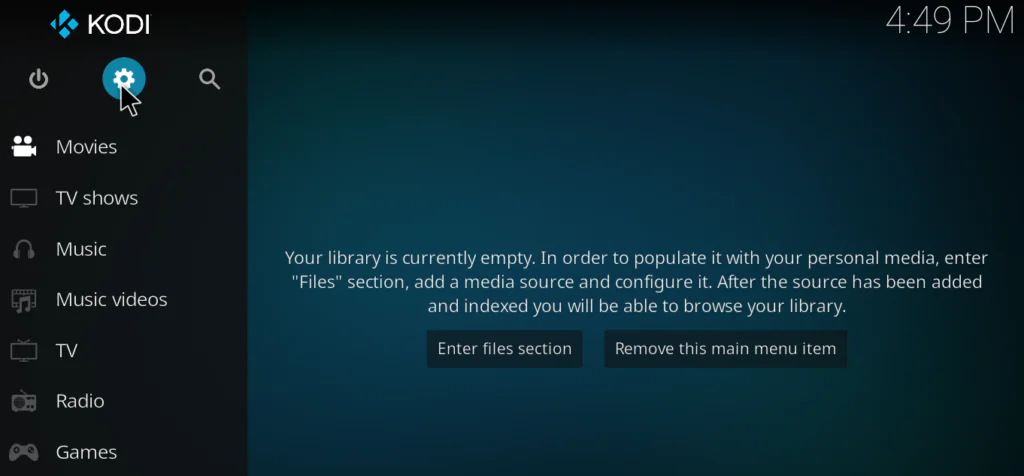
Step 1: Open Kodi and click the gear icon to open the Settings menu.
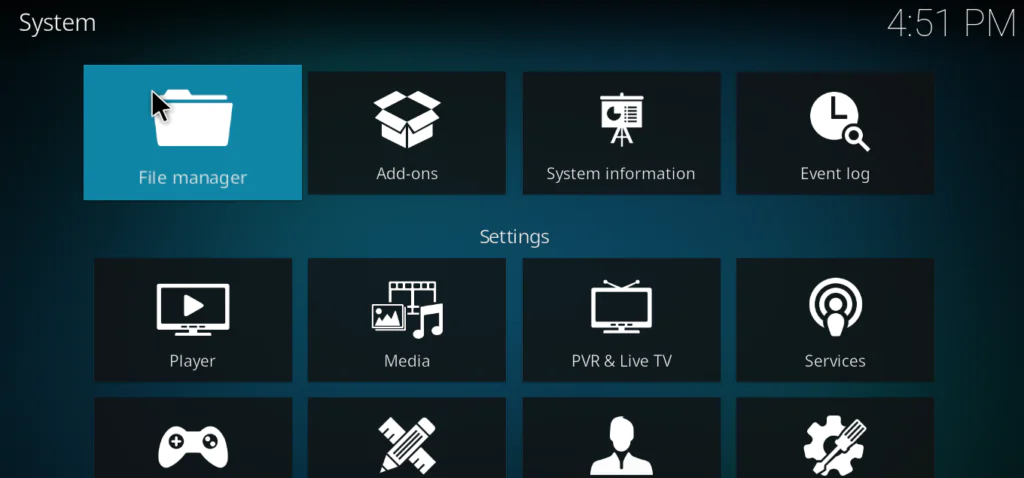
Step 2: Select System from the Settings menu.
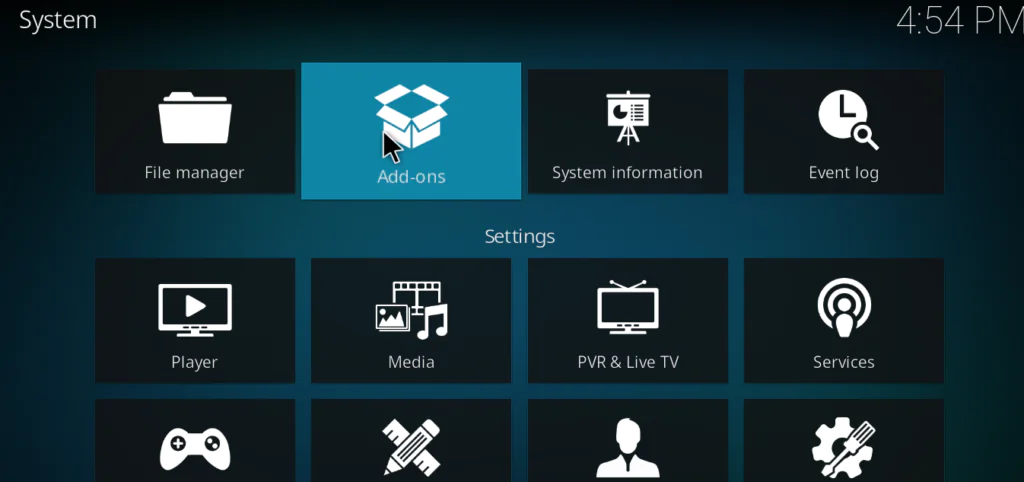
Step 3: In the left sidebar, select Add-ons.
Step 4: Toggle Unknown Sources to the ON position. When the warning dialog appears, click Yes to confirm.
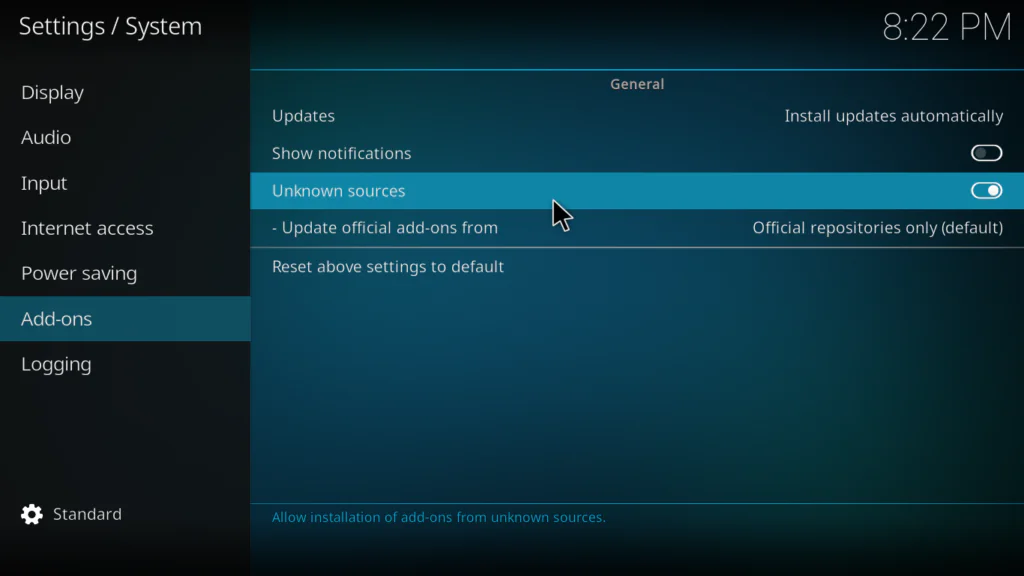
Unknown Sources is now active. Kodi will allow external repository installations going forward.
How to Install Quicksilver Addon on Kodi
The installation runs through three stages: adding the source URL, installing the repository, then installing Quicksilver from within that repository. Take each stage one at a time and the whole process takes under five minutes.
Stage 1 — Add the Repository Source URL
Step 1: From the Kodi home screen, go to Settings → File Manager.
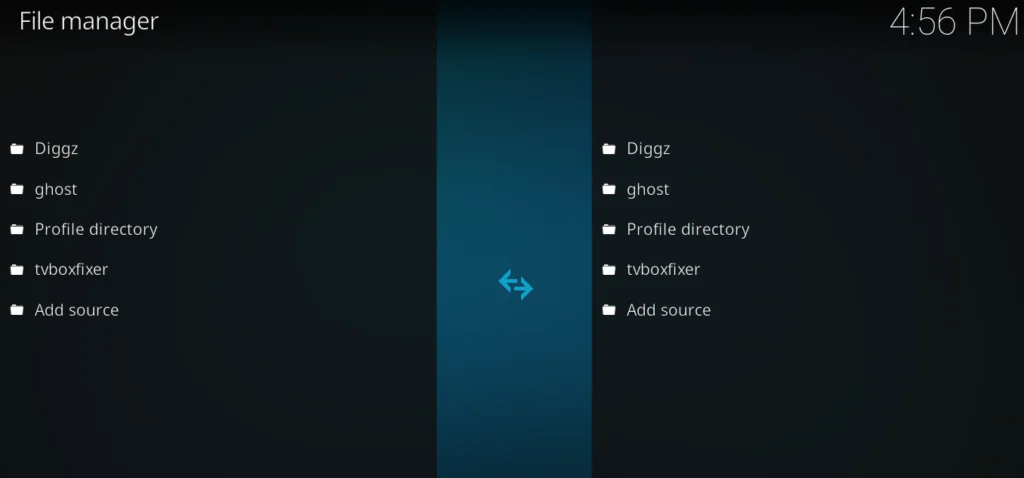
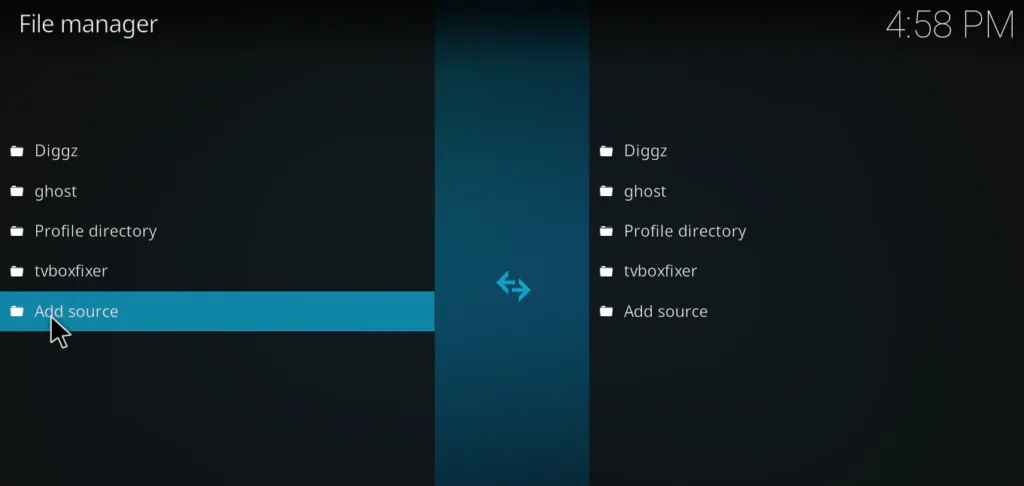
Step 2: Double-click Add Source at the top of the left panel.
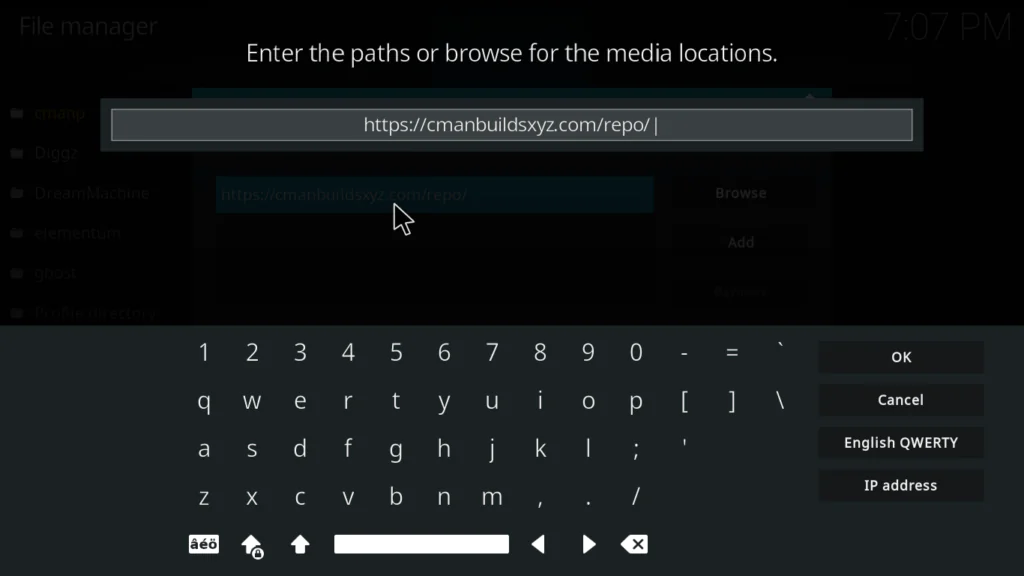
Step 3: Click <None> and type in the Quicksilver repository URL. Always verify the current working URL from the official Quicksilver GitHub page or the Kodi community forums, as repository addresses can change between addon updates.
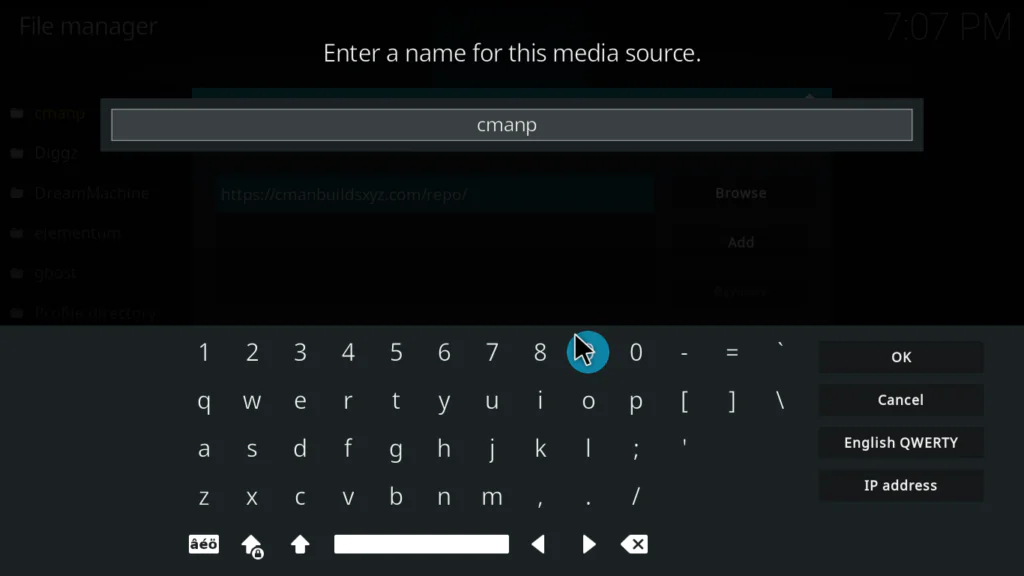
Step 4: In the name field below, type Quicksilver so it’s easy to identify later. Click OK to save the source.
Stage 2 — Install the Quicksilver Repository
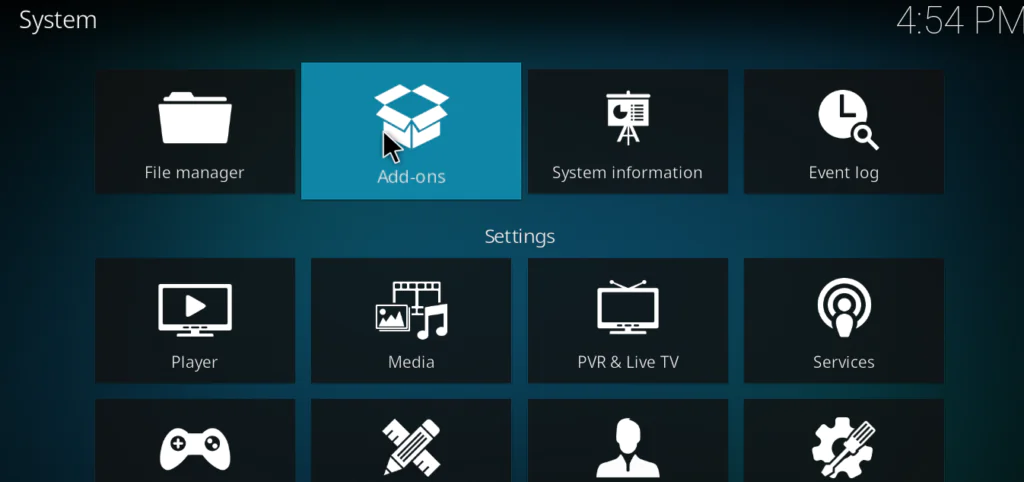
Step 1: Return to the Kodi home screen. Navigate to Add-ons, then click the open box icon in the top-left corner of the Add-ons screen.
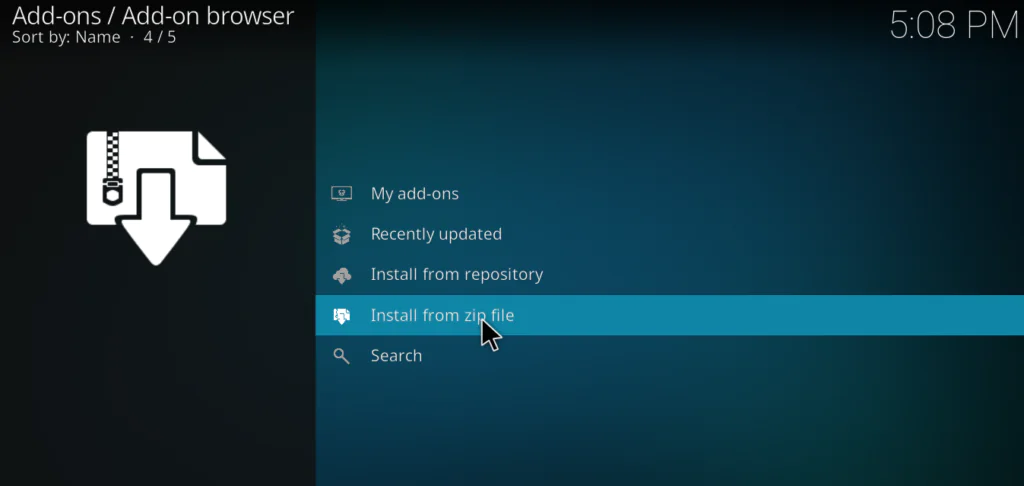
Step 2: Select Install from zip file from the menu.
Step 3: Find and select Quicksilver from the source list — this is the source you added in Stage 1.
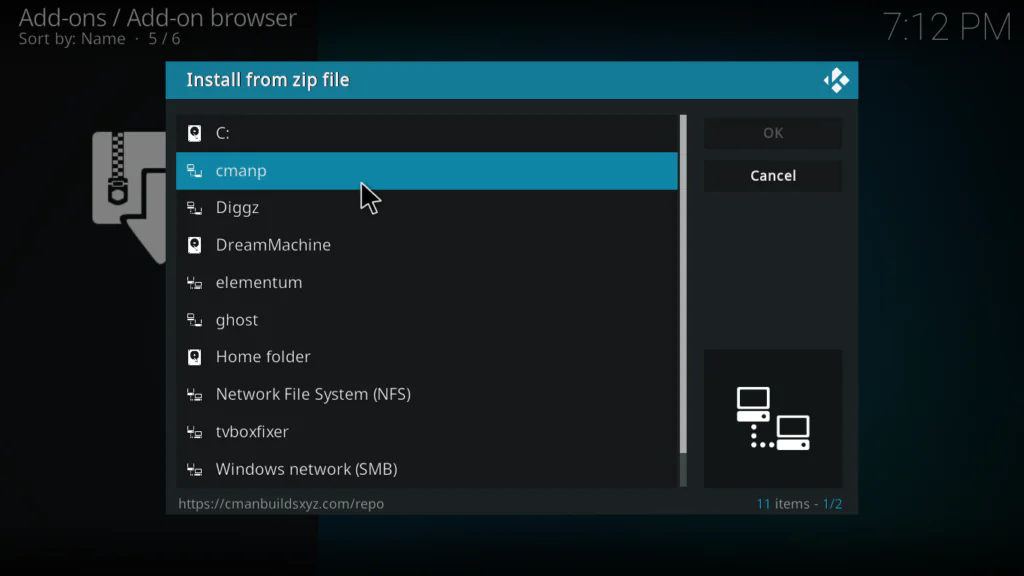
Step 4: Select the repository zip file inside it. Wait a moment for the “Add-on installed” notification to appear in the top-right corner of the screen.
Stage 3 — Install the Quicksilver Addon
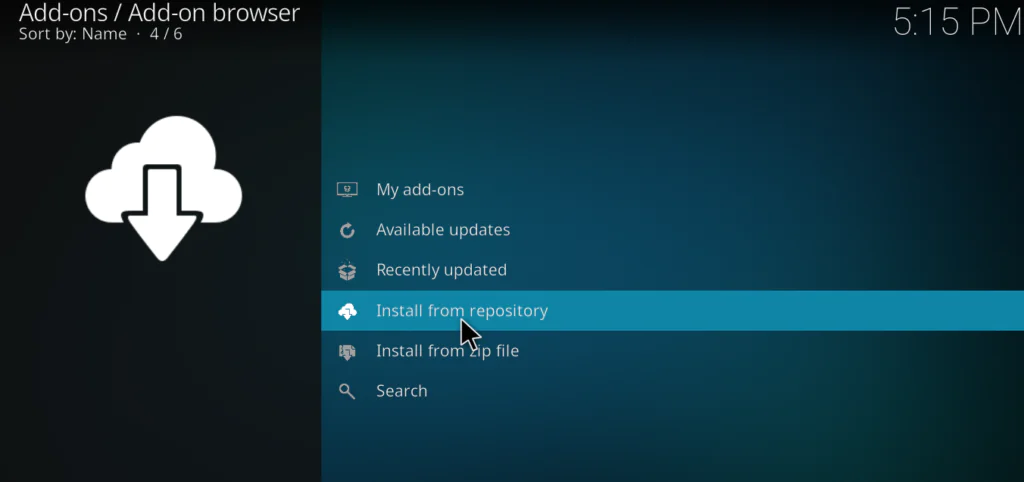
Step 1: Back inside the Add-on browser, select Install from repository.
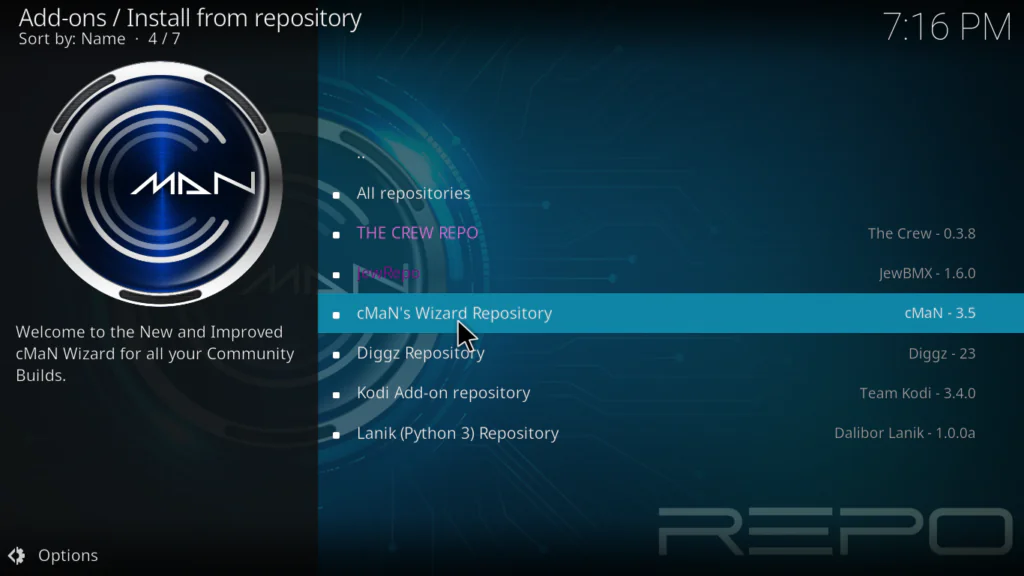
Step 2: Select the Quicksilver Repository from the repository list.
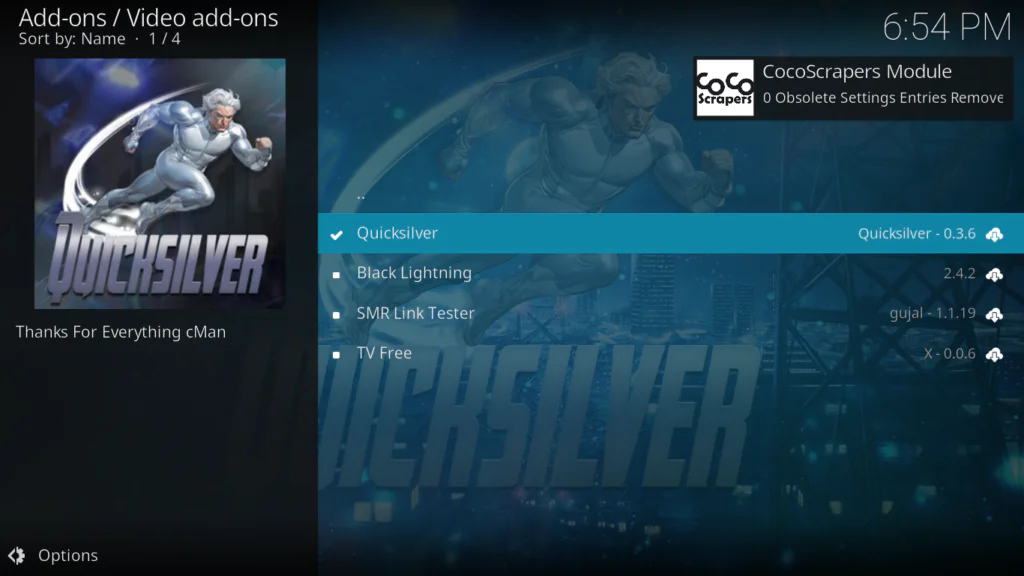
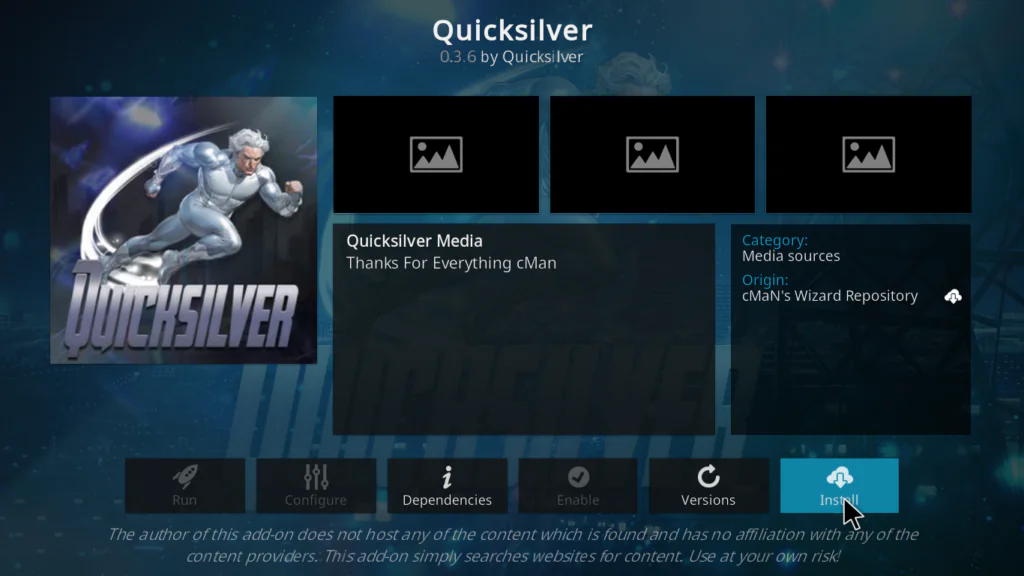
Step 3: Navigate to Video add-ons, find Quicksilver in the list, and click Install.
Step 4: Kodi will automatically download and install Quicksilver along with any required dependencies. Wait for the “Quicksilver Add-on installed” notification to confirm everything is done.
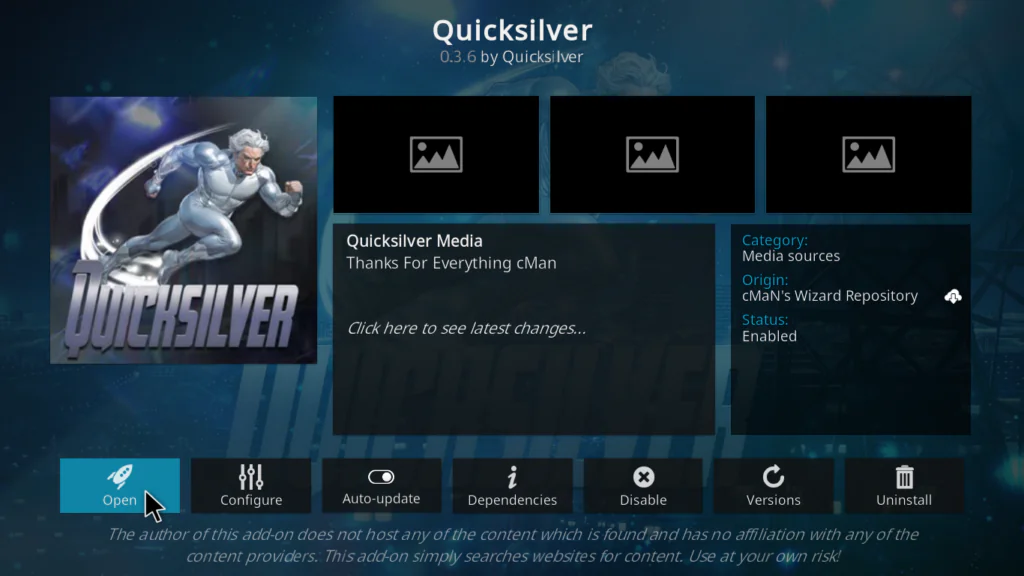
The install Quicksilver Kodi process is complete. You’ll find the addon listed under Add-ons → Video Add-ons on your Kodi home screen.
How to Configure Quicksilver After Installation
Before you start browsing, spend a couple of minutes on the basic configuration. It’s worth doing upfront.
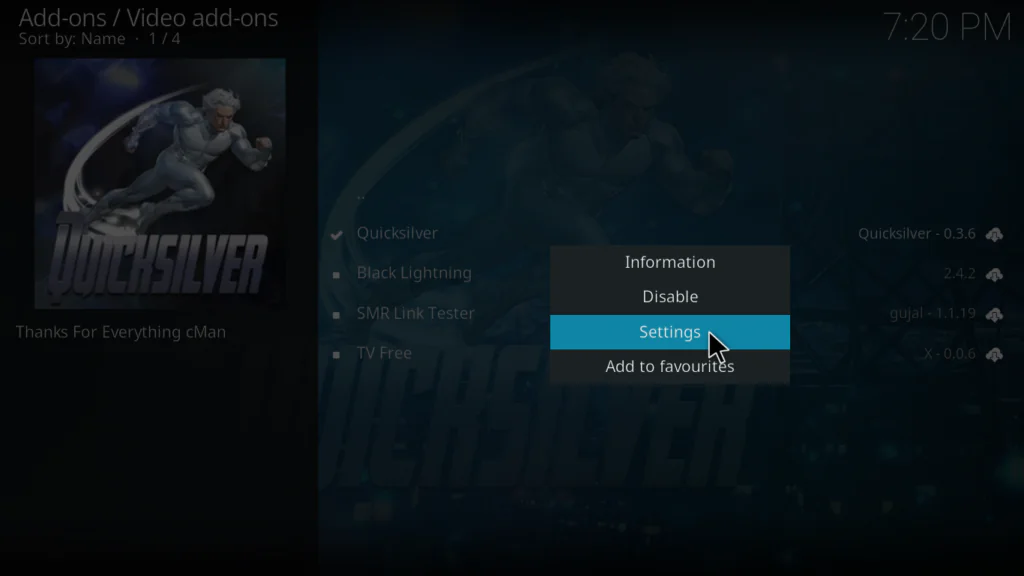
Step 1: Go to Add-ons → Video Add-ons → Quicksilver. Right-click or long-press and select Settings.
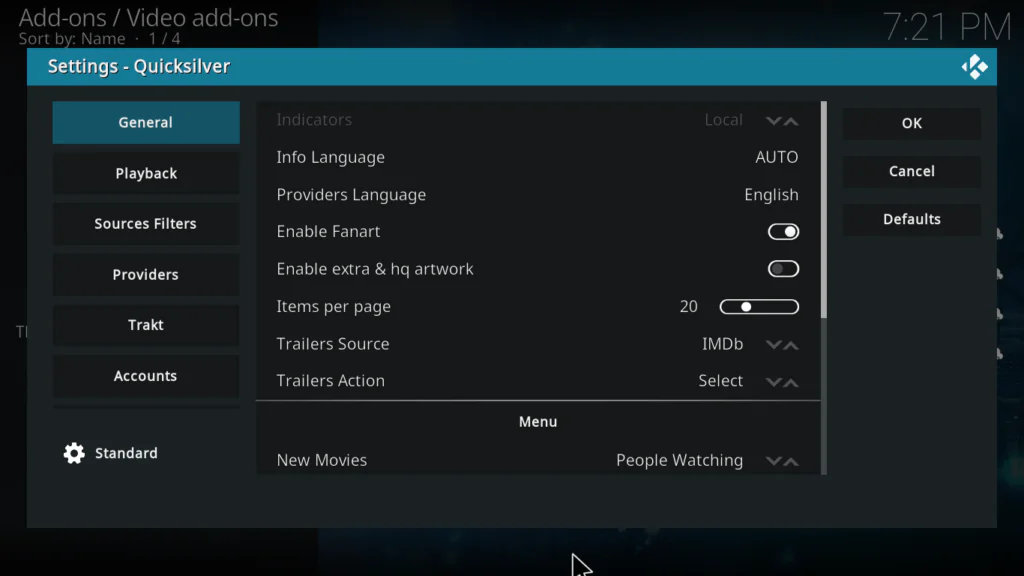
Step 2: Under the Providers or Scrapers tab, check that your content sources are active. Having multiple providers enabled gives you more stream options per title and better fallback coverage when individual links are unavailable.
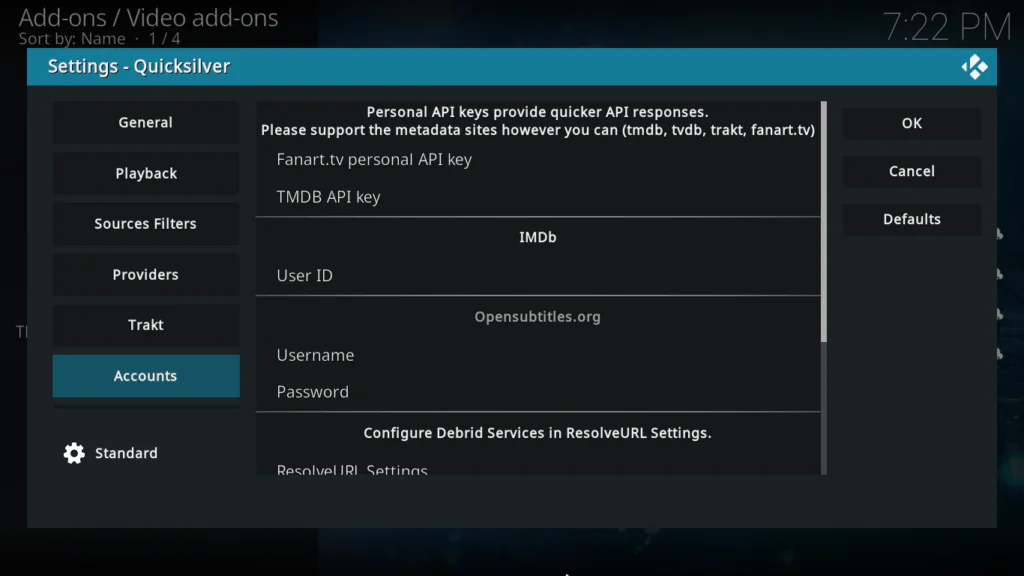
Step 3: If you have a Real-Debrid account, navigate to the Accounts or Services tab and enter your credentials. Real-Debrid caches premium streams server-side, which means faster load times and higher-quality playback across the board.
Step 4: Under Playback settings, set your preferred stream resolution. For most Android TV boxes on a solid internet connection, 1080p is the right default. If you run into buffering, dropping to 720p usually resolves it.

How to Use Quicksilver on Kodi
Open Quicksilver from your Video Add-ons list. The main menu is clean and easy to navigate from the first use.
Main menu sections you’ll find:
- Movies — Browse by genre, year, trending, or search by title
- TV Shows — Full series organized by season and episode
- New Releases — Recently added content updated regularly
- Trending — Popular titles pulled from Trakt data if connected
- Search — Universal search across movies and TV shows
To watch something, click on the title and Quicksilver will load available stream sources. Each result is listed with quality information where available. Pick a working link — if one doesn’t load, simply go back and try the next one down the list.
With Real-Debrid linked, you’ll see premium cached results near the top that load almost instantly and play without interruption.
If you want to dig deeper into optimizing your full Kodi setup, our guide on best Kodi settings for Android TV boxes covers cache adjustments, buffering fixes, and performance tweaks in full detail.
My Honest Experience With Quicksilver
I’ve put Quicksilver through proper daily use over a few weeks, so here’s a straightforward breakdown.
Speed: This is genuinely one of Quicksilver’s strongest points. Scraping results load faster than most comparable addons I’ve tested — usually under 15 seconds, which feels snappy in practice. You’re not sitting there waiting while a loading bar crawls across the screen.
Stream Quality: With Real-Debrid connected, quality is consistently good. I got clean, stable 1080p streams on a 50 Mbps connection without any issues. Without Real-Debrid, results are more of a mixed bag — you’ll find working streams, but quality varies depending on what’s available from free hosters at that moment.
Buffering: On premium streams via Real-Debrid, buffering was essentially a non-issue. On free sources, I hit the occasional pause during peak hours. This isn’t unique to Quicksilver — it’s standard behaviour for scraper-based addons. Tuning the cache settings (covered below) helps considerably.
Interface: Clean, lightweight, and well-organized. Nothing flashy, which I consider a positive — everything you need is where you’d expect it to be, and it performs well even on older or lower-powered devices. Menus respond quickly and don’t feel bloated.
Overall verdict: Quicksilver earns its reputation as a fast, dependable daily-use addon. Real-Debrid users will get the best out of it, but it holds up reasonably well on free streams too. If you want something that loads quickly, looks decent, and just works most of the time — this is a solid pick.
Pros and Cons of Quicksilver Kodi Addon
Pros
- Noticeably fast scraping and menu response times
- Clean, beginner-friendly interface
- Broad content library across movies and TV shows
- Real-Debrid and Trakt integration included
- Works well on lower-powered devices
- Actively maintained with regular updates
Cons
- Free stream quality can be inconsistent without Real-Debrid
- Occasional broken or unavailable links on free sources
- Repository URL may change after major updates, requiring a reinstall
- Requires a reliable internet connection for smooth HD playback
Best Settings for Better Performance
A few targeted tweaks will get the most out of Quicksilver on your setup.
1. Increase Kodi’s cache size Edit the advancedsettings.xml file in your Kodi userdata folder and set the cache to at least 500MB. This gives incoming streams room to buffer ahead and dramatically reduces mid-playback interruptions. If you’ve never edited this file before, the official Kodi wiki has a clear walkthrough.
2. Connect Real-Debrid Linking a Real-Debrid account is the single most impactful change you can make to Quicksilver’s performance. Premium cached streams load almost instantly and play at high quality without relying on free hosters. If you’re serious about using Quicksilver regularly, Real-Debrid is worth the small monthly cost.
3. Trim your active providers Inside Quicksilver’s scraper settings, you can toggle individual providers on and off. Disabling consistently slow or unreliable providers speeds up your results list and reduces the number of dead links you have to skip through.
4. Set a preferred resolution In the Playback settings, define your default resolution preference. Quicksilver will then automatically prioritize matching results so you’re not manually filtering every single search.
5. Switch to a wired connection where possible If your streaming device is close to your router, use an Ethernet cable instead of Wi-Fi. The stability improvement is especially noticeable during longer movie streams where a momentary Wi-Fi dropout can cause a buffer or forced restart.
Troubleshooting Common Issues
Even with a clean installation, you might run into a couple of common issues. Here’s how to handle them.
Addon not showing up after installation Restart Kodi completely. If Quicksilver still doesn’t appear under Video Add-ons, go back to the repository and confirm the installation completed without errors. Sometimes a slow connection causes a dependency to fail silently.
No streams found for a title This usually means your providers aren’t active or the scrape timed out. Go into Settings → Providers and make sure multiple sources are enabled. Also check your internet connection is stable.
Buffering on every stream First, try a different stream source from the results list. If buffering persists across multiple sources, the issue is likely your connection speed or cache settings. Increase the Kodi cache as described above and test again.
Repository URL stopped working Repository URLs do change occasionally after addon updates. If your source stops working, check the Quicksilver GitHub page or Kodi community forums for the current active URL and repeat Stage 1 of the installation with the new address.
Conclusion
Quicksilver is a well-built, fast-loading Kodi addon that holds its own against most alternatives in 2026. The install Quicksilver Kodi process follows the same reliable three-stage pattern — source, repository, addon — and the whole setup takes less than ten minutes once you know what you’re doing.
It’s a particularly strong choice for users who prioritize speed and interface quality, and it becomes genuinely excellent once paired with Real-Debrid. Even without a premium account, it delivers a solid browsing and streaming experience that beats a lot of older, slower addons.
If you’re putting together a reliable Kodi addon collection this year, Quicksilver is worth adding to the list.
Run into any issues during the installation or configuration? Leave a comment below and I’ll help you get it sorted.