⚠️ Disclaimer: This tutorial is for educational purposes only. TVBoxFixer.com does not host, distribute, or own any third-party addons. Users should ensure they have the legal right to access content through any addon they use.
Ghost Kodi is a third-party video addon that scrapes sources from across the web and organizes them into clean categories inside Kodi. If you are looking for a fast, lightweight Ghost Kodi addon that works well on budget Android TV boxes, this is one of the best options available right now. I have tested a lot of addons on this site, and Ghost Kodi stands out for its speed and clean interface.
Spoiler: I was not disappointed.
This guide walks you through exactly how I installed it, what I ran into along the way, and whether I think it is actually worth your time.
What Is the Ghost Kodi Addon?
Ghost is a third-party Kodi video addon. It scrapes video sources from across the web and organizes them into clean categories inside the Kodi interface. Movies, TV shows, trending content — it is all in there.
What makes Ghost stand out from most addons I have tested is how fast it loads results. A lot of addons make you sit and wait while the spinner goes round and round. Ghost felt noticeably quicker on my box.
It is also lighter than it looks. I ran it on a budget Amlogic S905W device with 2GB of RAM and it never once caused a freeze or a crash.
My First Impression
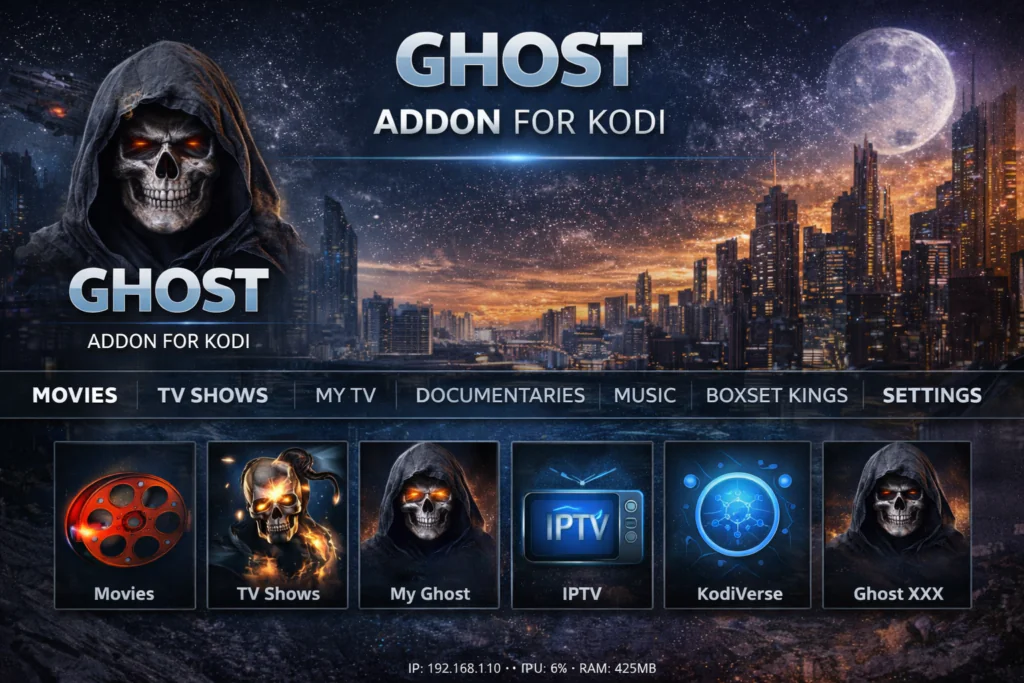
The first time I opened Ghost on my box I was genuinely surprised by how clean the interface looks. A lot of third-party Kodi addons still feel like they were designed in 2014. Ghost does not feel that way at all.
The categories are logical. The artwork loads properly. And when I ran my first search, results came back faster than I expected.
My honest first impression? This is one of the better-looking addons I have installed in a while. It actually makes you want to use it, which sounds like a small thing but matters more than people realize.
What You Need Before You Start
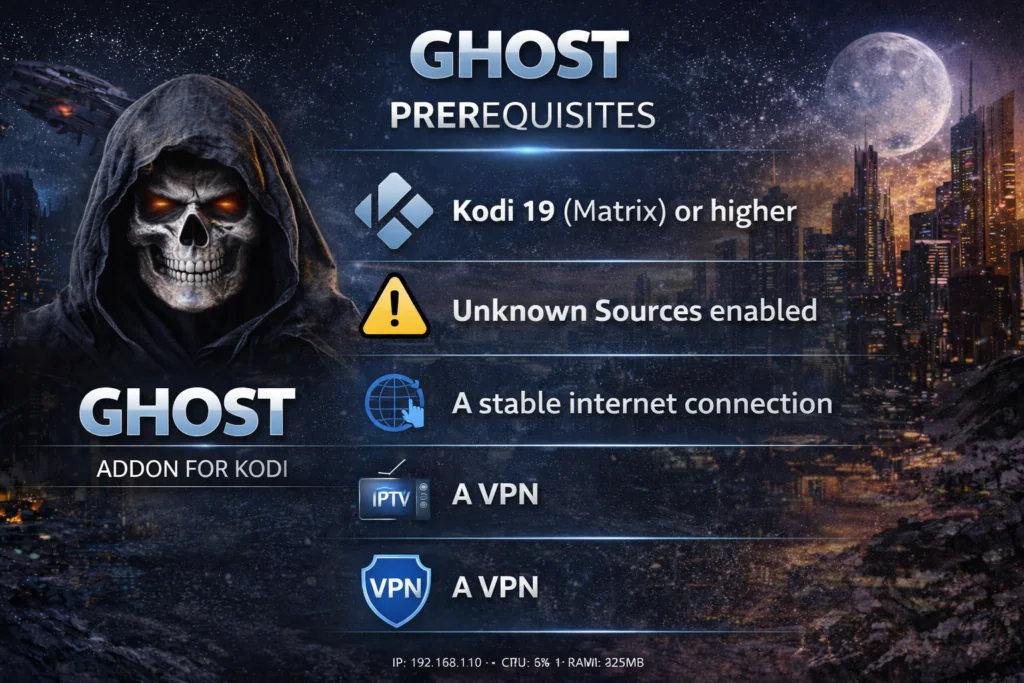
Before you touch anything, make sure these are all in place.
Kodi 19 (Matrix) or higher Ghost requires a modern version of Kodi. If you are running anything older, update first from the official site at kodi.tv/download.
Unknown Sources enabled Without this, Kodi will block the install completely. I will show you how to turn it on in Step 1.
A stable internet connection Weak Wi-Fi will cause the repository to time out. If possible, use Ethernet or sit close to your router.
A VPN (I always use one) This is my personal rule with every third-party addon. The scrapers Ghost uses can see your IP address. A VPN keeps your real address private. I connect before I even open Kodi. Check my guide on best VPNs for Android TV boxes if you need one.
Download the latest Kodi version for free at kodi.tv before you begin.
You can also read Kodi's official addon safety guide at kodi.wiki
Step 1 — Turn On Unknown Sources
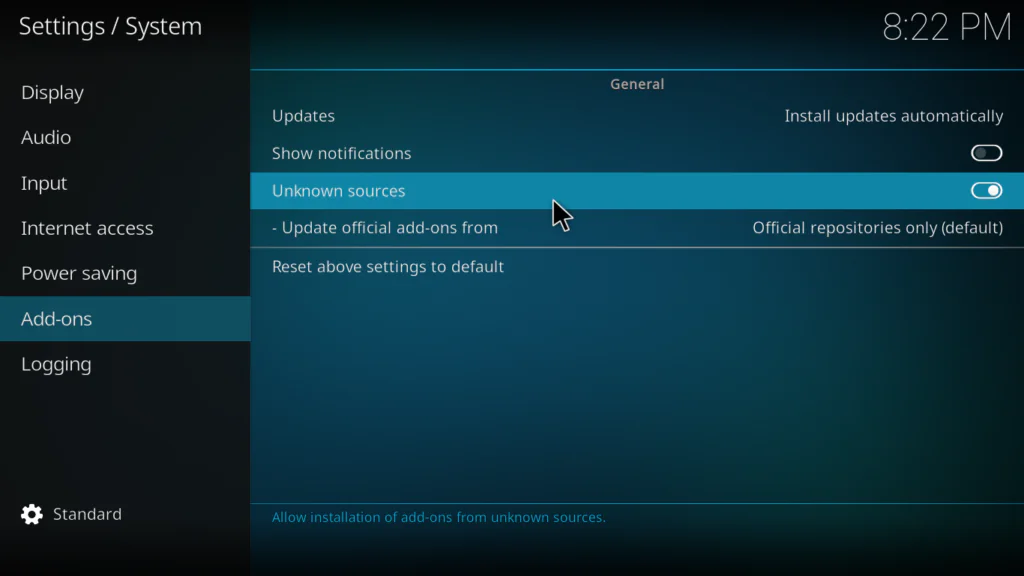
This is always the first step with any third-party Kodi addon.
- Open Kodi.
- Click the Settings gear icon.
- Go to System.
- Click Add-ons in the left menu.
- Toggle Unknown Sources to ON.
- Click Yes when the warning box appears.
Done. Kodi will remember this setting from now on.
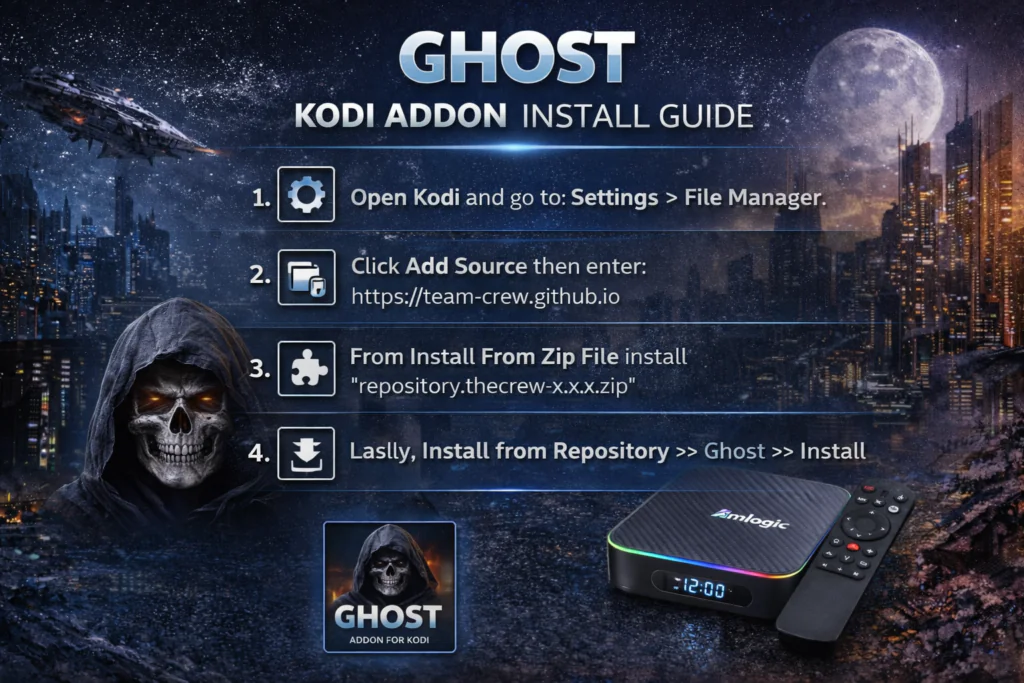
Step 2 — Add the Repository Source
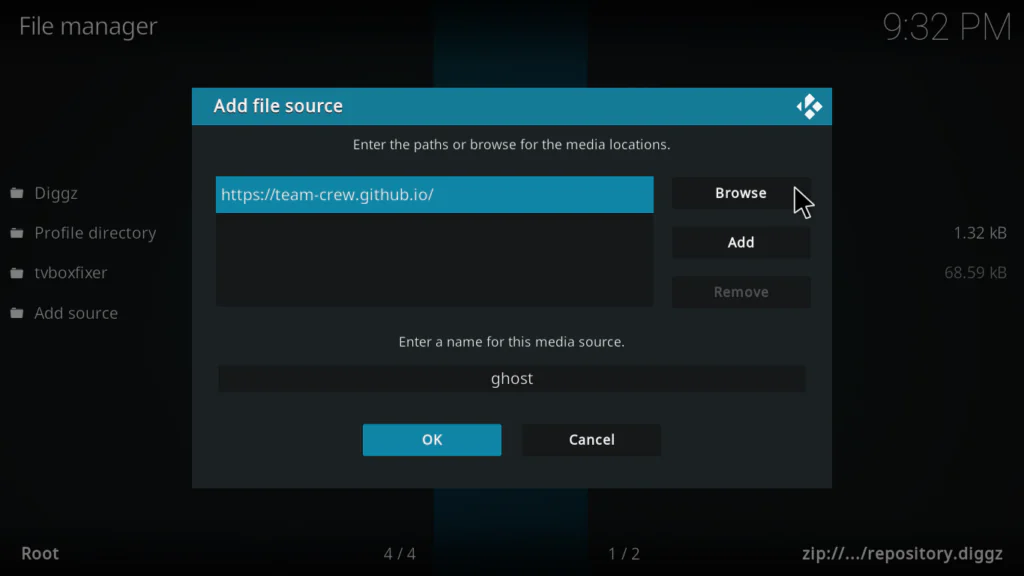
- Go back to Settings.
- Click File Manager.
- Double-click Add Source.
- Click <None>.
- Type the repository URL exactly:
https://team-crew.github.io/- Click OK.
- Name the source Ghost in the name field.
- Click OK to save.
I made the mistake the first time of adding a space after the URL. Nothing loaded. Double-check before you save.
Step 3 — Install the Repository
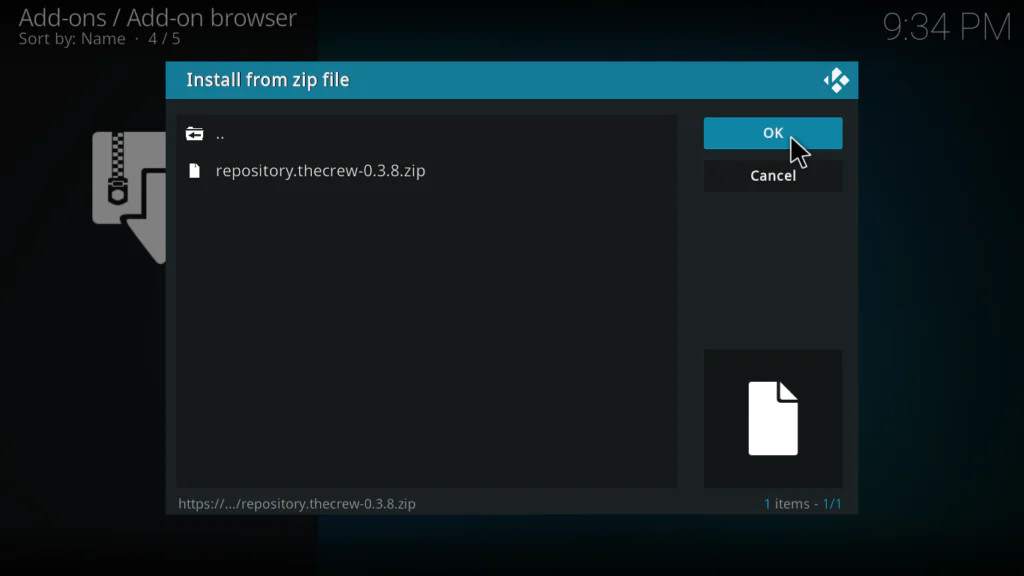
- Go to the Kodi home screen.
- Click Add-ons.
- Click the open box icon at the top left.
- Select Install from zip file.
- Click the Ghost source you just added.
- Select the repository zip file from the list.
- Wait for the Add-on installed notification.
If nothing shows up in the source folder, go back to File Manager and re-check the URL.
Step 4 — Install the Ghost Addon
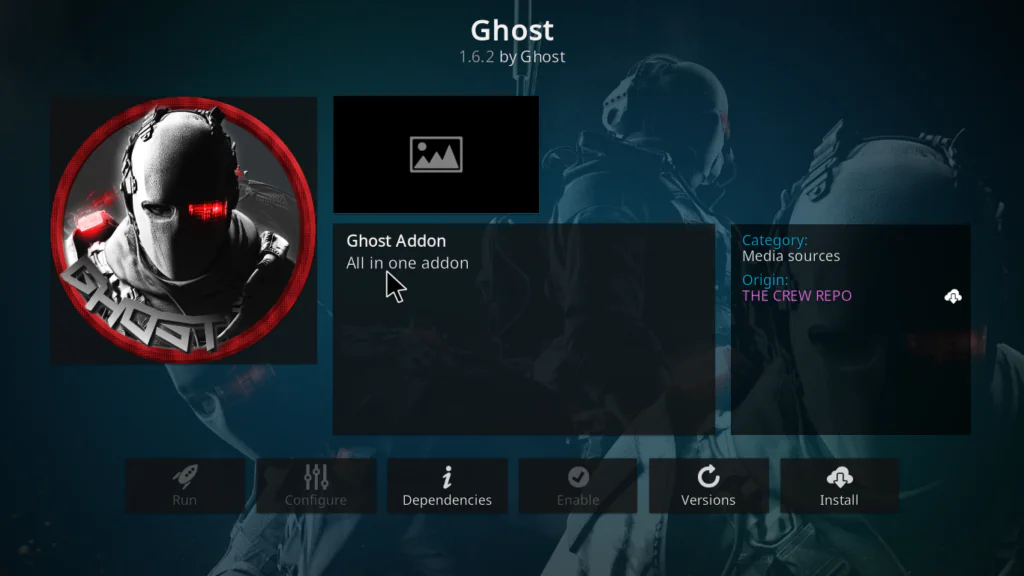
- Click the open box icon again.
- Select Install from repository.
- Find and click the Ghost Repository.
- Click Video add-ons.
- Find Ghost in the list.
- Click Install.
- Accept any dependency installs by clicking OK.
- Wait for the Ghost Add-on installed notification.
The whole install took about 20 seconds on my connection. Yours will depend on your speed.
How I Use Ghost Day to Day
Once it was installed I spent about an hour just browsing through it. Here is what I actually use it for:
I mostly use the search function. I type in whatever I am in the mood for and Ghost pulls results faster than most addons I have tried. The source quality is generally good and I rarely hit dead links on the first result.
I also like that it does not overwhelm you with dozens of categories you will never click. The menu is tight and focused, which makes it easier to navigate on a TV remote.
Protecting Your Privacy
I want to be straight with you on this. Every time Ghost runs a search, it is contacting external scraper servers. Those servers log connection requests, and your IP address is part of that request.
I always have my VPN running before I open Kodi. It takes two seconds and it means none of those external servers ever see my real IP address. If you do not have a VPN yet, it is worth getting one. Read Kodi’s own guidance on privacy at kodi.wiki/view/Settings/System/Add-ons.
Troubleshooting Ghost Kodi
Zip file not showing up in the source folder Re-check the URL in File Manager. Delete the source and add it again if needed.
Ghost not appearing in Video Add-ons Restart Kodi completely, then try Install from repository again.
Addon installed but returning no results Your connection may be throttled. Connect to a VPN and try again — this fixes it for me almost every time.
Ghost running slowly Close other apps on your Android TV box first. Ghost runs best when it has memory to work with. See my guide on fixing slow performance on Android TV boxes for more detail.
Check my full guide on fixing slow performance on Android TV boxes for more detail.
My Honest Personal Opinion
Okay, real talk.
I went into testing Ghost with low expectations. There are so many Kodi addons that promise a lot and deliver very little. Ghost is not one of those.
The speed genuinely impressed me. The interface looks better than it has any right to for a free addon. And I did not run into a single crash during my entire testing session, which is more than I can say for a lot of addons I have used over the years.
My one complaint is that source availability can be inconsistent depending on the day and your region. Some days everything works perfectly. Other days certain sources just do not load. This is not really a Ghost problem — it is a scraper problem that affects every third-party addon. But it is worth knowing going in.
Would I recommend it? Yes, without hesitation. Ghost is now one of the addons that stays permanently installed on my test box. That is the highest compliment I can give anything.
My rating: 4 out of 5.
Final Verdict
Ghost Kodi is fast, clean, and easy to install. It works well on low-powered hardware and does not ask much from your device.
If you are building a Kodi setup from scratch or looking to replace an addon that stopped working, Ghost is one of the first things I would install.
Give it a try. And if you hit any issues along the way, drop a comment below — I will get back to you.