If you want to take your Kodi setup to the next level, learning how to install Elementum Kodi is one of the best moves you can make. Elementum is not your typical Kodi addon — it works differently from most, and once you understand what it actually does, it starts to make a lot of sense.
Kodi is a free, open-source media player that runs on Android TV boxes, Fire Stick, Windows, Mac, and most other devices. On its own it plays local files. With the right addons, it becomes a full-featured media center. Elementum is one of those addons that sits at the engine level — it handles torrent-based playback directly inside Kodi, giving you fast access to high-quality streams through a built-in BitTorrent client.
In this guide I’ll walk you through the full Elementum Kodi installation process from scratch, explain what it actually does, and give you my honest take on how it performs in real use.
What Is the Elementum Kodi Addon?
Elementum is a torrent-based streaming addon for Kodi. Instead of scraping web hosts like most addons do, it connects to torrent sources and streams the content directly through a lightweight built-in BitTorrent engine — all without leaving Kodi.
It was built as the successor to the older Quasar addon, and it’s become one of the most reliable options in the Kodi community for people who want consistent, high-quality playback.
Key features include:
- Built-in BitTorrent engine — no external torrent client needed
- Streams torrent content directly inside Kodi, in real time
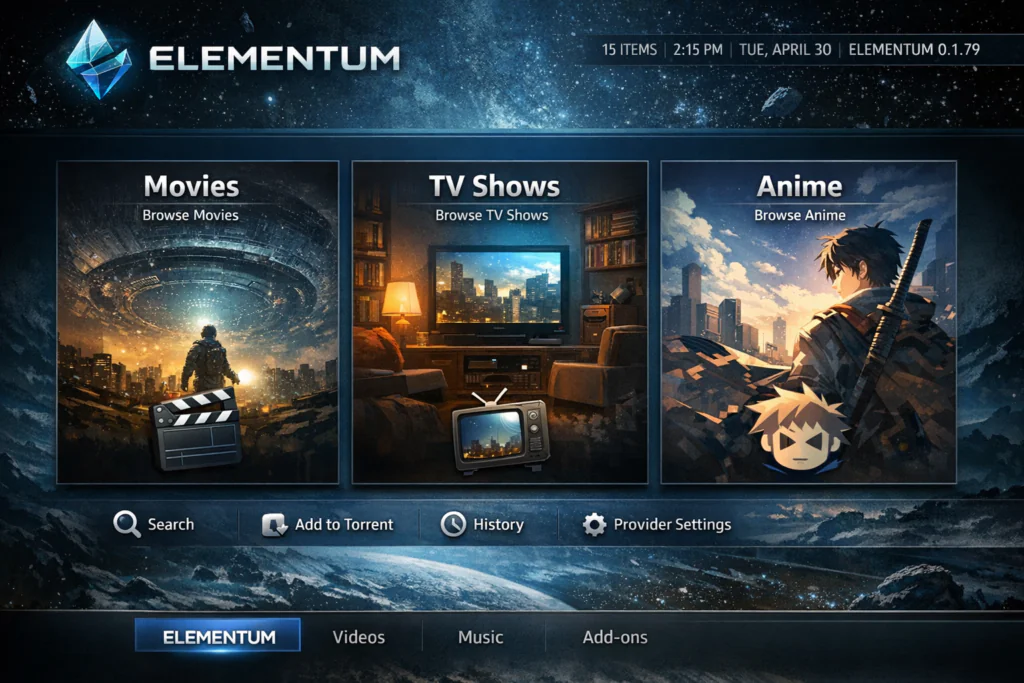
- Supports Movies, TV Shows, and Anime categories
- Trakt integration for watch history and progress syncing
- Real-Debrid support for premium stream quality
- Available for almost every platform Kodi runs on
- Actively developed and regularly updated
Who is it for? Elementum suits users who are frustrated with broken links and inconsistent quality from scraper-based addons. Because it pulls from torrent sources rather than web hosters, stream availability is generally more reliable and quality tends to be higher.
Is Elementum Safe and Legal?
Kodi itself is completely legal — it’s open-source software used by millions of people worldwide for local media playback and community addon streaming.
Elementum is a torrent-based addon. Torrenting technology itself is legal and widely used for legitimate file distribution. Many open-source projects, Linux distributions, and independent creators distribute content this way. Whether any specific content you access is licensed for free distribution depends on the source — always make sure you’re accessing content that is legally available in your region.
As with any internet-connected streaming activity, using a reputable VPN is a sensible habit. A VPN like NordVPN or ProtonVPN encrypts your connection, protects your data on shared networks, and keeps your browsing private. This is good practice regardless of what you’re streaming.
This article is for educational purposes only.
What You Need Before Starting
Make sure you have these ready before beginning the installation:
- Kodi 19 (Matrix) or higher — Kodi 20 Nexus or Kodi 21 Omega are recommended
- Unknown Sources enabled in Kodi settings (covered below)
- A stable internet connection — 10 Mbps minimum, 25+ Mbps recommended for HD torrents
- Optional: A Real-Debrid account for premium resolver support
- Optional: A VPN for general online privacy
Grab the latest Kodi release from the official Kodi download page if you haven’t updated recently.
How to Enable Unknown Sources in Kodi
If you’ve already enabled Unknown Sources from a previous addon installation, skip ahead to the next section. If not, here’s how to do it quickly.
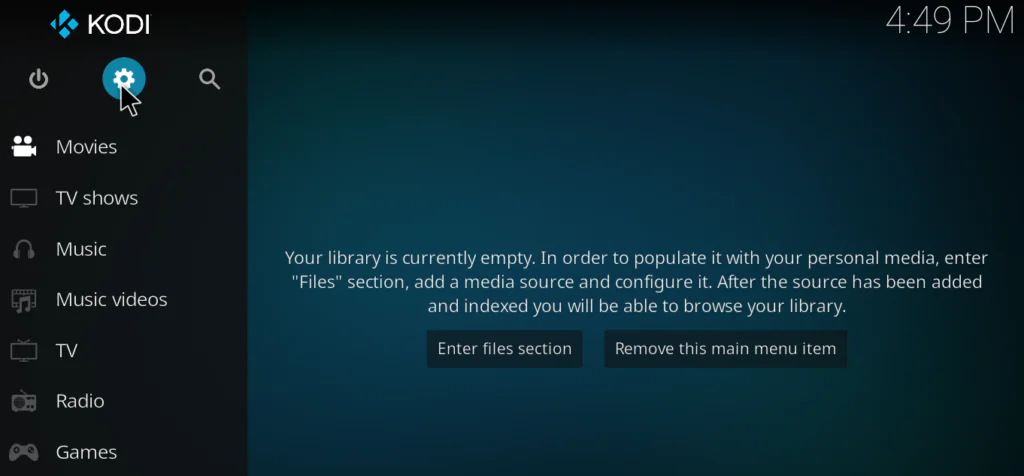
Step 1: Open Kodi. Click the gear icon to enter Settings.
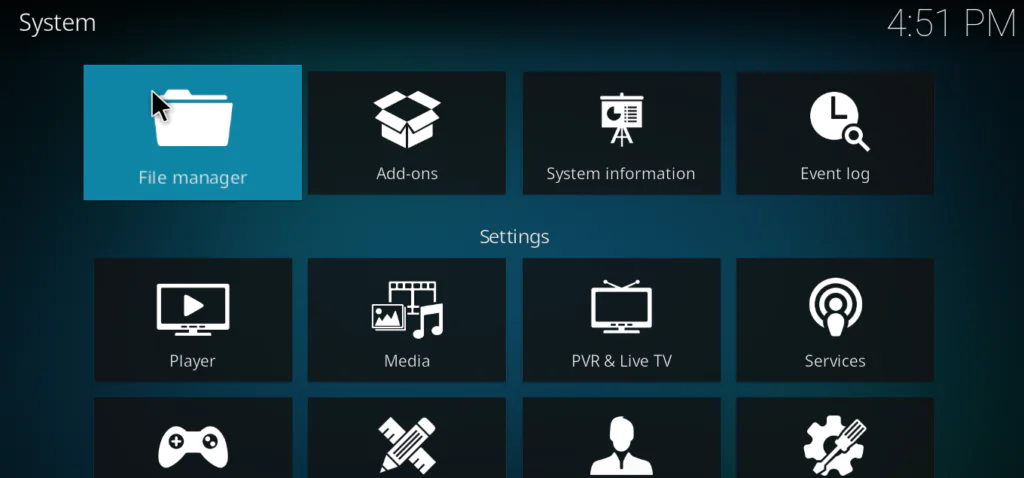
Step 2: Go to System.
Step 3: Select Add-ons from the left sidebar.
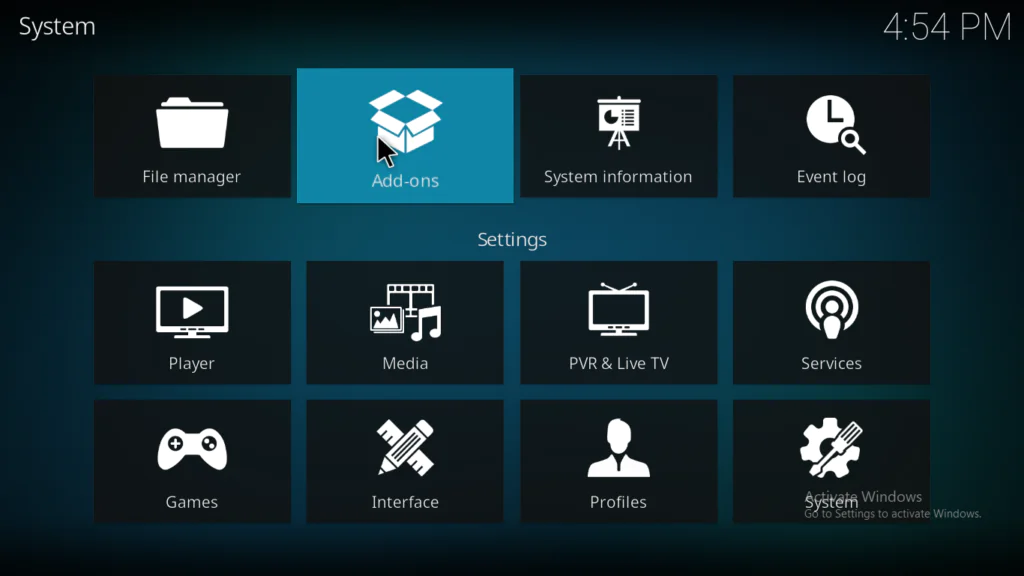
Step 4: Toggle Unknown Sources to ON. Click Yes on the warning dialog to confirm.
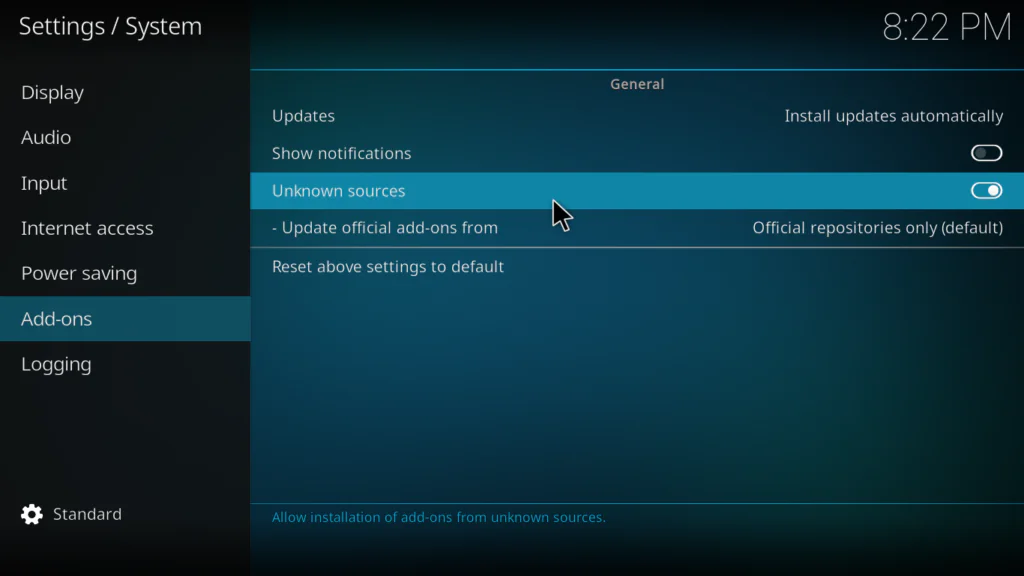
Done. Kodi will now allow you to install addons from external repositories.
How to Install Elementum on Kodi
The installation follows a familiar three-stage process: add the source, install the repository, then install the addon. Follow each step carefully and you’ll be done in a few minutes.
Stage 1 — Add the Elementum Repository Source
Step 1: From the Kodi home screen, go to Settings → File Manager.
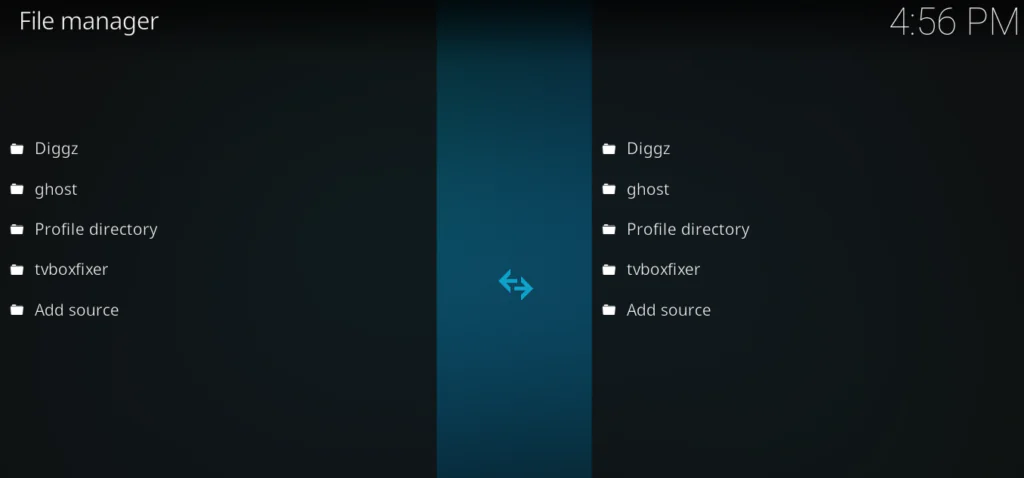
Step 2: Double-click Add Source.
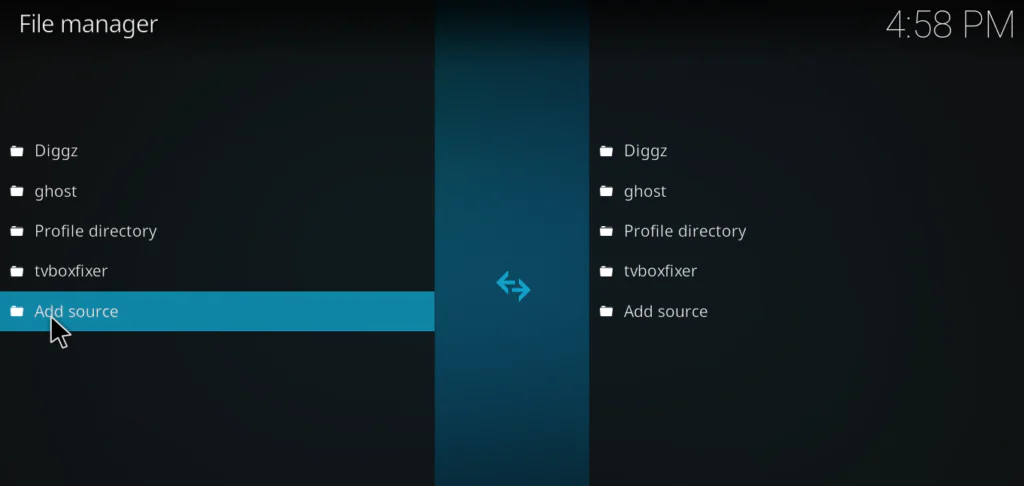
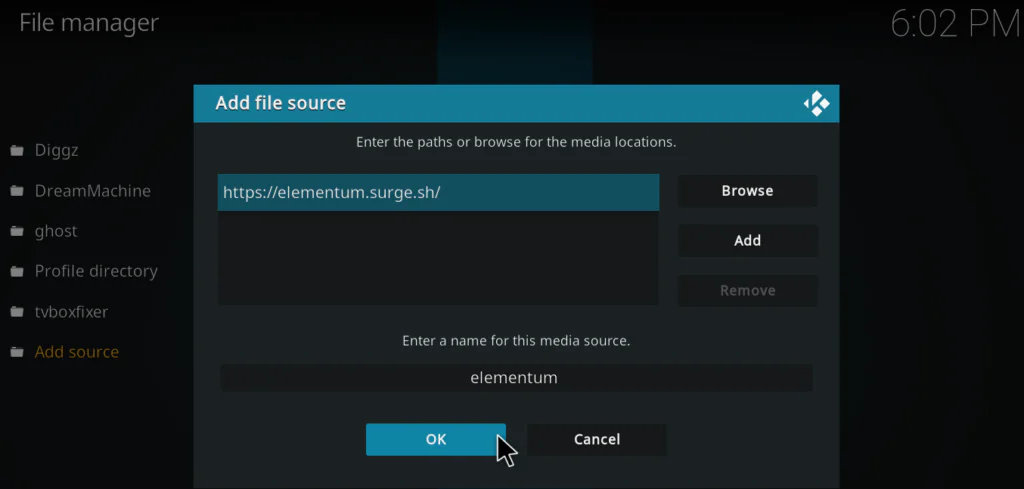
Step 3: Click <None> and enter the following repository URL:
https://elementum.surge.sh![URL input dialog with the Elementum repository address typed in the text field]](https://tvboxfixer.com/wp-content/webp-express/webp-images/uploads/2026/04/URL-input-dialog-with-the-Elementum-repository-address-typed-in-the-text-field-1024x472.png.webp)
Step 4: In the name field, type Elementum and click OK.
Stage 2 — Install the Elementum Repository
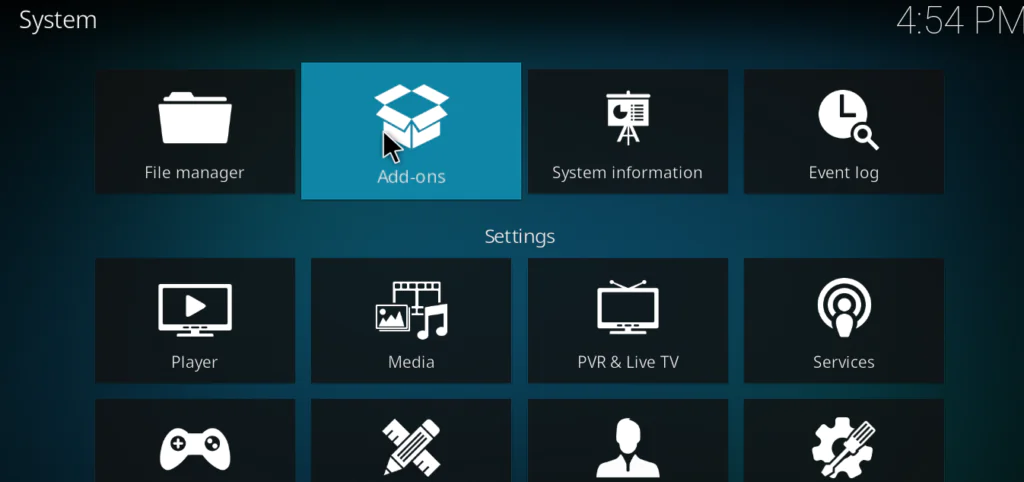
Step 1: Return to the Kodi home screen. Click Add-ons, then select the open box icon in the top-left corner.
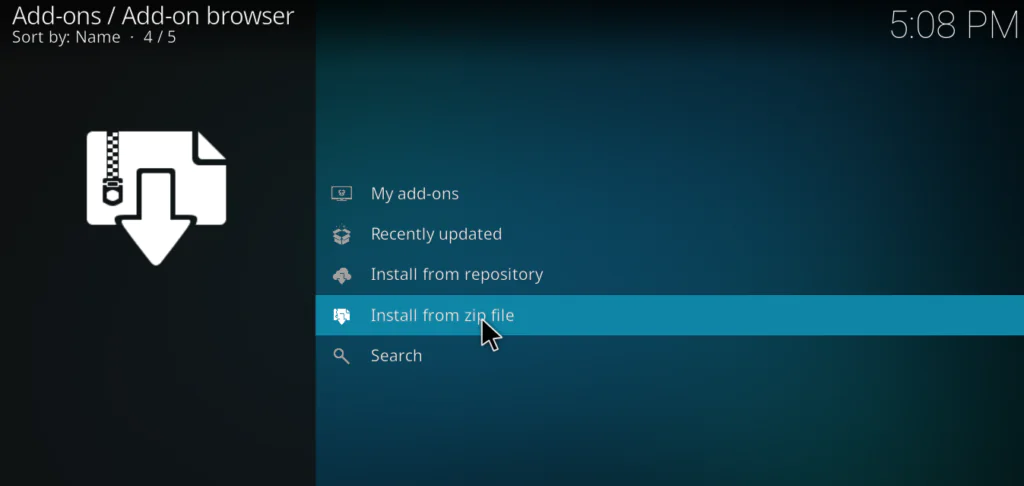
Step 2: Select Install from zip file.
Step 3: Select Elementum from the source list.
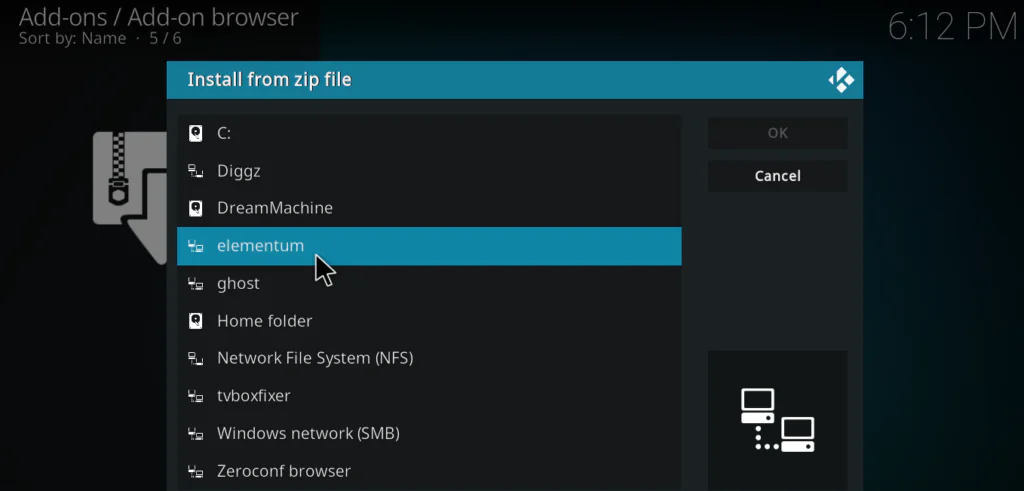
Step 4: Select the repository zip file inside it. Wait for the “Add-on installed” notification in the top-right corner.
Stage 3 — Install the Elementum Addon
Step 1: Back inside the Add-on browser, select Install from repository.
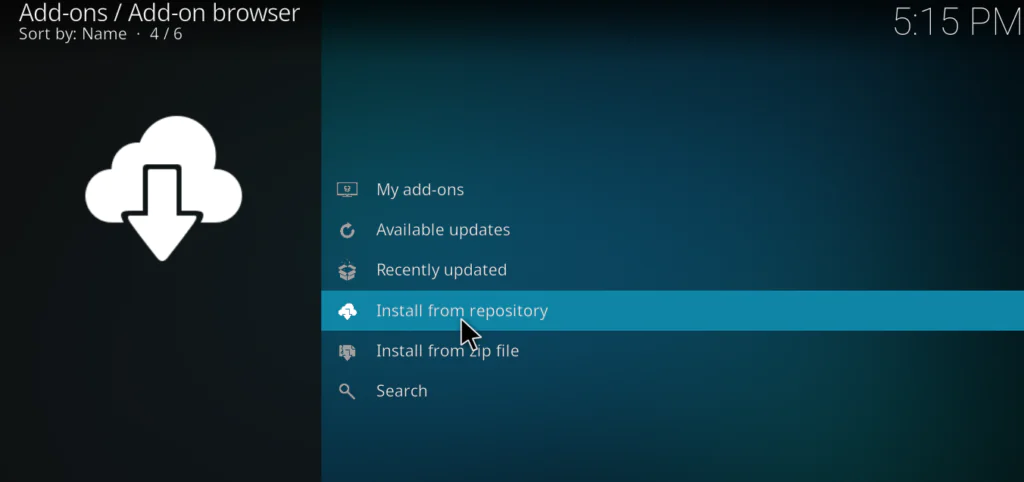
Step 2: Select Elementum Repository from the list.
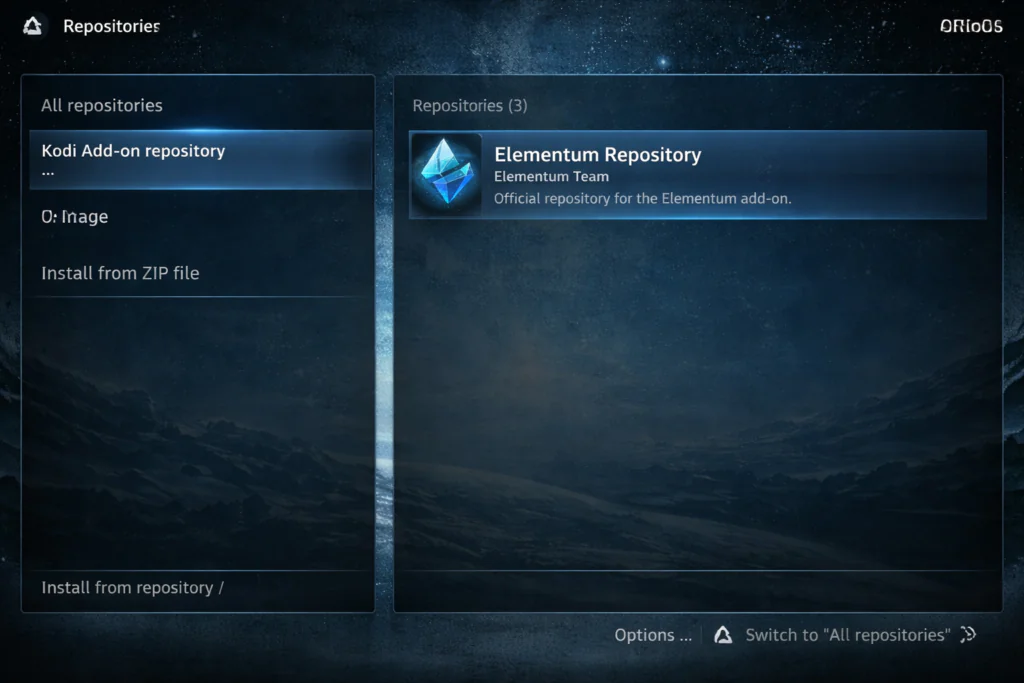
Step 3: Click Video add-ons, then find Elementum in the list and click Install.
Step 4: Kodi will download and install the addon along with any required dependencies automatically. Wait for the “Elementum Add-on installed” confirmation.
The install Elementum Kodi process is now complete. You’ll find it under Add-ons → Video Add-ons.
How to Configure Elementum After Installation
Before you start browsing content, take two minutes to run through the basic configuration. It makes a noticeable difference.
Step 1: Go to Add-ons → Video Add-ons → Elementum. Right-click (or long-press on a remote) and select Settings.
Step 2: Under the Providers tab, you’ll see a list of active torrent providers. Make sure at least a few general providers are enabled here. This is what Elementum uses to find content.
Step 3: If you have a Real-Debrid account, go to the Services tab and enter your Real-Debrid credentials. This unlocks premium cached torrents, which stream instantly without buffering.
Step 4: Under Playback, set your preferred resolution. For most Android TV boxes on a stable connection, 1080p is the sweet spot. If you experience buffering, drop it to 720p.
How to Use Elementum on Kodi
Open Elementum from your Video Add-ons list. The interface is clean and category-driven.
Main menu sections:
- Movies — Search by title, genre, year, or trending
- TV Shows — Full series with season and episode navigation
- Anime — Dedicated anime section with solid coverage
- Search — Universal search across all categories
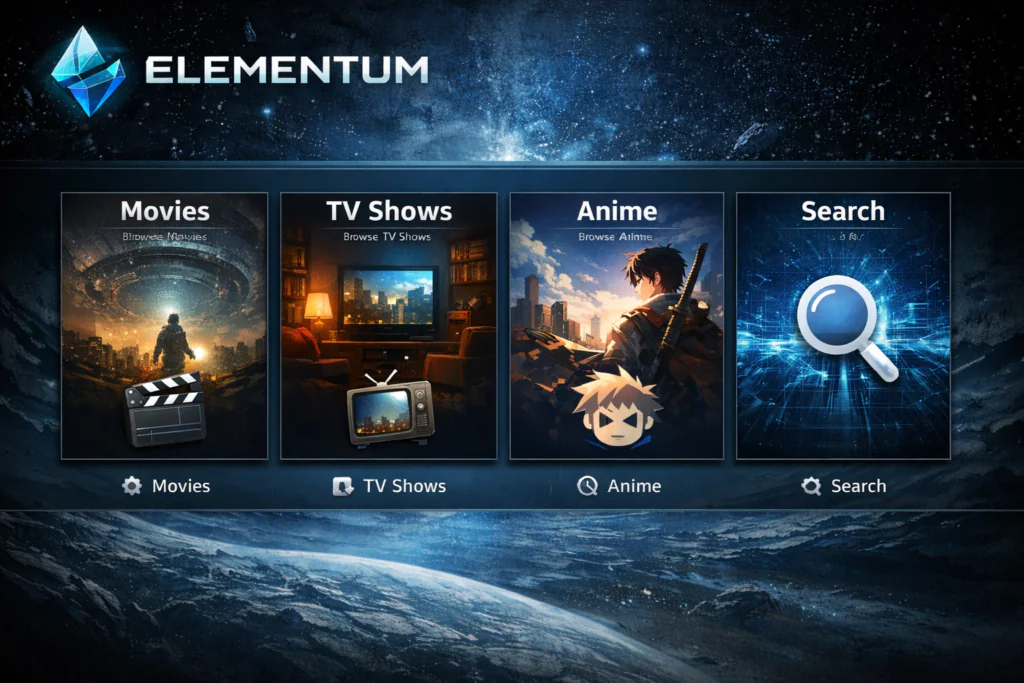
Click on any title to start a search. Elementum will pull available torrent sources for that content and present them as a list. Each result shows the quality (720p, 1080p, 4K), file size, number of seeders, and the source name.
Pick a result with a high seeder count for the most reliable and fastest playback. Higher seeders generally means the stream starts faster and is less likely to stall.
[Insert Image: Elementum search results screen showing a list of torrent sources for a movie, with quality labels, file size, and seeder counts visible]
For more detail on getting Kodi performing at its best on your device, check out our guide on best Kodi settings for Android TV boxes.
My Honest Experience With Elementum
I’ll keep this straightforward.
Stream Quality: This is where Elementum genuinely stands out. Because it pulls from torrent sources, you get proper encode files rather than re-compressed web streams. 1080p results look clean, and with Real-Debrid the quality is consistently excellent.
Speed: Without Real-Debrid, startup time depends on seeders. A well-seeded torrent starts playing within 20 to 30 seconds. With Real-Debrid, cached content starts almost instantly — comparable to a regular streaming service.
Buffering: With Real-Debrid, I experienced almost no buffering. Without it, low-seeder results can stall mid-stream. The fix is simple: always pick results with more than 50 seeders when going the free route.
Interface: Functional and organized, but it’s not the most visually polished addon on the market. It prioritizes information over aesthetics, which I actually prefer — you can see quality, size, and seeders at a glance before committing to a stream.
Overall verdict: Elementum is one of the most reliable Kodi addons I’ve used, especially with Real-Debrid. If consistent quality matters to you more than having a pretty interface, it’s hard to beat.
Pros and Cons
Pros
- Consistently high stream quality, especially with Real-Debrid
- Built-in BitTorrent engine — nothing extra to install
- More reliable than scraper-based addons for finding working streams
- Trakt and Real-Debrid integration built in
- Covers Movies, TV Shows, and Anime
- Actively maintained
Cons
- Without Real-Debrid, low-seeded content can buffer or start slowly
- Interface is functional but not visually impressive
- Initial provider setup can be confusing for first-time users
- Requires a decent internet connection for smooth torrent streaming
Best Settings for Smoother Performance
A few quick adjustments will improve your Elementum experience noticeably.
1. Always filter by seeder count In the results list, sort by seeders before picking a stream. High seeders equal fast start and stable playback. This one habit eliminates most buffering problems.
2. Link Real-Debrid If there’s one setting change worth making, it’s this one. Real-Debrid caches popular torrents server-side, meaning you get instant, buffer-free playback on most mainstream content. It’s the single biggest upgrade you can make to Elementum’s performance.
3. Increase Kodi’s cache Edit your advancedsettings.xml in the Kodi userdata folder and set the cache to at least 500MB. This gives the torrent stream room to buffer ahead and prevents mid-playback interruptions. Kodi’s official wiki explains exactly how to edit this file if you haven’t done it before.
4. Set a preferred resolution Go into Elementum’s Playback settings and set your resolution preference. Elementum will then automatically prioritize results matching that quality, saving you from manually filtering every time.
5. Use a wired connection If your device is near your router, plug in via Ethernet. Torrent streaming is more sensitive to connection instability than standard HTTP streams, and a wired connection is noticeably more stable.
Conclusion
Elementum is one of the more capable and dependable addons in the current Kodi ecosystem. The install Elementum Kodi process follows the same three-stage pattern as most addons — source, repository, addon — and the whole thing takes under ten minutes once you know what you’re doing.
It suits users who are tired of broken links and inconsistent quality from traditional scraper addons. Real-Debrid users especially will find Elementum delivers a genuinely smooth experience that rivals regular streaming apps.
If you’re building a reliable Kodi setup in 2026, Elementum deserves a place in it.
Hit a snag during the installation? Drop a comment below and I’ll help you work through it.