How to reset X96Q Android box — that’s exactly what this guide covers. If your device is stuck on the boot logo, running painfully slow, or apps keep crashing, a reset is usually the fastest fix. I’ll walk you through three different methods so you can get back to streaming without wasting time.
When Should You Reset Your X96Q?
Not every problem needs a full factory reset, but here are the situations where it’s the right move:
- The X96Q is stuck on the logo and won’t boot past it
- The box is extremely slow or freezes constantly
- Apps crash immediately after opening
- The remote or Wi-Fi settings are completely broken
- You’re seeing a bootloop (restarts over and over)
- You’re selling the device and want to wipe your data
- A recent update broke something and you can’t undo it
Quick tip: Always try a soft reset first before going nuclear with a factory reset. You might not need to wipe everything.
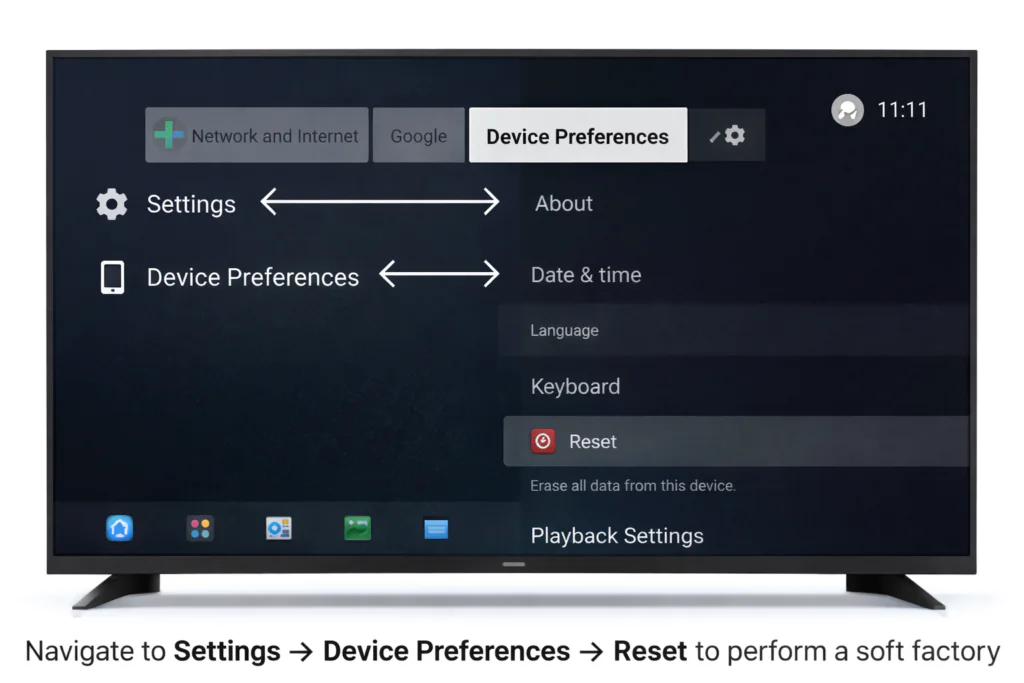
Method 1 – Soft Reset from Settings (Recommended First Step)
This is the safest method. It wipes all your apps, settings, and personal data — but it does it cleanly through the Android interface. Use this if your X96Q is slow or misbehaving but still boots up normally.
Steps:
- Turn on your X96Q and wait for the home screen to load.
- Open Settings (the gear icon on your home screen or app drawer).
- Scroll down and tap Device Preferences (on some firmware it may say About Device or System).
- Tap Reset or Factory Reset.
- You’ll see a warning — select Erase Everything or Reset Device to confirm.
- The box will restart and begin the reset process. This usually takes 2–5 minutes.
- Once done, it will reboot to the initial setup screen.
Method 2 – Hard Reset Using the Reset Button (When X96Q Won’t Boot)
If your X96Q isn’t responding to the remote and you can’t get into Settings, use the physical reset button. Most X96Q units have a tiny reset pinhole — usually located inside the AV port (the round 3.5mm port on the back or side of the box).
What you’ll need: A toothpick, SIM ejector pin, or a straightened paper clip.
Steps:
- Power off the X96Q completely (unplug from power).
- Insert your pin/toothpick into the small hole inside the AV port and hold it in.
- While holding the pin, plug the power cable back in.
- Keep holding for 10–15 seconds — you’ll feel a small click or see the LED flash.
- Release the pin once the screen shows the Android boot animation or a recovery/reset screen.
- The device will perform a hard reset and reboot automatically.
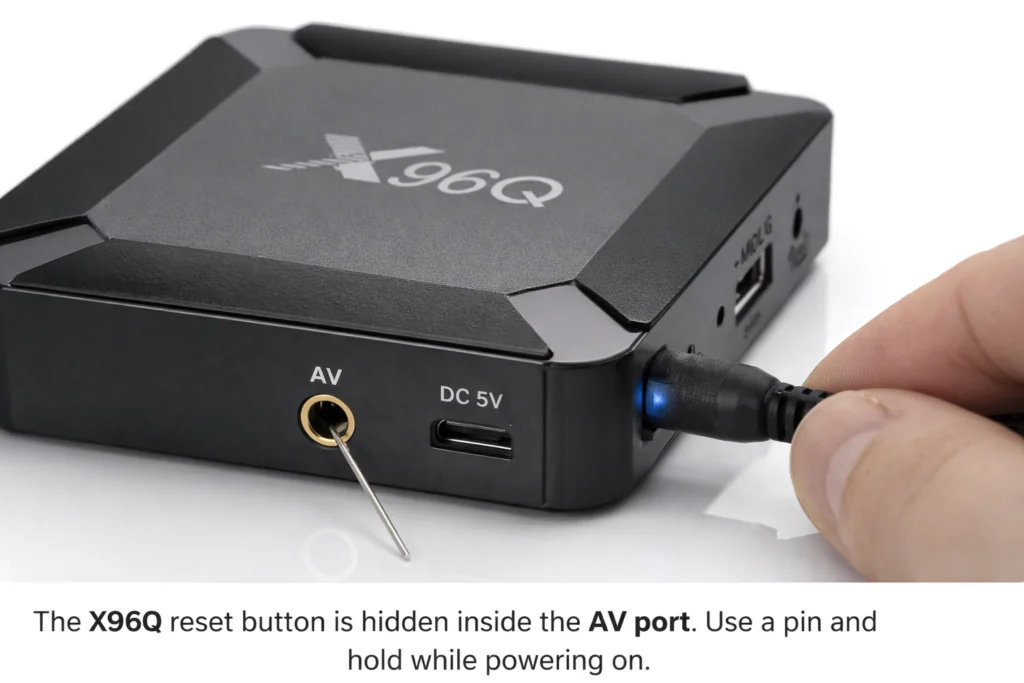
Note: On some X96Q units, the reset hole is located on the underside of the box rather than the AV port. Check both spots if you’re not sure.
Method 3 – Reset X96Q Without a Remote
Lost your remote? No problem. You can still reset the X96Q using one of these alternatives:
Option A – Use a USB Mouse Plug any standard USB mouse into the X96Q’s USB port. You can now navigate Settings exactly as you would with a remote. Follow the same steps from Method 1 above.
Option B – Use the Android TV Remote App
- Download the Android TV Remote Control app on your phone (available on Google Play / App Store).
- Make sure your phone and the X96Q are on the same Wi-Fi network.
- Open the app and it will detect your X96Q automatically — pair it and you have full remote control.
- Then follow Method 1 to factory reset from Settings.
Option C – Use a Bluetooth Keyboard Most X96Q boxes support Bluetooth. Pair a Bluetooth keyboard and use it to navigate the Settings menu.
What to Do If the Reset Doesn’t Work
If none of the three methods above solved your problem, the issue is likely deeper than a software glitch. Here’s what to try next:
1. Reinstall the Firmware A corrupted firmware is one of the most common reasons the X96Q gets stuck in a bootloop or won’t reset properly. You’ll need to flash the original firmware using a PC and the Amlogic USB Burning Tool.
👉 Download the correct firmware for your device here: X96Q Firmware Download
2. Check Your Power Supply A weak or faulty power adapter can cause all sorts of instability — slow performance, random reboots, failed resets. Make sure you’re using a 5V/2A adapter (check the label on your current one).
3. Try a Different HDMI Cable or Port Sometimes the box resets fine but appears stuck because of a display handshake issue. Swap the HDMI cable or try a different port on your TV.
4. General Android TV Box Fixes If the X96Q is still not working after a reset and firmware reflash, see our full troubleshooting guide: Fix Android TV Box Not Working
Common Problems After Resetting the X96Q
Even after a successful reset, a few issues can pop up. Here’s what they mean and what to do:
Stuck on Boot Logo After Reset
This usually means the reset didn’t complete properly, or the firmware got corrupted mid-reset. Solution: Flash the firmware fresh using Amlogic USB Burning Tool. Do not interrupt the process.
Bootloop (Keeps Restarting)
The box resets, shows the logo, then restarts on a loop. Solution: This is almost always a firmware issue. Download and reflash the official X96Q firmware.
No Signal on TV After Reset
The box appears to be running (LED is on) but the TV shows “No Signal.” Solution: Try a different HDMI cable. Hold the reset button on the remote (if applicable) to cycle through display resolutions. Unplug and replug everything.
Apps Gone / Google Account Missing
This is completely normal after a factory reset — all data was wiped by design. Simply sign back into your Google account and reinstall your apps from the Play Store.
Troubleshooting Fixes
| Problem | Quick Fix |
|---|---|
| Stuck on logo | Hard reset via AV pin button |
| Bootloop | Flash firmware with USB Burning Tool |
| No signal | Change HDMI cable / port |
| Reset option greyed out | Enable Developer Options first, or use hard reset |
| Remote not working | Use USB mouse or Android TV Remote app |
| Box very slow after reset | Clear cache partition or reflash firmware |
Frequently Asked Questions (FAQ)
Q: Will resetting my X96Q delete everything? Yes. A factory reset wipes all installed apps, settings, accounts, and personal data. The device returns to its original out-of-box state. Make sure to back up anything important (like app login details) before you reset.
Q: How do I do an X96Q factory reset without the remote? Use a USB mouse plugged into the device to navigate to Settings → Device Preferences → Reset. Alternatively, use the physical reset pin in the AV port as described in Method 2 above.
Q: How long does a factory reset take on the X96Q? Usually between 2 and 5 minutes. If it’s taking longer than 10 minutes or the screen has gone black and nothing is happening, unplug the device and try the hard reset method.
Q: My X96Q is stuck on the logo — will a reset fix it? It depends. If the firmware is still intact, the hard reset via AV pin (Method 2) will usually fix a stuck boot logo. If the firmware itself is corrupted, you’ll need to reflash it — a simple reset won’t be enough.
Q: Is there a difference between soft reset and hard reset on the X96Q? Yes. A soft reset is done through the Android Settings menu — it’s the cleanest option and works like a standard factory reset. A hard reset uses the physical pin button and forces the device to reset even when it’s frozen or won’t boot.
Q: Can I reset the X96Q if I forgot the PIN or password? Yes. Use the hard reset method (Method 2 — the physical pin in the AV port). This bypasses any PIN lock and forces a complete factory reset.
Q: What firmware does the X96Q use? The X96Q runs on Android 10 and is powered by an Allwinner H313 chip. Make sure you download firmware specifically built for the X96Q H313 to avoid bricking your device. See our firmware download page for the correct files.
Conclusion
Resetting your X96Q Android TV box is usually straightforward once you know which method to use. Start with Method 1 (Settings reset) if the box is still accessible. If it’s frozen or stuck, go straight to Method 2 (hard reset via the AV pin). And if you’ve lost your remote, Method 3 has you covered with a USB mouse or phone app.
If a reset doesn’t solve the problem, don’t panic — a firmware reflash almost always does the trick. Head over to our X96Q firmware download page for the right file and full flashing instructions.
Still having issues with your Android TV box in general? Check out our best Android TV box guide to see if it might be time for an upgrade.
Helpful External Resources:
- Android Help Center – Factory Reset your Android device — Official Google guide on what factory reset does and how to prepare.
- Amlogic Official Site — Chipset manufacturer reference for Amlogic-based TV box support.


