If you are looking for an android tv box with kodi software ready to go, you are not alone. Kodi is one of the main reasons people buy an Android TV box in the first place — and getting that combination right makes a huge difference to your experience.
The problem is that most boxes sold as “Kodi boxes” are either outdated, underpowered, or come with a dodgy pre-loaded setup that causes more problems than it solves. In this guide I will show you which boxes actually handle Kodi well, what specs matter, and how to get Kodi running properly — whether you buy a box with it already installed or set it up yourself from scratch.
Can Any Android TV Box Run Kodi?
Technically yes — Kodi runs on Android 5.0 and above, which covers almost every box sold in the last five years. But there is a big difference between a box that can run Kodi and one that runs it well.
On a box with 1GB of RAM and a weak processor, Kodi opens slowly, addon scraping takes forever, and 4K content stutters. On a box with 2GB+ RAM and a decent Amlogic or Rockchip chip, Kodi flies — addons load in seconds, streams are smooth, and the whole experience feels like it should.
So the short answer: yes, most boxes can run Kodi. But the ones worth buying for Kodi specifically have a few things in common, which I will cover next.
What to Look for in an Android TV Box with Kodi Software
Before picking a box, these are the specs that actually matter for Kodi performance.
RAM: 2GB minimum, 4GB recommended
Kodi itself is not heavy, but addons like Seren and The Crew load large metadata libraries and run background scraping processes. With 1GB RAM your box is constantly swapping memory and things slow down. 2GB is the floor. 4GB gives you comfortable headroom.
Processor: Amlogic S905 or newer
The Amlogic S905 series — S905W2, S905X4, S905Y4 — is the sweet spot for budget Kodi boxes. It handles 4K HDR decoding in hardware, which means your CPU stays free for Kodi rather than getting bogged down rendering video. Rockchip RK3318 and RK3328 are decent alternatives.
Avoid anything running an older Allwinner chip or a no-name quad-core with no chipset listed — these are almost always underpowered.
Storage: 16GB minimum, 32GB better
Kodi itself takes about 100MB but addons, thumbnails, and cached data pile up fast. On a 8GB box you will be clearing cache constantly. 16GB is comfortable. 32GB gives you room to install addons freely without worrying about space.
Android version: Android 9 or above
Newer Android versions handle background processes better and are supported by current Kodi builds. Android 11 and 12 are ideal. Android 7 or 8 will work but you may hit compatibility issues with newer addons.
Ethernet port
For streaming at 1080p or 4K through Kodi, a wired connection beats WiFi every time. Buffering issues disappear almost entirely when you plug in an ethernet cable. Not every box has this port — check before buying.
Best Android TV Boxes for Kodi in 2026
These are the boxes I would actually recommend based on real-world Kodi performance, not just spec sheets.
H96 Max (4GB/32GB) — Best Budget Kodi Box
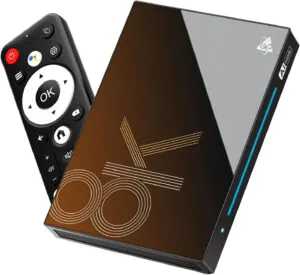
The H96 Max running an Amlogic S905 chip with 4GB RAM is one of the best value android tv boxes with kodi software compatibility you can buy right now. It handles 1080p and 4K streams without breaking a sweat, has an ethernet port, and the 32GB storage means you will not run out of space.
Kodi does not come pre-installed but takes about three minutes to set up from the Play Store. At this price point, it is hard to beat for a dedicated Kodi setup.
Best for: Budget buyers who want solid Kodi performance without overspending.
X96 Max Plus Ultra (4GB/64GB) — Best Entry Level
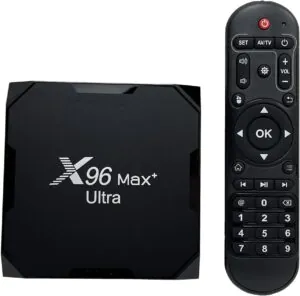
The X96 Max Plus Ultra is one of the most popular Android TV boxes in the world for a reason — it is cheap, reliable, and runs Kodi well enough for casual use. The 4GB RAM version handles standard Kodi addons fine. Where it struggles is with 4K content and heavy addon scraping.
If you are just getting started with Kodi and want the lowest possible entry point, the X96 Mini is the box to start with. Our full X96 Max Plus troubleshooting guide covers every common issue if you run into problems.
Best for: First-time Kodi users on a tight budget.
Check X96 Max Plus Ultra price on Amazon
MXQ Pro 4K (2GB/16GB) — Most Widely Available
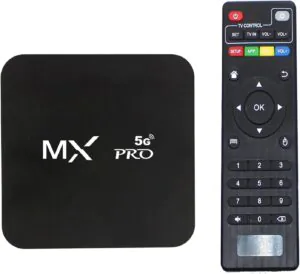
The MXQ Pro 4K is sold everywhere — Amazon, AliExpress, local electronics stores. It runs Kodi reasonably well on the 2GB version and is easy to find locally if you need something quickly. Build quality is average and the remote is basic, but as a pure Kodi box it does the job.
Best for: Buyers who need something available locally and immediately.
Check MXQ Pro 4K price on Amazon
Mecool KM2 Plus — Best for Netflix + Kodi Combined
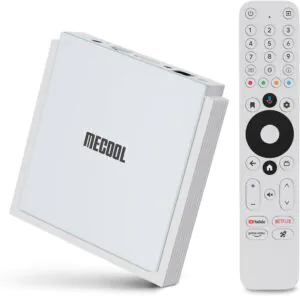
If you want a box that handles both official streaming apps like Netflix in 4K and Kodi, the Mecool KM2 Plus is the only budget option that genuinely does both well. It runs Android TV (not plain Android) which means it is Google-certified and Netflix, Disney+ and Prime Video all work at their full quality.
The trade-off is price — it costs more than the others. But if you want one box that handles everything, this is the one. We reviewed it in detail in our Mecool KM2 Plus review.
Best for: Users who want Netflix 4K and Kodi on the same device.
Check Mecool KM2 Plus price on Amazon
How to Install Kodi on Your Android TV Box
Most Android TV boxes do not come with Kodi pre-installed — and honestly that is fine. Installing it yourself takes less than five minutes and means you get the latest version rather than an outdated copy someone pre-loaded.
There are two ways to do it depending on whether your box has Google Play.
Method 1: Install from Google Play Store (Easiest)
If your box has Google Play, this is the way to go.
Open the Google Play Store from your home screen. Search for “Kodi” and look for the official app published by the XBMC Foundation — that is the legitimate developer name for Kodi, which explains why people sometimes search for android tv box kodi xbmc. Tap Install and wait for it to finish. Open Kodi and you are ready for the setup steps below.
Method 2: Install via APK (If No Play Store)
Some Android boxes — particularly cheaper models from AliExpress — do not have Google Play installed. In that case, install Kodi via APK.
First, go to Settings > Security > Unknown Sources and enable it. This allows your box to install apps from outside the Play Store.
Next, open a browser on your TV box and go to kodi.tv/download. Select Android and download the 32-bit ARM version (this works on the widest range of boxes). Once downloaded, open the APK file from your downloads folder and tap Install.
For a more detailed walkthrough of the sideload process, our X96 Mini app install guide covers every step with screenshots.
How to Set Up Kodi After Installing
Installing Kodi is just the first step. Out of the box it has no streaming sources — you need to add a repository and install an addon before anything useful happens.
Step 1 — Enable Unknown Sources in Kodi
Open Kodi → Settings (gear icon) → System → Add-ons → toggle Unknown Sources to ON. This is separate from the Android setting and required for third-party addons.
Step 2 — Add a Repository
A repository is a source that hosts Kodi addons. The most reliable one for 2026 is the Nixgates repository, which hosts the Seren addon. Go to Settings → File Manager → Add Source and enter:
https://nixgates.github.io/packages
Name it Nixgates and click OK.
Step 3 — Install an Addon
Go to Add-ons → Install from Repository → Nixgates Repository → Video Add-ons and install Seren. For a complete setup walkthrough including Real Debrid connection and provider package install, our full Seren Kodi addon guide covers every step in detail.
Alternatively, if you want something that works without a paid debrid account, The Crew addon is a solid free option covered in our Crew addon guide.
Best Kodi Addons to Install First
Once Kodi is running, these are the addons worth setting up first.
Seren — The best premium addon for 1080p and 4K streams. Requires Real Debrid or Premiumize. Fast, reliable, and consistently maintained. Full setup in our Seren guide.
The Crew — The best free addon. No debrid account needed. Stream quality is more variable but it works immediately and covers a huge library. Full guide at The Crew addon guide.
PVR IPTV Simple Client — If you have an IPTV subscription, this is the built-in Kodi addon that handles it. Install it from the official Kodi repository and point it at your M3U playlist URL. Our PVR IPTV Simple Client guide walks through the full setup.
Common Problems and Fixes
Kodi Is Slow or Freezing on My Android TV Box
This is almost always a RAM or cache issue. First, go to System → File Manager → Profile Directory and clear the Thumbnails folder — this gets large fast and slows everything down. If the box still feels sluggish, our Android TV box speed guide covers every fix including RAM management and cache settings.
Kodi Addons Show No Streams
The most common cause is an expired or disconnected Real Debrid account. Open the addon settings, go to Accounts, and re-authorise. If you are using a free addon like The Crew, the source may simply be down — try a different stream or check the addon’s status online.
Kodi Keeps Crashing After an Update
Kodi updates sometimes break addon dependencies. The fix: go to Add-ons → My Add-ons → find the broken addon → Uninstall, then reinstall from the repository. This forces a fresh dependency install and resolves it almost every time.
Cannot Install Kodi APK
Check that Unknown Sources is enabled in Settings > Security on your Android box (not inside Kodi — that is a different setting). If it is enabled and the install still fails, re-download the APK from kodi.tv directly — do not use third-party sites, as modified APKs are common and cause exactly this problem.
Conclusion
The best android tv box with kodi software is not necessarily the most expensive one — it is the one that matches your budget, has enough RAM to handle addons smoothly, and runs a recent version of Android. The H96 Max hits that balance at the budget level. The Mecool KM2 Plus is the pick if you want official apps alongside Kodi.
Getting Kodi running takes less than ten minutes. Install it from the Play Store or via APK, add the Nixgates repository, install Seren or The Crew, and you are streaming within the hour.
FAQ
Is it legal to use an Android TV box with Kodi?
Yes. Kodi itself is completely legal — it is open source software developed by the XBMC Foundation. What you do with it determines the legal picture. Using Kodi with official content sources, your own media library, or legal addons is entirely fine. Our Is Kodi Legal guide covers this in full.
Does Kodi come pre-installed on Android TV boxes?
Occasionally, but most boxes sold as “Kodi boxes” come with an outdated version pre-loaded. It is almost always better to install Kodi fresh from the Play Store or kodi.tv to make sure you have the current version and a clean install.
What is the difference between Kodi XBMC and Kodi?
They are the same thing. Kodi was originally called XBMC — Xbox Media Center — before being rebranded. The developer is still called the XBMC Foundation, which is why you sometimes see android tv box kodi xbmc in searches. If you find the app published by XBMC Foundation on the Play Store, that is the official Kodi app.
Do I need Real Debrid for Kodi?
Not strictly — Kodi works without it. But the best addon for streaming quality (Seren) works significantly better with a Real Debrid account connected. At around €3/month it is worth it if you stream regularly. Free addons like The Crew work without any paid accounts.
Will a VPN affect Kodi streaming on my Android TV box?
A good VPN adds minimal slowdown. For privacy and to avoid ISP throttling on streams, a VPN is worth running alongside Kodi. Our VPN setup guide for Android TV boxes covers the full install in under five minutes.