Introduction
Learning how to connect TV box to TV is easier than most people think — but only if you know exactly what to do.
A lot of users get stuck the first time. Wrong cable, wrong input, black screen. It’s a frustrating experience when all you want to do is start streaming.
In this guide, I’ll walk you through the complete process step by step. Whether you have a modern 4K TV or an older model, you’ll find the right method here.
By the end, your TV box will be fully connected and ready to use.
What You Need Before You Start
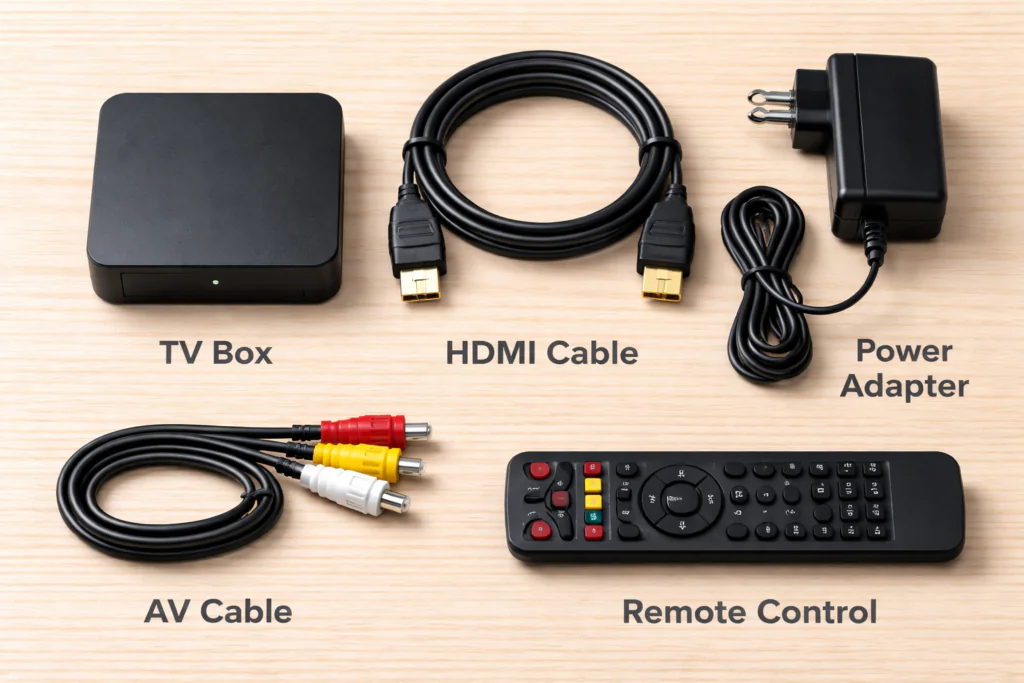
Before you connect TV box to TV, make sure everything is within reach. Missing one item means stopping halfway through.
Here is what you need:
- Your TV box — X96 Mini, Mecool, MXQ Pro, or any Android box
- HDMI cable — for modern TVs
- AV/RCA cable — red, white, yellow — for older TVs
- Power adapter — the one included with your box
- TV remote — to switch the input source
- Wi-Fi password — needed during first-time setup
Check the back or side of your TV before starting. Modern TVs have HDMI ports. Older TVs have colored AV ports. Knowing which one you have determines which method to follow.
Method 1: Connect TV Box to TV via HDMI
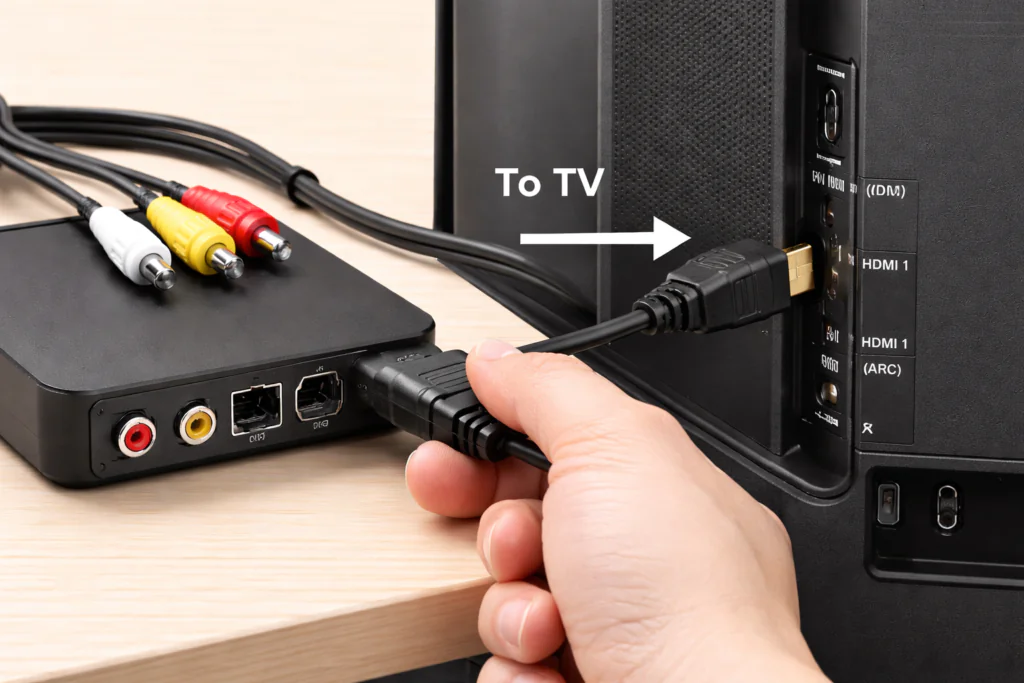
This is the best and easiest way to connect TV box to TV. HDMI carries video and audio in a single cable — no extra steps needed.
Step 1 — Plug HDMI into the TV Box
Take your HDMI cable. Plug one end into the HDMI output port on your TV box. This port is usually on the back or side of the device.
Step 2 — Plug HDMI into Your TV
Connect the other end to any available HDMI port on your TV. Make a note of which port you used — HDMI 1, HDMI 2, or HDMI 3. You will need this in the next step.
Step 3 — Connect the Power Adapter
Plug the power adapter into your TV box and then into the wall socket. Do not power it on yet.
Step 4 — Select the Correct Input on Your TV
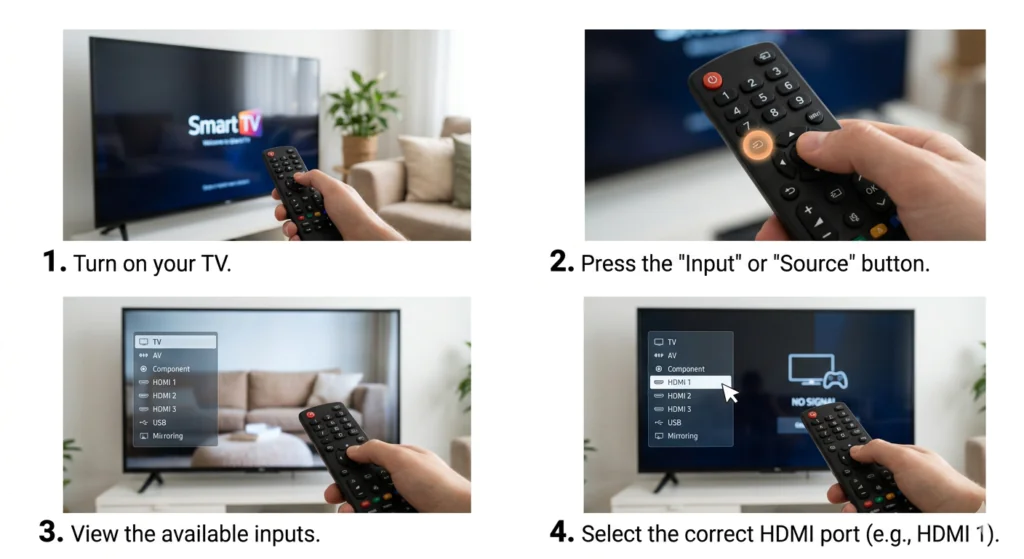
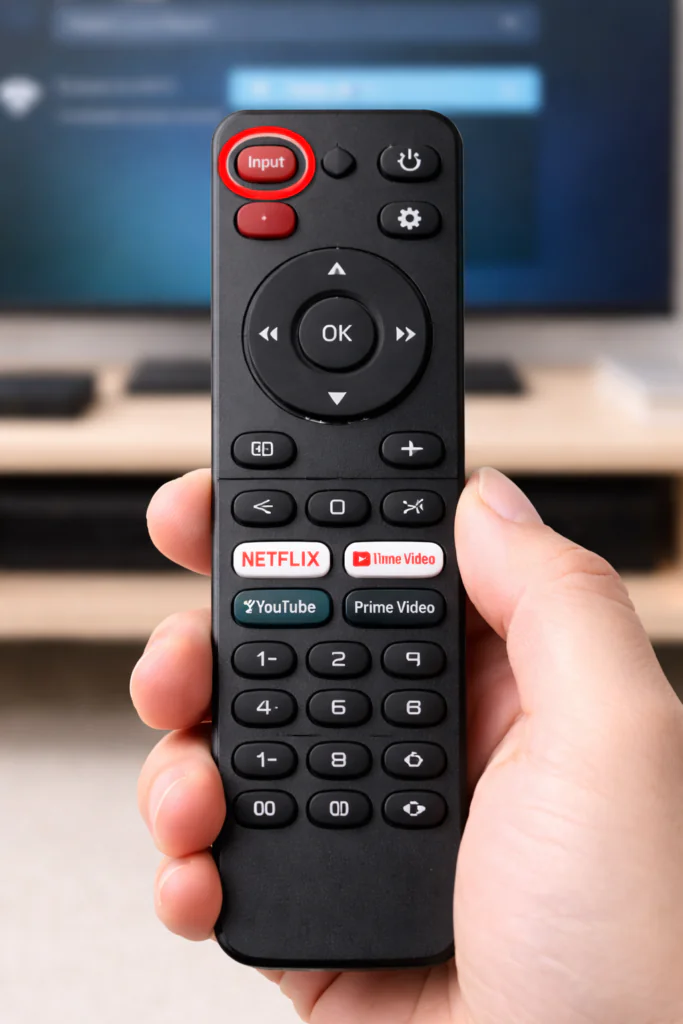
Turn on your TV. Press the Input or Source button on your TV remote. A menu appears showing all available inputs. Select the HDMI port you used — for example HDMI 1.
Step 5 — Power On the TV Box
Turn on your TV box. Within a few seconds, you will see the startup logo appear on screen.
You have successfully connected your TV box to your TV using HDMI.
Method 2: Connect TV Box to TV via AV Cable (Older TVs)
If your TV has no HDMI port, you can still connect TV box to TV using an AV cable — also called an RCA cable.
Note: Some modern TV boxes only have HDMI output. In that case, you will need a small HDMI-to-AV adapter, available for a few dollars online.
Step 1 — Match the Cable Colors
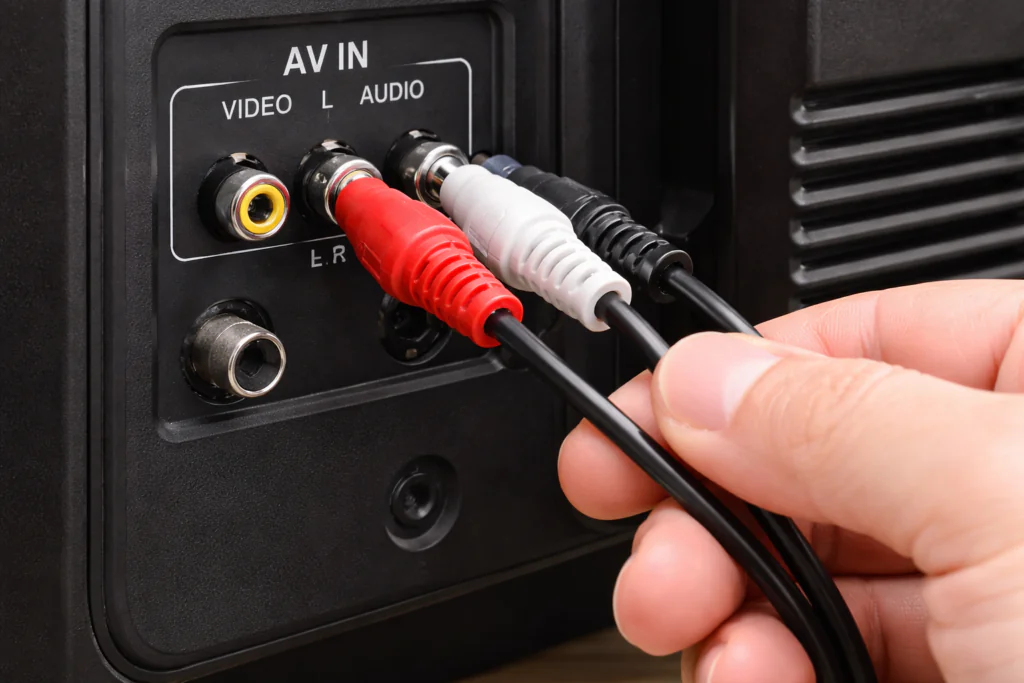
The AV cable has three connectors:
- Yellow → Video
- Red → Right audio channel
- White → Left audio channel
Plug each connector into the matching colored port on both your TV box and your TV.
Step 2 — Connect the Power Adapter
Plug in the power adapter the same way as Method 1.
Step 3 — Select AV Input on Your TV
Press Input or Source on your TV remote. Select AV or Video from the list.
Step 4 — Power On the TV Box
Turn on your TV box and wait a few seconds. The picture will appear on screen. Expect lower image quality compared to HDMI — that is normal for AV connections.
First Time Setup Guide
The first time you connect TV box to TV and power it on, a setup wizard will appear. Here is what to expect:
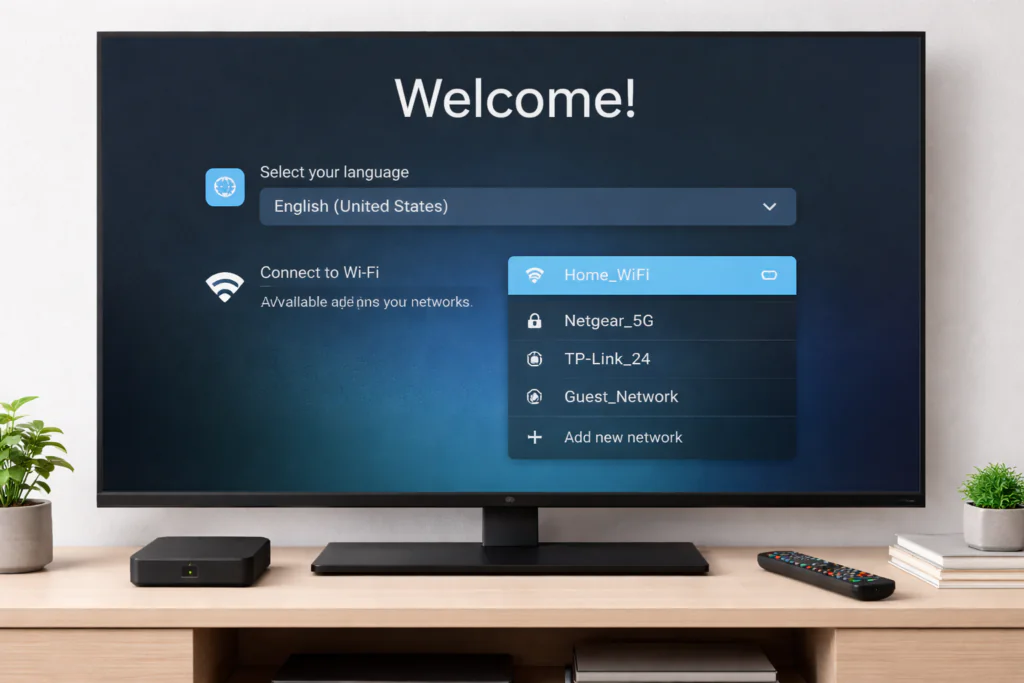
Language Selection Pick your language from the list and confirm.
Wi-Fi Connection Select your home network and enter your password. This step is required — without internet, most apps and features will not work.
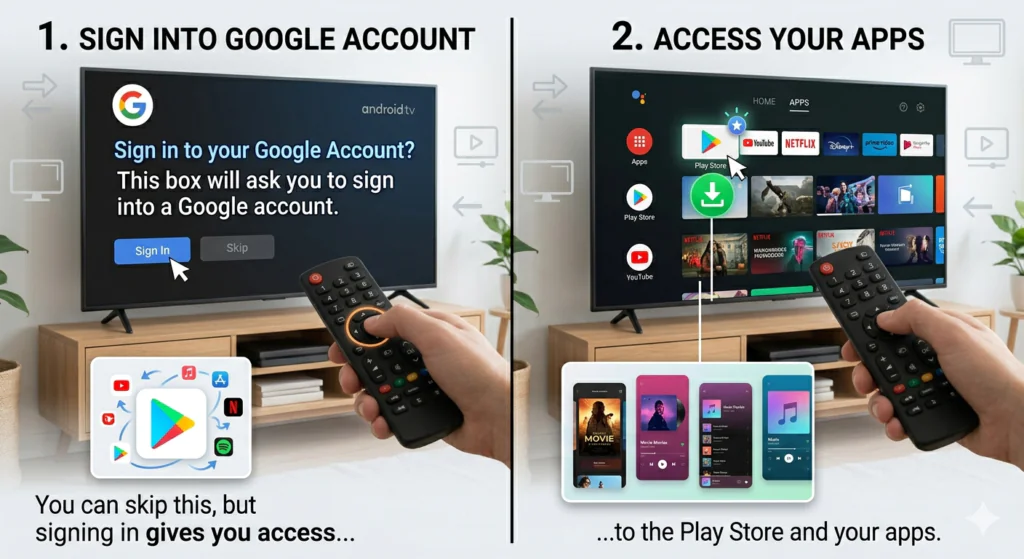
Google Account Sign-In Android TV boxes will ask you to sign into a Google account. You can skip this, but signing in gives you access to the Play Store and your apps.
Date and Time This sets automatically once connected to Wi-Fi.
Once setup is complete, you land on the home screen. From here you can start installing apps, streaming content, or install Kodi on your Android TV box to unlock a much larger content library.
Common Problems and Fixes
Even after you connect TV box to TV correctly, a few issues can come up. Here are the most common ones and how to fix them quickly.
TV Box Shows “No Signal”
This is the most reported issue when people connect TV box to TV for the first time.
- Make sure the HDMI cable is fully inserted on both ends
- Confirm you selected the correct HDMI input on your TV
- Try a different HDMI port on the TV
- Replace the HDMI cable if you have a spare — cables can fail
Still not working? Read our full guide on how to fix TV box not working for a complete list of solutions.
No Sound After Connection
Picture is fine but no audio? Try these fixes:
- Check your TV volume is not muted
- Go to Settings → Sound on your TV box and confirm audio output is set to HDMI
- Unplug and replug the HDMI cable firmly
- Test with a different HDMI port on the TV
Stuck on Wrong Input Source
If you see your regular TV channels instead of the TV box screen, you selected the wrong input. Press Source or Input on your TV remote and cycle through until you see the TV box interface.
For a deeper look at display and signal issues, Google’s official support page on connecting devices to your TV covers different TV brands and port configurations in detail.
Pro Tips for Better Performance
Once you connect TV box to TV and get everything working, these habits will keep your setup running smoothly long term.
Use a quality HDMI cable A low-quality cable causes flickering, audio drops, or no signal. A decent cable under $10 solves most of these problems before they start.
Keep the TV box ventilated Do not stack other devices on top of it. TV boxes generate heat, and blocked airflow causes slowdowns and random reboots.
Use a wired Ethernet connection when possible If your TV box has an Ethernet port, connect it directly to your router with a LAN cable. Wired is always faster and more stable than Wi-Fi for streaming.
Restart your TV box every few days Just like a smartphone, your TV box benefits from a fresh restart. It clears memory and keeps performance consistent.
Update your firmware regularly Manufacturers push firmware updates to fix bugs and improve stability. Check Settings for available updates — or browse our firmware download guides for your specific device model.
For a visual walkthrough of the full setup process, this Android TV box setup tutorial on YouTube is a solid reference that shows the connection process on screen from start to finish.
Want to get more from your box after connecting it? Our guide on the best Kodi addons is a great next step.
Conclusion
Knowing how to connect TV box to TV is honestly not that complicated once you’ve done it yourself.
I’ve personally set up the X96 Mini a few times, and my biggest takeaway is this — the process is easy, but the HDMI cable makes or breaks the experience. The first time I used a cheap cable that came in a random package, I got flickering and audio drops. Switched to a decent quality cable and everything worked perfectly from that point on.
So before you blame your TV box or your TV, check the cable first. It’s the smallest thing but it causes the most headaches.
Other than that, connecting a TV box to your TV is something any beginner can do in under five minutes by just following the steps above.
If you ran into a problem that wasn’t covered here, drop a comment below and I’ll help you sort it out. And if everything went smoothly — enjoy your setup. You’re going to love what your TV box can do.


