Introduction
If you’ve been using Kodi for a while, you’ve probably noticed the TV section on the home screen — but clicking it does nothing.
That’s because Kodi needs a PVR client to make live TV work. And the best one — the one most people use — is the PVR IPTV Simple Client.
Here’s what makes it different from every other Kodi addon you’ve installed: it doesn’t come with channels built in. Instead, it connects to your own IPTV subscription or a free M3U playlist and turns Kodi into a full live TV experience — complete with a proper TV guide, channel categories, and hundreds of channels.
The best part? It’s an official Kodi addon. No Unknown Sources. No third-party repositories. No sketchy zip files. It’s already built into every Kodi installation — you just need to activate and configure it.
In this guide I’ll walk you through everything — installation, M3U setup, EPG configuration, and how to start watching live TV — step by step, in plain English.
Let’s get into it.
What Is PVR IPTV Simple Client?
PVR stands for Personal Video Recorder. In Kodi, PVR is the system that handles everything related to live TV — channels, TV guides, radio, and recordings.
The PVR IPTV Simple Client is the most popular PVR addon available for Kodi. It acts as a bridge between Kodi and your IPTV source. You give it an M3U playlist URL — either from a paid IPTV provider or a free source — and it populates Kodi with live TV channels automatically.
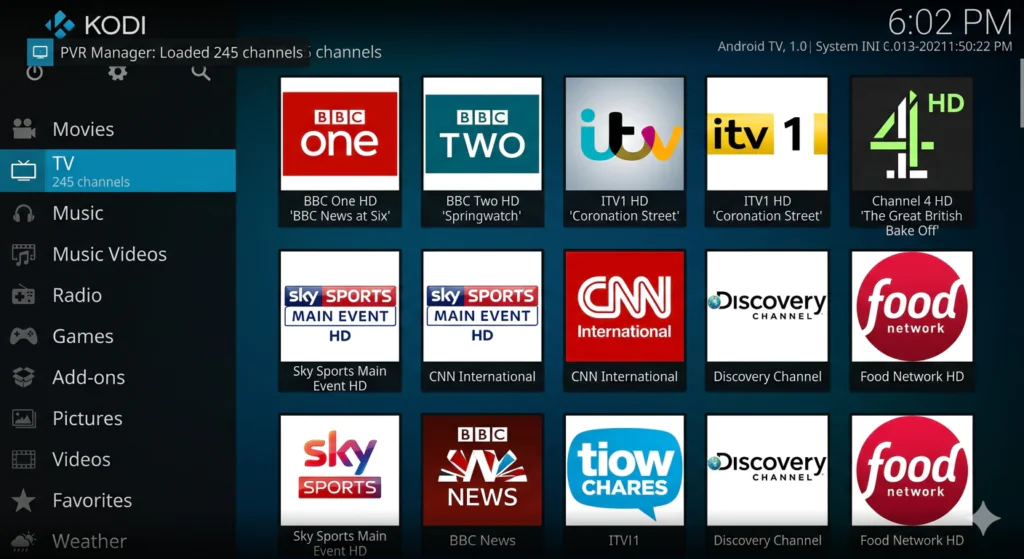
Once it’s set up, your Kodi home screen comes alive. The TV section shows a full channel list, a scrollable programme guide similar to a real cable TV guide, and the ability to switch between hundreds of live channels instantly.
Think of it this way — Kodi is the TV set, and PVR IPTV Simple Client is the antenna or cable box that brings channels into it.
What Do You Need Before Starting?
Before we start, make sure you have these ready:
- Kodi 19 (Matrix), Kodi 20 (Nexus), or Kodi 21 (Omega) installed on your device
- A stable internet connection — minimum 10 Mbps recommended for smooth live TV
- An M3U playlist URL — either from a paid IPTV provider or a free source (I’ll explain both below)
- Optionally, an XMLTV EPG URL for the TV programme guide — your IPTV provider usually gives you this alongside the M3U URL
- A compatible device — Android TV box, Fire Stick, Windows PC, Mac, Linux, or Raspberry Pi
You do NOT need to enable Unknown Sources for this addon. It installs directly from the official Kodi repository — no extra steps required.
If you’re new to Kodi and haven’t set it up yet, download it for free from the official Kodi website at kodi.tv before continuing.
What Is an M3U Playlist? Simple Explanation
This is the part most guides skip — and it’s exactly why beginners get confused.
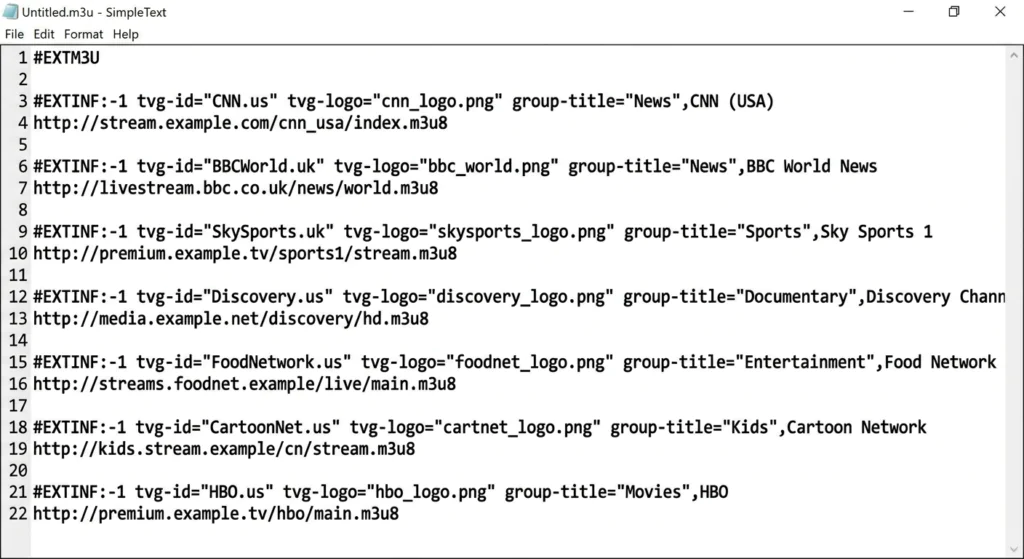
An M3U playlist is simply a text file that contains a list of streaming links. Each line in the file points to a live TV channel or radio station somewhere on the internet. When you give PVR IPTV Simple Client an M3U URL, it reads that list and creates a channel for each link — automatically.
You don’t need to understand the technical details. All you need is the URL that points to your M3U file. It usually looks something like this:
http://yourprovider.com/get.php?username=yourname&password=yourpass&type=m3u
If you have a paid IPTV subscription, your provider sent you this URL by email when you signed up. If you can’t find it, contact your provider and ask for your M3U playlist URL.
If you don’t have a paid subscription, I’ll show you where to get a free one in the next section.
Where to Get a Free M3U Playlist URL
If you don’t have a paid IPTV subscription, you can use a free, legal M3U playlist. The best free source is the IPTV-org project on GitHub — a community-maintained collection of free, publicly available TV streams from around the world.
You can find it at: github.com/iptv-org/iptv
It includes channels from over 100 countries — news, sports, entertainment, kids, and more — all completely free and publicly available.
Is PVR IPTV Simple Client Safe and Legal?
The addon itself is 100% legal — it’s an official part of Kodi, maintained by the Kodi development team and hosted in the official Kodi repository. There is nothing unofficial or risky about installing it.
Whether your streaming is legal depends entirely on the M3U playlist you use:
- Free public playlists from sources like github.com/iptv-org — legal, publicly available streams
- Your own paid IPTV subscription — legal, as long as your provider is legitimate
- Unofficial IPTV services offering premium channels for very low prices — these are often illegal and are not recommended
The addon is just a tool. It works with whatever M3U source you give it. Used responsibly, with legal IPTV sources, it’s completely safe.
A VPN is a good idea for general online privacy while streaming — not because this addon is illegal, but as a good practice. You can learn more about why online privacy matters from the EFF’s privacy guide at eff.org/issues/privacy.
Features of PVR IPTV Simple Client
Here’s everything this addon can do:
- Live TV streaming from any M3U playlist URL
- Full EPG — electronic programme guide — scrollable TV guide showing what’s on now and next
- Radio channel support alongside TV channels
- Channel groups and categories from your M3U playlist
- Channel logos pulled automatically if your M3U includes them
- Timeshift support for pausing and rewinding live TV (requires compatible stream)
- Support for multiple M3U sources in Kodi 20 and above
- Catch-up TV support if your IPTV provider offers it
- Works on every device that runs Kodi
- Free — part of the official Kodi repository, no cost whatsoever
The EPG feature is one of the most underrated things about this addon. Once it’s configured, you get a full programme guide that looks and feels like real cable TV — complete with show names, times, and descriptions.
Step-by-Step Installation Guide for PVR IPTV Simple Client
Good news — this is the easiest Kodi addon to install because it’s already in the official Kodi repository. No zip files, no Unknown Sources, no external repositories needed.
Step 1: Open Kodi Settings
- Open Kodi on your device
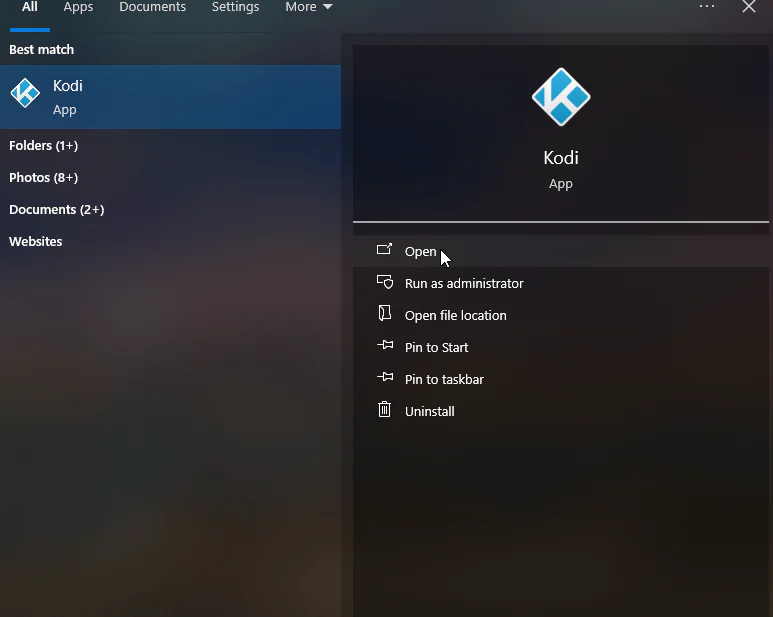
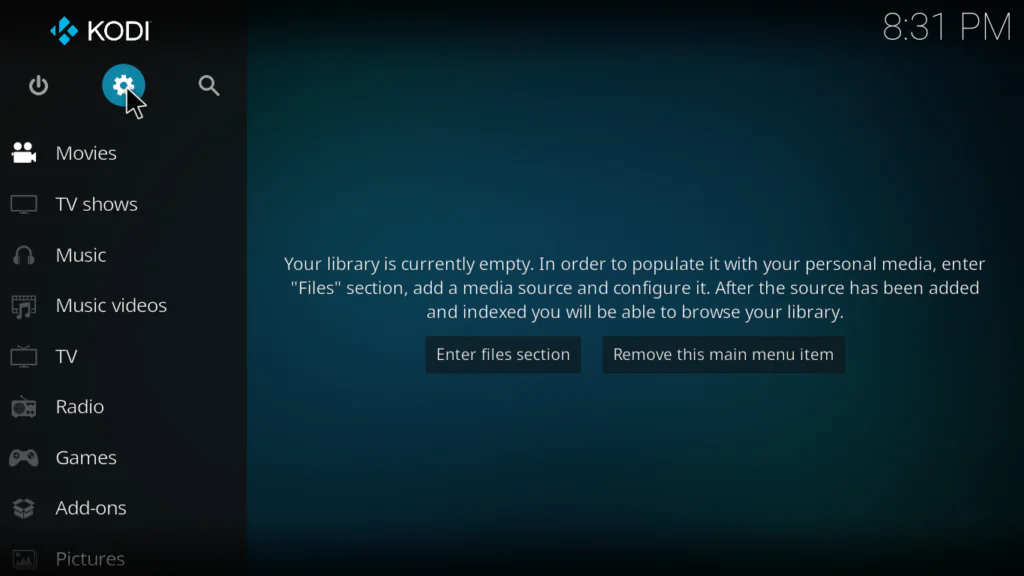
- Click the gear icon at the top left of the home screen to open Settings
Step 2: Go to Add-ons
- From the Settings menu, click Add-ons
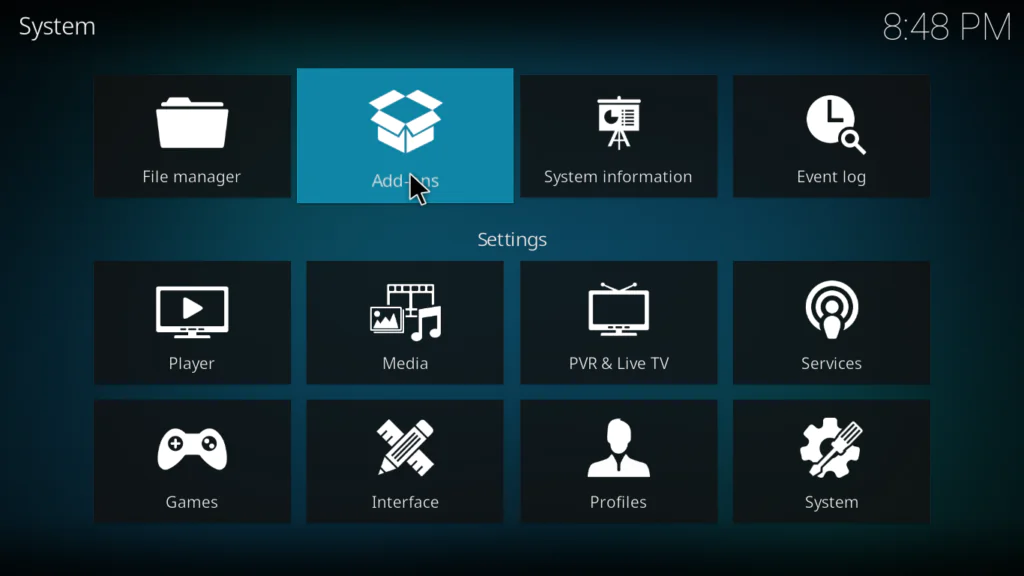
Step 3: Click Install from Repository
- Click Install from repository
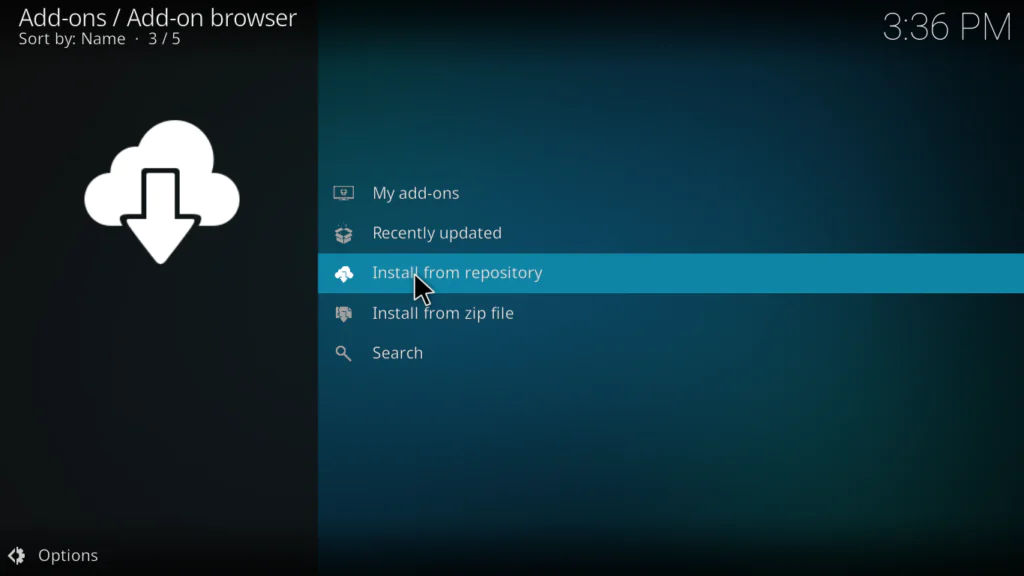
- Select Kodi Add-on repository from the list — this is the official one that comes with Kodi
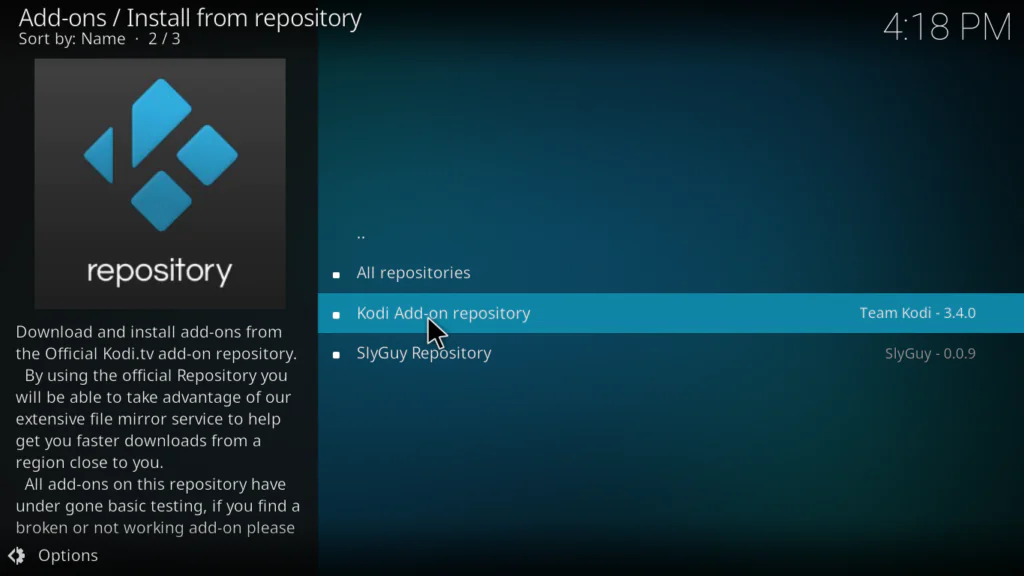
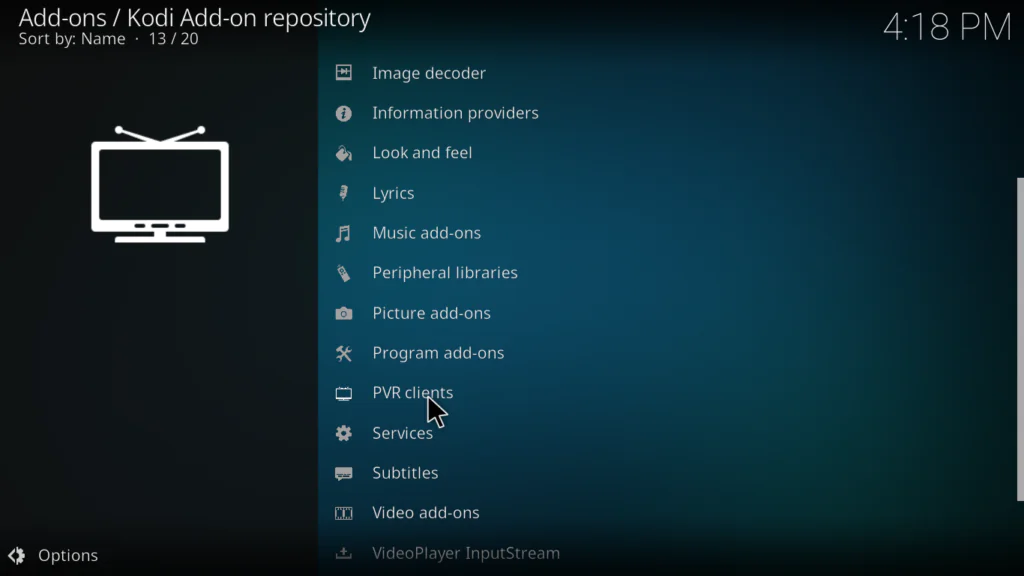
Step 4: Find PVR Clients
- In the repository browser, scroll down and click PVR clients
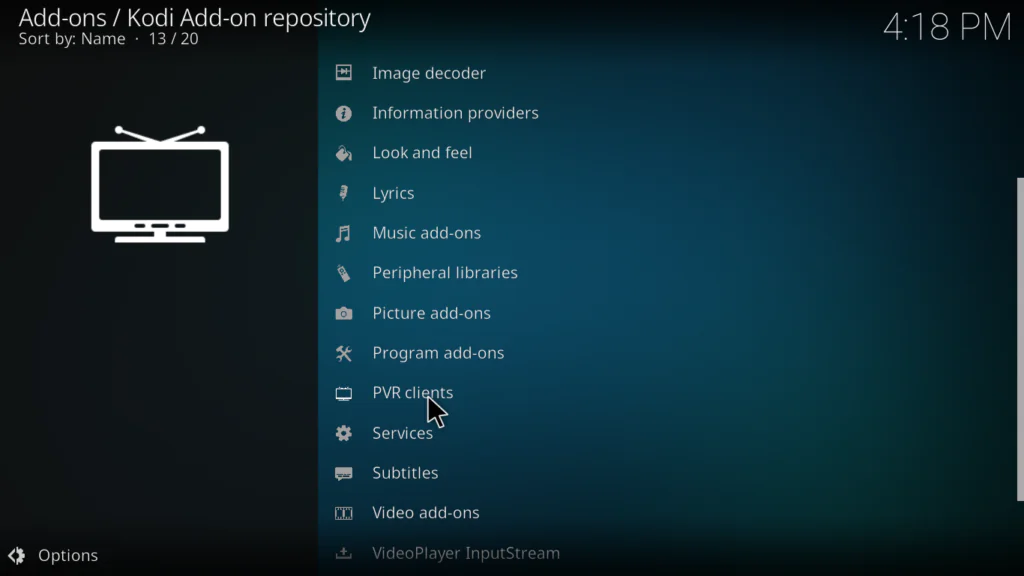
- This is the section that contains all live TV client addons for Kodi
Step 5: Install PVR IPTV Simple Client
- Scroll through the PVR clients list and find PVR IPTV Simple Client — it may also appear as IPTV Simple Client
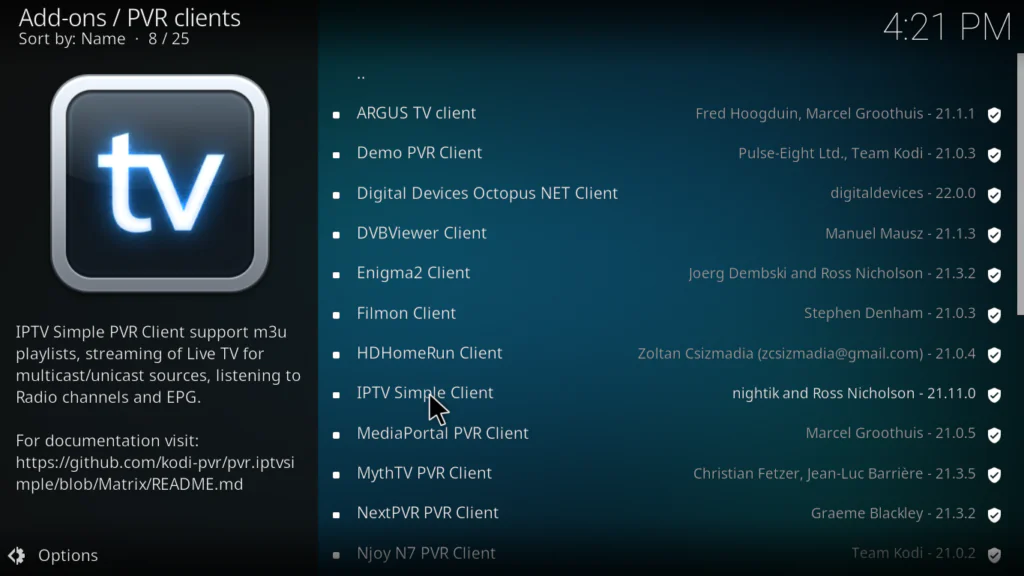
- Click on it
- Click Install
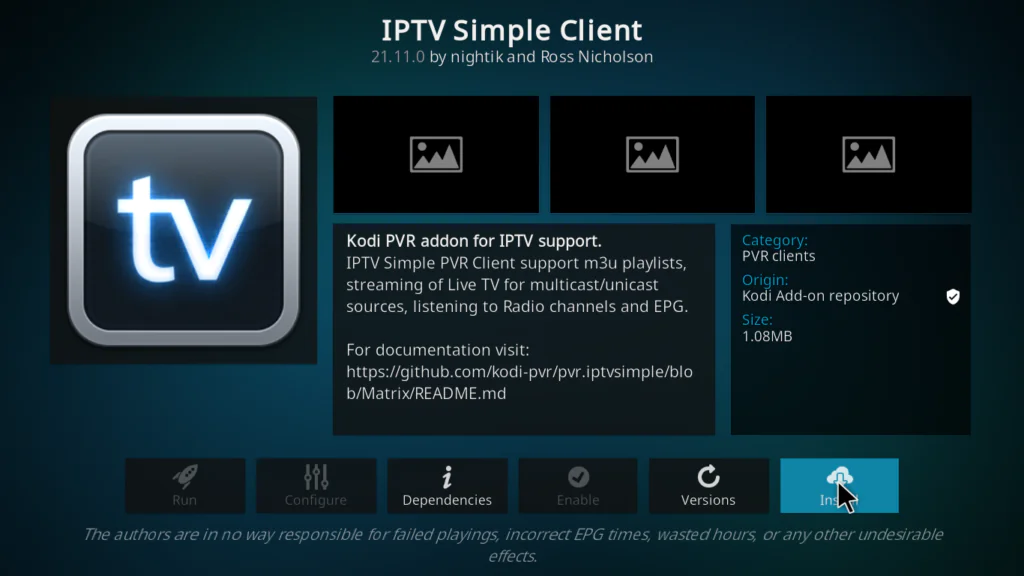
Step 6: Enable the Addon
After installation, Kodi may ask if you want to enable the PVR manager. Click Yes or Enable to confirm.
If it doesn’t ask automatically:
- Go to Settings
- Add-ons
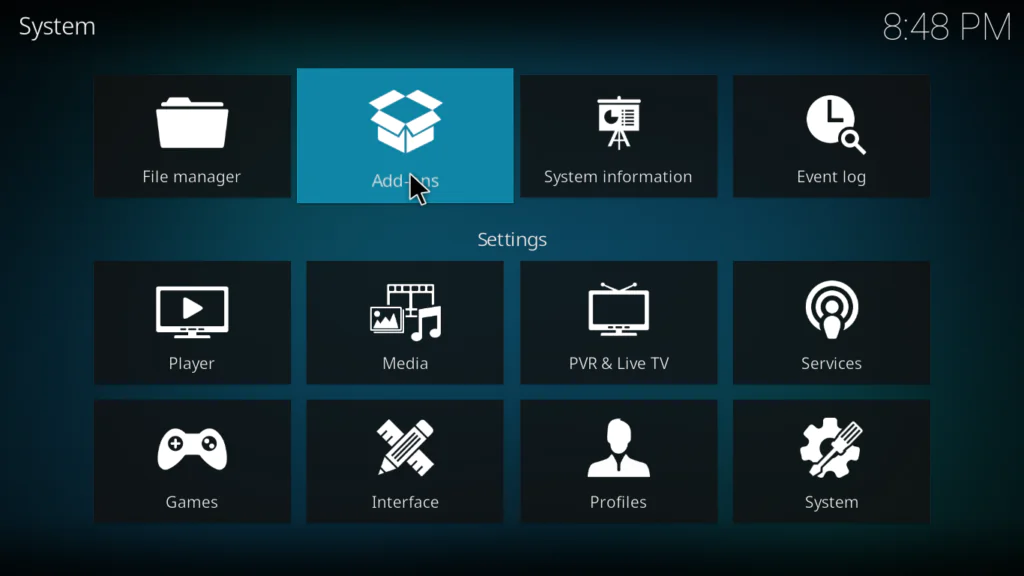
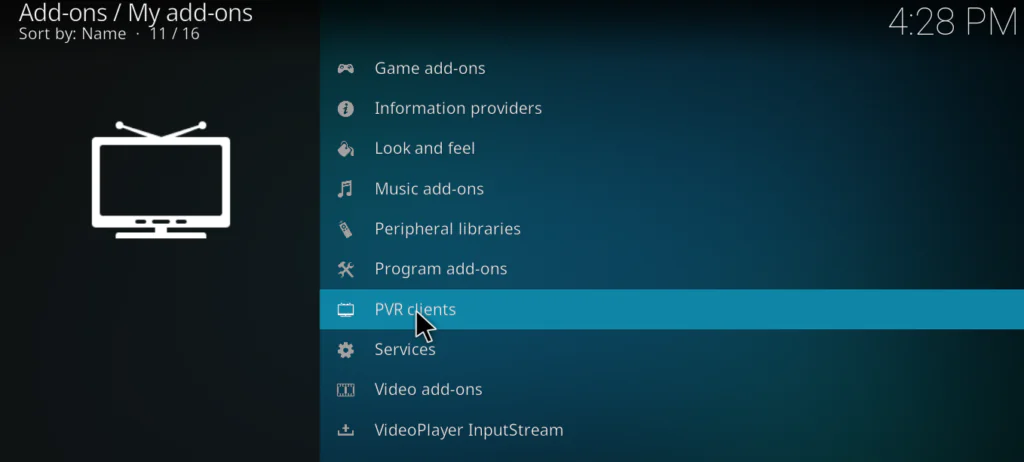
- My add-ons
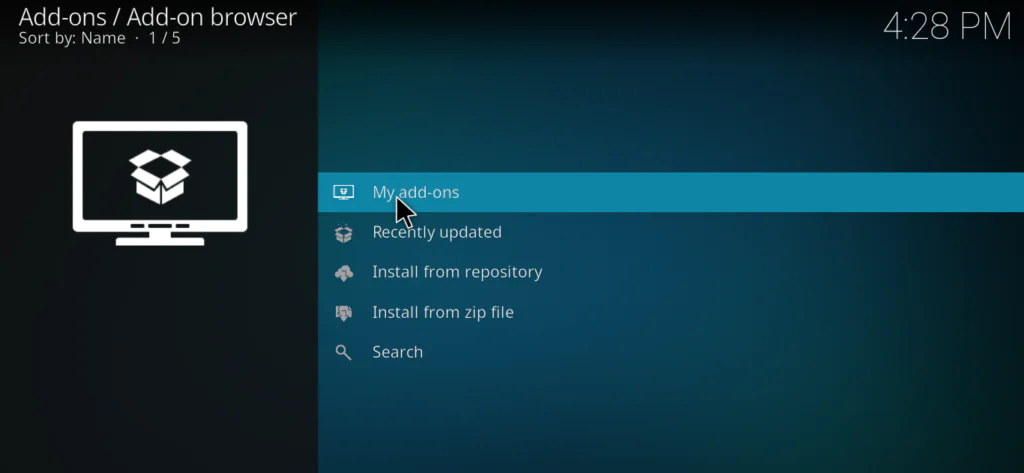
- PVR clients
- Click PVR IPTV Simple Client
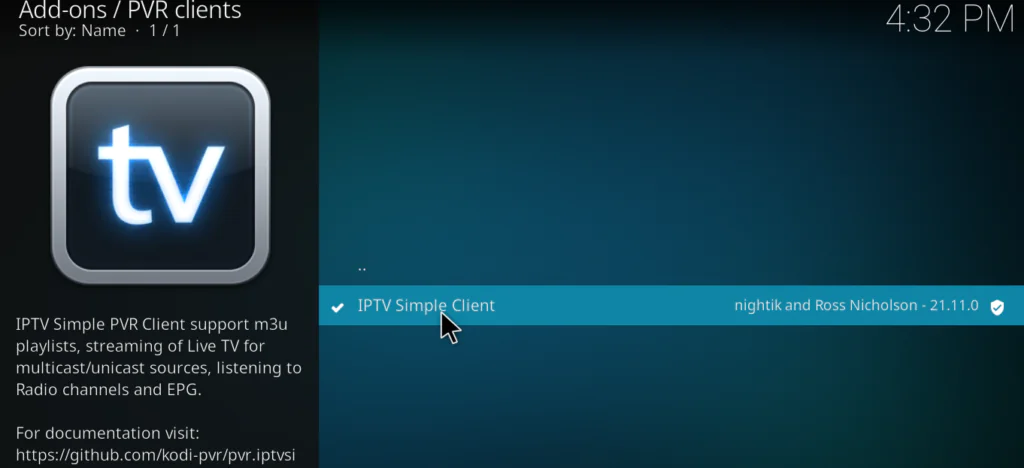
- Click Enable
How to Configure PVR IPTV Simple Client with Your M3U URL
This is the most important part — connecting your M3U playlist to the addon.
- Go to Settings
- Add-ons
- My add-ons
- PVR clients
- Click PVR IPTV Simple Client
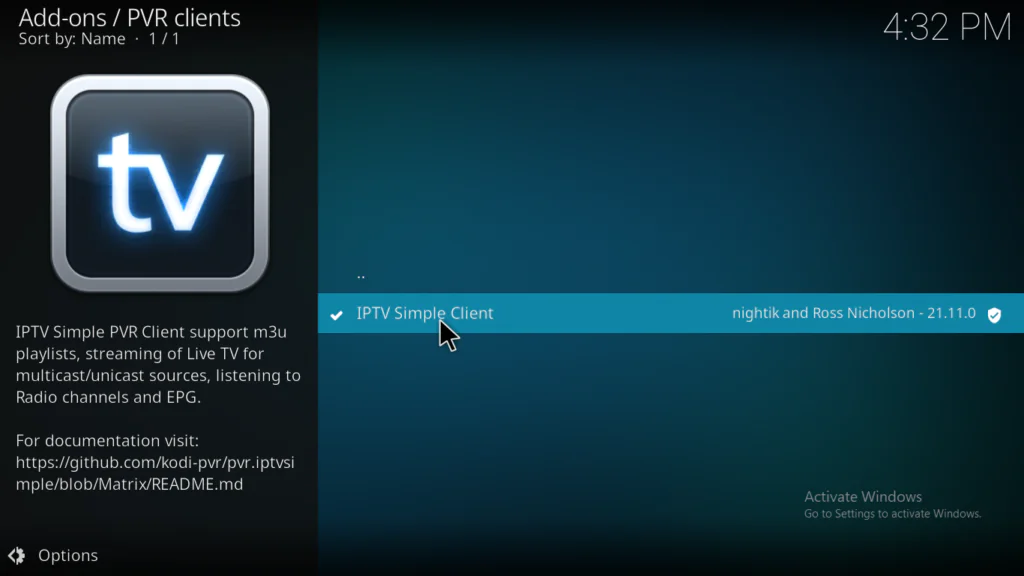
- Click Configure
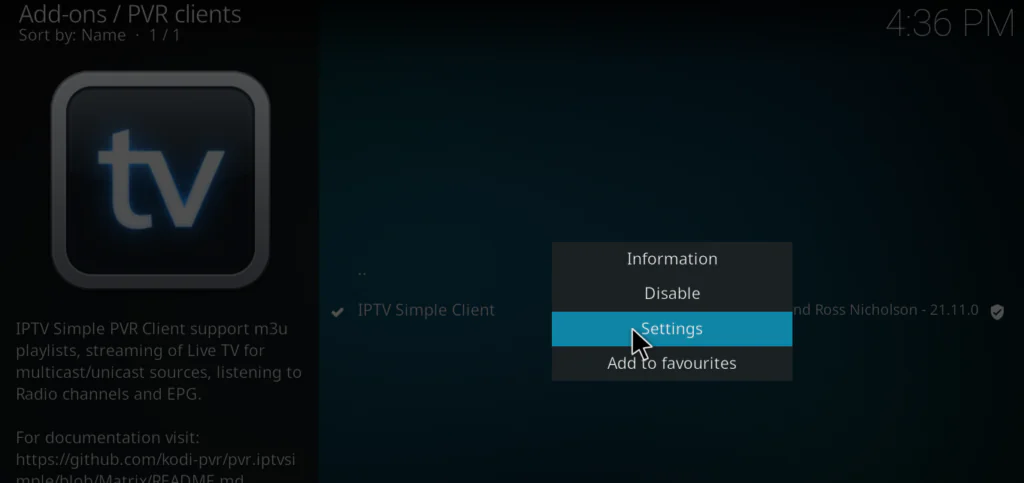
- You will see the addon settings screen — stay on the General tab
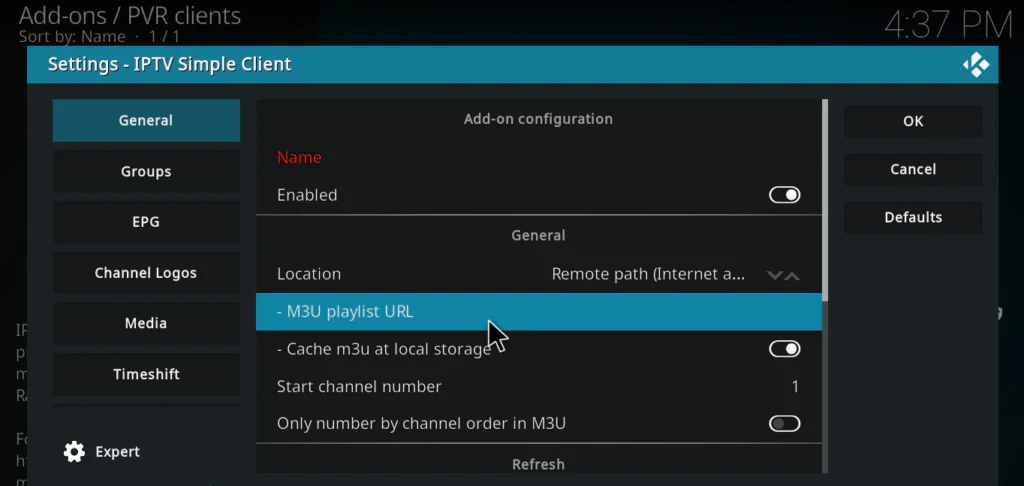
- Find the field that says M3U playlist URL
- Click on it and paste your M3U URL
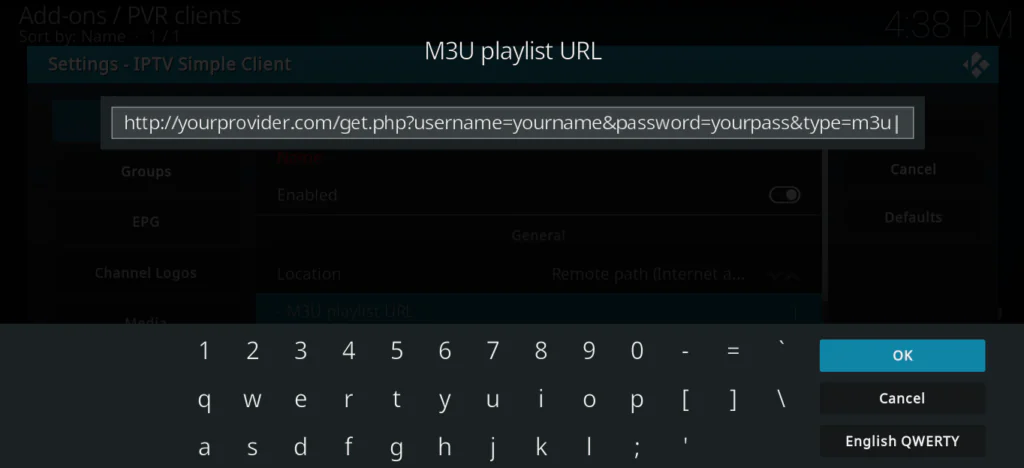
Click OK to save
After saving, restart Kodi completely. When Kodi loads again you will see a message in the top right corner saying PVR manager is starting up — this means it’s loading your channels.
Wait about 30 to 60 seconds for all channels to load, then click TV on the Kodi home screen to see your channel list.
How to Set Up EPG — The TV Guide
EPG stands for Electronic Programme Guide — it’s the TV guide that shows you what’s currently on and what’s coming next on each channel. Setting it up makes Kodi feel like a proper TV experience.
Your IPTV provider usually gives you an XMLTV EPG URL alongside your M3U URL. If you have it, here’s how to add it:
- Go back to PVR IPTV Simple Client
- Configure
- Click the EPG Settings tab
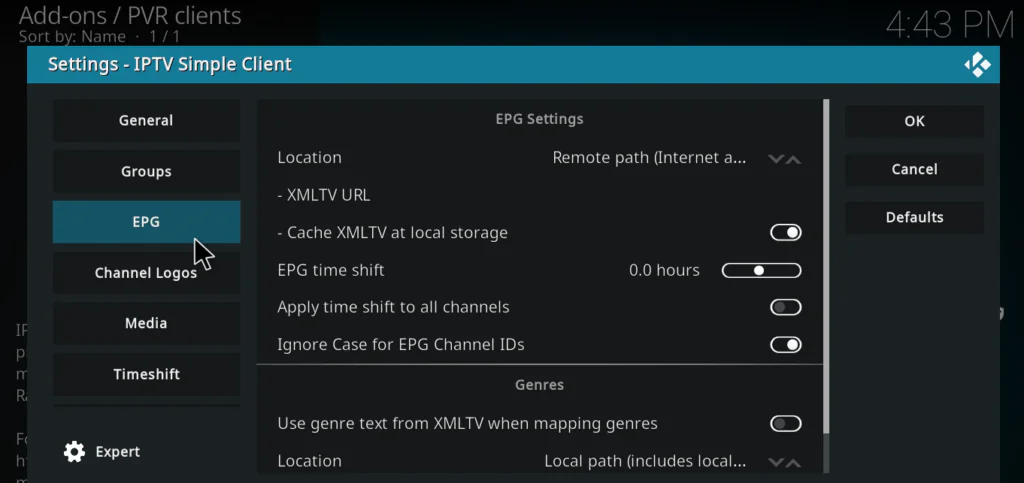
- Find the XMLTV URL field
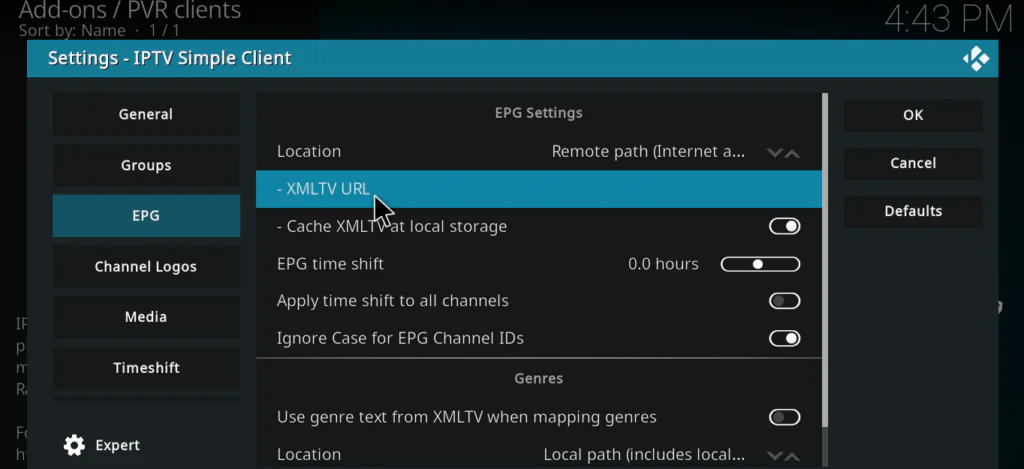
- Paste your EPG URL there
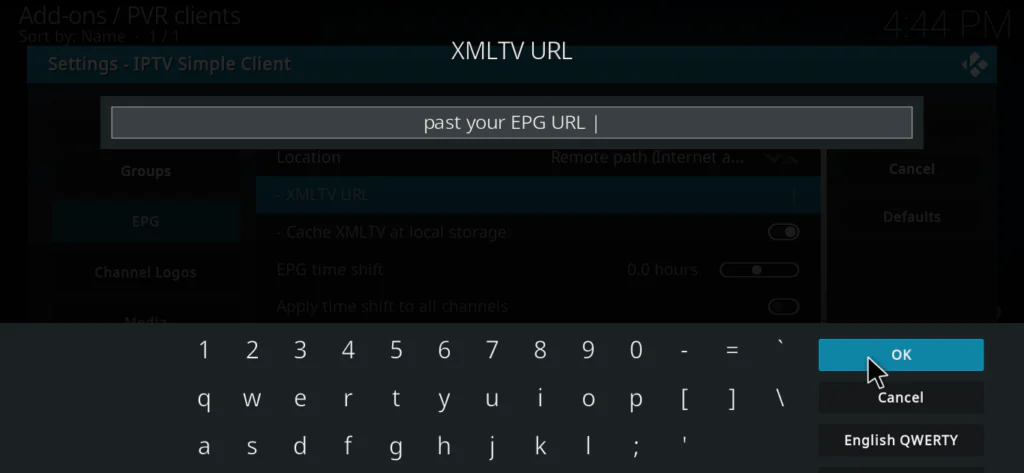
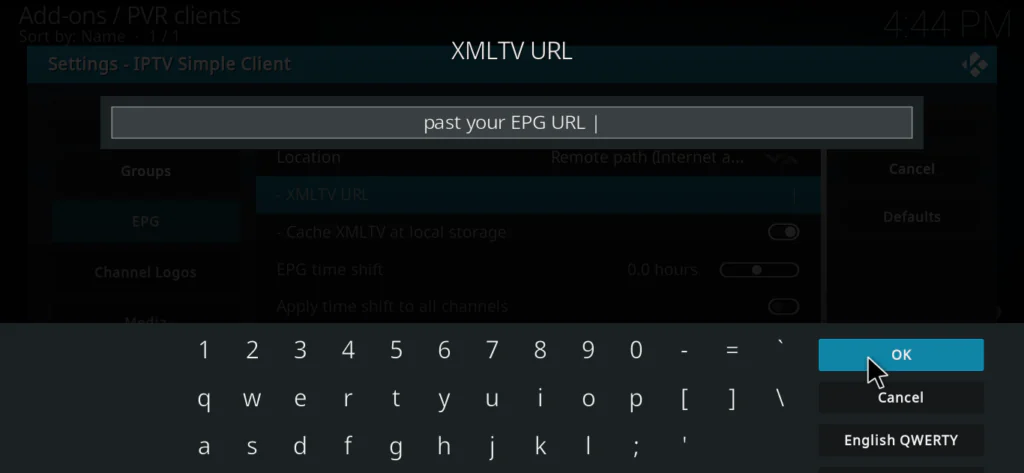
- Click OK and restart Kodi
After Kodi restarts, go to TV → Guide to see the full programme schedule for all your channels. Navigate with the arrow keys on your remote.
If you don’t have an EPG URL, the IPTV-org project on GitHub also provides free XMLTV EPG files for many countries.
How to Watch Live TV After Setup
Once everything is configured, watching TV is simple:
- Go to the Kodi home screen
- Click TV in the main menu
- You will see three options — Channels, Guide, and Recordings
- Click Channels to see your full channel list
- Click any channel to start streaming immediately
- Click Guide to open the programme guide and browse by show schedule
- Use the arrow keys on your remote to navigate the guide
The Guide view is especially useful — it shows a scrollable grid of all channels and their current and upcoming programmes, exactly like a real cable TV guide.
My Personal Experience with PVR IPTV Simple Client on Kodi
I’ve been using PVR IPTV Simple Client on various Kodi setups for a long time — Android TV boxes, Fire Stick, and Windows PC. It’s consistently one of the most reliable ways to watch live TV on Kodi.
What I liked most: Once it’s set up properly, it just works. The channel guide is genuinely excellent — browsing channels with the EPG feels like using a real cable box. I tested it with a free M3U playlist from the IPTV-org GitHub project and had over 300 channels working within minutes. Stream quality on a 20 Mbps connection was solid with no buffering.
The fact that it’s an official Kodi addon also gives me peace of mind. No worrying about whether the repository will disappear overnight or whether the addon will stop working after a Kodi update — it’s maintained by the Kodi team directly.
What I didn’t like: The initial setup can confuse complete beginners. The M3U URL concept is unfamiliar to most people, and the settings screen has a lot of options that look intimidating at first. This guide should solve that — but I understand why some people give up before they get it working.
Who should use this: Anyone who has an IPTV subscription and wants to watch it on Kodi. Also anyone who wants to use free legal M3U playlists to get hundreds of channels without paying anything. This is honestly one of the most useful addons in the entire Kodi ecosystem. If you haven’t set it up yet, it should be the next thing you do after reading the best Kodi addons guide.
Tips to Get the Best Streaming Experience
Here’s what makes a real difference:
- Use a wired Ethernet connection instead of Wi-Fi — live TV streams are very sensitive to connection instability and Wi-Fi drops cause buffering constantly
- Set the video cache in Kodi settings to at least 200MB — go to Settings → Player → Videos → Cache size — this dramatically reduces buffering on slower connections
- Enable hardware acceleration — go to Settings → Player → Videos → Allow hardware acceleration — this helps especially on lower-powered devices like Raspberry Pi
- Set EPG refresh to every 24 hours — daily refresh keeps your TV guide accurate without overloading your connection
- If your M3U has thousands of channels, use channel groups to filter only the categories you actually watch — it makes navigation much faster
- Use a VPN if your IPTV provider is geo-restricted or if you want to keep your streaming private
Pros and Cons of PVR IPTV Simple Client
Pros:
- Official Kodi addon — no Unknown Sources or external repos needed
- Completely free — maintained by the Kodi team
- Works with any M3U playlist — paid or free
- Full EPG programme guide support
- Supports radio channels alongside TV
- Works on every Kodi-supported device
- Lightweight and stable — doesn’t slow Kodi down
- Supports multiple M3U sources in Kodi 20 and above
- Catch-up TV support with compatible providers
Cons:
- Doesn’t come with channels — you need your own M3U URL
- Initial configuration can confuse complete beginners
- Stream quality depends entirely on your IPTV source — the addon itself doesn’t improve bad streams
- No built-in search for channels — you have to scroll or use the guide
- EPG may not work perfectly with all free M3U sources
Troubleshooting Common Problems
Channels not loading after entering M3U URL
Double-check the M3U URL you entered — it must be copied exactly with no extra spaces. Try pasting the URL directly into a browser first to confirm it opens or downloads a file. If it shows an error in the browser, the URL is wrong or expired.
PVR manager keeps failing to start
Go to Settings → PVR and Live TV → General and toggle the PVR manager off and then back on. Restart Kodi after doing this. If it still fails, uninstall and reinstall the addon.
No EPG programme guide showing
Make sure you’ve entered a valid XMLTV URL in the EPG Settings tab. After saving, go to Settings → PVR and Live TV → Guide → Clear cache and restart Kodi. Allow 5 to 10 minutes for the EPG data to download.
Channels loading but streams buffering constantly
This is almost always a connection issue rather than an addon issue. Switch to a wired Ethernet connection if you’re on Wi-Fi. Also increase the video cache size in Settings → Player → Videos. If buffering only happens on certain channels, those specific streams may be overloaded — try different channels.
Some channels show as unavailable
Free M3U playlist links can go offline at any time. If multiple channels in the same group don’t work, that portion of your M3U playlist may have changed. Update your M3U URL from your provider or switch to an updated free playlist source.
Addon disappeared after Kodi update
Major Kodi updates can occasionally reset addons. Go to Settings → Add-ons → Install from repository → Kodi Add-on repository → PVR clients and reinstall PVR IPTV Simple Client. Your M3U configuration may also need to be re-entered.
FAQs
Do I need to enable Unknown Sources to install PVR IPTV Simple Client?
No — and this is one of the best things about this addon. It’s part of the official Kodi repository, so it installs just like any built-in Kodi feature. No Unknown Sources, no external repos, no zip files needed.
Does PVR IPTV Simple Client come with channels?
No. The addon itself doesn’t provide any channels. It’s a client that connects to your M3U playlist. You need either a paid IPTV subscription or a free M3U playlist URL to get channels working.
What is an M3U URL and where do I get one?
An M3U URL is a link to a playlist file that contains your TV channel streams. If you have a paid IPTV subscription, your provider sent it to you by email. For free channels, the IPTV-org GitHub project at github.com/iptv-org provides free public M3U playlists.
Does PVR IPTV Simple Client work on Amazon Fire Stick?
Yes. It works on any device that runs Kodi including Fire Stick, Android TV boxes, Windows PCs, Macs, Linux, and Raspberry Pi. The setup process is identical on all devices.
Can I use multiple M3U playlists at the same time?
Yes — but only on Kodi 20 (Nexus) or above. Kodi 20 introduced support for multiple PVR IPTV Simple Client configurations, meaning you can add more than one M3U source and combine channels from different providers.
What is EPG and do I need it?
EPG stands for Electronic Programme Guide — it’s the TV schedule guide that shows what’s currently on and what’s coming next. You don’t need it for basic channel watching, but it makes the experience much better. Your IPTV provider usually gives you an XMLTV EPG URL alongside your M3U URL.
Conclusion
PVR IPTV Simple Client is one of the most powerful and useful addons in the entire Kodi ecosystem — and most Kodi users don’t even know it exists.
It transforms Kodi from a media player into a complete live TV experience — with a proper TV guide, channel categories, radio support, and hundreds of channels from your M3U playlist.
It’s official, it’s free, and it works on every device that runs Kodi. Whether you’re using a paid IPTV subscription or a free public M3U playlist — this addon makes it all work inside Kodi cleanly and reliably.
Follow the steps in this guide, enter your M3U URL, and you’ll have live TV running inside Kodi within minutes.
Got questions or ran into a problem during setup? Drop a comment below — I reply to every single one.