You’ve Wasted Enough Time on Dead Addons
You open Kodi. Pick something to watch. Hit play. Nothing. Try again. Still nothing. Sound familiar?
Addons break constantly. Repos go offline without warning. Half the guides you find are from 2023 and won’t work anymore. It’s exhausting.
Here’s the good news: The Crew Kodi addon still works in 2026, and the setup takes less than ten minutes on Kodi 21 Omega. No Real Debrid needed, no complicated configuration, no guesswork.
This guide cuts straight to what works. If you’re also looking to build a full addon stack, check out our Best Kodi Addons for 2026 guide but if The Crew is what you need right now, keep reading.
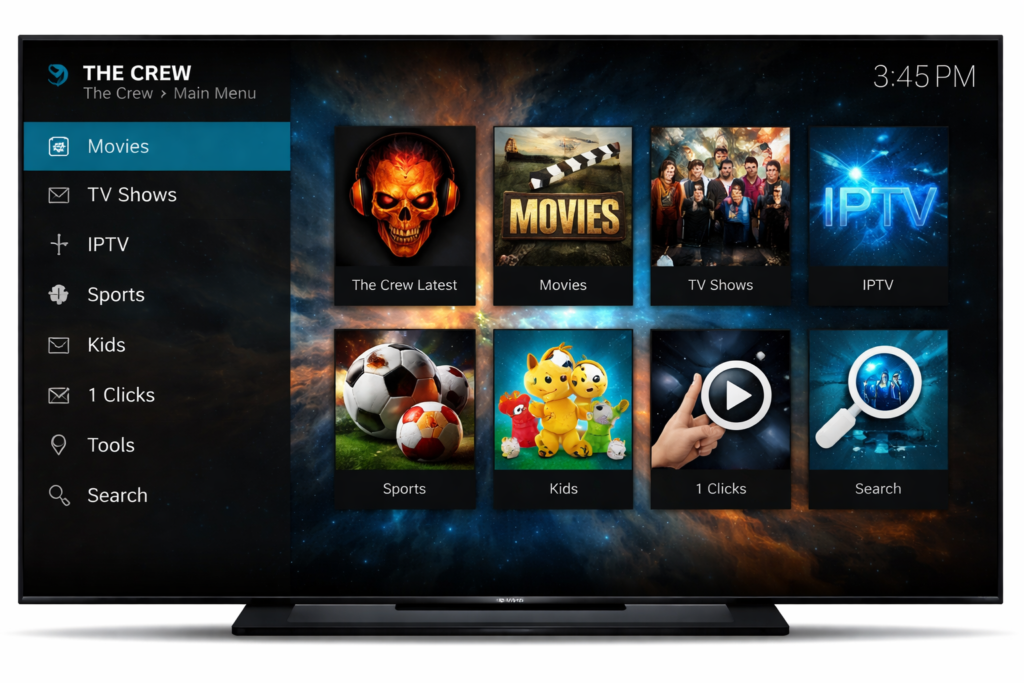
Why The Crew Still Gets Attention
There’s a reason people keep coming back to The Crew Kodi addon. It doesn’t demand a premium account. It doesn’t require you to jump through hoops before you can watch anything. You install it, open it, and start browsing.
It covers the things people actually care about:
- Movies — big catalogue, decent sources
- TV series — full seasons, good organisation
- Sports — live events when they’re on, which matters a lot to a chunk of Kodi’s audience
It’s not perfect. Source quality varies more than a premium-linked addon like Seren. But for someone who doesn’t want to pay for Real Debrid, or just wants something that works right now with zero friction — The Crew Kodi addon delivers.
The Crew Kodi Addon Setup That Still Works in 2026
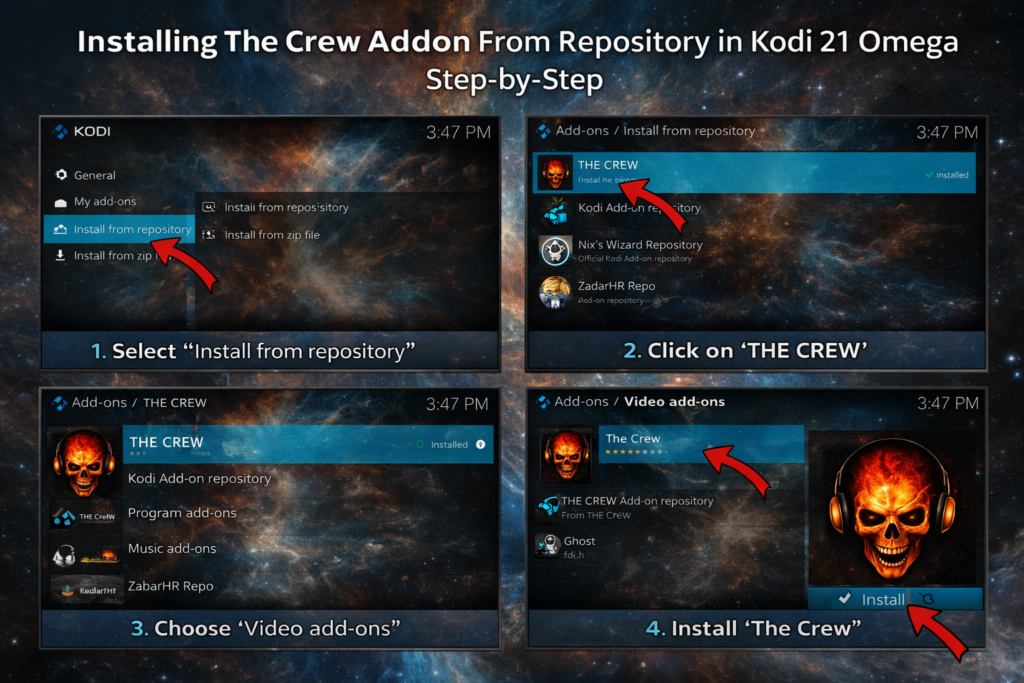
Start here — enable Unknown Sources.
Open Kodi, go to Settings → System → Add-ons, and flip Unknown Sources to ON. Accept the warning. Kodi just wants you to know you’re installing from outside the official repo. You already know that. Move on.
Next move — add the source.
Go to Settings → File Manager → Add Source. Tap the None field and enter this URL:
Name it TheCrew and save. That’s your gateway to everything else.
Now comes the important part — install the repository.
Head to Add-ons → Install from ZIP file, navigate to the TheCrew source you just added, and select the repository ZIP file. Give it a few seconds. You’ll see a notification pop up when it’s done.
Last step — grab the addon.
Go to Add-ons → Install from repository → The Crew Repository → Video Add-ons → The Crew. Hit install. Wait for the dependencies to finish. When “The Crew Add-on installed” appears, you’re good to go.
Open it from your Add-ons menu and start browsing.
Getting Around The Crew Kodi Addon
The layout is clean once you know where things live.
The home screen gives you quick access to Movies, TV Shows, Live, and a few extra categories depending on the version. For movies, use the search or browse by genre — the catalogue is large enough that searching by title is usually faster.
For TV series, navigate to the show, pick the season, pick the episode. Simple. Seren users will notice The Crew takes a few extra seconds to load sources — that’s normal. It’s scraping in real time rather than pulling from a debrid cache.
For sports, check the Live section. Events show up when they’re scheduled. If nothing’s listed, the match probably isn’t covered yet — check back closer to kick-off.
When a stream list appears, sort by quality if the option is available. Pick a 1080p source first. If it buffers, drop to 720p. That usually clears it up immediately.
When The Crew Kodi Addon Stops Working (And What Actually Fixes It)
No Stream Available
This one looks scary but usually has a simple explanation. The sources for that specific title are temporarily dead, or the scraper ran out of time before finding anything.
Fix: Wait 30 seconds and try again. If it keeps happening, try a different title to check if it’s the addon or just that one piece of content. Clearing The Crew’s cache (Tools → Clear Cache inside the addon) also clears out old broken links and often helps.
Addon Not Loading
You click The Crew and nothing happens. Or it throws an error on launch.
Fix: This is almost always a broken dependency after a Kodi update. Go to Add-ons → My Add-ons → Video Add-ons → The Crew, check the version, and hit Update if one’s available. If updating doesn’t fix it, uninstall completely and reinstall from the repo fresh. Takes five minutes and fixes it 90% of the time. For other addons behaving the same way, our Kodi Addons Not Working Fix guide covers the full diagnosis.
Buffering
The Crew pulls from open web sources. Some of them are slow. Buffering is more common here than with debrid-powered addons — but it’s manageable.
Fix: Switch to a lower quality stream first (720p instead of 1080p). If you’re on Wi-Fi, move closer to your router or plug in via Ethernet if your TV box has the port. For a deeper fix involving Kodi’s cache settings, follow our [Fix Kodi Buffering Guide] — it applies directly to The Crew.
Make It Faster and Smoother
A few quick wins that make a real difference:
Clear the cache regularly. The Crew stores old link data that slows down future searches. Go into the addon’s Tools section and clear it once a week.
Use a stable connection. Sounds obvious. But switching from a congested Wi-Fi band (2.4GHz) to either 5GHz or Ethernet drops a lot of buffering complaints instantly.
Avoid heavy Kodi builds. If you’re running a fully loaded Kodi build with twenty addons and a custom skin, everything slows down. A clean install with just the addons you actually use keeps things responsive.
Don’t run other streaming apps in the background. Close everything else before launching Kodi on a budget TV box.
Quick Safety Note
The Crew is a third-party addon — it’s not part of Kodi’s official repository. The addon itself is safe to install. The legal side depends on what you stream through it. Content from legitimate free sources is fine. If you’re accessing copyright-protected material without authorisation, that’s where the grey area starts. For more on streaming and copyright law, the Electronic Frontier Foundation has useful guidance at eff.org. Keep that in mind and make informed choices.
FAQ
Is The Crew addon still working in 2026?
Yes. The Crew is actively maintained and works on Kodi 21 Omega. The repo URL and install method in this guide are current as of 2026.
Why am I not getting streams?
Usually a caching issue or temporarily dead sources. Clear the addon cache from within The Crew’s Tools menu and try again. If a title consistently returns nothing, try a different addon for that specific content.
Does it work on Android TV Box?
Absolutely. The Crew runs well on most Android TV boxes — Amlogic, Rockchip, and Allwinner chipsets all handle it without issues. Low-RAM devices (1GB) may be slower on source loading but will still work.
You’ve Got a Working Setup — Now Build On It
The Crew Kodi addon is reliable, easy to use, and asks nothing of you beyond a working internet connection. That’s genuinely rare in the Kodi addon world, and it’s why people keep recommending it even as flashier options come and go.
Get it set up, get familiar with how it behaves, and you’ll have a solid base for your Kodi box.
From here, there’s a lot more to explore. The Crew works great alongside premium addons, official streaming options, and IPTV setups. If you want to keep building, our Best Kodi Addons for 2026 guide covers everything that’s worth your time right now — tested, working, and kept up to date.


