Introduction
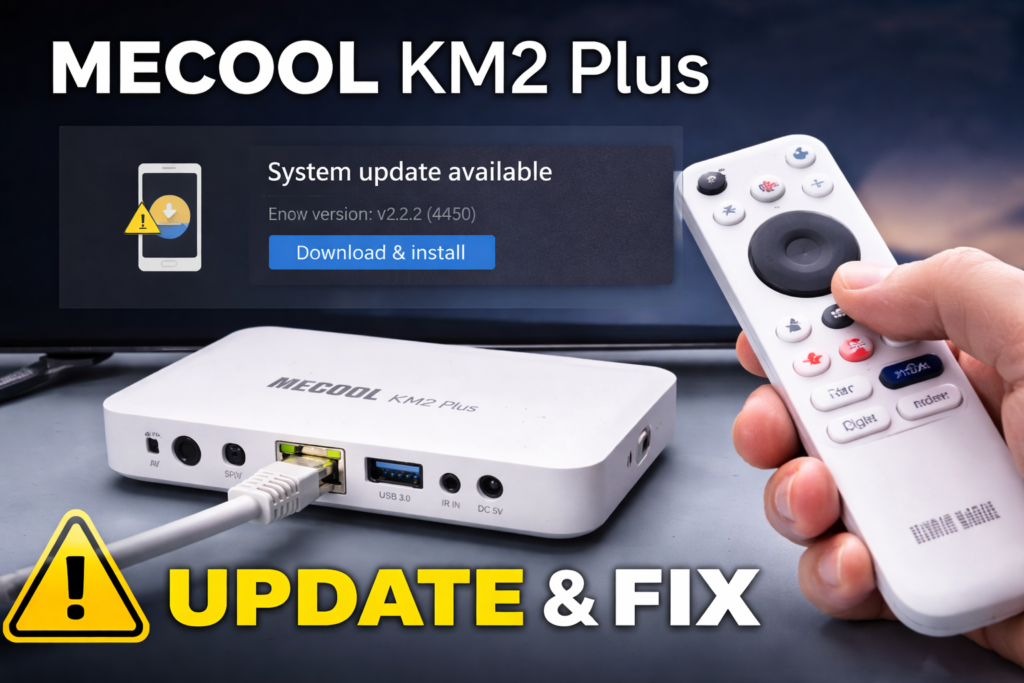
Your MECOOL KM2 Plus is not updating — and you have no idea why. Maybe the update got stuck halfway, or your device is not finding any new updates at all. This is one of the most common problems MECOOL KM2 Plus users face. The good news is that most of these issues are easy to fix, and this guide will walk you through every step.
What You’ll Learn
- How to update your MECOOL KM2 Plus the right way
- How to fix a stuck or failed update
- How to clear the issue if your device is not finding any updates
- How to keep your device running smoothly after updating
What You Need Before Starting
- Your MECOOL KM2 Plus device connected to your TV
- A stable Wi-Fi or ethernet internet connection
- Your TV remote or a USB mouse
- About 10–15 minutes of free time
Important Note
The screens on your device might look slightly different from what is described here. MECOOL releases new software versions from time to time, so menu names or button positions may shift a little. Do not worry — the steps below still apply. Just look for anything that sounds similar.
Step-by-Step Guide: How to Update Your MECOOL KM2 Plus
Method 1: Update Through the Settings Menu
1. Turn on your MECOOL KM2 Plus and wait for the home screen to load.
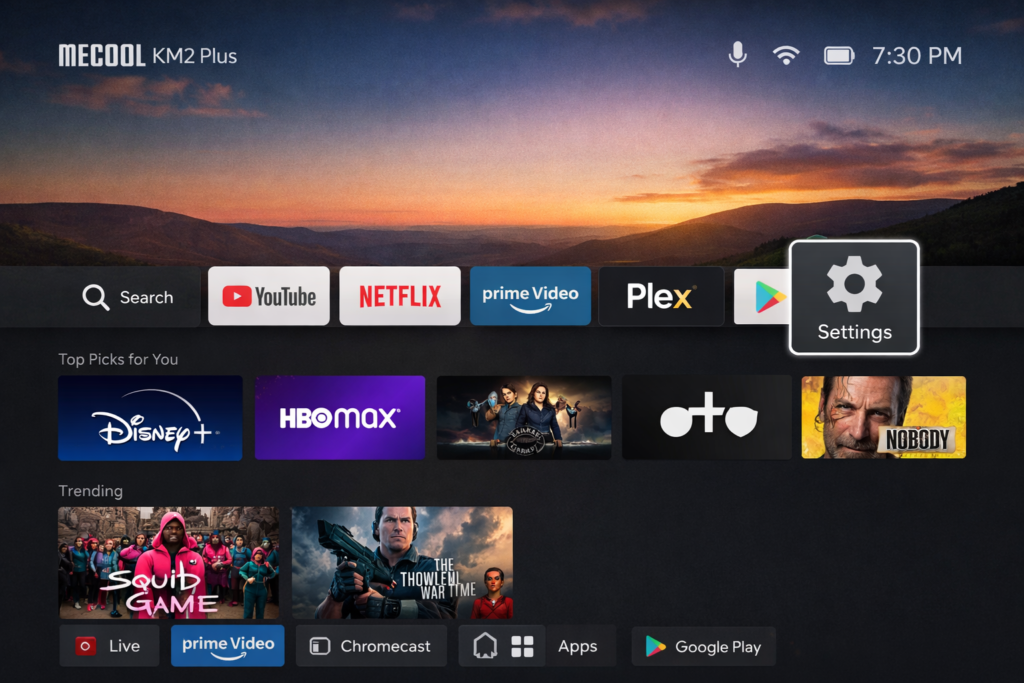
2. Go to the Settings menu. You can find it by pressing the settings icon on your remote or navigating to it on the home screen.
3. Scroll down and select Device Preferences.
Note: On some versions it may say “About” or “System” instead.
4. Select About.
5. Click on System Update.
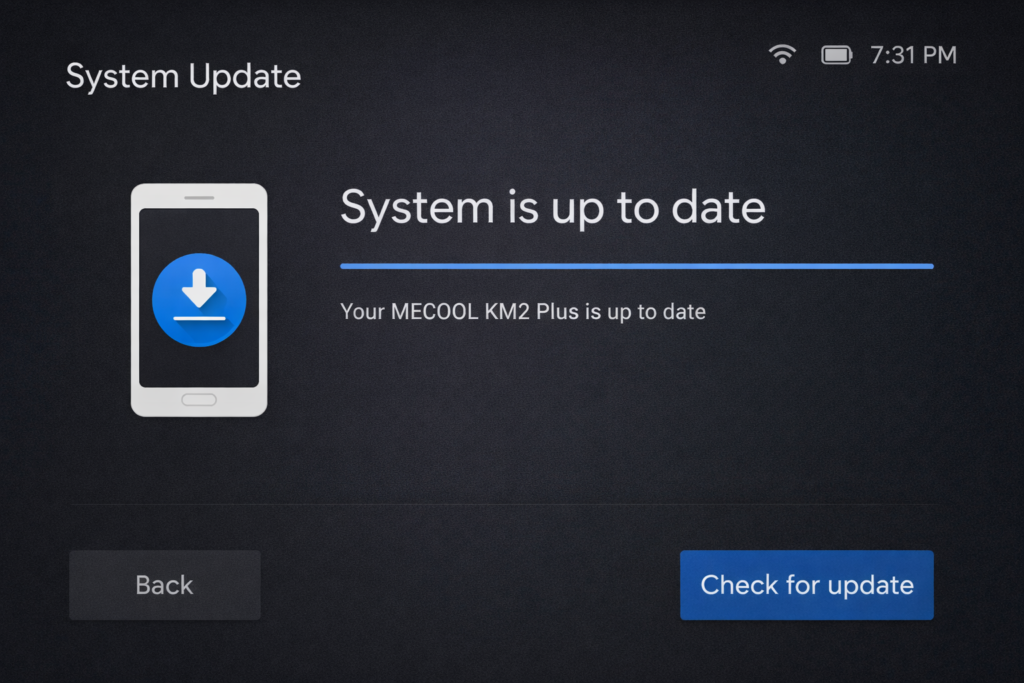
6. Click Check for Update. Your device will now search for any available update.
7. If an update is found, click Download and wait. Do not turn off your device during this step.
8. Once downloaded, click Install. Your device will restart automatically.
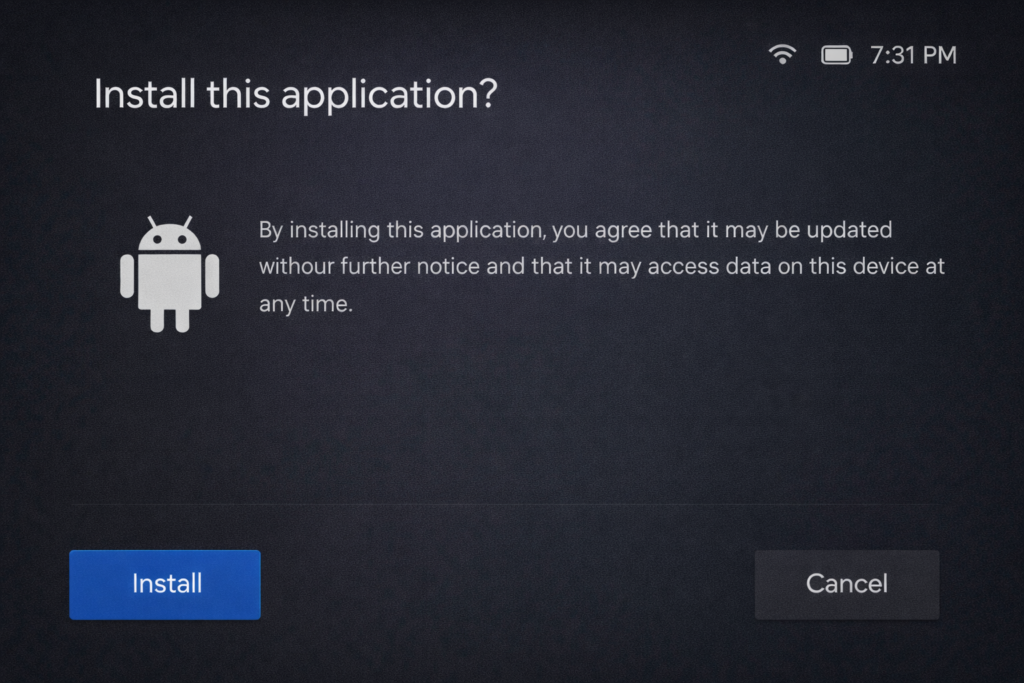
9. Wait for the device to reboot. This can take 2–5 minutes. Let it finish on its own.
Method 2: Fix a Stuck or Failed MECOOL KM2 Plus Update
If your MECOOL KM2 Plus update got stuck or failed, follow these steps.
1. Unplug your MECOOL KM2 Plus from the power socket.
2. Wait 30 seconds, then plug it back in.
This is called a “hard reboot” — it clears small errors stored in the device’s memory.
3. Go back to Settings > Device Preferences > About > System Update.
4. Click Check for Update again.
5. If it fails again, connect your device using an ethernet cable instead of Wi-Fi. A wired connection is much more stable for downloading updates.
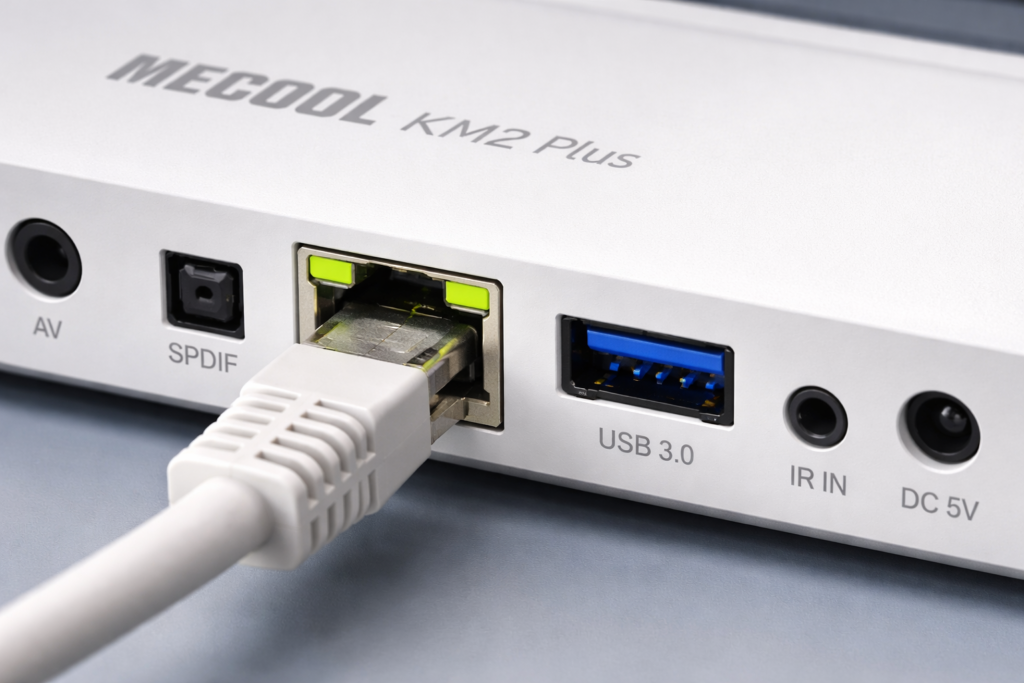
6. Try the update one more time.
If you are still stuck after this, you can check the official MECOOL support page for the latest firmware files and manual update instructions.
For more Android TV box help, check out our guide on how to fix Android TV box So SLow and our full Amlogic firmware update guide.
Troubleshooting
Problem: “No update available” but you know there is one. Fix: Go to Settings > Apps > See All Apps, find the update app, and clear its cache. Then check for updates again.
Problem: Update downloads but fails to install. Fix: Make sure your device has enough storage. Go to Settings > Device Preferences > Storage and check that you have at least 500MB free.
Problem: MECOOL KM2 Plus is stuck on the logo after updating. Fix: Unplug the device, wait 1 minute, then plug it back in. If it stays stuck, hold the reset button (small hole on the back) for 10 seconds using a pin.
Problem: Update keeps stopping midway. Fix: Your internet connection may be dropping. Switch to an ethernet cable and avoid downloading anything else at the same time.
Problem: Device is very slow after the update. Fix: Go to Settings > Device Preferences > Storage and select “Clear Cache.” Then restart the device.
Pro Tips
After every update, restart your device before opening apps. It helps the new software load correctly.
Always update over ethernet if you can. Wi-Fi can cut out mid-download and cause a failed update.
Never unplug your MECOOL KM2 Plus while an update is installing. This can seriously damage the system.
Before updating, check how much free storage you have. A full device cannot install updates properly.
If an update fails twice in a row, wait 24 hours and try again. MECOOL’s servers are sometimes busy.
Conclusion
Fixing MECOOL KM2 Plus update issues is usually quick once you know where to look. Whether your MECOOL KM2 Plus update is stuck, failing, or not showing up at all, the steps above will get things working again. Keep your device updated and it will stay fast, stable, and ready to use.
FAQ
Why is my MECOOL KM2 Plus not finding any updates?
Your device might have a connection issue or a cached error. Clear the cache of the system update app, make sure your internet is working, then check for updates again.
Is it safe to update the MECOOL KM2 Plus?
Yes, it is completely safe. Updates fix bugs and improve performance. Just never unplug the device while the update is running.
How long does a MECOOL KM2 Plus update take?
Most updates take between 5 and 15 minutes depending on your internet speed and the size of the update. The device will restart on its own when it is done.


