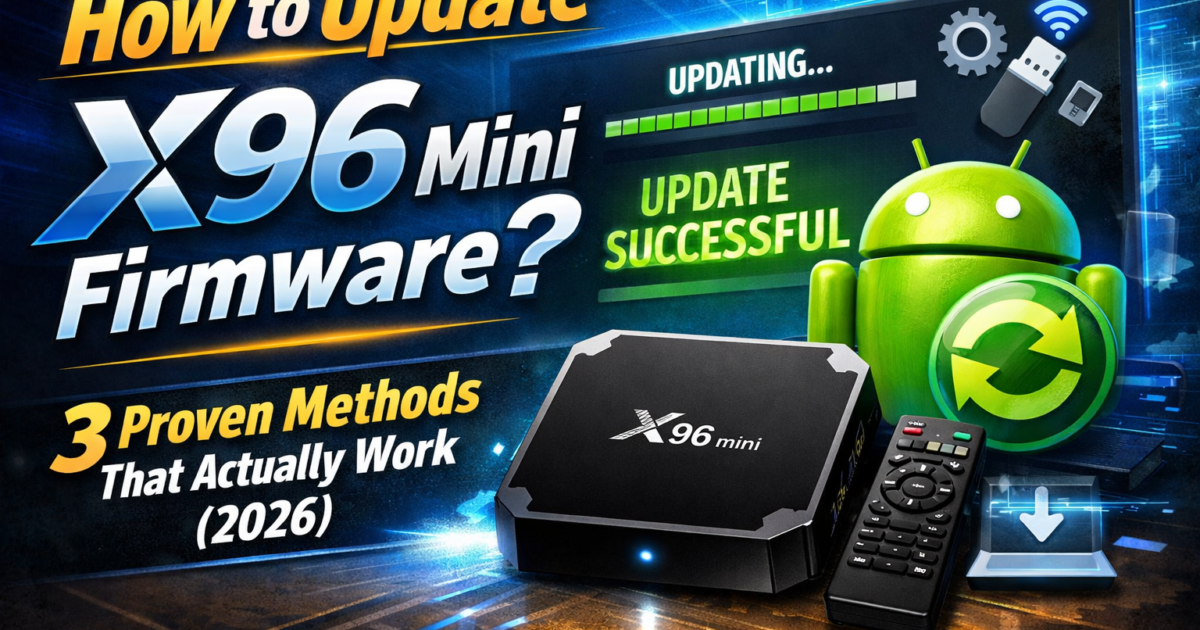
How to Update X96 Mini Firmware?
How to update X96 Mini firmware is the first question every X96 Mini owner should know the answer to — and if you’ve been putting it off, now is the perfect time.
Outdated firmware is behind most X96 Mini problems — sluggish performance, random crashes, app errors, and poor streaming quality. A proper firmware update wipes those issues clean and restores your device to its best state.
The good news? You don’t need to be a tech expert. This guide breaks the entire X96 Mini firmware update process into simple, beginner-friendly steps — so you can do it confidently the first time.
Let’s get into it.
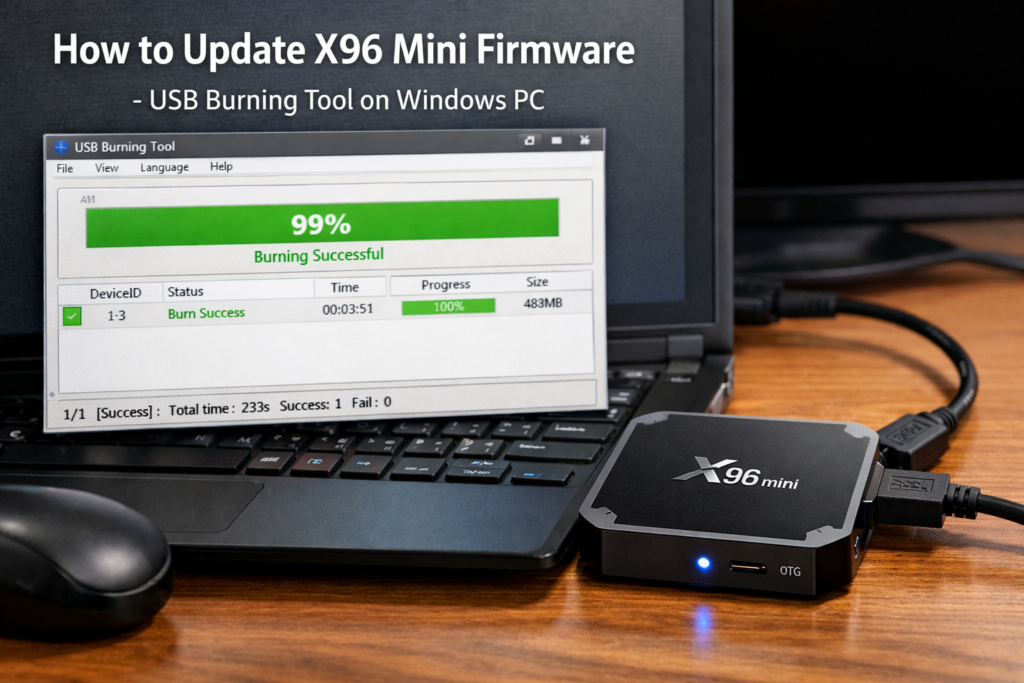
⚠️ Things to Know Before You Update
Before you flash X96 Mini firmware, take two minutes to read this. It could save you from a headache later.
- Back up your data first — A firmware flash wipes everything on the device. Save any app settings or personal files beforehand.
- Use the correct firmware version — Installing the wrong firmware for your X96 Mini model is the most dangerous mistake you can make. Always verify your exact model number on the bottom label of the device.
- Keep power stable — Never unplug the device mid-flash. A power interruption during flashing can brick the device permanently.
- Charge your laptop — If you’re using a laptop, make sure it’s plugged in. You need a stable connection throughout the process.
These aren’t meant to scare you — just to make sure the process goes smoothly.
📥 What You Need
Gather these before starting:
- ✅ Your X96 Mini device
- ✅ A Windows PC or laptop (Mac is not supported for USB Burning Tool)
- ✅ A Micro-USB to USB cable (data cable — not a charge-only cable)
- ✅ USB Burning Tool — free software from Amlogic
- ✅ The correct firmware file (.img format) for your exact X96 Mini model
Download the USB Burning Tool and official firmware files from the 🔬 Amlogic official software repository.
⚡ Method 1: How to Update X96 Mini Firmware via USB Burning Tool (Recommended)
This is the most reliable method for a complete X96 Mini software update. Follow each step carefully.
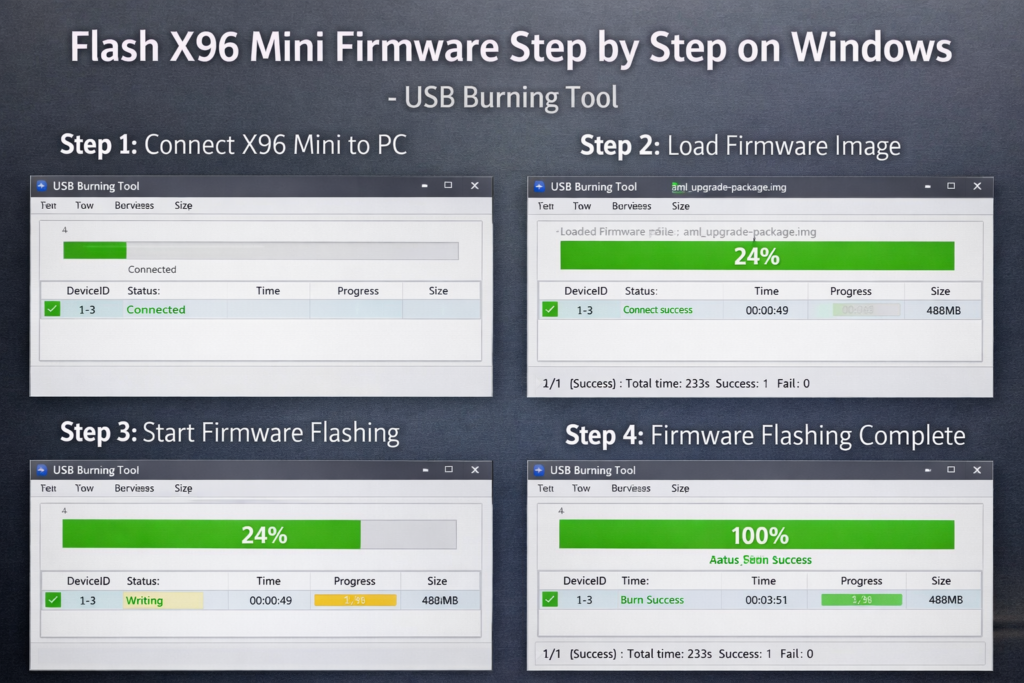
Step 1 — Install USB Burning Tool Download and install the USB Burning Tool on your Windows PC. Run it as Administrator.
Step 2 — Load the Firmware File Inside the tool, click File → Import Image and select the .img firmware file you downloaded for your X96 Mini model.
Step 3 — Enable the Options Check both “Erase Flash” and “Erase Bootloader” boxes. This ensures a clean flash with no leftover data conflicts.
Step 4 — Enter Burn Mode
- Hold the reset button on the X96 Mini (pinhole near the AV port).
- While holding it, connect the Micro-USB cable to your PC.
- Keep holding for 5–8 seconds until the USB Burning Tool detects the device.
Step 5 — Start the Flash Click the “Start” button in the tool. The progress bar will begin moving. Do not disconnect anything.
Step 6 — Wait for Completion The process takes 5–15 minutes. When complete, the tool will show a green success message. Unplug and restart the device.
⚠️ Warning: If the progress bar stops at any point for more than 5 minutes, something has gone wrong. Cancel, unplug, and restart the process from Step 4.
💾 Method 2: Update via SD Card (Alternative Method)
If you don’t have a Micro-USB data cable or access to a Windows PC, this method works as a solid alternative to update Android TV box firmware.
- Format a MicroSD card (8GB minimum) to FAT32.
- Copy the firmware
.imgfile to the root of the SD card and rename it “aml_upgrade_package.img”. - Insert the SD card into the X96 Mini while it’s powered off.
- Hold the reset button and power on — the device will detect the card and begin flashing automatically.
- Wait for the process to complete and the device to restart.
This method is slightly less reliable than the USB Burning Tool but works well when done correctly.
🚨 Common Problems & Fixes
Device not detected by USB Burning Tool:
- Try a different Micro-USB cable (must be a data cable, not charge-only)
- Try a different USB port on your PC
- Reinstall the USB Burning Tool driver
Device stuck on logo after flashing:
- The firmware may be incorrect for your model
- Re-flash with the correct firmware version — check the label on the bottom of your device
Flash failed or progress bar frozen:
- Cancel the process and restart the tool
- Re-enter burn mode from scratch using Step 4 above
- Ensure you checked both “Erase Flash” and “Erase Bootloader”
💡 If your device won’t turn on at all after a failed flash, visit our full recovery guide: 🔧 X96 Mini Not Turning On – Complete Fix Guide
✅ How to Check If the Update Was Successful
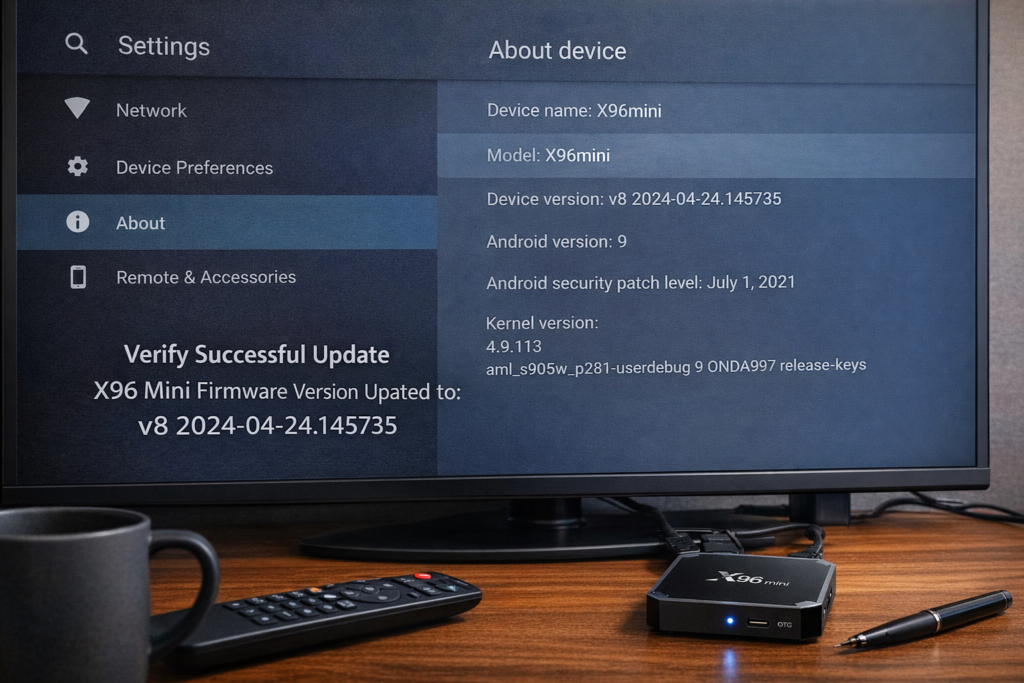
Once your X96 Mini restarts after the firmware flash:
- Go to Settings
- Scroll down to About Device or Device Info
- Check the Build Number or Firmware Version
Compare this version number with the firmware file you flashed. If they match — your X96 Mini firmware update was a complete success. 🎉
You should also notice faster boot times, smoother navigation, and improved app stability right away.
❌ When NOT to Update Firmware
Believe it or not, sometimes the best move is to leave the firmware alone.
Skip the update if:
- Your device is running smoothly with no issues — “if it ain’t broke, don’t fix it”
- You cannot find the exact firmware for your specific X96 Mini model — using the wrong version causes more problems than it solves
- You’re in the middle of something important — always update with time to spare and full attention
🌡️ If your device is running hot before or after updating, read our guide on 🔥 X96 Mini Overheating Fix — firmware updates can sometimes change CPU performance behavior.
For additional firmware resources and Android TV box guides, 📦 visit AFTVnews — one of the most trusted Android TV communities online.
✅ Conclusion
Now you know exactly how to update X96 Mini firmware — safely, correctly, and without any guesswork.
To recap:
- ✅ Verify your exact X96 Mini model number
- ✅ Download the correct firmware and USB Burning Tool
- ✅ Follow Method 1 (USB Burning Tool) for the most reliable result
- ✅ Verify the update in Settings → About Device
Take your time, follow the steps, and your X96 Mini will feel like a brand-new device when it’s done. You’ve got this. 🚀
❓ Frequently Asked Questions
Q1: How do I update X96 Mini firmware?
Download the correct firmware file for your X96 Mini model and use the free Amlogic USB Burning Tool on a Windows PC. Connect the device in burn mode using a Micro-USB data cable, load the firmware in the tool, and click Start. The process takes 5–15 minutes and fully restores the device software.
Q2: Is it safe to update X96 Mini firmware?
Yes, when done correctly. The key is using the exact firmware version for your specific X96 Mini model. Using the wrong firmware is the only real risk. Always verify your model number on the device label before downloading any firmware file.
Q3: What happens if the X96 Mini firmware update fails?
If the flash fails midway, the device may get stuck on the boot logo or become unresponsive. Re-enter burn mode and reflash from the beginning using the USB Burning Tool. In most cases, a second attempt with the correct firmware resolves the issue completely.
📌 Found this guide helpful? Bookmark it and share it with other X96 Mini users who need a firmware refresh!
📌 Related Guides
Install Apps on X96 Mini — Complete 2026 Guide
Install apps on X96 Mini — it sounds technical, but it really isn’t. Whether you want Netflix, YouTube,…
Clean Storage on X96 Mini — Complete 2026 Guide
Clean storage on X96 Mini — if you’re here, you’ve probably seen that dreaded “insufficient storage” notification, watched…
Fix Lag on X96 Mini — Complete 2026 Guide
Fix lag on X96 Mini — that’s exactly what this guide is here to do. Because nothing kills…