How to speed up X96 Mini — if you’re searching for this, you already know the pain. Videos buffering endlessly. Apps freezing mid-launch. The remote not responding fast enough. What used to feel snappy now crawls like it’s thinking too hard about every tap. 😤
Here’s the thing — your X96 Mini isn’t broken. It’s just tired. And in most cases, a few smart tweaks are all it takes to bring it back to life. This guide walks you through every fix, from the simplest one-tap solutions to deeper performance boosts. No technical skills required.
Let’s get that box running fast again. 🚀
Table of Contents
- Why Your X96 Mini Is Slow
- Quick Fixes (Start Here)
- Best Ways to Speed Up X96 Mini (Step-by-Step)
- Advanced Tips
- Internal Linking Suggestions
- When to Upgrade Your Device
- Conclusion
- FAQ
Why Your X96 Mini Is Slow
Before jumping to fixes, it helps to understand what’s actually dragging your device down. The X96 Mini is a budget Android TV box — it has limited RAM (1GB or 2GB) and modest processing power. Over time, a few common culprits eat away at whatever performance headroom it has:
- Too many installed apps — every app takes up storage and some run silently in the background
- Low RAM — with only 1–2GB, too many open apps push the box to its limit fast
- Background processes — apps like YouTube, Kodi, or streaming services keep running even after you close them
- Overheating — poor ventilation slows the processor down to protect itself (thermal throttling)
- Outdated firmware — older software versions often have unresolved bugs that hurt performance
- Fragmented or full storage — when internal storage is near full, everything slows down
Identify which ones apply to you, then work through the fixes below.
Quick Fixes — Start Here ⚡
Before diving into deeper solutions, try these three first. They take less than two minutes and often make a noticeable difference immediately.
Restart the device A simple restart clears RAM and kills background processes. Hold the power button or unplug, wait 30 seconds, then plug back in.
Clear the app cache Go to Settings → Apps → [App Name] → Clear Cache. Do this for your most-used apps — streaming apps especially build up large caches fast.
Close background apps Press the home button, then open the recent apps menu. Swipe away or close every app that’s running in the background.
If things still feel sluggish after these three steps, move on to the full fixes below.
Best Ways to Speed Up X96 Mini (Step-by-Step)
✅ Fix 1 — Clear Cache and Junk Files
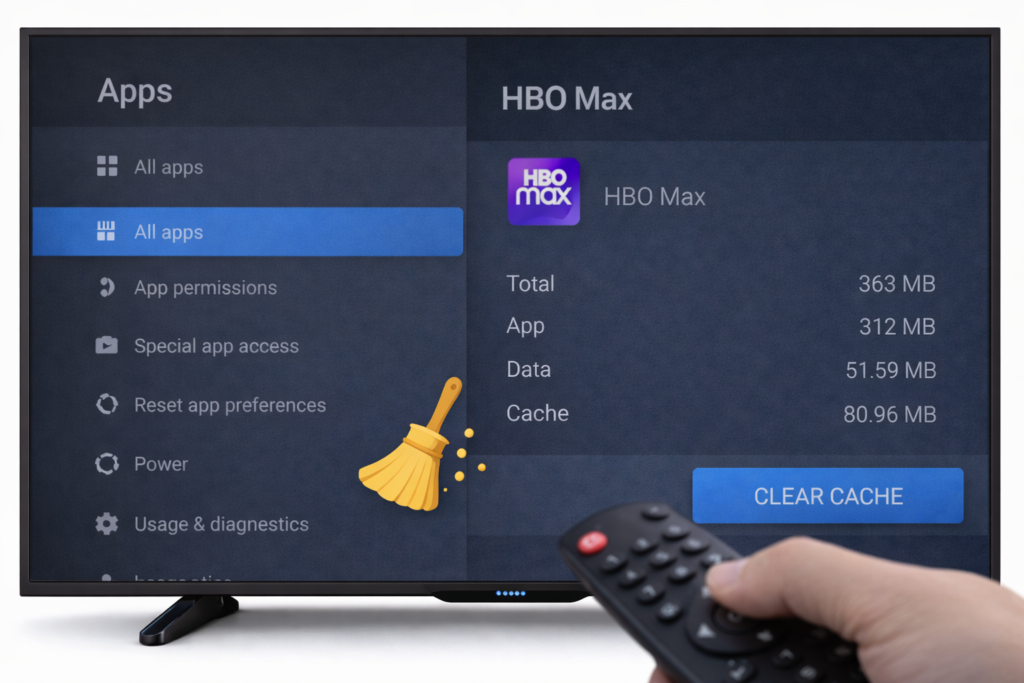
Cached data builds up over time and wastes valuable storage. Clearing it regularly is one of the easiest X96 Mini slow fixes available.
Step 1 — Go to Settings → Device → Apps
Step 2 — Select each major app (YouTube, Netflix, Kodi, etc.)
Step 3 — Tap Clear Cache — do NOT tap Clear Data unless you want to log back in
Step 4 — Repeat for every app with a large cache size
Step 5 — Restart the device after clearing
💡 Do this every 2–4 weeks to keep things running smoothly.
✅ Fix 2 — Uninstall Unused Apps
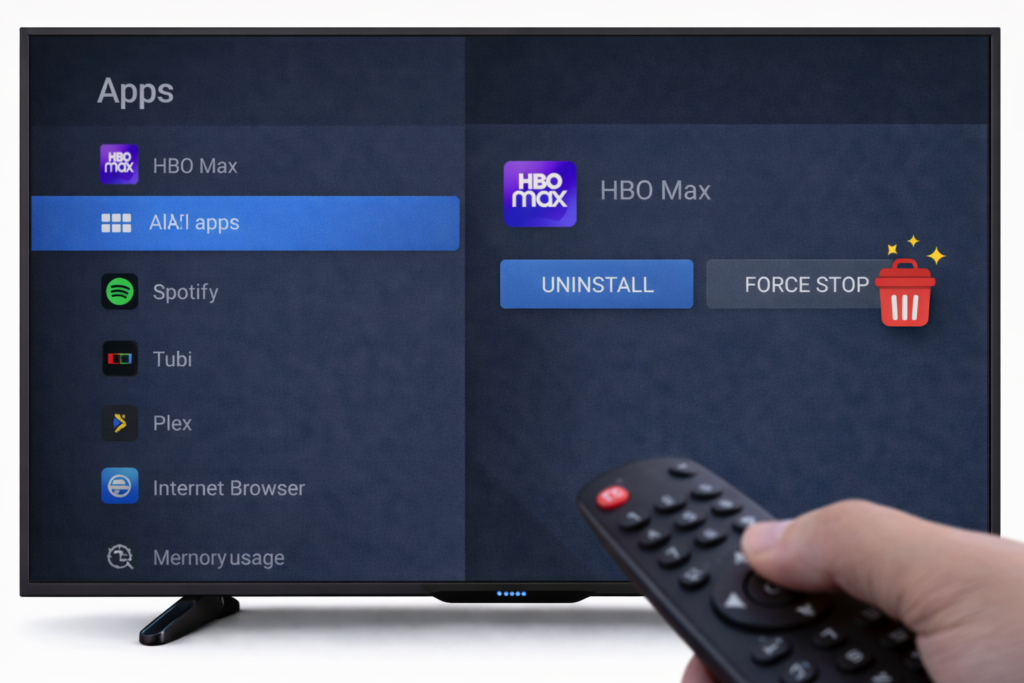
Every app you don’t use is dead weight. It takes up storage, may run background services, and slows down your launcher.
Step 1 — Go to Settings → Apps
Step 2 — Sort by size to spot the biggest offenders
Step 3 — Tap any app you haven’t used in weeks
Step 4 — Tap Uninstall and confirm
Keep only what you actually use daily. Your X96 Mini will thank you.
✅ Fix 3 — Disable Background Apps
Some apps can’t be uninstalled (system apps or pre-installed ones) but they can be disabled entirely.
Step 1 — Go to Settings → Apps
Step 2 — Tap the app you want to disable
Step 3 — Tap Disable (if Uninstall isn’t available)
Step 4 — Confirm the action
This stops the app from running in the background and frees up RAM — a genuine way to boost X96 Mini performance without deleting anything permanently.
✅ Fix 4 — Use a Lightweight Launcher
The default launcher that comes with the X96 Mini can be resource-heavy. Replacing it with a lightweight alternative makes a real difference.
Recommended lightweight launchers:
- ATV Launcher — clean, fast, and low on RAM usage
- Moonlight Launcher — minimal and snappy
- HALauncher — simple interface, very light
Install from the Play Store, then set it as your default launcher under Settings → Home Screen.
✅ Fix 5 — Expand Storage via USB or SD Card
When internal storage gets close to full, Android slows down considerably. Adding external storage gives your box room to breathe.
Step 1 — Insert a USB drive or microSD card (if your model supports it)
Step 2 — Go to Settings → Storage
Step 3 — Move downloaded apps and media to external storage
Step 4 — Use the external drive for Kodi libraries, downloaded files, and media
⚠️ Use a USB 3.0 drive for better read/write speeds — cheap slow drives can actually make things worse.
✅ Fix 6 — Update Firmware
Outdated firmware is one of the most overlooked causes of slowdowns. Manufacturers release updates that fix bugs, improve memory management, and optimize performance.
Step 1 — Go to Settings → About Device → System Update
Step 2 — Tap Check for Updates
Step 3 — If an update is available, download and install it
Step 4 — Let the device reboot fully before testing speed
🔗 Check out our full X96 Mini firmware update guide for a complete walkthrough including USB install method.
✅ Fix 7 — Factory Reset (Last Resort)
If nothing else works, a factory reset wipes everything clean and returns the device to its out-of-box state. It’s the nuclear option — but it works.
Step 1 — Back up any important data (app logins, settings)
Step 2 — Go to Settings → Device → Reset → Factory Data Reset
Step 3 — Confirm and wait for the process to complete
Step 4 — Set up only the apps you truly need — don’t reinstall everything
A freshly reset X96 Mini often feels like a brand new device.
Advanced Tips (Optional but Powerful) 🛠️
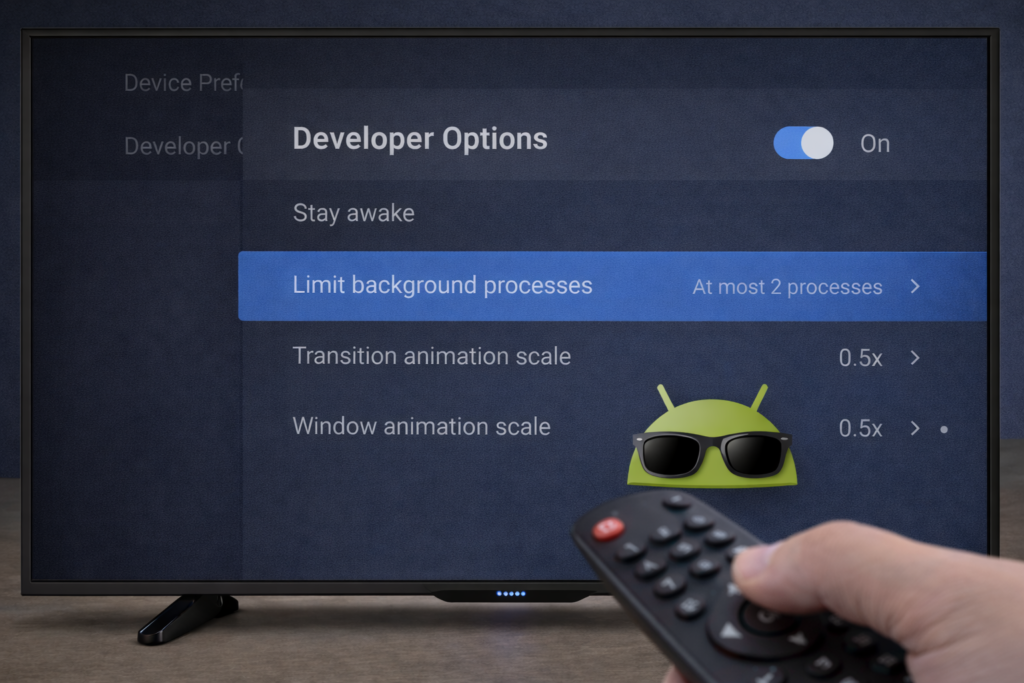
These tips go a bit deeper but they’re still beginner-accessible:
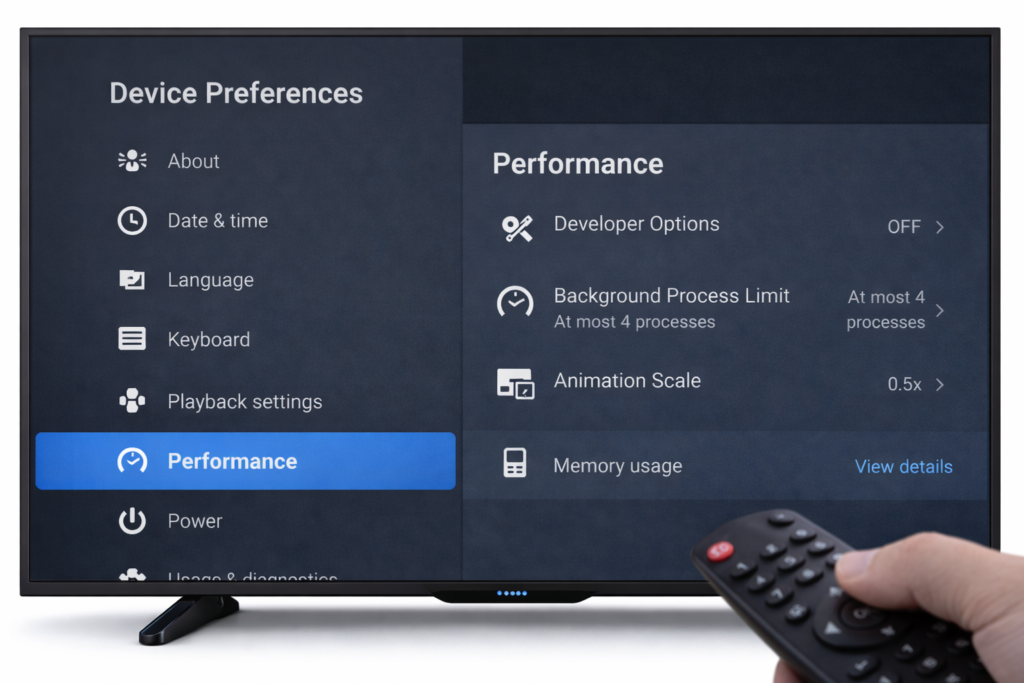
Limit Background Processes (Developer Options)
Step 1 — Go to Settings → About Device
Step 2 — Tap Build Number 7 times to unlock Developer Options
Step 3 — Go back to Settings → Developer Options
Step 4 — Tap Background Process Limit
Step 5 — Set it to 2 processes maximum
This forces Android to keep fewer apps in RAM at once — a major Android TV box running slow fix that most people never discover.
Reduce Animations
In Developer Options, find these three settings and set each to 0.5x or Off:
- Window animation scale
- Transition animation scale
- Animator duration scale
The UI will instantly feel faster and more responsive.
Switch to Ethernet Instead of Wi-Fi
Wi-Fi interference and weak signal cause buffering and lag that often gets misread as device slowness. Plug in an Ethernet cable via a USB-to-Ethernet adapter and you’ll likely see an instant improvement in streaming smoothness.
🔗 Having Wi-Fi issues? See our X96 Mini no WiFi fix guide for a full solution.
Internal Linking Suggestions
When to Upgrade Your Device
Let’s be real for a moment. If your X96 Mini is the 1GB RAM / 8GB storage variant and it’s a few years old, there’s a hard ceiling on how much you can improve it. Some signs it’s time to consider an upgrade:
- Every fix has been tried and performance is still painful
- Apps you rely on (Netflix 4K, Disney+, newer Kodi builds) no longer run smoothly
- The device overheats constantly even with proper ventilation
- Android version is too old to support updated streaming apps
In that case, consider upgrading to a newer box with 4GB RAM and 32GB+ storage. The performance difference is night and day.
Conclusion
Speeding up your X96 Mini doesn’t require any technical expertise — just a bit of time and the right steps. Start with the quick fixes: restart, clear cache, close background apps. Then work through the full list: uninstall what you don’t need, disable background processes, update your firmware, and if all else fails — factory reset.
For the best results, combine 3–4 fixes together rather than doing just one. The performance boost adds up fast. 💪
Your X96 Mini still has plenty of life left in it — go bring it back.
FAQ
Q: Why is my X96 Mini so slow?
The most common causes are too many installed apps, background processes eating up RAM, a full internal storage, outdated firmware, or overheating. The X96 Mini only has 1–2GB of RAM, so it doesn’t take much to push it over the edge. Work through the fixes in this guide to identify and solve the issue.
Q: Does factory reset make X96 Mini faster?
Yes — a factory reset removes all accumulated junk, clears storage, and wipes background processes. It’s the single most effective way to restore original speed. The downside is you lose all your installed apps and settings, so it should be the last thing you try after all other fixes.
Q: Can I upgrade the RAM on X96 Mini?
Unfortunately, no. The RAM on the X96 Mini is soldered directly onto the motherboard and cannot be upgraded. Your best options are to free up as much RAM as possible through the fixes in this guide — disabling background apps, limiting background processes, and using a lightweight launcher. If RAM is a consistent bottleneck, upgrading to a newer device with 4GB RAM is the real solution.
📌 Related Guides
Install Apps on X96 Mini — Complete 2026 Guide
Install apps on X96 Mini — it sounds technical, but it really isn’t. Whether you want Netflix, YouTube,…
Clean Storage on X96 Mini — Complete 2026 Guide
Clean storage on X96 Mini — if you’re here, you’ve probably seen that dreaded “insufficient storage” notification, watched…
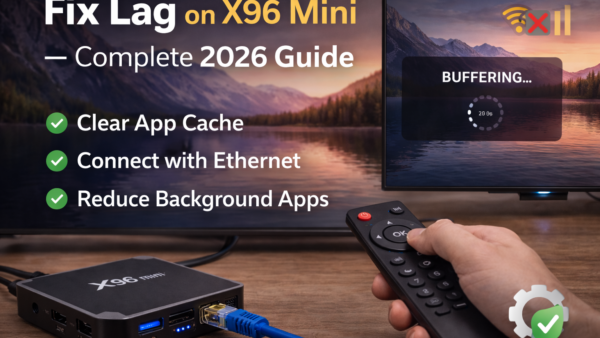
Fix Lag on X96 Mini — Complete 2026 Guide
Fix lag on X96 Mini — that’s exactly what this guide is here to do. Because nothing kills…