Fix lag on X96 Mini — that’s exactly what this guide is here to do. Because nothing kills a movie night faster than a frozen screen, endless buffering, or a remote that responds three seconds after you press it. 😤
If your X96 Mini is lagging, stuttering, or dropping frames constantly, you’re not alone — and more importantly, you’re not stuck. In most cases the problem has nothing to do with broken hardware. It comes down to a handful of fixable software and settings issues that this guide covers completely.
Let’s stop the lag and get your box running smoothly again. 🚀
Table of Contents
- Why Your X96 Mini Is Lagging
- Quick Fixes — Start Here
- Best Ways to Fix Lag on X96 Mini (Step-by-Step)
- Advanced Fixes
- Common Mistakes to Avoid
- Internal Linking Suggestions
- Conclusion
- FAQ
Why Your X96 Mini Is Lagging
Before throwing fixes at the problem, it helps to understand what’s causing it. The X96 Mini runs on modest hardware — 1GB or 2GB of RAM with limited processing power. Several common issues push it past its limits:
- Slow or unstable internet — weak Wi-Fi signal is the single most common cause of buffering and streaming lag
- Too many installed apps — each app occupies storage and many run silently in the background consuming RAM
- Low storage space — when internal storage is nearly full, Android struggles to write temporary files and slows down dramatically
- Overheating — when the chip gets too hot it throttles its own speed to cool down, causing sudden stutters and freezes
- Background processes — apps continue running after you close them, eating into the limited RAM your box has
- Outdated firmware — older software versions carry unresolved bugs that hurt streaming performance and stability
Identify which of these apply to your situation first — then work through the targeted fixes below.
Quick Fixes — Start Here ⚡
Try these three steps before anything else. They take under two minutes and often solve the problem immediately.
Restart the device Don’t just put it on standby. Fully power off, unplug from the wall, wait 30 seconds, then power back on. This clears RAM and kills every stuck background process in one move.
Check your internet speed Open a speed test app or visit fast.com via your browser. For smooth HD streaming you need at least 10 Mbps. For 4K you need 25 Mbps or more. If your speed is well below this, the lag is a network problem — not a device problem.
Close all background apps Open the recent apps menu and swipe away every app that’s still running. Even apps you haven’t touched in hours are sitting in RAM and slowing things down.
If the lag continues after these three steps, move on to the full fixes below.
Best Ways to Fix Lag on X96 Mini (Step-by-Step)
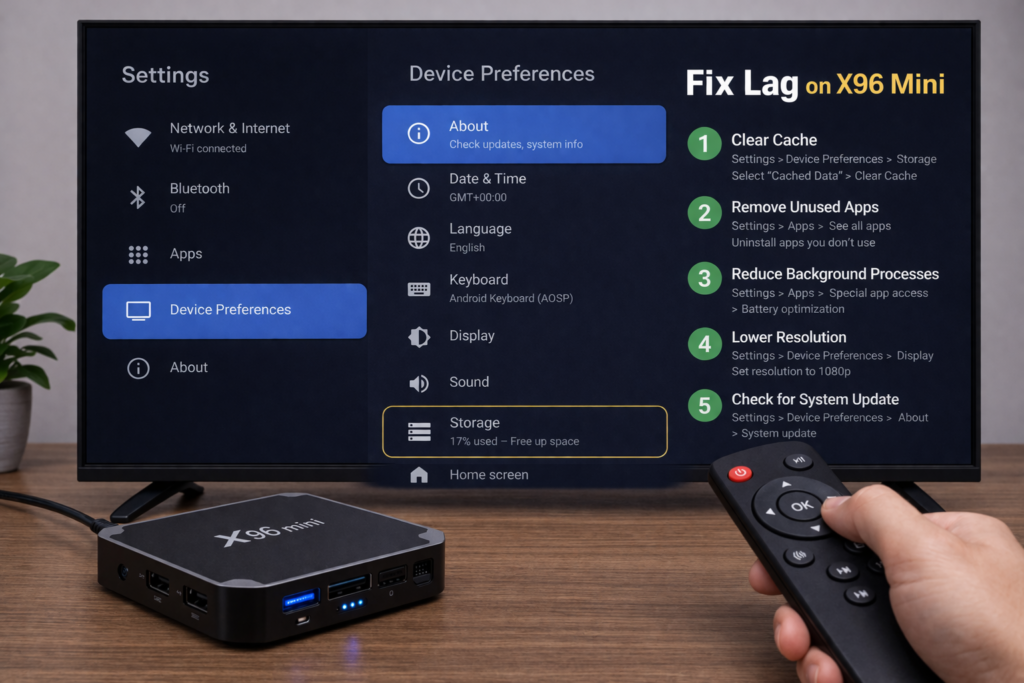
✅ Fix 1 — Clear Cache
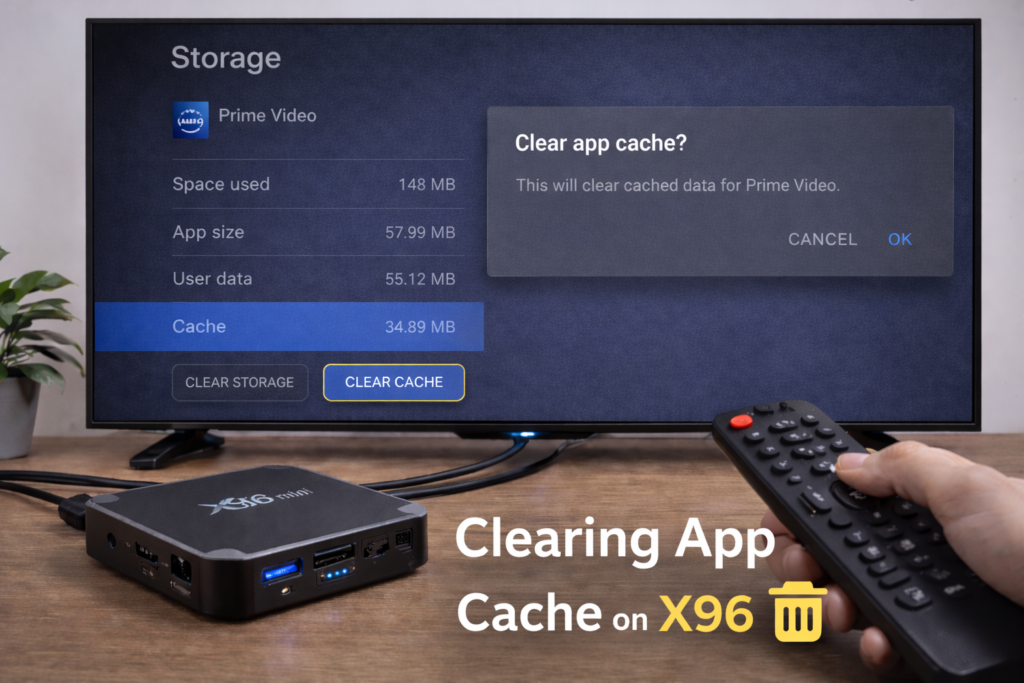
Cached data from streaming apps builds up fast and clogs your limited storage. Clearing it regularly is one of the most effective X96 Mini lag fixes available.
Step 1 — Go to Settings → Apps
Step 2 — Open each major app — YouTube, Kodi, Netflix, your browser
Step 3 — Tap Clear Cache for each one
Step 4 — Avoid tapping Clear Data unless you want to log back in from scratch
Step 5 — Restart the device once done
💡 Repeat this every 2–3 weeks to keep performance consistent.
✅ Fix 2 — Remove Unused Apps
Every app you don’t use is a silent performance drain. This is a core part of any serious Android TV box lagging fix.
Step 1 — Go to Settings → Apps
Step 2 — Sort by size to find the biggest storage consumers
Step 3 — Tap any app you haven’t opened in weeks
Step 4 — Tap Uninstall and confirm
Step 5 — For pre-installed apps you can’t remove, tap Disable instead
Keep only what you genuinely use. The leaner your app list, the more responsive your box.
✅ Fix 3 — Improve Internet Connection (Ethernet over Wi-Fi)
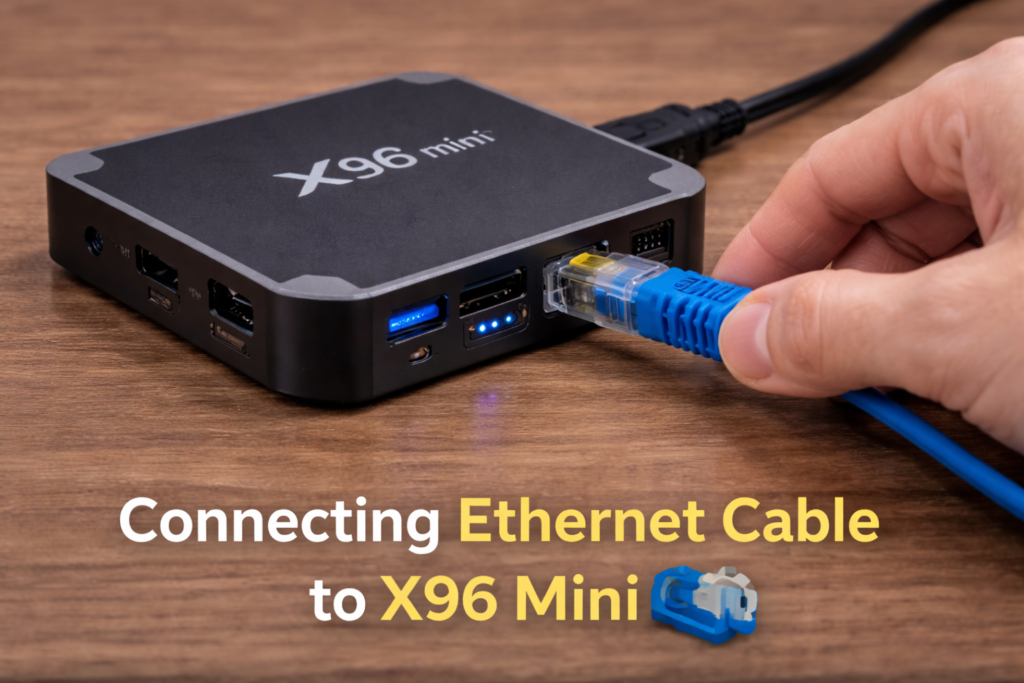
This is arguably the single most impactful fix for streaming lag and buffering. Wi-Fi introduces interference, signal drops, and latency that no device setting can compensate for.
Step 1 — Get a USB-to-Ethernet adapter (widely available, very affordable)
Step 2 — Plug one end into your X96 Mini’s USB port
Step 3 — Connect the other end directly to your router with an Ethernet cable
Step 4 — Go to Settings → Network and confirm the wired connection is active
Step 5 — Run a speed test to confirm the improved connection
The difference in streaming smoothness is often immediate and dramatic. If running a cable isn’t possible, move your router closer or use a Wi-Fi extender to boost signal strength at the TV.
✅ Fix 4 — Reduce Background Processes
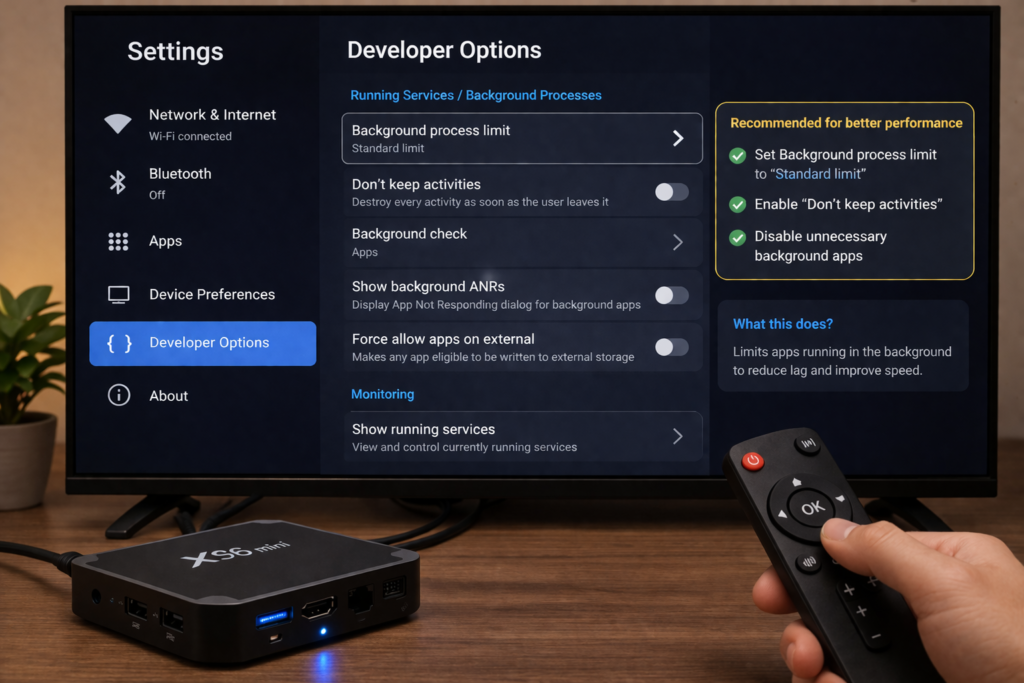
Apps running silently in the background are a major cause of X96 Mini buffering problems. Limiting them frees up RAM for the app you’re actually using.
Step 1 — Unlock Developer Options: go to Settings → About Device and tap Build Number 7 times
Step 2 — Go to Settings → Developer Options
Step 3 — Tap Background Process Limit
Step 4 — Set it to 2 processes maximum
Step 5 — Reboot the device
You’ll notice faster app switching and smoother streaming almost immediately.
✅ Fix 5 — Lower Resolution to 1080p
Running 4K on a 1GB or 2GB RAM device puts the processor under constant strain. Dropping to 1080p reduces that load significantly and eliminates a common source of playback stuttering.
Step 1 — Go to Settings → Display
Step 2 — Tap Resolution or HDMI Mode
Step 3 — Select 1080p 60Hz
Step 4 — Confirm the change and restart
Unless you have a true 4K TV and the 2GB RAM model, 1080p will give you a noticeably smoother experience with no real visual downside on most screens.
✅ Fix 6 — Update Firmware
Outdated firmware often contains unresolved bugs that cause random lag spikes, freezes, and playback issues. Keeping it updated is essential for stable performance.
Step 1 — Go to Settings → About Device → System Update
Step 2 — Tap Check for Updates
Step 3 — Download and install any available update
Step 4 — Let the device reboot fully before testing
🔗 See our complete X96 Mini firmware update guide if no OTA update is detected — the USB install method may be needed.
✅ Fix 7 — Factory Reset (Last Resort)
When everything else has been tried and the lag persists, a factory reset is your final option. It wipes everything clean and restores the device to its original state.
Step 1 — Note down your app logins and important settings first
Step 2 — Go to Settings → Device → Reset → Factory Data Reset
Step 3 — Confirm and wait 5–10 minutes for the process to complete
Step 4 — Set up only the apps you truly need — reinstalling everything defeats the purpose
A freshly reset X96 Mini almost always feels significantly faster. The key is keeping it lean after the reset.
Advanced Fixes — Optional but Powerful 🛠️
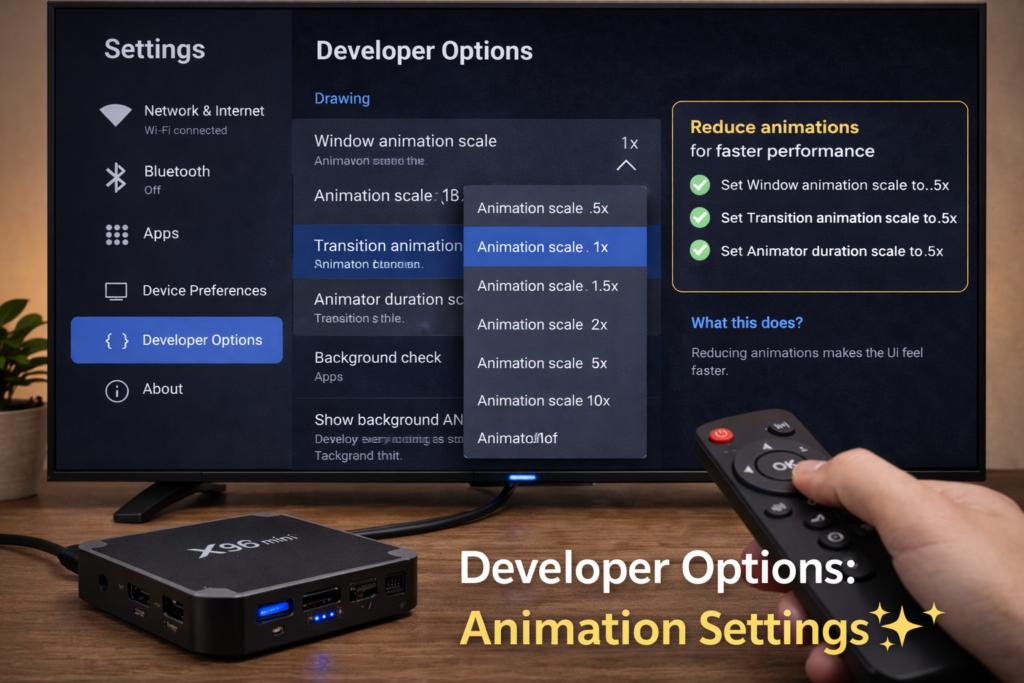
Reduce Animations via Developer Options
Inside Developer Options, set these three values to 0.5x or Off:
- Window animation scale
- Transition animation scale
- Animator duration scale
The UI will feel noticeably faster and more responsive with every tap and navigation action.
Switch to Lightweight App Alternatives
Heavy apps designed for powerful phones don’t run well on budget TV boxes. Consider these swaps:
- Replace the default browser with Puffin TV Browser — lighter and faster
- Use Kodi or VLC instead of heavier streaming clients
- Avoid installing social media apps — they’re notoriously RAM-hungry
DNS Optimization
Slow DNS can cause apps to take longer to connect and load content. Switching to a faster DNS server is quick and free.
Step 1 — Go to Settings → Network → Wi-Fi (or Ethernet)
Step 2 — Modify your connection and switch to Static IP
Step 3 — Set DNS 1 to 1.1.1.1 (Cloudflare) or 8.8.8.8 (Google)
Step 4 — Save and reconnect
Common Mistakes to Avoid
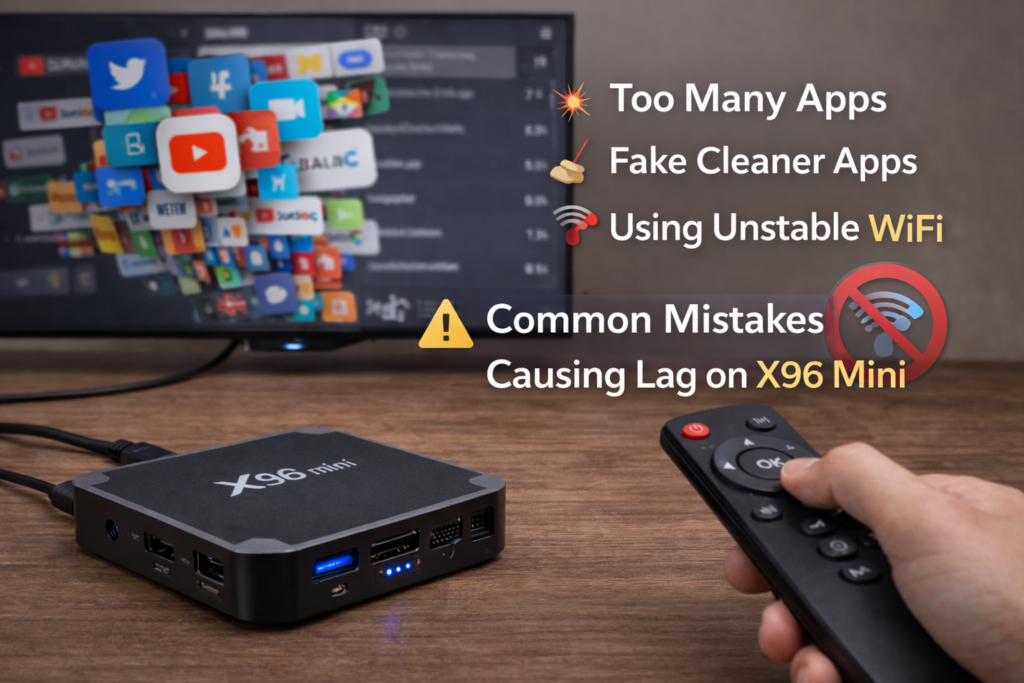
Installing too many apps The X96 Mini is not designed to handle dozens of apps simultaneously. Every unused app is a drag on limited RAM and storage. Keep your install list short and purposeful.
Using fake cleaner apps RAM booster and junk cleaner apps from the Play Store are a trap. They run their own background processes while pretending to free up memory — making lag worse, not better. Delete any you have installed.
Relying on unstable Wi-Fi If your router is two rooms away or your Wi-Fi is shared with multiple devices, you’re fighting a losing battle against buffering. Ethernet is always the better choice for a TV box.
Internal Linking Suggestions
Conclusion
The good news is that most X96 Mini lag problems are completely fixable without spending any money. Start with the quick fixes — restart, speed test, close apps. Then work through the full list: clear cache, remove unused apps, switch to Ethernet, limit background processes, drop to 1080p, and update your firmware.
Combine several fixes together rather than trying just one — the improvements stack up fast and the difference can be remarkable. 💪
Your X96 Mini is capable of smooth, reliable performance. These fixes will prove it.
FAQ
Q: Why is my X96 Mini buffering so much?
The most common cause is a weak or unstable Wi-Fi connection — it’s responsible for the majority of buffering problems on Android TV boxes. Other causes include too many background apps consuming RAM, full internal storage, and outdated firmware with unresolved bugs. Start by checking your internet speed and switching to Ethernet if possible, then work through the other fixes in this guide.
Q: Does Ethernet actually reduce lag on X96 Mini?
Yes — significantly. Ethernet eliminates the interference, signal drops, and latency that Wi-Fi introduces. For streaming devices like the X96 Mini, a wired connection is always more stable and faster than wireless. Even a basic USB-to-Ethernet adapter makes a dramatic difference to buffering and playback smoothness. It’s one of the most recommended fixes in any Android TV box lagging fix guide for good reason.
Q: Will a factory reset fix lag on X96 Mini?
In most cases, yes. A factory reset clears all accumulated apps, cached data, and background processes that have built up over time. It’s the most thorough reset available and almost always restores a significant amount of speed and responsiveness. The key is keeping things lean after the reset — only reinstall the apps you genuinely need, or the lag will return over time.
📌 Related Guides
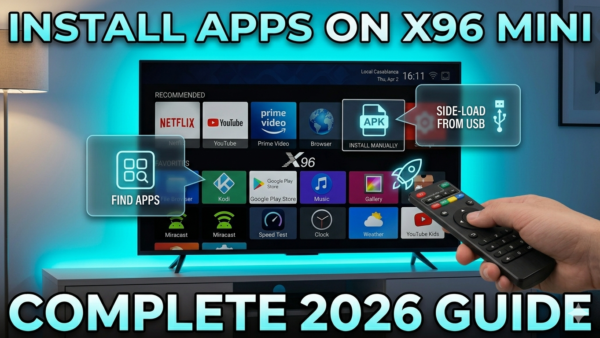
Install Apps on X96 Mini — Complete 2026 Guide
Install apps on X96 Mini — it sounds technical, but it really isn’t. Whether you want Netflix, YouTube,…
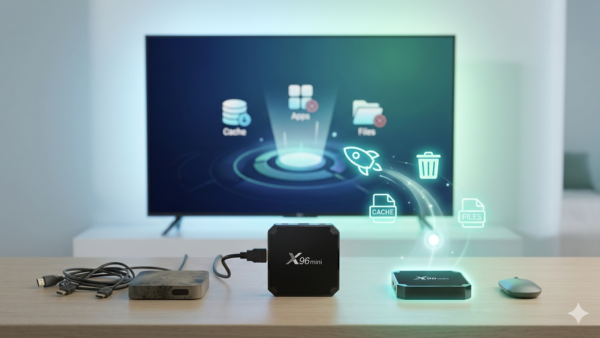
Clean Storage on X96 Mini — Complete 2026 Guide
Clean storage on X96 Mini — if you’re here, you’ve probably seen that dreaded “insufficient storage” notification, watched…
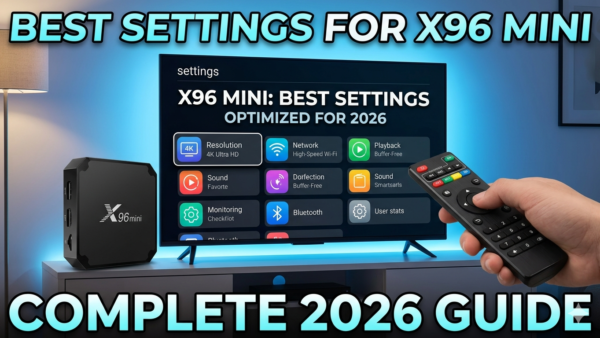
Best Settings for X96 Mini — Complete 2026 Guide
Best Settings for X96 Mini — Complete 2026 Guide Best settings for X96 Mini — that’s exactly what…