Table of Contents
- Introduction
- What Is Kodi & Why It Still Matters in 2026
- Best Kodi Addons 2026: Quick Overview
- How to Install Kodi 21 Omega on Android TV Box
- How to Install Kodi Addons
- Common Kodi Problems & Quick Fixes
- Best Kodi Settings for Android TV Box
- Is Kodi Safe & Legal?
- Frequently Asked Questions
- Conclusion
Introduction: Still Searching for Working Kodi Addons?
If you’ve landed here after a frustrating night of broken addons, endless buffering, or a Kodi update that wiped out everything that used to work — you’re not alone. This is probably the most common experience for Kodi users in 2026, and honestly, it’s been that way for a while.
The best Kodi addons 2026 are out there. They work. But they’re harder to find than they used to be, and the information floating around online is often a year out of date, full of dead links, or pointing you toward addons that haven’t been maintained since 2022.
At TVBoxFixer, we test everything directly on Android TV boxes before publishing. No guesswork, no recycled lists. This guide covers the best working Kodi addons right now, how to properly install Kodi 21 Omega on your Android TV box, how to set up addons without breaking things, and how to fix the most common problems people hit every week.
Whether you’re completely new to Kodi or you’ve been using it for years and just want a reliable reference — this guide is built for you.
What Is Kodi & Why It Still Matters in 2026
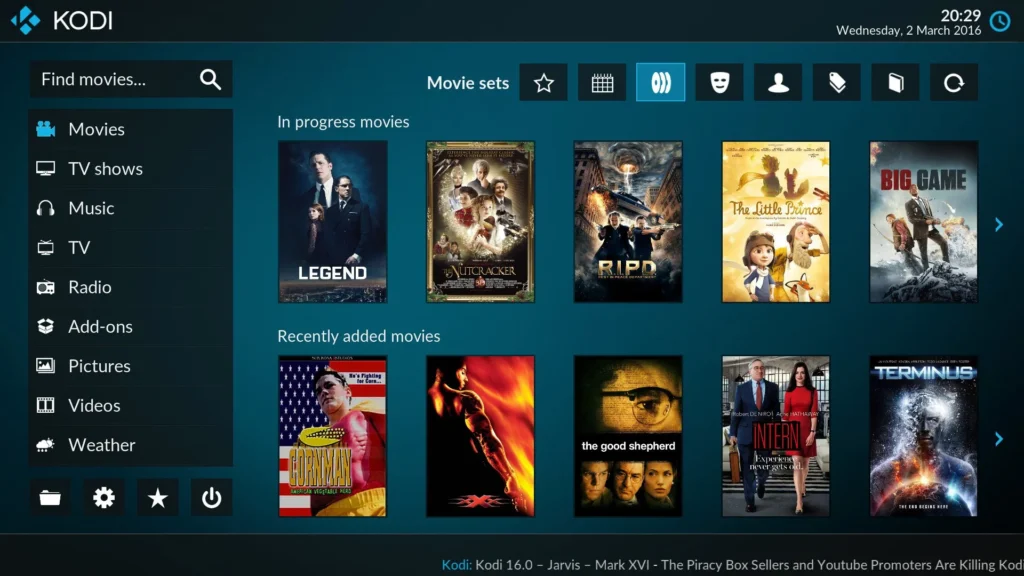
Kodi is a free, open-source media center application that lets you organize and stream your local library of movies, TV shows, music, and photos. It runs on almost anything — Android, Windows, Linux, Raspberry Pi, Fire TV, and more.
But Kodi’s real appeal has always been its addon ecosystem. Through third-party addons, users can stream content from across the internet, access live TV, use IPTV players, and build a completely custom entertainment setup — all from one app.
In 2026, Kodi is more relevant than ever. Here’s why it hasn’t gone away:
- It’s completely free. No subscription, no account required.
- It works on cheap hardware. A budget Android TV box running Kodi can outperform a £100/month streaming setup.
- It’s flexible. From IPTV to sports streams to personal media libraries, Kodi handles it all.
- The community is still very active. Kodi 21 Omega is the current stable release, and addon development continues steadily.
The current version, Kodi 21 Omega, brought performance improvements, better Android support, and a cleaner interface. If you’re still running Kodi 19 or 20, it’s time to upgrade.
Best Kodi Addons 2026: Overview of What’s Actually Working
This is where most guides get it wrong. They list addons that haven’t been updated in months, or they promote repositories that have been shut down. The list below reflects what’s working right now, based on real testing on Android TV hardware.
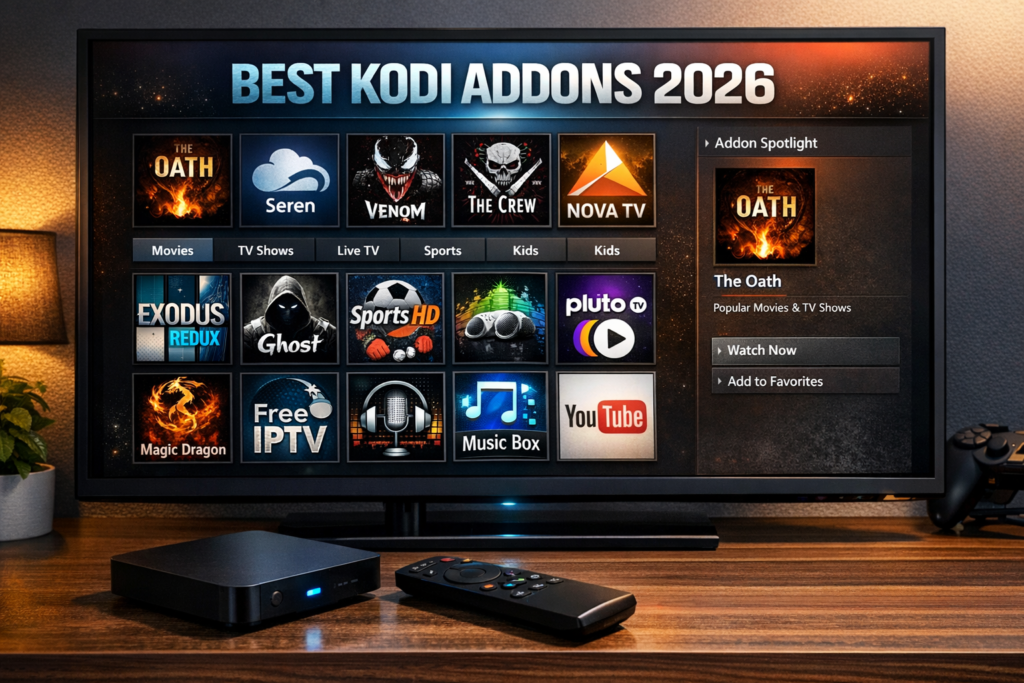
1. Seren
One of the most reliable Kodi addons for streaming in 2026. Seren integrates with Real-Debrid and Premiumize to pull high-quality streams quickly, and it’s built to handle large libraries without slowing down.
- Works best with Real-Debrid
- Excellent 4K stream support
- Actively maintained with regular updates
👉 [Read our Full Seren Addon Guide ]
2. The Crew
A beginner-friendly all-in-one addon that covers movies, TV shows, sports, live TV, and more. It pulls from multiple sources, so you’re rarely left with zero results. Good choice for users who don’t want to manage a Real-Debrid account.
- No premium account required
- Built-in sports and live TV section
- Simple, clean interface
👉 [Read our Full The Crew Addon Guide]
3. Magic Dragon
A solid general-purpose addon that’s been consistently maintained. It’s particularly popular for live TV and sports streams. Setup is straightforward, and it works well on lower-end hardware.
- Great for live sports and events
- Easy to set up for beginners
- Works without premium debrid services
👉 [Read our Full Magic Dragon Guide]
4. Tubi (Official Kodi Addon)
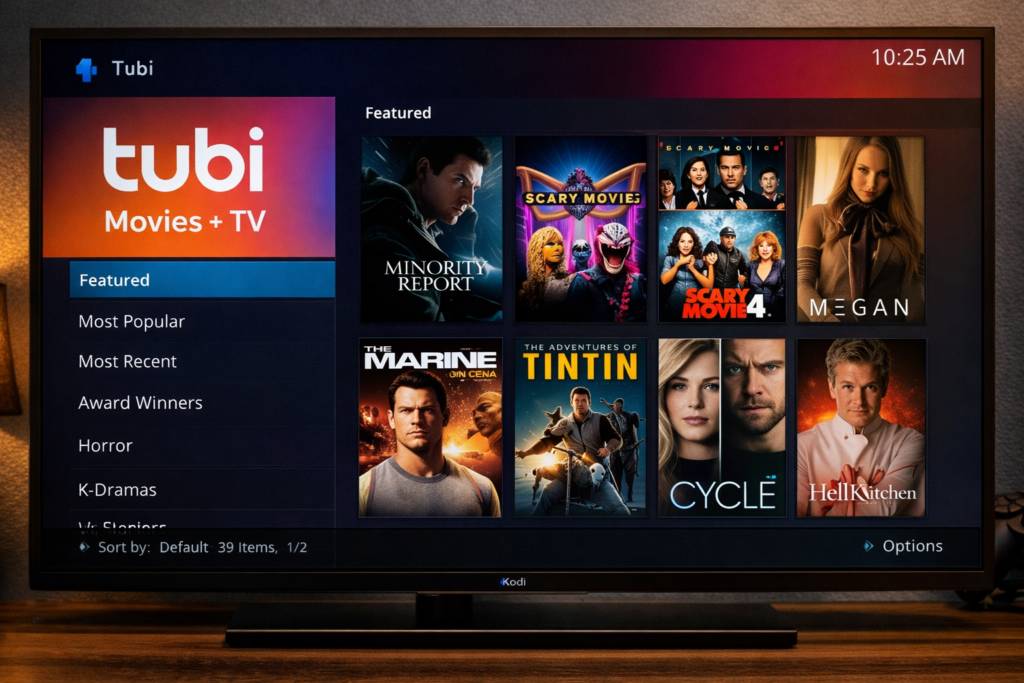
Not everything has to be third-party. Tubi has an official Kodi addon that gives you free, ad-supported access to a large library of movies and TV shows — completely legally. This is the best option for users who want to keep things above board without paying for anything.
- 100% free and legal
- No account needed
- Massive catalogue of movies and shows
👉 [Read our Full Tubi Kodi Addon Guide]
5. Umbrella
Umbrella is built for users who are serious about stream quality. It works with Real-Debrid and AllDebrid to deliver fast, high-resolution streams with minimal buffering. It’s slightly more technical to set up than other options but pays off in reliability.
- Best stream quality on the list
- Full Real-Debrid and AllDebrid integration
- Customizable filtering and sorting
👉 [Read our Full Umbrella Addon Guide ]
6. Plex (Official Kodi Addon)
If you already run a Plex Media Server at home, the official Plex addon for Kodi is genuinely excellent. It connects directly to your library and gives you all the benefits of Kodi’s interface with Plex’s metadata and organization.
- Perfect for personal media libraries
- Official, frequently updated
- Works locally or remotely
👉 [Read our Full Plex Kodi Addon Guide]
7. YouTube (Official Kodi Addon)
The official YouTube addon for Kodi works surprisingly well on Android TV boxes. With an API key setup (which takes about five minutes), you get full access to YouTube in a clean TV-optimized interface.
- Free and completely legal
- Requires a quick one-time API setup
- Smooth performance on most TV boxes
👉 [Read our Full YouTube Kodi Addon Setup Guide ]
8. IPTV Simple Client
Not really an addon in the traditional sense, but essential if you’re using an IPTV subscription. IPTV Simple Client is Kodi’s built-in IPTV player that reads M3U playlists and EPG data from your provider.
- Built into Kodi (no extra install needed)
- Works with any M3U IPTV subscription
- Supports Electronic Programme Guide (EPG)
👉 [Read our Full IPTV Simple Client Setup Guide ]
Note on Kodi Addons: The addon landscape changes frequently. Repositories go offline, addons get abandoned, and new ones emerge. We update this page regularly, but always check the date of any Kodi guide you follow online.
How to Install Kodi 21 Omega on Android TV Box (Quick Guide)
Installing Kodi on an Android TV box is simple, but there’s a right way to do it that avoids common issues later on.
Here’s the quick overview:
- Enable Unknown Sources on your TV box (Settings → Security or Privacy)
- Download a file manager app like ES File Explorer or X-Plore from the Play Store
- Download the Kodi 21 Omega APK from the official Kodi website (kodi.tv) — always use the official source
- Open the APK file using your file manager and tap Install
- Launch Kodi and complete the initial setup
A few things to keep in mind:
- Always download the ARM version for most Android TV boxes (check your device specs if unsure)
- If your TV box has a Rockchip or Amlogic chip, the standard ARM build works fine
- Avoid downloading Kodi APKs from unofficial sites — they sometimes contain modified builds
For a full step-by-step walkthrough with screenshots for every Android TV box model, including Mecool, X96, H96, and others:
👉 [Read our Full Kodi 21 Omega Installation Guide]
How to Install Kodi Addons
There are two main ways to install addons in Kodi. Both are straightforward once you understand the process.
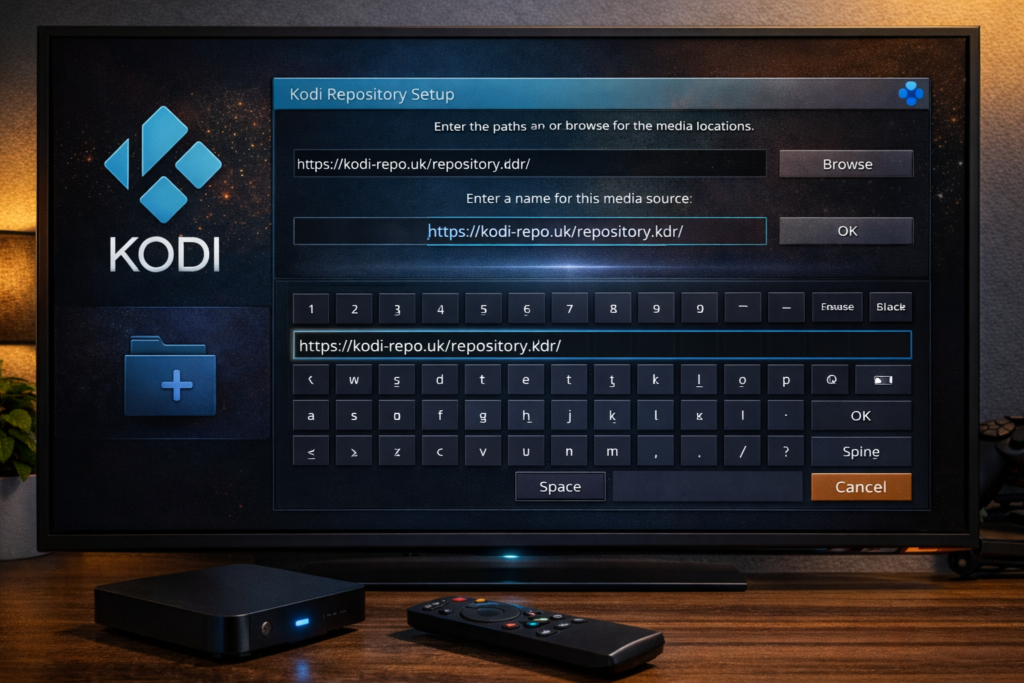
Method 1: Via Repository (Recommended)
This is the standard method for most popular addons. A repository is like an app store for Kodi — it hosts multiple addons and keeps them updated automatically.
Steps:
- Go to Settings → File Manager → Add Source
- Enter the repository URL (each addon’s website provides this)
- Give it a name and save
- Go to Add-ons → Install from ZIP file and install the repository
- Then go to Install from repository and find the addon you want
The advantage here is that Kodi will notify you when updates are available, and you can manage everything from within the app.
Method 2: Via ZIP File
Useful when a repository is temporarily down or you want to install a specific version of an addon.
Steps:
- Download the addon ZIP file to a USB drive or directly to your TV box
- In Kodi, go to Add-ons → Install from ZIP file
- Navigate to the ZIP file location and install
The downside is that you won’t get automatic updates this way, so you’d need to repeat the process when a new version is released.
👉 [Read our Full Kodi Addon Installation Guide with Screenshots ]
Common Kodi Problems & Quick Fixes {#common-kodi-problems}
These are the problems we hear about most often. Each one has a dedicated fix guide on TVBoxFixer for the full solution.
Problem 1: Kodi Addons Not Working
This is the most reported issue, especially after a Kodi update. Usually, the cause is one of three things: the addon itself has been abandoned, the repository has gone offline, or a dependency is missing or outdated.
Quick checks:
- Update the addon from its repository
- Check if the repository source is still live
- Try uninstalling and reinstalling the addon
👉 [Read: How to Fix Kodi Addons Not Working ]
Problem 2: “No Stream Available” Error
You find content, click play, and Kodi just stares back at you with “No stream available.” This usually means the addon can’t find a working source for that specific title.
Quick fixes:
- Try a different addon for the same content
- If using Real-Debrid, check your account status and re-authorise
- Clear the addon’s cache via its settings menu
- Some content is simply not available in your region — try a VPN
👉 [Read: Fix “No Stream Available” in Kodi]
Problem 3: Buffering & Stuttering
Buffering is the most frustrating Kodi experience, and it’s almost always one of two problems: your internet connection isn’t keeping up, or the stream quality is set too high for your setup.
Quick fixes:
- Lower the stream quality settings in your addon
- Increase the cache size in Kodi’s advancedsettings.xml file
- Connect your TV box via Ethernet instead of Wi-Fi
- Check if your ISP is throttling streaming traffic (a VPN can help here)
👉 [Read: How to Fix Kodi Buffering on Android TV Box ]
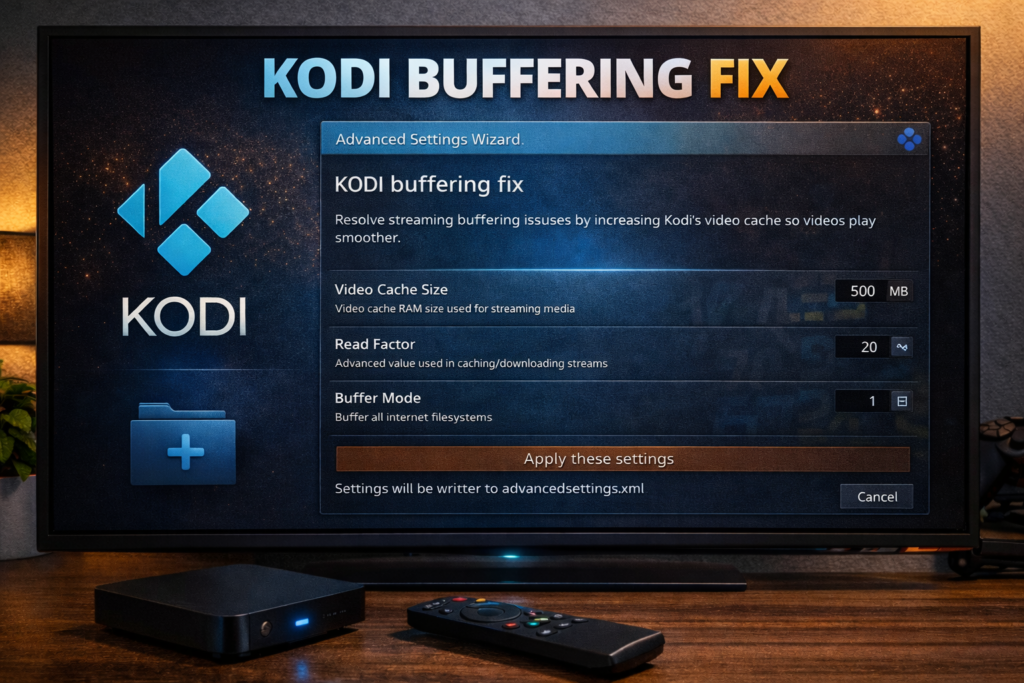
Best Kodi Settings for Android TV Box Performance
Out of the box, Kodi isn’t always configured for the best performance on Android TV hardware. A few setting tweaks can make a significant difference.
Key settings to adjust:
- Hardware Acceleration: Enable DXVA2/MediaCodec (Surface) in Settings → Player → Videos for smoother playback
- Video Cache: Edit the advancedsettings.xml file to increase cache size — essential for reducing buffering
- Adjust Refresh Rate: Set Kodi to match the video’s native refresh rate to eliminate judder (Settings → System → Display)
- Limit GUI Resolution: Set the GUI to 1080p even on 4K boxes — it reduces GPU load without affecting video playback quality
- Disable Background Updates: Turn these off to free up resources during playback
For a full breakdown of every setting worth changing on popular Android TV boxes including the Mecool KM2 Plus and X96 Mini:
👉 [Read: Best Kodi Settings for Android TV Box Performance]
Is Kodi Safe and Legal?
This is a fair question, and it deserves a straight answer.
Kodi itself is 100% legal. It’s open-source software developed by the XBMC Foundation and used by millions of people worldwide to play their own media files, use official streaming services, and manage personal libraries.
The legal grey area — and it is a grey area, not a black-and-white one — comes from third-party addons that stream copyrighted content without the rights holder’s permission. Using those addons may violate copyright law in your country, depending on how your local laws treat streaming (as opposed to downloading).
A few clear points:
- Installing Kodi is legal everywhere
- Using official addons like Tubi, YouTube, or Plex is completely legal
- Using unofficial addons that stream copyrighted content without authorisation is where legal risk exists
- Kodi itself doesn’t host or provide any illegal content
If you want to use Kodi purely for legal purposes, there are plenty of great official and free options available — including several on our addon list above.
For further reading on this topic, the Electronic Frontier Foundation (EFF) has published useful guidance on streaming and copyright law: https://www.eff.org
Frequently Asked Questions
What are the best Kodi addons in 2026?
The best Kodi addons in 2026 include Seren (for Real-Debrid users), The Crew (for beginners), Magic Dragon (for live sports), Umbrella (for top stream quality), and official addons like Tubi and YouTube. The right choice depends on whether you have a Real-Debrid subscription and what type of content you want to access. See our full list above for details on each one.
Is Kodi legal?
Yes, Kodi itself is completely legal. It’s free, open-source software you can install on any device. The legal question arises around certain third-party addons that stream copyrighted content without authorisation. Using official addons and your own media library is entirely above board.
Why are my Kodi addons not working?
The most common reasons are: the addon hasn’t been updated to work with Kodi 21 Omega, the repository hosting it has gone offline, or a required dependency is missing. Try updating the addon, reinstalling it, or checking the official source to see if it’s still maintained. Our dedicated fix guide covers every scenario in detail.
How do I install Kodi on an Android TV Box?
Enable Unknown Sources in your device settings, download the official Kodi 21 Omega APK from kodi.tv, install it using a file manager app, and follow the initial setup. The full guide on TVBoxFixer walks through the process with screenshots for every major TV box brand.
What is Kodi 21 Omega?
Kodi 21 Omega is the current stable release of Kodi, launched in 2024. It introduced better Android TV support, performance improvements, and various bug fixes compared to previous versions. If you’re running an older version, upgrading to Omega is strongly recommended.
Do I need Real-Debrid for Kodi?
No, Real-Debrid is optional. Many addons like The Crew and Magic Dragon work without it. However, if you want consistently fast, high-quality streams — especially for 4K content — a Real-Debrid subscription significantly improves the experience.
Why does Kodi keep buffering?
Buffering in Kodi is usually caused by a slow connection, a stream that’s too high quality for your bandwidth, or Kodi’s cache settings being too low. Increasing cache size via advancedsettings.xml, switching to Ethernet, and adjusting stream quality in your addon settings are the most effective fixes.
Conclusion: Everything You Need to Get the Most Out of Kodi
Kodi in 2026 is still one of the most powerful media tools available — free, flexible, and capable of running on budget hardware that costs a fraction of a commercial streaming box. The learning curve is steeper than Netflix, but the control and customisation you get in return is unmatched.
Here’s a quick recap of what we covered:
- The best Kodi addons 2026 that are actively maintained and tested
- How to install Kodi 21 Omega on any Android TV box safely
- Both methods for installing addons — repository and ZIP file
- Quick fixes for the most common Kodi problems
- Performance settings to get smooth playback on Android hardware
- A clear, honest answer on Kodi’s legal status
Every guide linked throughout this article lives on TVBoxFixer — a site built specifically for Android TV box users. We keep our guides updated, test on real hardware, and don’t recommend addons or methods we haven’t verified ourselves.
If you hit a problem that isn’t covered here, browse our full troubleshooting section or use the search bar to find a specific fix. Chances are, we’ve already written about it.
Explore more Kodi guides on TVBoxFixer → [ Kodi]


2 Comments
Comments are closed.