Introduction
Let’s get into it
The Amazon Fire TV Stick is already a great streaming device. But once you add IPTV to it? It becomes something else entirely. 📺
If you don’t have one yet, you can get it here 👉 Buy Amazon Firestick on Amazon
IPTV lets you stream live TV channels, sports events, and on-demand content directly through your internet connection — no cable box, no satellite dish. Just your Firestick and a Wi-Fi connection.
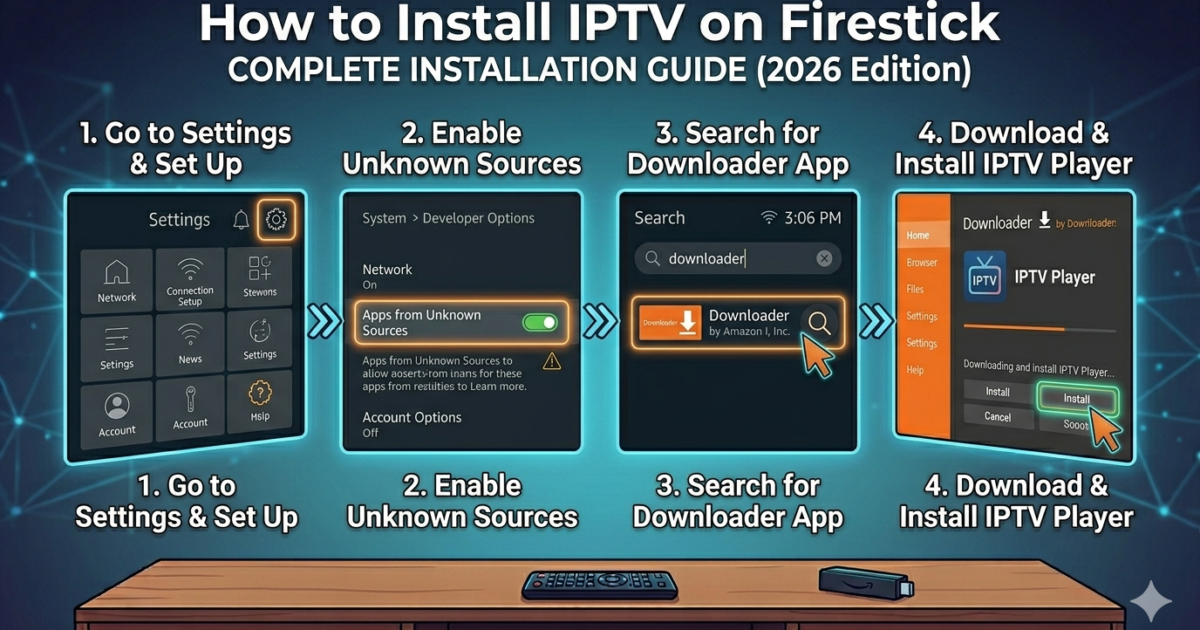
In this guide, I’ll show you exactly how to install IPTV on Firestick — step by step, from scratch. Whether you’re a beginner or just need a quick 2026 refresher, you’re in the right place.
Let’s get started. 🚀
What You Need Before You Start
Before you touch any settings, make sure you have everything ready. This saves a lot of frustration later.
- ✅ An Amazon Firestick (any generation — including Fire TV Stick 4K)
- ✅ A stable Wi-Fi connection (10 Mbps or faster for smooth HD streaming)
- ✅ A legal IPTV subscription from a legitimate provider
- ✅ Your M3U playlist URL — your IPTV provider sends you this after sign-up
- ✅ The Downloader app — we’ll install this in Step 1
- ✅ About 10–15 minutes of your time
Got all that? Good. Here’s exactly what to do.
How to Install IPTV on Firestick — Step by Step
Step 1: Allow Apps From Unknown Sources
Firestick doesn’t allow third-party apps by default. You need to change one setting first.
- Go to Settings on your Firestick home screen
- Select My Fire TV
- Tap Developer Options
- Turn on Install Unknown Apps
This is completely normal and safe. It just tells your Firestick it’s okay to install apps from outside the Amazon App Store.
Step 2: Install the Downloader App
Downloader is a free browser app that lets you grab files and apps directly onto your Firestick. It’s the key to this whole process.
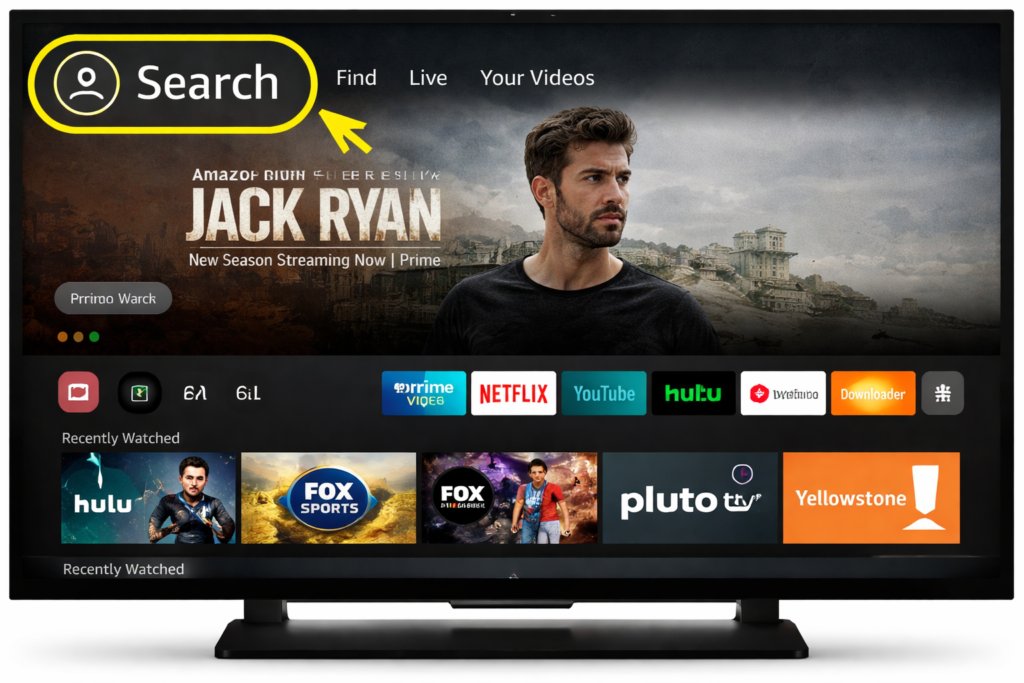
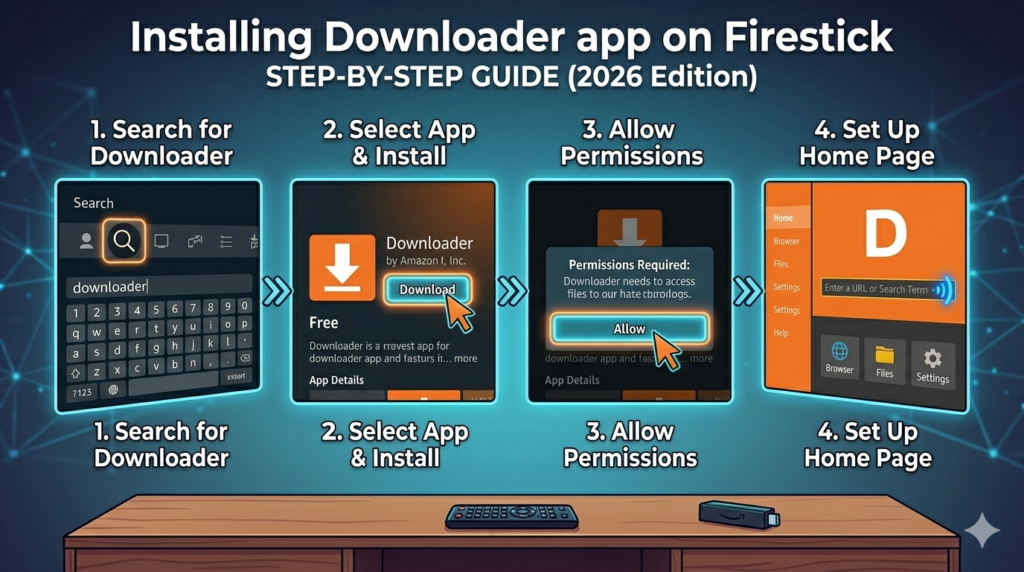
- Go to the Search icon on your Firestick home screen
- Type “Downloader” and select it from the results
- Click Download — it’s free and takes under a minute
- Once installed, open it and accept any permissions it asks for
- Go back to Developer Options and make sure Downloader has install permissions turned on
Step 3: Download and Install Your IPTV App
Now you’ll use Downloader to install your chosen IPTV player app.
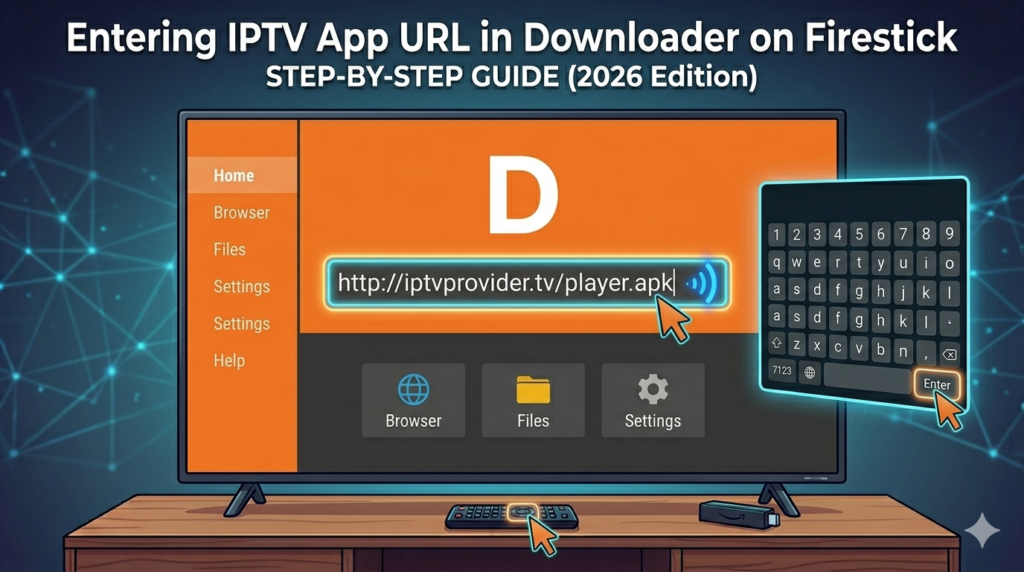
- Open the Downloader app
- In the URL bar, type the download link for your IPTV player app
- Hit Go and wait for the file to download
- Once downloaded, tap Install
- After installation, tap Open to launch the app
Popular legal IPTV player apps include TiviMate, IPTV Smarters Pro, and GSE Smart IPTV — more on these below.
How to Add Your IPTV Playlist (M3U URL)
Once your IPTV app is installed, the next step is connecting your playlist. This is what actually pulls in your channels.
The steps vary slightly between apps, but the process is the same across all of them:
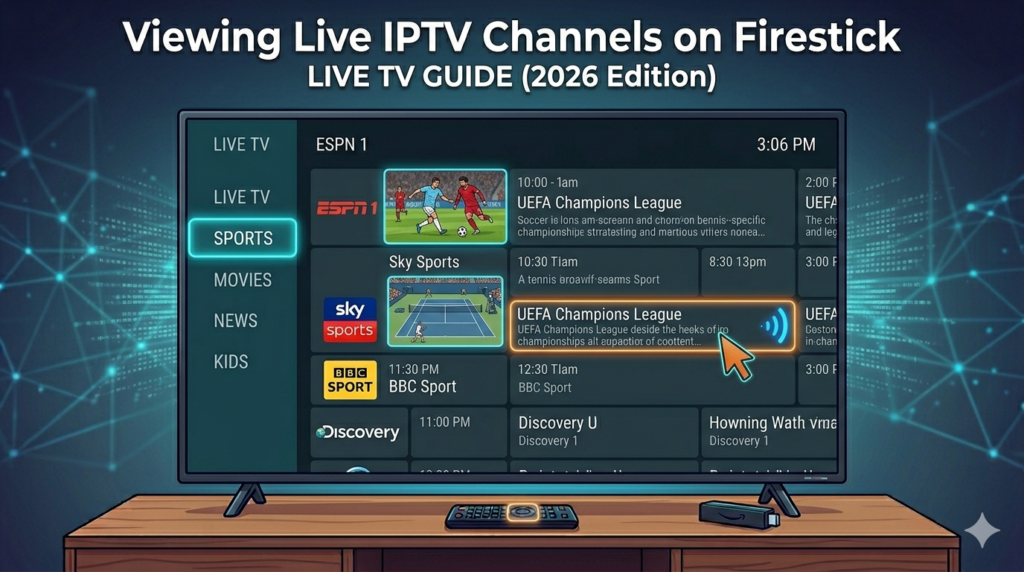
- Open your IPTV player app
- Look for an option like “Add Playlist”, “Add Source”, or “Xtream Codes / M3U”
- Select M3U URL as your input method
- Paste your M3U link from your IPTV provider
- Give your playlist a name (anything you like)
- Tap Save or Add
The app will load your channels — this can take 30–60 seconds depending on how many channels are in your package.
Once it’s done, you’ll see your full channel list ready to go. 🎉
Best IPTV Apps for Firestick (Legal Use)
Not all IPTV apps are equal. Here are the top legal IPTV player apps that work great on Firestick:
- 📱 TiviMate — Clean interface, excellent EPG (TV guide), very smooth performance. Has a free version and a premium upgrade.
- 📱 IPTV Smarters Pro — Available on the Amazon App Store, supports M3U and Xtream Codes. Great for beginners.
- 📱 GSE Smart IPTV — Highly customizable, supports multiple playlists, and works on almost every device.
- 📱 Perfect Player — Lightweight and simple, great if you want something with no extra features.
All of these are just players — they don’t provide channels themselves. You need a legal subscription from your IPTV provider to use them properly.
If you’re looking for an alternative media setup, you might also want to check out our full guide on how to install Kodi on Firestick — Kodi is another powerful option for managing all your media in one place.
Common Problems and Quick Fixes
Things don’t always go perfectly. Here are the most common issues people run into — and how to fix them fast:
- “App won’t install” → Go back to Developer Options and make sure Install Unknown Apps is turned on for Downloader
- “Channels won’t load” → Check your M3U URL — one wrong character breaks the whole link. Copy it fresh from your provider
- “Buffering constantly” → Your internet speed may be too low. Restart your router or move your Firestick closer to it
- “Black screen when playing channels” → Try switching the video player inside your app settings (most apps have a built-in player and an external option)
- “EPG not showing” → Give it up to 24 hours to load fully. Some guides take time to sync after first setup
- “Downloader app not finding the file” → Double-check the URL for typos and make sure your internet connection is active
Tips for a Better Streaming Experience
Once everything is set up, these small tweaks make a real difference:
- 🔄 Restart your Firestick regularly — it clears memory and keeps performance smooth
- 📶 Use a wired ethernet connection if possible — an ethernet adapter for Firestick dramatically reduces buffering
- 🔒 Use a VPN for extra privacy, especially on public Wi-Fi — ExpressVPN is one of the most reliable options for Firestick
- 🧹 Clear your app cache every week — go to Settings → Applications → your IPTV app → Clear Cache
- 📺 Choose the right resolution — if HD is buffering, try dropping to SD temporarily to test if it’s a speed issue
- ⏰ Check your provider’s server status if channels suddenly stop — sometimes it’s on their end, not yours
My Personal Take 💬
I want to be straight with you — IPTV is genuinely useful when used the right way.
But I see a lot of people chasing ultra-cheap services that promise thousands of channels for next to nothing. Most of those are illegal. They stream copyrighted content without any rights, and using them puts you at real legal and security risk.
I only recommend using IPTV with a paid, legitimate subscription from a provider who actually licenses their content. Yes, it costs a little more. But you get reliable streams, proper customer support, and the peace of mind that you’re not breaking any laws.
Use the tools in this guide responsibly — and you’ll have an outstanding streaming setup that works every single time.
Conclusion
Installing IPTV on Firestick is genuinely one of the best upgrades you can make to your streaming setup. Once it’s done, you’ve got live TV, sports, and on-demand content — all inside a device that fits in your palm.
Follow the steps in this guide, use a legitimate IPTV provider, and you’ll be up and running in under 15 minutes. It really is that simple.
Got questions? Drop them in the comments — happy to help. 👇
FAQ
Q: Is installing IPTV on Firestick legal? Installing an IPTV player app is completely legal. What matters is the content you access — always use a legitimate, licensed IPTV provider.
Q: Do I need the Downloader app to install IPTV? For most IPTV player apps not available on the Amazon App Store — yes. Some apps like IPTV Smarters Pro are available directly in the store, so no Downloader needed for those.
Q: What internet speed do I need for IPTV on Firestick? At least 10 Mbps for HD streaming. For 4K content, aim for 25 Mbps or higher for a buffer-free experience.
Q: Can I use a free IPTV service? There are legal free IPTV services like Pluto TV and Plex Live TV, but they have limited channel selections. For a full live TV experience, a paid legal subscription is the better option.
Q: Which IPTV app is best for Firestick in 2026? TiviMate is widely considered the best for its clean design and solid EPG support. IPTV Smarters Pro is the easiest to set up for beginners since it’s available directly in the Amazon App Store.
📌 Related Guides
How to Set Up IPTV on Kodi (Step-by-Step Guide 2026)
Introduction If you already have Kodi installed, you’re sitting on one of the most flexible media tools out…
Is Kodi Legal? (Honest Answer 2026)
Meta Description: Is Kodi legal? Get a clear, honest answer in 2026. Learn when Kodi is safe and…
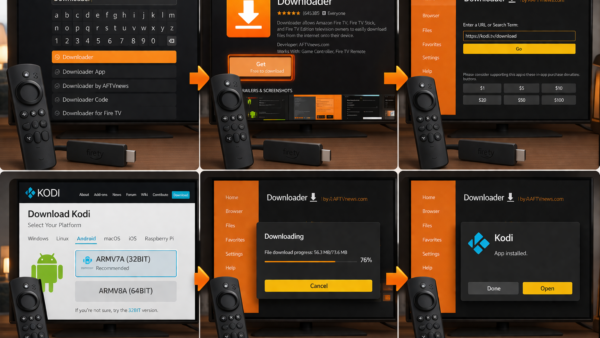
How to Install Kodi on Firestick (2026) – Easy 5-Minute Setup
Introduction Kodi is one of the best free media players out there — and yes, it works great…