X96 Mini Not Working? The Complete Guide to Fix, Firmware & Setup ⚡
So you’ve got an X96 Mini — one of the most popular Android TV boxes out there. It’s affordable, compact, and packed with features. But like any device, it can give you headaches sometimes.
Whether your X96 Mini is stuck on the logo, won’t connect to WiFi, or just refuses to turn on — you’re in the right place. This guide covers everything: common problems, step-by-step fixes, firmware updates, and setup tips to get the best out of your device.
Let’s get it working. 🔥
🔧 Common X96 Mini Problems
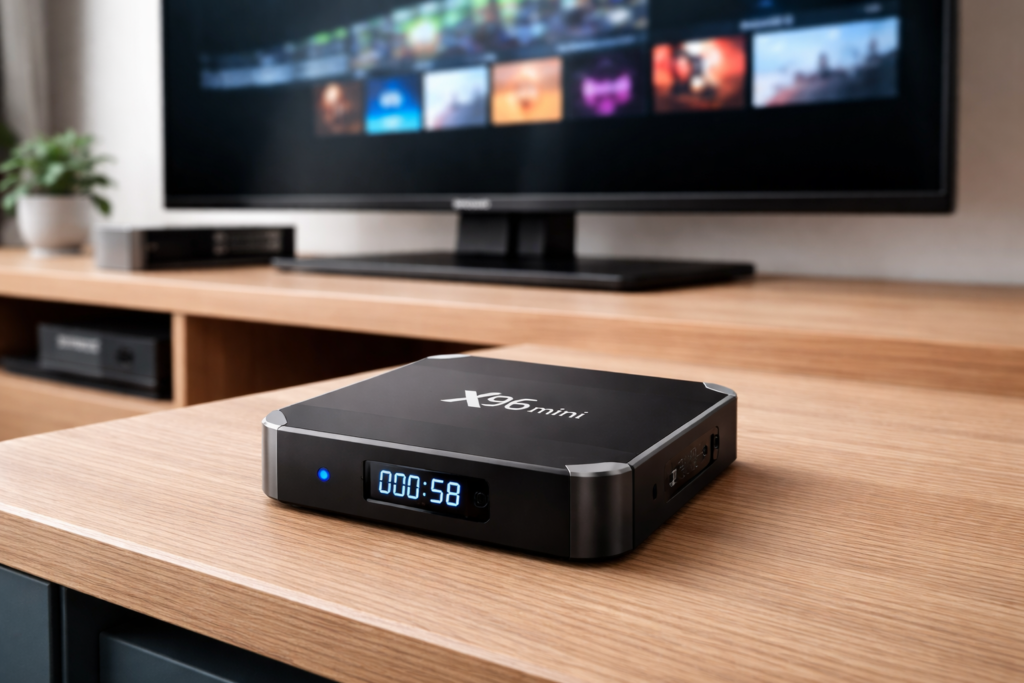
Before jumping into fixes, let’s identify the most frequent issues users report with the X96 Mini:
- No signal on TV — The screen stays black even after plugging in
- Stuck on boot logo — The X96 Mini logo appears but won’t load further
- WiFi not connecting — The device sees networks but fails to connect
- Not turning on — No lights, no response, completely dead
- Apps crashing or freezing — The interface lags or apps close unexpectedly
- Remote not responding — Buttons don’t register
Sound familiar? Don’t worry — most of these are fixable in minutes.
🛠️ How to Fix X96 Mini — Step by Step
Fix 1: No Signal on TV
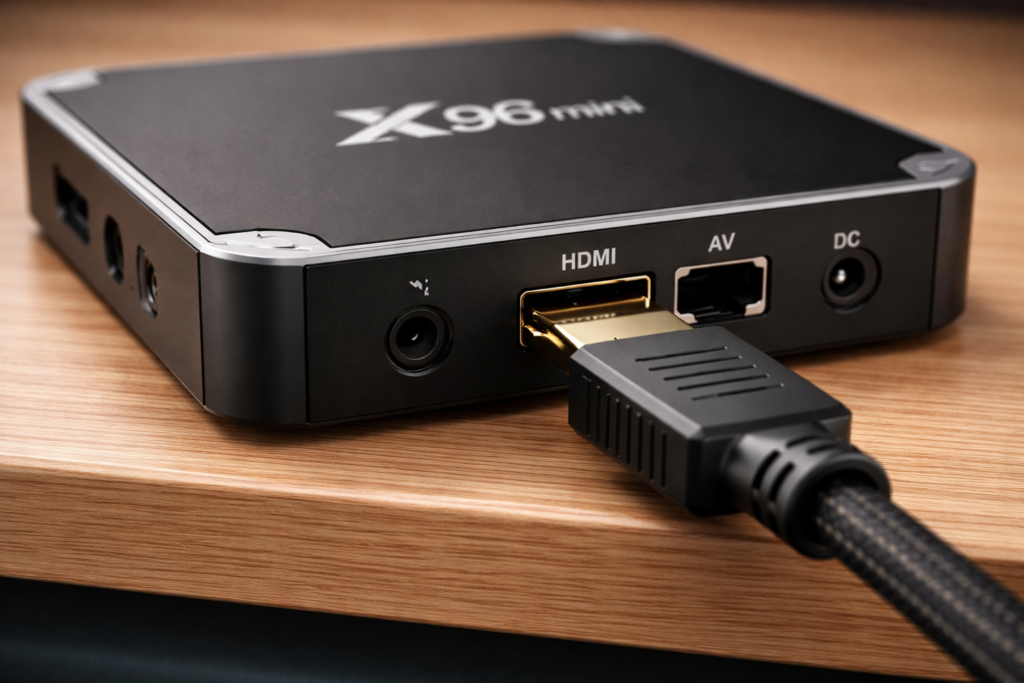
- Check that the HDMI cable is firmly plugged into both the X96 Mini and your TV
- Switch to the correct HDMI input on your TV (HDMI 1, 2, etc.)
- Try a different HDMI cable or port
- Make sure the X96 Mini power adapter is properly connected
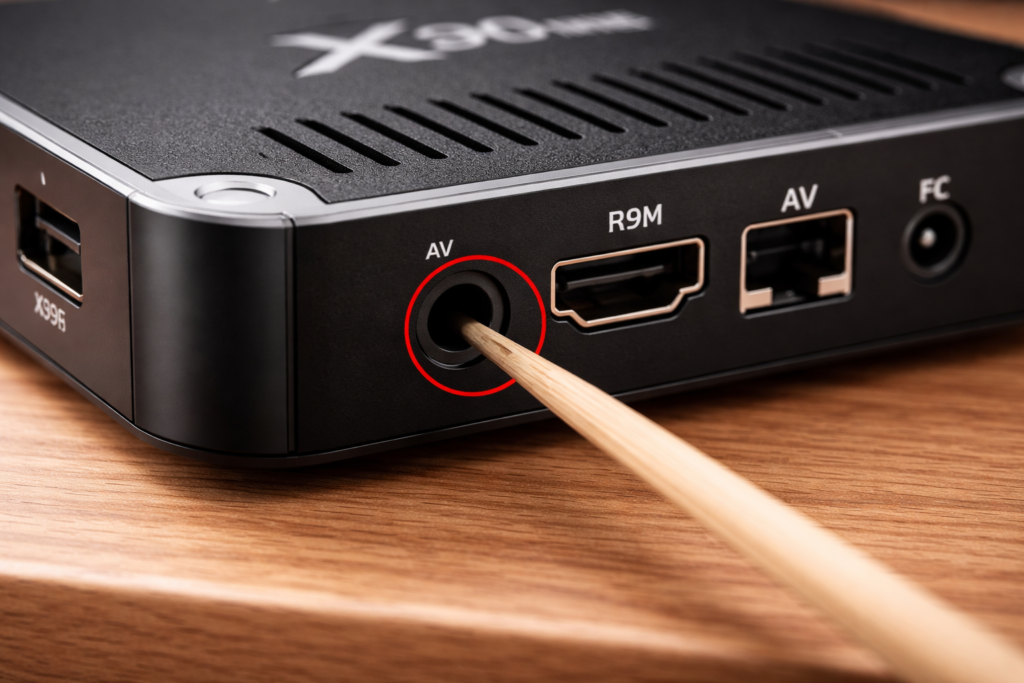
- Hold the reset button (small hole on the device) for 5 seconds using a pin
Fix 2: Stuck on Logo
💡 This usually means corrupted software or a failed update.
- Unplug the device completely for 30 seconds
- Plug it back in and wait — sometimes it resolves itself
- If it persists, a firmware re-flash is the solution (see Firmware section below)
Fix 3: WiFi Not Connecting
- Go to Settings → Network → WiFi and forget the network
- Restart the X96 Mini
- Reconnect to your WiFi and re-enter the password
- If still failing, try moving the device closer to your router
- Check if other devices connect to the same network — the issue might be your router
Fix 4: X96 Mini Not Turning On
- Try a different power adapter (the original one may be faulty)
- Use a USB cable directly from your TV’s USB port as a power source
- Press and hold the reset button for 10 seconds
- If nothing works, a firmware flash is your best option
💾 Firmware & Update Guide
What Is Firmware?
Think of firmware as the operating system of your X96 Mini. It controls everything — performance, compatibility, and stability. An outdated or corrupted firmware causes most major issues.
When Should You Update?
📌 Update your X96 Mini firmware if:
- The device is running slow or freezing often
- Apps won’t install or update
- You’re experiencing random reboots
- The device is stuck on the logo after a failed update
How to Update X96 Mini Firmware (Basic Method)
- Visit the official X96 firmware page or a trusted source like FreakTab.com
- Download the correct firmware for your exact X96 Mini model
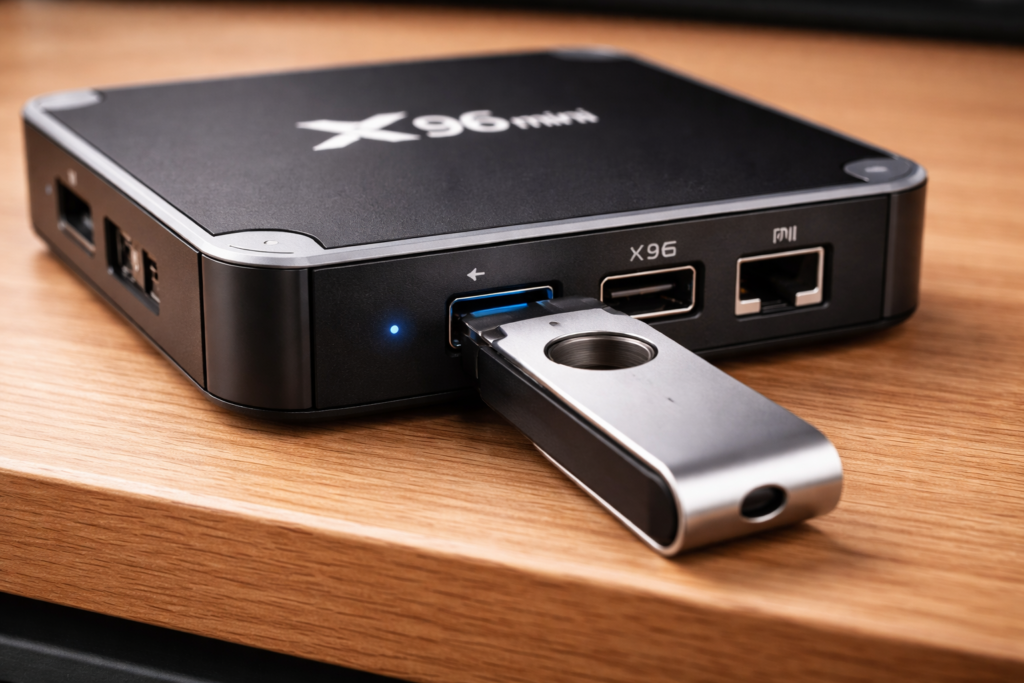
- Copy the firmware file to a USB drive (FAT32 format)
- Insert the USB into your X96 Mini while it’s powered off
- Power on the device — it should detect and install the firmware automatically
- Wait for the process to complete (do NOT unplug during this step ⚠️)
- The device will reboot — setup is done!
⚙️ Setup & Optimization Tips
First-Time Setup
When you first turn on your X96 Mini, follow these steps for the best experience:
- Connect to WiFi before doing anything else
- Set the display resolution to match your TV (usually 1080p)
- Install a reliable launcher like TV Launcher or ATV Launcher Free
- Skip unnecessary Google account sign-ins if you don’t need the Play Store
Speed Optimization 🔥
Your X96 Mini will run noticeably faster with these tweaks:
- Disable animations: Settings → Developer Options → set Window/Transition animation scale to 0.5x
- Limit background apps: Go to Settings → Apps and force-stop unused apps
- Use a wired connection if WiFi feels slow — an Ethernet adapter makes a huge difference
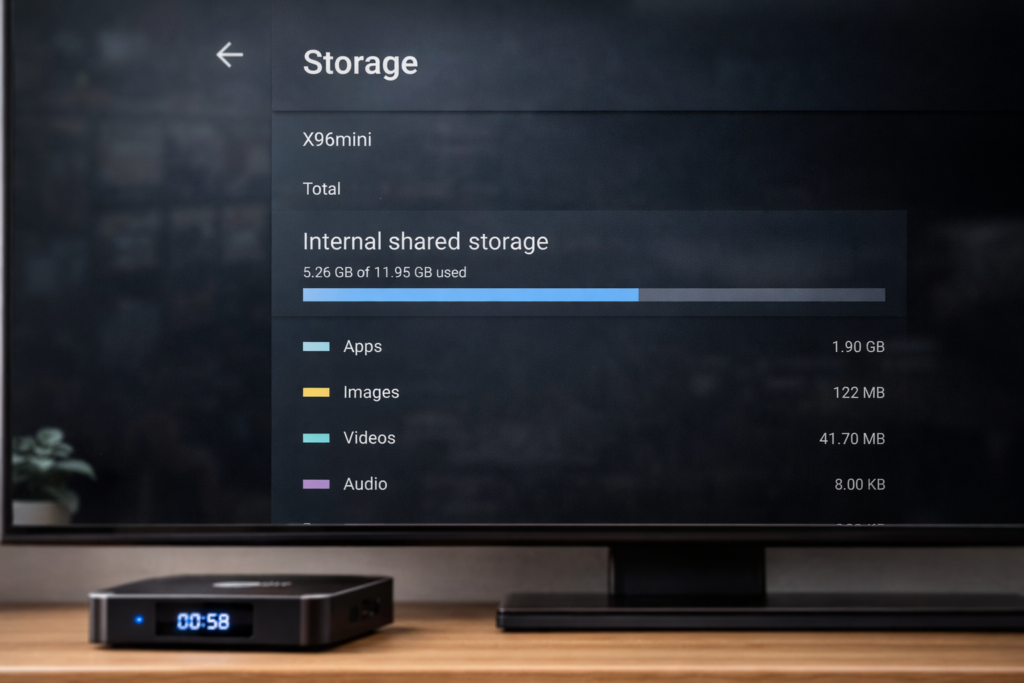
Storage Cleaning
Running low on storage? Here’s how to free up space:
- Uninstall apps you no longer use
- Clear app caches: Settings → Apps → select app → Clear Cache
- Move downloaded files to an external USB or SD card
- Use Files by Google to find and delete large unnecessary files
Wrapping Up
The X96 Mini is a great little device when it’s working properly — and as you’ve seen, most problems have simple solutions. Whether you’re dealing with a black screen, WiFi issues, or a frozen logo, the fixes above cover the most common scenarios.
If software fixes don’t help, a clean firmware flash almost always solves the problem. It sounds technical, but the steps are straightforward and take about 10 minutes.
💡 Start with the simple fixes first — restart, reset, re-check cables. You’d be surprised how often that’s all it takes.
Got your X96 Mini working again? Try the optimization tips to keep it running smoothly for years to come. 🚀
📌 Related Guides
Install Apps on X96 Mini — Complete 2026 Guide
Install apps on X96 Mini — it sounds technical, but it really isn’t. Whether you want Netflix, YouTube,…
Clean Storage on X96 Mini — Complete 2026 Guide
Clean storage on X96 Mini — if you’re here, you’ve probably seen that dreaded “insufficient storage” notification, watched…
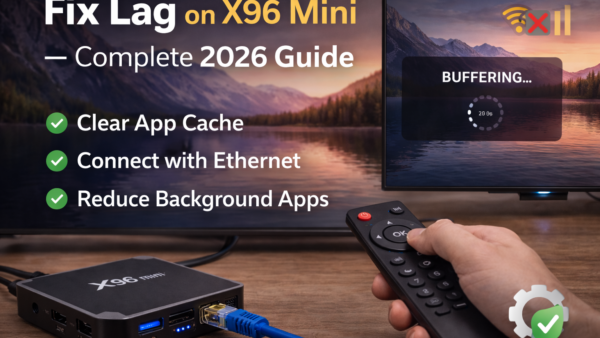
Fix Lag on X96 Mini — Complete 2026 Guide
Fix lag on X96 Mini — that’s exactly what this guide is here to do. Because nothing kills…