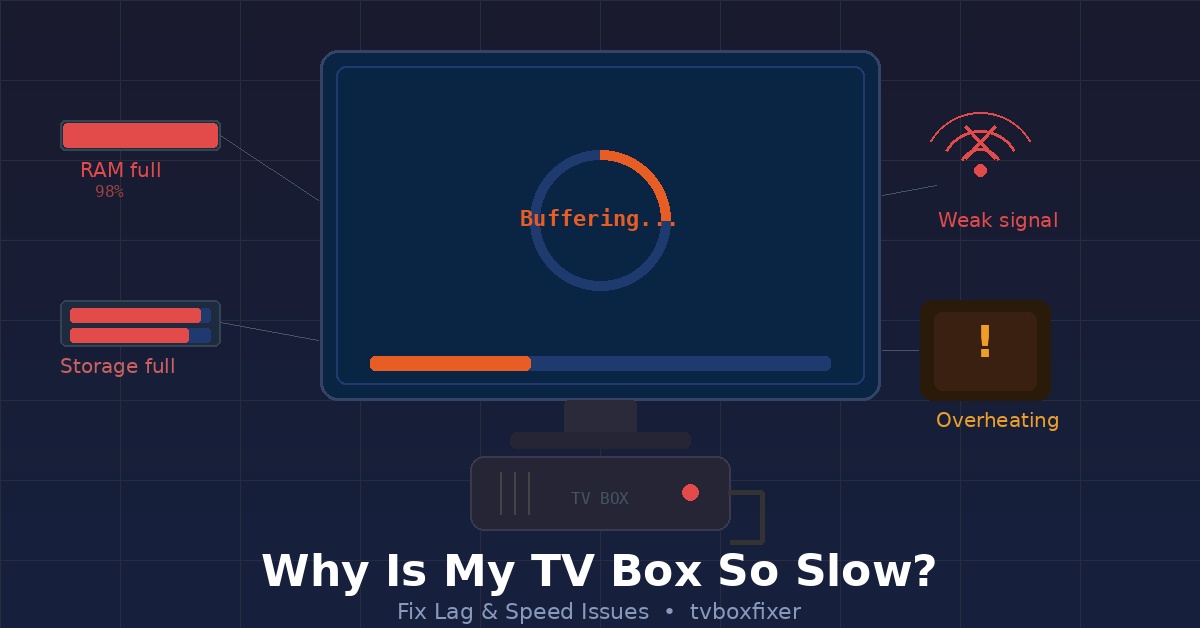
Why is My TV Box So Slow? (Fix Lag & Speed Issues)
If your TV box is crawling like it’s stuck in slow motion — buffering forever, apps freezing, menus taking ages to respond — you’re not alone. This is one of the most common complaints we hear at TVBoxFixer, and the good news is: most of the time, you can fix it yourself in just a few minutes.
Let’s walk through the most effective fixes, step by step.
First, Why Does a TV Box Get Slow?
Before jumping into fixes, it helps to understand what’s actually going on. Your TV box (whether it’s an Android TV box, Fire Stick, Roku, or similar) is basically a mini computer. And just like a computer, it can get bogged down by:
- Too many apps running in the background
- A full or nearly full storage drive
- Outdated software
- Overheating
- A weak Wi-Fi signal
- Too much cached data piling up over time
The fixes below tackle all of these. Start from the top and work your way down — most people find their box is running smoothly again by step 3 or 4.
Step 1: Restart Your TV Box (Properly)
This sounds too simple, but a proper restart — not just switching it off and on with the remote — can clear a surprising amount of lag.
How to do it:
- Unplug your TV box completely from the power outlet.
- Wait a full 60 seconds (not 5, not 10 — a full minute).
- Plug it back in and let it fully boot up.
This clears the RAM and stops any background processes that were quietly eating up resources. If you haven’t done a full power cycle in a while, this alone can make a noticeable difference.
Step 2: Clear the Cache on Your Apps
Cached data is meant to make apps load faster, but over time it builds up and actually starts slowing things down. Think of it like a drawer that’s gotten so stuffed full of stuff that it won’t open properly anymore.
How to do it on most Android TV boxes:
- Go to Settings → Apps (or Application Manager).
- Select the app that’s been giving you trouble (or start with the ones you use most — like YouTube, Netflix, or Kodi).
- Tap Clear Cache.
- Repeat for other heavy-use apps.
Do this every month or so and you’ll notice your apps staying snappier for longer.
Step 3: Free Up Storage Space
If your TV box storage is more than 80% full, performance takes a real hit. Apps need breathing room to run properly.
How to check your storage:
- Go to Settings → Storage (or Device Preferences → Storage on some boxes).
How to free up space:
- Uninstall apps you no longer use.
- Delete downloaded movies or files you’ve already watched.
- Move media files to an external USB drive if your box supports it.
- Use the Clear Data option (not just Clear Cache) on apps you don’t mind resetting.
Aim to keep at least 500MB–1GB free at all times for smooth performance.
Step 4: Check Your Wi-Fi Signal
A slow TV box isn’t always a box problem — sometimes it’s your internet connection. Streaming and running online apps require a decent, stable connection, and a weak Wi-Fi signal causes stuttering, buffering, and slow load times that look exactly like a device problem.
How to check:
- Go to Settings → Network and look at your signal strength.
- Try running a speed test app (like “Speedtest by Ookla”) directly on your TV box.
Quick fixes for bad Wi-Fi:
- Move your router closer to the TV box, or vice versa.
- Switch your box to the 5GHz band if your router supports it (faster, less congested).
- Restart your router — unplug it for 30 seconds.
- If possible, connect your TV box via Ethernet cable instead of Wi-Fi. This is the single biggest upgrade you can make for streaming reliability.
Step 5: Update Your Firmware and Apps
Running outdated software is a common culprit for slow performance. Updates often include bug fixes and performance improvements that can genuinely speed things up.
Update the system firmware:
- Go to Settings → About → System Update (the exact path varies by device).
- Check for and install any available updates.
Update your apps:
- Open the App Store (Google Play Store, Amazon Appstore, etc.).
- Go to My Apps and update anything that’s outdated.
Set aside 10 minutes for this — it’s worth it.
Step 6: Disable or Uninstall Apps Running in the Background
Many apps keep running in the background even when you’re not using them. They eat up RAM and slow everything else down.
How to stop background apps:
- Go to Settings → Apps.
- Look through the list and Force Stop any apps you’re not actively using.
- For apps you never use, go ahead and Uninstall them completely.
Also, be careful with auto-start settings if your box has them — some apps are set to launch automatically when the device boots up. Turning those off can make a big difference in how fast your box starts and how smooth it runs.
Step 7: Check for Overheating
TV boxes generate heat, and if they get too hot, they automatically slow themselves down to prevent damage (this is called thermal throttling). It’s a safety feature, but it means your box can feel painfully slow if it’s not getting enough airflow.
Signs your box might be overheating:
- It feels hot to the touch.
- It slows down after being on for a while but feels fine after a restart.
- It shuts off unexpectedly.
How to fix it:
- Make sure your TV box isn’t tucked inside a closed cabinet.
- Don’t stack other devices on top of it.
- Keep it in a well-ventilated spot.
- You can also buy a small USB-powered fan and place it near the box if it runs hot regularly.
Step 8: Factory Reset (Last Resort)
If you’ve tried everything above and your TV box is still dragging, a factory reset will restore it to its original state — clean, fast, and like new.
Important: This will erase everything, so back up anything important first.
How to factory reset:
- Go to Settings → Device Preferences → Reset (or Settings → About → Factory Reset, depending on your device).
- Confirm the reset and let the box do its thing.
- Set it up fresh, reinstall only the apps you actually need, and keep storage lean.
Quick Summary
| Fix | Time Needed | Difficulty |
|---|---|---|
| Restart the box | 2 minutes | Easy |
| Clear app cache | 5 minutes | Easy |
| Free up storage | 10 minutes | Easy |
| Check Wi-Fi / use Ethernet | 5–15 minutes | Easy |
| Update firmware & apps | 10 minutes | Easy |
| Disable background apps | 5 minutes | Easy |
| Fix overheating | 5 minutes | Easy |
| Factory reset | 20–30 minutes | Moderate |
Wrapping Up
A slow TV box is frustrating, but it’s almost always fixable. Work through these steps one by one and you’ll likely find the culprit without much trouble. In our experience, clearing the cache and freeing up storage space solves the problem for most people — so start there.
Got a specific TV box model that’s giving you grief? Drop it in the comments and we’ll help you figure it out.
Posted on TVBoxFixer | Your go-to resource for fixing, tweaking, and getting the most out of your TV box.
📌 Related Guides
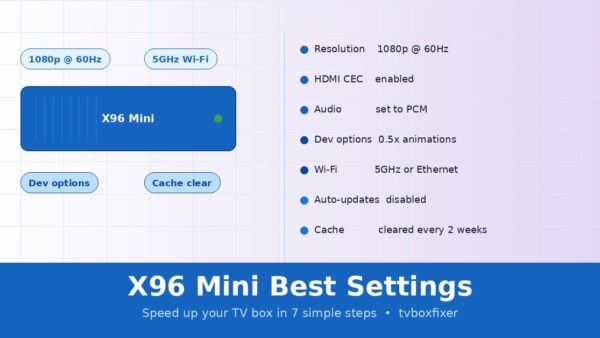
Best Settings for X96 Mini to Boost Speed (No Lag Guide 2026)
Looking for the best settings for your X96 Mini? You’re in the right place. In this guide, we’ll…