Quick Answer
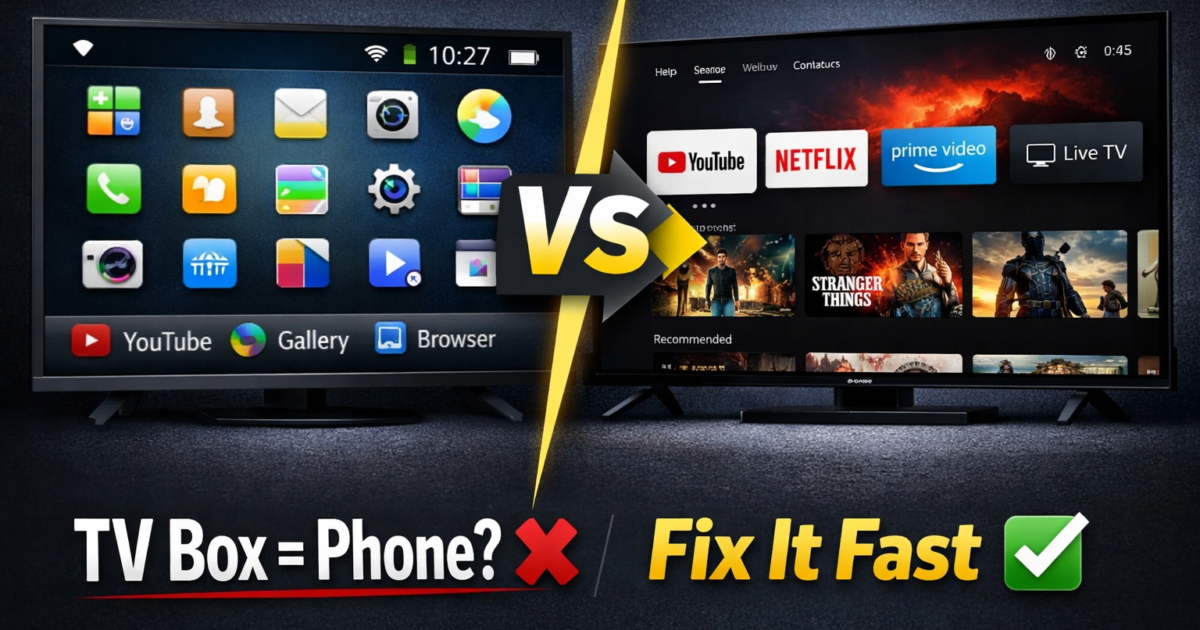
A TV box that shows phone-style apps instead of a TV interface is running Android Mobile OS (AOSP), not Android TV OS. These are two completely different operating systems. Android Mobile is designed for touchscreens and small displays. Android TV is built for large screens and remote-control navigation.
The fastest fix is to install a TV-friendly launcher such as ATV Launcher Pro or FLauncher. For a permanent solution, you can flash Android TV OS — if your hardware supports it.
Introduction
You plug in your Android TV box — a ZaapTV, a generic box from Amazon, or a budget streamer — and something is immediately wrong. The home screen looks like a smartphone. Icons are tiny. Apps open in portrait mode. Nothing responds properly to your remote.
This is one of the most common Android TV box problems, and it has a clear cause: your TV box thinks it is a phone.
It is not a hardware defect. It is an operating system mismatch. This guide explains exactly why it happens and gives you practical, step-by-step solutions — from beginner-friendly fixes to advanced firmware flashing.
Why Your TV Box Thinks It Is a Phone
The Root Cause: Two Different Android Operating Systems
Android is not a single operating system. It comes in multiple versions built for different types of devices. The two most relevant for TV box users are:
- Android Mobile OS (AOSP) — designed for smartphones and tablets, uses touch input, shows all apps from Google Play
- Android TV OS — designed for televisions and streaming boxes, uses remote-control navigation, shows only TV-optimized apps from Google Play
These are not the same system. They look different, behave differently, and install different types of apps.
Why Budget Boxes Ship With Android Mobile
Android Mobile (AOSP) is free and open-source. Any manufacturer can install it on any device at zero cost.
Android TV OS is different. It requires a licensing agreement with Google, a certification process, and ongoing compliance. This costs money and takes time. Many budget TV box manufacturers — including some ZaapTV models — skip this process entirely and ship Android Mobile instead.
The result: your box has the hardware of a TV streamer but the operating system of a smartphone.
Android Mobile vs Android TV OS — Direct Comparison
| Feature | Android Mobile (AOSP) | Android TV OS |
|---|---|---|
| Designed for | Phones and tablets | TVs and streaming boxes |
| Navigation | Touch input | Remote control / D-pad |
| App store | Full Google Play (phone apps) | Google Play for TV (TV apps only) |
| Home screen | Phone-style grid launcher | Leanback TV launcher |
| Google certified | Not required | Required |
| Common on | Budget and grey-market boxes | NVIDIA Shield, Chromecast, Mecool |
ZaapTV-Specific Note
Several ZaapTV HD609 and HD809 units ship with a custom Android Mobile build. This is why the interface looks like a phone and why Google Play shows smartphone apps instead of TV-optimized apps. This is a software issue, not a hardware defect, and it can be fixed without replacing the device.
Q: Why does my TV box show phone apps instead of TV apps? A: Because your box runs Android Mobile OS, not Android TV OS. Android Mobile defaults to smartphone-style apps and layouts. The Google Play Store on Android Mobile shows phone apps, not TV-optimized apps.
Q: Is Android Mobile on a TV box the same as Android TV? A: No. They are two separate operating systems. Android TV OS includes a TV launcher, Leanback library support, and access to a Google Play Store restricted to TV apps only. Android Mobile on a TV box has none of these by default.
How to Fix the Problem (Step-by-Step)
There are three approaches depending on your technical comfort level. Start with Option A. If it does not fully solve the problem, move to Option B or C.
Option A — Install a TV Launcher (Easiest Fix)
A TV launcher replaces the phone-style home screen with a proper TV interface. It does not change the operating system, but it makes the experience dramatically better and works on virtually every Android Mobile box.
Recommended launchers:
- ATV Launcher Pro (most popular, free tier available)
- FLauncher (free, open-source, actively maintained)
- Projectivy Launcher (most customizable, paid version for advanced features)
Steps:
- Go to Settings → Security and enable Unknown Sources or Install Unknown Apps. This allows APK files to be installed from outside Google Play.
- Open a browser or the Downloader app on your TV box. Search for your chosen launcher by name and download the APK file.
- Open the downloaded file using a file manager and tap Install. The installation takes about 10 seconds.
- Press the Home button on your remote. Android will ask which app to use as the launcher. Select your new TV launcher and tap Always.
- Restart your device. The TV-style home screen will now load on every boot.
Result: Your box now has a remote-control-friendly home screen. Apps will still be the mobile versions, but the navigation experience improves significantly.
Option B — Sideload Android TV App APKs
If you need specific apps to look and behave like TV apps — Netflix, YouTube, Plex, Disney+ — you can install their Android TV APK versions manually. These are separate APK files built specifically for television interfaces.
Steps:
- Search online for the Android TV version of the app you need (for example: “Netflix Android TV APK”). Make sure you download the TV version, not the mobile version — they are different files.
- Transfer the APK to your box using a USB drive, SD card, or the Send Files to TV app.
- Open a file manager, locate the APK, and tap to install it.
- Launch the app. It should now open with a TV-optimized layout and full remote-control support.
Important note on Netflix: Netflix actively blocks sideloaded APKs on some devices for DRM compliance reasons. If Netflix does not work after sideloading, you will need a certified Android TV device or an official Netflix-compatible launcher.
Option C — Flash Android TV OS (Advanced)
This is the complete, permanent fix. Flashing Android TV OS replaces the entire operating system on your box, giving you the real Android TV experience — including the Leanback launcher, Google Play for TV, and full remote-control support at the system level.
Warning: Flashing firmware can permanently brick your device if done incorrectly. Only attempt this if your exact box model is confirmed compatible. Always back up your data first. This process typically voids your manufacturer warranty.
Steps:
- Identify your chipset. Go to Settings → About → Build Information. Most Android boxes use Amlogic, Rockchip, or AllWinner chips. You need the exact code (for example: Amlogic S905X4) before searching for firmware.
- Find a compatible Android TV ROM. Search XDA Developers or the CoreELEC forums for Android TV builds that match your chipset. Confirm compatibility before downloading any ROM file.
- Flash the ROM. For Amlogic boxes, use Amlogic USB Burning Tool. Follow the guide included with the ROM exactly. Do not interrupt the process once it starts.
- Restart and verify. After flashing, your box should boot directly into Android TV OS. Open the Google Play Store — it should now display TV apps only, confirming a successful flash.
Best Solutions Ranked: Easiest to Hardest
Rank 1 — Install a TV Launcher (Difficulty: Easy)
What it does: Replaces the phone home screen with a TV-friendly launcher.
Pros:
- No technical skill required
- Free options available (FLauncher)
- Reversible in seconds
- Works on ZaapTV and most Android Mobile boxes
Cons:
- Apps are still the mobile versions
- Google Play still shows phone apps
Best for: Most users. This solves 80% of the interface problem instantly.
Rank 2 — Sideload Android TV APKs (Difficulty: Easy)
What it does: Installs TV-specific versions of your most-used apps.
Pros:
- TV-optimized app interface
- No OS change required
- Works alongside the launcher fix for best results
Cons:
- Manual updates required (apps do not self-update)
- Some apps (Netflix) may block sideloading
Best for: Users who want specific apps like YouTube TV, Plex, or Kodi to behave like TV apps.
Rank 3 — Use Manufacturer Companion App (Difficulty: Medium)
What it does: Some manufacturers provide a companion app that creates a TV-style interface overlay on top of Android Mobile.
Pros:
- Officially supported by the manufacturer
- No risk of bricking the device
- Preserves the original OS
Cons:
- Limited to the manufacturer’s app ecosystem
- May not support third-party apps
Best for: ZaapTV users who primarily use the box for IPTV and satellite channels.
Rank 4 — Flash Android TV Custom ROM (Difficulty: Advanced)
What it does: Completely replaces Android Mobile with Android TV OS.
Pros:
- Real Android TV OS experience
- Access to Google Play for TV
- Proper Leanback launcher and full remote support
- Permanent solution
Cons:
- Requires compatible hardware and chipset
- Risk of permanently bricking the device
- Voids manufacturer warranty
- Not all chipsets have available ROMs
Best for: Technical users with a compatible Amlogic box who want the full Android TV experience.
Can You Install Android TV on Any TV Box?
Short answer: No — but many boxes can be upgraded.
Whether you can install Android TV OS depends entirely on your box’s chipset and whether a compatible ROM exists for it.
What determines compatibility:
- Chipset: Amlogic chips (S905, S912, S922X, S905X4) have the best community support for Android TV ROMs. Rockchip and AllWinner have fewer options.
- RAM and storage: Android TV OS requires at least 2GB RAM and 8GB internal storage.
- Bootloader: Some manufacturers lock the bootloader, which blocks all custom firmware installs. If the bootloader is locked, flashing is impossible.
- Community support: Check XDA Developers for your exact model number. If no ROM has been developed for your box, you cannot flash Android TV.
Q: Can I install Android TV on a ZaapTV box? A: It depends on the specific model. Most ZaapTV units use Amlogic chipsets, which have some community Android TV ROM support. However, the process is unofficial, carries a risk of bricking the device, and voids the warranty. Installing a TV launcher is a safer alternative that solves the interface problem without flashing.
When to Replace Your TV Box
Not every problem is worth fixing through software. Here is a clear decision guide.
Fix your box if:
- It runs Android Mobile but the hardware works fine → install a launcher or ROM
- It has a 4K/HDR-capable Amlogic S905 or newer chipset → worth flashing Android TV
- You use it for IPTV or satellite channels and it still functions well → fix the interface with a launcher
Replace your box if:
- It has less than 2GB RAM or runs Android 7 or older → too slow for modern apps, no real fix
- The bootloader is locked and no ROM is available → cannot flash Android TV
- It regularly overheats, freezes, or has hardware failures → OS fix will not help hardware problems
- The chipset is not supported by any Android TV ROM → replacement is the only path
Best replacement options (certified Android TV):
- NVIDIA Shield Pro — best performance, best Android TV box overall
- Google Chromecast with Google TV — official Google TV OS, affordable, widely available
- Mecool KM7 Plus — budget-friendly, Google-certified Android TV
- Xiaomi Mi Box S (2nd Gen) — popular, reliable, great value for most users
Key Takeaways
- A TV box showing phone-style apps is running Android Mobile OS, not Android TV OS. They are two completely different systems built on the same Android base.
- The fastest fix is installing a TV launcher (ATV Launcher Pro or FLauncher) — no technical skill required, works on ZaapTV and most boxes.
- Sideloading Android TV APKs gives you TV-optimized interfaces for specific apps without changing the operating system.
- Flashing an Android TV custom ROM permanently solves the problem but requires compatible hardware and risks bricking the device.
- ZaapTV boxes typically ship with Android Mobile. A TV launcher or sideloaded TV APKs resolve the interface issue without risky firmware flashing.
- If your box has under 2GB RAM or a locked bootloader, replacing it with a certified Android TV device is the better long-term investment.
- Certified Android TV devices — NVIDIA Shield, Chromecast with Google TV, Mecool — never have this problem because they ship with the correct operating system from the factory.
Frequently Asked Questions
Q: Why does my Android TV box open phone apps instead of TV apps? A: Your box is running Android Mobile OS (AOSP), not Android TV OS. Android Mobile defaults to smartphone-style apps and layouts. Google Play on Android Mobile shows phone apps, not TV apps. Installing a TV launcher or sideloading Android TV APKs fixes the experience without changing the OS.
Q: How do I know if my TV box is running Android TV or Android Mobile? A: Go to Settings → About → Software Information. If it says “Android TV” in the OS version, you have Android TV OS. If it shows “Android X.X” with no TV branding, you are on Android Mobile. You can also check the home screen — Android TV uses a horizontal Leanback launcher, while Android Mobile uses a phone-style app grid.
Q: Can I get Netflix and YouTube to work properly on an Android Mobile TV box? A: Yes. Download and sideload the Android TV APK versions of these apps. The TV-specific APK uses a remote-friendly interface optimized for large screens. Note that Netflix may block sideloaded APKs on some devices. In that case, a certified Android TV device is the more reliable solution.
Q: What is the best free TV launcher for an Android Mobile box? A: FLauncher is the best free option — open-source, actively maintained, and fully remote-controllable. ATV Launcher has a free tier with limited customization. Projectivy Launcher is the most feature-rich with a paid version for advanced settings. All three are significantly better than the default Android Mobile home screen.
Q: Will installing a TV launcher void my warranty? A: No. Installing a third-party launcher is a standard Android feature and does not void your warranty. Flashing a custom Android TV ROM does typically void the manufacturer warranty. If your box is still under warranty and the interface is wrong, contact the manufacturer first and ask about an official firmware update before attempting any flashing.
📌 Related Guides
Clean Storage on X96 Mini — Complete 2026 Guide
Clean storage on X96 Mini — if you’re here, you’ve probably seen that dreaded “insufficient storage” notification, watched…
Fix Lag on X96 Mini — Complete 2026 Guide
Fix lag on X96 Mini — that’s exactly what this guide is here to do. Because nothing kills…
Best Settings for X96 Mini — Complete 2026 Guide
Best Settings for X96 Mini — Complete 2026 Guide Best settings for X96 Mini — that’s exactly what…