Introduction
If you’ve spent any time researching Kodi addons, you’ve probably seen Seren mentioned — usually by people who won’t stop talking about how fast it is. That reputation is earned.
The Seren Kodi addon is one of the best options available in 2026 for users who want high-quality streams with minimal waiting. It pulls fast, reliable links from premium sources and delivers them through a clean, no-nonsense interface.
The catch? It works best with a Real Debrid account. If you’re not familiar with Real Debrid, don’t worry — we cover the setup from scratch in this guide.
Whether you’re installing Seren for the first time or troubleshooting a broken setup, this Seren addon guide walks through everything you need.
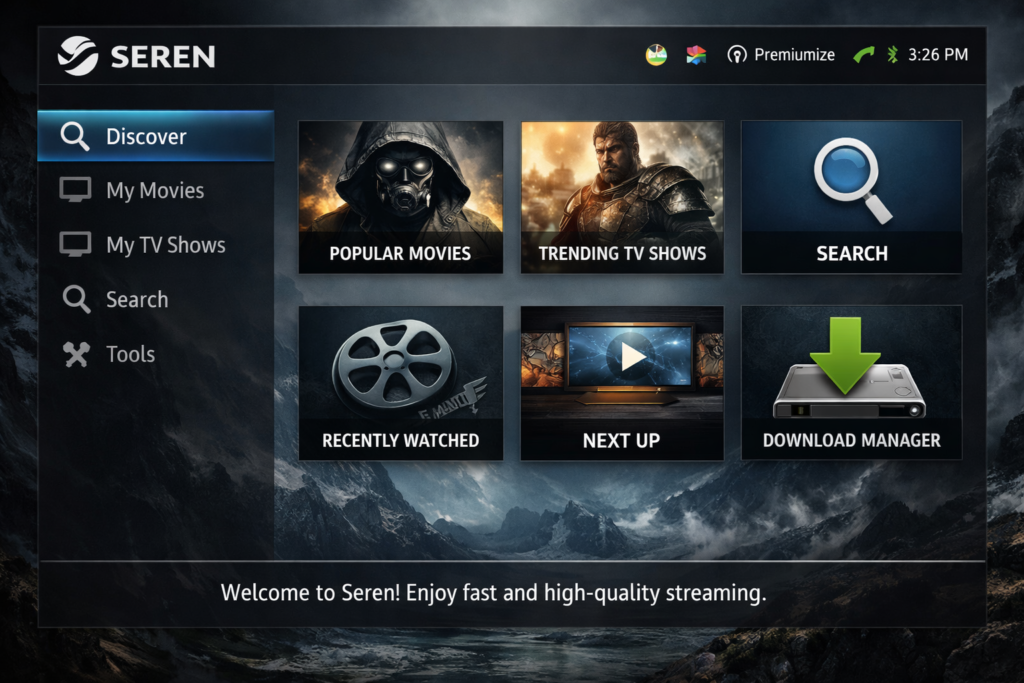
What Is the Seren Addon?
Seren is a Kodi video addon built specifically for premium streaming. Unlike general-purpose addons that scrape dozens of low-quality sources and hope something works, Seren is designed around quality from the ground up.
It connects to your Real Debrid or Premiumize account and uses their cached torrent links to serve streams almost instantly. No searching through dead links, no waiting for sketchy mirrors to load.
Key features:
- Fast scraping — results come back in seconds rather than minutes
- Premium-quality links — 1080p and 4K streams from Real Debrid’s cache
- Trakt.tv integration — syncs your watch history and recommendations across devices
- Provider packages — install additional scrapers to expand source coverage
- Clean, minimal interface — no clutter, just content
If you want a deeper look at how Seren compares to other options, check out our [best Kodi addons 2026] guide which covers the full landscape of what’s working right now.
What You Need Before Installing Seren
Before you start, make sure you have the following:
- Kodi 20 (Nexus) or Kodi 21 (Omega) installed on your device
- A Real Debrid account — a subscription costs around €3–4 per month and is genuinely worth it
- Stable internet connection — at least 10 Mbps for 1080p, 25 Mbps for 4K
- Unknown Sources enabled in Kodi settings (covered in step one below)
If you haven’t installed Kodi yet, head over to our Kodi setup guide for a full walkthrough before continuing here.
How to Install Seren Addon on Kodi (Step-by-Step)
Seren is installed via the Nixgates repository. The process takes about five minutes.
Step 1: Enable Unknown Sources
- Open Kodi and go to Settings (the gear icon)
- Select System → Add-ons
- Toggle Unknown Sources to ON
- Accept the warning prompt
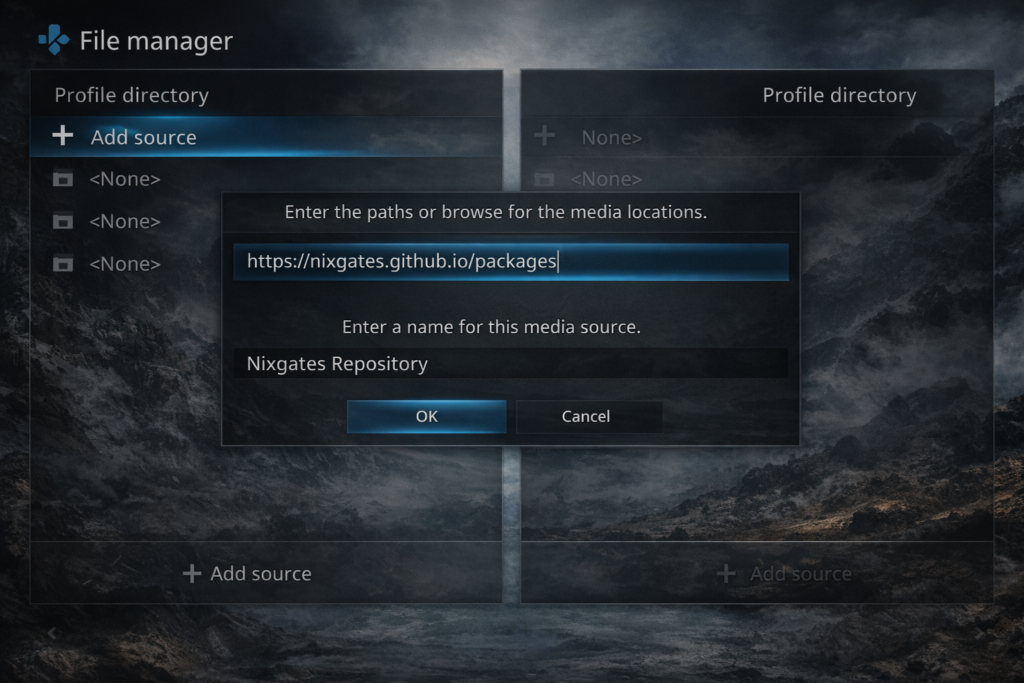
Step 2: Add the Nixgates Repository
- Go back to Settings → File Manager
- Select Add Source
- Click the field that says None and enter:
https://nixgates.github.io/packages - Name it Nixgates and press OK
Step 3: Install the Repository
- Go to Add-ons → Install from ZIP file
- Navigate to the Nixgates source you just added
- Select repository.nixgates-x.x.zip (version number may vary)
- Wait for the “Add-on installed” notification
Step 4: Install Seren
- Go to Add-ons → Install from repository → Nixgates Repository
- Select Video Add-ons → Seren
- Click Install and wait for all dependencies to install
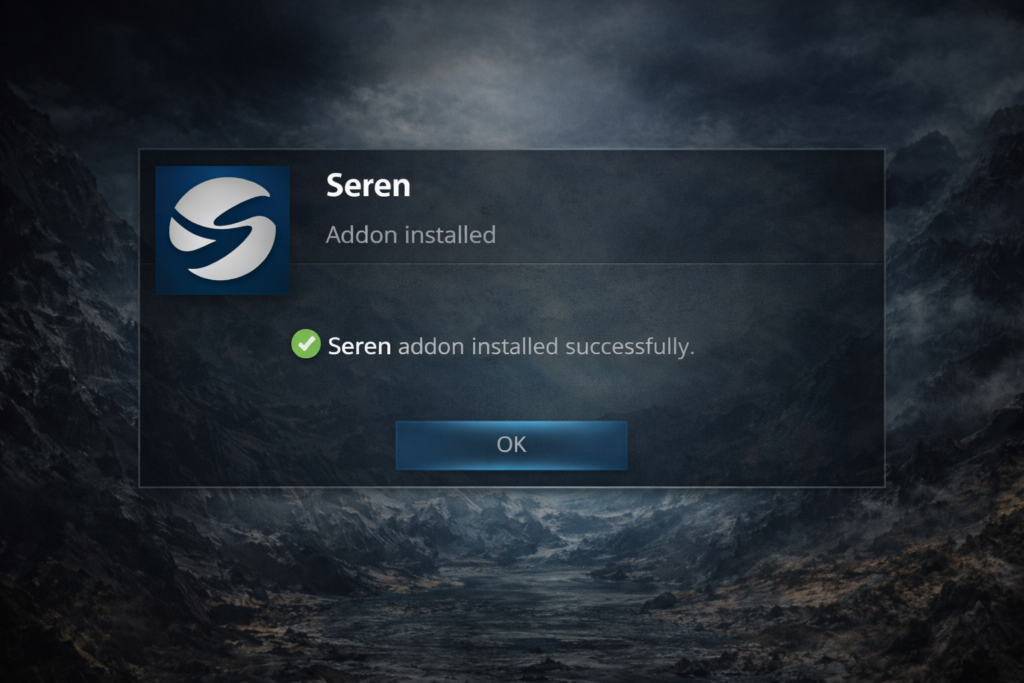
- You’ll see “Seren Add-on installed” when it’s done
How to Set Up Seren with Real Debrid
Once Seren is installed, the next step is connecting your Real Debrid account. This is what makes Seren actually useful.
Step 1: Open Seren Settings
Launch Seren from your Add-ons menu, then press the menu key (or long-press OK on your remote) to access Tools → Open Settings Menu.
Step 2: Authorise Real Debrid
- In Seren settings, go to Accounts
- Select Real Debrid and choose Authenticate
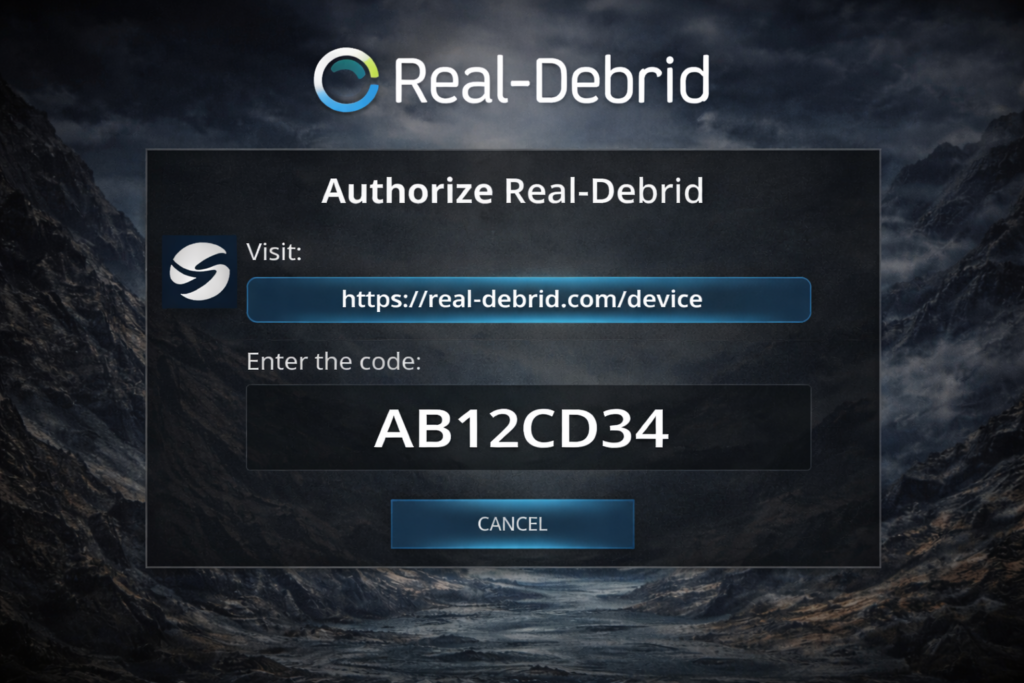
- Seren will show you a code and a URL — open the URL on your phone or computer
- Enter the code and click Allow Access
- Back in Kodi, Seren will confirm the authorisation.
Why Real Debrid matters: Without it, Seren has very limited sources. With it, it taps into a massive cache of cached torrents hosted on Real Debrid’s servers — which means fast, high-quality streams with no P2P traffic on your end.
Best Settings for Seren (Performance Boost)
A few settings changes make a noticeable difference to Seren’s speed and reliability.
Provider Packages
Seren uses provider packages to scrape sources. Install the default package first:
- Go to Seren Settings → Providers → Install Package
- Select the default Seren provider package and install it
Enable Caching
Under Seren Settings → Playback, enable Use Cache for faster repeat scraping on content you’ve searched before.
Auto-Play vs Source Select
- Auto-play: Seren picks the best stream automatically. Great for casual watching.
- Source select: You choose from a list of results. Better if you want to control quality.
Start with Auto-play and switch to Source Select if you’re getting inconsistent quality.
Trakt Integration
Connect your Trakt account under Accounts → Trakt to sync watchlists and get personalised recommendations inside Seren.
How to Fix Seren Not Working (2026 Fixes)
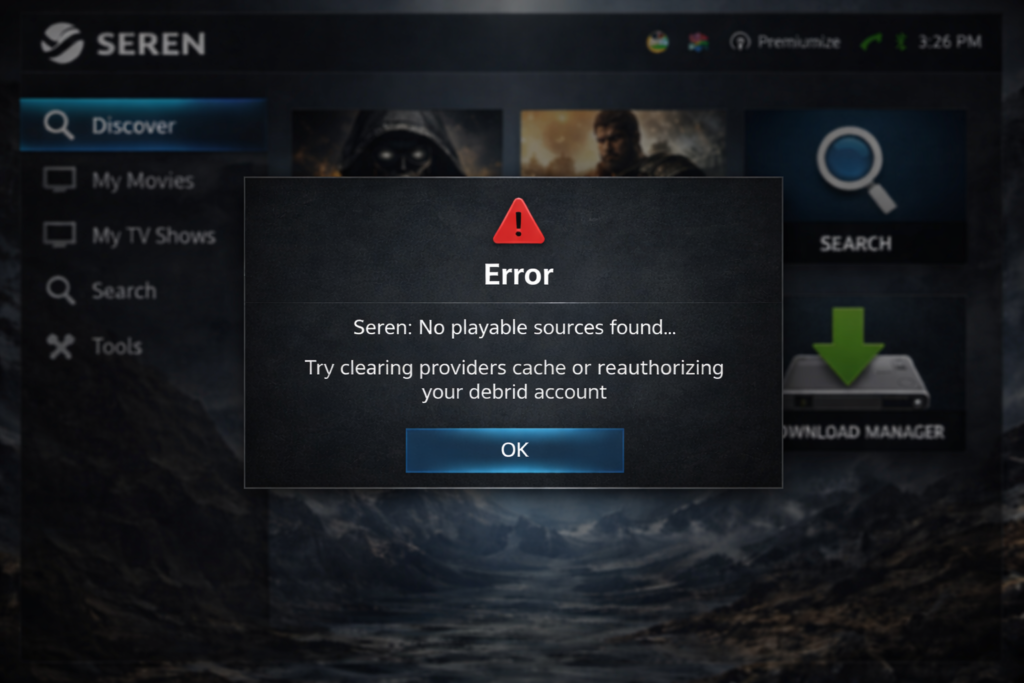
Problem: No Streams Found
- Check your Real Debrid account is active and not expired
- Re-authorise Real Debrid in Seren settings (Accounts → Real Debrid → Re-authenticate)
- Reinstall your provider package (Settings → Providers → Uninstall, then reinstall)
Problem: Seren Not Loading / Freezing at Startup
- Clear Seren’s cache: Settings → Tools → Clear All Cache
- Disable any Kodi addons that might conflict (especially other video addons)
- Reinstall Seren completely if nothing else works
Problem: Errors After a Kodi Update
Updates occasionally break addon dependencies. Fix:
- Uninstall Seren completely
- Clear the Kodi addon data folder
- Reinstall from the Nixgates repository
Problem: Buffering Mid-Stream
Seren itself rarely causes buffering — this is usually a Kodi cache issue. Increase your cache size via the advancedsettings.xml file, or switch from Wi-Fi to Ethernet.
Pros and Cons of Seren
Pros:
- Consistently fast scraping — results in 5–10 seconds most of the time
- High-quality streams as the default, not the exception
- Trakt integration keeps your watch history tidy
- Regular updates and active developer support
- Works beautifully on Android TV boxes
Cons:
- Real Debrid is essentially a requirement — free use is too limited
- Initial setup takes longer than simpler addons
- Provider packages need occasional maintenance
- Not the right choice for someone who wants a one-click experience
Seren vs Other Kodi Addons
Seren vs Fen
Both are high-quality, Real Debrid-focused addons with similar scraping approaches. Fen has a slightly more polished interface, while Seren tends to return results faster. Many advanced users install both and use whichever works better for a specific title.
Seren vs The Crew
Very different tools. The Crew works without Real Debrid and is easier to set up, but stream quality is inconsistent and results are slower. Seren wins on every performance metric — but only if you’re willing to pay for Real Debrid.
Conclusion
Seren earns its reputation. For users willing to pair it with a Real Debrid subscription, it’s one of the most reliable, fast, and consistent Kodi addons available in 2026. The setup takes a bit more effort than a one-click install, but once it’s running properly, it just works — and that’s worth something.
If you’re building out your Kodi setup from scratch, Seren works best as part of a broader addon strategy. Combine it with an official addon like Tubi or YouTube for free content, and you’ve got a well-rounded setup. For the full picture of what’s worth installing, browse our best Kodi addons 2026 guide.
Frequently Asked Questions
Is Seren addon safe?
Yes. Seren doesn’t contain any malware or malicious code. The Nixgates repository is a well-known source in the Kodi community. As with any addon, download only from the official repository URL to avoid modified versions.
Do I need Real Debrid for Seren?
Technically no, but practically yes. Without Real Debrid, Seren’s source coverage drops significantly and stream quality becomes unreliable. A Real Debrid subscription costs around €3–4 per month and transforms the experience.
Why is Seren not working?
The most common causes are: an expired Real Debrid account, missing or outdated provider packages, or a broken dependency after a Kodi update. Start by re-authorising Real Debrid and reinstalling your provider package — that fixes the problem most of the time.
Can I use Seren without Trakt?
Yes. Trakt is optional. Seren works fine without it — you just won’t have watchlist sync or personalised recommendations. You can add Trakt later without reinstalling anything.


