Clean storage on X96 Mini — if you’re here, you’ve probably seen that dreaded “insufficient storage” notification, watched apps fail to update, or noticed your box getting slower by the week. It’s one of the most common frustrations X96 Mini owners face. 😤
Here’s the reassuring part: it’s completely fixable. You don’t need a new device or any technical skills. A few simple steps are all it takes to free up space on your X96 Mini, get apps installing again, and bring back that smooth performance you started with.
Let’s clean things up. 🧹
Table of Contents
- Why Storage Gets Full on X96 Mini
- Quick Fixes — Start Here
- How to Clean Storage on X96 Mini (Step-by-Step)
- Advanced Tips
- Common Mistakes to Avoid
- Internal Linking Suggestions
- Conclusion
- FAQ
Why Storage Gets Full on X96 Mini
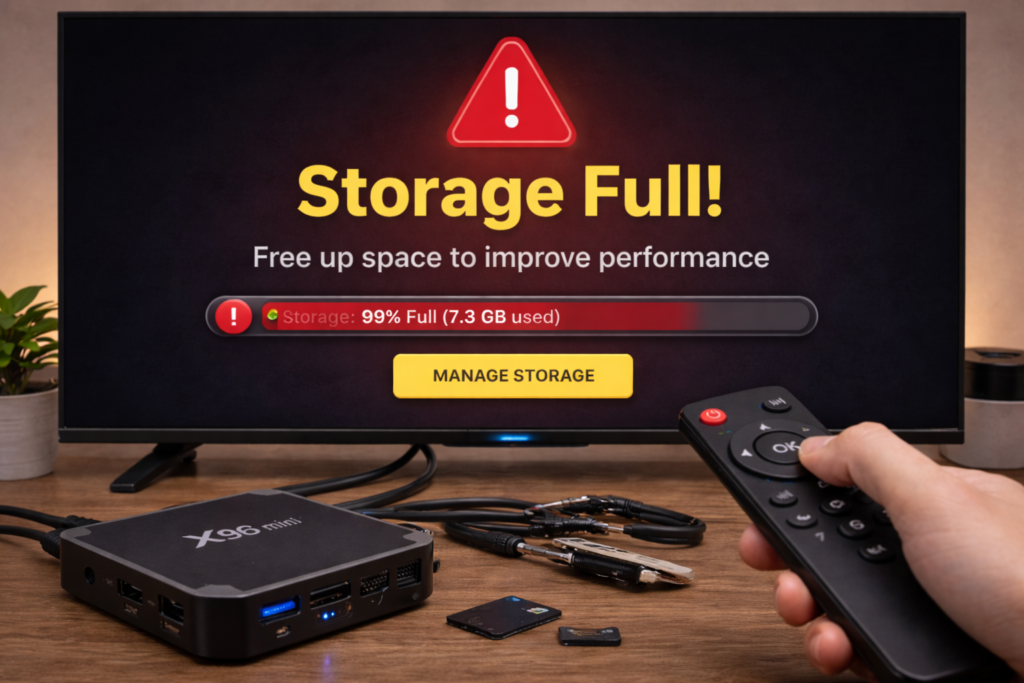
The X96 Mini ships with either 8GB or 16GB of internal storage. That sounds reasonable until you realize Android itself takes up 4–5GB, leaving very little room for apps, updates, and files. Here’s what fills that space fast:
- Too many installed apps — each app claims storage and many leave data behind even after you close them
- Cached data — streaming apps like YouTube, Kodi, and Netflix build up gigabytes of cached files over time without you noticing
- Downloaded APK files — every app you sideloaded left an installation file behind that’s still sitting on your device
- Downloads folder clutter — firmware files, images, subtitles, and random downloads accumulate silently
- System limitations — Android reserves a portion of storage for system operations, making the usable space even smaller than advertised
Understanding the cause helps you target the right fix. Now let’s solve it.
Quick Fixes — Start Here ⚡
Before diving into the full cleanup, try these two steps first:
Restart the device A full restart clears temporary files held in memory and sometimes recovers a small amount of storage. Unplug completely, wait 30 seconds, then restart.
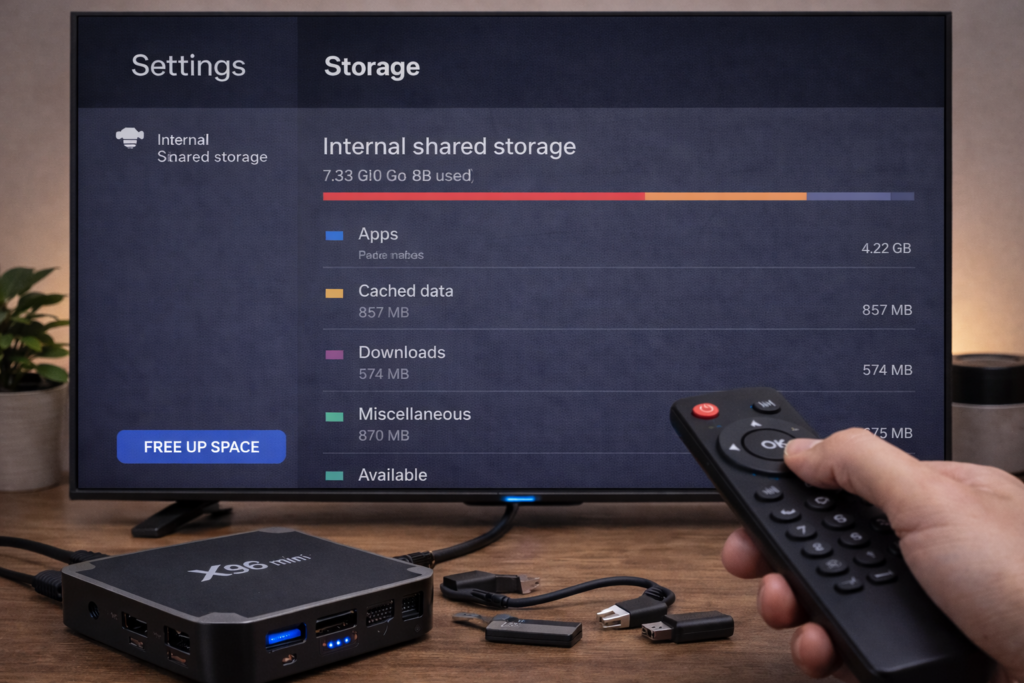
Check your current storage usage Go to Settings → Storage. This shows exactly how much space is used and what’s using it — apps, cached data, downloads, and system files. Use this as your map before cleaning.
Now you know what you’re dealing with. Time to clear it out.
How to Clean Storage on X96 Mini (Step-by-Step)
✅ Fix 1 — Clear App Cache
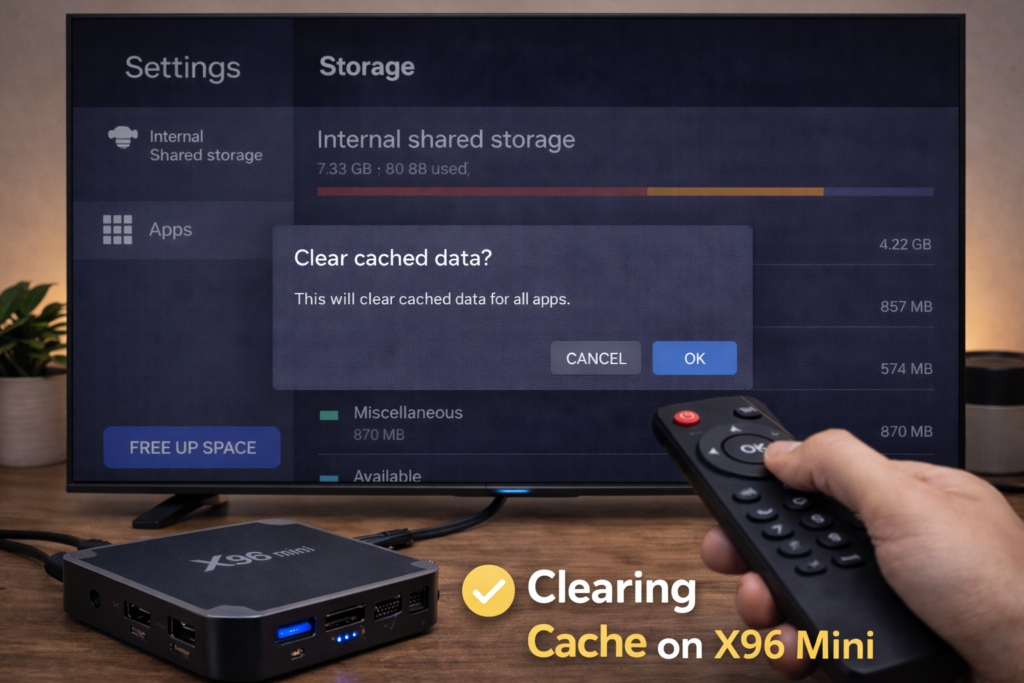
Cached data is the biggest hidden storage drain on the X96 Mini. Streaming apps in particular build up hundreds of megabytes — sometimes gigabytes — of temporary files. Clearing them is the fastest way to free up space on X96 Mini without losing anything important.
Step 1 — Go to Settings → Apps
Step 2 — Tap each major app — YouTube, Netflix, Kodi, your browser, and any streaming app you use
Step 3 — Tap Storage inside each app
Step 4 — Tap Clear Cache — this removes temporary files only
Step 5 — Do NOT tap Clear Data unless you want to log back in from scratch
Step 6 — Repeat for every app with a large cache size
Step 7 — Restart the device after clearing
💡 Do this every 2–4 weeks as part of regular maintenance. Cache comes back — it needs regular clearing.
✅ Fix 2 — Uninstall Unused Apps
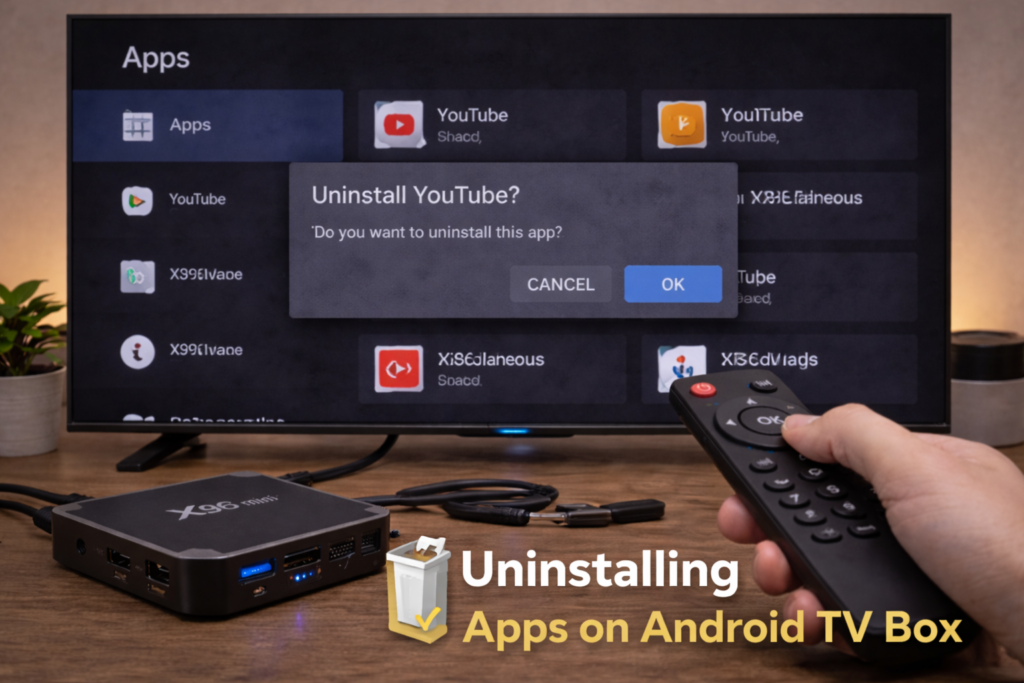
Apps you never open are pure dead weight. They occupy storage, may run background services, and contribute nothing to your experience.
Step 1 — Go to Settings → Apps
Step 2 — Sort the list by size to find the biggest offenders first
Step 3 — Tap any app you haven’t used in weeks
Step 4 — Tap Uninstall and confirm
Step 5 — For pre-installed apps you can’t uninstall, tap Disable to stop them running
Be honest with yourself here — if you haven’t opened it in a month, you don’t need it installed. This single step is often enough to recover several gigabytes of storage.
✅ Fix 3 — Delete APK Files
Every app you ever sideloaded left an APK installation file on your device. These files serve no purpose once the app is installed and they take up valuable space.
Step 1 — Open a file manager app (install FX File Explorer if you don’t have one)
Step 2 — Navigate to your Downloads or Internal Storage folder
Step 3 — Look for files ending in .apk
Step 4 — Delete every APK file you no longer need
Step 5 — Empty the trash or recycle bin if your file manager has one
A collection of APK files can easily add up to 500MB–1GB of wasted space on a well-used device.
✅ Fix 4 — Clean the Downloads Folder
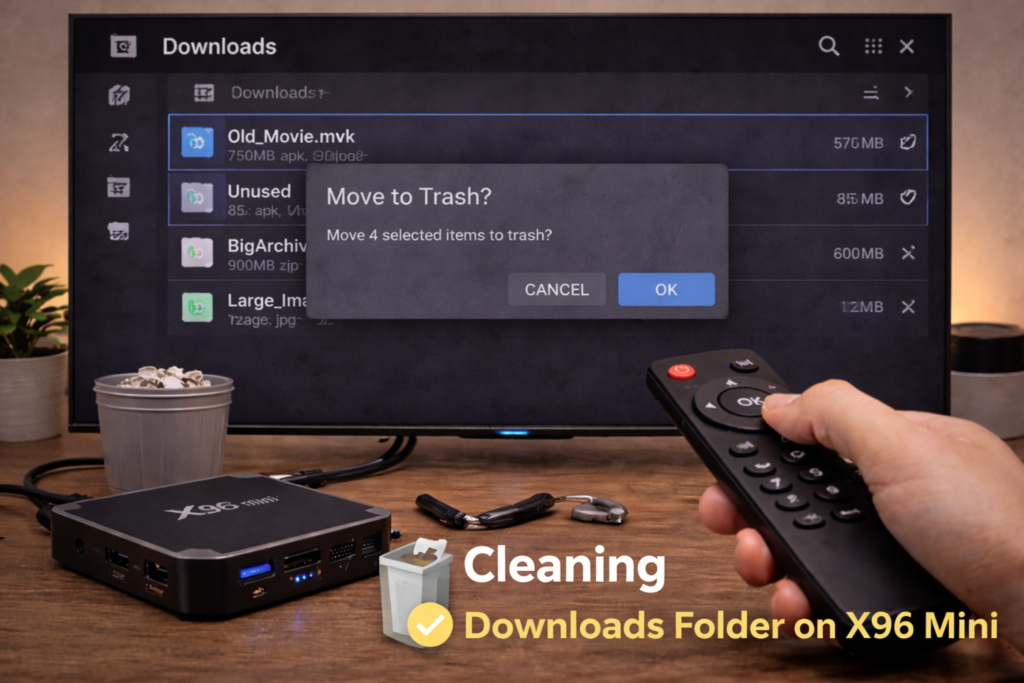
Your Downloads folder collects everything — firmware ZIP files, subtitle files, images, documents — and nothing ever gets cleaned out automatically.
Step 1 — Open your file manager
Step 2 — Navigate to the Downloads folder
Step 3 — Sort files by size to spot the largest ones first
Step 4 — Delete anything you no longer need — old firmware files are especially common culprits
Step 5 — Also check your Pictures and Movies folders for large files you’ve forgotten about
✅ Fix 5 — Move Files to USB External Storage
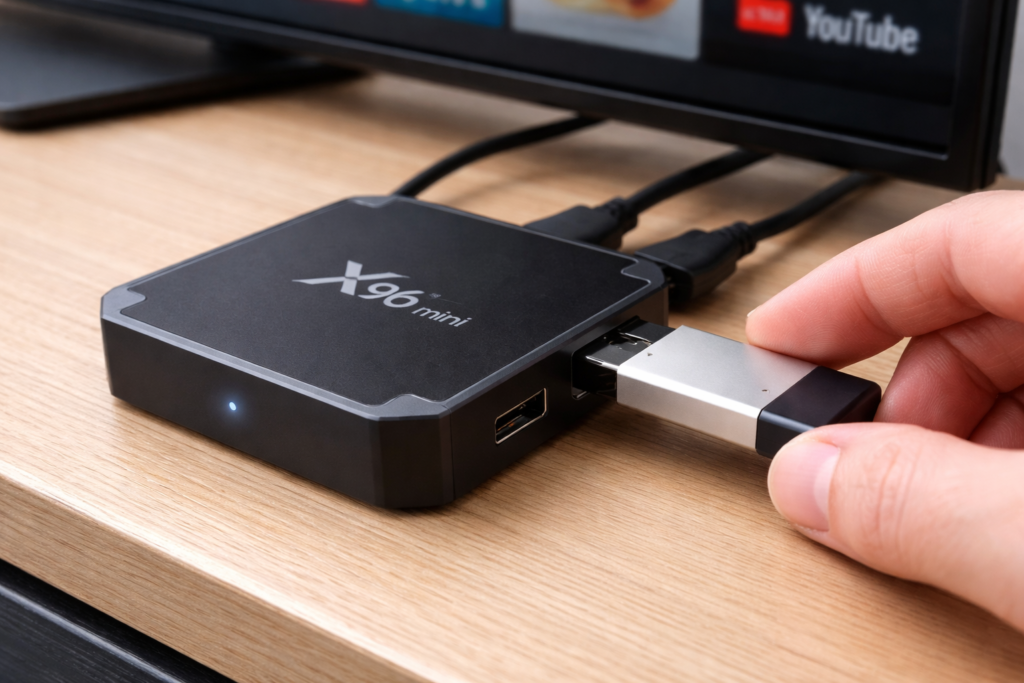
When internal storage is running critically low, moving content to external storage is the smartest long-term solution. This is the core of any serious Android TV box storage cleanup.
Step 1 — Insert a USB flash drive into your X96 Mini’s USB port
Step 2 — Go to Settings → Storage to confirm the drive is recognized
Step 3 — Open your file manager and move large media files — videos, music, downloaded content — to the USB drive
Step 4 — You can also move some app data to external storage from Settings → Apps → [App] → Storage → Change
Step 5 — Keep the USB drive inserted as your primary media storage going forward
⚠️ Use a USB 3.0 drive for the best read/write speeds. Slow drives cause their own performance problems.
✅ Fix 6 — Factory Reset (Last Resort)
If storage is critically full and nothing else has recovered enough space, a factory reset wipes everything and starts completely fresh.
Step 1 — Back up any important files to a USB drive first
Step 2 — Note down your app logins and settings
Step 3 — Go to Settings → Device → Reset → Factory Data Reset
Step 4 — Confirm and wait 5–10 minutes
Step 5 — After reset, reinstall only the apps you genuinely need
A factory reset recovers every byte of storage that apps and data had consumed. It’s the nuclear option — but it works completely.
Advanced Tips — Optional but Useful 🛠️
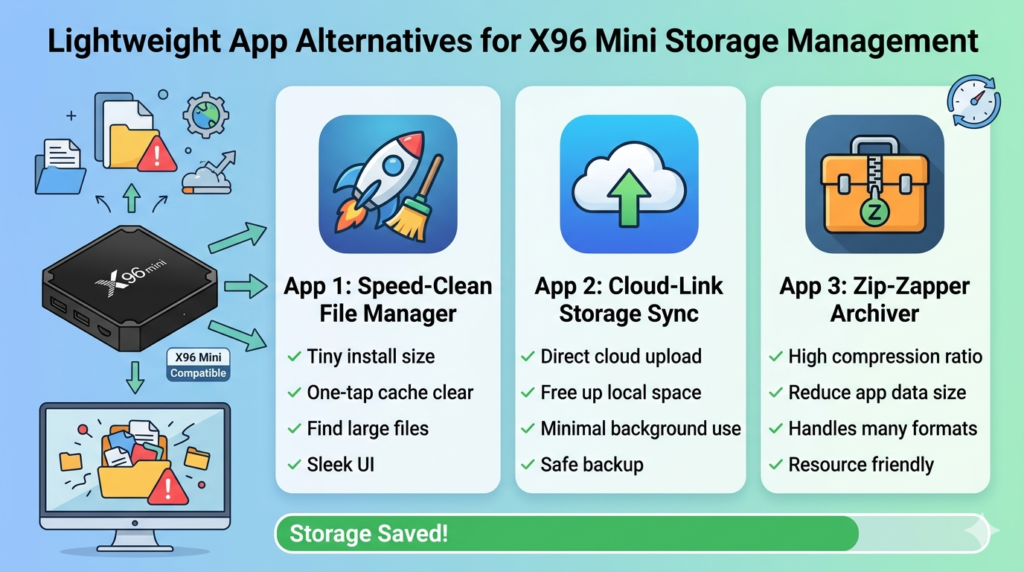
Use Lightweight App Alternatives
Heavy apps designed for flagship phones are overkill on a budget TV box and consume far more storage than necessary. Some smart swaps:
- Replace heavy browsers with Puffin TV Browser — significantly smaller footprint
- Use VLC or MX Player instead of bloated media players
- Avoid installing games — they’re the biggest storage consumers of all
Avoid Fake Cleaner Apps
Apps marketed as “RAM cleaners” or “junk removers” on the Play Store are almost universally useless on Android TV. They install their own background services, add to your storage problem, and deliver no real benefit. Skip them entirely.
Manage Background Apps Actively
Apps running in the background accumulate data over time. Make it a habit to close apps from the recent menu after use rather than leaving everything open. It won’t solve storage issues alone but it reduces cache buildup over time.
Common Mistakes to Avoid
Installing too many apps at once Every new app is a storage commitment. Install apps one at a time and only when you genuinely need them. The X96 Mini simply doesn’t have the storage headroom to host dozens of apps simultaneously.
Ignoring cache buildup Cache doesn’t disappear on its own. If you’ve never cleared it, your apps may be sitting on gigabytes of temporary files right now. Make cache clearing a regular monthly habit — it takes two minutes and makes a real difference.
Trusting unreliable cleaner apps If a Play Store app promises to magically free up storage with one tap, it’s almost certainly making things worse. Stick to the manual methods in this guide — they’re more effective and completely safe.
Internal Linking Suggestions
Conclusion
Knowing how to clean storage on X96 Mini is one of the most valuable things you can do for your device’s long-term health. Start with the cache clear — it’s fast, free, and often recovers more space than you’d expect. Then remove unused apps, delete old APK files, clean your downloads folder, and move media to a USB drive.
Combine several steps together rather than doing just one. The space adds up quickly and so does the performance improvement. 💪
Your X96 Mini doesn’t need more storage — it just needs the storage it has to be used wisely. Go take control of it today.
FAQ
Q: Why is my X96 Mini storage always full?
The X96 Mini has limited internal storage — 8GB or 16GB — and Android itself consumes 4–5GB of that. What’s left fills up fast with app installations, cached data from streaming apps, downloaded APK files, and leftover files in the downloads folder. Regular maintenance — clearing cache, removing unused apps, and deleting old files — is the key to keeping storage healthy long term.
Q: Does clearing cache delete my apps or settings?
No — clearing cache only removes temporary files that apps create automatically. Your app remains installed, your login stays active, and your settings are unchanged. The only thing that resets is stored temporary data like thumbnails, buffers, and session files. The one thing to avoid is tapping Clear Data — that does reset the app to its install state and will log you out.
Q: How much free storage should I keep on X96 Mini?
As a general rule, always keep at least 1–1.5GB of free internal storage available. Android needs free space to write temporary files, process updates, and run smoothly. When storage drops below this threshold, performance degrades noticeably — apps load slower, updates fail, and the system becomes unstable. If you’re consistently below this level, move files to external USB storage or uninstall more apps.
📌 Related Guides

Install Apps on X96 Mini — Complete 2026 Guide
Install apps on X96 Mini — it sounds technical, but it really isn’t. Whether you want Netflix, YouTube,…

Fix Lag on X96 Mini — Complete 2026 Guide
Fix lag on X96 Mini — that’s exactly what this guide is here to do. Because nothing kills…
Best Settings for X96 Mini — Complete 2026 Guide
Best Settings for X96 Mini — Complete 2026 Guide Best settings for X96 Mini — that’s exactly what…