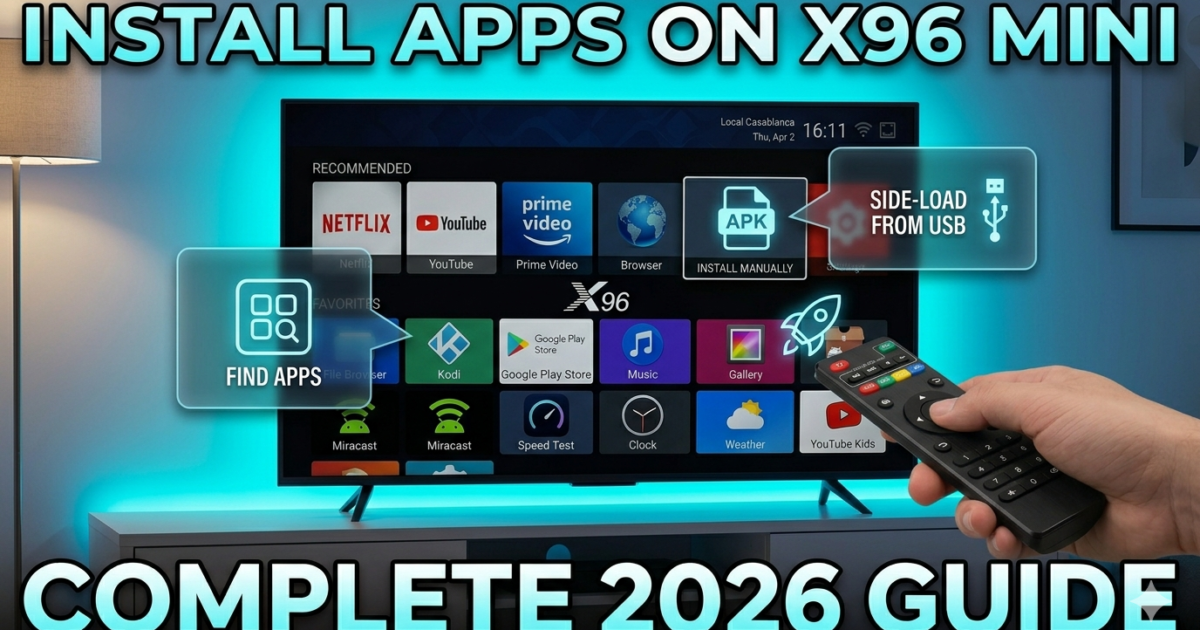
Install apps on X96 Mini — it sounds technical, but it really isn’t. Whether you want Netflix, YouTube, Kodi, or any other app, getting it onto your X96 Mini is straightforward once you know how.
This guide is simple and beginner-friendly — anyone can follow these steps and install apps on X96 Mini in minutes.
No experience needed. No confusing jargon. Just clear, easy steps from start to finish. Let’s go. 😊
Table of Contents
- How to Install Apps on X96 Mini (3 Methods)
- Common Problems and Easy Fixes
- Tips for Beginners
- Internal Linking Suggestions
- Conclusion
- FAQ
How to Install Apps on X96 Mini
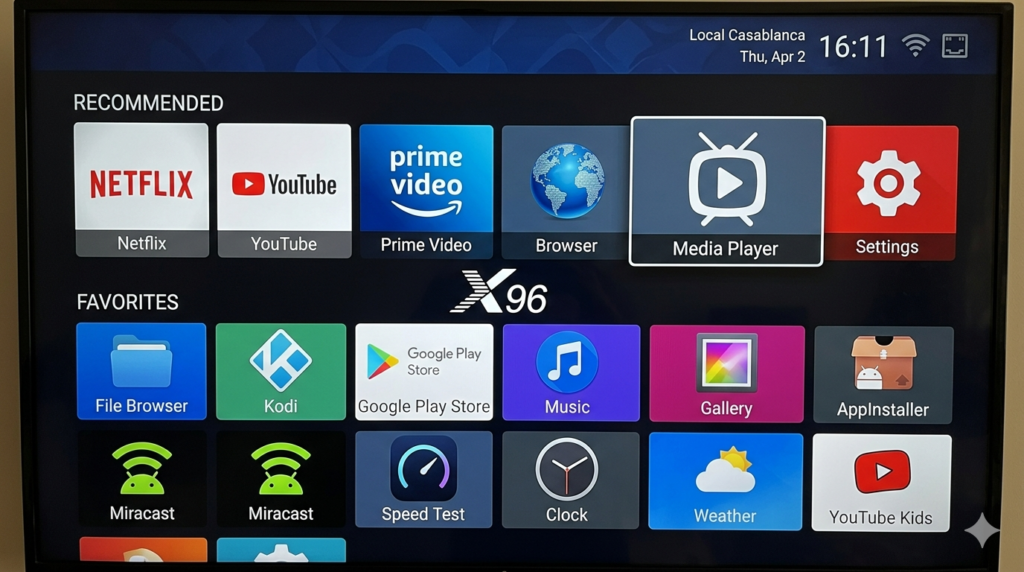
There are three ways to install apps on your X96 Mini. Start with Method 1 — it’s the easiest. If the app you want isn’t on the Play Store, use Method 2 or 3.
✅ Method 1 — Install Apps via Google Play Store
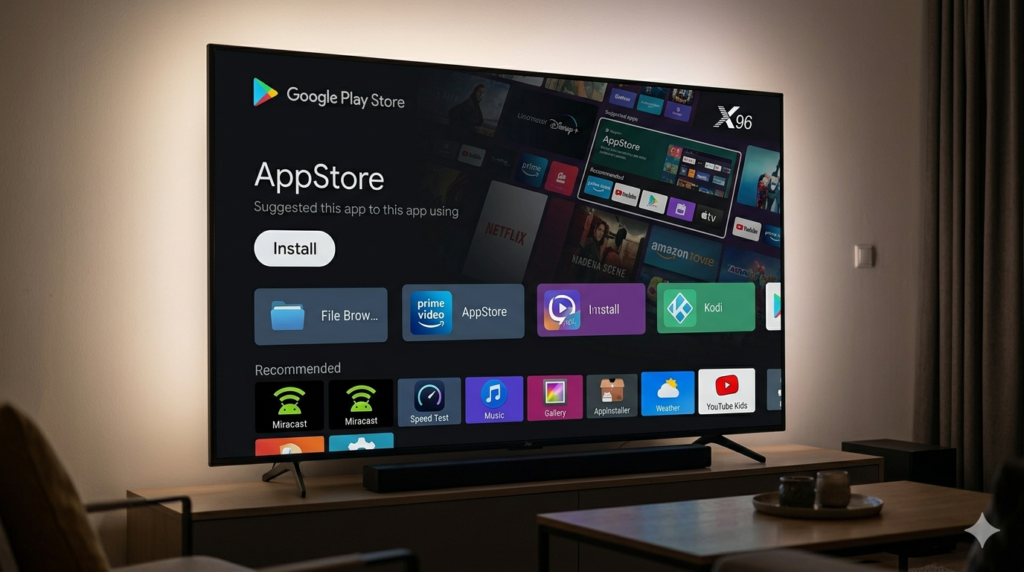
This is the easiest and safest way to download apps on your Android TV box. If your X96 Mini has Google Play Store installed, start here.
Step 1 — Press the Home button on your remote
Step 2 — Find and open the Google Play Store app
Step 3 — Use the search bar at the top — type the name of the app you want
Step 4 — Select the app from the search results
Step 5 — Tap the Install button
Step 6 — Wait for the download to finish
Step 7 — Tap Open to launch the app — or find it on your home screen
That’s it. Simple as that. 🎉
💡 Tip: If an app doesn’t appear in search results, it may not be compatible with Android TV. In that case, use Method 2 below.
✅ Method 2 — Install APK Files (Sideloading)
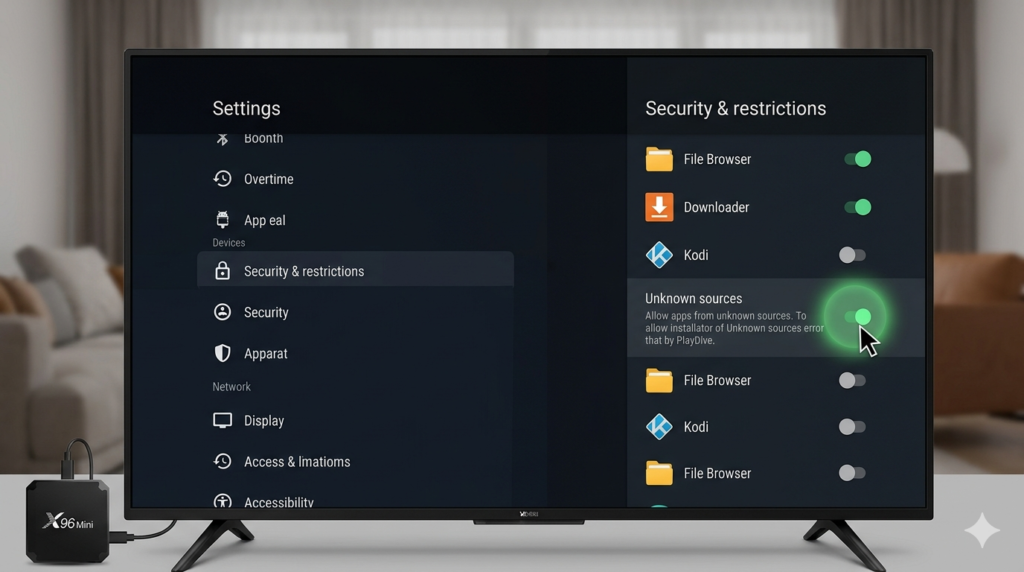
Some apps aren’t available on the Play Store. You can still install APK on X96 Mini manually. This is called sideloading — and it’s easier than it sounds.
Step 1 — Enable Unknown Sources
Before installing any APK file, you need to allow your device to install apps from outside the Play Store.
Step 1 — Go to Settings
Step 2 — Tap Security or Privacy (depending on your firmware version)
Step 3 — Find Unknown Sources or Install Unknown Apps
Step 4 — Switch it On
Step 5 — Confirm if a warning message appears — tap OK
⚠️ Only download APK files from trusted websites. Unknown sources can carry harmful software if you’re not careful.
Step 2 — Download the APK File
Step 1 — Open your browser on the X96 Mini
Step 2 — Search for the app name followed by “APK download”
Step 3 — Go to a trusted site like APKMirror or the app’s official website
Step 4 — Tap Download and wait for the file to save
Step 3 — Install the APK
Step 1 — Open your File Manager app
Step 2 — Navigate to your Downloads folder
Step 3 — Find the APK file you just downloaded — it ends in .apk
Step 4 — Tap the file
Step 5 — Tap Install when prompted
Step 6 — Wait a few seconds for the installation to complete
Step 7 — Tap Open or find the app on your home screen
Done! Your app is now installed. 👍
✅ Method 3 — Install Apps via USB Drive
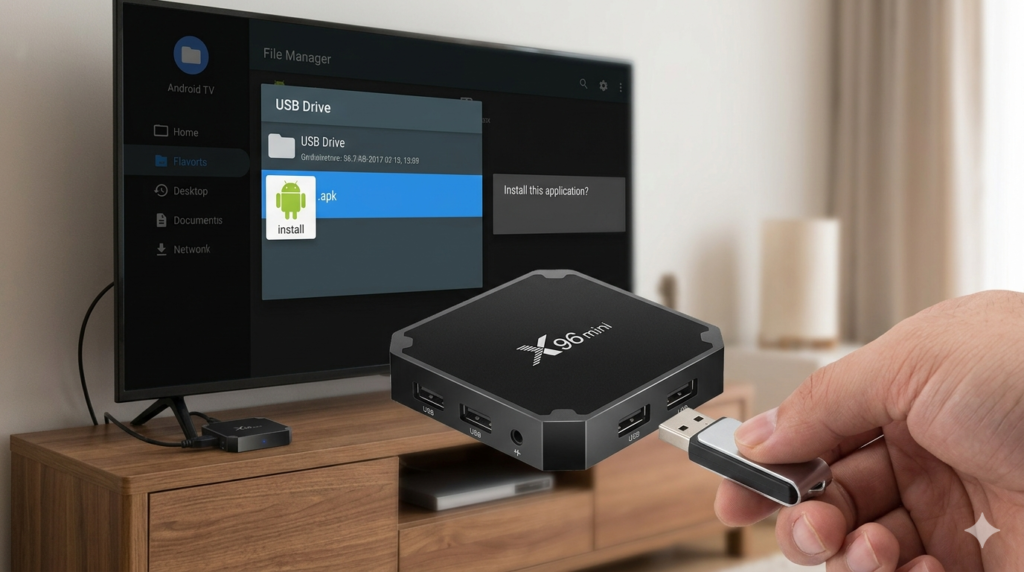
This method is perfect if your X96 Mini has no internet connection, or if you want to transfer an app from another device.
Step 1 — Prepare Your USB Drive
Step 1 — On your phone or computer, download the APK file of the app you want
Step 2 — Copy the APK file onto a USB flash drive
Step 3 — Make sure the USB drive is formatted as FAT32 — most are by default
Step 2 — Install from USB on X96 Mini
Step 1 — Plug the USB drive into your X96 Mini
Step 2 — Open your File Manager app
Step 3 — Navigate to the USB drive — it usually appears as USB Storage or External Drive
Step 4 — Find the APK file on the drive
Step 5 — Tap the file
Step 6 — Tap Install when prompted
Step 7 — Wait for installation to finish
Your app is installed and ready to use. ✅
💡 Tip: After installing, you can delete the APK file from the USB drive to free up space.
Common Problems and Easy Fixes
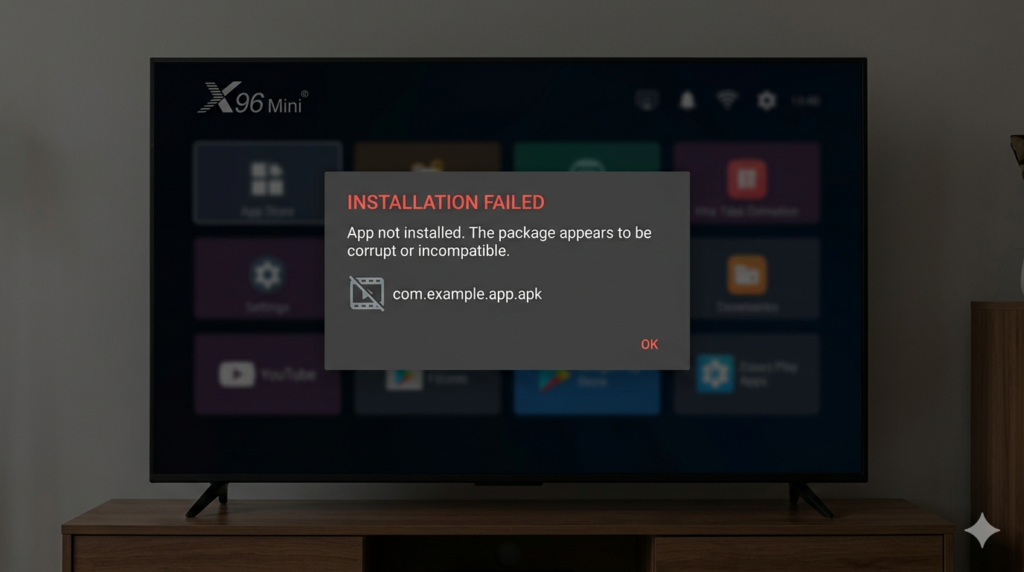
App Not Installing
If you tap Install and nothing happens — or you see an error — try these fixes:
- Check storage space — go to Settings → Storage and make sure you have at least 500MB free
- Check Unknown Sources — make sure it’s enabled in your security settings
- Redownload the APK — the file may be corrupted if the download was interrupted
- Restart the device — a simple reboot fixes most installation errors
- Check the APK version — make sure the APK matches your Android version
App Not Compatible
Some phone apps don’t work on Android TV boxes. Signs of a compatibility issue:
- The app installs but crashes immediately on launch
- The app appears on Play Store on your phone but not on your X96 Mini
- The interface doesn’t fit the TV screen properly
Fix: Search specifically for the Android TV version of the app — many popular apps have a dedicated TV-optimized version. Search for “app name + Android TV” to find the right one.
App Downloads Very Slowly
- Check your Wi-Fi signal — move the router closer or use a USB-to-Ethernet adapter
- Pause other downloads or streaming happening on the same network
- Try downloading at a different time if your network is congested
Tips for Beginners 💡
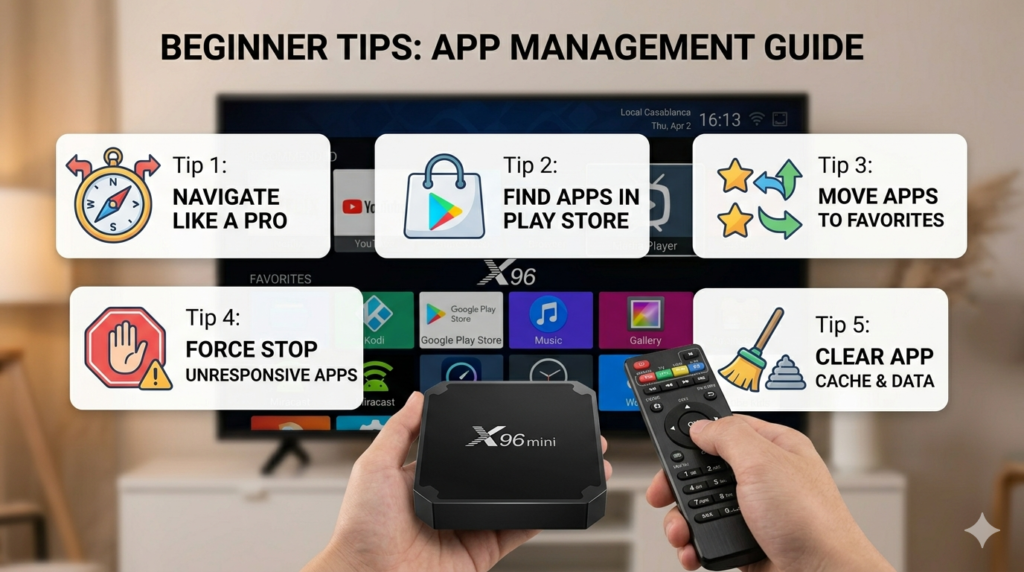
Keep storage free at all times The X96 Mini only has 8GB or 16GB of internal storage. Keep at least 1–1.5GB free at all times. When storage fills up, apps stop installing and performance drops. Check our guide on Clean storage on X96 Mini for easy cleanup steps.
Avoid heavy apps Big games and heavy social media apps are designed for powerful phones — not budget TV boxes. They consume large amounts of storage and RAM. Stick to apps designed or optimized for Android TV whenever possible.
Delete APK files after installing Once an app is installed, the APK file that installed it is no longer needed. Delete it from your Downloads folder to recover storage space immediately.
Only download from trusted sources When sideloading APK files, only use well-known websites like APKMirror, the app’s official website, or the developer’s own download page. Avoid random sites that pop up in search results.
Update your apps regularly Open the Play Store occasionally and check for updates. Keeping apps updated ensures better performance, security, and compatibility on your X96 Mini.
Internal Linking Suggestions
Conclusion
Installing apps on your X96 Mini is genuinely easy — even if it’s your first time. Use the Google Play Store for the simplest experience. Use APK sideloading when an app isn’t available on the store. And use the USB method when you need to install without internet.
Pick the method that fits your situation and follow the steps. You’ll have your app installed and running in just a few minutes. 😊
Your X96 Mini is capable of a lot — now you know exactly how to unlock it.
FAQ
Q: How do I install apps on X96 Mini without Google Play Store?
If your X96 Mini doesn’t have the Play Store installed, use the APK sideloading method. Enable Unknown Sources in your security settings, download the APK file from a trusted website using your browser, then install it through your file manager. This works for any app and doesn’t require the Play Store at all.
Q: Is it safe to install APK files on X96 Mini?
Yes — as long as you download from trusted sources. Stick to well-known sites like APKMirror or official app developer pages. Avoid downloading APK files from random websites or links shared in forums, as these can sometimes contain harmful software. Always scan a new source mentally — if it looks untrustworthy, find another one.
Q: Why won’t apps install on my X96 Mini?
The most common reasons are insufficient storage space, Unknown Sources being disabled, or a corrupted APK download. Start by checking your available storage under Settings → Storage, then verify Unknown Sources is enabled under Settings → Security. If the APK file looks suspicious in size or behavior, redownload it from a fresh trusted source and try again.
📌 Related Guides
Clean Storage on X96 Mini — Complete 2026 Guide
Clean storage on X96 Mini — if you’re here, you’ve probably seen that dreaded “insufficient storage” notification, watched…
Fix Lag on X96 Mini — Complete 2026 Guide
Fix lag on X96 Mini — that’s exactly what this guide is here to do. Because nothing kills…
Best Settings for X96 Mini — Complete 2026 Guide
Best Settings for X96 Mini — Complete 2026 Guide Best settings for X96 Mini — that’s exactly what…