Best Settings for X96 Mini — Complete 2026 Guide
Best settings for X96 Mini — that’s exactly what this guide delivers. Because out of the box, your X96 Mini is not running at its best. The default configuration is generic, built for the average user, and leaves a surprising amount of performance sitting on the table.
The good news? You don’t need to buy anything new or install any special software. A handful of targeted setting changes can make your X96 Mini feel noticeably faster, smoother, and more stable — starting today. Let’s get into it. 🚀
Table of Contents
- Why You Should Optimize Your X96 Mini Settings
- Best Settings for X96 Mini (Step-by-Step)
- Recommended Setup — Quick Summary
- Common Mistakes to Avoid
- Internal Linking Suggestions
- Conclusion
- FAQ
Why You Should Optimize Your X96 Mini Settings
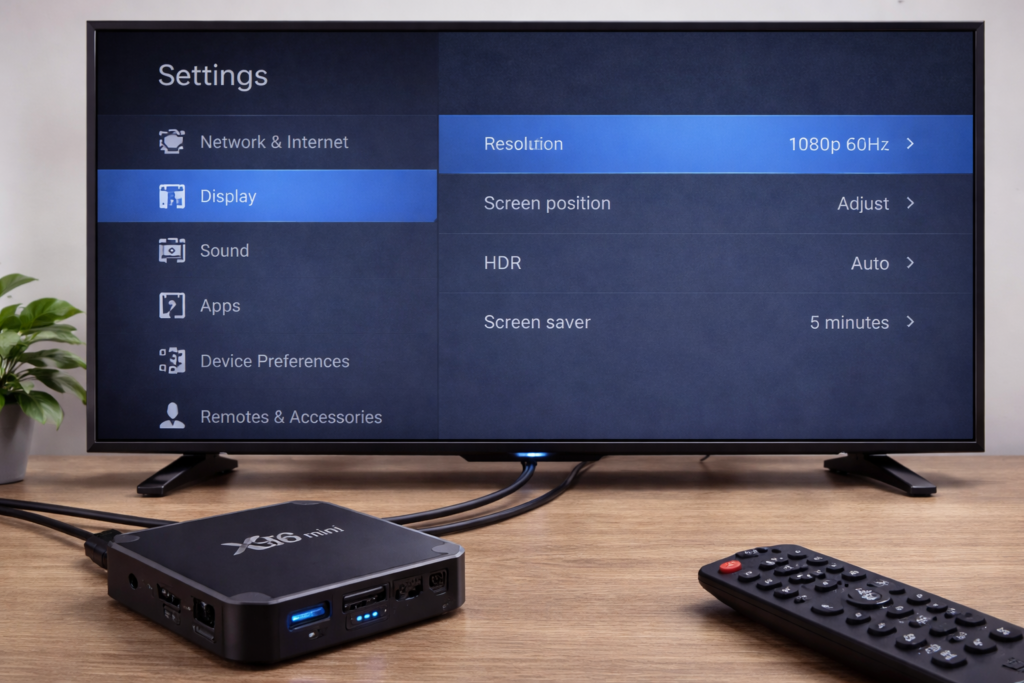
Most people unbox the X96 Mini, plug it in, and never touch the settings beyond installing a few apps. That’s leaving real performance gains behind.
Here’s what proper optimization actually does for you:
- Performance — removing background load and limiting processes gives your apps more RAM to work with
- Speed — reducing animations and clearing junk makes the interface feel snappier and more responsive
- Stability — correct display and network settings prevent crashes, buffering, and random freezes
- Battery life on peripherals — fewer background processes mean less heat and longer remote/device life
The X96 Mini has modest hardware. The optimal X96 Mini settings listed below are specifically designed to squeeze every bit of performance out of what it has.
Best Settings for X96 Mini (Step-by-Step)
✅ Display Settings
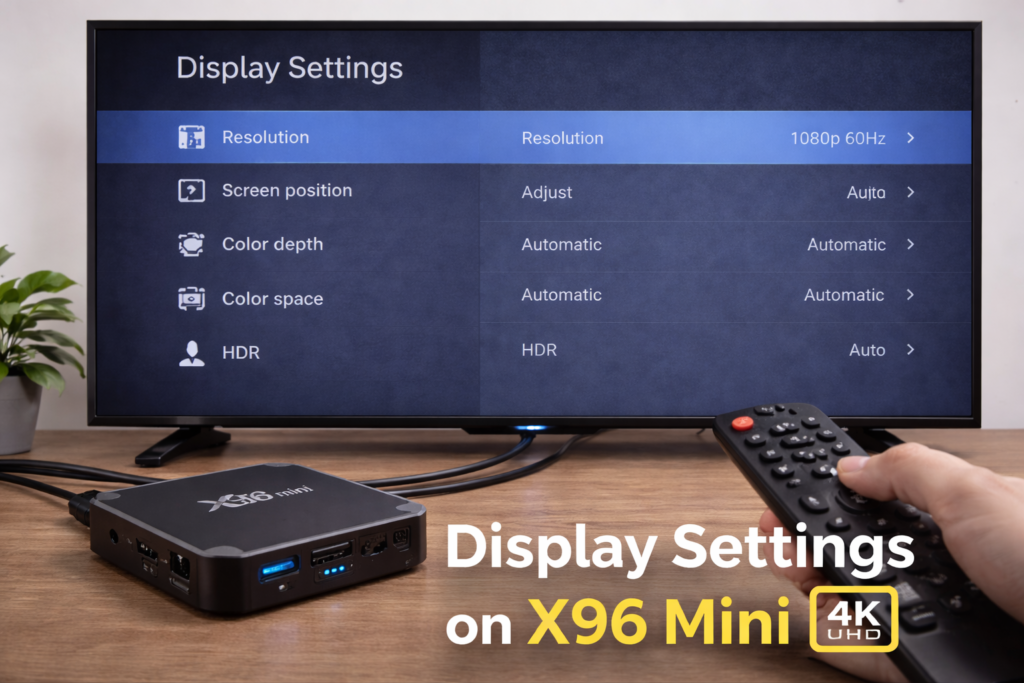
Resolution — 1080p vs 4K
The X96 Mini supports 4K output, but here’s the honest truth: running at 4K on a 1GB or 2GB RAM device puts unnecessary strain on the processor and GPU.
Recommended setting: 1080p (1920×1080)
Step 1 — Go to Settings → Display
Step 2 — Tap Resolution or HDMI Mode
Step 3 — Select 1080p 60Hz
Step 4 — Confirm the change
If your TV is only 1080p anyway, this change costs you nothing visually while freeing up processing power. Only run 4K if you have a true 4K TV and the 2GB RAM variant of the box.
Refresh Rate
Match your refresh rate to your content:
- 60Hz — best for general use, apps, and streaming
- 50Hz — better if you watch European broadcast content
- 24Hz — ideal for cinematic movies to avoid judder
Recommended: 60Hz for most users
✅ Performance Settings
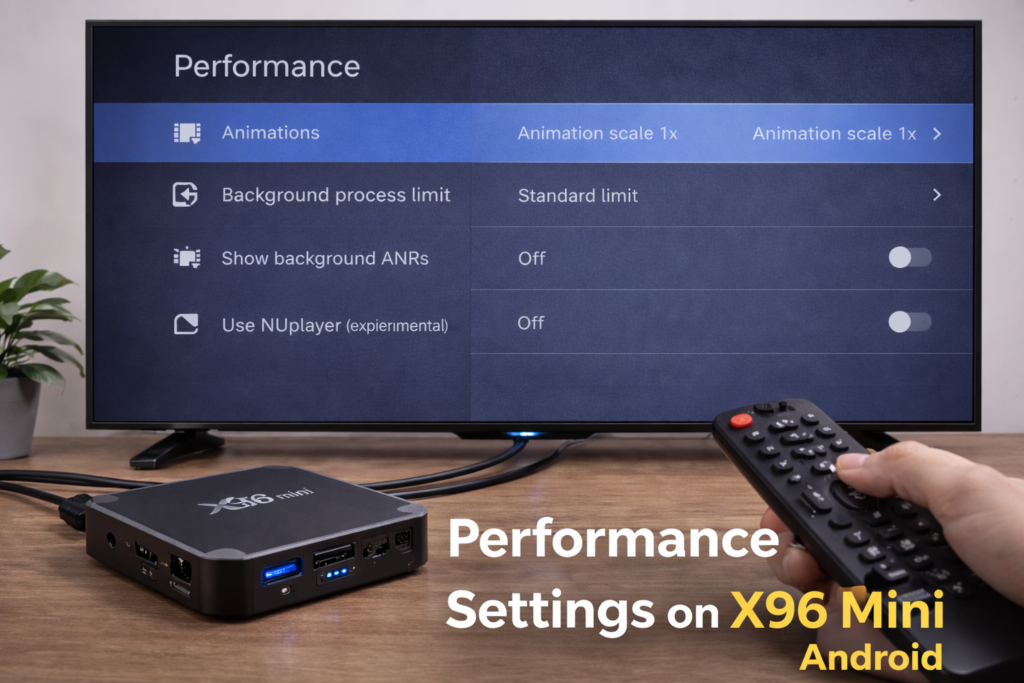
Disable Animations
Animations look nice but consume CPU and RAM. Turning them down is one of the fastest ways to make the interface feel more responsive.
Step 1 — Unlock Developer Options (see Developer Options section below)
Step 2 — Go to Settings → Developer Options
Step 3 — Find these three settings:
- Window animation scale → set to 0.5x or Off
- Transition animation scale → set to 0.5x or Off
- Animator duration scale → set to 0.5x or Off
The UI will feel instantly faster after this change.
Limit Background Processes
Step 1 — Go to Settings → Developer Options
Step 2 — Tap Background Process Limit
Step 3 — Set to 2 processes maximum
This forces Android to keep fewer apps loaded in RAM at once — one of the most powerful X96 Mini performance settings available and one most users never find.
✅ Storage and App Settings
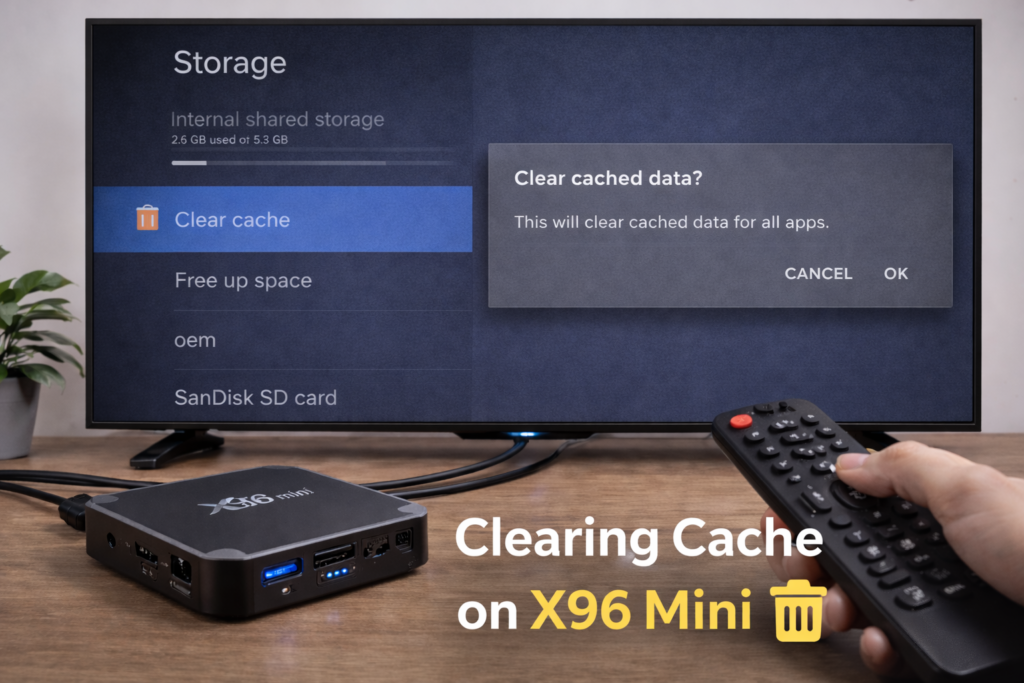
Clear App Cache Regularly
Cached data builds up over time and eats into your limited storage. Clearing it every few weeks keeps things running cleanly.
Step 1 — Go to Settings → Apps
Step 2 — Open each major app — YouTube, Kodi, Netflix, browser
Step 3 — Tap Clear Cache
Step 4 — Restart the device after clearing
💡 Do not tap Clear Data unless you want to log back into the app from scratch.
Remove Unused Apps
Every app you don’t use takes up space and may run silent background services.
Step 1 — Go to Settings → Apps
Step 2 — Sort by size
Step 3 — Uninstall anything you haven’t used in weeks
Step 4 — For pre-installed apps you can’t remove, tap Disable instead
✅ Network Settings
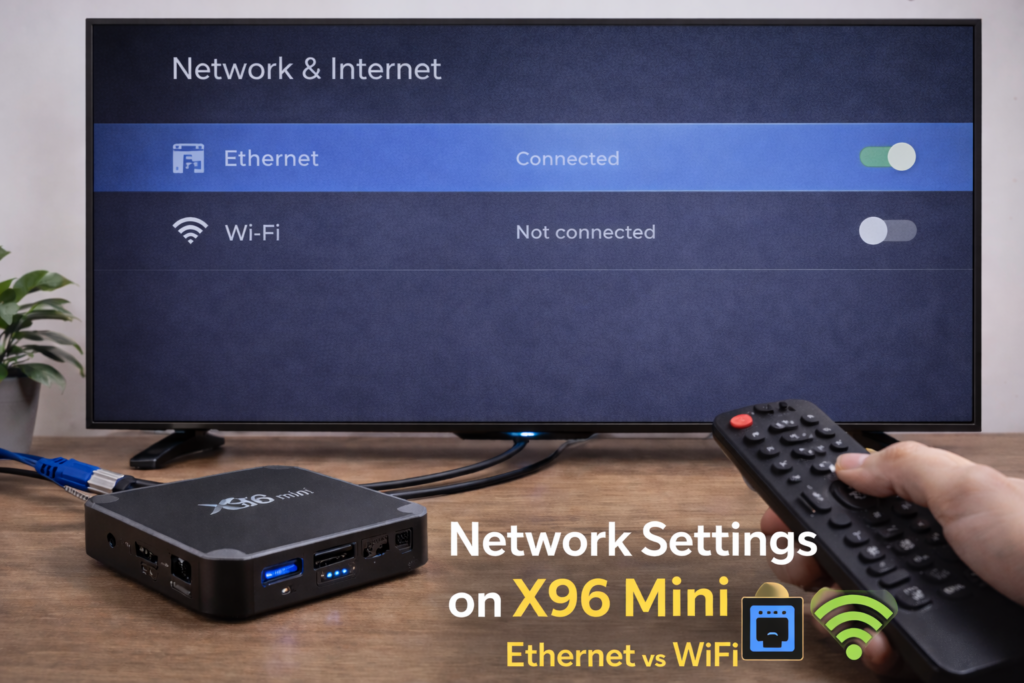
Use Ethernet Instead of Wi-Fi
Wi-Fi is convenient but introduces latency, signal drops, and interference — all of which cause buffering that looks like device slowness.
Recommended: Use a USB-to-Ethernet adapter and plug directly into your router. The difference in streaming smoothness is significant.
DNS Optimization (Optional)
Changing your DNS can speed up app loading and reduce connection errors.
Step 1 — Go to Settings → Network → Wi-Fi (or Ethernet)
Step 2 — Long press your connection and tap Modify Network
Step 3 — Switch IP settings to Static
Step 4 — Set DNS 1 to 8.8.8.8 (Google) or 1.1.1.1 (Cloudflare)
Step 5 — Save and reconnect
✅ Developer Options (Advanced)
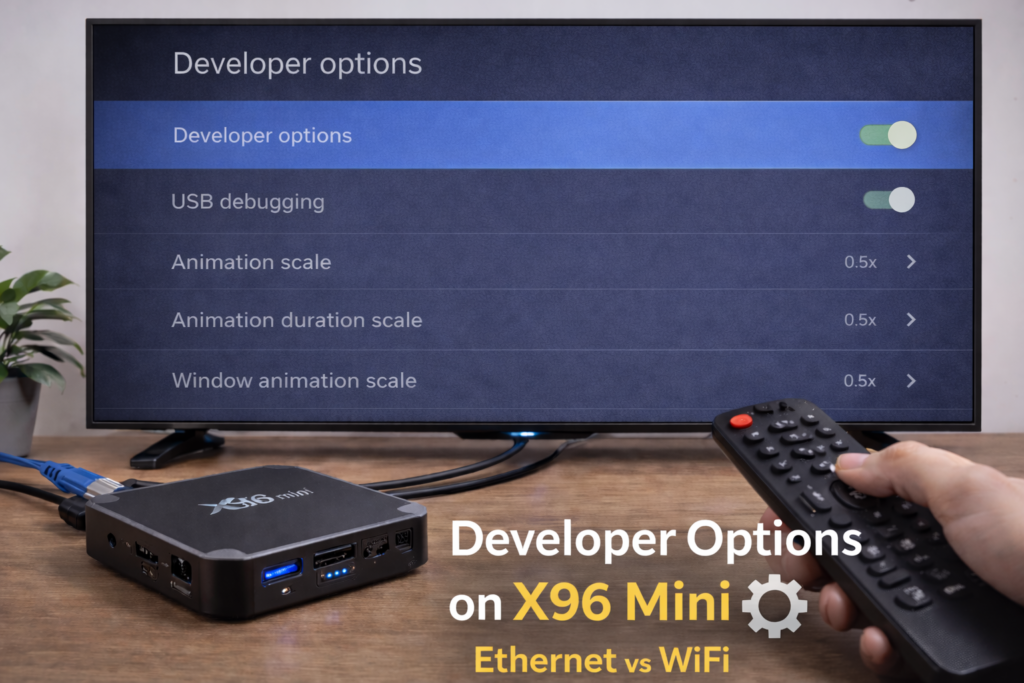
How to Enable Developer Mode
Step 1 — Go to Settings → About Device
Step 2 — Find Build Number
Step 3 — Tap it 7 times in a row
Step 4 — Enter your PIN if prompted
Step 5 — You’ll see “You are now a developer” confirmation
Step 6 — Developer Options now appears in your main Settings menu
Key Developer Settings to Change
| Setting | Recommended Value | Why |
|---|---|---|
| Window animation scale | 0.5x or Off | Faster UI response |
| Transition animation scale | 0.5x or Off | Smoother navigation |
| Animator duration scale | 0.5x or Off | Reduces visual lag |
| Background process limit | 2 processes | Frees up RAM |
| Force GPU rendering | On | Smoother graphics |
Recommended Setup — Quick Summary
Here’s the ideal best Android TV box settings configuration for the X96 Mini in 2026:
- Resolution: 1080p 60Hz
- Refresh rate: 60Hz (general use)
- Animations: All set to 0.5x or Off
- Background processes: Limited to 2
- DNS: 8.8.8.8 or 1.1.1.1
- Connection: Ethernet over Wi-Fi whenever possible
- Cache: Cleared every 2–3 weeks
- Apps: Only keep what you actually use
- Force GPU rendering: Enabled
- Launcher: Lightweight alternative (ATV Launcher or HALauncher)
Apply all of these together for the best combined result.
Common Mistakes to Avoid
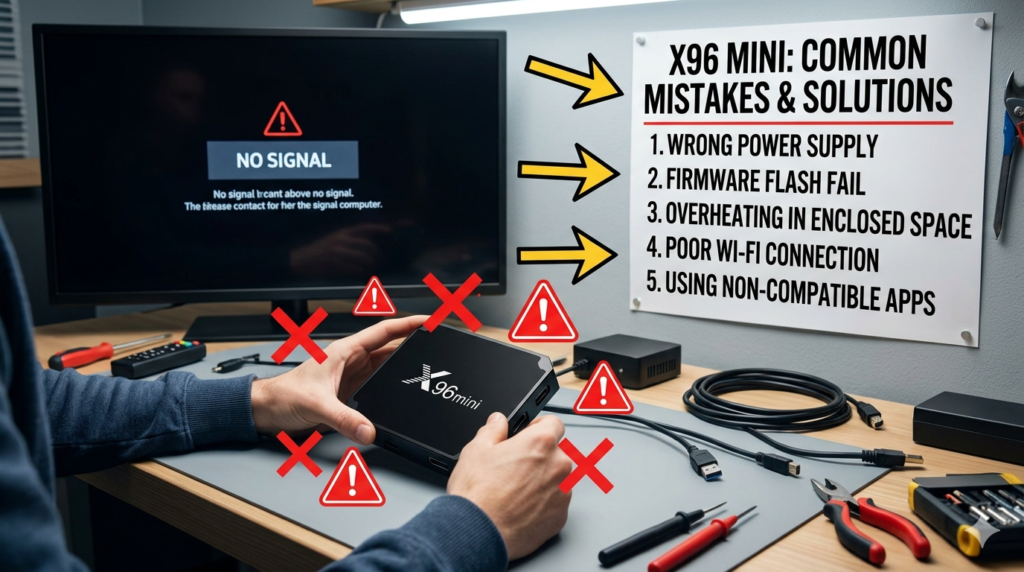
Installing too many apps Every extra app is a performance drain. The X96 Mini is not a phone with 6GB of RAM — be selective about what you install.
Using fake “cleaner” apps RAM cleaner and booster apps from the Play Store almost universally make things worse, not better. They run their own background processes while pretending to free up memory. Avoid them entirely.
Running 4K on the 1GB model If you have the 1GB RAM variant, running at 4K resolution puts too much strain on the hardware. Stick with 1080p for a noticeably smoother experience.
Leaving Wi-Fi on with poor signal A weak Wi-Fi connection causes constant buffering that feels like device lag. Either improve your signal, switch to Ethernet, or move the router closer.
Never clearing cache Cache doesn’t clear itself. If you haven’t cleared it in months, you may have gigabytes of junk slowing down app loading and eating into storage.
Internal Linking Suggestions
Conclusion
The best settings for X96 Mini aren’t complicated — they’re just specific. Set your resolution to 1080p, reduce animations through Developer Options, limit background processes, clear your cache regularly, and switch to Ethernet where possible.
Do all of these together and your X96 Mini will feel like a noticeably different device. Not because the hardware changed, but because you stopped letting the default configuration hold it back. 💪
Go apply these settings now — it takes less than 15 minutes and the results speak for themselves.
FAQ
Q: What resolution is best for X96 Mini?
For most users, 1080p at 60Hz is the best setting. It delivers sharp, smooth video without overloading the processor. Only run 4K if you have a true 4K television and the 2GB RAM model of the X96 Mini — otherwise 4K output creates unnecessary strain with minimal visual benefit on most screens.
Q: Do developer options improve speed on X96 Mini?
Yes — significantly. Reducing animation scales and limiting background processes through Developer Options are two of the most impactful changes you can make. They directly free up RAM and reduce the load on the processor, making the interface noticeably faster without any risk to the device.
Q: Is 4K worth it on X96 Mini?
Only in specific circumstances. If you have a genuine 4K TV, the 2GB RAM model, and you’re streaming 4K content, it’s worth enabling. For everything else — general apps, 1080p streaming, browsing — 4K output adds processing overhead without a visible improvement. Stick to 1080p for the best all-round X96 Mini performance settings experience.
📌 Related Guides
Install Apps on X96 Mini — Complete 2026 Guide
Install apps on X96 Mini — it sounds technical, but it really isn’t. Whether you want Netflix, YouTube,…
Clean Storage on X96 Mini — Complete 2026 Guide
Clean storage on X96 Mini — if you’re here, you’ve probably seen that dreaded “insufficient storage” notification, watched…
Fix Lag on X96 Mini — Complete 2026 Guide
Fix lag on X96 Mini — that’s exactly what this guide is here to do. Because nothing kills…