Update X96 Mini without PC — yes, it’s possible, and this guide shows you exactly how.
You’ve been staring at that “new firmware available” notification for days. But your laptop is broken, your PC is at the office, or you just don’t want the hassle of USB drivers and flashing tools. Sound familiar? 😅
Here’s the good news: in most situations, you don’t need a computer at all. Whether you use the built-in OTA update or a simple USB drive loaded from your phone, there are real, working ways to update your Android TV box without a PC — and this guide walks you through every single one.
Table of Contents
- Can You Update X96 Mini Without a PC?
- Method 1 — OTA Update (No PC Needed)
- Method 2 — Update via USB Drive (Still No PC Flash Tool)
- When You MUST Use a PC
- Common Problems and Fixes
- Tips Before Updating
- Internal Linking Suggestions
- Conclusion
- FAQ
Can You Update X96 Mini Without a PC?
Yes — in most cases, absolutely.
The X96 Mini runs Android and supports two fully PC-free update methods:
- OTA (Over-the-Air) — firmware delivered directly through your Wi-Fi connection
- USB drive update — firmware downloaded from your phone and installed locally
The only time you’ll genuinely need a PC is when the device is completely bricked and recovery mode won’t respond at all. For everything else, you’re covered without touching a computer.
Method 1 — OTA Update (No PC Needed) 📡
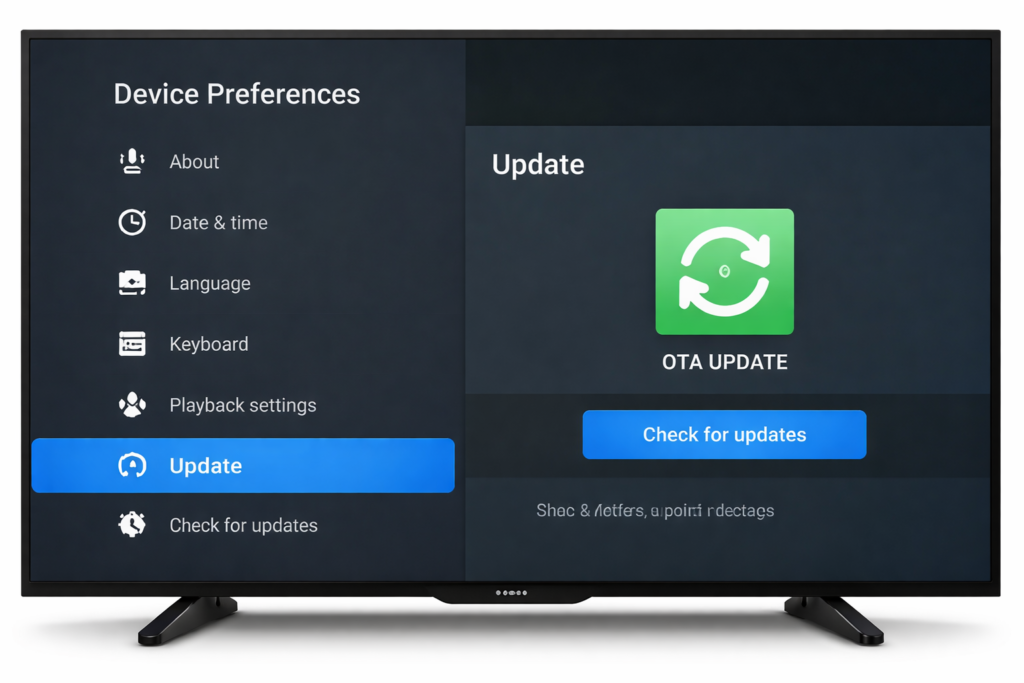
The X96 Mini OTA update is the easiest path. It works just like updating an app on your phone — the box checks for new firmware over Wi-Fi and installs it automatically. No cables. No tools. No computer.
When does OTA work?
- Your X96 Mini boots normally and is fully functional
- You have a stable Wi-Fi connection
- Your current firmware is close to the latest version
- The manufacturer is still pushing updates for your model
Step-by-step instructions
Step 1 — Turn on your X96 Mini and open Settings
Step 2 — Scroll to About Device or Device Info
Step 3 — Tap System Update or Firmware Update
Step 4 — Select Check for Updates and wait
Step 5 — If an update is found, tap Download
Step 6 — Once downloaded, tap Install Now
Step 7 — The device reboots automatically — ⚠️ do NOT unplug it during this process
Step 8 — After reboot, confirm the new version under About Device
💡 Pro tip: If nothing shows up, your manufacturer may have stopped pushing OTA updates for your firmware version. In that case, move to Method 2 below.
Method 2 — Update via USB Drive (Still No PC Flash Tool) 💾
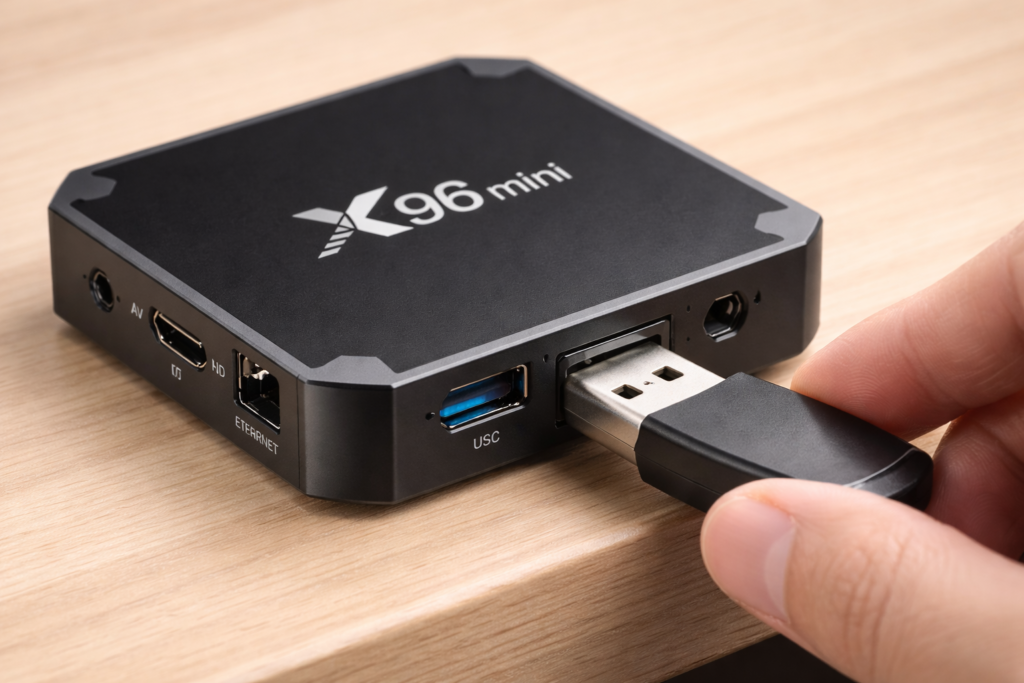
Can’t get OTA to work? No problem. You can still update your Android TV box without a PC by downloading the firmware on your smartphone and transferring it to a USB drive. No Amlogic Burning Tool. No Windows drivers. Just your phone and a USB stick.
What you’ll need
- A USB flash drive formatted as FAT32
- Your smartphone or tablet
- The correct .zip or .img firmware file for your exact X96 Mini model (check the X96 Mini firmware download page)
- An OTG adapter if your phone only has USB-C
Step-by-step instructions
Step 1 — On your phone, visit the official X96/Xinyao site or a trusted firmware source
Step 2 — Download the correct firmware — double-check your model variant (1GB/8GB or 2GB/16GB)
Step 3 — Copy the firmware file to the root of the USB drive — not inside any folder
Step 4 — Plug the USB drive into your X96 Mini
Step 5 — Go to Settings → About Device → System Update
Step 6 — Tap Local Update or Update from USB if the option appears
Step 7 — Select the firmware file and confirm
Step 8 — Wait 5–15 minutes — the device reboots automatically when done ✅
Alternative — Recovery Mode method
If your Settings menu has no local update option:
Step 1 — Power off the X96 Mini completely
Step 2 — Insert the USB drive with firmware loaded
Step 3 — Hold the reset button (inside the AV port) while powering on
Step 4 — Release when the recovery screen appears
Step 5 — Select Apply update from USB
Step 6 — Choose your firmware file and confirm
When You MUST Use a PC
Let’s be honest — some situations genuinely require a Windows computer:
| Situation | Why a PC is Needed |
|---|---|
| Completely bricked device | Won’t boot; recovery mode inaccessible |
| Stuck on logo (persistent) | Boot loop USB recovery can’t fix |
| Full factory image flash | Requires Amlogic USB Burning Tool |
| Device not turning on at all | No response to any input |
⚠️ See our guides on X96 Mini stuck on logo and X96 Mini not turning on for detailed PC flashing instructions.
In these cases you’ll need a Windows PC, the Amlogic USB Burning Tool, and a USB-A to USB-A cable. It’s more advanced, but it’s the last resort that can bring a dead box back to life.
Common Problems and Fixes 🔧
Update not detected (OTA)
- Check your internet connection
- Try changing DNS to 8.8.8.8 in network settings
- Your firmware may be end-of-life — switch to the USB method
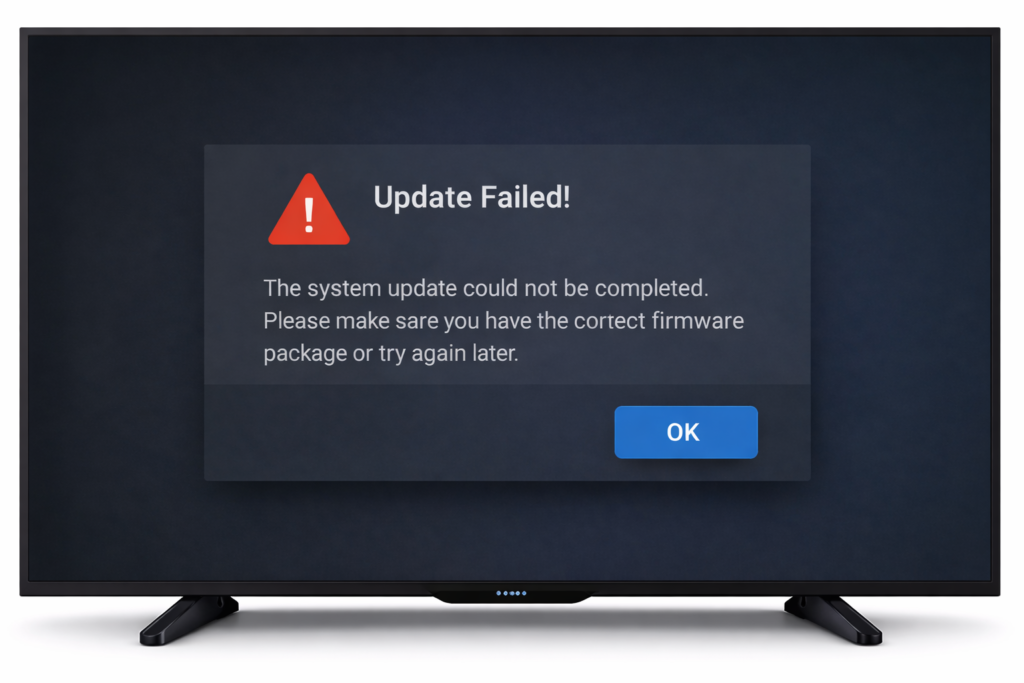
Update fails midway
- Reformat your USB drive to FAT32
- Remove spaces or special characters from the firmware filename
- Try a different USB port on the device
- Verify the firmware matches your exact X96 Mini model
Device stuck on logo after update
- Don’t panic — this sometimes happens when power was interrupted
- Enter recovery mode using the reset button
- Select Wipe data / factory reset, then try the update again
- If still stuck, PC flashing is your final option
Tips Before Updating ✅
A few minutes of prep can save you hours of frustration:
- Back up your data — apps, settings, and login details won’t survive a factory reset
- Use the correct firmware — the X96 Mini has multiple hardware variants; wrong firmware causes real problems
- Ensure stable power — a mid-update power cut can brick the device
- Keep the USB drive clean — only the firmware file on the root, no other files or folders
- Don’t interrupt the process — even if it looks frozen, give it at least 15 full minutes
Internal Linking Suggestions
Conclusion
Updating your X96 Mini without a PC is totally doable — and honestly easier than most people expect. Start with the OTA update since it needs zero preparation. If that doesn’t work, the USB drive method gives you full control using just your smartphone and a flash drive.
You only need to reach for a PC in serious situations like a bricked device. For the vast majority of updates, these two methods will get you sorted quickly and safely. 🎉
Don’t let a missing computer stop you from enjoying a faster, more stable Android TV experience.
FAQ
Q: Can I update X96 Mini without USB?
Yes! The OTA update method requires no USB drive at all. Go to Settings → About Device → System Update and check over Wi-Fi. As long as your box is online and the manufacturer still supports your firmware, it’s the simplest option available.
Q: Is OTA update safe for X96 Mini?
Absolutely. OTA updates are the safest method because the firmware is verified and delivered directly from the manufacturer’s servers. Just make sure power is stable during the process and don’t interrupt the installation.
Q: What if the X96 Mini update fails?
Don’t panic. Try rebooting — the device may recover on its own. If it’s stuck on the logo, enter recovery mode and attempt a wipe + re-flash via USB. Only consider PC flashing if recovery mode is completely inaccessible.
📌 Related Guides
Install Apps on X96 Mini — Complete 2026 Guide
Install apps on X96 Mini — it sounds technical, but it really isn’t. Whether you want Netflix, YouTube,…
Clean Storage on X96 Mini — Complete 2026 Guide
Clean storage on X96 Mini — if you’re here, you’ve probably seen that dreaded “insufficient storage” notification, watched…
Fix Lag on X96 Mini — Complete 2026 Guide
Fix lag on X96 Mini — that’s exactly what this guide is here to do. Because nothing kills…