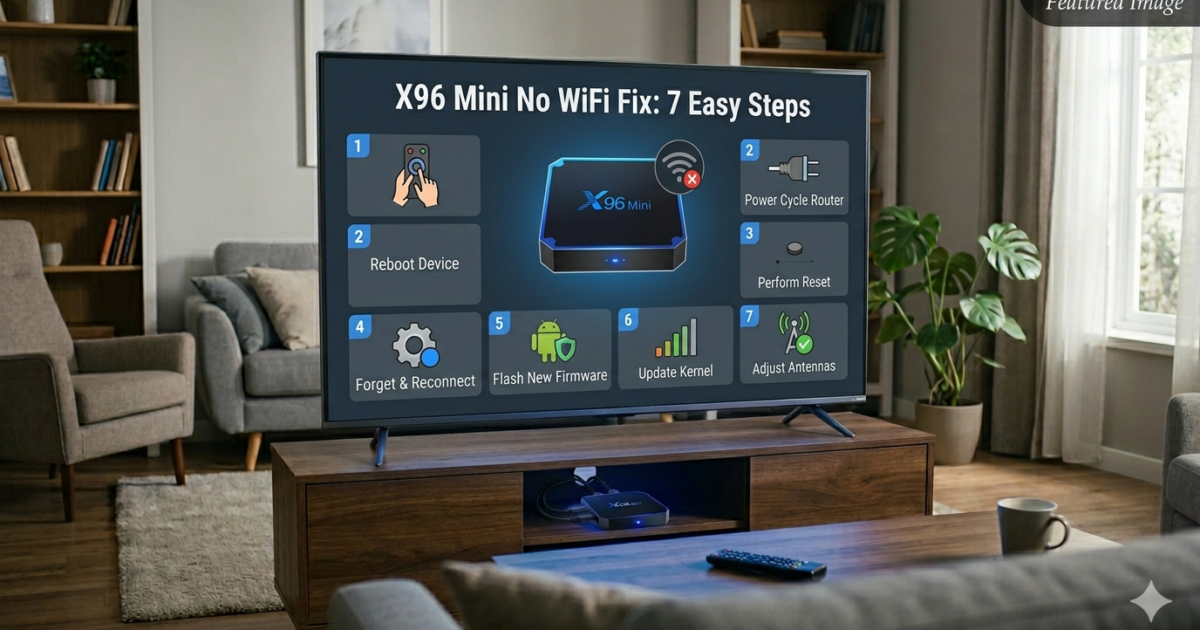
X96 Mini No WiFi Fix — if that’s what you’re searching for right now, you’re in exactly the right place. 📶
You’re trying to stream your favorite show, but your X96 Mini won’t connect to WiFi. Maybe it shows “No Internet Connection,” maybe it keeps dropping the signal, or maybe the WiFi option is completely greyed out. Whatever the case, it’s incredibly frustrating — especially when everything was working fine just yesterday.
Here’s the good news: the X96 Mini no WiFi problem is almost always fixable at home, with no special tools and no technical background. ⚡ Let’s walk through it together.
What Causes WiFi Issues on X96 Mini?
Before jumping into the fixes, let’s quickly understand what’s behind the problem:
- Weak WiFi signal — The X96 Mini is too far from your router or there’s interference
- Router issues — Your router might need a simple restart
- Software bugs — A minor glitch in the Android system can break the WiFi connection
- Incorrect settings — Wrong network settings or a saved password conflict
- Outdated firmware — Old system software can cause serious connectivity bugs
- IP address conflict — Two devices on the network sharing the same address
- According to Android’s official support page, most WiFi issues on Android devices can be resolved through basic network troubleshooting.
Any of these can cause the X96 Mini WiFi not working problem — but all of them have a solution.
🔧 X96 Mini No WiFi Fix: Step-by-Step Guide
Go through these steps in order. Most users solve the problem somewhere between Step 1 and Step 4.
Step 1 — Restart Your X96 Mini and Router
The oldest trick in the book — and it works more often than you’d think. 🔧
- Power off your X96 Mini completely (unplug it from the wall)
- Turn off your WiFi router and unplug it too
- Wait 60 full seconds
- Plug the router back in first and let it fully restart
- Then power on your X96 Mini
This clears network glitches on both ends and fixes the Android TV box WiFi problem in many cases.
Step 2 — Move the Device Closer to Your Router
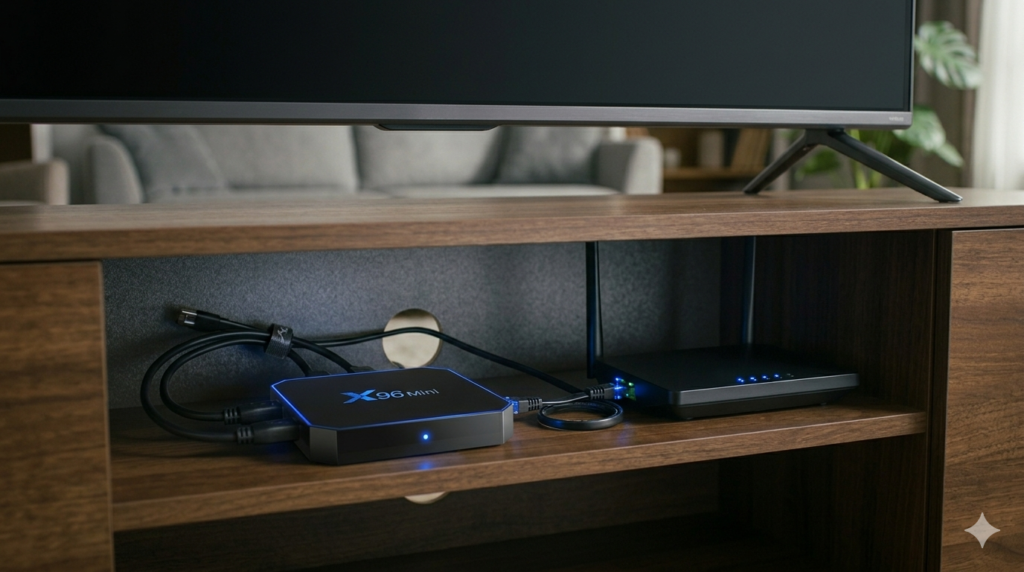
WiFi signal weakens with distance and walls. The X96 Mini has a small internal antenna, which means it’s more sensitive to signal strength than a phone or laptop.
Try moving your X96 Mini within 3–5 meters of your router and test the connection again. If it connects immediately, distance was your issue.
Step 3 — Forget and Reconnect to Your WiFi Network
Sometimes a saved network profile becomes corrupted and causes the X96 Mini no internet connection problem.
Here’s how to fix it:
- Go to Settings → WiFi on your X96 Mini
- Long-press your WiFi network name
- Select “Forget Network”
- Search for your WiFi again and reconnect by entering your password fresh
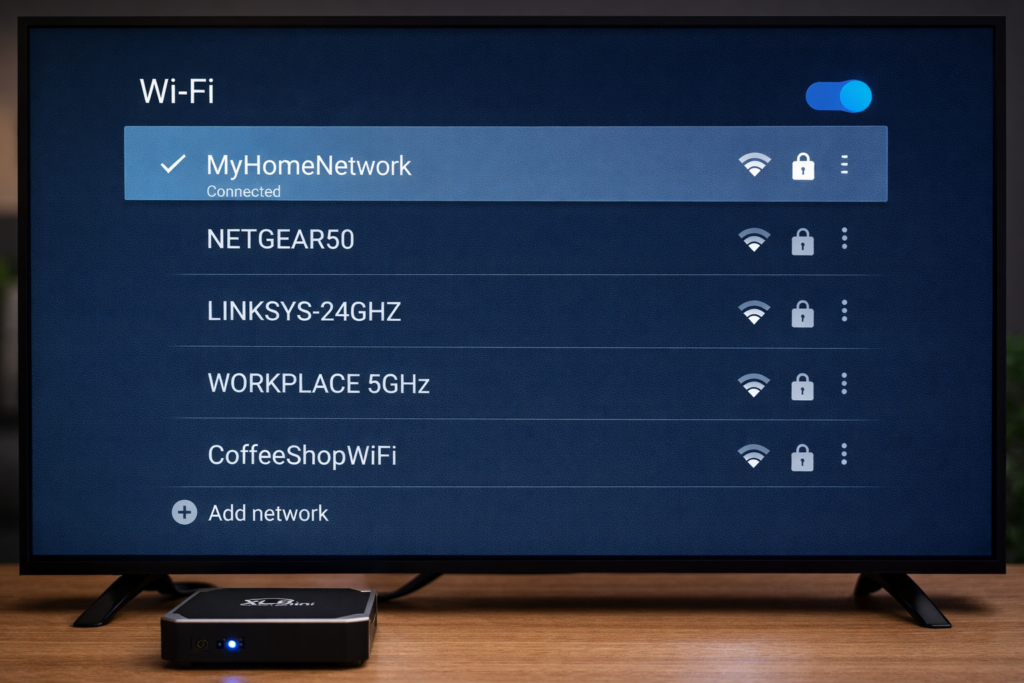
This refreshes the connection from scratch and clears any password or IP conflicts.
Step 4 — Check WiFi Settings on Your X96 Mini
Make sure WiFi is actually enabled and configured correctly:
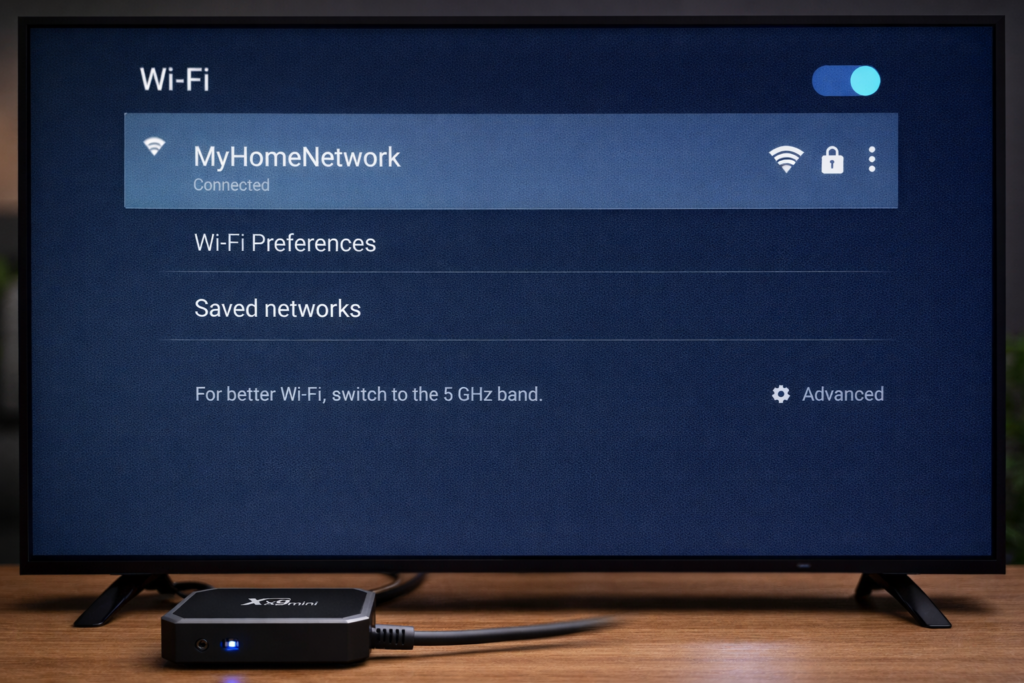
- Go to Settings → Network → WiFi
- Make sure the toggle is switched ON
- Confirm your device is trying to connect to the correct network (not a neighbor’s!)
- Check that your router isn’t hiding its SSID (network name)
Step 5 — Reset Network Settings
If the connection still fails, resetting the network settings can clear deeper configuration issues:
- Go to Settings → Backup & Reset
- Look for “Reset Network Settings” or “Reset WiFi, Mobile & Bluetooth”
- Confirm the reset
This won’t erase your apps or data — it only clears saved networks and Bluetooth pairings. After the reset, reconnect to your WiFi network manually.
Step 6 — Update Your X96 Mini Firmware
Outdated firmware is a very common but overlooked cause of the fix X96 Mini WiFi not working problem. Manufacturers regularly push updates that fix bugs — including connectivity issues.
To check for updates:
- Go to Settings → About → System Update
- Select “Check for Update”
- If an update is available, install it and restart
For a safe and detailed guide, check out our article on how to update X96 Mini firmware before proceeding.
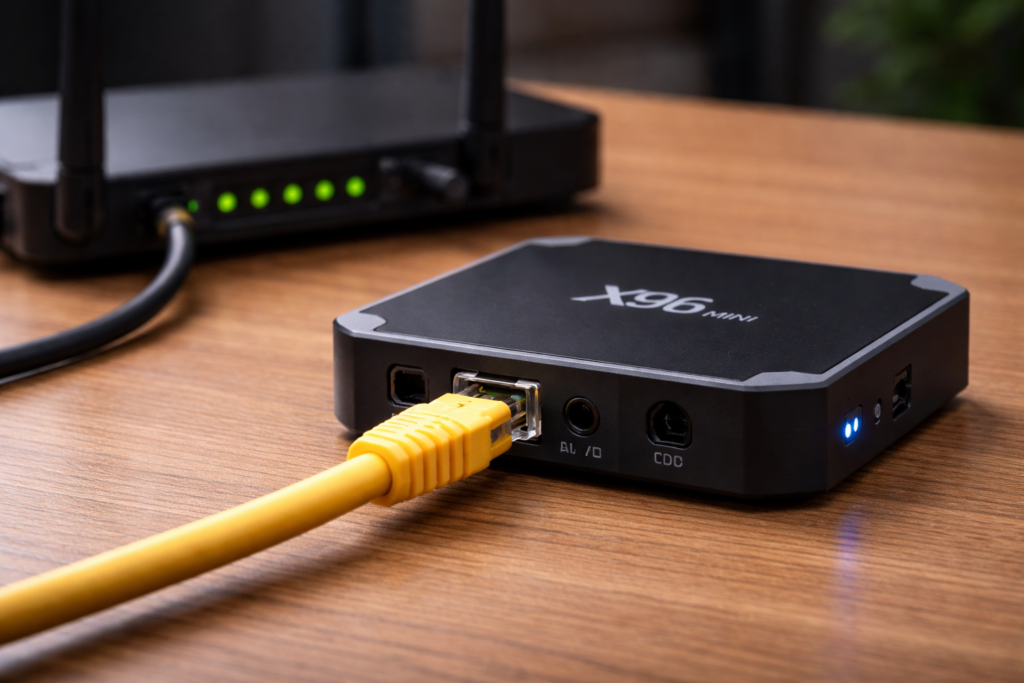
Step 7 — Use an Ethernet Cable (Temporary Fix)
If WiFi is still not working, plug your X96 Mini into your router using an Ethernet cable while you troubleshoot further. Most X96 Mini models have a built-in LAN port.
This won’t permanently fix the WiFi, but it gets you back online right away 📺 and confirms the internet itself is working fine.
🛠️ Advanced Fixes (When Nothing Else Works)
Factory Reset
If you’ve tried everything above and the X96 Mini WiFi is still not working, a full factory reset may be necessary. This erases all apps and settings and returns the device to its original state — often clearing stubborn software bugs in the process.
Head over to our step-by-step guide on how to reset X96 Mini to do this safely.
Firmware Reinstall
In rare cases, the firmware itself becomes too corrupted to fix through normal settings. Reinstalling the firmware from scratch using a USB drive can completely resolve the issue. It sounds technical, but the process is straightforward when you follow the right guide. Check out our update X96 Mini firmware article for a beginner-friendly walkthrough.
💡 Tips to Keep Your X96 Mini Connected
Prevention is better than a fix. Here’s how to avoid the X96 Mini no WiFi problem in the future:
- Place your router in a central location — avoid hiding it inside cabinets 📶
- Use a 2.4GHz network for the X96 Mini — it has better range than 5GHz
- Avoid interference — keep the device away from microwaves and cordless phones
- Restart your X96 Mini once a week — it prevents software bugs from building up
- Keep firmware up to date — new updates fix bugs before they become problems
- Don’t overload your router — too many connected devices can slow everything down
And if you’re dealing with other issues alongside the WiFi problem, check out our guides on the X96 Mini no signal fix or how to fix your X96 Mini stuck on logo — both are common problems that can appear together.
Conclusion
Dealing with an X96 Mini no WiFi problem can feel overwhelming, but as you’ve seen, there’s a clear path to fixing it. Start simple — restart your devices and move closer to the router. If that doesn’t work, forget and reconnect to your network, check your settings, and update your firmware.
Nine times out of ten, one of these steps will get you back online fast. ⚡
You’ve got this. Take it one step at a time, and your X96 Mini will be streaming again before you know it. 💪 If this guide helped you, share it with a friend who might be dealing with the same headache!
📌 Related Guides
Install Apps on X96 Mini — Complete 2026 Guide
Install apps on X96 Mini — it sounds technical, but it really isn’t. Whether you want Netflix, YouTube,…
Clean Storage on X96 Mini — Complete 2026 Guide
Clean storage on X96 Mini — if you’re here, you’ve probably seen that dreaded “insufficient storage” notification, watched…
Fix Lag on X96 Mini — Complete 2026 Guide
Fix lag on X96 Mini — that’s exactly what this guide is here to do. Because nothing kills…