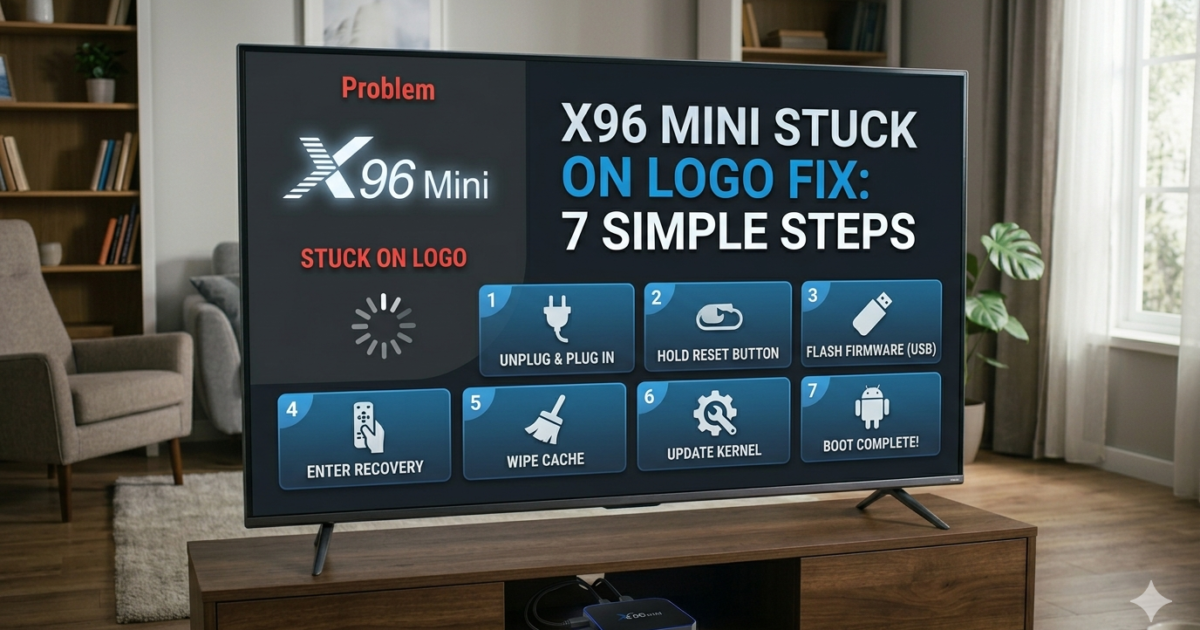
X96 Mini Stuck on Logo Fix: 7 Simple Steps to Boot Your Device Again
Is your X96 Mini stuck on the boot logo and refusing to start? You power it on, the logo appears… and then nothing. It just sits there, frozen. ⚡
This is called a boot loop or stuck on logo issue, and it’s more common than you think. The great news is that most of the time, you can fix it yourself at home — without sending your device anywhere or spending a single penny.
Let’s get your X96 Mini back up and running. 🔧
What Causes X96 Mini to Get Stuck on the Boot Logo?
Understanding the cause helps you pick the right fix. Here are the most common reasons this happens:
- Corrupted firmware — The system files got damaged, often after a bad update
- Too many apps or full storage — When storage is completely full, the device can’t finish booting
- Failed or interrupted update — If an update was cut off mid-way, it can break the boot process
- Power issues — An unstable or weak power adapter can cause the X96 Mini to freeze during startup
- Faulty USB device connected — A plugged-in USB drive can sometimes interrupt the boot
Any of these can cause the Android TV box stuck on logo problem — but all of them are fixable.
🔧 Step-by-Step: How to Fix X96 Mini Stuck on Logo
Work through these steps in order. Start simple — you may not need to go all the way to Step 7.
Step 1 — Restart the X96 Mini
First things first. Hold the power button on your remote or on the device itself for 10 seconds to force it off. Then turn it back on. Sometimes a hard restart is all it takes to fix X96 Mini stuck on logo.
Step 2 — Disconnect Power and Wait 1 Full Minute
Unplug the power cable from the wall completely. Don’t just press standby — fully cut the power. Wait at least 60 seconds, then plug it back in. This clears any temporary glitch in the system memory.
Step 3 — Remove All USB Devices
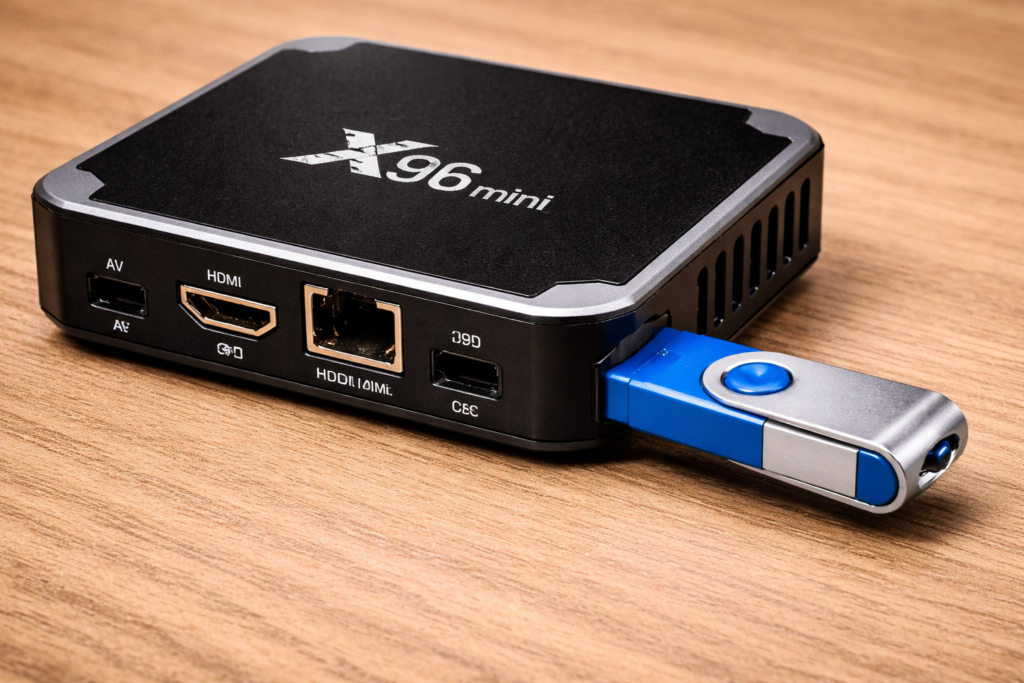
If you have a USB drive, USB keyboard, or any other device plugged into the X96 Mini, remove everything. Then try booting again. An unrecognized USB device is a surprisingly common cause of the boot loop issue.
Step 4 — Try a Different Power Adapter
A weak or unstable power supply is often overlooked. The X96 Mini typically needs a 5V/2A power adapter to boot properly. If your adapter is underpowered or faulty, the device will freeze at the logo every time.
Try borrowing a compatible adapter and see if it makes a difference.
Step 5 — Perform a Factory Reset Using the Reset Button
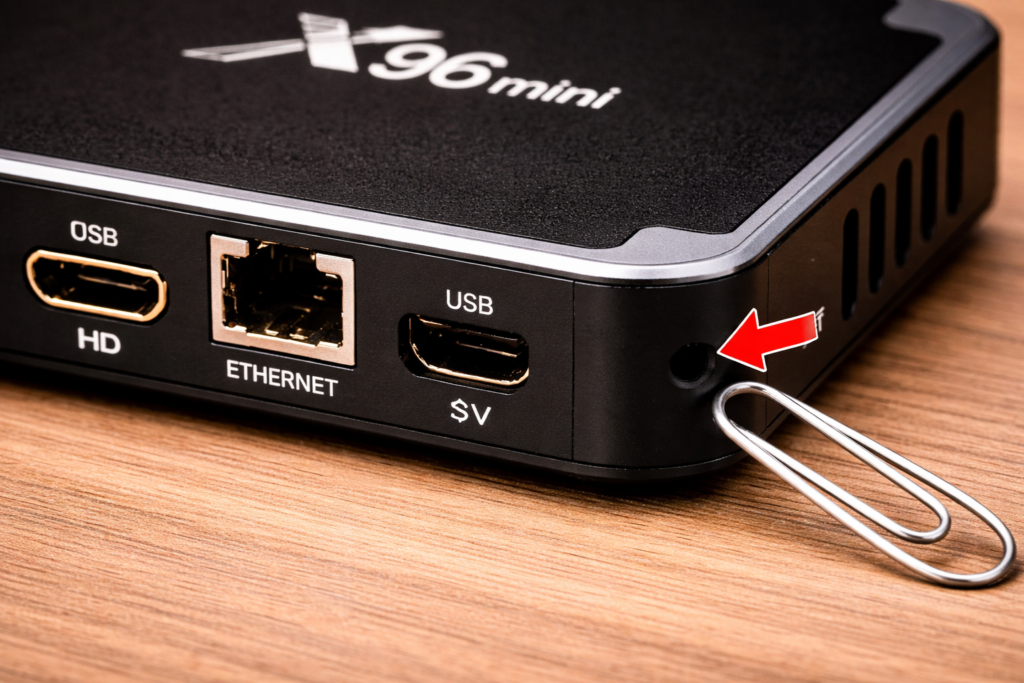
If the device is still stuck, it’s time for a reset. The X96 Mini has a small reset button — usually found inside the AV port or along the side of the device. Use a toothpick or thin paperclip to press and hold it for 5–10 seconds while the device is powered on.
This triggers a factory reset and clears any corrupted settings that may be preventing the device from booting.
⚠️ Note: A factory reset will erase your apps and settings. For a full walkthrough, check out our guide on how to reset X96 Mini.
Step 6 — Boot Into Recovery Mode
If the reset button didn’t work, try accessing recovery mode manually:
- Power off the X96 Mini completely
- Press and hold the reset button while plugging in the power cable
- Keep holding for 10 seconds until a recovery menu appears on screen
- Use the remote to navigate to “Wipe Data / Factory Reset” and confirm
This is a deeper reset that can fix X96 Mini boot loop issues caused by corrupted system data.
Step 7 — Reinstall the Firmware
If nothing else has worked, the firmware (operating system) itself may be corrupted and needs to be reinstalled. This sounds scary, but the basic process is:
- Download the correct firmware for your X96 Mini model from the manufacturer’s website
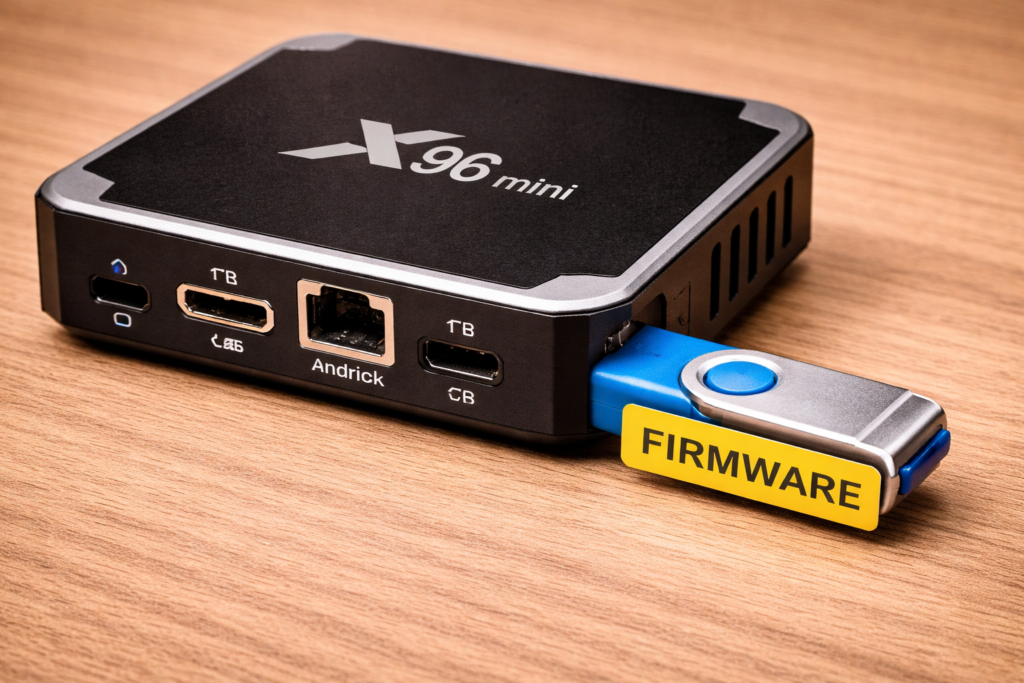
- Copy it onto a USB drive
- Insert the USB drive into your X96 Mini and boot into recovery mode
- Select the option to install or update from USB
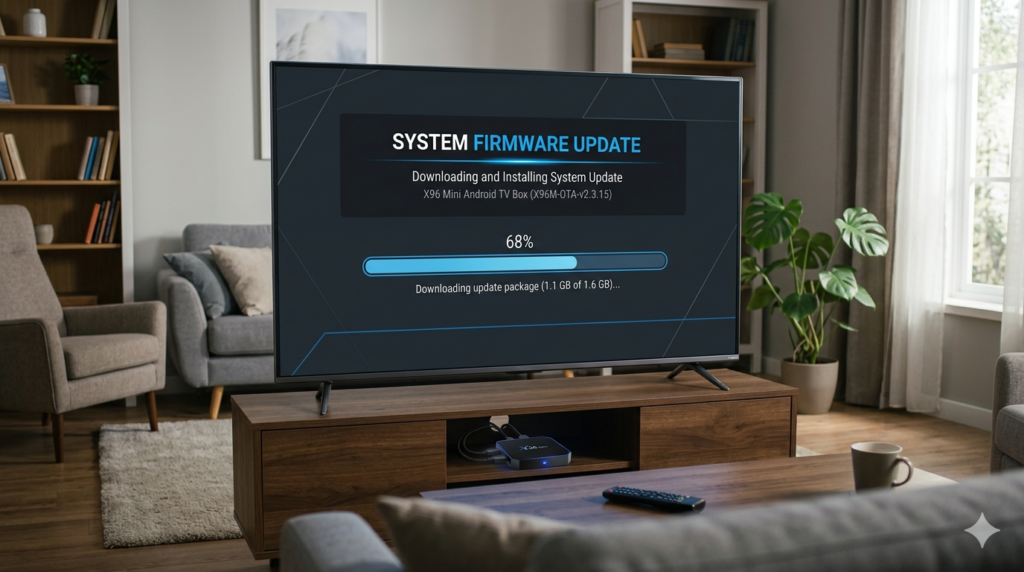
For a safe, detailed walkthrough, read our guide on how to update X96 Mini firmware before attempting this step.
🛠️ Advanced Fix: Flash Firmware Using a PC Tool
If even reinstalling from USB didn’t help, the last option is flashing the firmware using a tool like Amlogic USB Burning Tool on a Windows PC. This completely rewrites the device software from scratch.
This fix is for more confident users — but it works even on devices that won’t boot at all. Keep the process simple: download the tool, load the firmware file, connect your X96 Mini via USB-C to your PC, and follow the on-screen prompts.
💡 Tips to Prevent This Problem in the Future
A little prevention goes a long way. Here’s how to keep your X96 Mini healthy:
- Never unplug the device during an update — always let it finish
- Use a quality power adapter — cheap adapters cause more problems than you’d expect 📺
- Don’t overfill the storage — keep at least 500MB free at all times
- Avoid installing apps from unknown sources — they can corrupt system files
- Restart your device once a week — it keeps things running smoothly
Also, if you’re dealing with other issues after fixing this one, check out our guides on the X96 Mini no signal fix or how to fix X96 Mini WiFi problem — both are common follow-up issues users run into.
Conclusion
A frozen boot logo is one of the most panic-inducing problems an X96 Mini owner can face — but as you’ve seen, it’s almost always fixable. 💡
Start with the simple steps: restart, unplug, remove USB devices, and try a new power adapter. If those don’t work, the reset button and recovery mode will almost certainly do the trick. And if you’re still stuck, reinstalling the firmware is your final safety net.
Take it one step at a time, and don’t rush. Your X96 Mini is tougher than it looks — and with a little patience, it’ll be back to streaming your favorite content in no time. 💪
📌 Related Guides
Install Apps on X96 Mini — Complete 2026 Guide
Install apps on X96 Mini — it sounds technical, but it really isn’t. Whether you want Netflix, YouTube,…
Clean Storage on X96 Mini — Complete 2026 Guide
Clean storage on X96 Mini — if you’re here, you’ve probably seen that dreaded “insufficient storage” notification, watched…
Fix Lag on X96 Mini — Complete 2026 Guide
Fix lag on X96 Mini — that’s exactly what this guide is here to do. Because nothing kills…