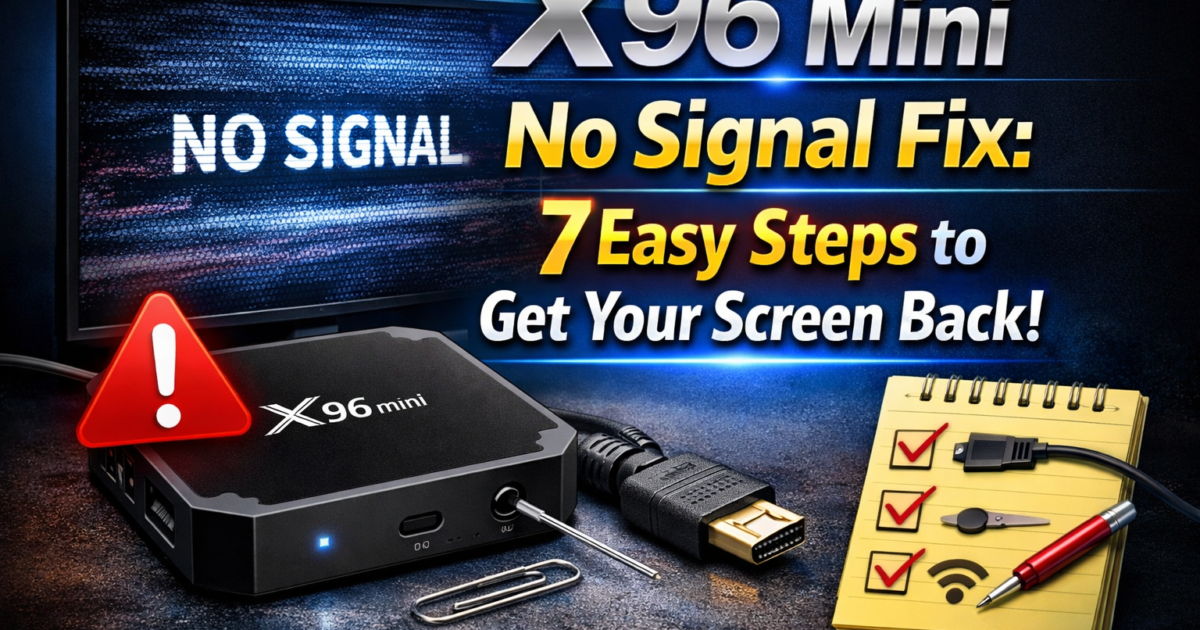
X96 Mini No Signal Fix: 7 Easy Steps to Get Your Screen Back
You just plugged in your X96 Mini, grabbed the remote, and… nothing. The TV screen says “No Signal.” Frustrating, right? 😤
Don’t worry — you’re not alone, and this is actually one of the most common issues X96 Mini users face. The good news? In most cases, it’s a simple fix you can do yourself in just a few minutes. No technical skills required.
Let’s walk through everything you need to know to fix the X96 Mini no signal problem and get back to streaming.
What Causes “No Signal” on X96 Mini?
Before jumping into the fixes, it helps to understand why this happens. The “no signal” error usually comes down to one of these culprits:
- HDMI connection issues — A loose or faulty cable is the #1 cause
- Wrong TV input source — Your TV might be looking at the wrong HDMI port
- Power problems — The X96 Mini might not be fully powered on
- TV compatibility — Some older TVs struggle with certain resolution outputs
- Corrupted settings — A bad resolution or display setting after an update
Now let’s fix it. ⚡
🔧 Step-by-Step: How to Fix X96 Mini No Signal
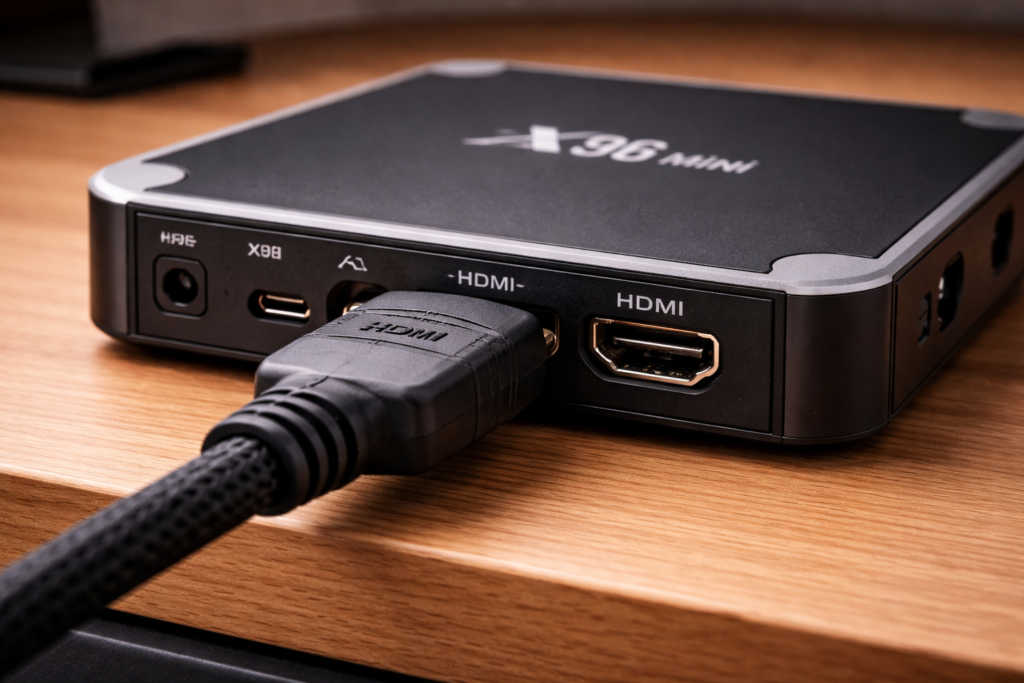
Step 1 — Check Your HDMI Cable Connection
This sounds obvious, but it fixes the problem more often than you’d think.
Unplug the HDMI cable from both the X96 Mini and your TV, then plug it back in firmly. Make sure it clicks or seats snugly into both ports. A half-inserted cable won’t pass a signal.
Step 2 — Select the Correct TV Input Source
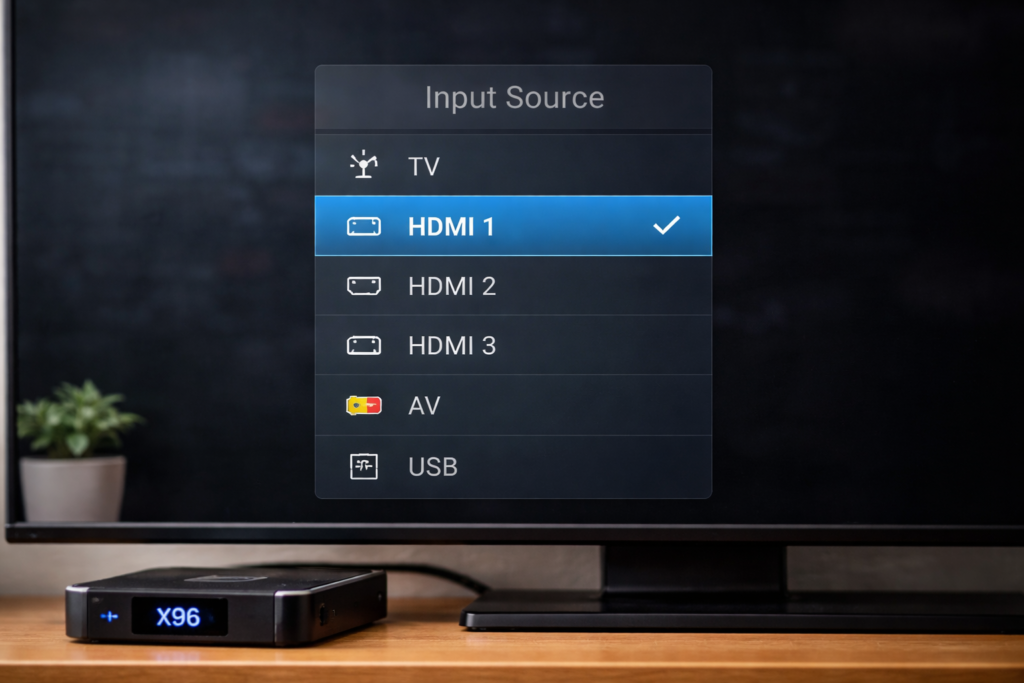
Your TV has multiple HDMI ports (usually HDMI 1, HDMI 2, HDMI 3). If your X96 Mini is plugged into HDMI 2 but your TV is set to HDMI 1 — that’s your problem.
Grab your TV remote and press the Source, Input, or AV button. Scroll through the options until you find the correct HDMI port.
Step 3 — Restart the X96 Mini
Sometimes the box just needs a fresh start. Unplug the power adapter from the wall, wait about 30 seconds, then plug it back in. Give it a minute to fully boot up before checking your TV screen.
Step 4 — Try a Different HDMI Port on Your TV
If you’re still seeing the X96 Mini no display problem, try moving the HDMI cable to a different port on your TV. Ports can wear out or develop faults over time.
Step 5 — Swap the HDMI Cable
Not all HDMI cables are created equal. Try using a different cable — ideally one you know works with another device. A damaged or low-quality cable is a surprisingly common cause of the no signal issue.
Step 6 — Use the Reset Button
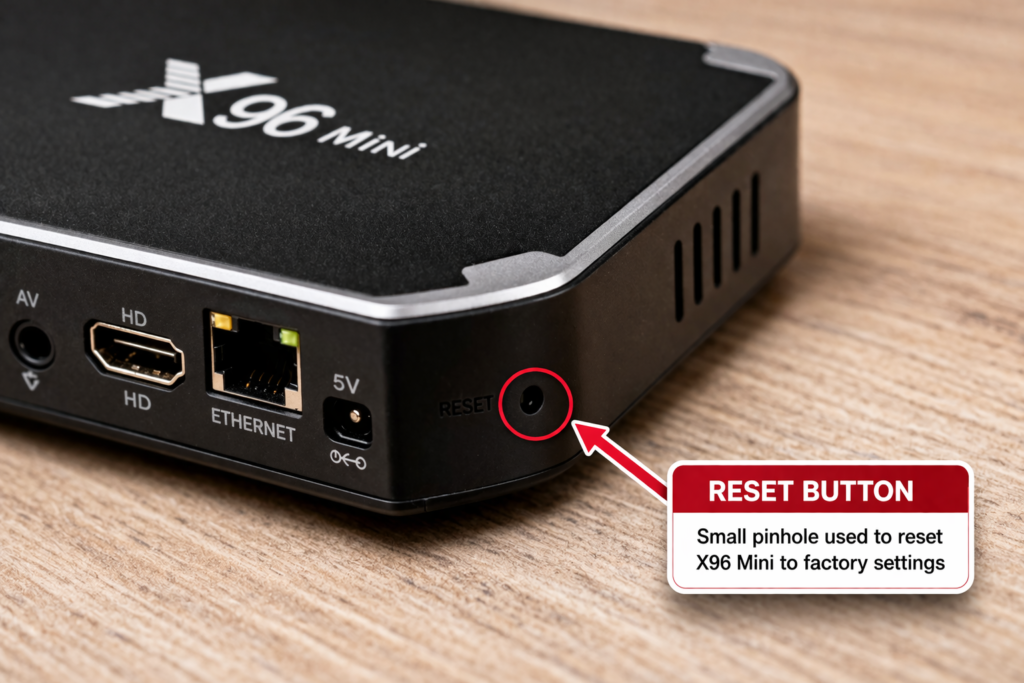
The X96 Mini has a small reset button, usually located inside the AV port or on the side of the device. Use a toothpick or thin object to press and hold it for about 5 seconds while the device is powered on. This can clear a display glitch without wiping your data.
If you need more detailed help with this, check out our full guide on how to reset X96 Mini for step-by-step instructions.
Step 7 — Fix the Resolution Settings
If your X96 Mini boots up fine on one TV but shows no signal on another, the resolution might be set too high. Some TVs don’t support 4K or 1080p output.
To fix this: hold the power button on the X96 Mini remote for about 5 seconds. On some firmware versions, this cycles through resolution options (1080p → 720p → 480p). Try each one and see if your TV picks up the signal.
🛠️ Advanced Fixes (When Nothing Else Works)
Factory Reset
If the steps above didn’t solve your X96 Mini no signal issue, a full factory reset might be needed. This will erase all your settings and apps and return the device to its original state. It’s a last resort, but it works. Check out our dedicated article on how to reset X96 Mini for the exact process.
Firmware Update
Outdated firmware can sometimes cause display and signal problems. Once you can access the screen (try a different TV first), it’s worth checking if there’s a software update available. Our guide on how to update X96 Mini firmware walks you through the process safely and simply.
💡 Tips to Prevent the “No Signal” Problem in Future
- Always use a good-quality HDMI cable (HDMI 2.0 recommended 📺)
- Don’t yank the HDMI cable out while the device is on
- Set your resolution to match what your TV actually supports
- Keep your X96 Mini firmware up to date
- Store the device in a ventilated spot to avoid overheating
If your device won’t power on at all, that’s a different issue — take a look at our troubleshooting guide for X96 Mini not turning on or our article on how to fix X96 Mini WiFi problem if you’re having network issues after getting your display back.
Conclusion
The X96 Mini no signal problem is annoying, but it’s almost always fixable without any special tools or technical knowledge. Start with the simple stuff — check the HDMI cable, switch your TV input, and restart the device. In most cases, one of those three steps will solve it right away.
If you needed to go further, the reset button and resolution cycling tricks are powerful options that most people overlook.
You’ve got this. 💪 With a little patience and the right steps, your X96 Mini will be back up and running in no time. If you found this guide helpful, feel free to share it with someone else who might be dealing with the same frustration!
📌 Related Guides
Install Apps on X96 Mini — Complete 2026 Guide
Install apps on X96 Mini — it sounds technical, but it really isn’t. Whether you want Netflix, YouTube,…
Clean Storage on X96 Mini — Complete 2026 Guide
Clean storage on X96 Mini — if you’re here, you’ve probably seen that dreaded “insufficient storage” notification, watched…
Fix Lag on X96 Mini — Complete 2026 Guide
Fix lag on X96 Mini — that’s exactly what this guide is here to do. Because nothing kills…