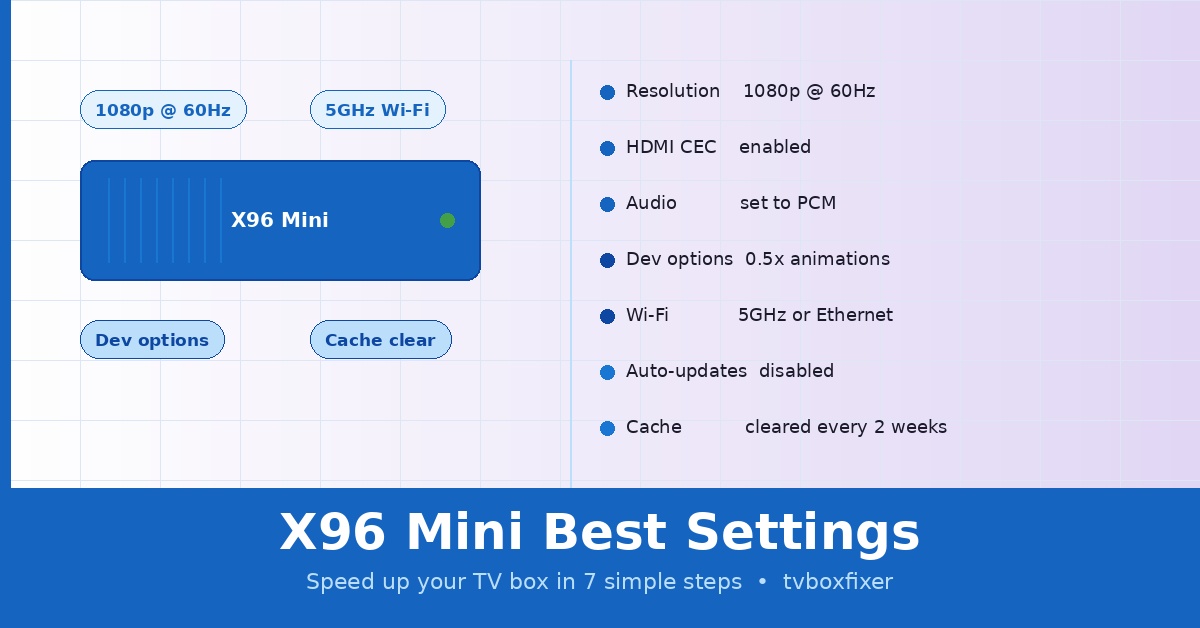
Looking for the best settings for your X96 Mini? You’re in the right place. In this guide, we’ll walk you through every setting you need to tweak to get the best performance, picture quality, and streaming experience out of your X96 Mini Android TV box — step by step.
Whether your X96 Mini is running slow, buffering, or you just want to get the most out of it, these settings will make a noticeable difference.
What Is the X96 Mini? (Quick Overview)
The X96 Mini is one of the best-selling budget Android TV boxes on the market. It runs Android 7.1 or 9.0, is powered by an Amlogic S905W processor, and supports 4K streaming at an affordable price. However, straight out of the box, the default settings are not optimized — which is exactly why this guide exists.
Best X96 Mini Settings: Step-by-Step Guide
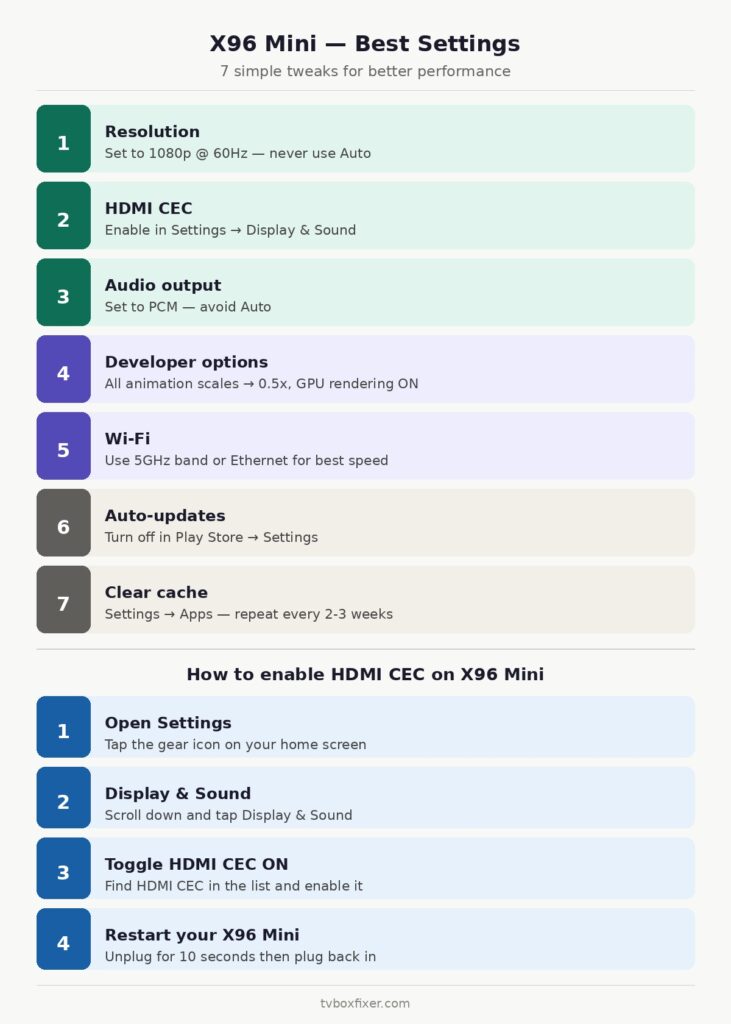
Step 1: Set the Correct Display Resolution
The wrong resolution is one of the most common reasons the X96 Mini looks blurry or stutters on screen.
- Go to Settings → Display & Sound → Resolution
- Set it to 1080p @ 60Hz if your TV supports Full HD
- If you see flickering or a black screen, drop it to 720p @ 60Hz
⚠️ Never leave it on “Auto” — it causes stuttering and inconsistent display quality on the X96 Mini.
Step 2: Enable HDMI CEC
HDMI CEC allows you to control your X96 Mini with your TV remote — saving you from juggling two remotes at once.
- Go to Settings → Display & Sound
- Find HDMI CEC and switch it ON
- Restart your X96 Mini for the changes to apply
Step 3: Fix the Audio Output Settings
Bad audio settings can result in no sound or poor quality audio — especially when using a soundbar or AV receiver.
- Go to Settings → Display & Sound → Audio Output
- If using a soundbar or AV receiver: set to HDMI (PCM or Dolby)
- If using TV speakers: set to PCM
⚠️ Avoid setting audio to “Auto” — it sometimes outputs silence on the X96 Mini.
Step 4: Unlock Developer Options and Optimize Performance
This is the most powerful tweak for speeding up your X96 Mini. Developer Options gives you access to hidden performance settings that make a huge difference.
How to enable Developer Options on X96 Mini:
- Go to Settings → About
- Find Build Number and tap it 7 times
- You’ll see “You are now a developer!”
- Go back to Settings → Developer Options
Best Developer Options settings for X96 Mini:
| Setting | Recommended Value |
|---|---|
| Window animation scale | 0.5x |
| Transition animation scale | 0.5x |
| Animator duration scale | 0.5x |
| Background process limit | 3 processes |
| Force GPU rendering | ON |
These settings reduce animation lag and free up RAM — making your X96 Mini feel significantly faster. ⚡
Step 5: Optimize Wi-Fi for Better Streaming
Buffering on the X96 Mini is almost always caused by a weak or unstable Wi-Fi connection. Here’s how to fix it.
- Go to Settings → Network → Wi-Fi
- Connect to the 5GHz band if your router supports dual-band (much faster than 2.4GHz)
- Tap your connected network and set:
- IP Settings → Static
- DNS 1: 8.8.8.8 (Google DNS)
- DNS 2: 1.1.1.1 (Cloudflare DNS)
💡 Pro tip: Connect your X96 Mini via Ethernet using a USB to Ethernet adapter for the most stable, buffer-free streaming experience.
Step 6: Turn Off Automatic App Updates
Auto app updates on the X96 Mini run silently in the background — slowing down your device at the worst possible times.
- Open Google Play Store
- Tap Menu → Settings → Auto-update apps
- Select “Don’t auto-update apps”
Update your apps manually once a week instead. Your X96 Mini will run smoother without random background activity.
Step 7: Clear App Cache Regularly
Cached data builds up over time and is one of the biggest causes of slowdowns on the X96 Mini.
- Go to Settings → Apps
- Open each app you use often (YouTube, Netflix, Kodi, etc.)
- Tap Clear Cache
- Repeat every 2 to 3 weeks
This simple habit keeps your X96 Mini running at its best long-term.
Best Apps to Install on X96 Mini
Once your settings are optimized, these apps will take your X96 Mini experience to the next level:
- Nova Launcher — faster, more customizable home screen
- SD Maid — cleans junk files and frees up storage space
- Kodi — the ultimate media center for X96 Mini
- VLC Media Player — best app for playing local video files
- Solid Explorer — the best file manager for Android TV boxes
X96 Mini Running Slow After These Settings?
If your X96 Mini is still slow after applying all the settings above, try these extra fixes:
- Factory reset the device and start fresh
- Uninstall unused apps to free up storage
- Make sure your power adapter is original — cheap adapters underpowe the processor
- Check if your X96 Mini is overheating — place it in an open, ventilated spot
Frequently Asked Questions About X96 Mini Settings
What Android version does the X96 Mini run? The X96 Mini runs Android 7.1 or Android 9.0 depending on which version you purchased.
Can the X96 Mini run 4K video? Yes, the X96 Mini supports 4K at 30fps. For smoother 4K playback, make sure your resolution is set correctly and your internet speed is at least 25 Mbps.
How do I speed up my X96 Mini? The fastest way to speed up your X96 Mini is to enable Developer Options and set all animation scales to 0.5x, clear app cache, and connect to 5GHz Wi-Fi or Ethernet.
Is the X96 Mini good for streaming? Yes — with the right settings, the X96 Mini is a solid budget streaming box. It handles Netflix, YouTube, and Kodi very well.
Final Thoughts
With the right settings, the X96 Mini performs way above its price point. The Developer Options tweak alone is enough to make the whole device feel faster. Combine that with proper Wi-Fi settings and regular cache clearing, and you’ll have a smooth, reliable streaming experience every time.
Have a question about your X96 Mini settings? Drop it in the comments below — we read and reply to every one! 💬
Posted on TVBoxFixer | Your go-to resource for fixing, tweaking, and getting the most out of your TV box.
📌 Related Guides
Why is My TV Box So Slow? (Fix Lag & Speed Issues)
Why is My TV Box So Slow? (Fix Lag & Speed Issues) If your TV box is crawling…