I have been fixing Android TV boxes for a long time. And the Mi Box S no internet connection problem is probably the one I get asked about the most. People message me saying the same thing every time: “It shows connected but nothing works. I tried everything. I think my box is broken.”
It is almost never broken.
You stare at your Mi Box S and it clearly says “Connected” — but nothing loads. Netflix just spins. YouTube refuses to start. The internet is simply not there even though your WiFi looks perfectly fine.
I have been through this exact situation more times than I can count — both on my own devices and helping other people fix theirs. And after all that experience, I want to share the fix that most guides completely ignore. The one that has saved me the most time. But first, let me walk you through everything in order so you do not miss anything.
━━━━━━━━━━━━━━━━━━━━━━━━━━━━━━━━━━
⚡ Quick Answer
Mi Box S no internet connection is almost always caused by one of these things:
🔸 A router that needs a restart 🔸 Wrong date and time on the box — this one catches almost everyone off guard 🔸 A DNS setting that is blocking the connection 🔸 Outdated system software with a known bug
Start by restarting both your Mi Box S and your router. If that does not work — and in my personal experience this happens a lot — go straight to the date and time settings. That single fix has solved the problem for me and for dozens of people I have helped, faster than anything else.
━━━━━━━━━━━━━━━━━━━━━━━━━━━━━━━━━━
🤔 Why Does Mi Box S Say Connected But Have No Internet?
Here is something most people do not realize: “connected to WiFi” and “has internet access” are two completely different things. Your Mi Box S can connect to your router just fine while the router itself has no internet — or while something is quietly blocking the signal in the background.
The most common reasons I have seen after fixing dozens of these boxes:
📌 The router lost its internet connection temporarily 📌 The date and time on the box are wrong — apps reject the connection silently 📌 The Mi Box S received a bad IP address from the router 📌 DNS settings stopped working properly 📌 The software is outdated and has a connection bug 📌 Too many devices are using the router at the same time 📌 The internet provider is having a temporary outage
Let me walk you through the fixes one by one.
━━━━━━━━━━━━━━━━━━━━━━━━━━━━━━━━━━
🛠️ Step-by-Step Fixes — Start From the Top
━━━━━━━━━━━━━━━━━━━━━━━━━━━━━━━━━━
🔄 Step 1 — Restart Your Mi Box S
I always start here. It sounds too simple, but it genuinely works about 20% of the time on its own. When your box runs for days without a proper restart, small memory errors build up and cause exactly this kind of connection issue.
How to do it:
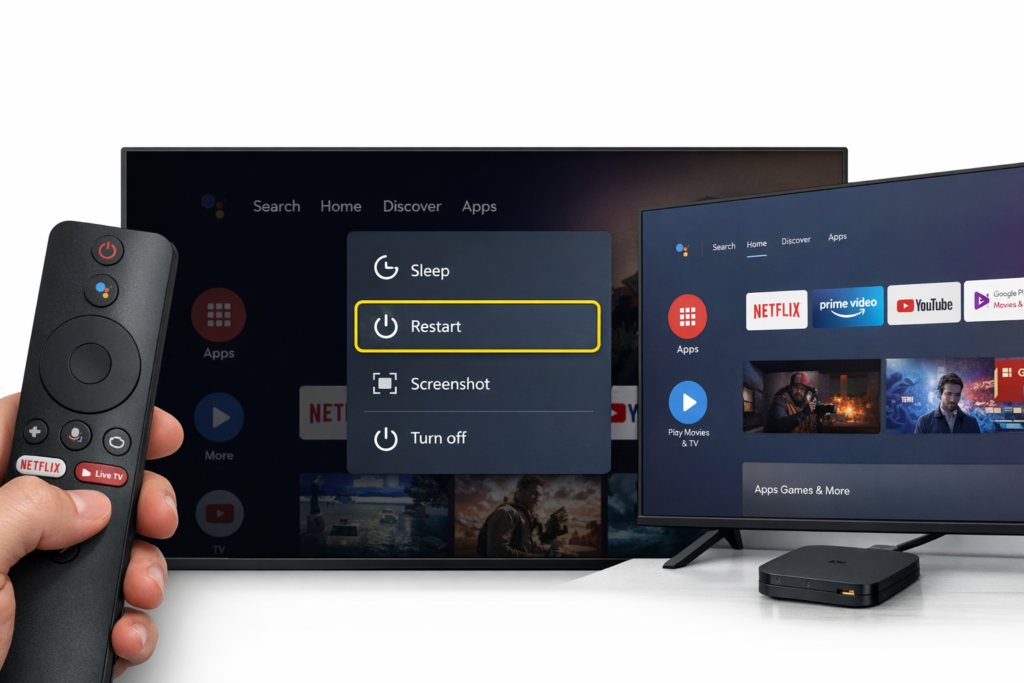
1️⃣ Press and hold the Home button on your remote for 3 seconds
2️⃣ A menu appears on screen — select Restart
3️⃣ Wait about 60 seconds for the box to fully boot up
4️⃣ Try opening an app to see if the internet is back
✅ Fixed it? Great — you are done. ❌ Still no internet? Continue to Step 2.
🌐 Step 2 — Restart Your Router
Your router is the device that connects your whole home to the internet. I can not count how many times I have seen a router that looks fine — all the lights are on, all devices show connected — but it has completely lost its internet feed. A simple restart brings it right back.
How to do it:
1️⃣ Find your router — the box with antennas, usually near your TV or in another room
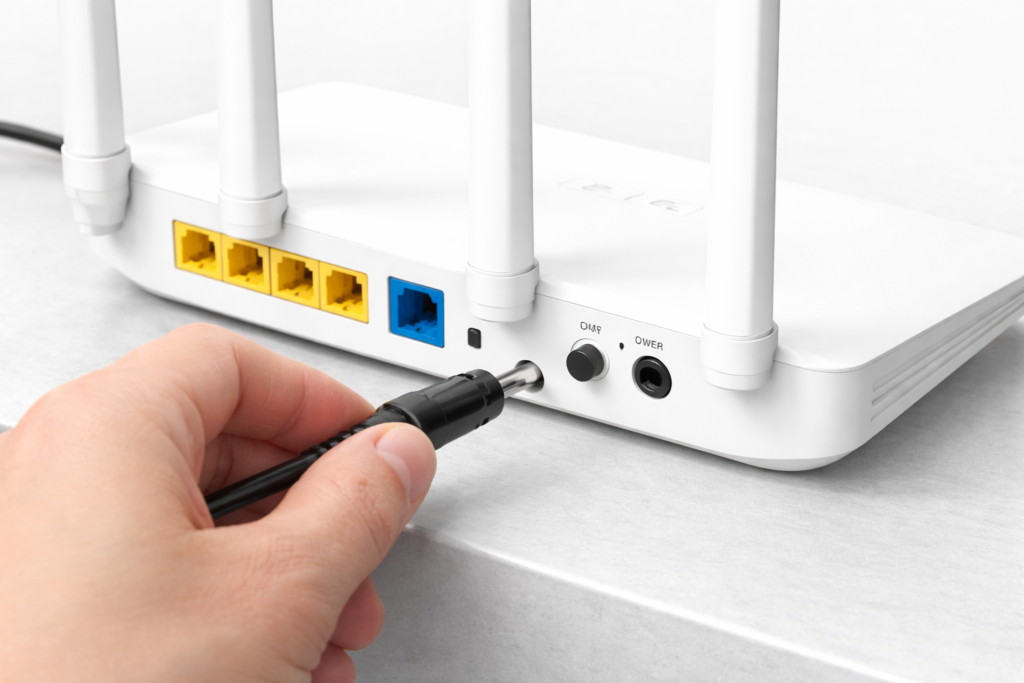
2️⃣ Unplug the power cable from the back
3️⃣ Wait a full 30 seconds — do not skip this, it matters
4️⃣ Plug it back in
5️⃣ Wait 60 seconds for it to fully reconnect to the internet
6️⃣ Test your Mi Box S again
⚠️ My tip: Always restart the router AND the box together — not just one of them. I have seen people restart only the box and wonder why it still does not work.
✅ Fixed it? ❌ Still no internet? Now we get to the fix I personally consider the most important one in this entire guide.
📅 Step 3 — Fix the Date and Time ⭐ My Number One Tip
Okay — this is the one I always tell people about first when they message me. And it is the one that almost no guide on the internet mentions.
Here is my honest experience: I have fixed the Mi Box S no internet problem more times using this single step than all other steps combined. The first time it happened to me personally, I spent almost two hours restarting, forgetting networks, changing DNS — nothing worked. Then I checked the date and time settings almost by accident, and the date was completely wrong. I fixed it, restarted the box, and the internet came back immediately. I felt a little silly. But I never forgot that lesson.
Here is why it happens: Every app that connects to the internet — Netflix, YouTube, Google Play, everything — uses a secure connection called HTTPS. To establish that connection, the app checks a security certificate and compares it against the current date and time. If your box date is wrong — even by one day — every single app rejects the connection silently. Your box stays connected to WiFi because it genuinely is. But all internet traffic gets blocked in the background without any error message that makes sense.
This happens most often after a power cut, after a factory reset, or when the Automatic Date and Time setting gets switched off accidentally. Synchronisation between your box and real time is not optional — it is essential.
How to fix it:
1️⃣ Go to Settings
2️⃣ Select Device Preferences
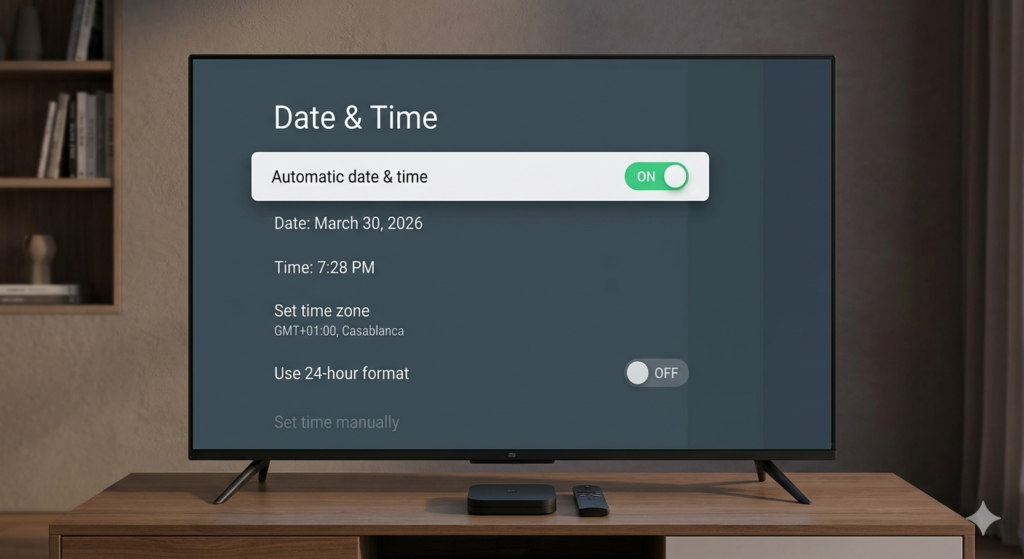
3️⃣ Select Date and Time
4️⃣ Make sure Automatic Date and Time is turned ON
5️⃣ If it was already on — turn it OFF, wait 10 seconds, then turn it back ON to force a resync
6️⃣ Look at the date and time shown on screen — confirm it matches today’s real date and time
7️⃣ Restart your Mi Box S
💡 From my own experience: If you just had a power cut or recently did a factory reset and your internet suddenly stopped working — skip everything else and come here first. Nine times out of ten this is the reason. The synchronisation step is the one most people miss and it is the one that matters most.
✅ Fixed it? I am not surprised — this one gets people every time. ❌ Still no internet? Keep going with Step 4.
📶 Step 4 — Forget the WiFi Network and Reconnect
Sometimes your Mi Box S holds onto old connection data that causes conflicts. Forgetting the network completely and reconnecting fresh clears all of that stored information.
How to do it:
1️⃣ Go to Settings
2️⃣ Select Network and Internet
3️⃣ Select WiFi
4️⃣ Find your home WiFi network in the list
5️⃣ Click on it and select Forget
6️⃣ Wait 10 seconds
7️⃣ Select your network again from the list
8️⃣ Enter your WiFi password carefully and reconnect
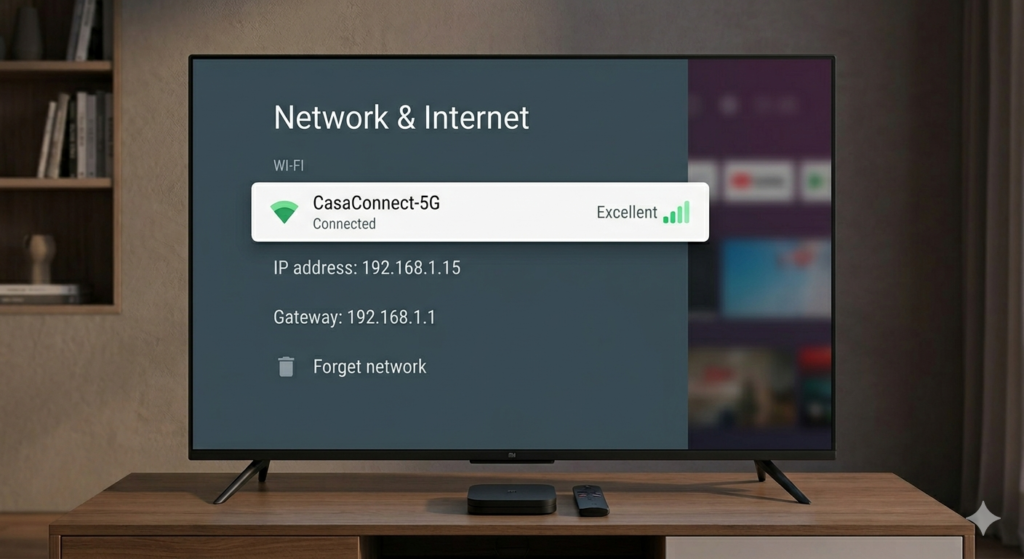
⚠️ Watch out here: Type your password carefully. I have seen people reconnect successfully but with one wrong character in the password — which causes the exact same no internet symptom as the original problem. If in doubt, check your router label for the correct password.
✅ Fixed it? ❌ Still no internet? Move to Step 5.
🔍 Step 5 — Check If the Problem Is Actually Your Internet Provider
Before going any further, take 60 seconds to confirm the problem is really with your Mi Box S and not your internet provider. This check has saved me a lot of time over the years.
How to check:
1️⃣ Pick up your phone
2️⃣ Turn off mobile data completely so it only uses WiFi
3️⃣ Try opening YouTube or any website on your phone
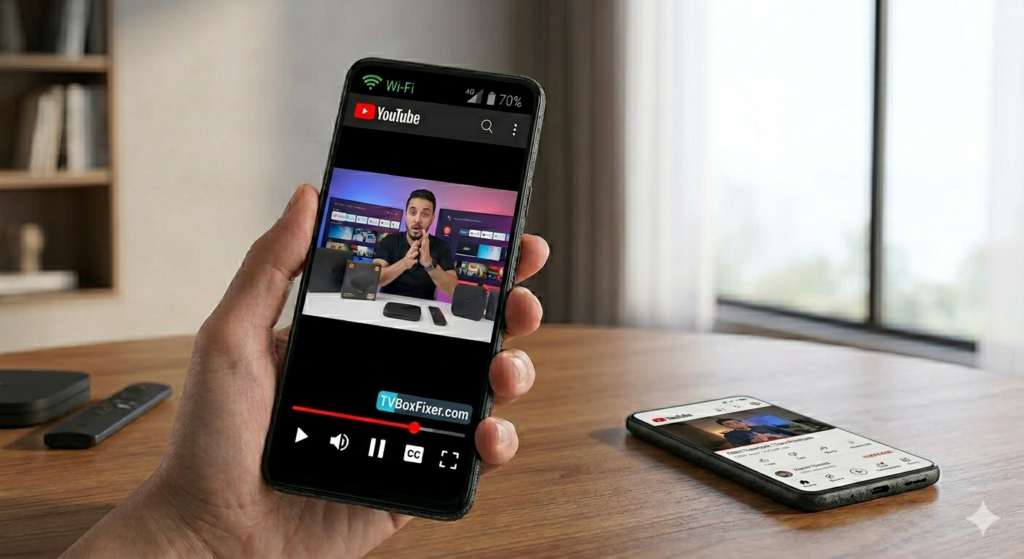
What the result tells you:
📵 Phone also has no internet → Your router or ISP is the problem. Call your internet provider. Your Mi Box S is completely fine.
📱 Phone works fine on WiFi → The problem is definitely the Mi Box S. Continue to Step 6.
⚙️ Step 6 — Change Your DNS Settings
DNS is like the internet’s phone book. When it breaks or slows down, your Mi Box S cannot find any website or streaming service — even with a perfect WiFi signal and correct date settings. This is a common cause of stubborn no internet problems that survive all the previous steps.
Switching to Google’s free public DNS is something I do on almost every box I set up. It is fast, free, and reliable.
How to do it:
1️⃣ Go to Settings
2️⃣ Select Network and Internet → WiFi
3️⃣ Click on your connected WiFi network name
4️⃣ Tap the pencil icon or select Modify Network
5️⃣ Tap Advanced Options
6️⃣ Change IP Settings from DHCP to Static
7️⃣ Find DNS 1 — clear it and type: 8.8.8.8
8️⃣ Find DNS 2 — clear it and type: 8.8.4.4
9️⃣ Tap Save
🔟 Restart your Mi Box S
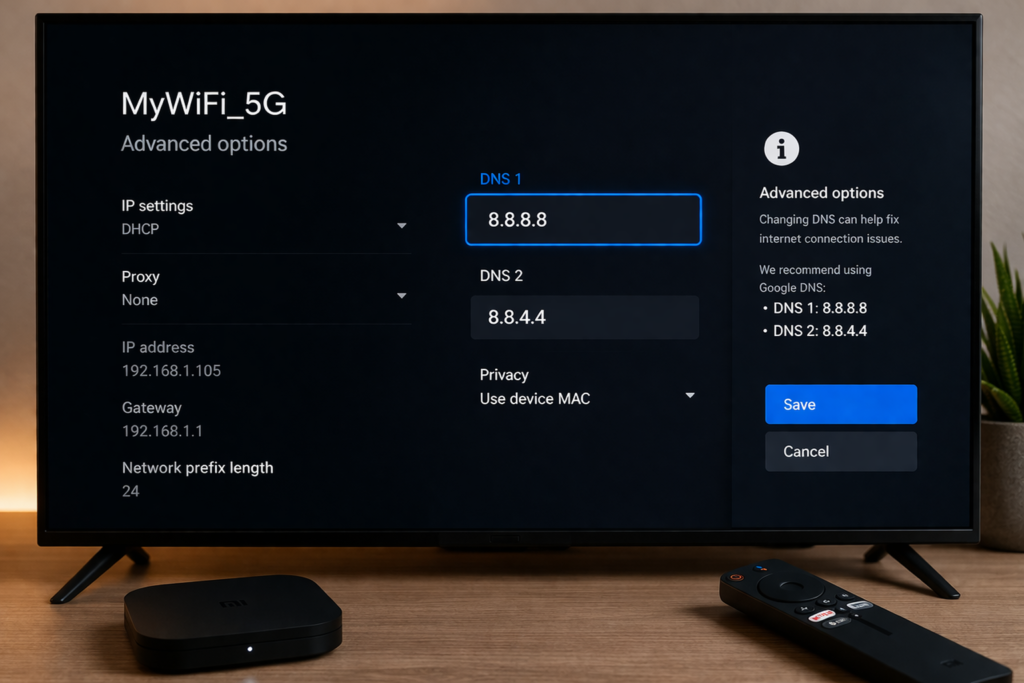
💡 What are these numbers? Google’s public DNS servers. Completely free, used by millions of devices around the world, and far more reliable than the default DNS most ISPs assign automatically.
✅ Fixed it? ❌ Still no internet? Continue to Step 7.
🔃 Step 7 — Update Your Mi Box S Software
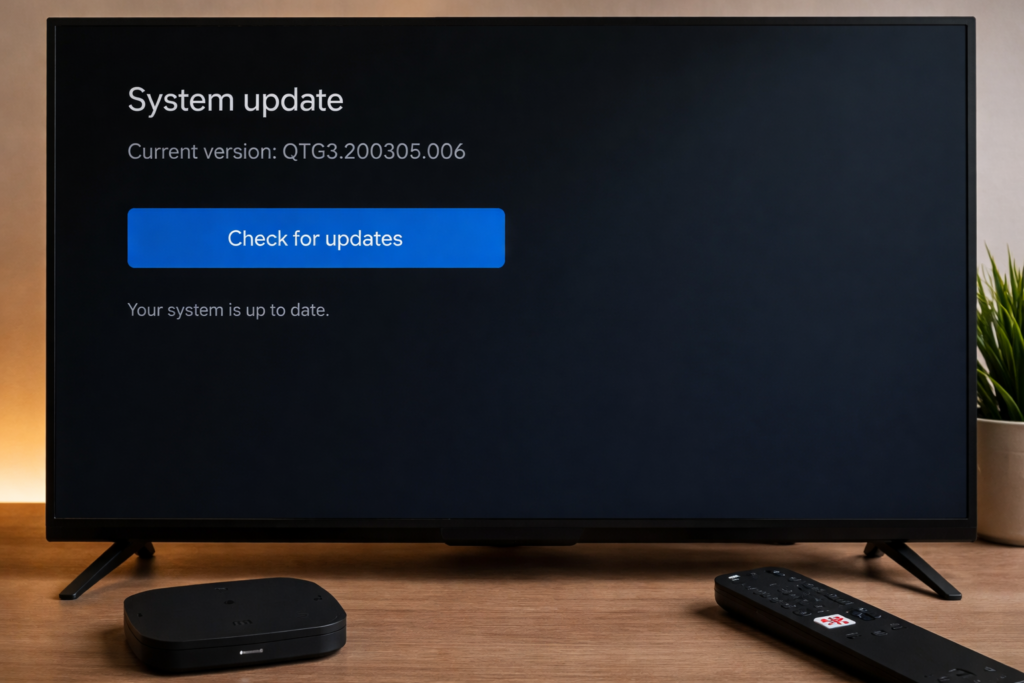
Xiaomi regularly releases updates that fix known WiFi bugs. If your box is running old software, it might be hitting a problem that was already fixed months ago in a newer version.
How to do it:
1️⃣ Go to Settings
2️⃣ Scroll to About
3️⃣ Select System Update
4️⃣ Tap Check for Updates
5️⃣ If an update is available, tap Download and Install
6️⃣ Wait for the process to finish — the box restarts automatically
🔴 Step 8 — Factory Reset Your Mi Box S (Last Resort Only)
I only recommend this when everything else has genuinely failed. A factory reset wipes everything — all apps, accounts, and settings — and starts fresh. It removes any deep software issue causing the problem.
⚠️ Before you do this: Make sure you have tried every step above including the date and time fix and the DNS fix. In my experience, almost nobody actually needs to reach this step. But if you do, here is how.
How to do it:
1️⃣ Go to Settings
2️⃣ Select About
3️⃣ Scroll to Factory Reset or Restore Factory Settings
4️⃣ Confirm when prompted
5️⃣ Follow the setup wizard after restart to reconnect to WiFi
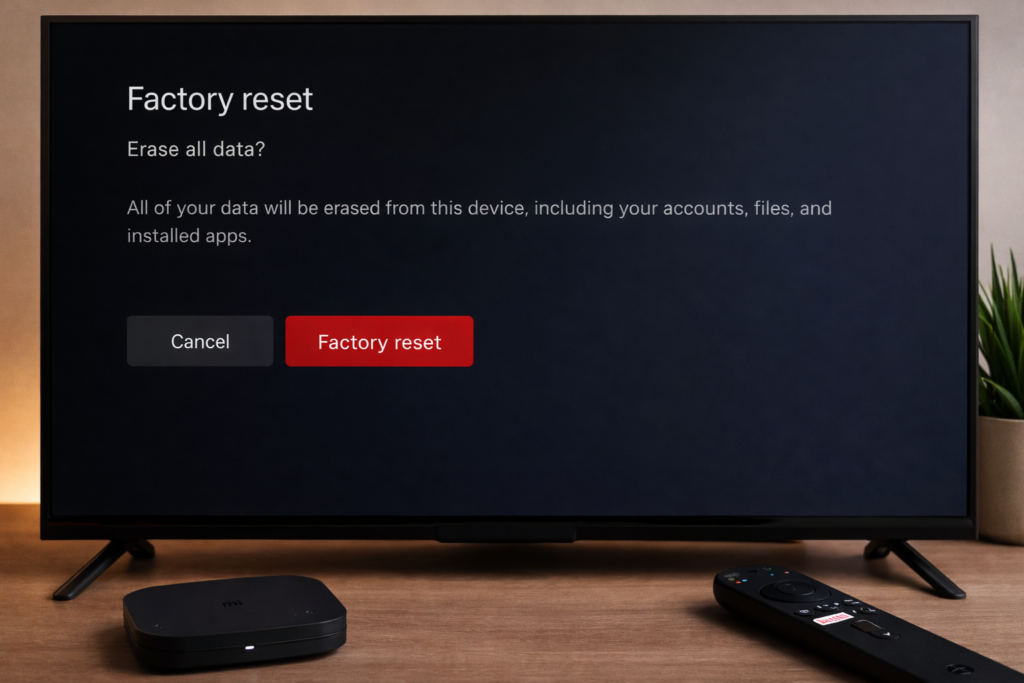
💡 After the reset — do this immediately: Go straight to Settings → Device Preferences → Date and Time and turn on Automatic Date and Time before doing anything else. A factory reset often leaves the date and time wrong, which will cause the exact same no internet problem to come back the moment you finish setup.
━━━━━━━━━━━━━━━━━━━━━━━━━━━━━━━━━━
🎯 Special Fix — What If Only One App Has No Internet?
If Netflix works but YouTube does not — the problem is not your internet connection. It is that specific app. I see this all the time and people go through the whole troubleshooting process unnecessarily.
Fix it in 3 steps:
1️⃣ Go to Settings → Apps → See All Apps
2️⃣ Find the app that is not working
3️⃣ Tap Clear Cache then Clear Data
4️⃣ Reopen the app
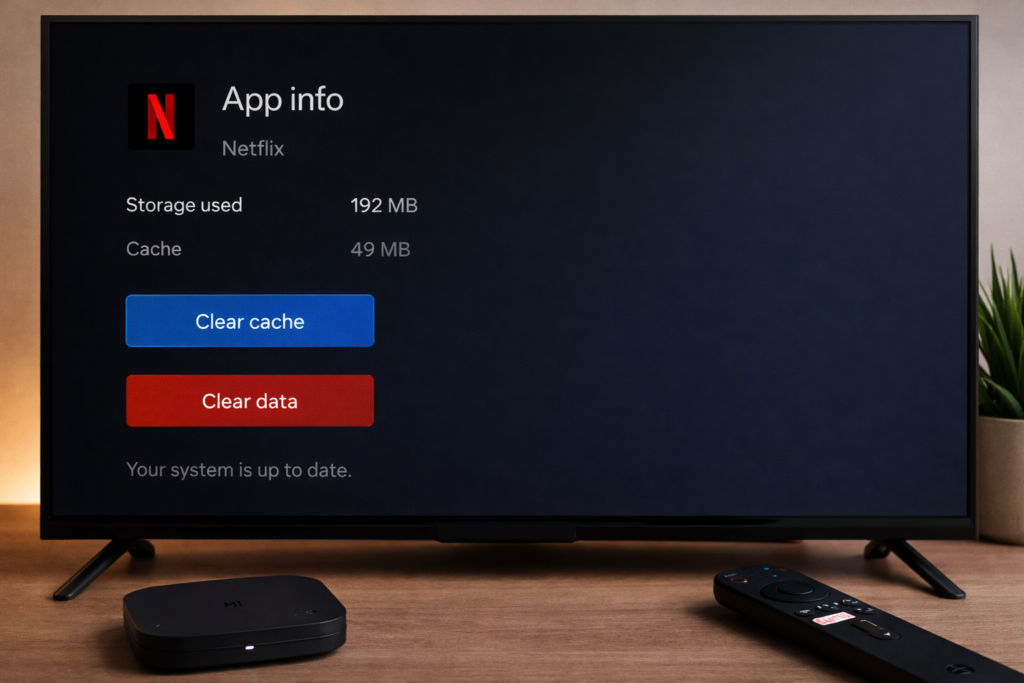
Thirty seconds. Done.
━━━━━━━━━━━━━━━━━━━━━━━━━━━━━━━━━━
❌ Common Mistakes I See People Make
━━━━━━━━━━━━━━━━━━━━━━━━━━━━━━━━━━
🚫 Restarting only the box and ignoring the router The router is involved in almost every internet problem. Always restart both together.
🚫 Skipping the date and time check This is the one that frustrates me the most to see skipped. It is a 30-second check and it is the cause of the problem more often than anything else on this list. Please do not skip it.
🚫 Typing the WiFi password wrong when reconnecting One wrong character reconnects you to WiFi while blocking all internet. Looks identical to the original problem.
🚫 Skipping the DNS fix because it looks too technical It takes 2 minutes. It is not as complicated as it looks. And in my experience it is the single most effective fix for cases that survive the restart and date fix.
🚫 Factory resetting before trying everything else I understand the impulse — it feels like a clean start. But it wipes everything and usually is not necessary. Save it for last.
━━━━━━━━━━━━━━━━━━━━━━━━━━━━━━━━━━
💡 Pro Tips From My Own Experience
━━━━━━━━━━━━━━━━━━━━━━━━━━━━━━━━━━
📅 After any power cut — check date and time immediately Power cuts are the number one cause of wrong date and time on Mi Box S. The moment your internet stops working after a power outage, go straight to Step 3 before touching anything else. I promise it will save you time.
📡 Move your Mi Box S closer to the router Distance and walls weaken WiFi. A box that is far from the router may show connected but have a signal too weak for stable streaming.
🚀 Use the 5GHz network if your router supports it Look for your network name with “5G” at the end and connect to that. It is faster and less congested than the standard 2.4GHz network.
🔌 Avoid WiFi extenders and repeaters In my experience, extenders cause more Mi Box S connection problems than they solve. Always connect directly to your main router signal.
📸 Photograph your DNS settings If you applied the fix in Step 6, take a photo of your settings. After any future factory reset you will need those numbers again and having a photo saves you from starting over.
━━━━━━━━━━━━━━━━━━━━━━━━━━━━━━━━━━
✅ Key Takeaways
━━━━━━━━━━━━━━━━━━━━━━━━━━━━━━━━━━
→ 🔄 Restart both your Mi Box S and your router first — solves most cases immediately
→ 📅 Check date and time before anything technical — wrong synchronisation silently blocks all internet and is the most commonly missed fix
→ ⚙️ The DNS fix using 8.8.8.8 and 8.8.4.4 solves most persistent cases
→ 📱 Test your phone on the same WiFi to confirm whether the problem is the box or your ISP
→ 🎯 If only one app fails, clear that app’s cache — do not run through all steps for a single app problem
→ 🔴 Factory reset is always last — try everything else first
→ 🔃 After any factory reset or power cut — fix the date and time before doing anything else
━━━━━━━━━━━━━━━━━━━━━━━━━━━━━━━━━━
❓ Frequently Asked Questions
━━━━━━━━━━━━━━━━━━━━━━━━━━━━━━━━━━
Q: Why does my Mi Box S say connected to WiFi but has no internet?
A: The most common reason I see is wrong date and time settings — this silently blocks all internet traffic while keeping WiFi connected. After that, router issues and DNS problems are the next most common causes. Start with a restart of both devices, then check your date and time settings.
Q: Can wrong date and time really cause no internet on Mi Box S?
A: Absolutely — and in my personal experience this is the number one overlooked cause. Every app uses HTTPS to connect to the internet, and HTTPS requires the correct date and time to verify security certificates. When the date is wrong, every app gets blocked silently. Turning on Automatic Date and Time and restarting fixes it immediately.
Q: How do I fix Mi Box S WiFi not working?
A: Restart your Mi Box S and router first. Then go to Settings → Device Preferences → Date and Time and confirm Automatic Date and Time is ON. If still not working, forget the WiFi network and reconnect, then change your DNS to 8.8.8.8 and 8.8.4.4. This sequence fixes the overwhelming majority of cases.
Q: Why does Mi Box S internet stop working after a power cut?
A: A power cut almost always resets the date and time on your Mi Box S. When the box restarts after a power cut with the wrong date, all internet gets silently blocked. Always check your date and time settings first after any power outage — this is the fix in my experience.
Q: Will a factory reset fix Mi Box S internet problems?
A: It can — but it is the last thing to try, not the first. And after a factory reset, go immediately to your date and time settings before doing anything else. The reset often leaves the date wrong, which brings the exact same problem right back.
📌 Related Guides
Clean Storage on X96 Mini — Complete 2026 Guide
Clean storage on X96 Mini — if you’re here, you’ve probably seen that dreaded “insufficient storage” notification, watched…

Fix Lag on X96 Mini — Complete 2026 Guide
Fix lag on X96 Mini — that’s exactly what this guide is here to do. Because nothing kills…

Best Settings for X96 Mini — Complete 2026 Guide
Best Settings for X96 Mini — Complete 2026 Guide Best settings for X96 Mini — that’s exactly what…